

Calendar
The Calendar menu is used to schedule your team’s meetings, appointments and internal events. Every entry you create is visible to the invited attendees, giving the whole team a shared view of important upcoming moments: progress reviews, morning briefings, sales appointments or follow-up meetings.
When to use it: whenever you need to set up an internal coordination moment with one or more team members, and make sure they find it in their own calendar.
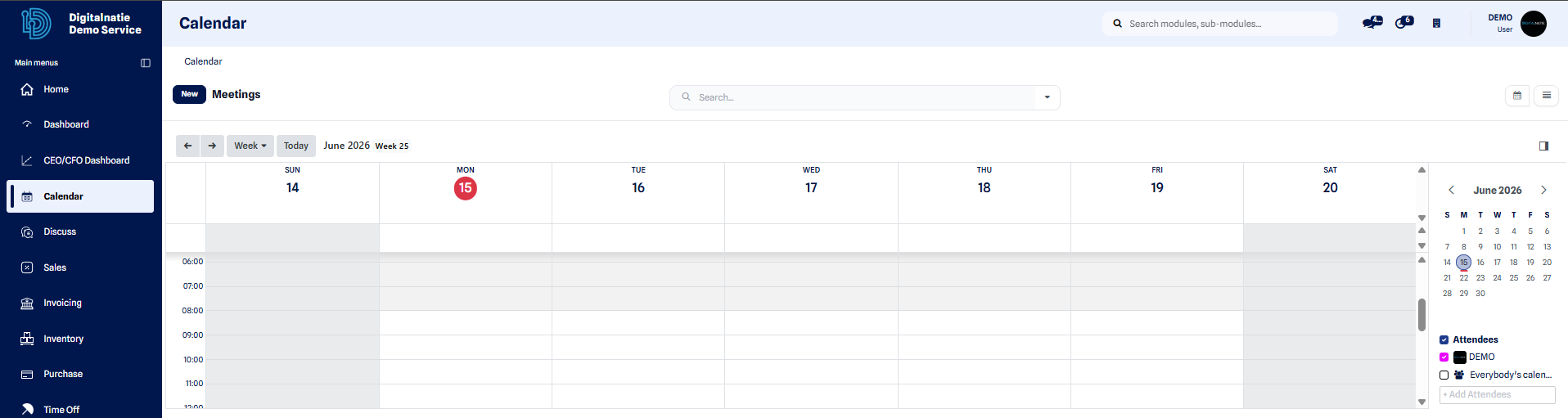 Calendar overview: the week’s meetings and events, shared with the team.
Create a meeting
Section titled “Create a meeting”Follow these steps to schedule a meeting and invite the right people.
- Open the Calendar menu.
- Click New.
- Enter the meeting subject (a clear, short title).
- Choose the date and time, or turn on All day for an event without a specific time.
- Add the attendees to invite.
- Click Save.
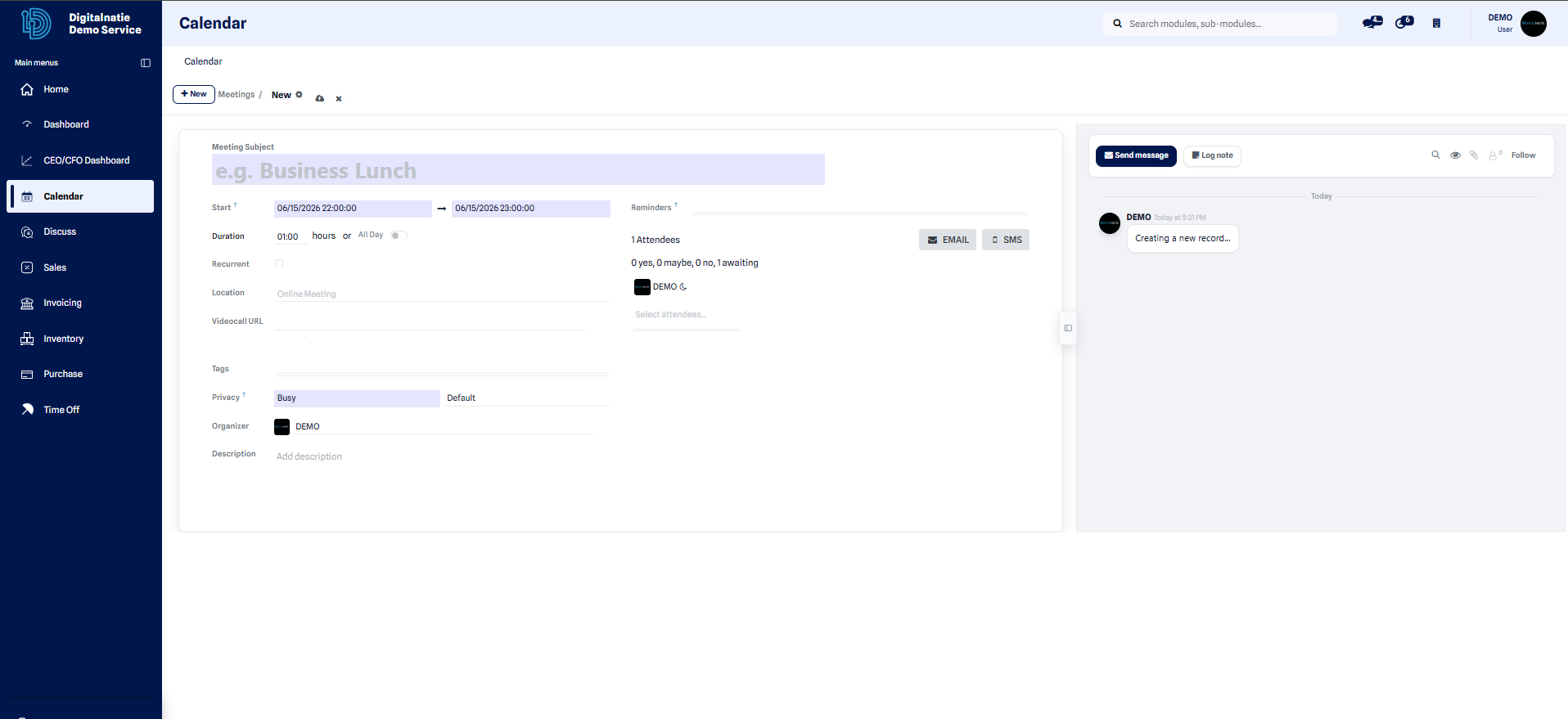 The new meeting form: subject, date, time and attendees.
Result: as soon as it is saved, the meeting appears in the shared calendar on the chosen time slot, and each invited attendee finds it in their own calendar.
View the shared calendar
Section titled “View the shared calendar”The calendar offers several display levels — day, week or month — so you can switch from a detailed view of a single day to a broad overview. Each meeting is shown as a block placed on its time slot; click on it to view the details or change the date, time and attendees.