

Integrations
On the Integrations page you connect the external services your team already uses. Every connection is a card with its status, last synchronisation and last error.
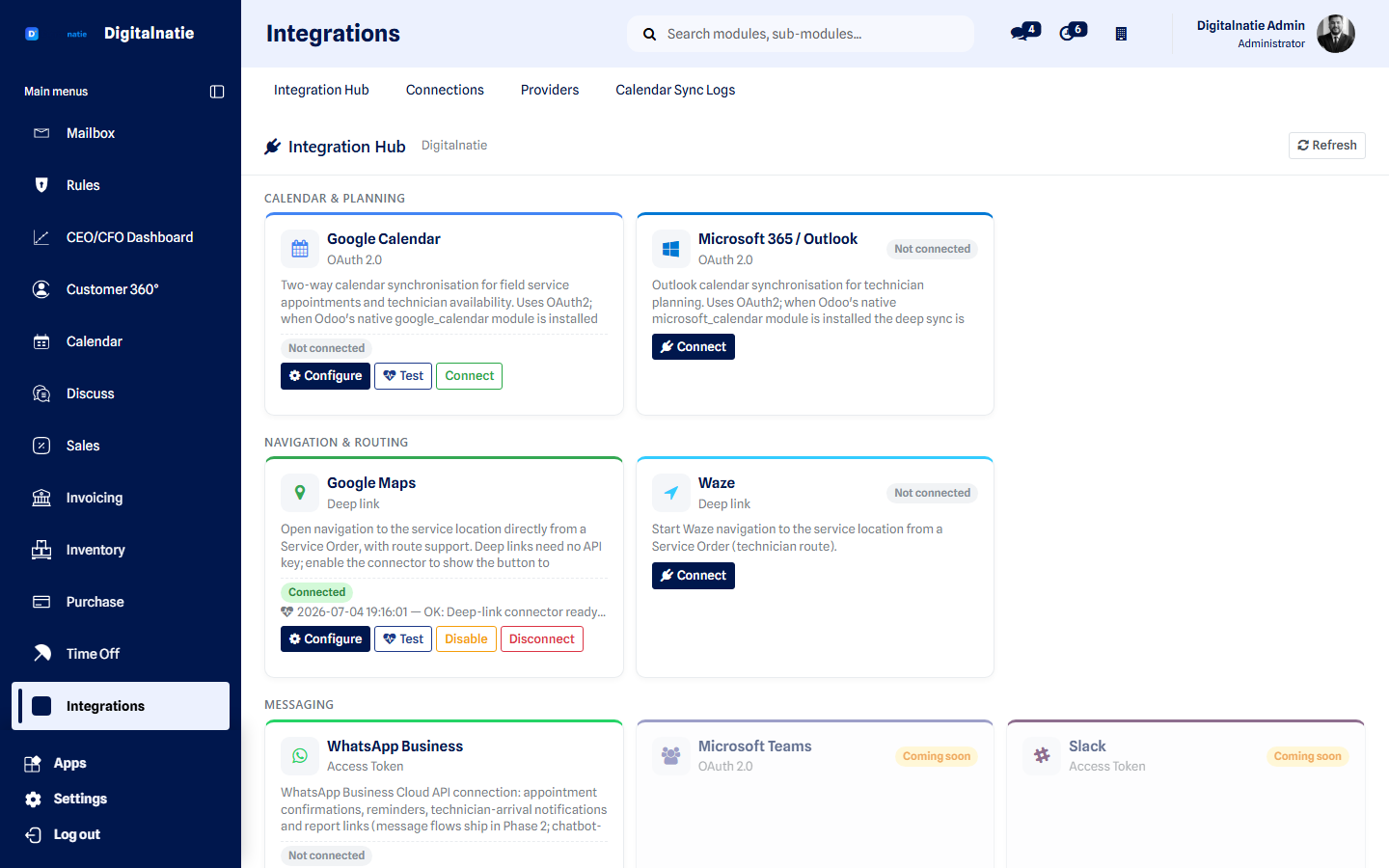 The available connections and their status.
What you use this for
Section titled “What you use this for”- Mirroring appointments with Google Calendar or Microsoft 365 / Outlook.
- Adding navigation buttons to the service order via Google Maps or Waze.
- Configuring and testing a WhatsApp Business connection.
- Connecting an AI server for the AI Report Assistant.
- Checking that a connection still works without waiting for it to fail.
Who can use it
Section titled “Who can use it”| Role | What they do |
|---|---|
| Administrator | Connects, tests and disconnects; manages the keys |
| All users | Use the result, for example the navigation buttons |
Prerequisites: administrator rights. Access keys are readable and editable by administrators only. For calendar synchronisation you must set a sync owner and mark the appointments to be synchronised.
Available connections
Section titled “Available connections” Each connection as a card, with its status and last synchronisation.
Calendar
Section titled “Calendar”Google Calendar and Microsoft 365 / Outlook. Once connected, you can mirror appointments in both directions with your calendar.
You synchronise manually with Sync now, Pull or Push. An automatic ten-minute sync also exists, switched off by default.
Navigation
Section titled “Navigation”Google Maps and Waze. Once enabled, navigation buttons appear on the service order: one click and the technieker drives to the right site. This works immediately, without an account.
Messaging
Section titled “Messaging”WhatsApp Business — connection settings and a test.
AI servers
Section titled “AI servers”Connections to Claude, ChatGPT, Gemini or your own server: managing servers, keys, status and a connection test.
In preparation
Section titled “In preparation”Visible in the catalogue as coming soon: Google Drive, OneDrive, Dropbox, Stripe, Mollie, Teams, Slack, Zapier, n8n, WooCommerce, Shopify and generic API connections.
Making a connection
Section titled “Making a connection” A connection’s configuration panel with the test result.
-
Open Integrations and find the service’s card.
-
Click Configure and fill in the requested details.
-
Click Test connection. You get the result immediately.
-
Switch the connection on.
-
Check the card afterwards: it should read Connected, with a last-sync time.
Security
Section titled “Security”- Access keys and tokens are readable and editable by administrators only.
- The overview screen never contains keys or tokens.
- Changes to a connection are kept in the history.
- Sign-in return addresses are derived from your own web address — nothing is hard-wired.
Best practices
Section titled “Best practices”- Only connect what you use. Every active connection is one more thing that can break.
- Test after every key change. Keys expire; the test takes three seconds.
- Definitely switch navigation on — it is the connection with the least effort and the fastest payoff for techniekers.
- Work through flagged conflicts instead of leaving them; they mean two people understood the same appointment differently.
- Only switch on automatic calendar sync once the manual one has run flawlessly for a week.
Troubleshooting
Section titled “Troubleshooting”Does calendar sync change my private appointments? No. Only appointments that are explicitly marked and belong to the configured owner.
What happens on a conflict? Nothing is overwritten. The conflict is flagged and logged; you choose.
Can a connection delete appointments? No, in neither direction.
Why is a service shown as coming soon? It is prepared in the catalogue but not yet active. Let us know which one you need — no rebuild is required to add it.
Who may configure connections? Administrators only. See Permissions & security.
Next step
Section titled “Next step”- Calendar — where calendar sync lands
- Service orders — the navigation buttons
- AI Report Assistant — the AI features themselves
- Automation Hub — automations with external services
- Permissions & security — who may connect