

Projects
Projects let you group several service orders linked to the same job site, contract or customer, so you can track their progress and overall profitability.
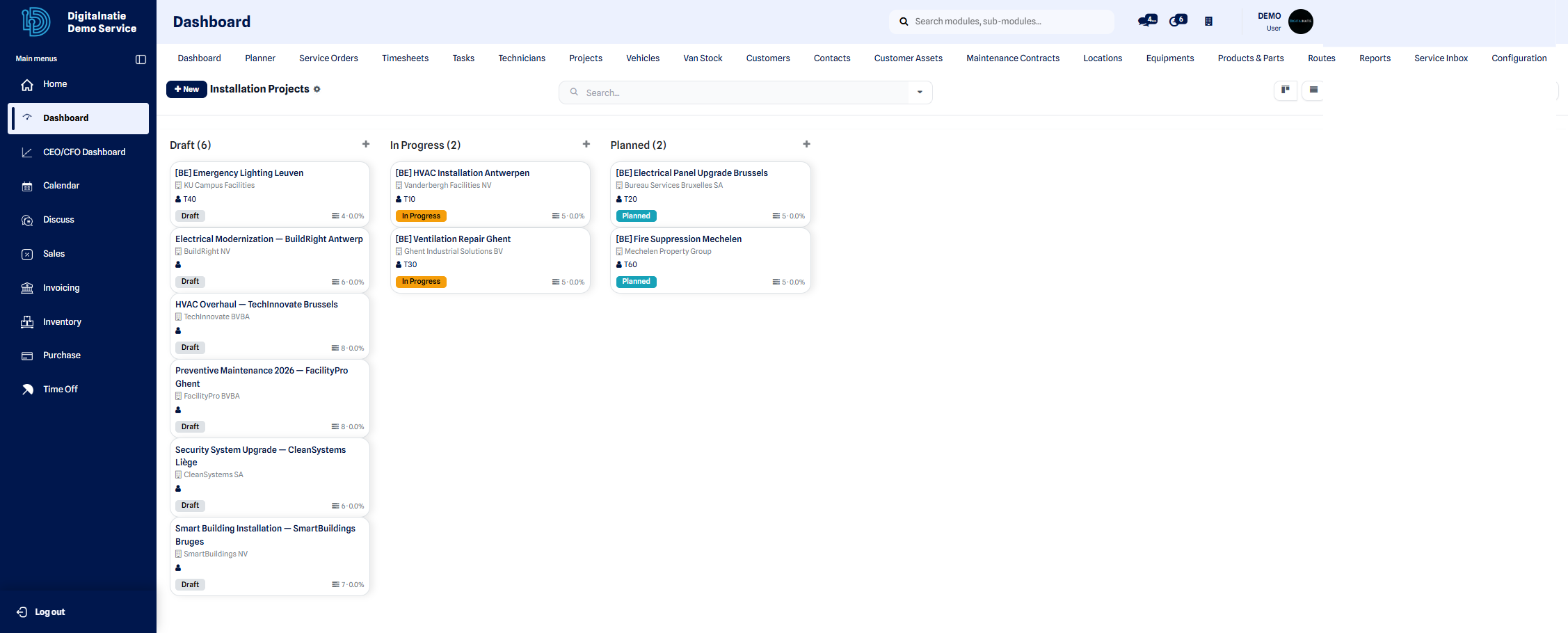 List of ongoing projects: customer, progress and number of interventions.
When should you use a project?
Section titled “When should you use a project?”- An installation in several stages, spread over several visits.
- A job site involving several technicians and several locations.
- A contract with several interventions scheduled over time.
Create a project
Section titled “Create a project”This procedure creates the project, then attaches the tasks that will become field interventions to it.
- Open the Projects menu, then click New.
- Select the relevant Customer.
- Select the Site / Location where the project takes place.
- Choose the Project type (installation, job site, contract, etc.).
- Set the Project manager in charge of tracking it.
- Set the Lead technician assigned to the project.
- Enter the Scheduled dates: planned start date and end date.
- Add the Tasks under the project (see below).
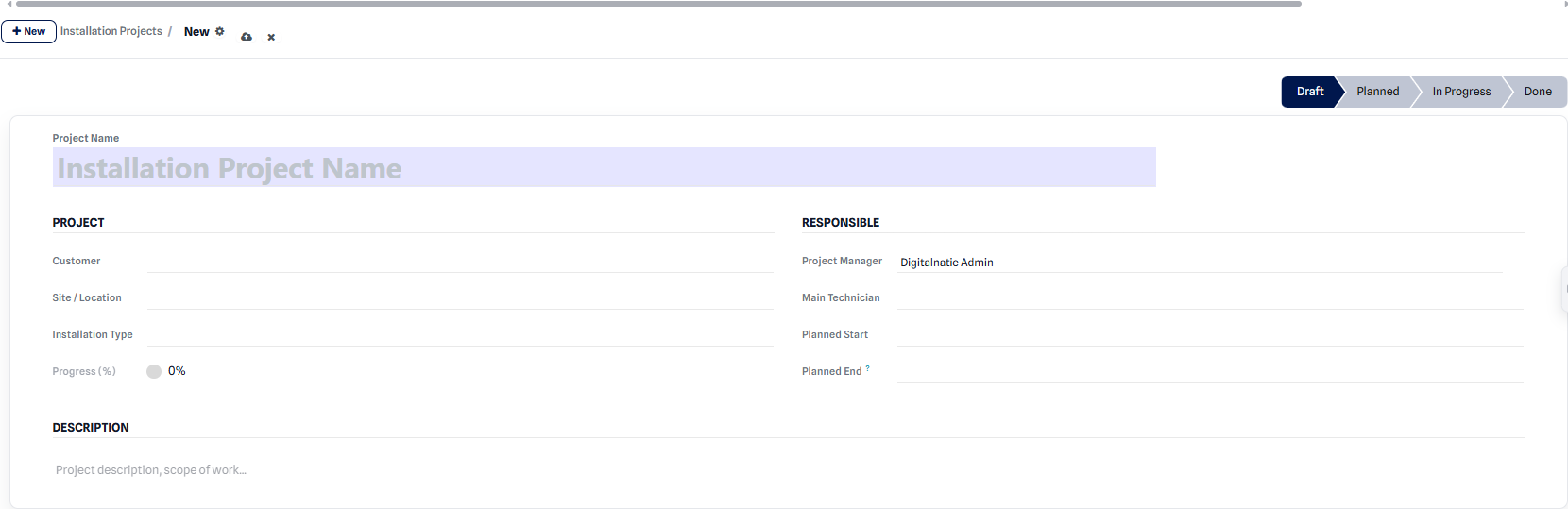 Creation form: customer, site, type, manager, lead technician and dates.
Expected result: after saving, the project appears in the list with its customer, its dates and a progress of 0%. It is ready to receive tasks.
Add tasks to the project
Section titled “Add tasks to the project”Each task in a project corresponds to an intervention to be carried out in the field.
- Open the project, then go to the Tasks tab.
- Click Add a line to create a new task.
- Enter the title, the assigned technician and the scheduled date.
- Save: the task becomes an intervention attached to the project.
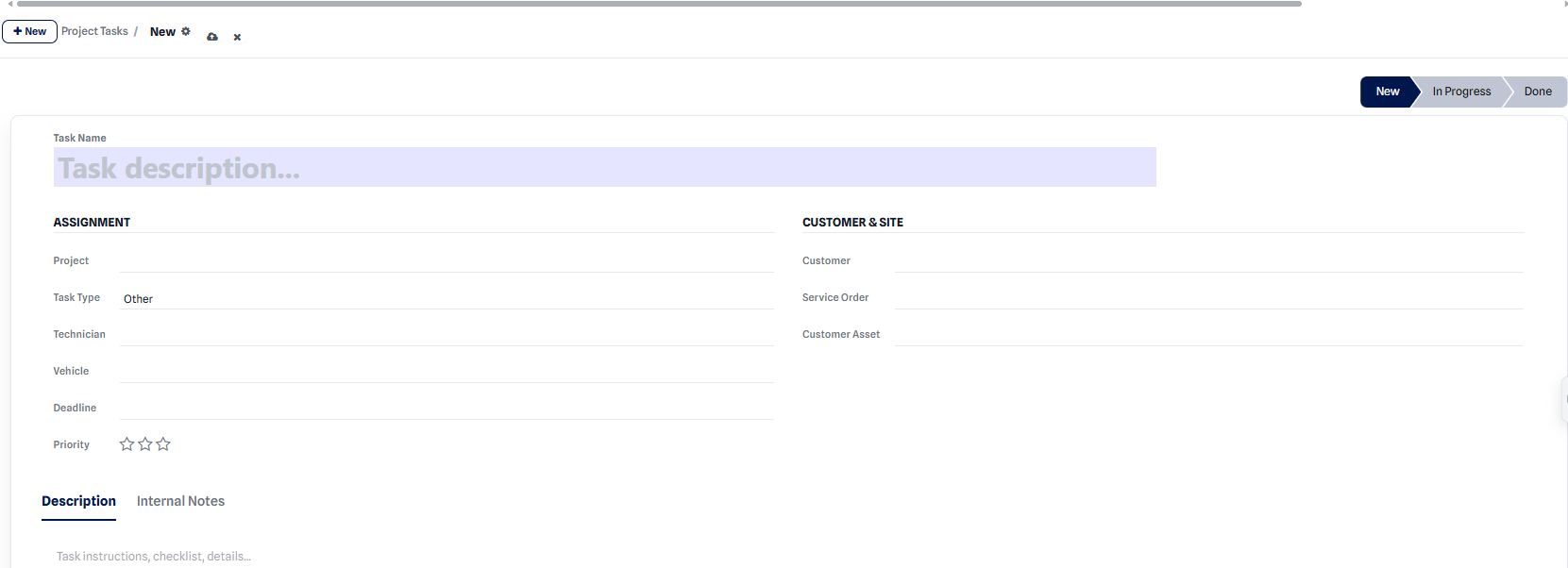 Adding a task under the project: title, technician and scheduled date.
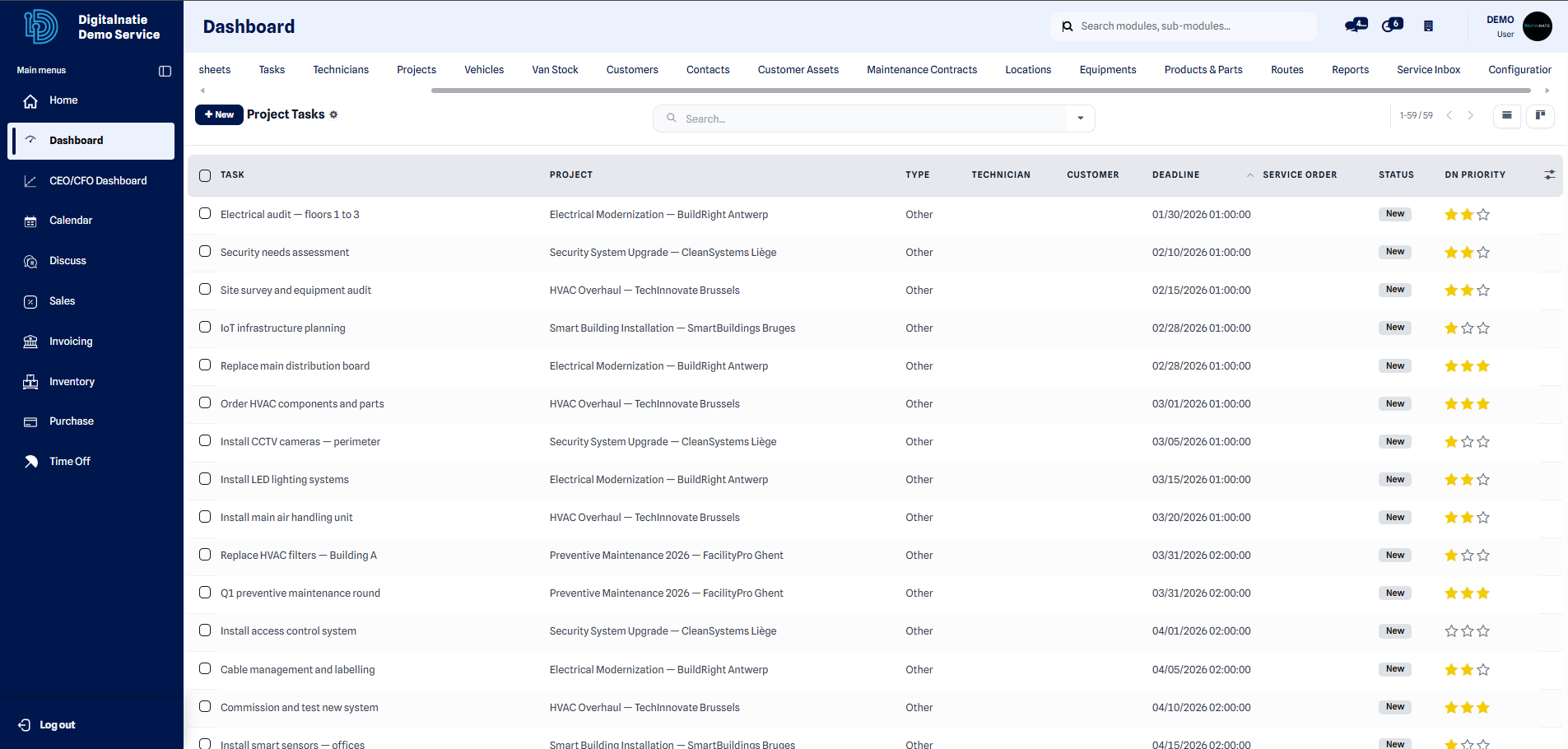 Interventions attached to the project: status, assigned technician and logged hours.
Expected result: the tasks appear under the project. As they are completed by the technicians, the project’s progress advances automatically.
The stages of a project
Section titled “The stages of a project”A project follows four successive stages, shown at the top of its record:
| Stage | Meaning |
|---|---|
| Draft | Project in preparation, not yet validated. |
| Scheduled | Tasks and dates defined, ready to start. |
| In progress | The interventions are being carried out. |
| Done | All tasks are completed, the project is closed. |
Move the project from one stage to the next as it progresses, to keep a clear view of the status of each job site.
Tracking
Section titled “Tracking”Once the project is launched, track these indicators on its record:
| Item | Purpose |
|---|---|
| Progress | Share of interventions completed |
| Time spent | Cumulative logged hours |
| Costs / parts | Parts and purchases charged to the project |
| Invoicing | Amounts invoiced vs. planned |