

Technician Tasks
Technician Tasks let you create and track simple actions assigned to a technician, alongside service orders.
When to use it
Section titled “When to use it”Use a technician task for a small action that does not warrant a full service order:
- a quick on-site check;
- preparing equipment before an intervention;
- a field reminder you don’t want to forget.
Create a technician task
Section titled “Create a technician task”Goal: assign a one-off action to a technician and track it through to completion.
- Open the Technician Tasks menu, then click New.
- Enter the Title of the task (a clear, short action).
- Assign the responsible Technician.
- Set the Due date/time.
- Choose the Priority: Normal, High or Urgent.
- Link a Service Order if the task relates to one (optional).
- Add any Instructions / notes useful to the technician.
- Click Save.
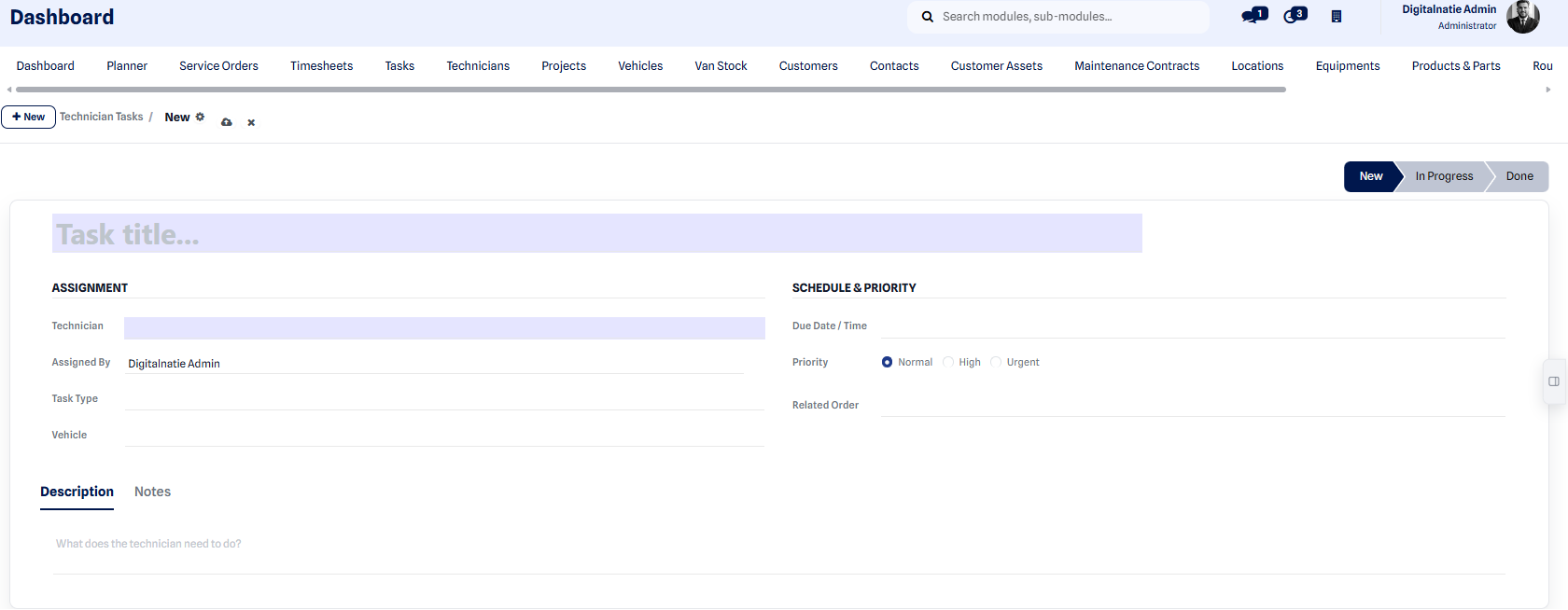 Technician task creation form.
Track tasks
Section titled “Track tasks”All tasks are listed under Technician Tasks, where you track their progress and priority.
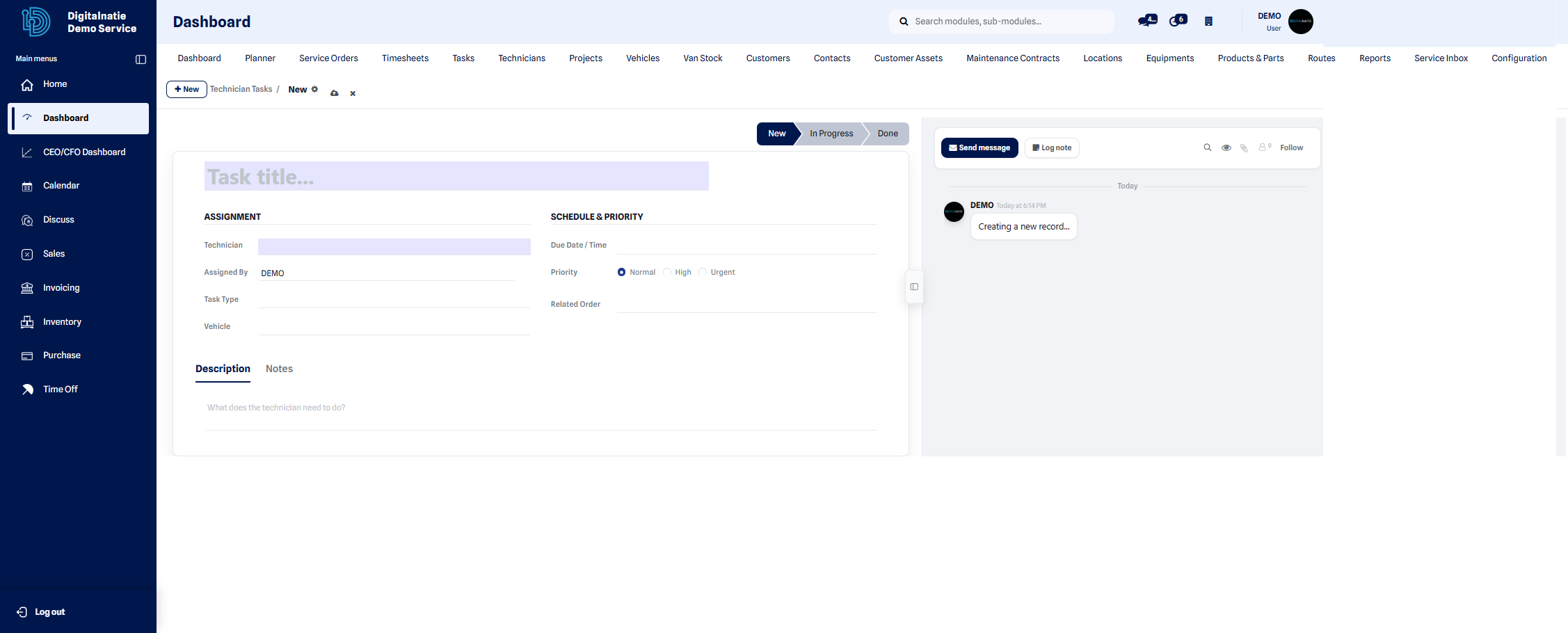 Task list with technician, due date and status.
Statuses
Section titled “Statuses”Each task goes through three statuses:
- New: the task is created and assigned, but not yet started.
- In progress: the technician has started the task.
- Done: the task is completed.
Result on the technician side
Section titled “Result on the technician side”Once saved, the task automatically appears under My Tasks in the Technician App. The technician opens it, starts it and marks it as done from their screen.
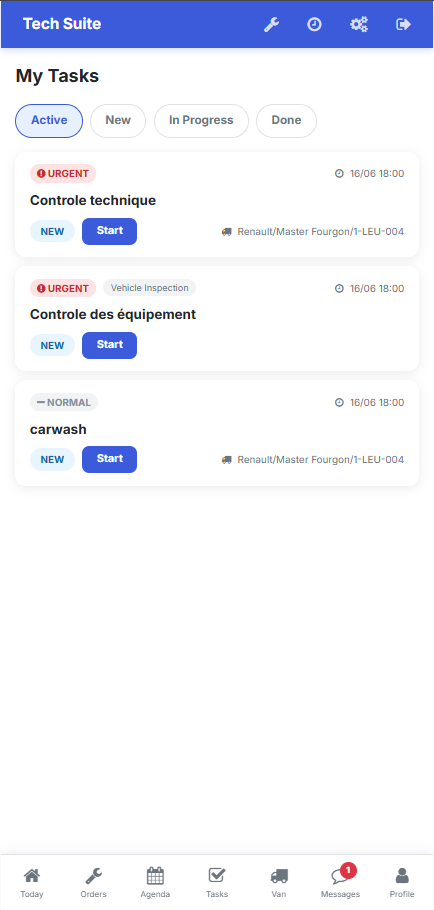 Assigned tasks appear under “My Tasks” on the technician side.