

Customer File 360°
Customer File 360° brings everything known about one customer onto a single screen: sites, assets, contracts, interventions, projects, hours, installed parts, reports and — for those with the rights — invoices and revenue.
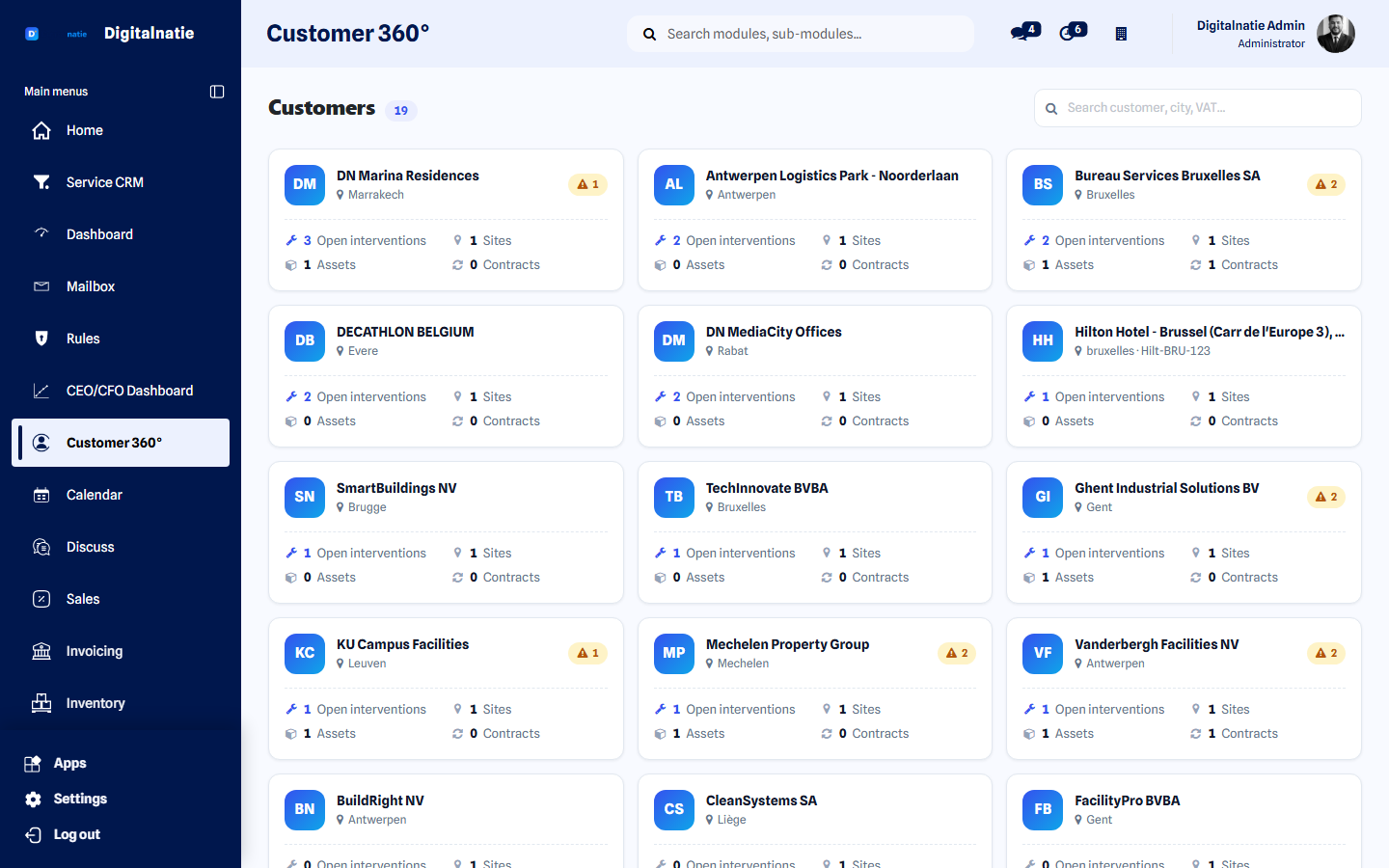 Everything about one customer on one screen.
What you use this for
Section titled “What you use this for”- Helping a customer on the phone without switching screens.
- Checking an asset’s history before you schedule an intervention.
- Checking which parts were installed at a customer, and when.
- Checking which contracts are running and which have expired.
- Starting an intervention with customer, site and asset already filled in.
Who can use it
Section titled “Who can use it”| Role | What they see |
|---|---|
| Owner, accounting, commercial manager | The full file, including invoices and revenue |
| Service manager, planner, technieker | The same file without amounts |
Prerequisites: the customer needs at least one site; assets must be attached to a site. The Invoices and Financial tabs require financial rights — see Permissions & security.
How the file is structured
Section titled “How the file is structured”The customer is the master file. Sites and assets are sub-files. Interventions stay operational documents linked to the customer, the site and the asset.
Customer├── Sites / locations│ ├── Assets / installations│ │ ├── Maintenance contracts│ │ ├── Warranty│ │ ├── Service history│ │ ├── Parts history│ │ └── Documents│ └── Site interventions├── Service orders├── Projects├── Hours├── Parts used├── Reports├── Invoices└── Financial historyWhere to find it
Section titled “Where to find it”Open a customer in Customers & assets and click Customer File 360°. The file opens full screen, with the key figures at the top and tabs below.
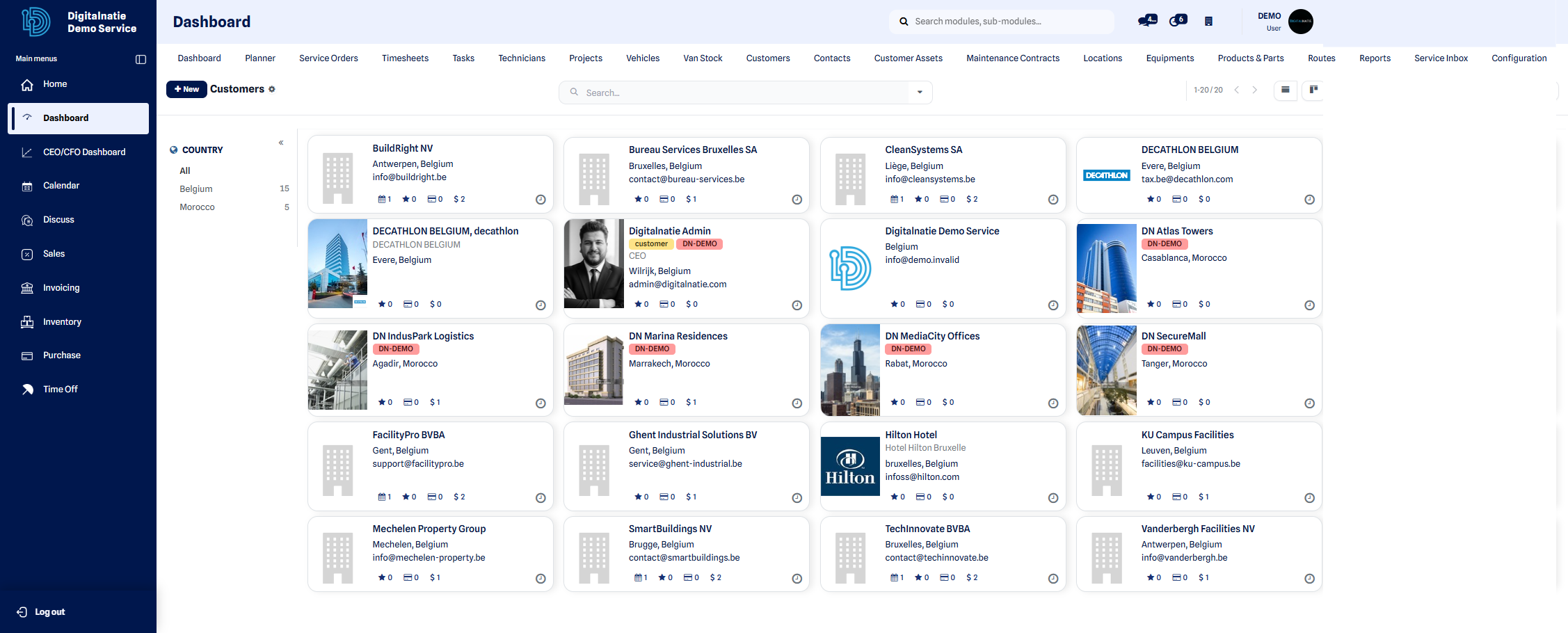 From the customer list you open each customer’s file.
The tabs
Section titled “The tabs” The customer file: key figures on top, tabs below.
| Tab | What you see |
|---|---|
| Overview | Key figures, recent interventions and the customer’s structure |
| Interventions | All service orders, with status, technieker and date |
| Contracts | Running and expired maintenance contracts |
| Projects | This customer’s projects |
| Hours | Hours booked per intervention and per technieker |
| Parts | Which parts were installed at this customer, and when |
| Reports | The intervention reports, ready to re-read or share |
| Invoices | Invoices and payment status (financial rights required) |
| Financial | Revenue, outstanding balance and history (financial rights required) |
The navigator
Section titled “The navigator” Customer → sites → assets → contracts, with the count per level.
Alongside the tabs you can walk through the customer’s structure: Customer → Sites → Assets → Contracts → Interventions → Reports. Each level shows the number of records, and one click opens the real document.
Financial rights
Section titled “Financial rights”Amounts are not visible to everyone. The Invoices and Financial tabs only appear for users with financial rights — typically the owner, accounting and the commercial manager.
Starting an intervention from the file
Section titled “Starting an intervention from the file”-
Open the customer’s file.
-
Go to the site or asset the customer is calling about.
-
Click New intervention.
-
The form opens pre-filled with customer, site and asset. All you add is the description and the scheduling.
Important to know
Section titled “Important to know”- The file is a reading window. It never changes anything itself: every drill-down opens the real document, where you have your usual rights and buttons.
- The figures come from your existing interventions, contracts, hours and invoices. What you see in the file is what is in the system — not a separate copy.
- If you work with multiple companies, you only see data for the companies you have access to.
Best practices
Section titled “Best practices”- Work with real sites. A customer with five locations should have five sites, not five address lines in one field. The whole file hangs on that structure.
- Attach devices to an asset, not to the customer. That way you build a history per device instead of one big pile per customer.
- Open the file before you call a customer back. Thirty seconds of reading replaces a five-minute conversation.
- Grant financial rights deliberately. The file is where revenue per customer becomes visible fastest.
Troubleshooting
Section titled “Troubleshooting”Can I edit data in the file? Not directly. Drill through to the document itself — you edit there, with your usual rights.
Why do I see no amounts? Your user has no financial rights. Your administrator can grant them.
My customer has hundreds of interventions. Does the file get slow? No. Lists load per page and the key figures are counted, not fetched.
Does the file work for a prospect with no interventions? Yes. You then see an empty file with the structure — useful for immediately creating the first site and asset.
Next step
Section titled “Next step”- Customers & assets — the customer record
- Sites — structuring locations and addresses
- Asset Intelligence — health and history per device
- Maintenance contracts — recurring maintenance
- Service network map — the same story, visually
- From customer to invoice — the full chain