

Technician App Overview
The Technician App is a mobile app that installs on a smartphone, designed for fieldwork. It gives the technician everything they need during the day: their service orders, schedule, tasks, and the actions to carry out on site (start, enter parts, write the report).
Use it first thing in the morning to review the day, then throughout each job to log hours and document the work performed.
What the app does
Section titled “What the app does”| Function | Page |
|---|---|
| View your jobs | Jobs |
| My tasks | My tasks |
| Start / finish | Start & finish |
| Enter parts | Parts used |
| Report + signature | Report & signature |
| Messaging | Messages |
| Van stock | Van stock |
Install the app
Section titled “Install the app”- Open the Technician App address in the smartphone’s browser.
- Sign in with your personal technician account.
- In the browser menu, choose Add to Home Screen.
- Launch the app from the icon created on the home screen.
Result: the app opens in full screen, like a native app, and stays accessible with a single tap from the home screen.
Navigating the app
Section titled “Navigating the app”The app is organized around three main screens, accessible from the bottom bar: Today, Orders, and Schedule.
”Today” home screen
Section titled “”Today” home screen”This is the screen shown when you open the app. It brings together the day’s jobs along with a quick overview of your day. Tap a job to see its details and start the actions (start, parts, report).
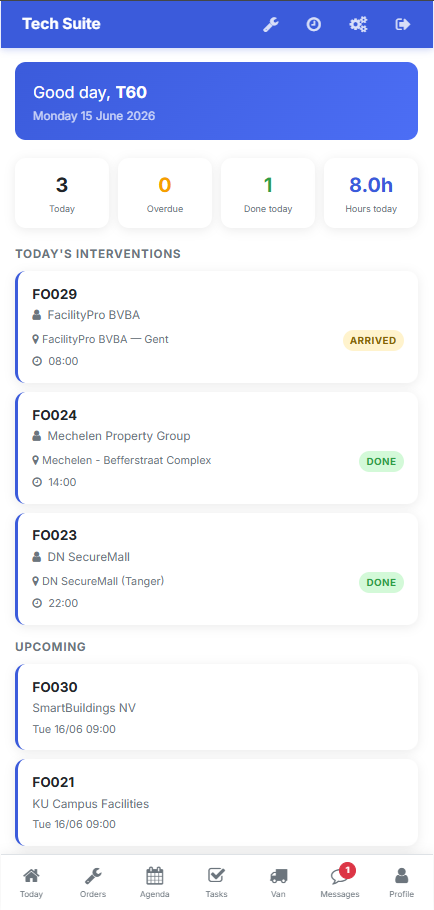 “Today” screen: overview of the day and jobs to complete.
”Orders” tab
Section titled “”Orders” tab”The Orders tab lists all the service orders assigned to you, beyond just the current day. There you find the customer, the address, and the status of each order. Tap an order to open its details.
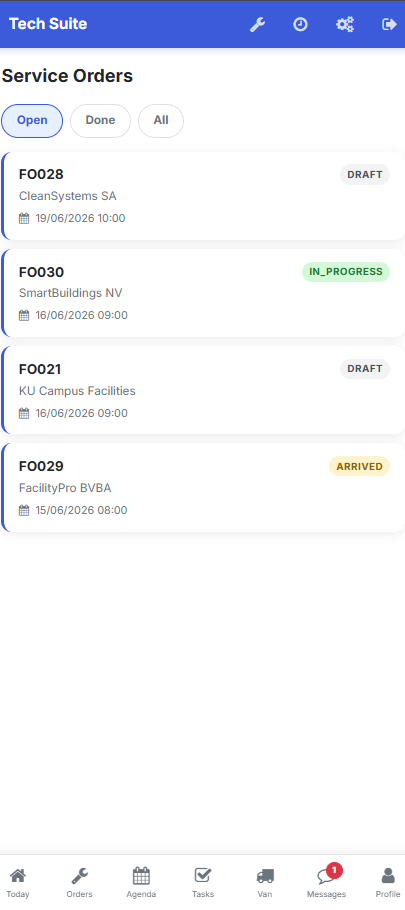 “Orders” tab: all your assigned service orders, with their status.
Schedule
Section titled “Schedule”The Schedule presents your jobs as a calendar, so you can see your planning for the day or the week and spot upcoming time slots.
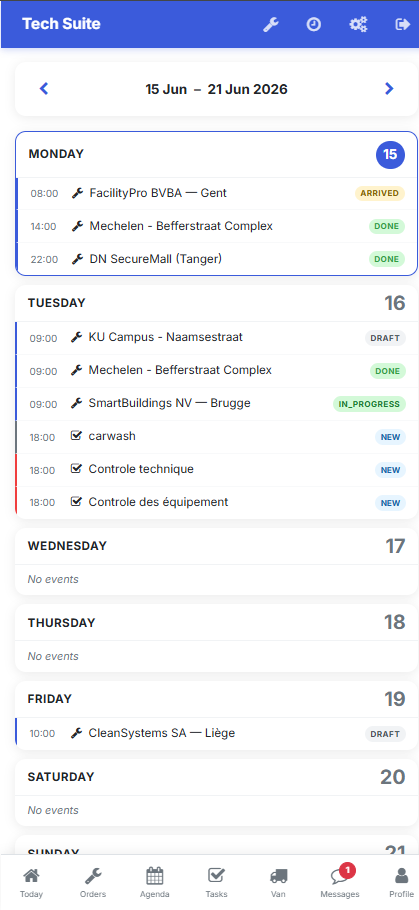 Schedule: your jobs organized by day and by time.