

Customers & assets
The Suite distinguishes between the customer (the client placing the order) and their assets (the equipment or installations the technicians work on). Properly filling out these records ensures a reliable history and targeted interventions.
Customers & contacts
Section titled “Customers & contacts”A customer is an entity: a company or a client placing orders. A contact is an individual (point of contact, site manager, lead technician) who can be linked to a customer. You first create the customer, then their contacts.
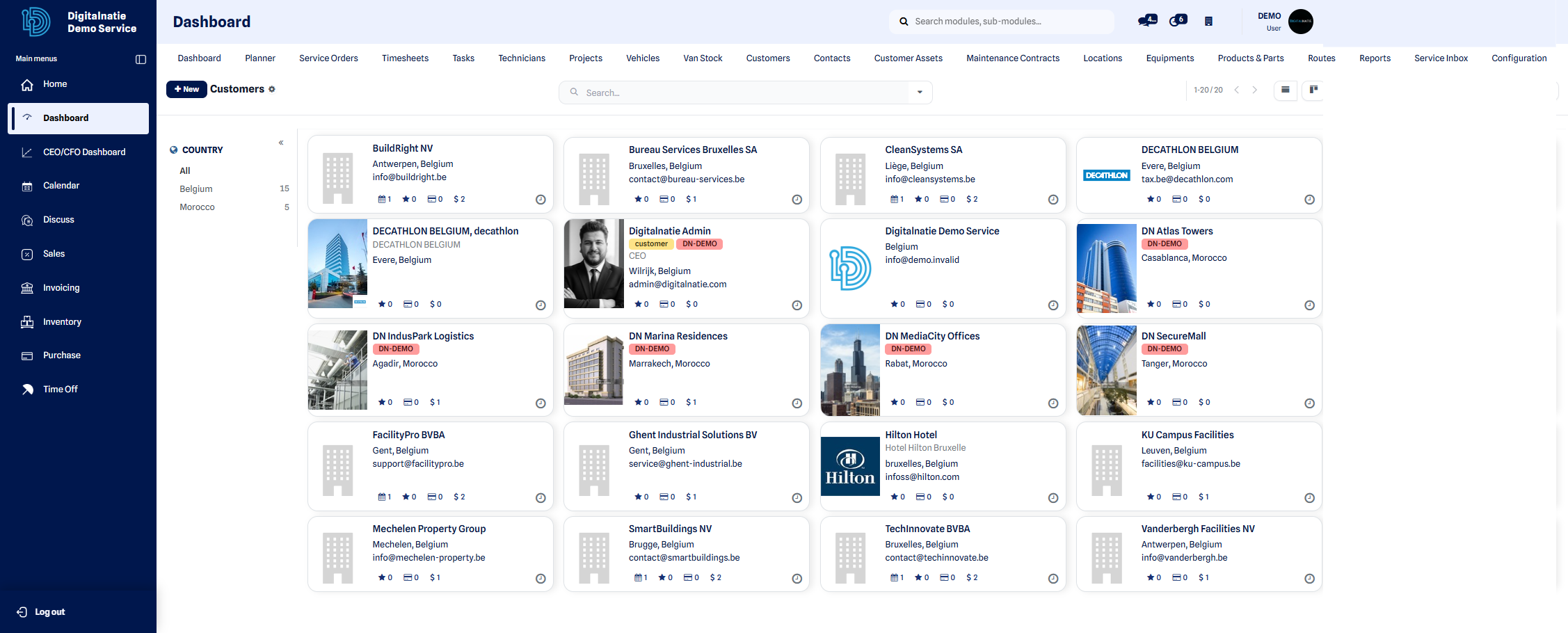 Customer directory: contact details, city, and history accessible in one click.
Create a customer (company)
Section titled “Create a customer (company)”Use this to register a new company that entrusts you with interventions.
- Open Customers & assets and click New.
- Enter the company name.
- Fill in the address (head office or billing).
- Add the phone number.
- Add the email.
- Enter the VAT number if applicable.
- Click Save.
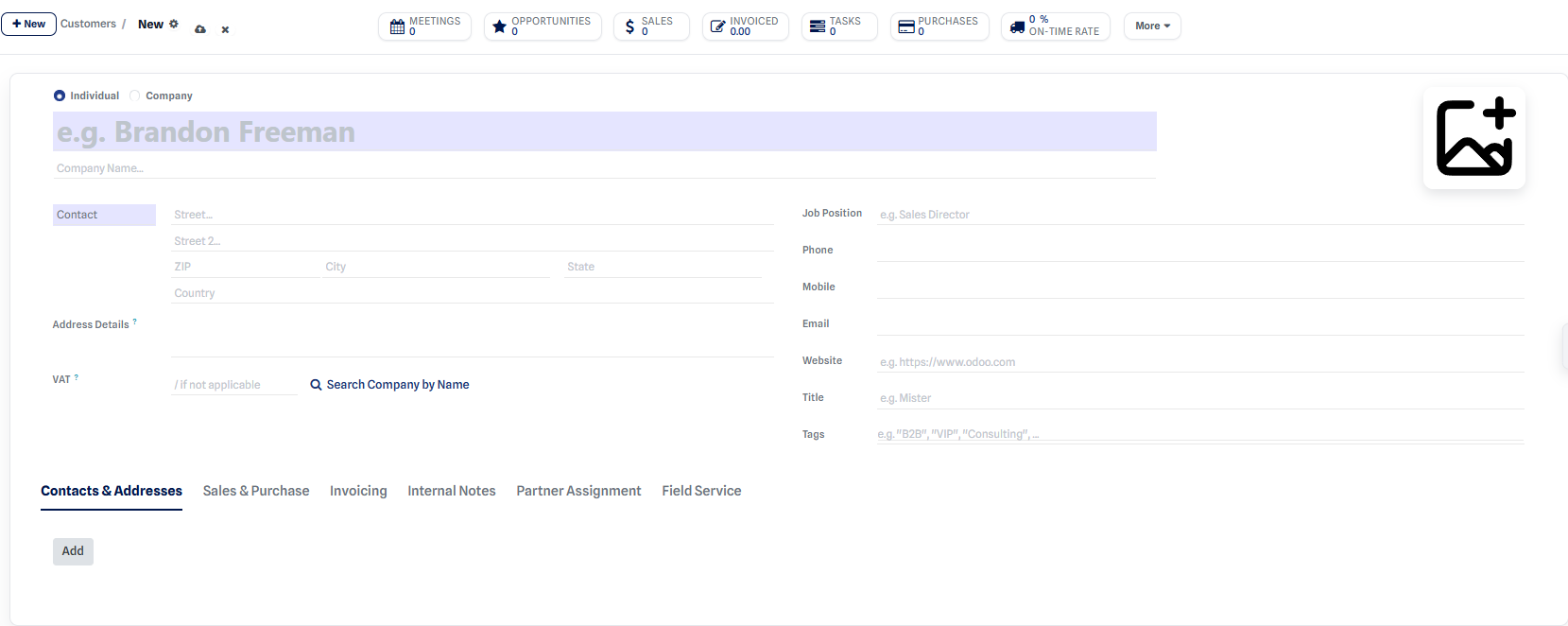 Customer record: company name, address, contact details, and VAT.
Result: the company appears in the directory and can receive contacts, locations, assets, and service orders.
Create an individual contact
Section titled “Create an individual contact”Use this to add a person linked to a company (or a private individual).
- Click New.
- Enter the person’s name.
- If needed, link them to the relevant company.
- Fill in their contact details (phone, email, role).
- Click Save.
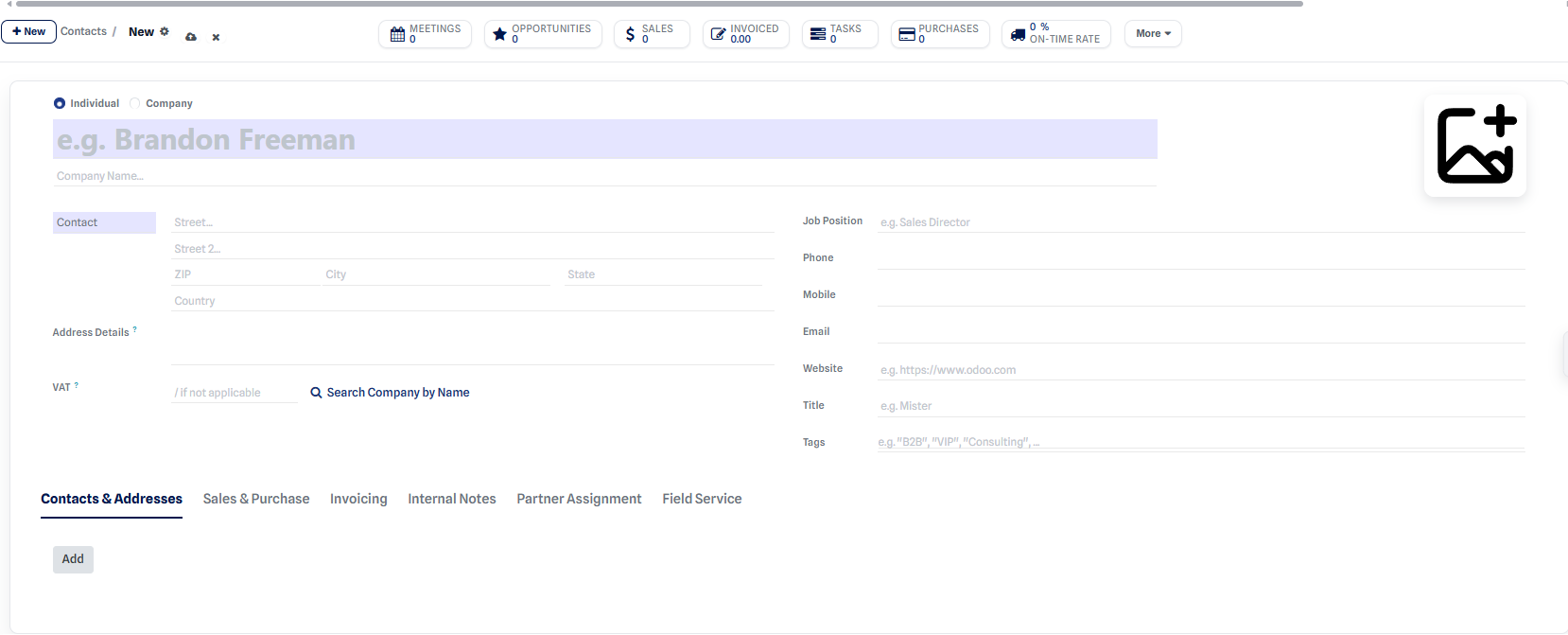 Contact record: name, link to the company, and contact details.
Result: the contact is available as a point of contact on service orders and communications.
Assets (customer equipment)
Section titled “Assets (customer equipment)”An asset represents a specific piece of equipment: boiler, elevator, machine, air conditioning, etc. It carries its own intervention history, which allows for targeted monitoring and maintenance.
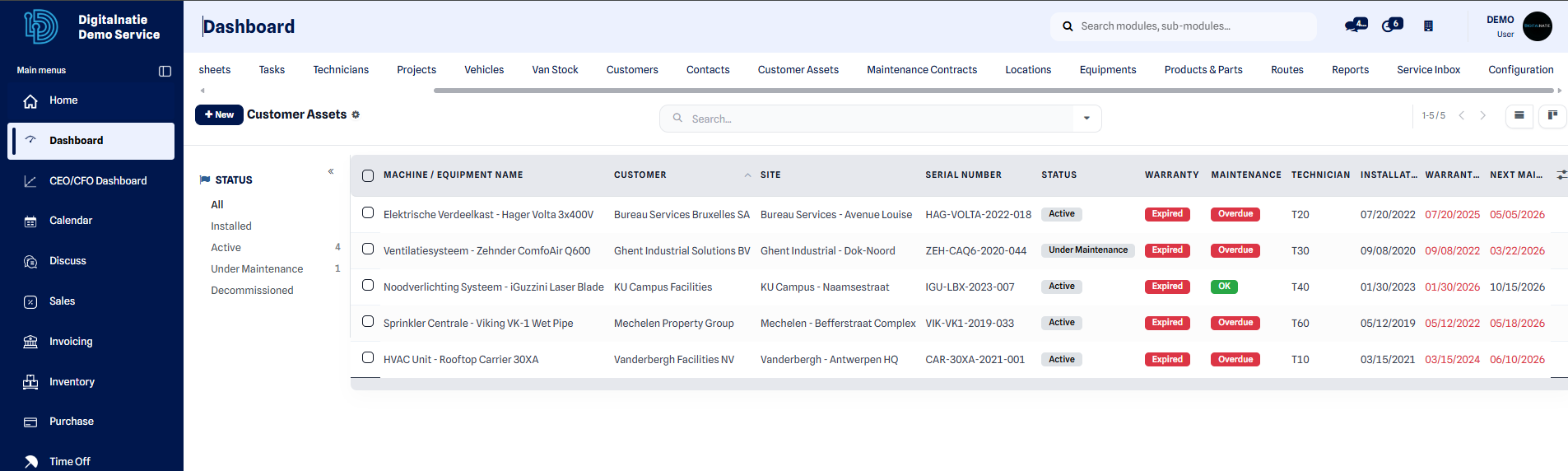 Asset list view: reference, type, customer, and location at a glance.
Create an asset
Section titled “Create an asset”Use this to register a new piece of equipment your teams will work on.
- Open the Customers & assets section, then click New.
- Select the customer who owns the equipment.
- Select the installation location / site.
- Choose the product / model.
- Enter the serial number or reference.
- Fill in the installation date and warranty if available.
- Click Save.
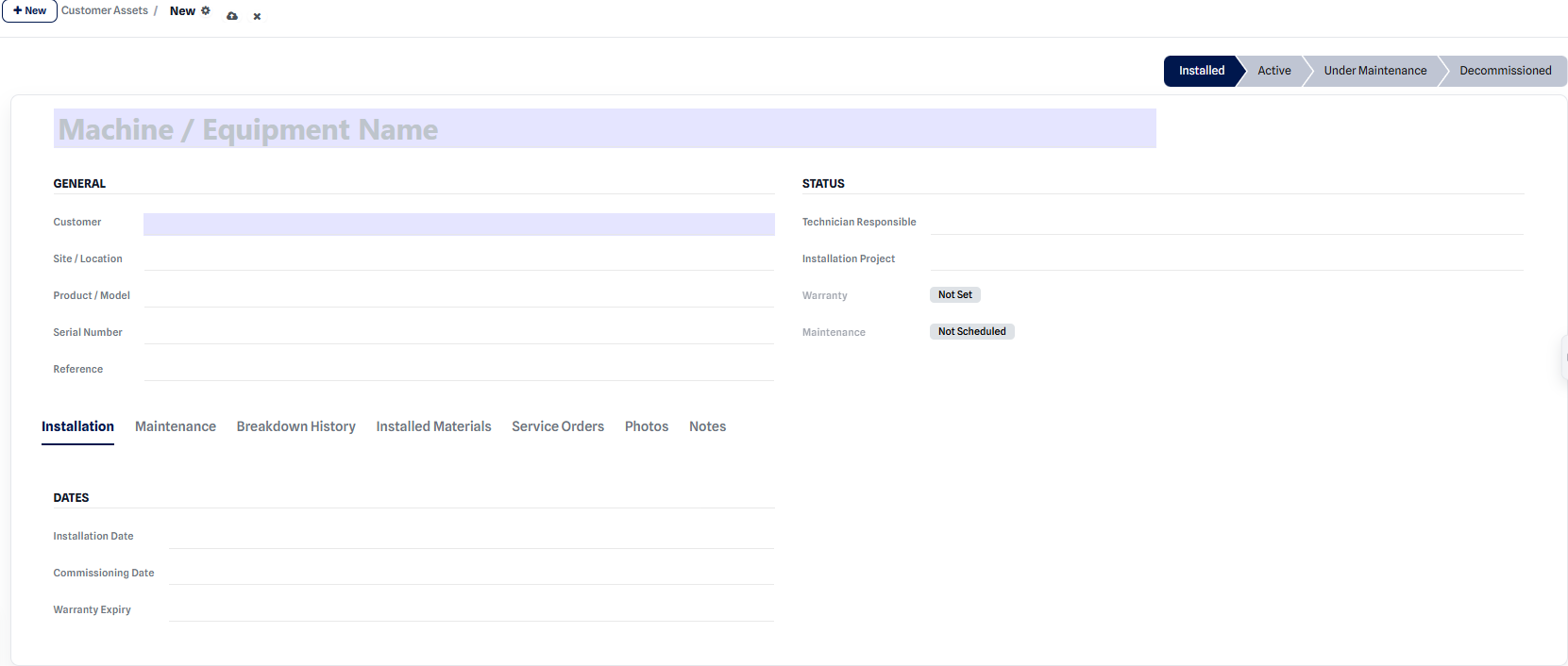 Asset record: customer, location, model, serial number, and warranty.
Result: the asset is linked to the customer and can be selected as the relevant equipment when creating a service order.
An asset’s tabs
Section titled “An asset’s tabs”Each asset record gathers its information across several tabs:
| Tab | Content |
|---|---|
| Installation | Installation date, warranty, technical specifications |
| Maintenance | Preventive schedule and recurring operations |
| Fault history | Incidents and defects found on the equipment |
| Installed materials | Sub-assemblies and components mounted on the asset |
| Service orders | All interventions related to this equipment |
| Photos | Pictures of the equipment and the interventions |
| Notes | Internal remarks and instructions for the technicians |
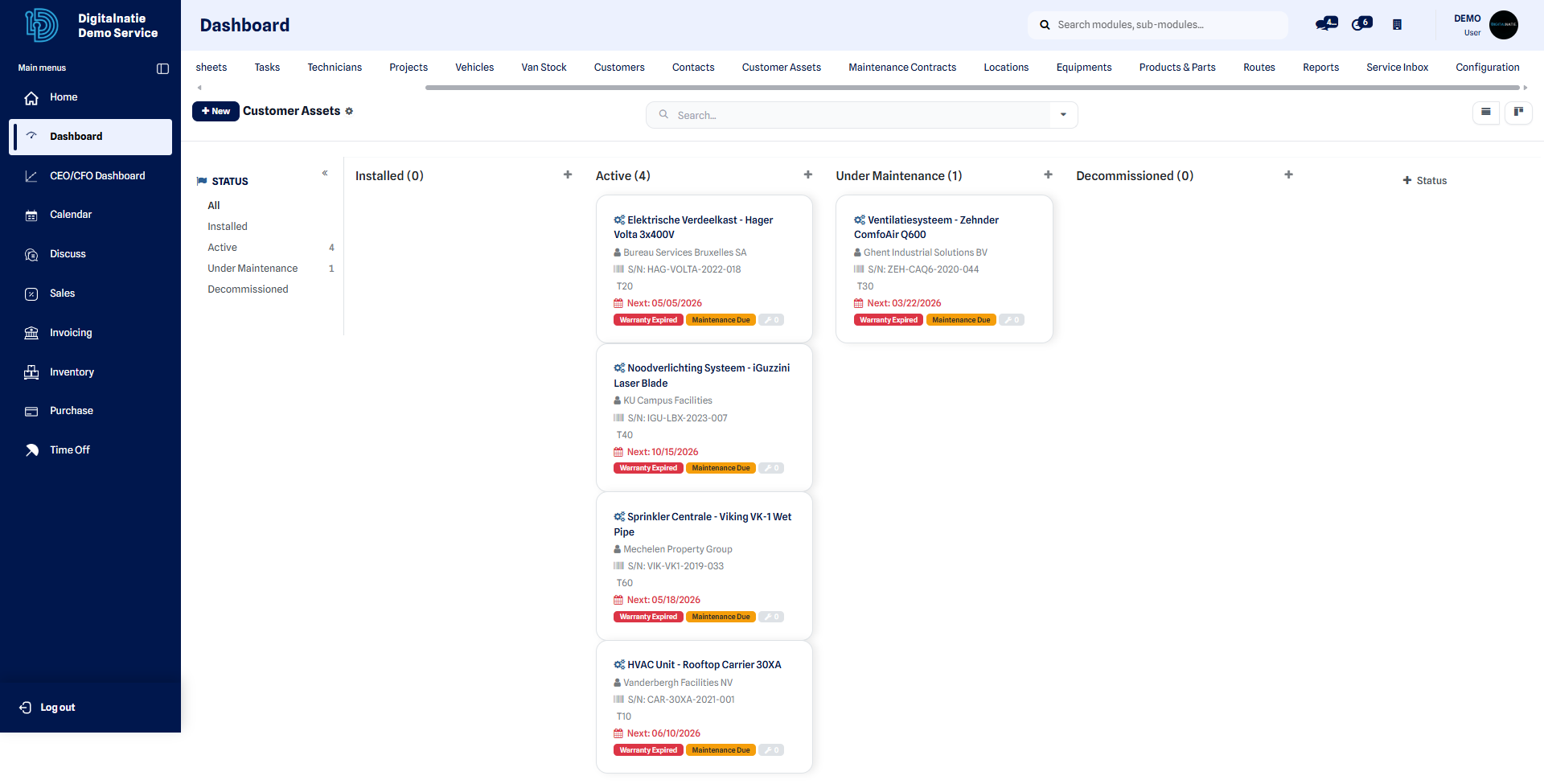 Kanban view of assets: grouped by status or by customer.
Next step
Section titled “Next step”- Link your assets to the right locations from Locations & sites.
- Schedule preventive servicing via Maintenance contracts.
- Customer File 360°
- Asset Intelligence
- Asset QR codes
- The customer → asset → invoice chain