

Van stock
The van stock is the set of parts available in your assigned vehicle. The stock belongs to the vehicle, not to you personally — the app shows only the parts loaded in the vehicle you are currently assigned to. This page explains how to view it from the Technician App, check availability and report a shortage before it blocks a job.
The stock updates itself automatically: it decreases with every part used on a job and increases when the manager restocks your vehicle from central inventory.
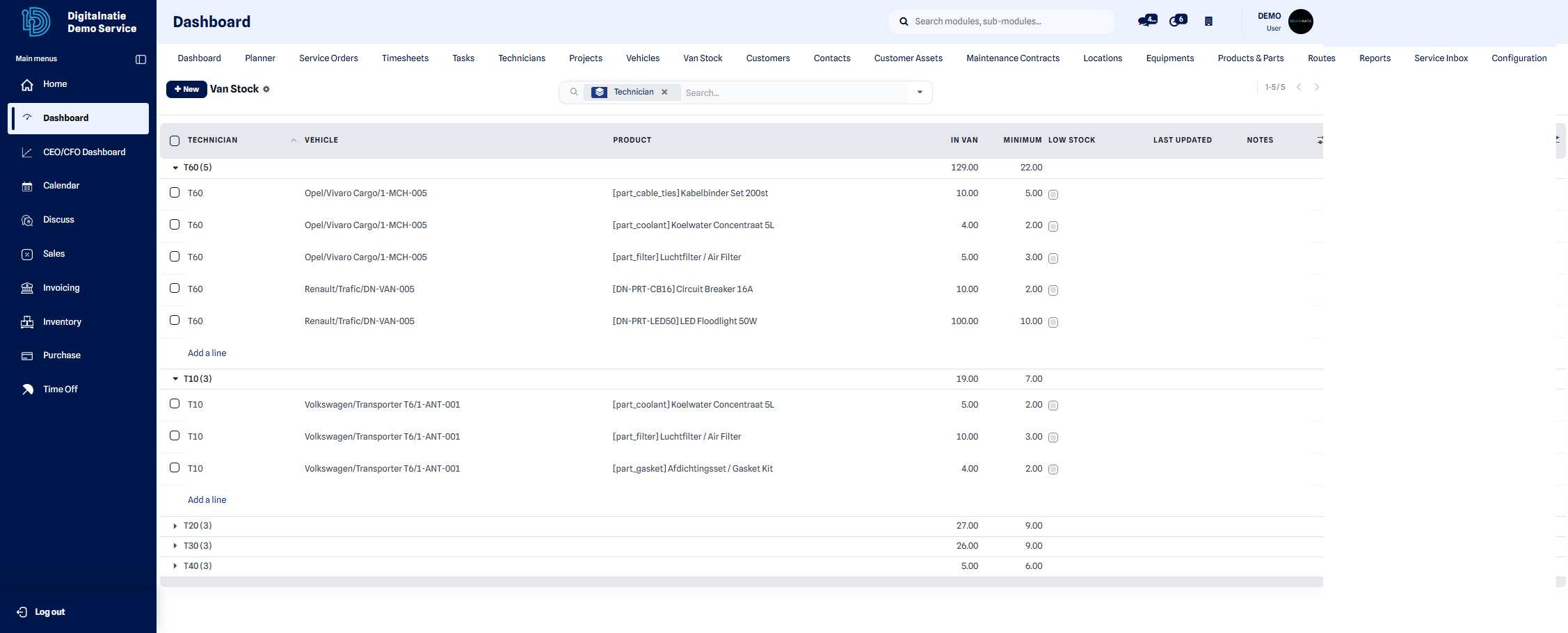 Van stock: parts available in the vehicle, quantities and alert thresholds.
View your stock
Section titled “View your stock”What it’s for: see at a glance the parts present in your vehicle and their quantities.
When to use it: at the start of the day, and before every job that requires parts.
- Open the Technician App and tap Van stock.
- Browse the list of parts: each line shows the name, the remaining quantity and the recommended minimum threshold.
- Use the search field to quickly find a part by name or reference.
- Compare the quantities with the jobs scheduled in your agenda.
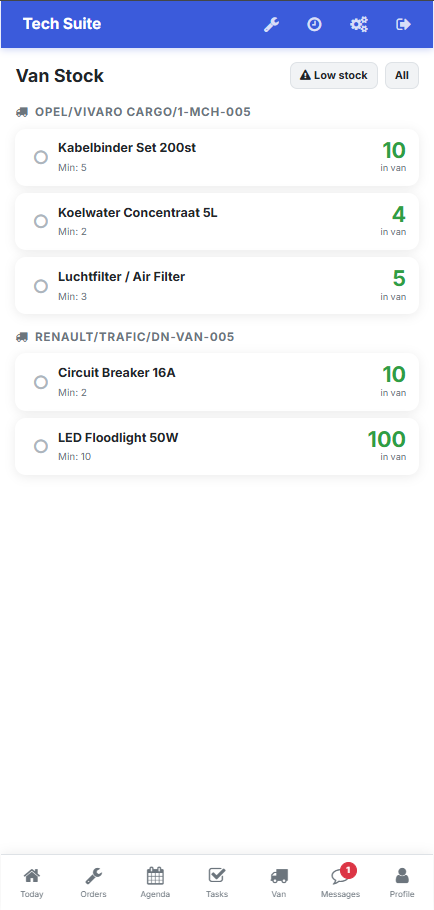 Van stock viewed from the Technician App.
| Column | Description |
|---|---|
| Part | Name / reference |
| Quantity | Stock remaining in the vehicle |
| Threshold | Recommended minimum level |
Expected result: you know exactly which parts are available and in what quantity before heading out on a job.
Report a shortage
Section titled “Report a shortage”What it’s for: alert your manager that a part is missing or approaching the minimum threshold, in order to trigger a restock.
When to use it: as soon as a quantity drops below the threshold or falls to zero.
- Identify in your stock the part that is out or close to the threshold.
- Open Messages in the Technician App.
- Indicate the name of the part and the quantity you need, then send.
- The manager prepares the transfer from central inventory to your vehicle.
Expected result: your request is passed on to the manager, who restocks your vehicle on the next visit to the warehouse.
Stock cycle
Section titled “Stock cycle”Warehouse ──(replenishment)──▶ Vehicle van stock ──(part used)──▶ Service consumptionThe manager transfers parts from the warehouse to your vehicle. Each part fitted on a job is then automatically deducted from that vehicle’s stock and booked to service consumption — so the figures always match what is really in the van.