

Permissions & security
On the Rules screen you decide per employee what they may do and which records they may do it to. Whatever is not explicitly granted is not accessible.
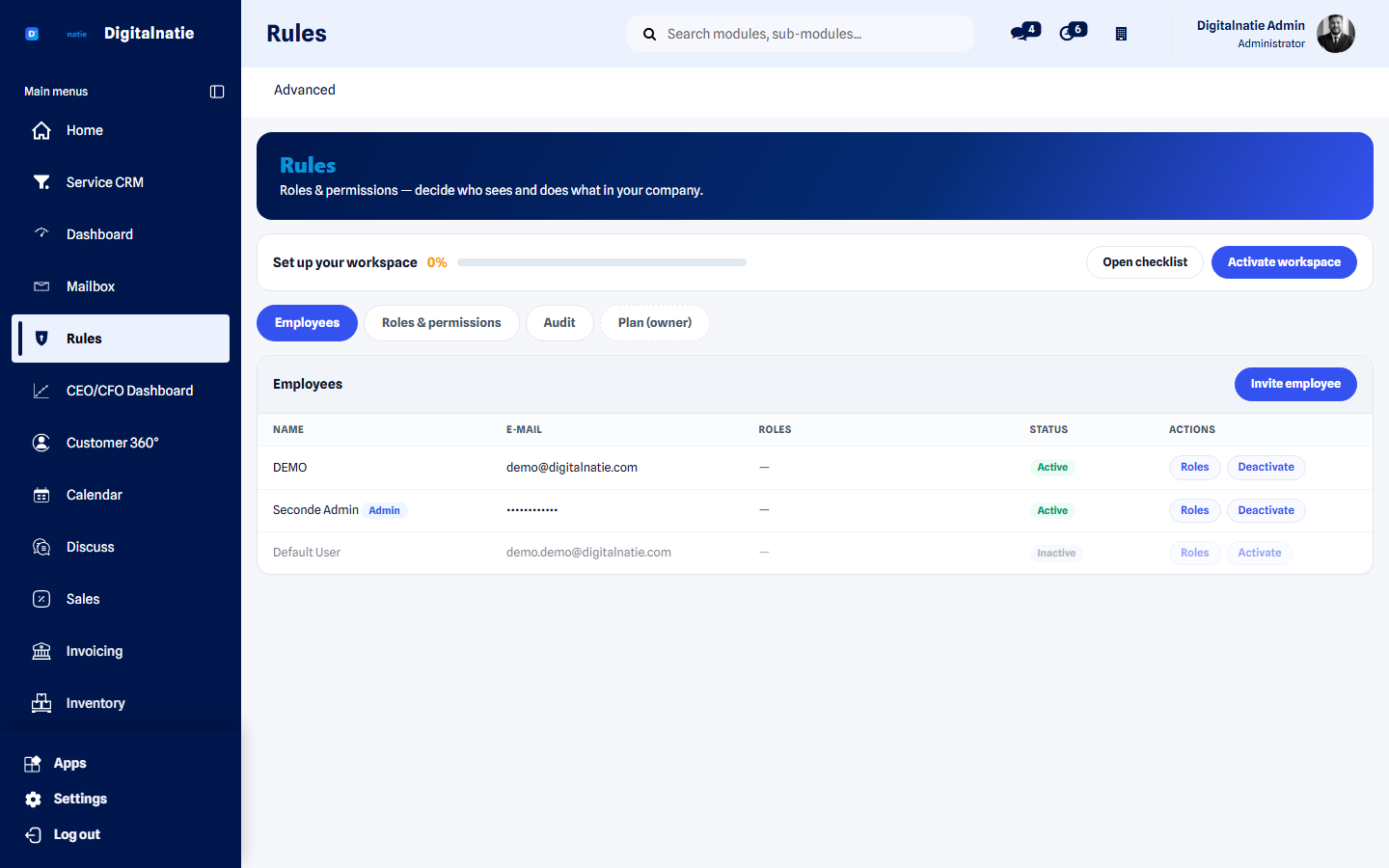 Assigning roles without touching technical settings.
What you use this for
Section titled “What you use this for”- Showing a technieker only their own jobs.
- Giving a team lead or regional manager the scope of their team or region.
- Hiding amounts from anyone who doesn’t need them.
- Checking who granted a particular access, and when.
- Reviewing rights when someone changes function.
Who can use it
Section titled “Who can use it”| Role | What they do |
|---|---|
| Company administrator | Creates roles and assigns them |
| All users | See the effect at their next login |
Prerequisites: you must be company administrator. Permissions are loaded at login — have the employee log in again after a change. System and maintenance permissions are out of reach of this screen.
Two questions per employee
Section titled “Two questions per employee”A permission always consists of two parts. That distinction is the core of the whole system:
| Question | Answer |
|---|---|
| What may they do? | Level: read, create, edit, delete, approve, export |
| On what? | Scope: own, team, branch, region, whole company |
The scope
Section titled “The scope”Own ─▶ Team ─▶ Branch / territory ─▶ Region ─▶ Whole company smallest largest| Scope | Who typically gets it |
|---|---|
| Own | A technieker: only their own jobs |
| Team | A team lead |
| Branch / territory | A branch manager |
| Region | A regional manager |
| Whole company | Dispatcher, planner, owner |
Ready-made roles
Section titled “Ready-made roles” A level and a scope per module, with the preview.
You don’t start from scratch. Around fifty role templates typical of service businesses are ready — from technieker and team lead to dispatcher, warehouse keeper, accountant and owner.
-
Open Rules and go to Employees.
-
Pick the employee and assign them a role.
-
To deviate, create your own role based on a template.
-
Use the preview to check what the role actually grants before you assign it.
-
Have the employee log in again so their new permissions take effect.
Financial rights
Section titled “Financial rights”Amounts are a separate right. Without financial rights a user sees the full operational story — customers, sites, assets, interventions, parts, hours — but no amounts at all.
This applies everywhere in the same way:
- the Invoices and Financial tabs in the Customer File 360°
- the Finance dashboard
- the maintenance costs in Asset Intelligence
Permissions for importing data
Section titled “Permissions for importing data”Data Import has its own ladder of five permissions, separate from the roles screen. Whoever gets a rung gets everything below it.
| Permission | What it allows |
|---|---|
| View | Open the import screen and see their own history |
| Download templates | Fetch the Excel/CSV templates |
| Upload & validate | Upload a file and see the preview — writes nothing |
| Run imports | Confirm a checked preview and write it |
| Administrator | See and manage every user’s history |
On installation only the Service Suite administrator gets the full ladder. Technicians get none of it.
The import permission sits on top of normal permissions, never in place of them. Somebody who cannot create a customer cannot import one either.
Signing in and two-step verification
Section titled “Signing in and two-step verification”Two separate things:
| What it governs | |
|---|---|
| Signing in | Who gets in — password, or Microsoft/Google |
| Permissions | What somebody may do once they are in |
If your staff sign in with their company account, that changes nothing about their permissions in Service Suite: roles and scope stay entirely defined here. Group or role information from your identity provider is not read.
Two-step verification applies in both cases. If an employee has it enabled, they complete it after signing in with Microsoft or Google as well.
Access for external software
Section titled “Access for external software”Integrations through the public API use a key that acts as a chosen user. That user determines what the integration sees — the key’s scopes can only narrow that further, never widen it.
So create a dedicated user for each integration with exactly the rights needed, rather than hanging a key off an administrator.
Techniekers in the app
Section titled “Techniekers in the app”Techniekers work in the Technician App with a restricted account. They see only their own jobs, and that partitioning happens on the server — not in the app. A modified phone or browser changes nothing.
The audit trail
Section titled “The audit trail” Who made which change, and from which state to which.
Changes to roles and assignments are kept in an audit trail from which nothing can be erased: who made the change, when, and what the old and new state were.
That is what you need when someone asks afterwards “who granted that access?”
Company administrator
Section titled “Company administrator”One or more users are company administrator. They may manage roles.
Roles can never hand out system or maintenance permissions. Those are structurally out of reach of the roles screen — even an administrator cannot give them away by accident.
Multiple companies
Section titled “Multiple companies”If you work with multiple companies, each user only sees data for the companies they have access to. That partitioning carries through every screen: dashboards, maps, files and reports.
Each customer also works in their own separate environment. Data from different customers cannot reach one another.
Your data
Section titled “Your data”Security, backups and platform maintenance are managed by Digitalnatie. If you have specific requirements — a retention period, an export of your data, or documentation for an audit — contact your administrator; that is agreed per environment.
Best practices
Section titled “Best practices”- Work with roles, not per-person exceptions. Five roles you understand beat twenty-five records nobody can explain any more.
- Review permissions when someone changes function — not only when someone leaves.
- Grant financial rights to as few people as possible.
- Use the preview before assigning a role, rather than discovering afterwards what it opened.
- Walk the audit trail once a year. Five minutes, and you know whether your permission policy still matches reality.
Troubleshooting
Section titled “Troubleshooting”An employee can’t see something. Now what? Check the scope first, not the level. In practice it is almost always a too-narrow scope, not a missing permission.
Changes aren’t taking effect immediately. Permissions are loaded at login. Have the employee log in again.
Can a technieker see a colleague’s jobs? Only if you give them team scope or wider. With own, no.
Can someone reach data through the app that they may not see? No. The partitioning is on the server, not in the app.
Can I create a role that may do everything? You can grant the full operational scope. System and maintenance permissions stay out of reach — by design.
Next step
Section titled “Next step”- Roles & permissions — the three basic roles
- Customer File 360° — financial partitioning in practice
- Finance dashboard — behind financial rights
- Techniekers — employees and their access
- Integrations — who may connect external services
- Technician App — how techniekers log in
- Sign in with Microsoft or Google
- Public API — access for external software
- Data Import — granting import permissions