

My service orders
This page lets you find all your service orders for the day and open the details of an order to know what to do, where to go and how to carry out the work.
When to use it: every morning before leaving, and each time you arrive on site to review the order instructions.
View the list of your service orders
Section titled “View the list of your service orders”The Technician App only shows your service orders, organized by date. You only have the orders assigned to you, never those of your colleagues.
- Open the Orders tab from the app’s home screen.
- Browse the list: each line corresponds to an assigned service order.
- Identify the customer, the planned time slot and the status (scheduled, in progress, completed).
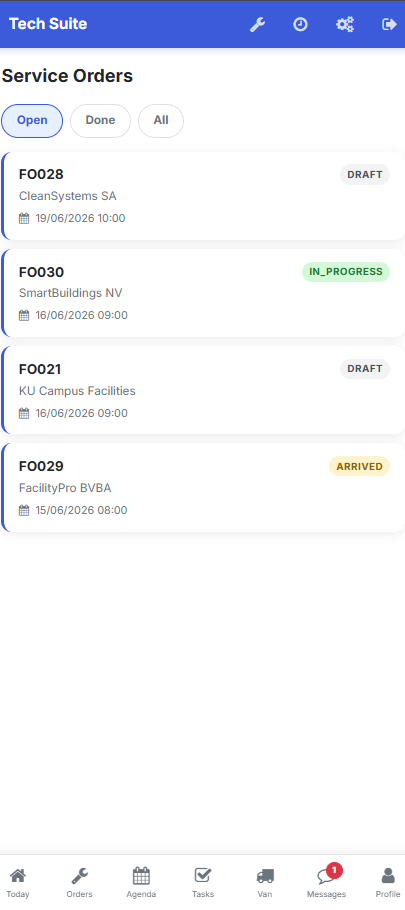 Orders tab: your service orders for the day, sorted by time.
Each line shows the essentials:
| Item | Description |
|---|---|
| Customer / place | Where to go |
| Planned time | Scheduled time slot |
| Status | Scheduled / in progress / completed |
| Type | Nature of the intervention |
Expected result: at a glance you can see the number of service orders to carry out and the order in which to handle them.
Open the details of an order
Section titled “Open the details of an order”- Tap the desired service order in the list.
- Read the description of the work to be done.
- Check the customer, their address and the asset concerned.
- Use the available actions: start, parts, report.
 Order details: description, customer, asset and action buttons.
In the details, you will find:
- The description of the work to be done.
- The contact details and address of the customer.
- The asset concerned and its history.
- The actions: start the intervention, view the parts, write the report.
Expected result: once the intervention is started, its status changes to “in progress” and time begins to be tracked automatically.