

Organisation, documents and languages
Your quotes, invoices, work orders, reports and e-mails carry your company’s details, logo and colours. This page explains where to set them, and how to choose the document layout and your customers’ languages.
| Menu | Configuratie, Organisatie category: Bedrijfsprofiel, Documentopmaak and Talen en regio |
| Who | your company administrator |
| Prerequisites | your VAT number, your IBAN and your logo (PNG, JPG or WebP, 2 MB at most) |
Completing the company details
Section titled “Completing the company details”-
Open Configuratie (your account menu), then Bedrijfsprofiel (company profile) in the Organisatie category.
-
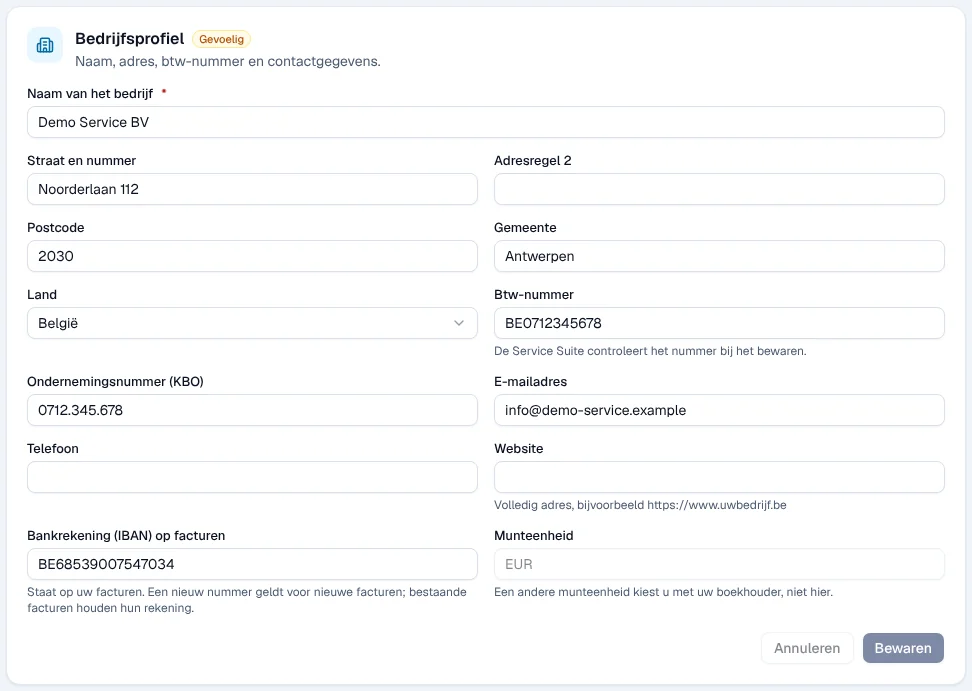
Fill in Naam van het bedrijf (name), the address (Straat en nummer, Postcode, Gemeente, Land), Btw-nummer (VAT number), Ondernemingsnummer (KBO) (company number), E-mailadres, Telefoon, Website and Bankrekening (IBAN) op facturen (bank account on invoices).
-
Click Bewaren (save).
Result: “Bedrijfsgegevens bewaard.” (company details saved). The VAT number is checked when you save.
- A new IBAN only applies to new invoices; existing invoices keep their account.
- Munteenheid (currency) cannot be changed here: “Een andere munteenheid kiest u met uw boekhouder, niet hier.” (you choose a different currency with your accountant).
Uploading the logo and choosing the colours
Section titled “Uploading the logo and choosing the colours”-
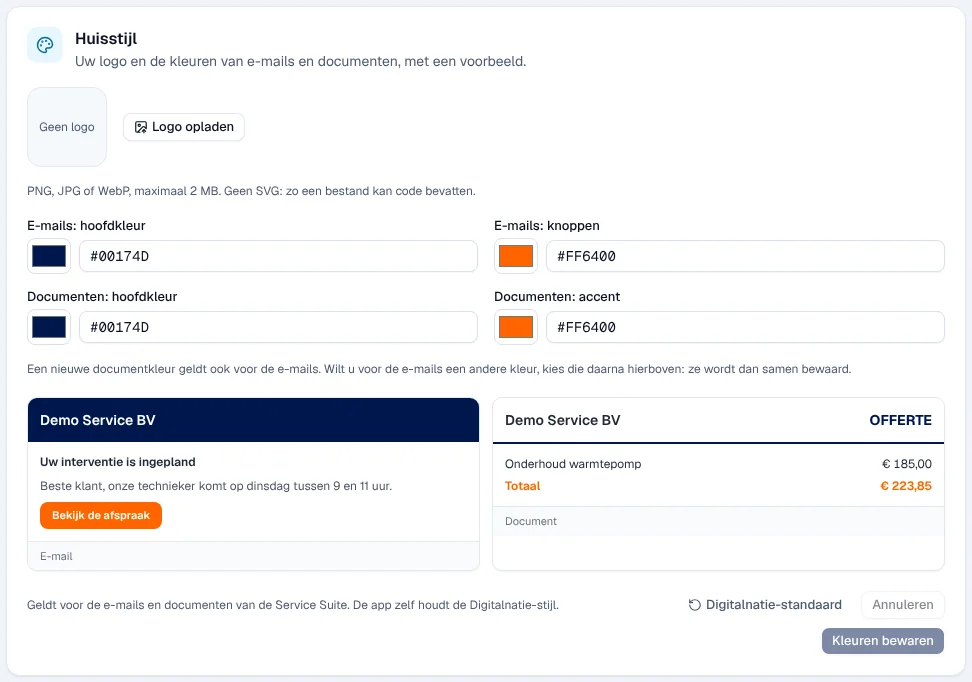
On the same page, Huisstijl (house style) block, click Logo opladen (upload logo) and choose a PNG, JPG or WebP file of 2 MB at most. SVG files are refused.
-
Choose the colours: E-mails: hoofdkleur (main colour of e-mails), E-mails: knoppen (e-mail buttons), Documenten: hoofdkleur (main colour of documents) and Documenten: accent. The e-mail and document previews update.
-
Click Kleuren bewaren (save colours).
Result: “Logo bewaard.” then “Huisstijl bewaard.”. Ander logo (other logo) replaces the logo, Verwijderen removes it. Digitalnatie-standaard restores the default colours.
A new document colour also applies to e-mails; for a different e-mail colour, choose it afterwards in the e-mail fields. The colours of the application itself do not change.
Choosing the document layout
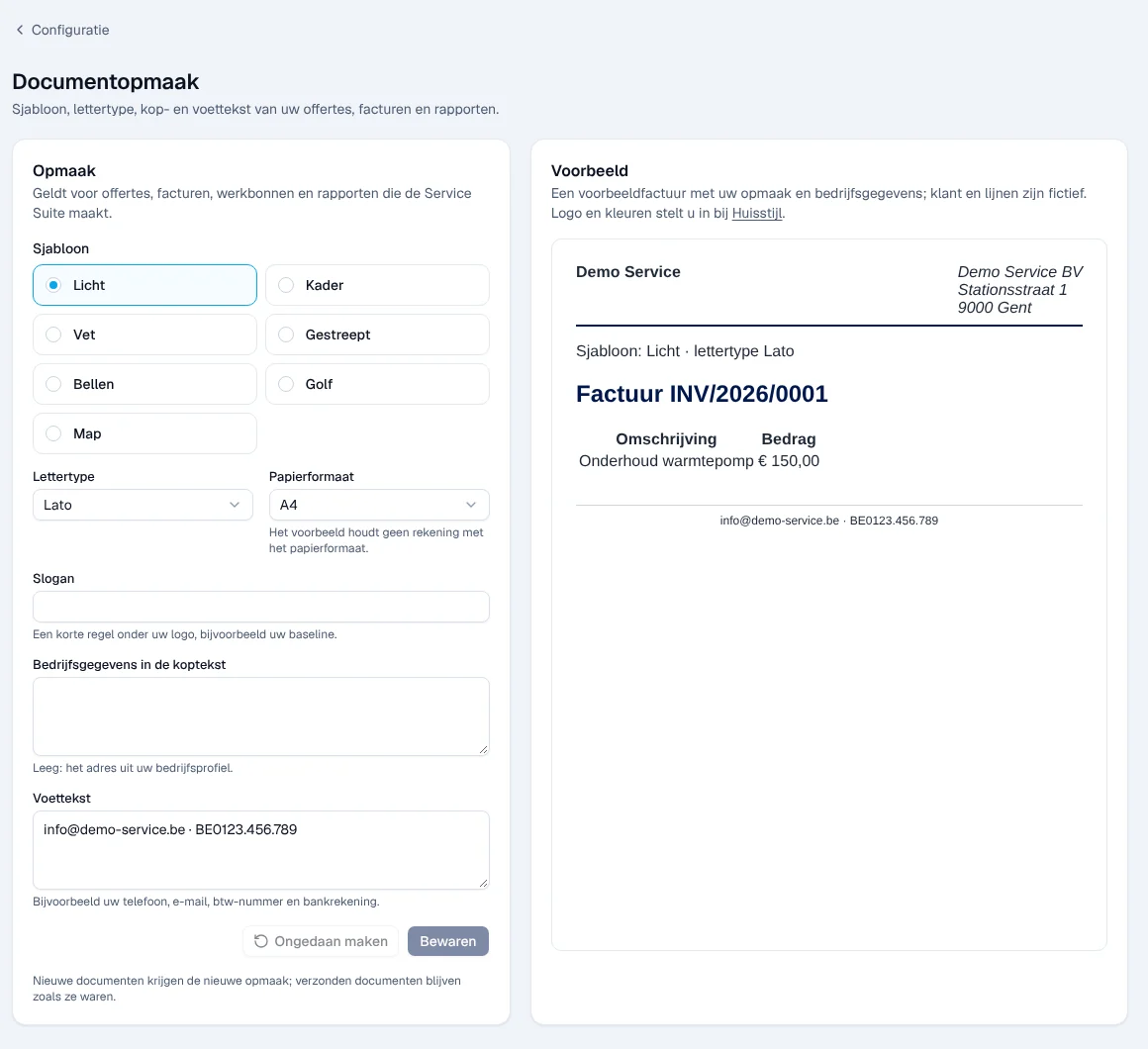
Section titled “Choosing the document layout”Documentopmaak (document layout) applies to the quotes, invoices, work orders and reports that Service Suite produces. A preview of a fictitious invoice shows the result.
-
Open Configuratie › Documentopmaak.
-
Choose a Sjabloon (template: Licht, Kader, Vet, Gestreept, Bellen, Golf or Map), the Lettertype (font) and the Papierformaat (paper size). The preview does not take the paper size into account.
-
If you wish, add a Slogan (a line below the logo), the text of Bedrijfsgegevens in de koptekst (company details in the header; empty = the address from the company profile) and a Voettekst (footer: phone, e-mail, VAT, bank account…).
-
Click Bewaren.
Result: “Documentopmaak bewaard”. New documents get the new layout; documents already sent do not change. Ongedaan maken (undo) returns to the saved values.
Managing languages
Section titled “Managing languages”Talen en regio (languages and region) lists the languages in which your customers and employees receive their documents and e-mails, with the number of users and contacts who use them.
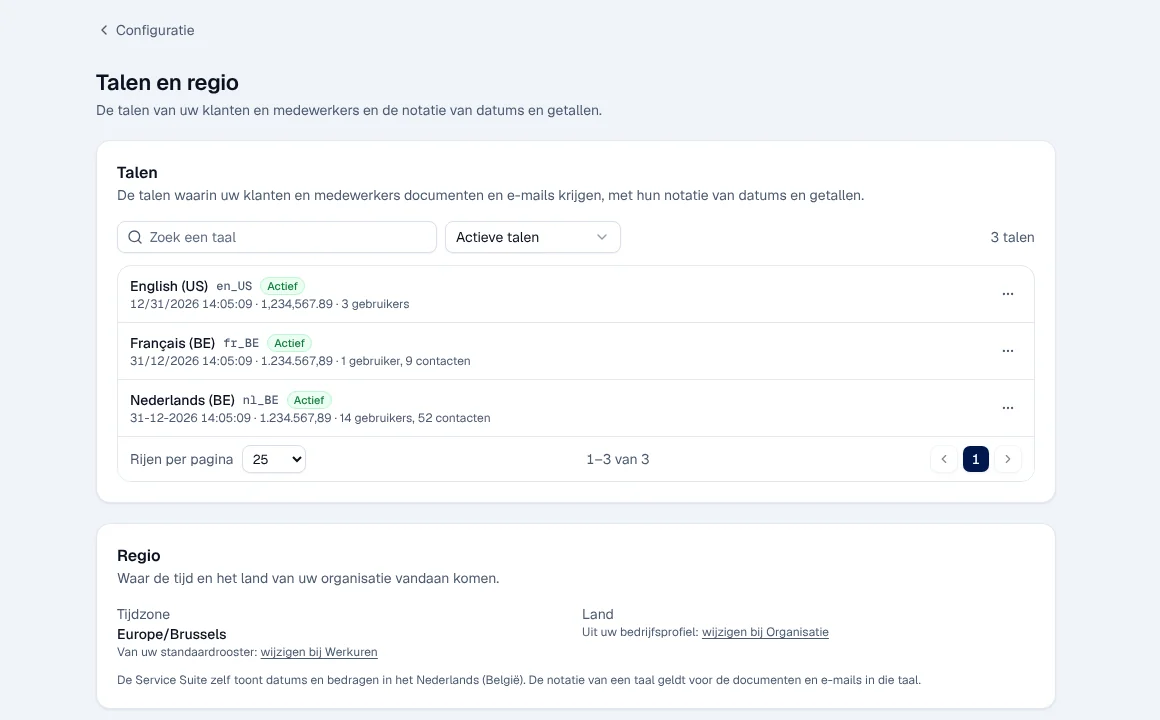
The … menu of a language offers:
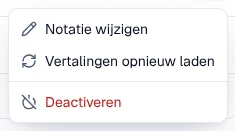
- Notatie wijzigen (change notation): the date and time format, the number separators and Week begint op (week starts on) for documents in this language.
- Vertalingen opnieuw laden (reload translations): this can take up to a minute; leave the window open.
- Deactiveren (deactivate): refused as long as the language is in use. First choose another language for the customers and users concerned.
To add a language, filter on Alle talen (all languages) and choose Activeren (activate) in its menu.
The Regio block shows the time zone (that of the standard working schedule, which can be changed in Werkuren) and the country (that of the company profile). The application itself always shows dates and amounts in Dutch (Belgium); a language’s notation applies to documents and e-mails in that language. The language of a new customer is set in the Operating rules.
Rights by role
Section titled “Rights by role”The table shows the supplied role templates (see Roles and permissions); your administrator can adjust them (see Users, roles and permissions).
| Action | Admin | Manager | Planner | Accounting | Warehouse | Sales | Read |
|---|---|---|---|---|---|---|---|
| Change the company details, logo and colours | ✓ | — | — | — | — | — | — |
| Change the document layout | ✓ | — | — | — | — | — | — |
| Manage languages and their notation | ✓ | — | — | — | — | — | — |
| See the organisation information (Instellingen › Organisatie) | ✓ | ✓ | ✓ | ✓ | ✓ | ✓ | ✓ |
Current limits
Section titled “Current limits”- The currency and the application’s colours cannot be changed here.
- The layout preview is indicative: it does not take the paper size into account.
See also
Section titled “See also”- Getting started: Aan de slag — Bedrijfsgegevens and Logo steps
- Connect your e-mail
- Operating rules — VAT, terms and conditions, payment term
- Quotes (Offertes) and Invoices