

Connect your e-mail
Service Suite sends e-mails to your customers and employees: intervention reports, quotes, invoices, invitations, password links. To have them sent from your company’s address, the administrator connects a domain and an outgoing server in E-mail en communicatie (e-mail and communication).
| Menu | Configuratie › E-mail en communicatie |
| Who | your company administrator |
| Prerequisites | your domain (for example uwbedrijf.be) and the details of your outgoing server (SMTP): address, port, username, password |
The screen has three tabs: Afzender (sender), Mailservers (mail servers) and Aliassen (aliases).
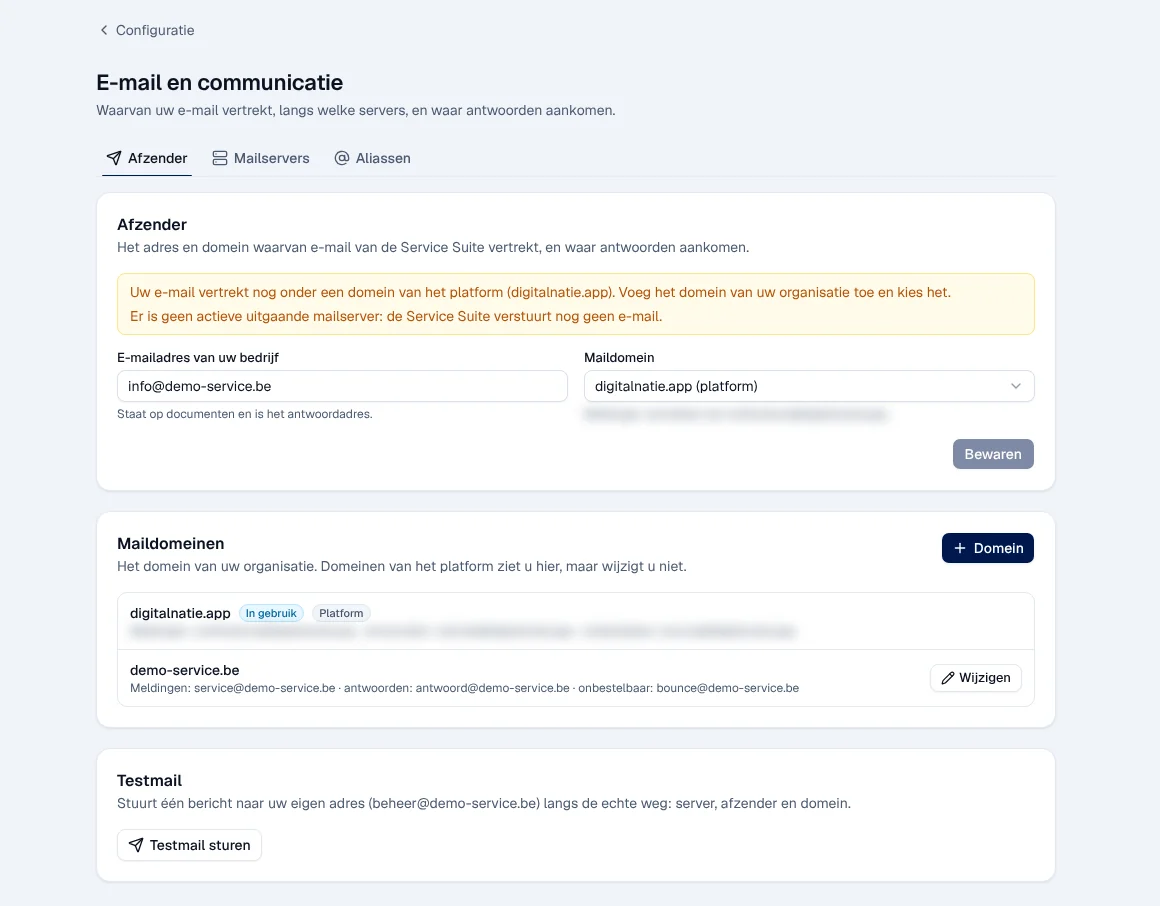
Here, e-mail is still sent under a platform domain and no outgoing server is active: the two yellow warnings say so.
Connecting your company e-mail
Section titled “Connecting your company e-mail”-
Add your domain. In Afzender, Maildomeinen (domains) block, click Domein. Enter your Domein and, if needed, the addresses Afzender van meldingen (notification sender), Antwoorden (catch-all) (replies) and Onbestelbaar (bounce) (undeliverable). The DNS records (MX, SPF, DKIM) are set with your domain provider, not in the application.
-
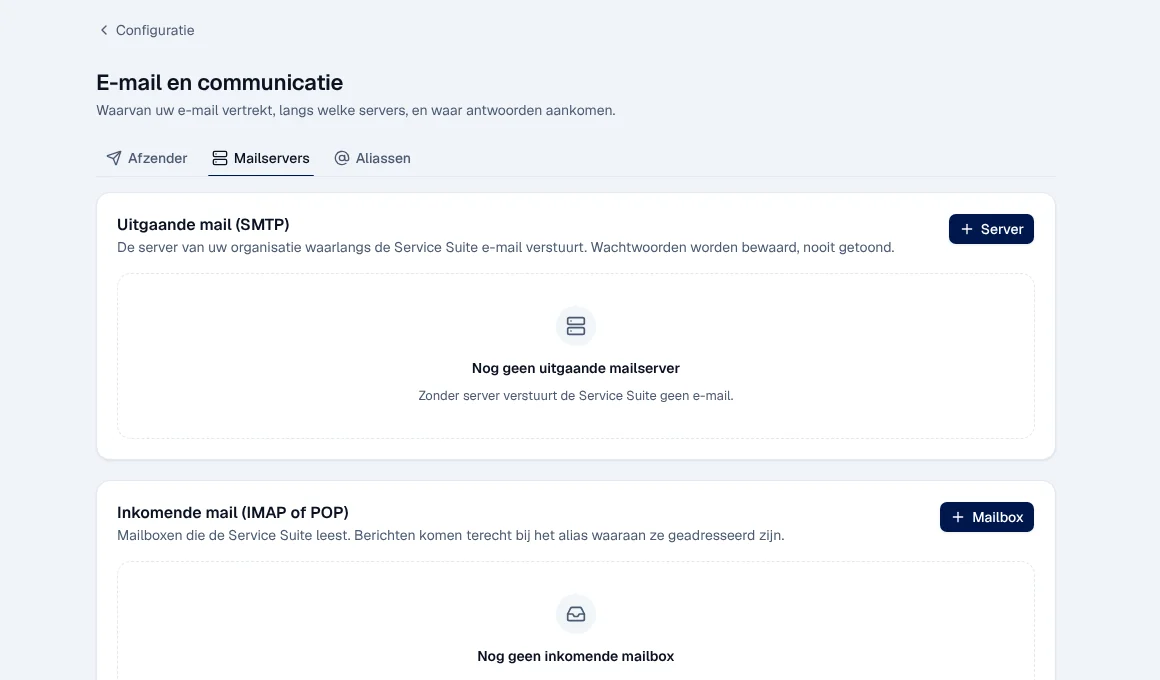
Add the outgoing server. Mailservers tab, Uitgaande mail (SMTP) (outgoing e-mail) block, click Server.
-
Fill in Naam (name), Server (for example
smtp.uwbedrijf.be), Poort (port), Beveiliging (security, for example STARTTLS on port 587), Gebruikersnaam (username, often the full e-mail address) and Wachtwoord (password). Alleen voor afzenders limits the server to one address or domain; Volgorde sets the priority (the lowest goes first). Click Toevoegen (add).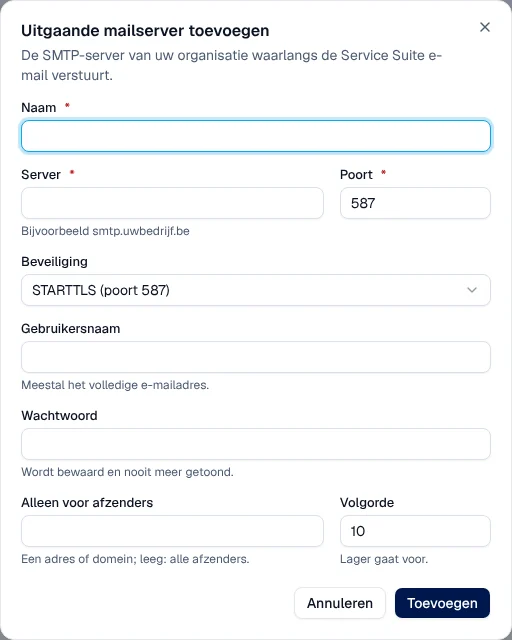
-
Choose the sender. Back in Afzender, check E-mailadres van uw bedrijf (company address: it appears on documents and is used as the reply address) and choose your domain in Maildomein. Click Bewaren (save).
-
Test. In the Testmail block, click Testmail sturen (send test e-mail). A message is sent to your own address, by the real route: server, sender and domain.
Result: “Verstuurd naar … Kijk ook in uw map ongewenste e-mail.” (sent to …; also check your junk mail folder). The yellow warnings disappear and the E-mail versturen step of the set-up checklist changes to In orde.
If the test fails, the message says why, for example:

A server’s password is saved but never shown again. Archiving a server requires confirmation: e-mail then no longer goes through that server.
Receiving e-mail: incoming mailboxes and aliases
Section titled “Receiving e-mail: incoming mailboxes and aliases”- Inkomende mail (IMAP of POP) (incoming e-mail), in Mailservers: the mailboxes that Service Suite reads. Mailbox adds a mailbox. Messages arrive at the alias they are addressed to.
- Aliassen: the addresses your customers write to and what this creates in Service Suite (for example an intervention or an opportunity), with the owner of the alias and Wie mag mailen (who may write). Wijzigen (edit) changes an alias.
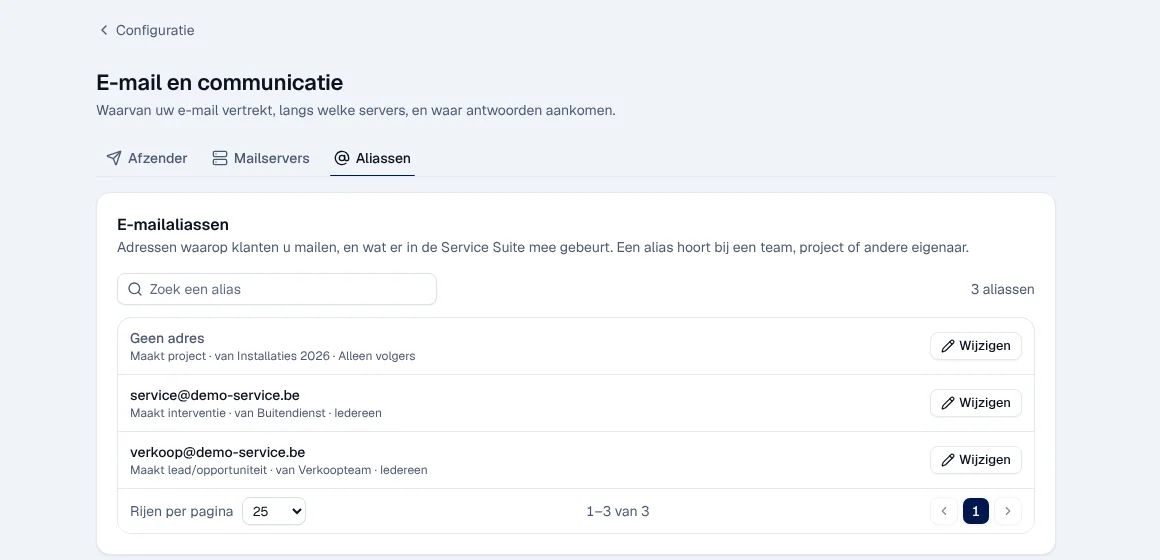
These e-mails are read in the Service Inbox and the Mailbox. A personal Mailbox is connected by Digitalnatie: ask for it if you need one.
Before e-mail is connected
Section titled “Before e-mail is connected”As long as your company e-mail is not connected, the application says so before sending, instead of failing afterwards:
- The Service Inbox and Mailbox menu entries show Niet ingericht (not set up) for the administrator (the Service Inbox leads to this screen). Other users do not see them.
- Where a document would be sent by e-mail, the application shows “E-mail is niet gekoppeld. Download het document en bezorg het zelf.” (e-mail is not connected: download the document and deliver it yourself). The administrator sees the E-mail koppelen (connect e-mail) link.
- The test e-mail replies “Koppel eerst een uitgaande server van uw organisatie.” (first connect an outgoing server of your organisation).
- Invitations and password e-mails cannot be sent: use the activation link on the user record (see Users, roles and permissions).
Other possible messages: “De mailkoppeling is nog niet getest.” (the connection has not been tested yet), “De mailkoppeling werkt niet (laatste test mislukt).” (the connection is not working, last test failed), “E-mail vertrekt nog via het platform …” (e-mail is still sent through the platform: set up your organisation’s sender, domain or server).
Rights by role
Section titled “Rights by role”The table shows the supplied role templates (see Roles and permissions); your administrator can adjust them (see Users, roles and permissions).
| Action | Admin |
|---|---|
| Domains, servers, sender, aliases | ✓ |
| Send a test e-mail | ✓ |
| See the Niet ingericht entries in the menu ¹ | ✓ |
¹ For other roles, these entries are hidden.
Current limits
Section titled “Current limits”- The DNS records (MX, SPF, DKIM) are set with your domain provider.
- The platform domains are visible but cannot be changed.
- A personal Mailbox is connected by Digitalnatie.
See also
Section titled “See also”- Service Inbox and Mailbox
- Getting started: Aan de slag — E-mail versturen step
- Organisation, documents and languages — e-mail colours
- Users, roles and permissions — invitations and activation links