

Financial overview (Financieel overzicht)
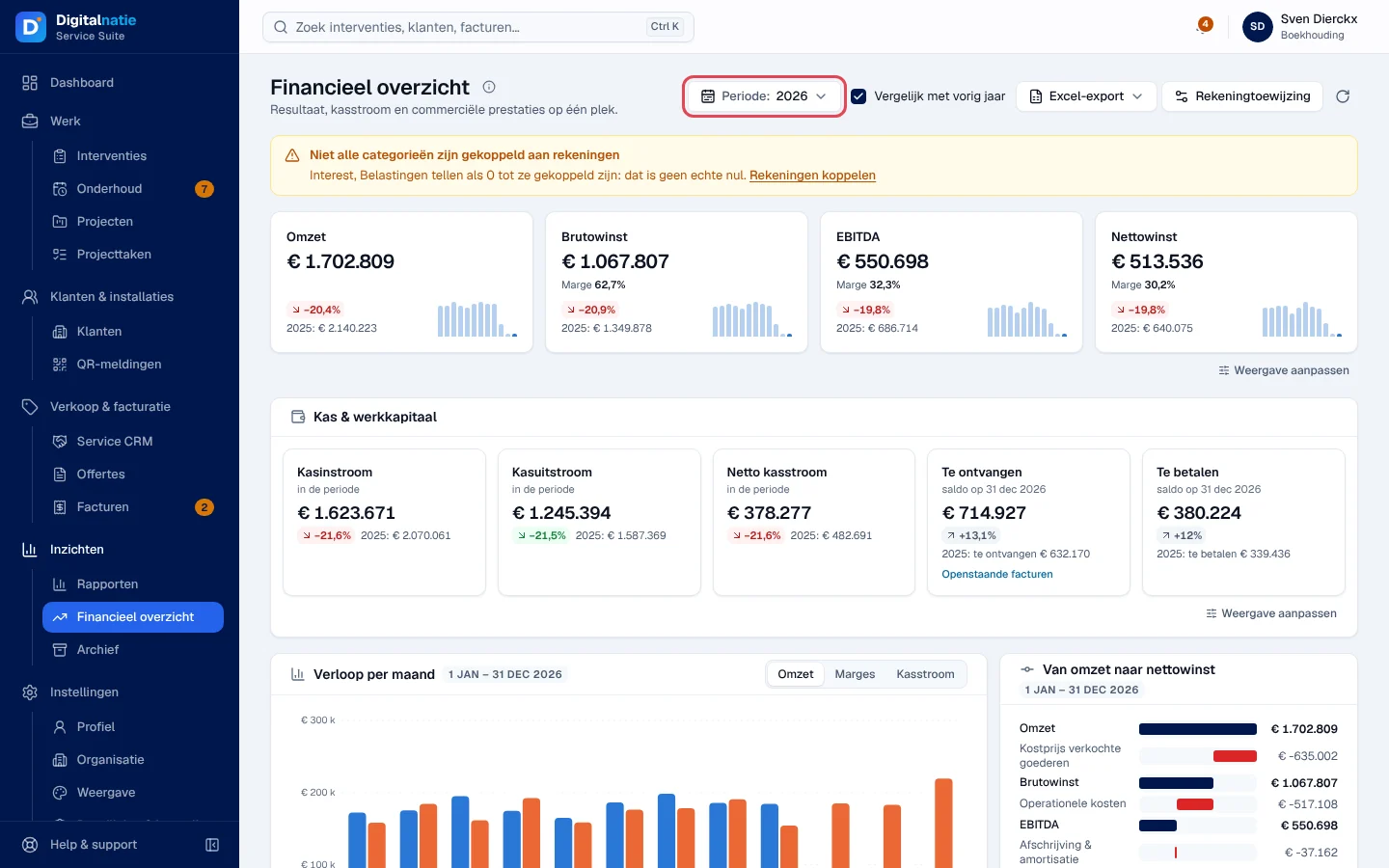
The Financieel overzicht (financial overview) brings together on a single page the company’s result, the cash position, what requires your attention today and the commercial figures. It is meant for management and accounting. All figures come from your accounting and only posted entries count. Revenue and costs are excluding VAT, after credit notes; the receivable and payable balances include VAT.
| Menu | Inzichten › Financieel overzicht |
| Who | The administrator and the Finance Manager (accounting), with the Rekeningtoewijzing (account mapping); Directie (sales) can view, without the Rekeningtoewijzing. Without this permission, the entry does not appear in the menu. |
| Prerequisites | Posted entries. For correct figures: your accounts linked to the categories (see Link your accounts). |

Choose the period and the comparison
Section titled “Choose the period and the comparison”-
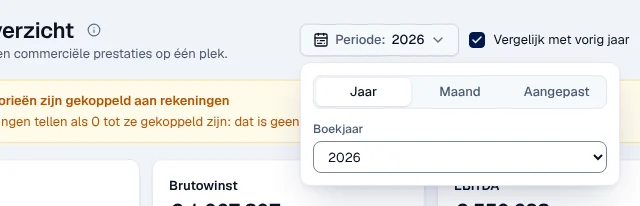
Click Periode: … (period) at the top of the page.
-
Choose the Soort periode (period type):
- Jaar (year): choose the Boekjaar (financial year);
- Maand (month): choose the month;
- Aangepast (custom): fill in Van (from) and Tot en met (up to and including), 24 months maximum.
-
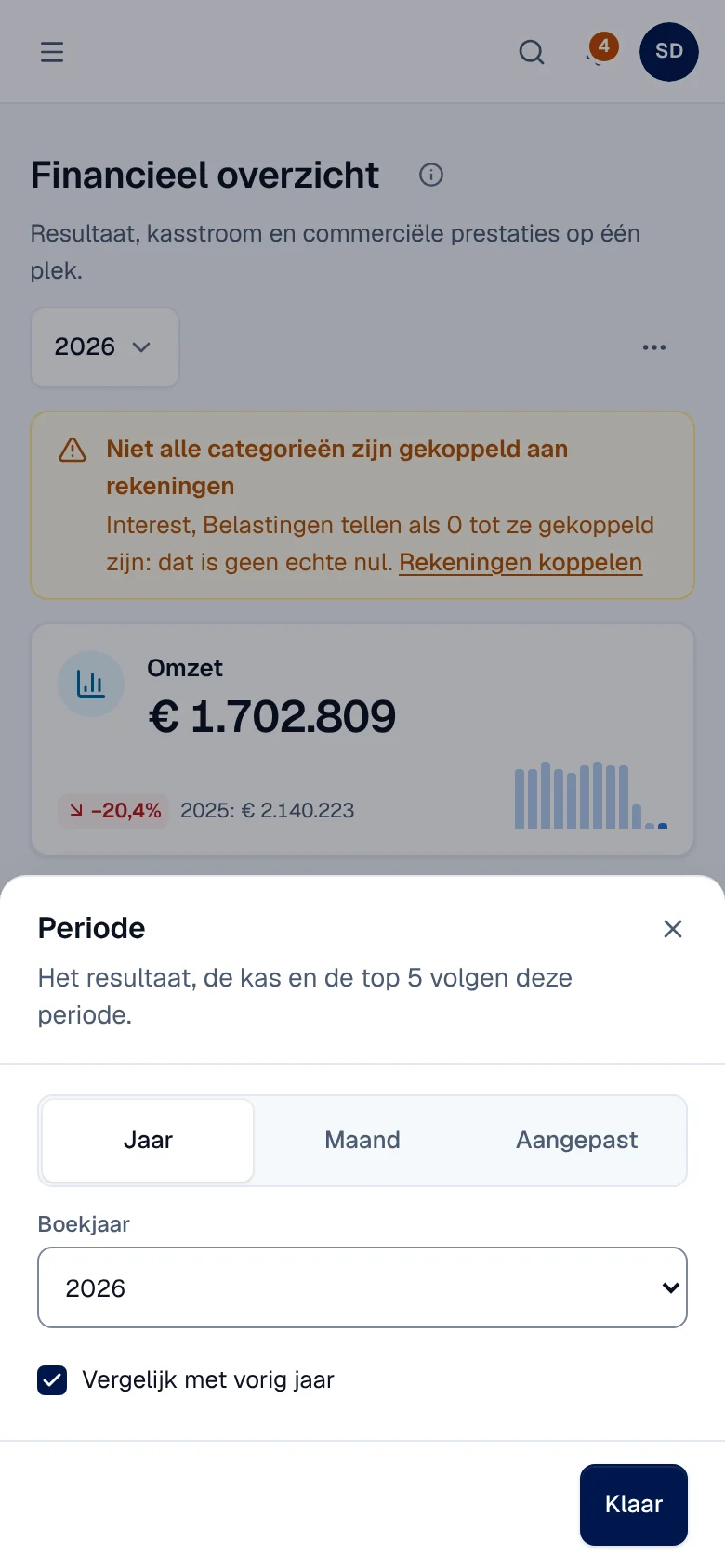
Tick or untick Vergelijk met vorig jaar (compare with the previous year). Each figure then shows the difference in per cent and the previous year’s value, with “(gunstig)” (favourable) or “(ongunstig)” (unfavourable).
The result, the cash position and the top 5 lists follow this period. The Aandacht nodig, Facturatie, Offertes and CRM-pijplijn blocks each keep their own period, written on the block (for example “Vandaag”, “Deze maand”, “Nu”). The Vernieuwen (refresh) icon reloads the figures.
On a phone, the period opens in a Periode panel that also contains the comparison; export and refresh are in the ⋯ menu.
Read the blocks
Section titled “Read the blocks”-
The result: Omzet (revenue), Brutowinst (gross profit), EBITDA and Nettowinst (net profit), with their margin on revenue. Without revenue, the margin shows “n.v.t.” (not applicable).
-
Kas & werkkapitaal (cash and working capital): Kasinstroom (inflows), Kasuitstroom (outflows) and Netto kasstroom (net cash flow) over the period; Te ontvangen (receivable) and Te betalen (payable) are balances at the end date, including VAT. A negative receivable balance is called Klanttegoed (customer credit).
-
Verloop per maand (trend by month): a chart of your choice of Omzet, Marges or Kasstroom, with the previous year if you compare. Van omzet naar nettowinst (from revenue to net profit) shows each cost level.
-
Aandacht nodig (attention needed), as of today:

- the overdue invoices (open amount after the due date, including VAT);
- the completed interventions still to be invoiced, with their billable value excluding VAT;
- the current maintenance contracts that end within 60 days.
A click opens the matching list. Each line only appears if your role allows you to read these invoices, interventions or contracts.
-
Commerciële prestaties (commercial performance):
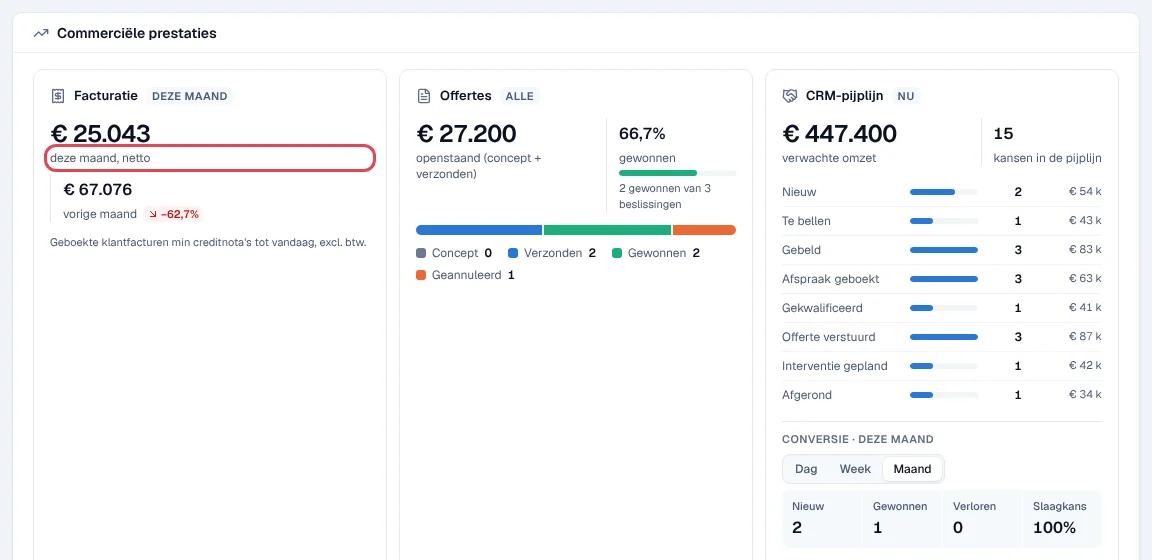
- Facturatie (invoicing), Deze maand: the “deze maand, netto” amount is the net invoiced this month: posted customer invoices minus posted credit notes, from the 1st of the month up to today, excluding VAT, counted on the invoice date. The number of credit notes deducted is shown. A click on the amount opens the invoice list with exactly the same documents. It is the same figure as Netto gefactureerd deze maand on the dashboard.
- Offertes (quotes) and CRM-pijplijn (CRM pipeline) only appear to people who have access to quotes and the Service CRM.
-
Rendabiliteit van de service (service profitability): Factureerbare uren (billable hours compared with the time worked on completed interventions), Gemiddelde interventiewaarde (average value of an intervention, labour and parts), Marge op onderdelen (margin on parts, see the limits) and Contractomzet (verwacht) (expected contract revenue: active maintenance contracts × annual price, brought back to a monthly figure; “Nu, niet de periode”: now, not the period).
-
Topklanten (top customers) and Topdiensten & producten (top services and products): invoices minus credit notes, excluding VAT; Alles bekijken (view all) opens the full list.
The footer recalls the calculation rules and the time of the calculation (“berekend …”).
Weergave aanpassen (adjust view), under a row of figures, lets you choose the figures shown, their order and their size. This choice only applies to you.
What “Niet gekoppeld” means
Section titled “What “Niet gekoppeld” means”Each category of the income statement (revenue, costs, interest, taxes…) is calculated from the accounting accounts linked to it. A category without an account shows “Niet gekoppeld” (not linked) or “niet gekoppeld” in the tables: it counts as 0, and this is not a real zero. The yellow banner says so at the top of the page: “Niet alle categorieën zijn gekoppeld aan rekeningen” (not all categories are linked to accounts).
- If you have the permission to link accounts, the banner offers Rekeningen koppelen (link accounts).
- Otherwise, it says “Vraag een financieel beheerder om de rekeningen te koppelen.” (ask a financial manager to link the accounts).
Interest and taxes have no default rule: they stay at 0 until you link them.
Export the income statement
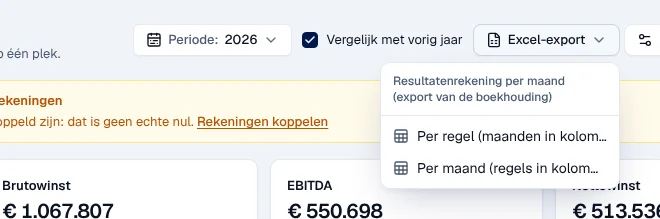
Section titled “Export the income statement”From the top of the page: Excel-export offers the income statement by month over the chosen period, in two layouts: Per regel (maanden in kolommen) (by line, months in columns) or Per maand (regels in kolommen) (by month, lines in columns).
From the details:
-
Expand Financiële details · Resultatenrekening per maand (financial details, income statement by month) at the bottom of the page. Your choice (open or closed) is remembered.
-
Choose the Periode van de tabel (table period): Zoals de pagina (same as the page), Boekjaar, Kwartaal (quarter), Maand or Aangepast. A period specific to the table is flagged “Eigen periode”; Filters herstellen returns to the page’s period.
-
Click Download Excel or Download PDF.
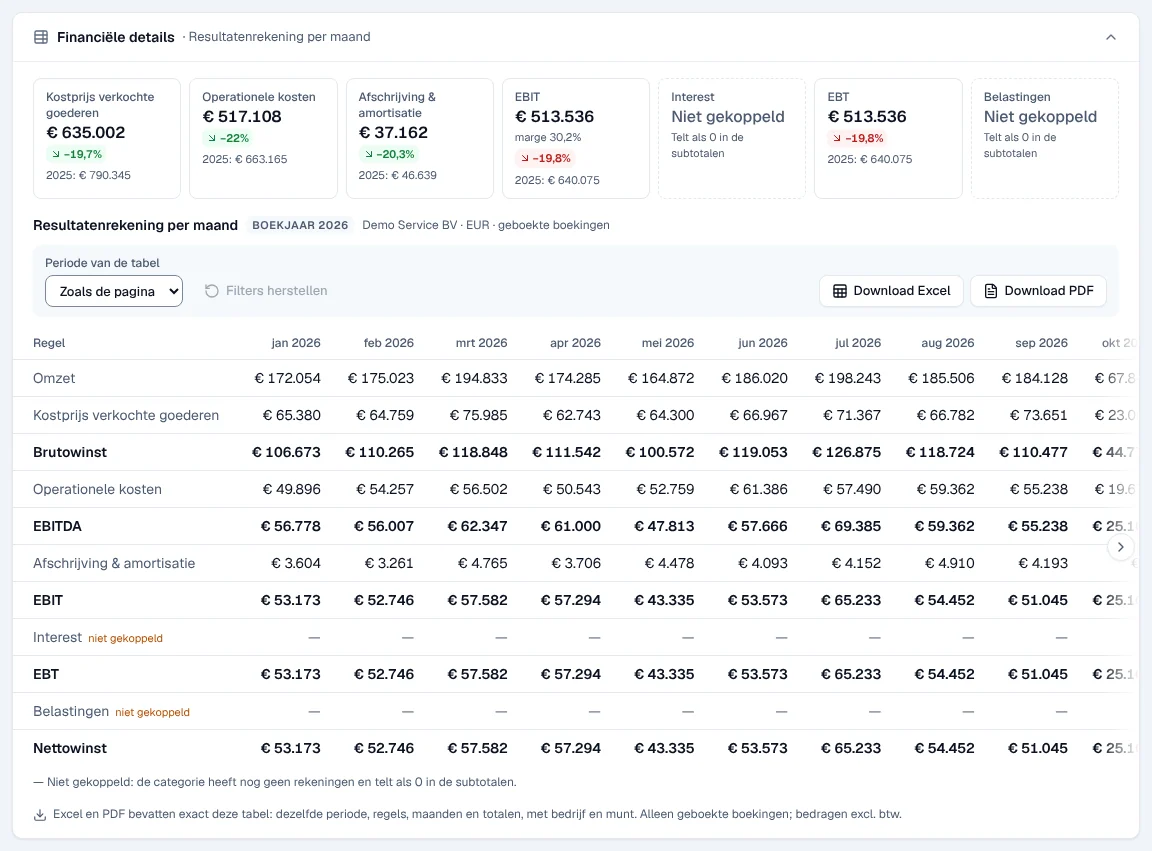
Result: the file contains exactly the table shown (same period, same lines, months and totals, with the company and the currency), only posted entries, excluding VAT.
Link your accounts (Rekeningtoewijzing)
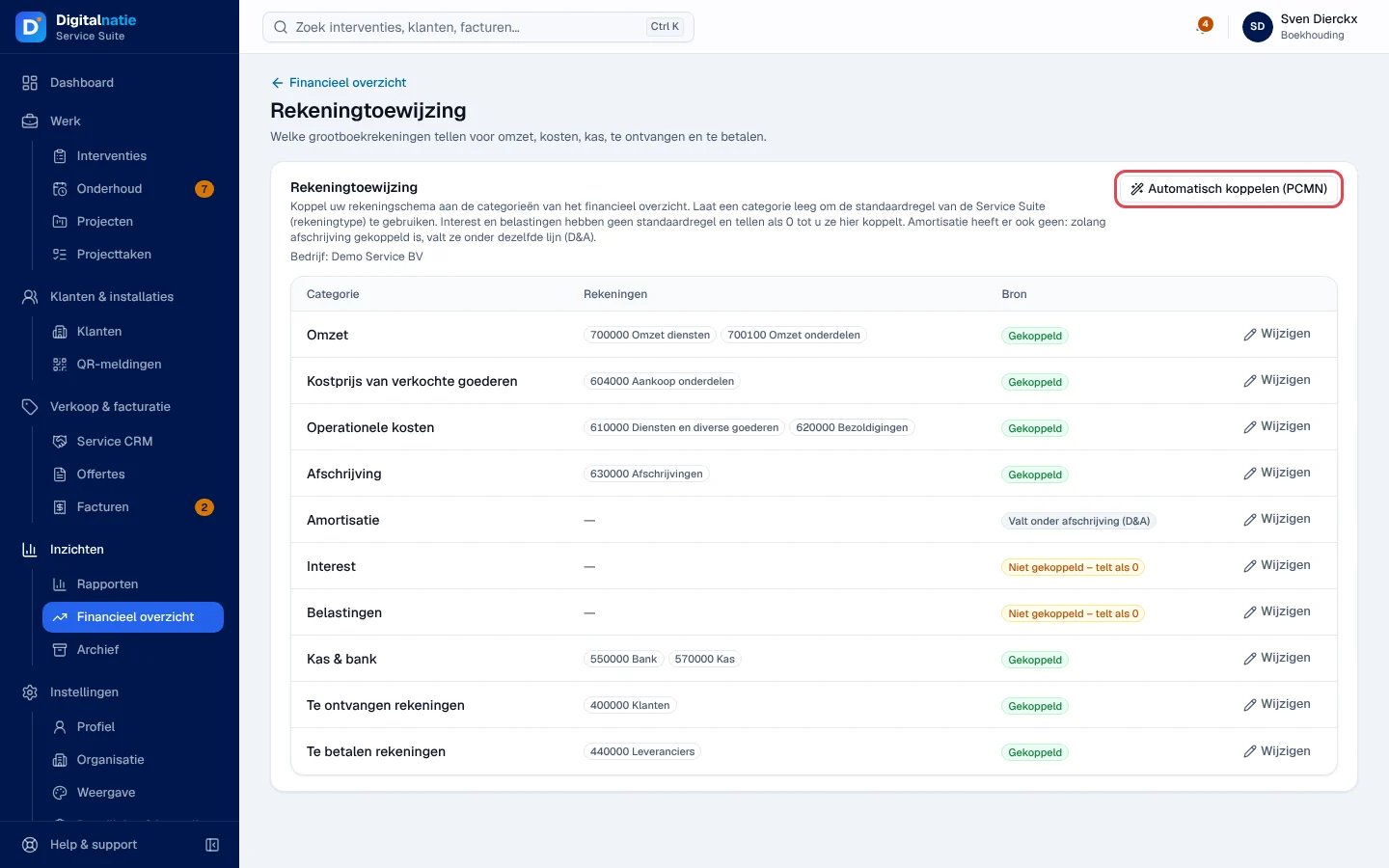
Section titled “Link your accounts (Rekeningtoewijzing)”The Rekeningtoewijzing (account mapping) decides which accounts in the chart of accounts count towards revenue, costs, cash, receivables and payables.
-
Click Rekeningtoewijzing at the top of the financial overview (on a phone: ⋯ menu).
-
Read the Bron (source) column: Gekoppeld (linked to your accounts), Standaardregel (default rule based on the account type), Valt onder afschrijving (D&A) (amortisation counts with depreciation) or Niet gekoppeld – telt als 0 (not linked, counts as 0).
-
Click Wijzigen (edit) on a category’s row. Search for an account in Rekening toevoegen (“Code of naam, bv. 70”: code or name), add it with +, then click Opslaan (save).
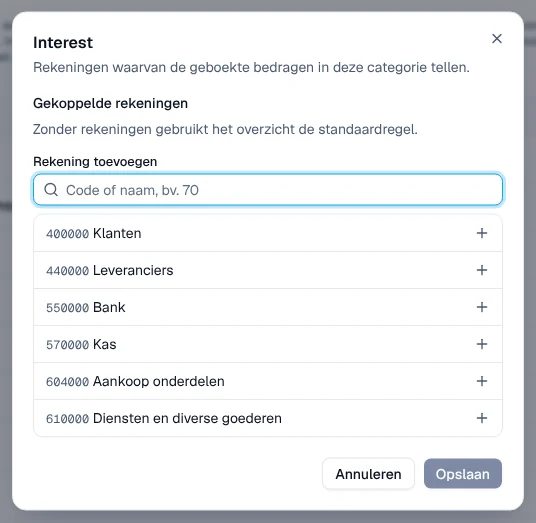
A category left without an account uses Service Suite’s default rule (except interest, taxes and amortisation, which have none).
Automatisch koppelen (PCMN) (link automatically according to the Belgian standard minimum chart of accounts) first shows a proposal per category. You confirm it with PCMN-koppeling toepassen (apply). Categories that already have accounts are never overwritten.
Rights
Section titled “Rights”The table shows the supplied role templates (see Roles and permissions); your administrator can adapt them (see Users, roles and permissions).
| Action | Admin | Accounting | Sales |
|---|---|---|---|
| View the financial overview, choose the period, export to Excel or PDF | ✓ | ✓ ¹ | ✓ ² |
| Rekeningtoewijzing and PCMN linking | ✓ | ✓ ¹ | — |
| Aandacht nodig lines ³ | ✓ | ✓ ¹ | ✓ ² |
| Offertes and CRM-pijplijn cards | ✓ | ✓ ¹ | ✓ ² |
¹ Finance Manager only. ² Directie only. ³ Each line also requires the permission to read invoices, interventions or maintenance contracts.
Roles are set in Instellingen › Rollen by the company’s administrator: see Users, roles and permissions.
Current limits
Section titled “Current limits”- Marge op onderdelen shows “Niet beschikbaar” (not available): the cost price of the parts used is not tracked per intervention. The sales value of the parts is shown instead.
- Only posted entries count: a draft invoice does not appear anywhere.
- Topklanten and Topdiensten & producten are based on invoices: their total may differ from the revenue in the income statement (entries outside invoices, accounts outside revenue). The page says so under the lists.
See also
Section titled “See also”- Invoices, payments and credit notes — the list opened by the net invoiced this month
- Quotes (Offertes)
- Reports — interventions, technicians and service revenue
- The dashboard
- Users, roles and permissions