

Maintenance contracts (Onderhoud)
A maintenance contract sets a periodic visit to a customer: for an entire site or for a single installation, every month, quarter, half-year, year or every N days. As long as the contract is active, Service Suite itself creates the intervention for each visit. The Onderhoud (maintenance) screen shows what is overdue, what is coming up and what still needs to be scheduled.
| Menu | Werk › Onderhoud |
| Who | View: administrator, manager, planner. Create, edit, change the status: administrator and manager. Schedule a visit: also the planner. |
| Prerequisites | A customer with a site (Locatie). Without a site, Service Suite creates no visits. |

Find a contract
Section titled “Find a contract”-
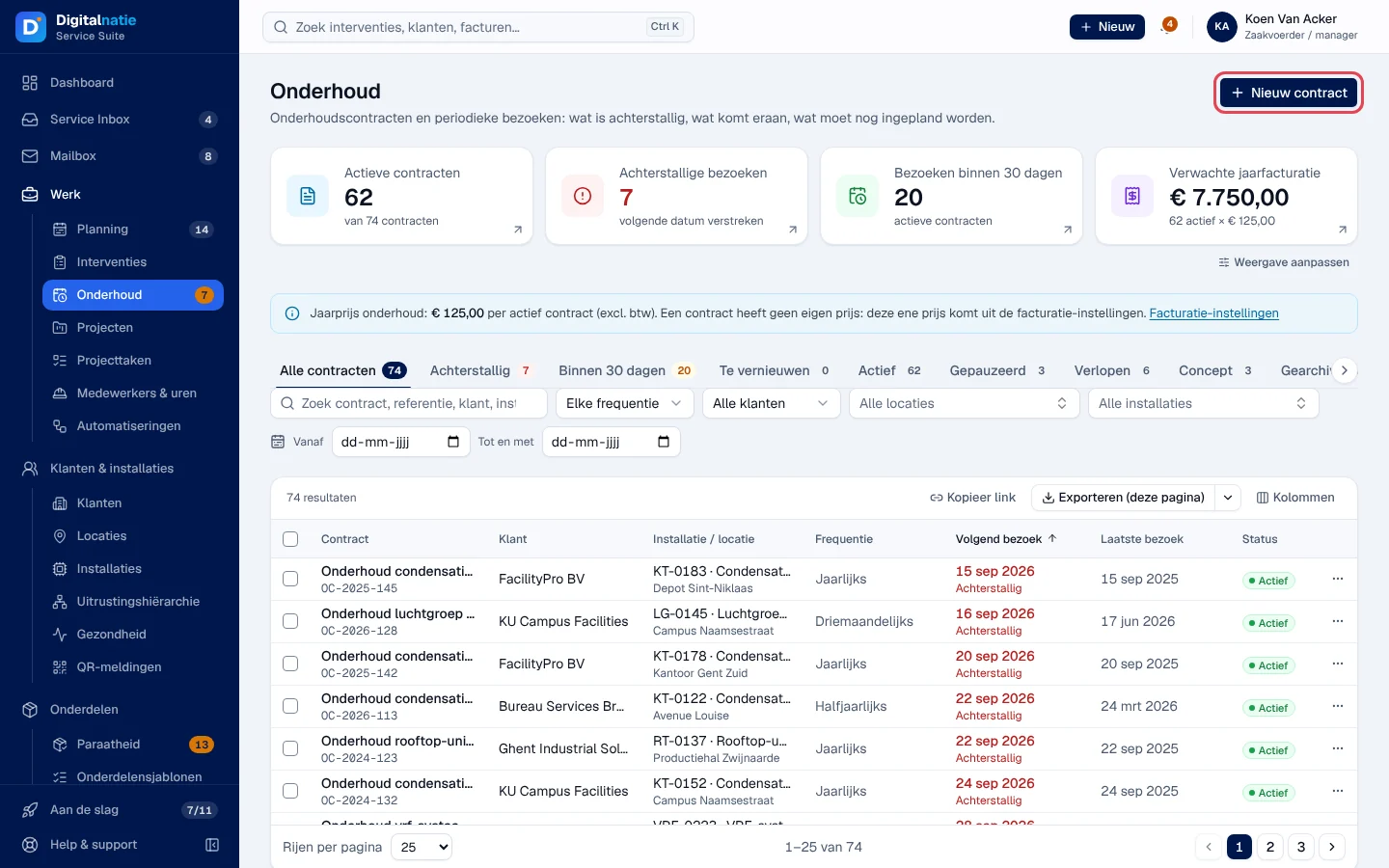
Open Werk › Onderhoud. The orange number in the menu counts the overdue visits.
-
Read the key figures: Actieve contracten (active contracts), Achterstallige bezoeken (overdue visits), Bezoeken binnen 30 dagen (visits within 30 days) and, if your role sees amounts, Verwachte jaarfacturatie (expected annual invoicing). A figure opens the matching tab.
-
Choose a tab: Alle contracten (all), Achterstallig (overdue), Binnen 30 dagen, Te vernieuwen (to renew: ending within 60 days), Actief (active), Gepauzeerd (paused), Verlopen (expired), Concept (draft), Gearchiveerd (archived).
-
Filter by search, Frequentie (frequency), customer, site, installation or date of the next visit (Vanaf / Tot en met).
-
Click a row: the contract panel opens on the right.
A row’s ⋯ menu offers Bezoek inplannen (schedule a visit), Openen, Interventies (the contract’s interventions), Contractpagina (contract page), the customer, the site, the installation, and for those who manage contracts Wijzigen (edit), Pauzeren / Hervatten (pause / resume, without confirmation) and Archiveren (archive).
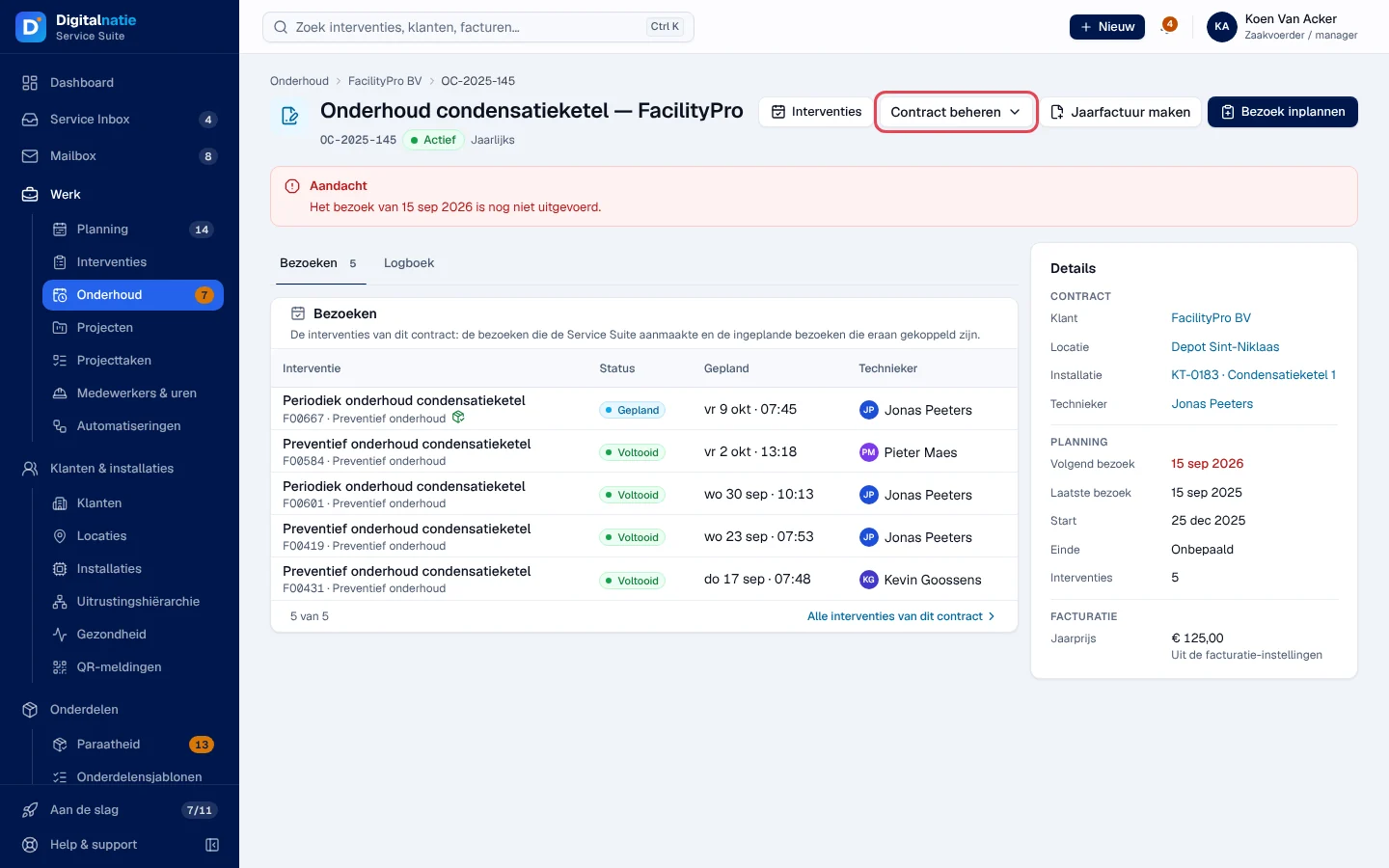
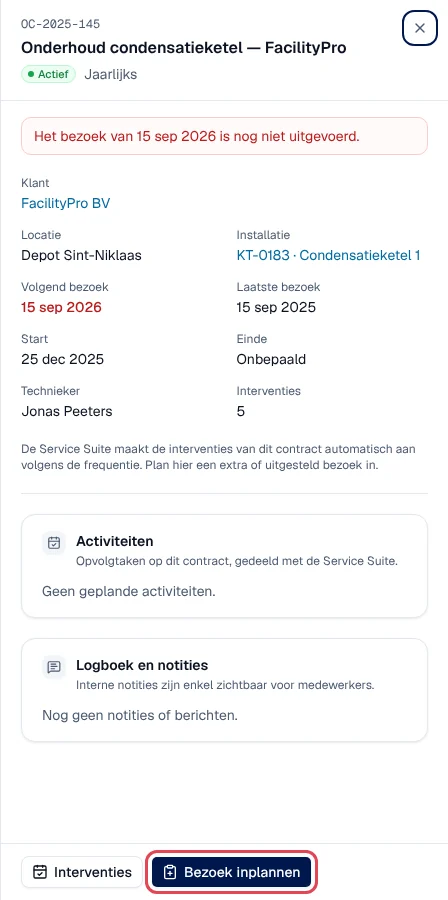 The panel flags an overdue visit: “Het bezoek van 15 sep 2026 is nog niet uitgevoerd.”
Create a contract
Section titled “Create a contract”
-
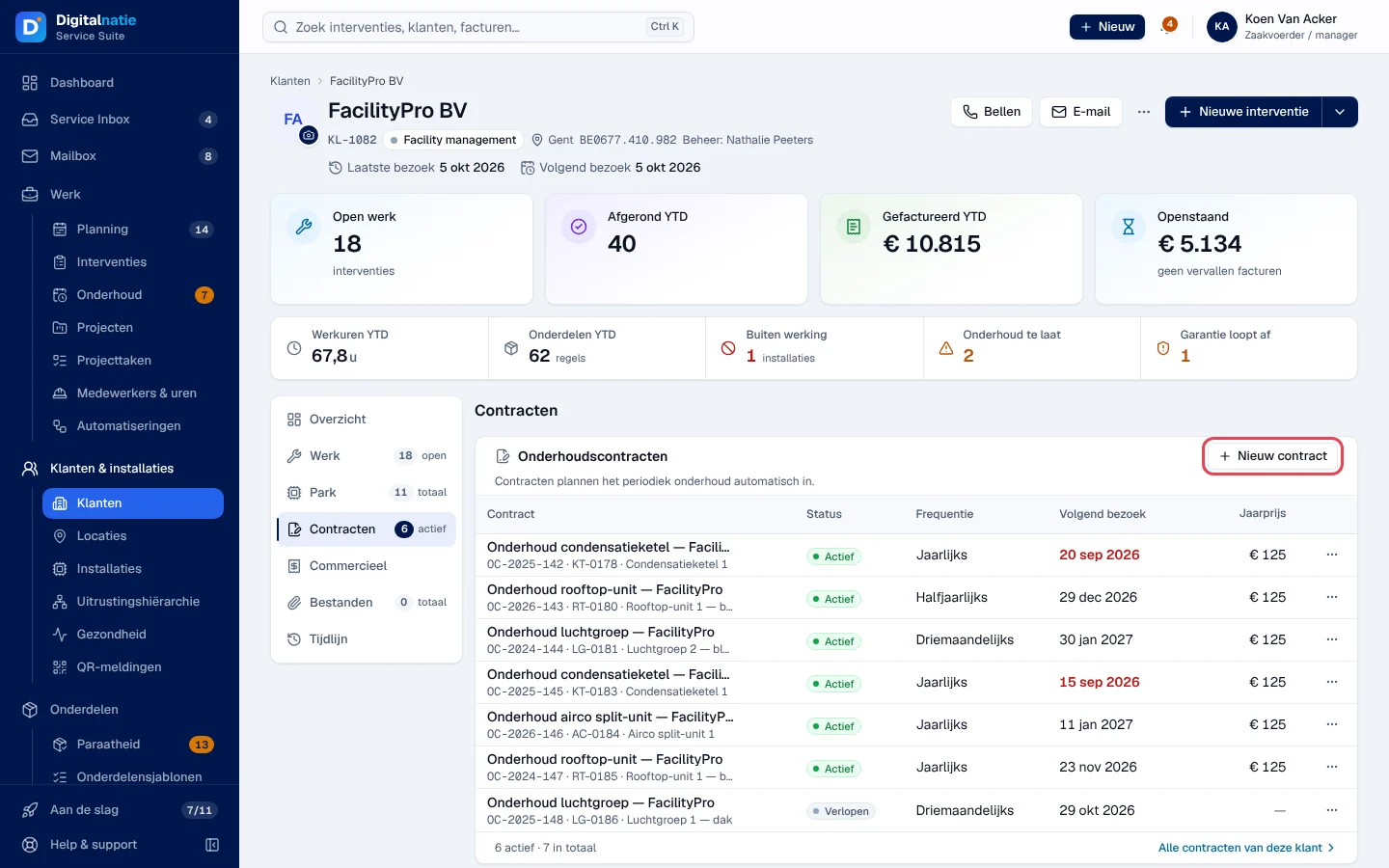
Click Nieuw contract (new contract) in Onderhoud. From the customer file, Contracten tab, the same button creates a contract with the customer already filled in.
-
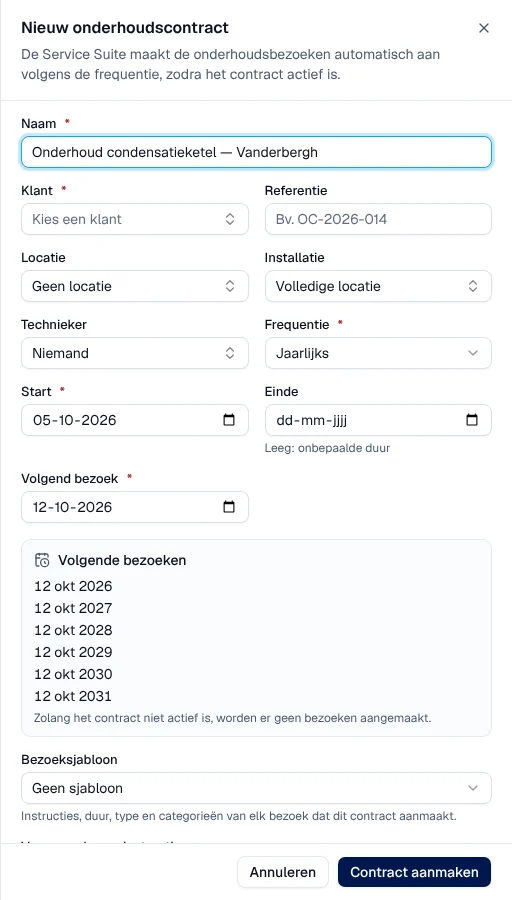
Fill in the Nieuw onderhoudscontract window:
- Naam (name) and Klant (customer), required; Referentie (reference) if you use one.
- Locatie (site) and, if the contract covers a single machine, Installatie. Without an installation, the contract covers the whole site (Volledige locatie).
- Technieker (technician), optional.
- Frequentie: Maandelijks, Driemaandelijks, Halfjaarlijks, Jaarlijks or Aangepast (aantal dagen) with Dagen tussen twee bezoeken.
- Start, Einde (end; empty = no end date) and Volgend bezoek (next visit).
- Bezoeksjabloon (visit template): instructions, duration, type and categories of each visit.
- Voorwaarden en instructies: this text becomes a to-do on each visit.
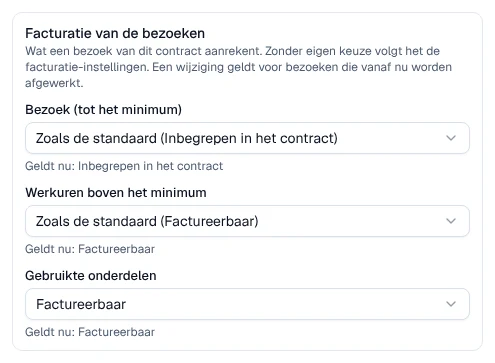
- Facturatie van de bezoeken (invoicing of the visits): what a visit of this contract charges (see Invoice maintenance).
-
Check the Volgende bezoeken (next visits) block: it shows the next six dates.
-
Leave Meteen activeren (activate straight away) on, or switch it off to keep a draft.
-
Click Contract aanmaken (create contract).
Result: “Contract aangemaakt en actief” or “Contract aangemaakt als concept”. From the customer file, the application opens the contract page.
Common refusals: “Kies een locatie: zonder locatie maakt de Service Suite geen bezoeken aan.” (choose a site) and “Het volgende bezoek ligt na de einddatum.” (the next visit is after the end date).
Edit the contract and change its status
Section titled “Edit the contract and change its status”-
Open the contract page: Contractpagina in the ⋯ menu, or the contract name. The Bezoeken (visits) tab lists the contract’s interventions, Logboek (log) its notes and activities.
-
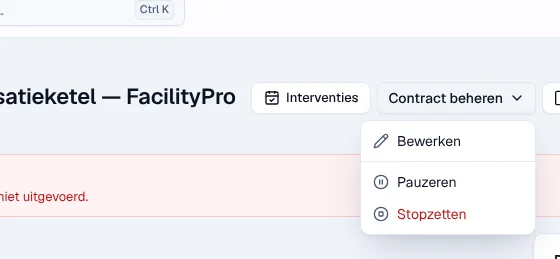
Click Contract beheren (manage contract). The choices depend on the status:
- Bewerken (edit);
- Activeren (activate a draft), after confirmation;
- Pauzeren (pause) and Hervatten (resume), immediate;
- Stopzetten (stop): you enter the Laatste dag (last day). A visit on that day still takes place; none after it;
- Verlengen (renew), for an expired contract or one with an end date: new Volgend bezoek and Nieuwe einddatum (empty = no end date).
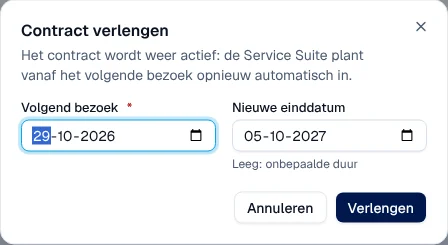
Result: “Contract geactiveerd”, “Contract gepauzeerd”, “Contract hervat”, “Contract stopgezet” (or “Einddatum vastgelegd” if the end is in the future), “Contract verlengd”.
A paused, draft or expired contract can be archived (Archiveren in the list’s ⋯ menu): it disappears from the lists and no longer creates visits; interventions and history remain. An active contract cannot be archived: pause or stop it first. To bring it back: Gearchiveerd tab, Herstellen (restore).
What the automatic visit creates
Section titled “What the automatic visit creates”Once a day, for each Actief contract whose next visit date has arrived, Service Suite creates an intervention:
- with the contract’s customer, site and installation, on the visit date (at the start of the working day);
- with the title “Preventief onderhoud” followed by the contract name (in your company’s language);
- with the contract’s technician if there is one, otherwise without a technician;
- with the visit template: duration, type, categories, team and instructions; plus the Voorwaarden en instructies text as a to-do;
- linked to the contract: it appears in the Bezoeken tab.
Service Suite adds a “schedule the visit” activity for the contract’s technician if they have an active account, otherwise for a planner, otherwise for a manager. The Volgend bezoek date then moves forward by one period. If the next period falls after the end date, the contract becomes Verlopen. Missed visits are not recreated in the past: the contract resumes at the current period.
Then schedule the visit like any intervention (see The schedule).
Schedule an extra visit (Bezoek inplannen)
Section titled “Schedule an extra visit (Bezoek inplannen)”For an extra, earlier or postponed visit on an active contract:
-
Click Bezoek inplannen on the contract page, in its panel or in the row’s ⋯ menu.
-
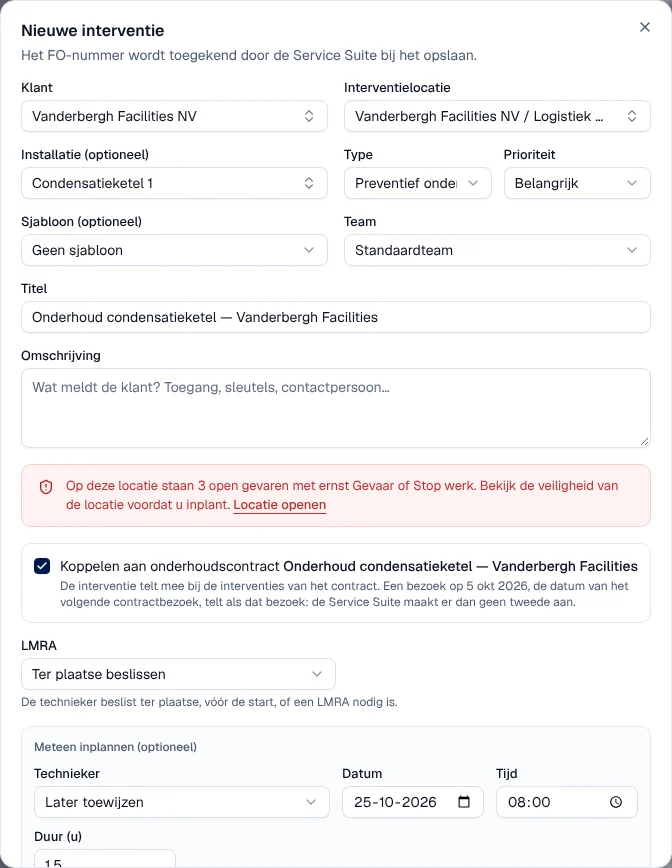
The Nieuwe interventie (new intervention) window opens already filled in: customer, site, installation, preventive maintenance type, title = contract name, date of the next visit. The Koppelen aan onderhoudscontract (link to maintenance contract) box is ticked.
-
Complete it, optionally choose a technician under Meteen inplannen, then click Interventie aanmaken (create intervention).
Result: the intervention opens and counts among the contract’s visits. A visit set on the date of the contract’s next visit counts as that visit: Service Suite does not create a second one. If you change the customer or the site, the box is disabled and the intervention is not linked.
Invoice maintenance
Section titled “Invoice maintenance”-
Jaarfactuur maken (create annual invoice), on the page of an active contract: Service Suite creates the draft invoice for the calendar year at the set annual price; if it already exists, it opens it. Nothing is posted or sent. Without an annual price (0), creation is refused.
-
Each visit is an intervention. What it charges is set in three parts: the visit up to the minimum charge, the working hours above the minimum and the parts used. Each is Factureerbaar (billable) or Inbegrepen in het contract (included in the contract). By default everything is billable.
-
Your company’s rule is set in Instellingen › Organisatie, Facturatie block, Onderhoudscontracten part (see Settings). A contract can depart from it: in Bewerken, the Facturatie van de bezoeken block offers for each part Zoals de standaard (as the company setting, shown in brackets), Factureerbaar or Inbegrepen in het contract; “Geldt nu” shows the rule in force. Without the right to manage the invoicing settings, you see these choices without being able to change them.
-
A change applies to visits completed from now on; a visit keeps the rule it was completed with. For visits already completed and not yet invoiced, use Toepassen op afgewerkte, niet gefactureerde bezoeken in the settings.
-
On the visit, the included part counts as 0 and a note says so, for example “Inbegrepen in het onderhoudscontract: bezoek (0,75 u), onderdelen”.
-
If something is left to invoice, the completed visit appears in the Te factureren (to invoice) view of the interventions, and accounting invoices it with Factuur maken (see Invoices). If a part is included and nothing is left to invoice, the visit becomes Gedekt door contract (covered by contract): it leaves Te factureren and Factuur maken is offered neither in the office nor in the technician app.
On a phone
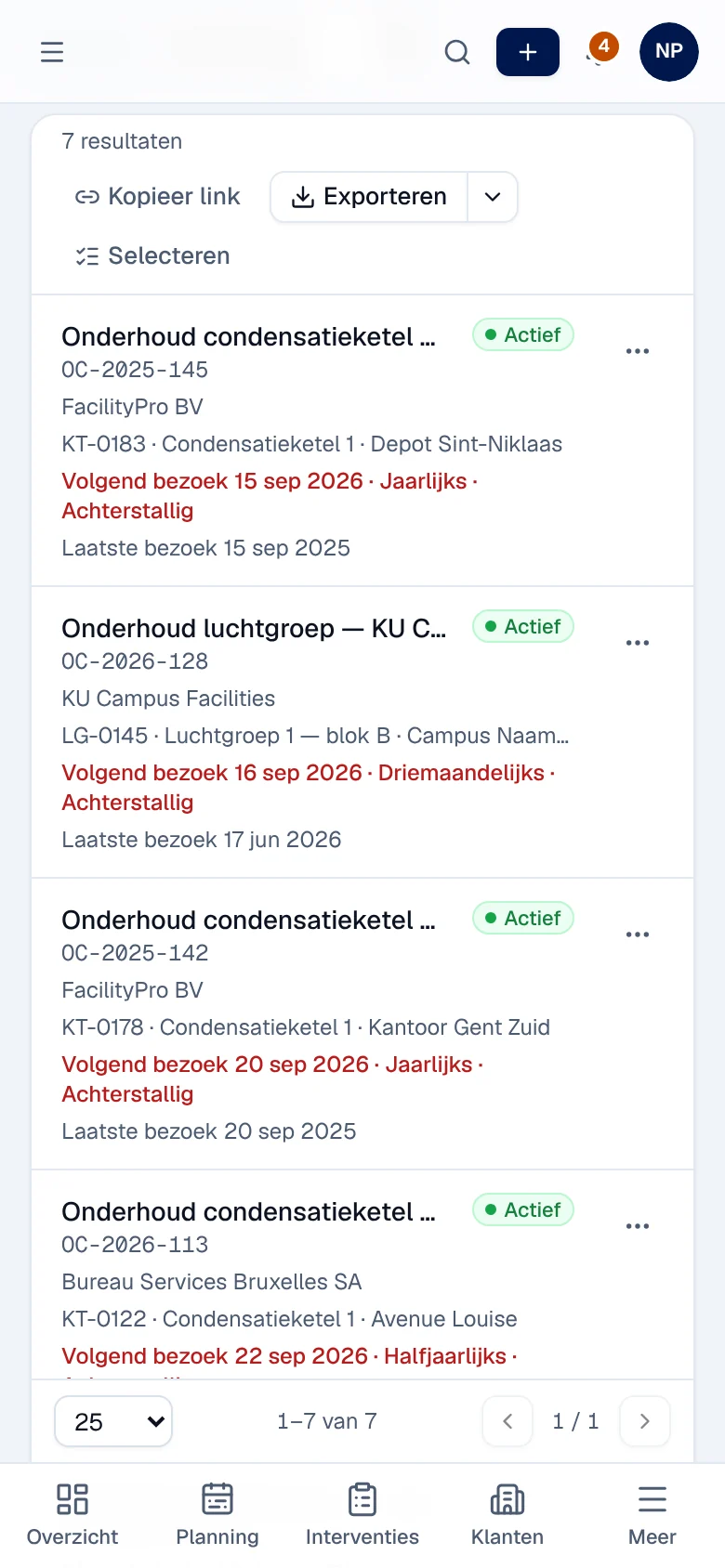
Section titled “On a phone”The list becomes one card per contract, with the next visit, the frequency and any delay in red.
Rights by role
Section titled “Rights by role”The table shows the supplied role templates (see Roles and permissions); your administrator can adapt them (see Users, roles and permissions).
| Action | Admin | Manager | Planner |
|---|---|---|---|
| View contracts | ✓ | ✓ | ✓ |
| Create, edit, activate, pause, stop, renew, archive | ✓ | ✓ | — |
| Bezoek inplannen | ✓ | ✓ | ✓ |
| View the annual price | ✓ | ✓ | — |
| Choose how a contract’s visits are invoiced (Facturatie van de bezoeken) | ✓ | ✓ | — |
| Jaarfactuur maken ¹ | ✓ | — | — |
¹ Requires both invoicing permissions and access to maintenance contracts: among the templates, only the administrator has both.
The technician works in the Techniekers-app.
Current limits
Section titled “Current limits”- The annual price is the same for all contracts; there is no price per contract.
- Automatic visits are created once a day; you cannot start this creation manually. For an immediate visit, use Bezoek inplannen.
See also
Section titled “See also”- The schedule — assign and schedule the visits.
- Interventions: list and creation — the Te factureren view.
- Quotes — create a contract from a confirmed sales order.