

Scan an installation
An installation (a boiler, a heat pump, a ventilation unit…) often has a QR code stuck on it. In the app, you find the installations at the sites where you work, you open their record by scanning the code, and you link the installation you worked on to the intervention.
| Menu | Meer › Installaties; Meer › QR-code scannen; Vandaag › Snel naar |
| Who | the technician, for the installations at the sites of their interventions |
| Prerequisites | your company uses QR codes; a connection to open a code |
View the installations
Section titled “View the installations”Open Meer › Installaties. The list shows the installations at the sites of your interventions (past or upcoming). Search with Zoek op naam, serienummer of locatie (name, serial number or site). The badges flag Onderhoud achterstallig (maintenance overdue) or Garantie verlopen (warranty expired).
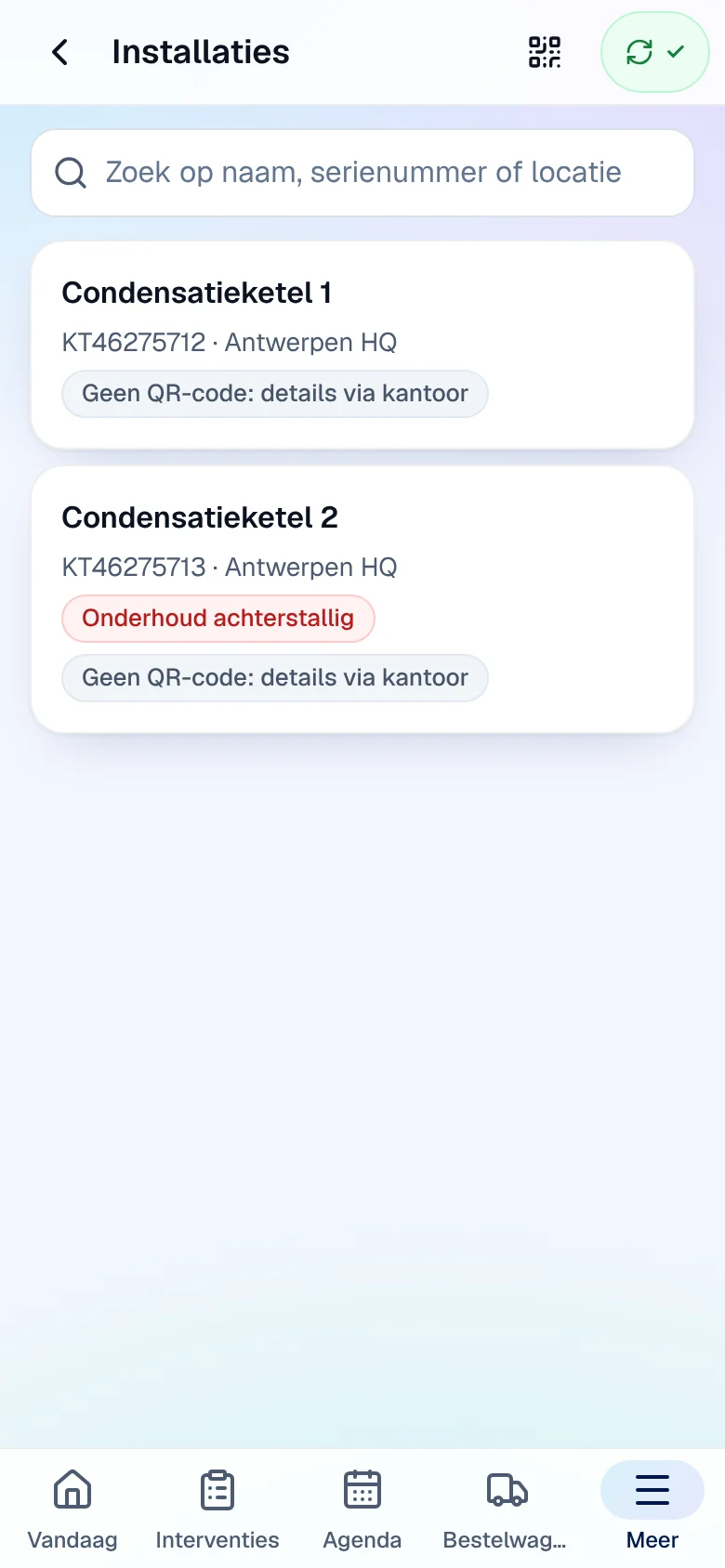
An installation marked “Geen QR-code: details via kantoor” (no QR code: details via the office) does not open in the app: ask the office to assign it a QR code (see QR codes and reports).
Scan a QR code
Section titled “Scan a QR code”-
Open Meer › QR-code scannen (scan QR code), or the QR icon at the top of Installaties.
-
Tap Camera starten (start camera) and aim at the code. Allow the camera if the phone asks.
-
If the camera cannot scan, type the code or the address printed under the QR in Of geef de code of het adres in (or enter the code or the address), then tap Openen (open).
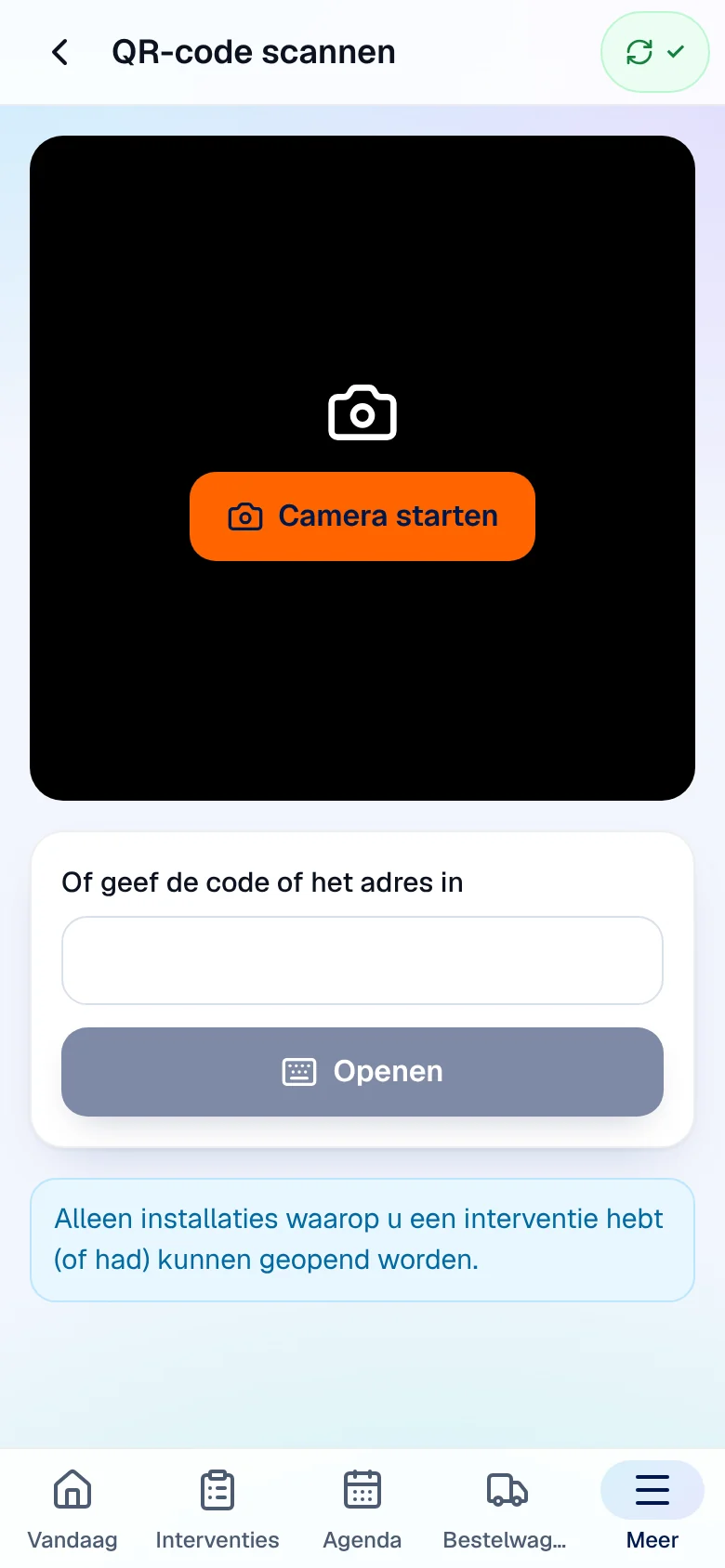
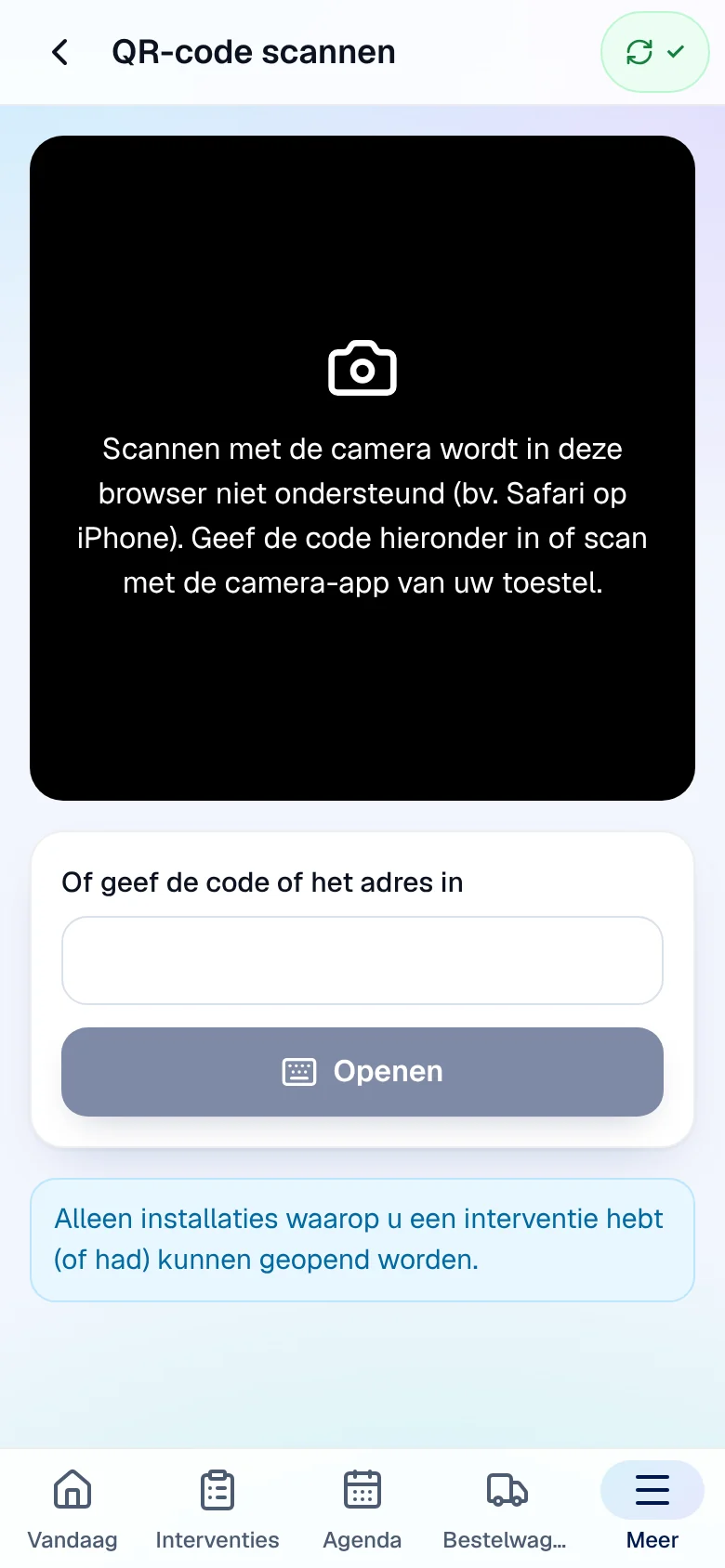
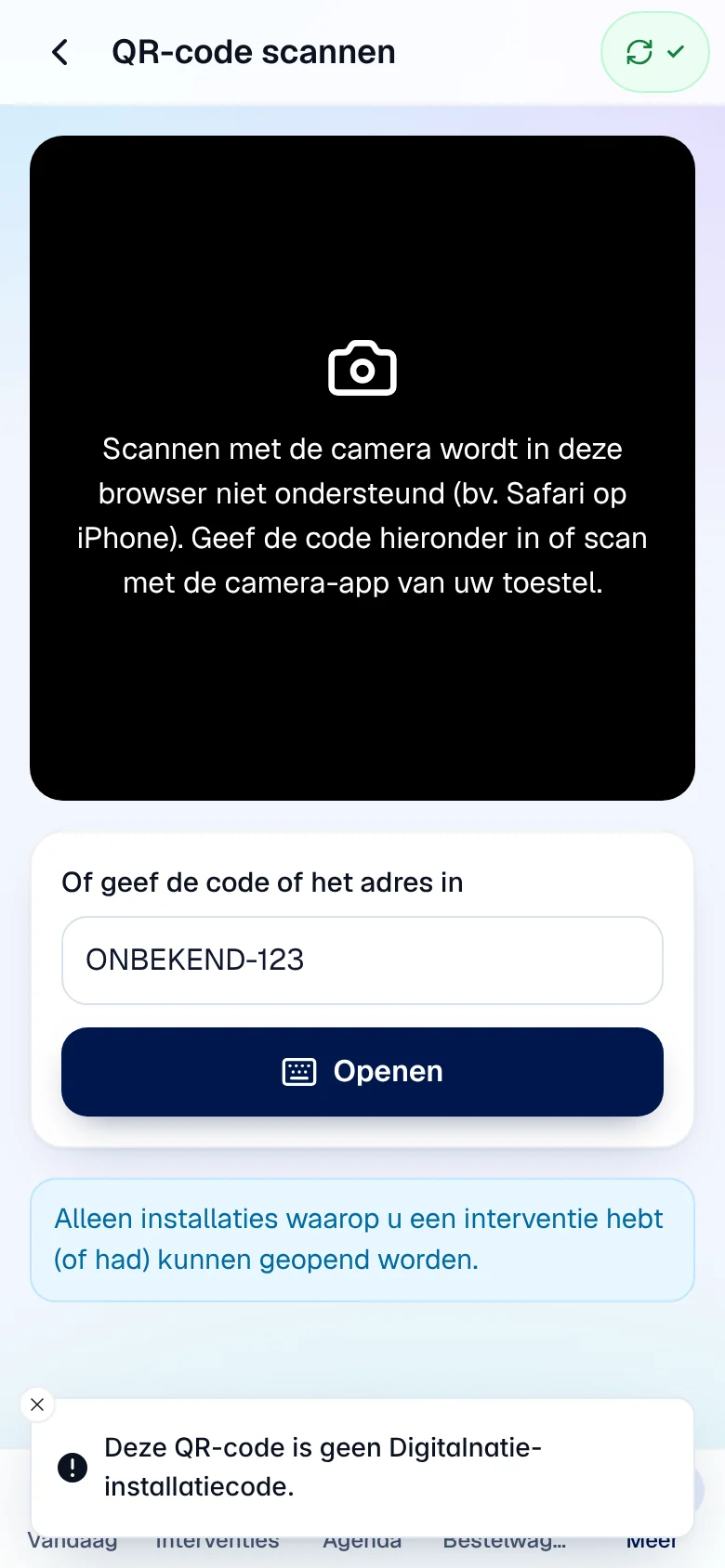
Result: the installation record opens. “Alleen installaties waarop u een interventie hebt (of had) kunnen geopend worden.” Only installations on which you have (or have had) an intervention can be opened.
| Message | Meaning |
|---|---|
| “Scannen met de camera wordt in deze browser niet ondersteund (bv. Safari op iPhone). …” | The browser cannot read QR codes (Safari on iPhone, for example): enter the code, or scan with the phone’s camera app. Built-in scanning works with Chrome on Android. |
| “De camera werd geweigerd. …” | Allow the camera for the app in the browser or phone settings. |
| “Deze QR-code is geen Digitalnatie-installatiecode.” | This code is not a Service Suite installation code. |
| “Deze QR-code hoort niet bij een installatie die u mag openen.” | You have no intervention on this installation. |
| “Een QR-code openen vraagt verbinding.” | Opening a code requires a network. |
The installation record
Section titled “The installation record”The record shows the product, the site, the warranty (“Garantie tot …”), the next maintenance and, if it is out of service, “Buiten werking sinds …” (out of service since). From the record:
- Notitie (note): an Interne notitie (internal note) for the office, then Bewaren.
- Storing melden (report a breakdown, if your company tracks downtime): choose the Oorzaak (cause: Mechanisch, Elektrisch, Hydraulisch, Software, Veiligheid…), describe the breakdown in Omschrijving, then Bevestigen. The installation goes out of service.
- Weer in werking (back in service): describe Wat werd gedaan? (what was done), then Bevestigen.
- Historiek (uw interventies): your previous interventions on this installation.
These actions also work offline; they are sent when the network returns.
Link or create an installation from the intervention
Section titled “Link or create an installation from the intervention”-
In the intervention, Werk tab, expand Installatie (collapsed on a phone).
-
Choose the installation in Gekoppelde installatie (linked installation), then tap Koppelen (link). It is not in the list? Tap Nieuwe installatie toevoegen (add an installation), enter the Naam van de installatie (name) and, if you know it, the Serienummer (optioneel), then Toevoegen en koppelen (add and link).
-
If needed, write your Opmerkingen over de installatie (remarks) and tap Opmerkingen bewaren.
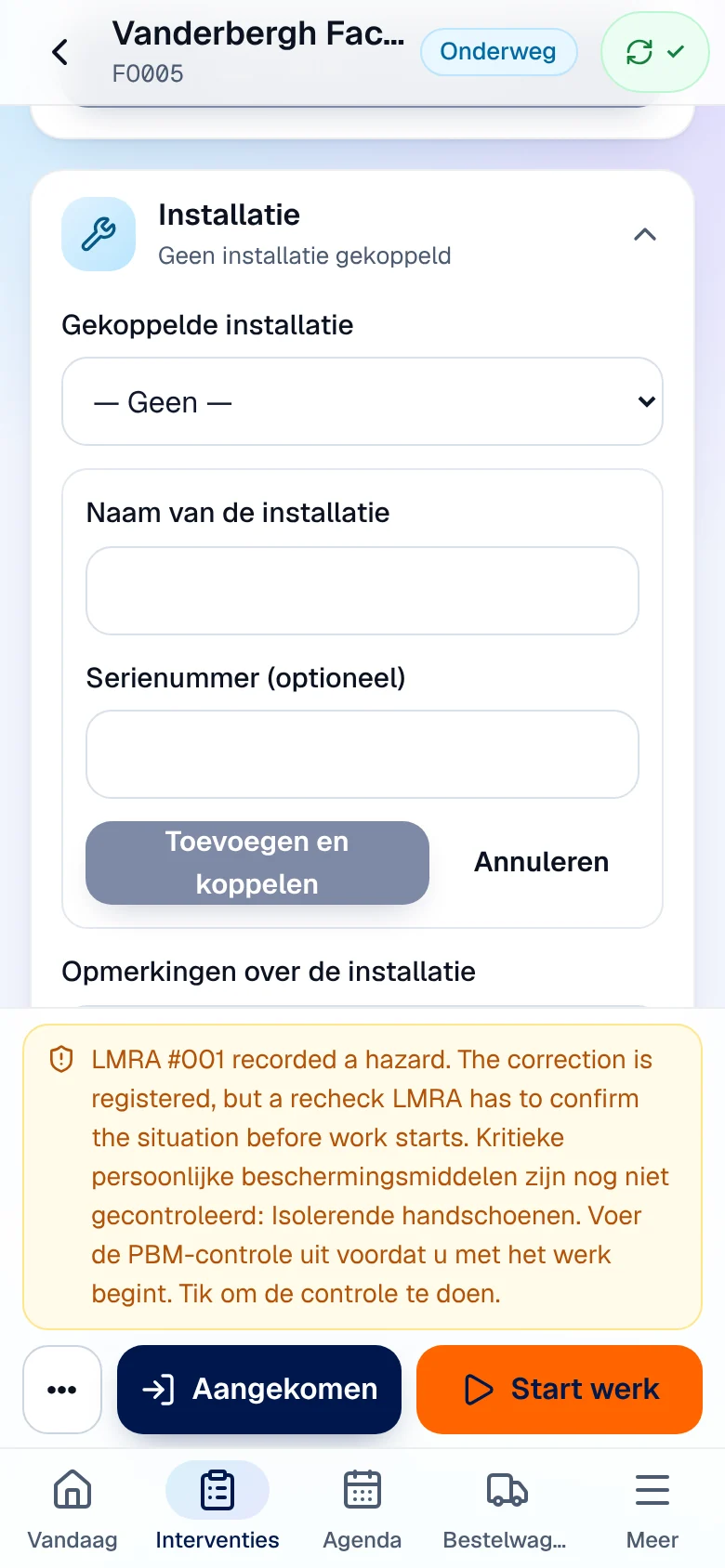
Result: “Koppeling in wachtrij — nog niet bevestigd door de server.” then the linked installation. A new installation is created for the customer, at the intervention’s site.
Under Checklist (“Onderhouden installaties · 0 van 2”), tick the installations at the site that you have serviced, add a note if needed and tap Checklist bewaren. The office reads “Checklist installaties — Ingevuld door de technieker ter plaatse”.
Current limits
Section titled “Current limits”- Camera scanning does not work in Safari on iPhone: enter the code or use the phone’s camera app.
- An installation without a QR code does not open in the app.