

Operating rules: planning, safety, stock, invoicing, sites
These Configuratie screens set your organisation’s basic rules: default values for new customers and interventions, VAT and terms and conditions, working hours and public holidays, on-site safety, item categories and vans, regions. You set them at start-up, then rarely.
| Menu | Configuratie (your account menu), then the screen you need |
| Who | depending on the screen: see Rights by role |
| Prerequisites | the company details are complete (Organisation, documents and languages) |
| Screen | What you set there |
|---|---|
| Bedrijfsregels (company rules) | language of new customers, default payment term, default LMRA, storage locations |
| Facturatieregels (invoicing rules) | default VAT, quote validity, terms and conditions |
| Planning configureren (configure planning) | working hours, public holidays, blocked days, peak days, time windows, skill levels |
| Veiligheid (safety) | LMRA, PPE, risks, work environments, checklists, documents |
| Voorraad en onderdelen (stock and parts) | item categories, storage locations, warehouses, vans |
| Locaties (sites) | regions, routes, work areas |
Hourly rates and the maintenance price are in Instellingen › Organisatie (see Settings).
Company rules (Bedrijfsregels)
Section titled “Company rules (Bedrijfsregels)”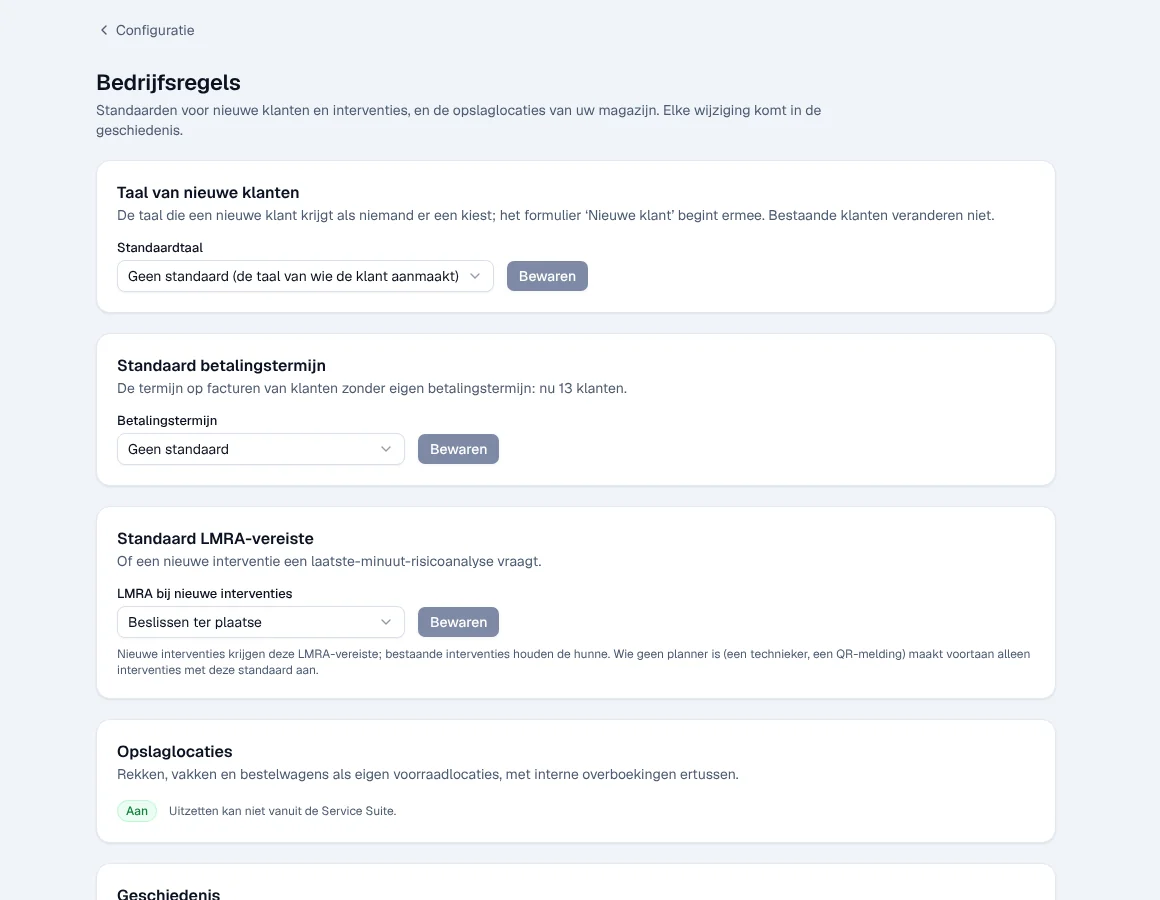
Each block has its own Bewaren (save) button.
- Taal van nieuwe klanten (language of new customers): the language a new customer gets if nobody chooses one. Existing customers do not change. Message: “Standaardtaal bewaard”.
- Standaard betalingstermijn (default payment term): the term on invoices of customers who have no term of their own. The application asks for confirmation and shows how many customers are affected: the change applies immediately to them and to new customers. Message: “Standaard betalingstermijn bewaard”.
- Standaard LMRA-vereiste (default LMRA requirement): Verplicht (required), Niet nodig (not needed) or Beslissen ter plaatse (decide on site). Only new interventions get this choice; a technician or a QR report always creates its interventions with this value.
- Opslaglocaties (storage locations): aisles, bins and vans as separate stock locations, with internal transfers. Once turned on (Aan), they can no longer be turned off from the application: “Uitzetten kan niet vanuit de Service Suite.”.
- Geschiedenis (history): who changed which rule and when. Nobody can change this list.
Invoicing rules (Facturatieregels)
Section titled “Invoicing rules (Facturatieregels)”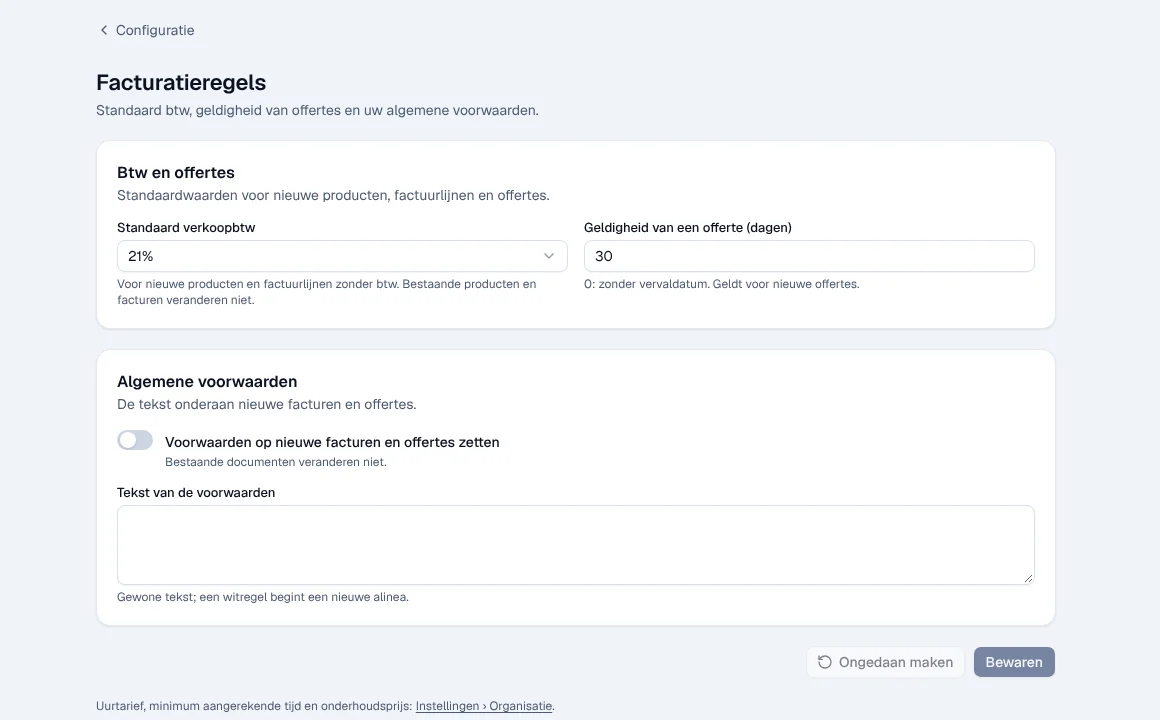
-
Open Configuratie › Facturatieregels.
-
Choose Standaard verkoopbtw (default sales VAT): it applies to new products and to invoice lines without VAT. The application asks for confirmation; existing products and invoices do not change.
-
Enter Geldigheid van een offerte (dagen) (validity of a quote in days; 0 = no expiry date). It applies to new quotes.
-
Enter your Algemene voorwaarden (terms and conditions) in Tekst van de voorwaarden (an empty line starts a new paragraph) and turn on Voorwaarden op nieuwe facturen en offertes zetten (put the terms on new invoices and quotes).
-
Click Bewaren.
Result: “Facturatieregels bewaard”. Existing documents do not change. If your environment does not yet allow the terms to be turned on for documents, the screen says so; you can still save the text.
Planning (Planning configureren)
Section titled “Planning (Planning configureren)”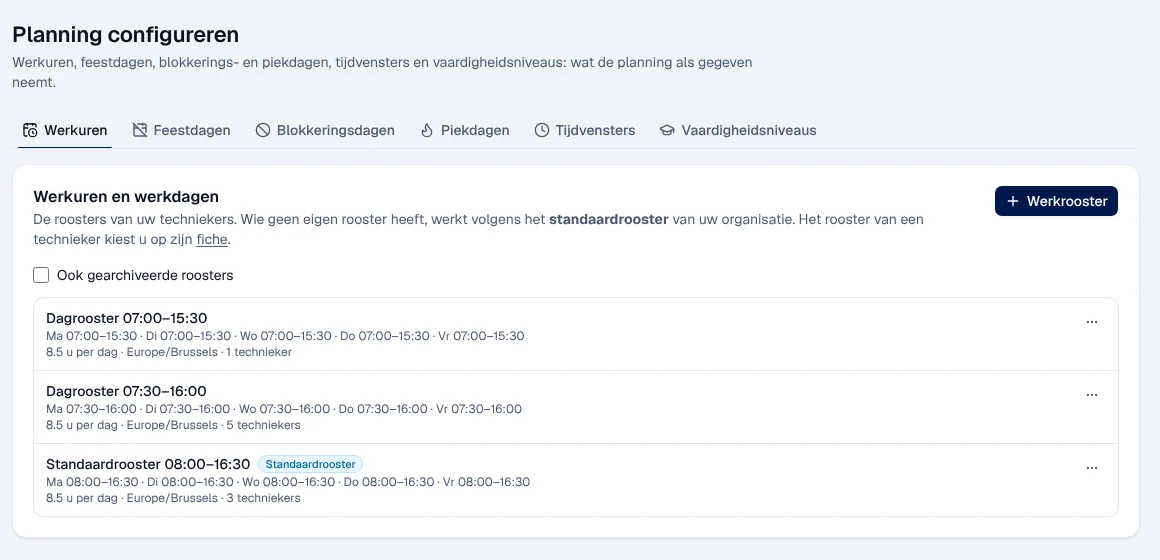
- Werkuren (working hours): your technicians’ working schedules. Anyone without a schedule of their own follows the Standaardrooster (standard schedule). Werkrooster adds a schedule; a technician’s schedule is chosen on their record. Changing the standard schedule requires confirmation and applies immediately to all technicians without a schedule of their own.
- Feestdagen (public holidays and closing days), Blokkeringsdagen (days without interventions, possibly per group or route), Piekdagen (busy days the schedule must watch), Tijdvensters (time windows offered by a route) and Vaardigheidsniveaus (levels per skill and per technician).
Day-to-day use is described in The schedule and Team, absences and hours.
Safety (Veiligheid)
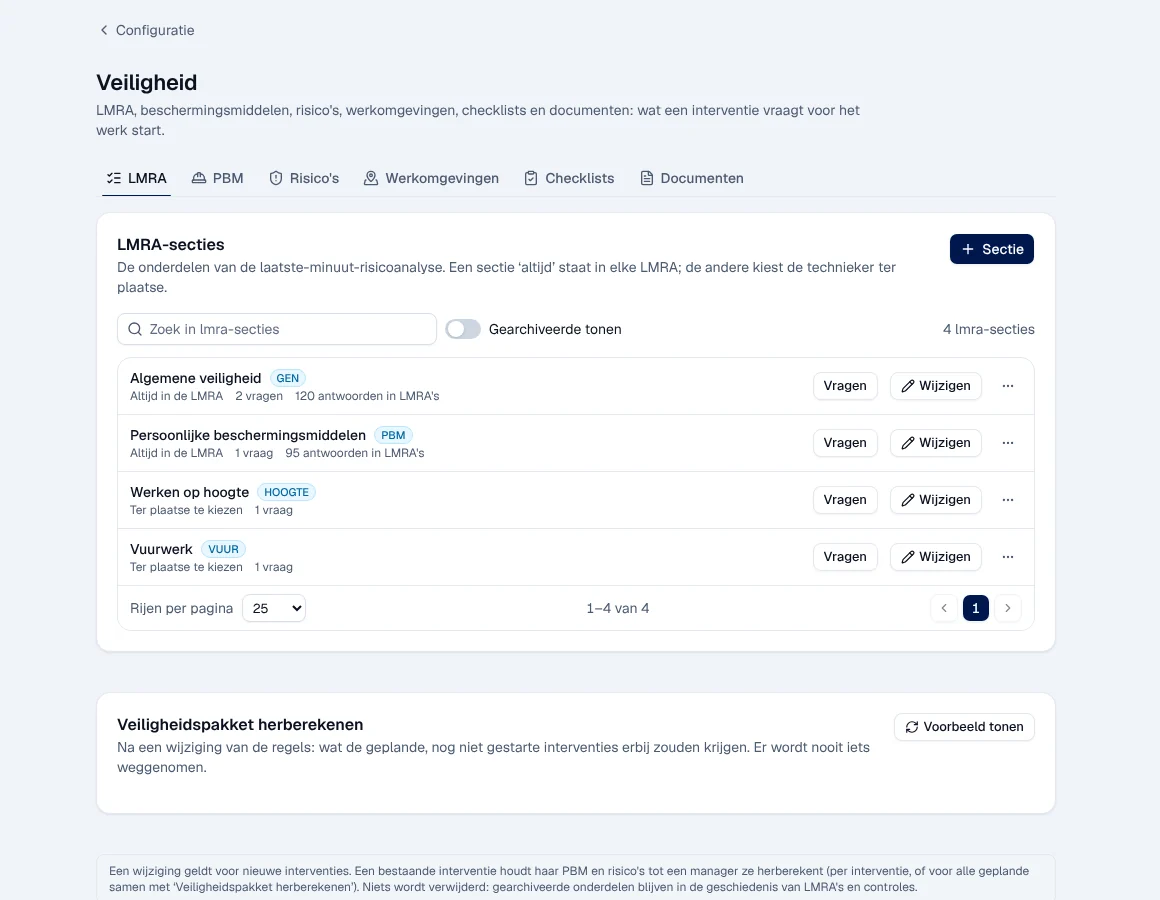
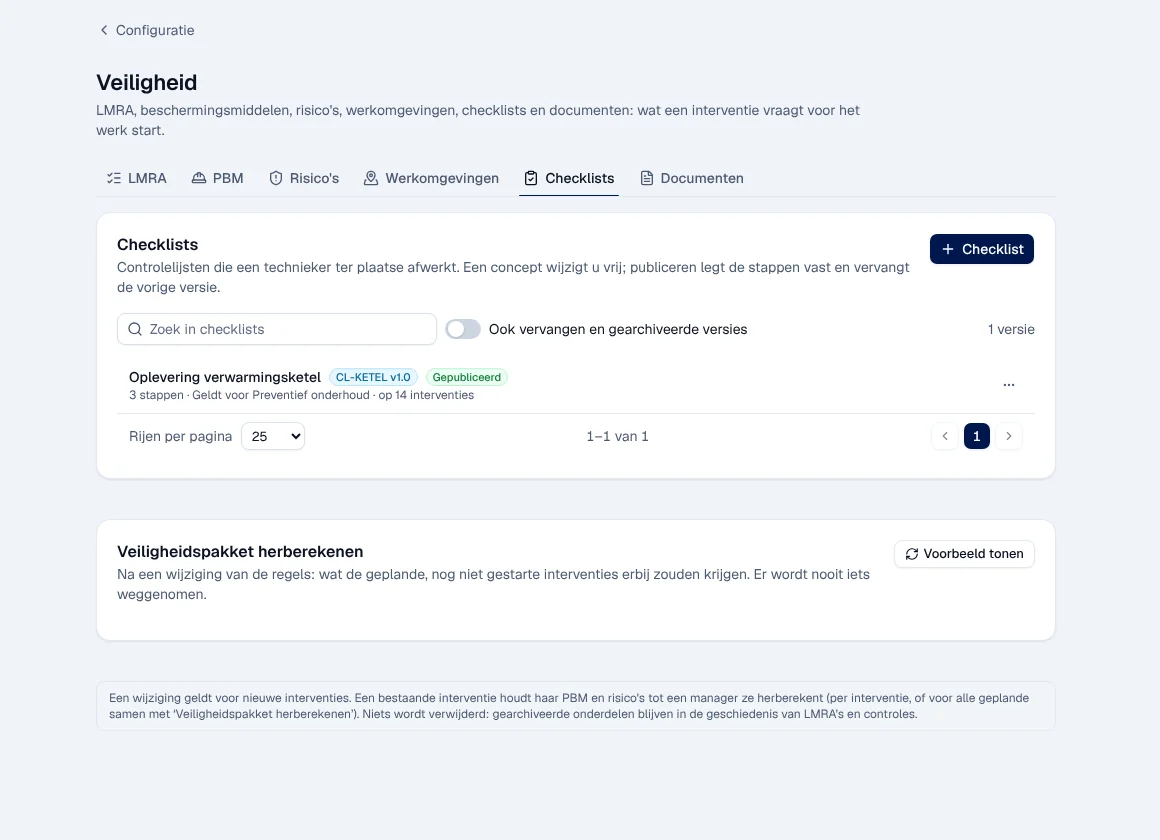
Section titled “Safety (Veiligheid)”The screen has six tabs: LMRA (last-minute risk analysis), PBM (personal protective equipment), Risico’s (risks), Werkomgevingen (work environments), Checklists and Documenten (documents to read and confirm).
-
LMRA: the sections and their questions (Vragen). An “altijd” (always) section appears in every LMRA; the others are chosen by the technician on site. Sectie adds one.
-
Checklists and Documenten have versions. A draft can be changed freely; publishing freezes the steps and replaces the previous version. New interventions get the published version.
-
Veiligheidspakket herberekenen (recalculate the safety package): Voorbeeld tonen (show preview) shows what scheduled interventions that have not started yet would additionally receive. Nothing is ever removed.
A change applies to new interventions; an existing intervention keeps its PPE and its risks until the administrator recalculates them. Archived items stay in the history. What the technician sees: Safety: LMRA, PPE, documents.
Stock and vans (Voorraad en onderdelen)
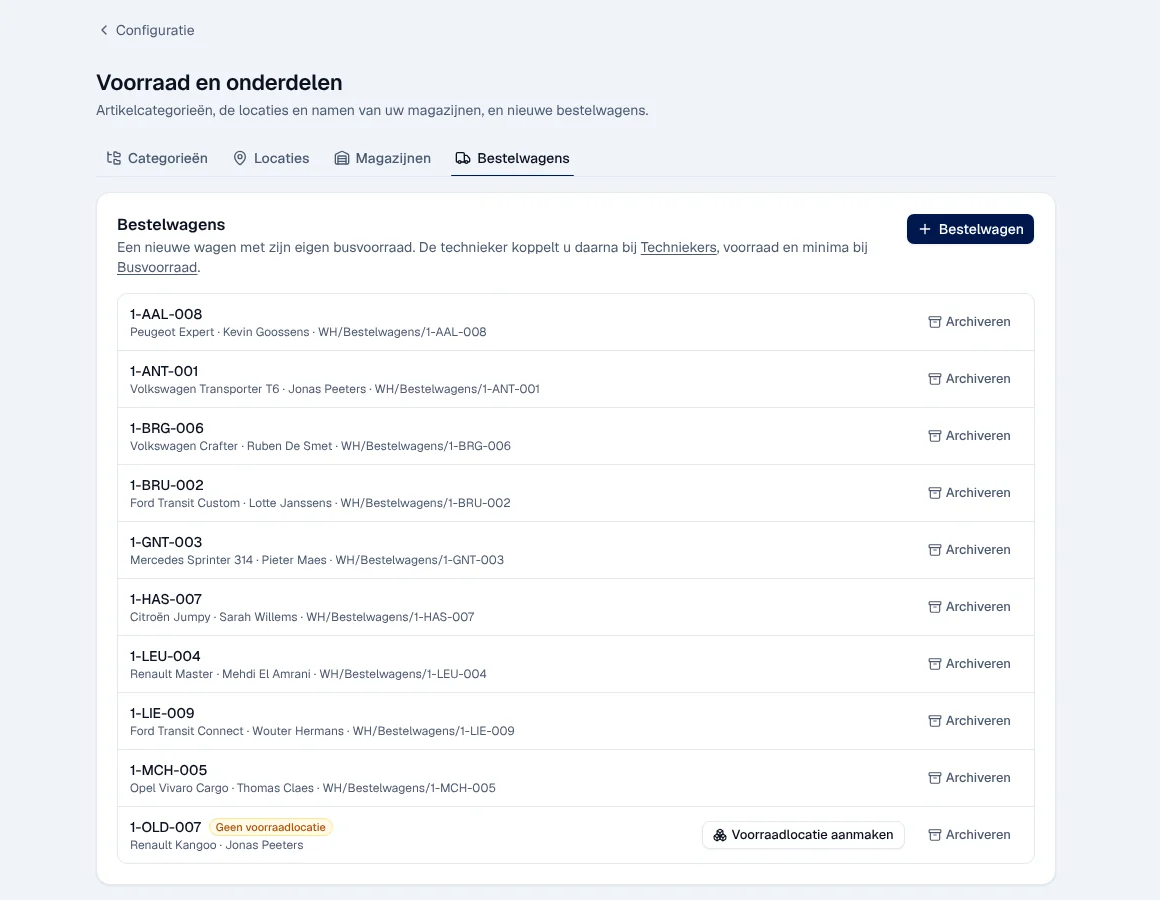
Section titled “Stock and vans (Voorraad en onderdelen)”Four tabs: Categorieën (item categories), Locaties (storage locations; Opslaglocaties must be turned on), Magazijnen (warehouses: name only) and Bestelwagens (vans).
- Categorie adds a category. A category that still has items, subcategories or rules remains; renaming or moving it is always possible.
- Bestelwagen creates a van with its own stock. Then link the technician in Techniekers, and set stock and minimums in Busvoorraad (see Van stock).
- A van with Geen voorraadlocatie (no storage location) gets one with Voorraadlocatie aanmaken (create storage location).
- Archiveren (archive) a van is refused as long as it is not empty or has open items.
- The code, the receipt and delivery steps and the creation of a new warehouse are handled by the platform: ask Digitalnatie.
Sites, regions and routes (Locaties)
Section titled “Sites, regions and routes (Locaties)”Locaties (sites), Regio’s (regions), Routes (routes) and Werkgebieden (work areas: postcodes and main technician) tabs.
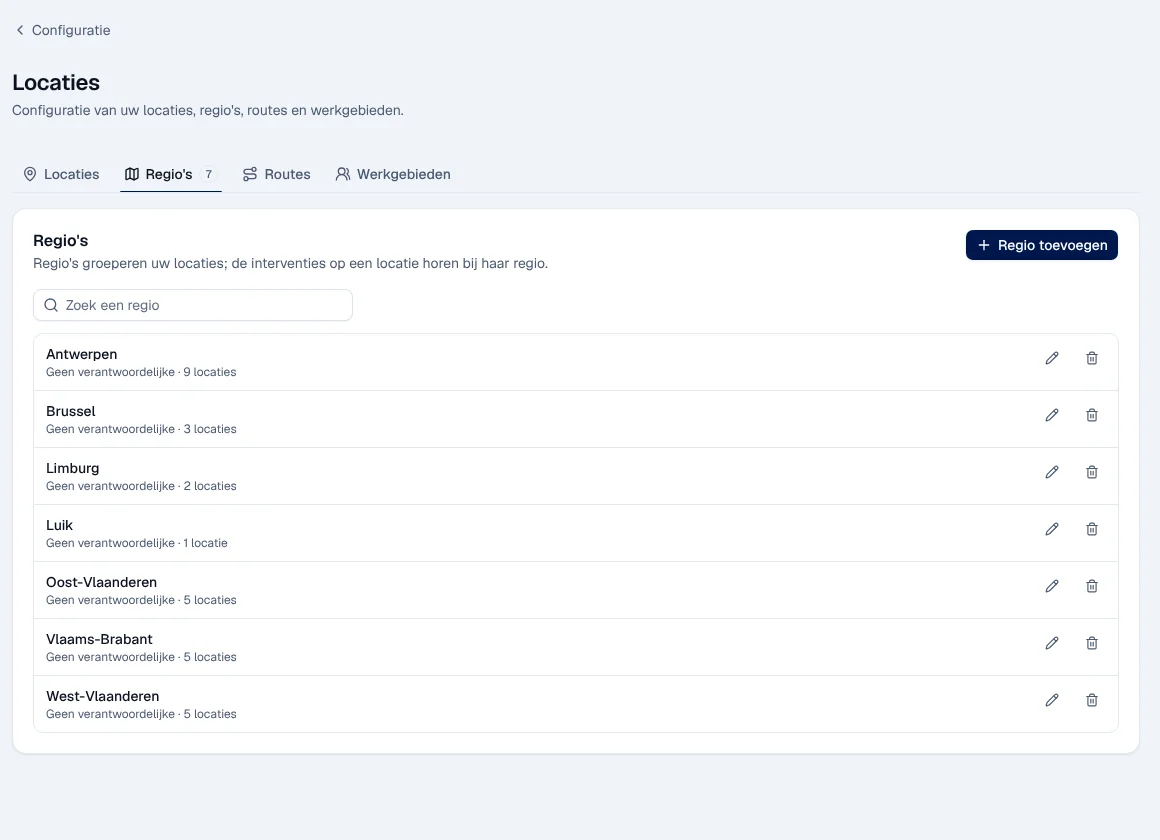
- Regio toevoegen (add region); the pencil edits it, the bin deletes it. The interventions at a site belong to the region of that site.
- If routes are not active: “Routes zijn niet actief in deze Service Suite”.
- The day-to-day list of sites remains in Locaties (see Sites).
Rights by role
Section titled “Rights by role”The table shows the supplied role templates (see Roles and permissions); your administrator can adjust them (see Users, roles and permissions).
| Action | Admin | Manager | Warehouse |
|---|---|---|---|
| Bedrijfsregels, Facturatieregels | ✓ | — | — |
| Planning configureren | ✓ | ✓ | — |
| Veiligheid | ✓ | ✓ | — |
| Voorraad: categories, storage locations, warehouses | ✓ | — | ✓ ¹ |
| Locaties: regions (edit) | ✓ | ✓ | — |
| Locaties: work areas | ✓ | ✓ | — |
¹ Warehouse Manager only.
The Bestelwagens tab (creating and archiving vans) requires a role that manages the Voertuigen & vloot (vehicles and fleet) module: among the templates, only the administrator has it. For another role, the administrator adds this module to the role concerned (see Users, roles and permissions).
Current limits
Section titled “Current limits”- Opslaglocaties cannot be turned off from the application.
- Creating a warehouse and its stock steps is done by Digitalnatie.
- Turning on terms and conditions on documents depends on your environment.
See also
Section titled “See also”- Settings (Instellingen) — rates and configuration lists
- The schedule
- Safety: LMRA, PPE, documents
- The warehouse and Van stock
- Sites (Locaties)