

The customer portal
The Klantenportaal (customer portal) lets your customers follow their own file: scheduled and completed interventions, reports, invoices, installations, sites and reports of issues. They can report a problem there and update their contact details. This page describes what your customer sees; you invite them from their file (Giving access to the customer portal).
| Address | the portal address of your organisation, which ends in /klant; it is in the invitation |
| Who | the contacts of your customers that you have invited; an office account or a technician account cannot sign in to it |
| Prerequisites | an accepted invitation (password chosen by the contact) |
What your customer sees: only their own company
Section titled “What your customer sees: only their own company”An invited contact sees the file of their company with you, and nothing else: not the other customers, not your internal notes, not your costs. All invited contacts of the same company see the same file. The content of an intervention (report, photos, signature, PDF) is only shown to the customer of that intervention.
Signing in
Section titled “Signing in”
-
The contact opens the link in the invitation e-mail and chooses their password (Wachtwoord kiezen, then Wachtwoord opslaan). An expired link shows “Link niet meer geldig”: send a new invitation.
-
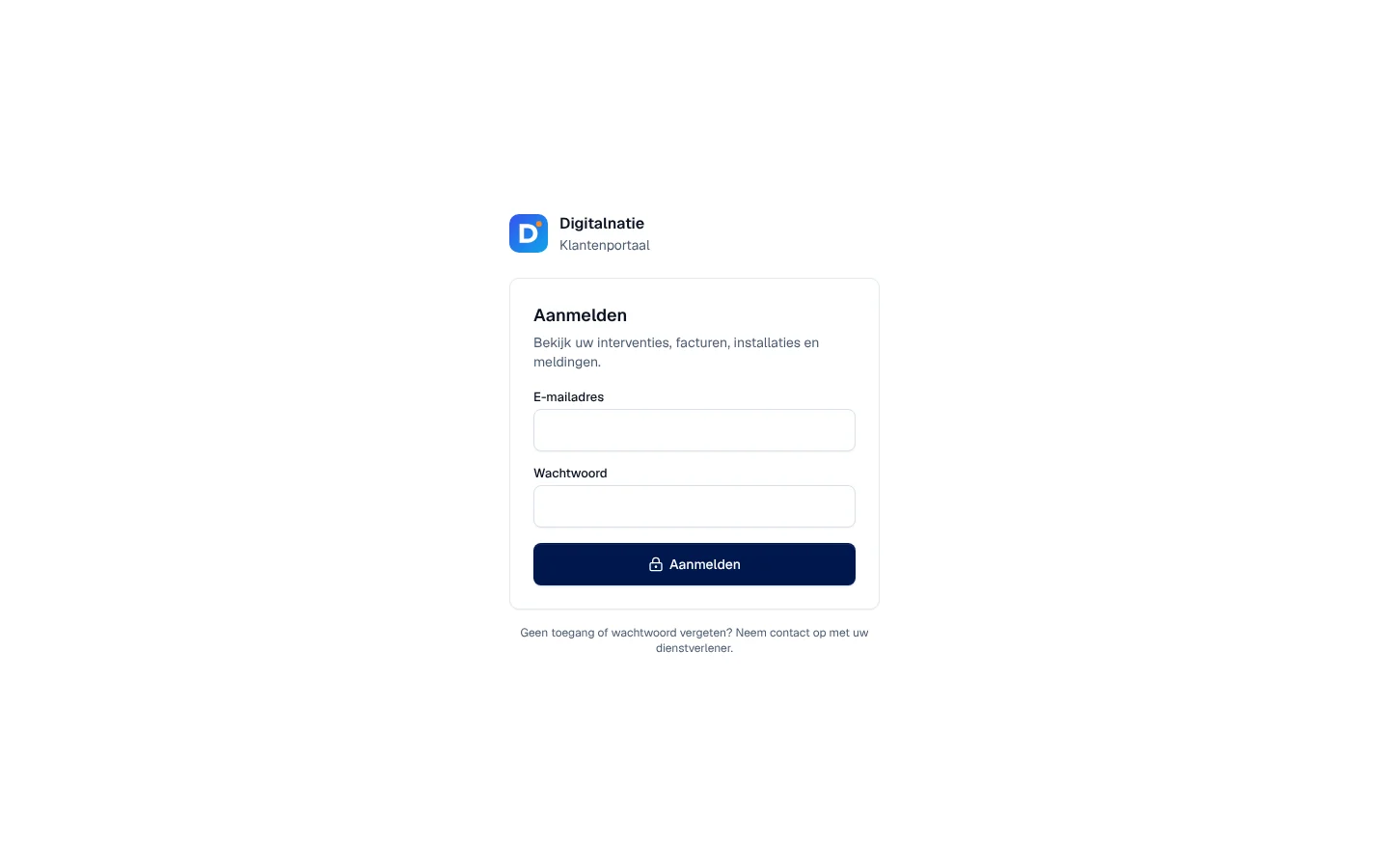
They arrive on the portal’s Aanmelden (sign in) page, enter their E-mailadres and Wachtwoord, then click Aanmelden.
-
If their account has two-step verification, the portal asks for the Code uit uw authenticator-app (code from the authenticator app).
Forgotten password: there is no self-service link. The page says “Geen toegang of wachtwoord vergeten? Neem contact op met uw dienstverlener.”; you send Link voor nieuw wachtwoord sturen from their file. Afmelden (sign out) is at the bottom of the menu.
The overview
Section titled “The overview”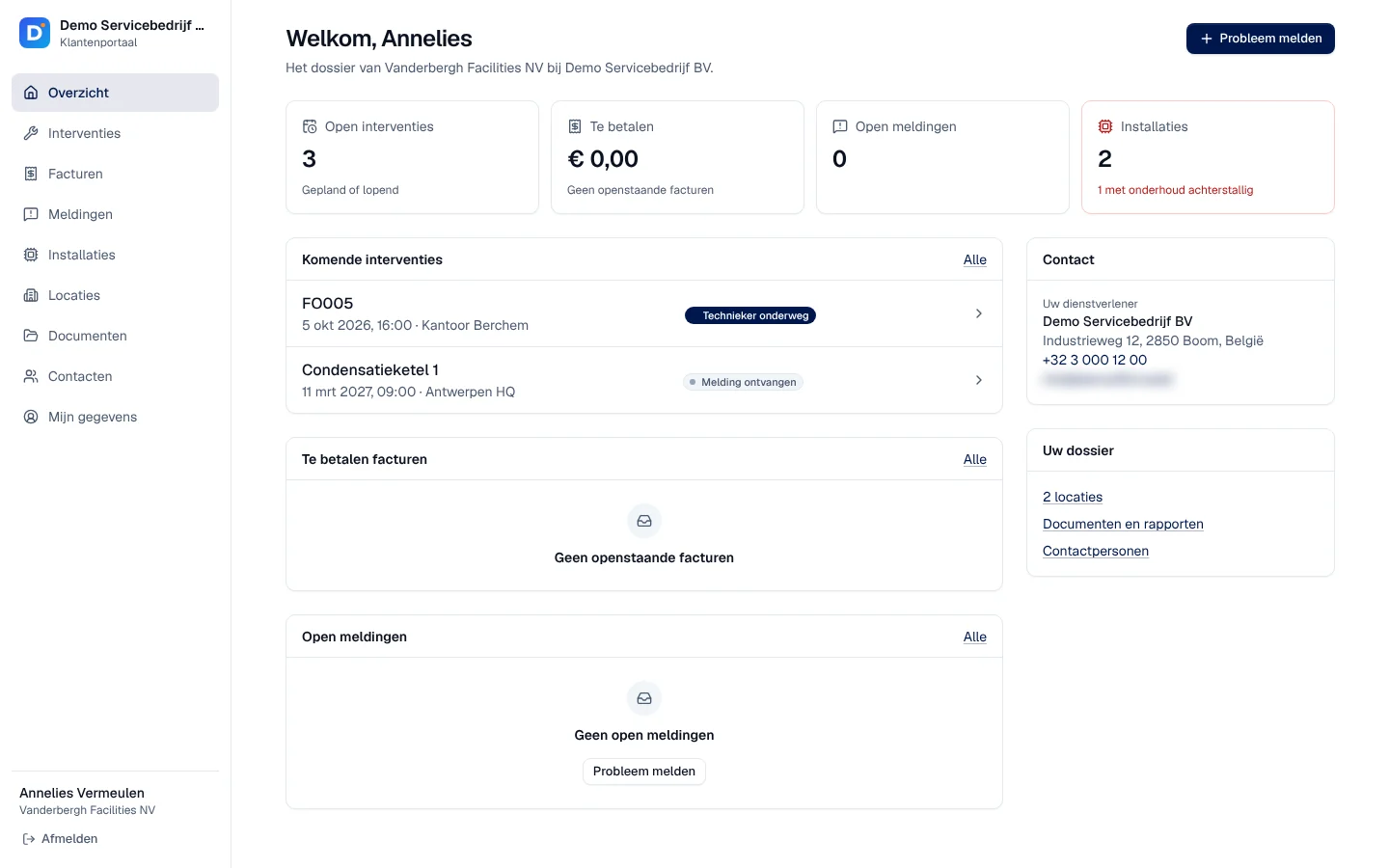
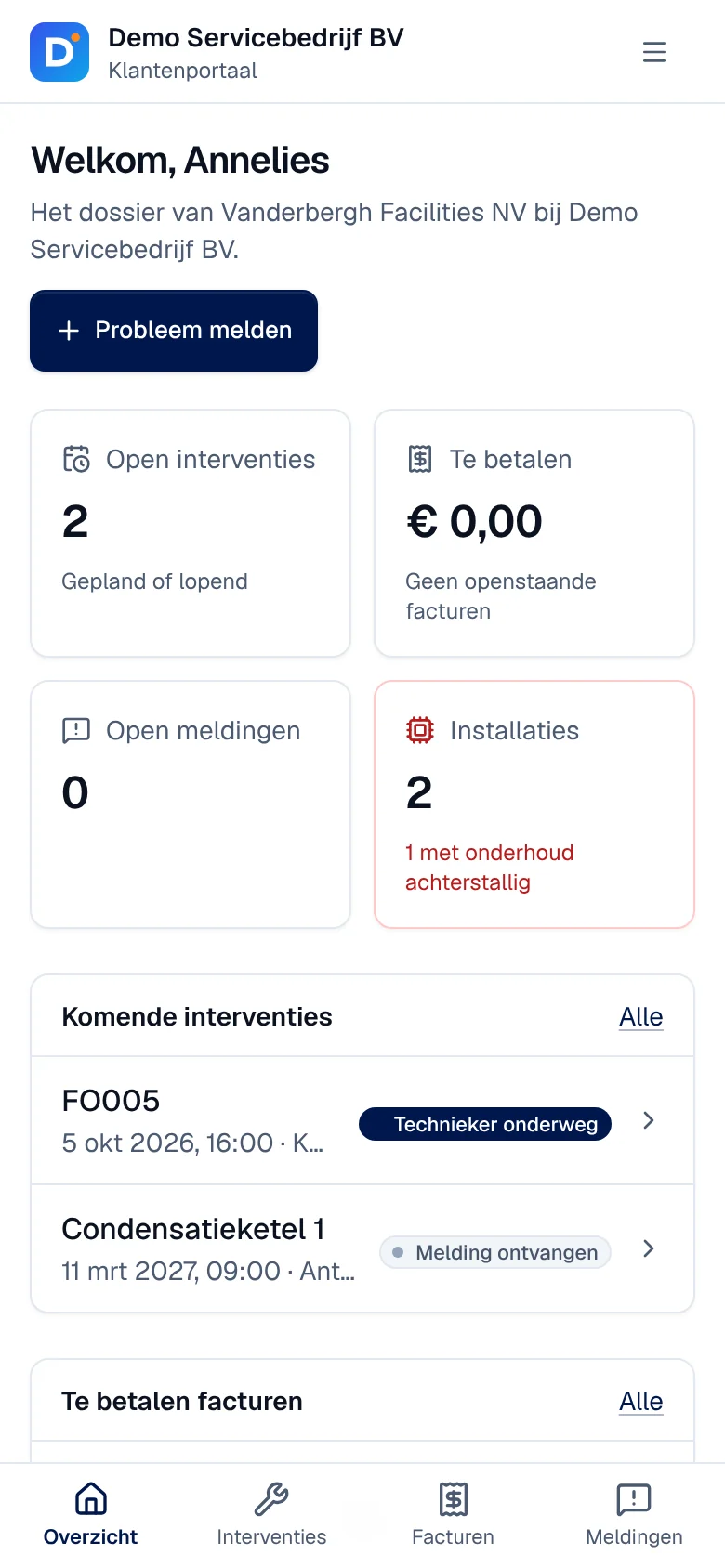
- The Open interventies, Te betalen (to pay), Open meldingen (open reports) and Installaties tiles (with those whose maintenance is overdue).
- Komende interventies (upcoming interventions) with date, time, site and status, Te betalen facturen and Open meldingen.
- Contact: your contact details (Uw dienstverlener, your service provider); Uw dossier: sites, documents and contacts.
- Probleem melden (report a problem), at the top right.
Interventions and reports
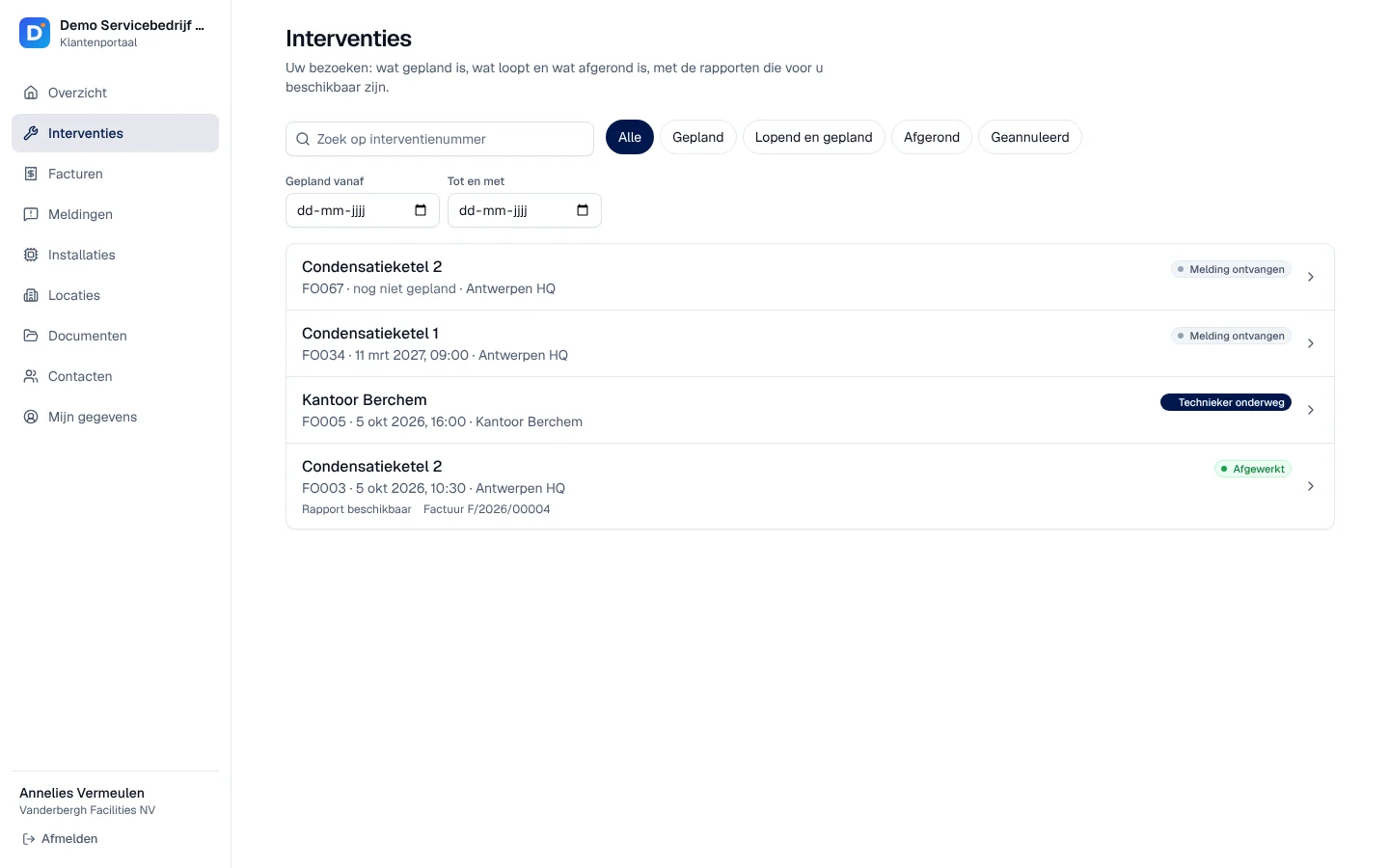
Section titled “Interventions and reports”Interventies lists the visits with their status; filters Alle, Gepland, Lopend en gepland, Afgerond, Geannuleerd and dates. A completed intervention shows “Rapport beschikbaar” and its invoice.
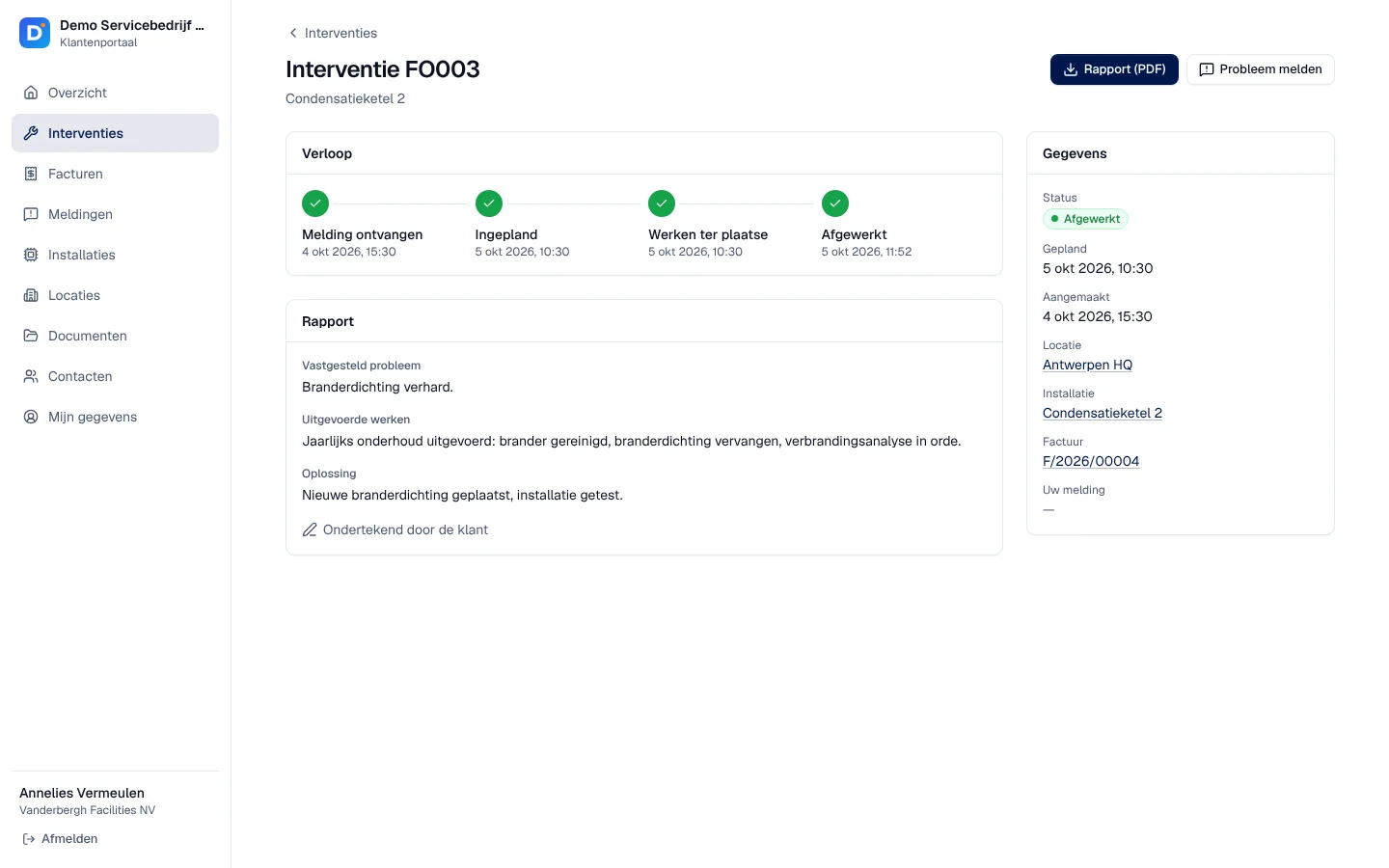
The record shows the Verloop (progress: report received, scheduled, work on site, completed), the technician’s Rapport (Vastgesteld probleem, Uitgevoerde werken, Oplossing, and “Ondertekend door de klant” when the customer has signed) and the Gegevens: status, dates, site, installation, invoice. Rapport (PDF) downloads the report; Probleem melden opens a report about this intervention.
Invoices
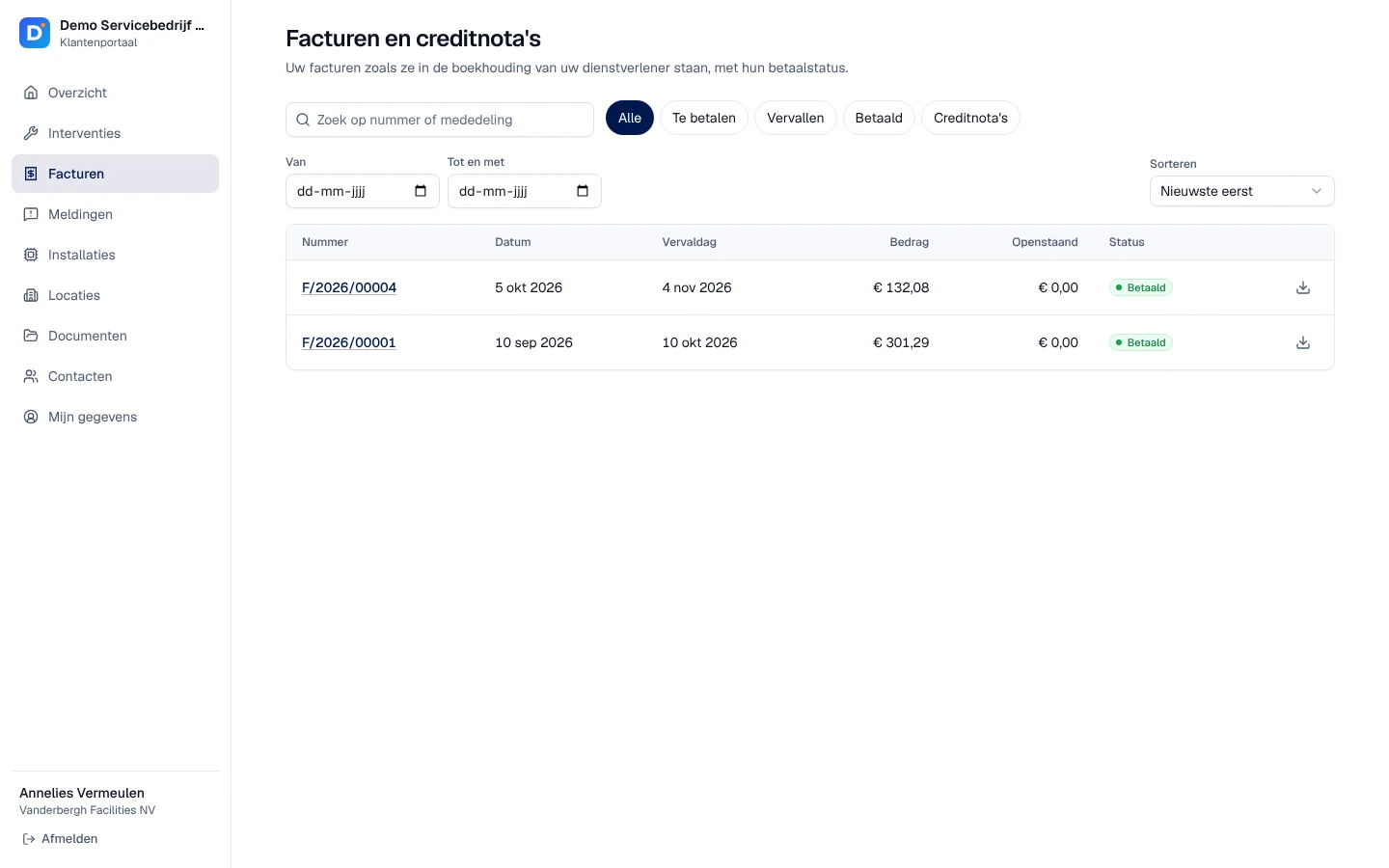
Section titled “Invoices”Facturen en creditnota’s shows the invoices and credit notes as they are in your accounts, with their payment status; filters Alle, Te betalen, Vervallen (overdue), Betaald, Creditnota’s, dates and sorting. Each row can be downloaded as a PDF; the detail shows the lines, the due date and the payment details.
Online payment is not possible in the portal.
Installations, sites, documents, contacts
Section titled “Installations, sites, documents, contacts”-
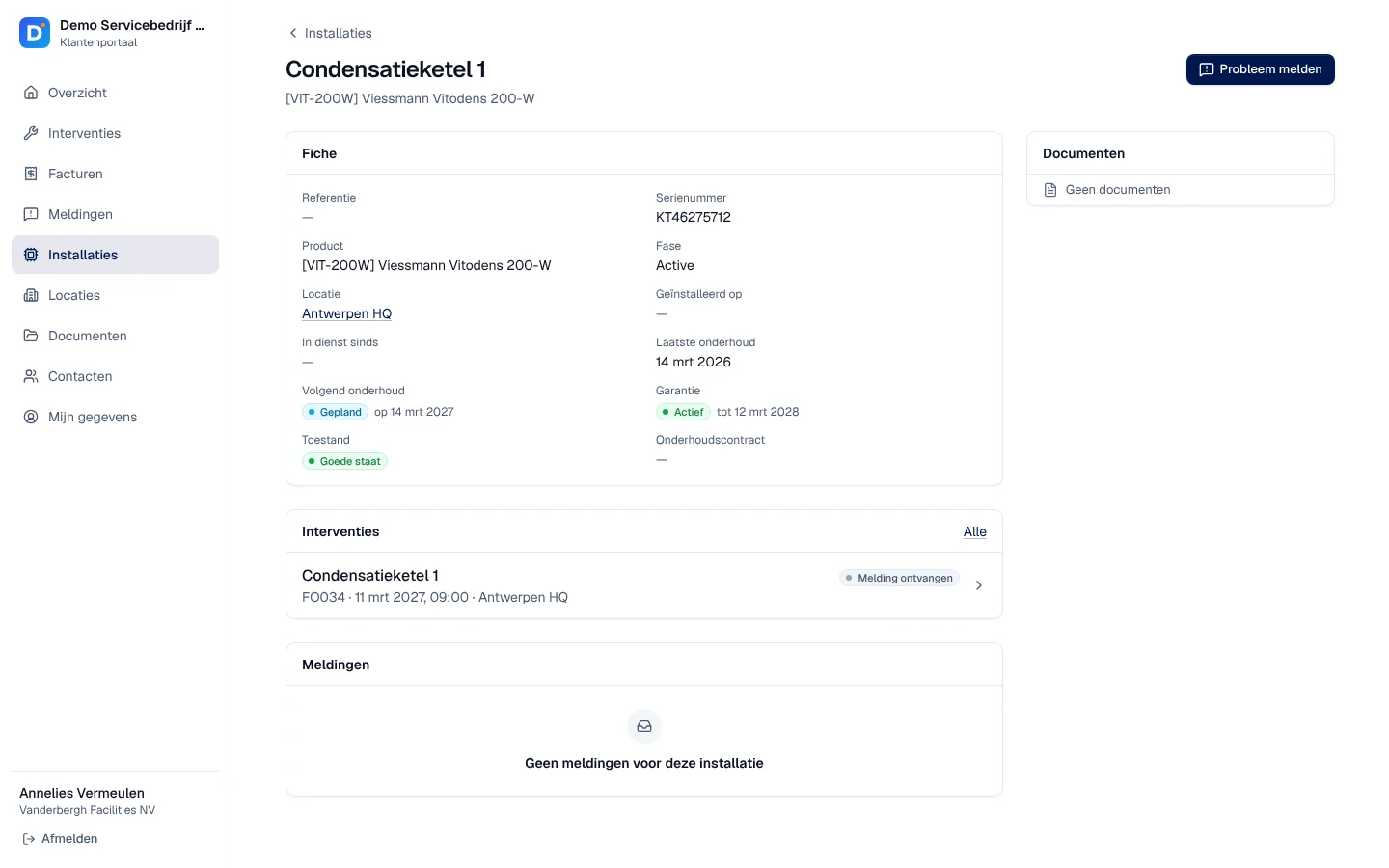
Installaties: filters Onderhoud nodig, Garantie actief, Garantie loopt af, Garantie verlopen. The record gives the product, the serial number, the site, maintenance, warranty and status, the device’s interventions and reports, the documents you have made visible and, if there is one, the QR code with its PDF label.
-
Locaties: the addresses where you work for the customer, with their number, their installations and interventions.
-
Documenten: the installation documents visible to the customer and the reports of completed interventions.
-
Contacten: the people of their company in the file and your contact details. “Een persoon toevoegen of toegang geven? Vraag het aan uw dienstverlener.”: you do the inviting.
Reporting a problem
Section titled “Reporting a problem”-
The customer clicks Probleem melden (overview, Meldingen, an installation or an intervention).
-
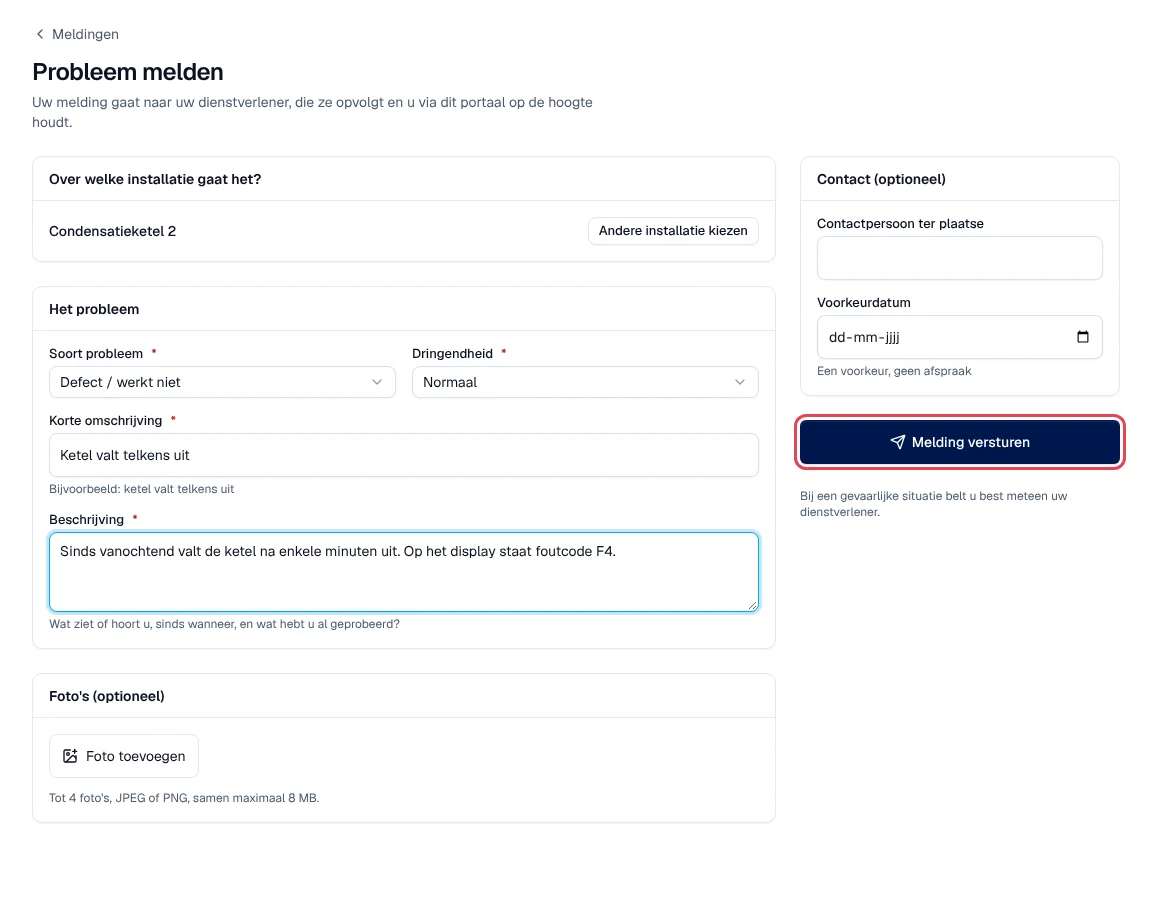
They choose the Installatie, the Soort probleem (type) and the Dringendheid (urgency), write a Korte omschrijving (title) and a Beschrijving, and if useful add photos (up to 4, JPEG or PNG, 8 MB in total), a Contactpersoon ter plaatse and a Voorkeurdatum (“Een voorkeur, geen afspraak”: a preference, not an appointment).
-
They click Melding versturen.
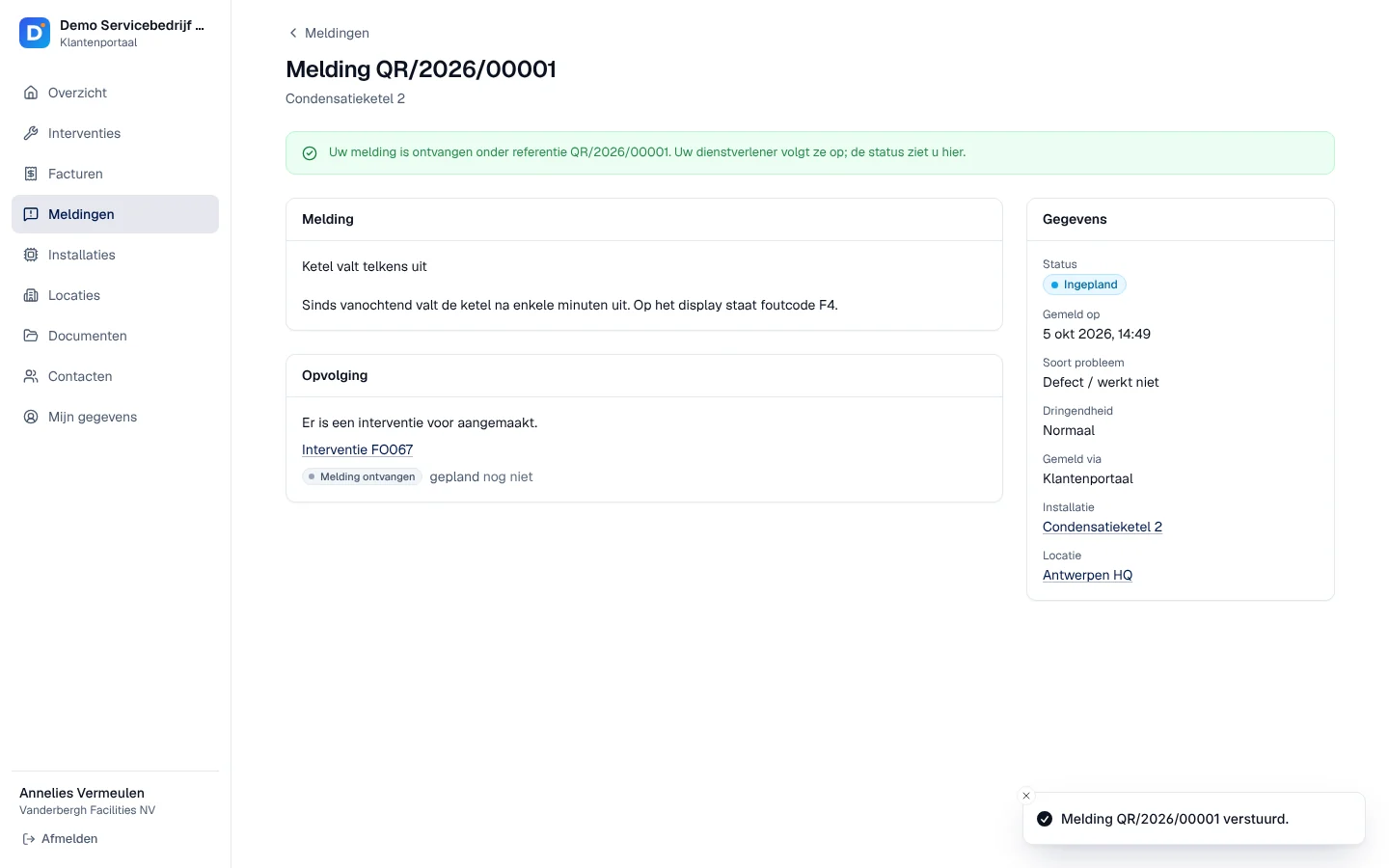
Result: “Melding … verstuurd.” and the report page: “Uw melding is ontvangen onder referentie …”. On your side, it arrives in QR-meldingen like reports made with a QR code; Service Suite turns it into an intervention, and the customer sees under Opvolging (follow-up) “Er is een interventie voor aangemaakt.” with its status.
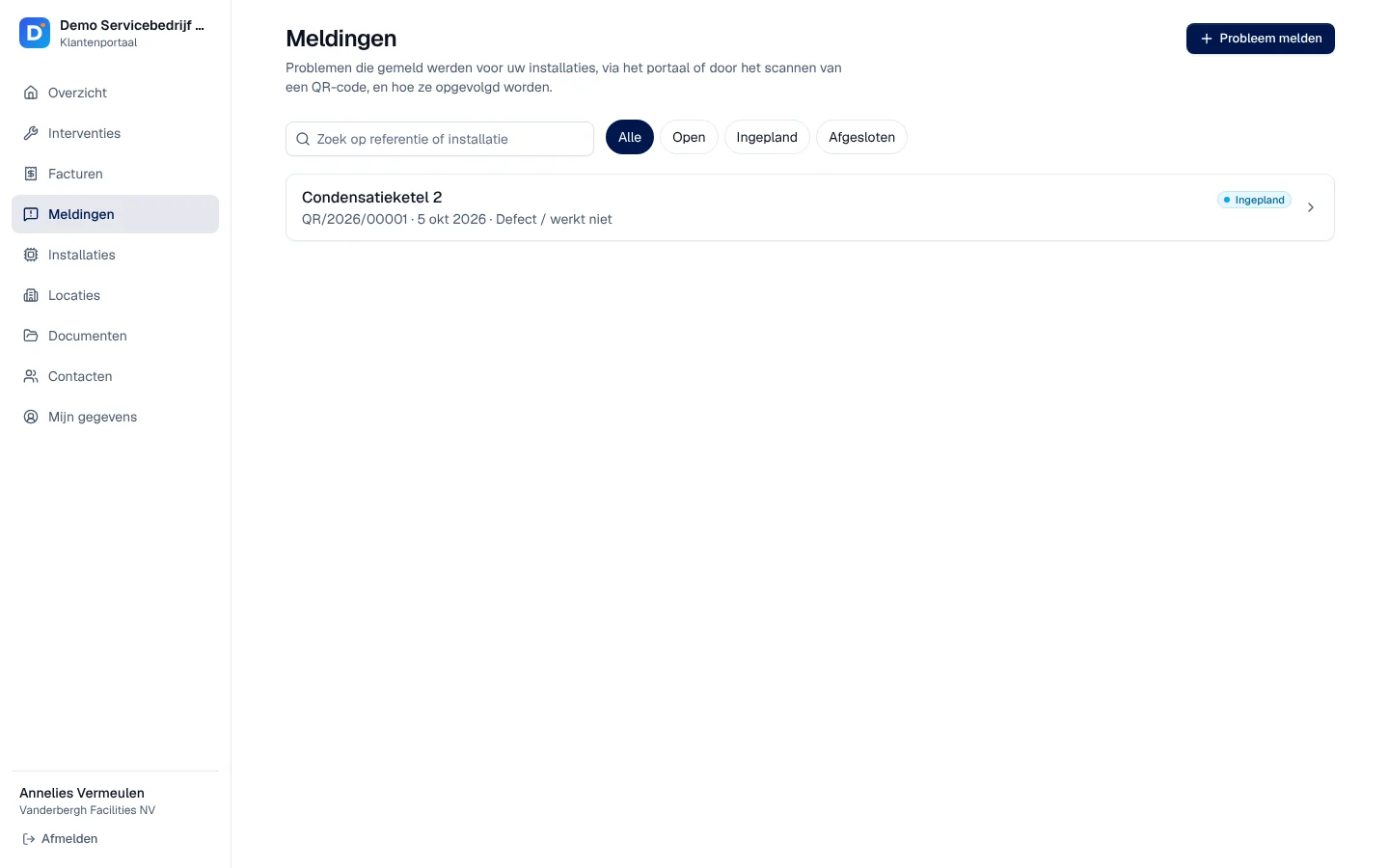
Meldingen lists all reports for the customer’s installations (filters Alle, Open, Ingepland, Afgesloten), including those made by a QR scan or by your technician; for those, they see the follow-up but not the text or the photos.
My details
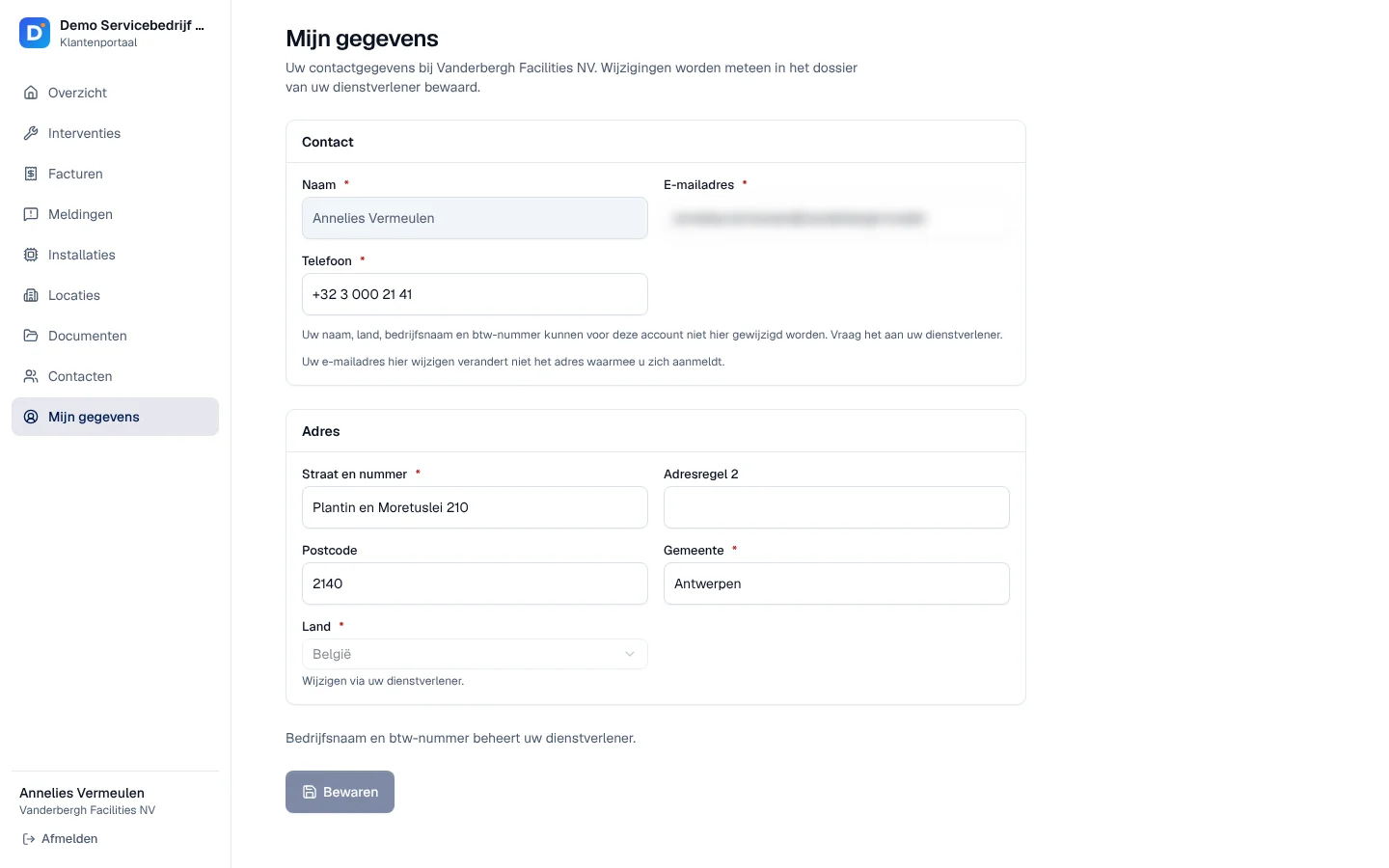
Section titled “My details”Mijn gegevens: the contact changes their phone number, e-mail and address; this is saved immediately in your file. Their name, country, company name and VAT number remain managed by you. Changing the e-mail here does not change the sign-in address.
On a phone
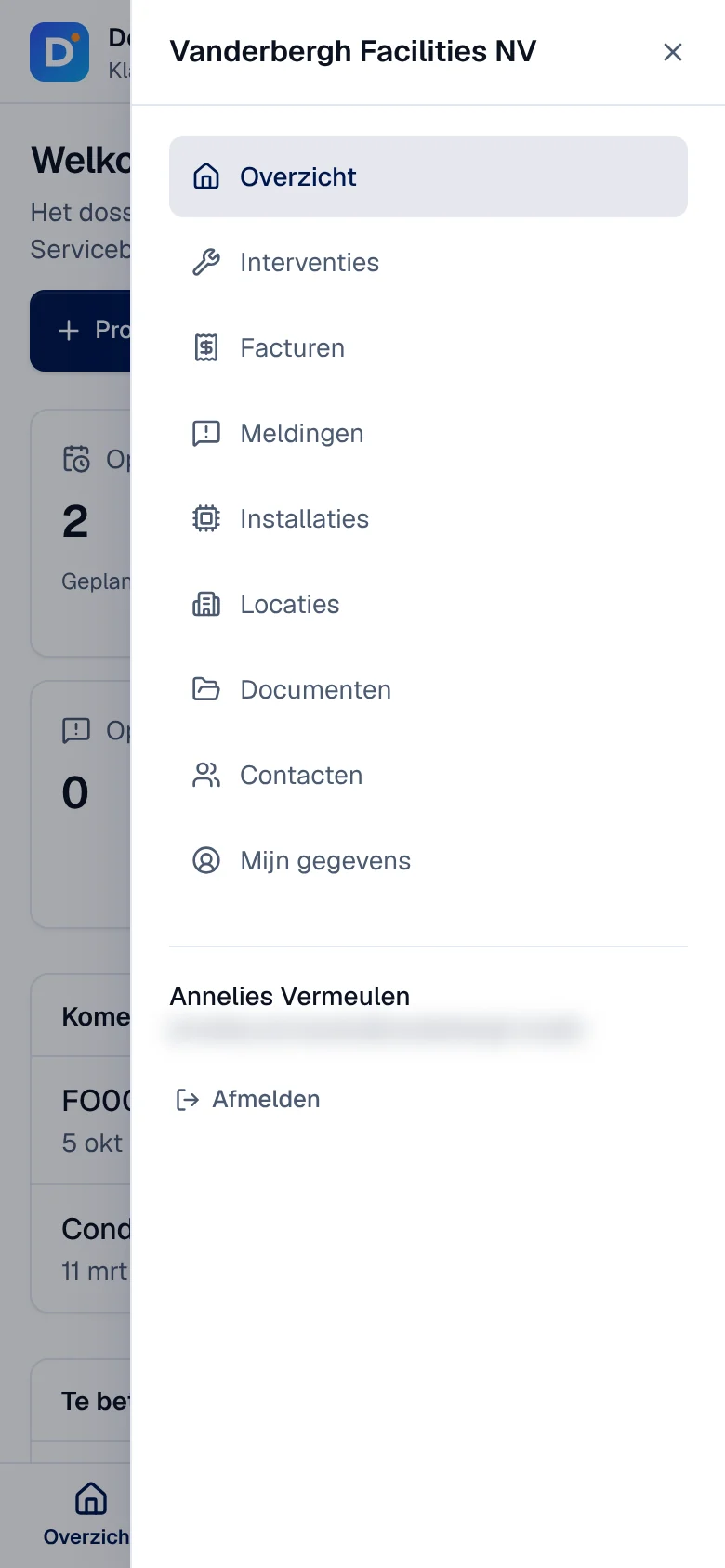
Section titled “On a phone”The portal adapts to the phone: a bar at the bottom gives Overzicht, Interventies, Facturen and Meldingen; the menu (top right) gives all pages and Afmelden.
Current limits
Section titled “Current limits”- No online payment; no self-service forgotten password.
- A report always concerns an installation invoiced to the customer’s company; no free-form request, no reply thread, photos only (no PDF).
- No permissions per contact: each invited contact sees their company’s whole file. The customer cannot invite a colleague themselves.
- To prevent abuse, the number of reports per company is limited over a short period of time.
See also
Section titled “See also”- Customers and the 360° customer file — invite, re-invite, revoke access.
- QR codes and reports — where the reports arrive.
- Installations — make a document visible to the customer.