

The intervention record, the report and corrections
The intervention record brings together everything about an intervention: the customer and the site, the scheduling, safety, parts, evidence, the report and the history. The office takes the next step there, sends the report to the customer, corrects what needs correcting and starts the invoice.
| Menu | Werk › Interventies, then click an intervention |
| Who | Everyone who sees interventions. The actions depend on the role (table at the bottom of the page). |
| Prerequisites | An existing intervention (create an intervention). |
Read the record
Section titled “Read the record”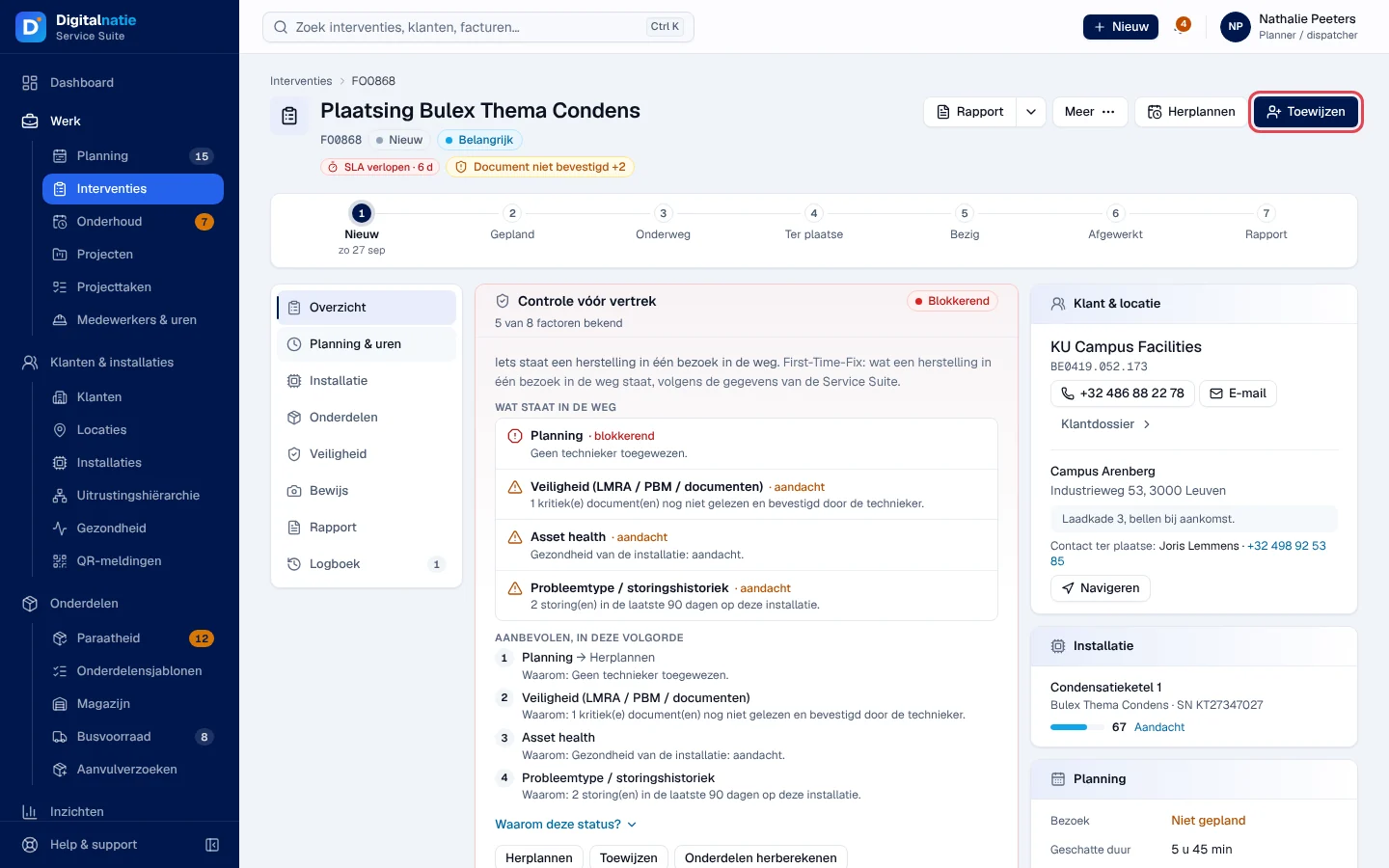
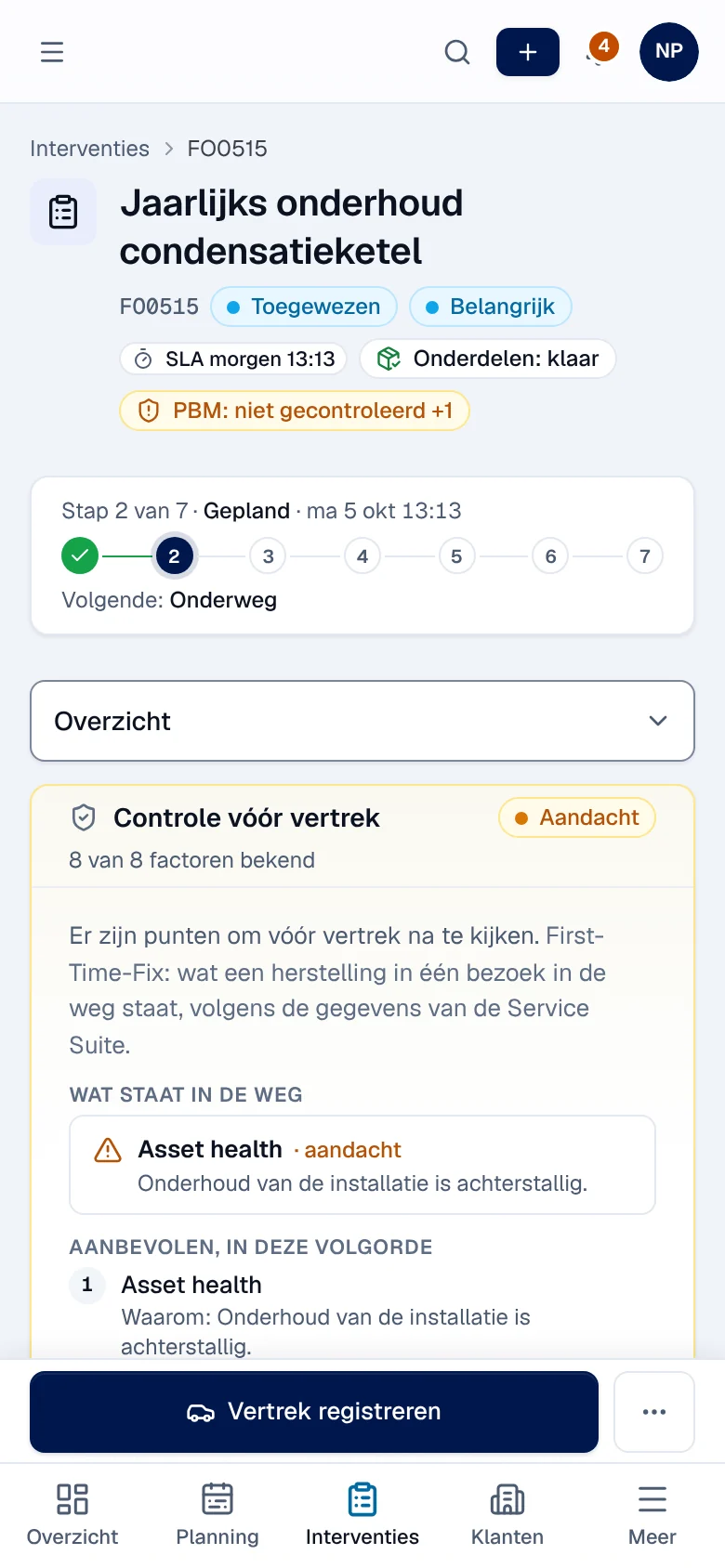
- At the top: the title, the FO number, the status, the priority and the signals (SLA deadline, Onderdelen (parts), safety, report version).
- Voortgang (progress): Nieuw, Gepland, Onderweg (on the way), Ter plaatse (on site), Bezig (in progress), Afgewerkt (completed), Rapport, with the time each step was reached.
- On the left, the tabs: Overzicht (overview), Planning & uren (scheduling and hours), Installatie, Onderdelen, Veiligheid (safety), Bewijs (evidence: photos and signatures), Rapport and Logboek (log: notes, changes, attachments).
- On the right, the details: Klant & locatie (customer and site, with Navigeren for directions), Installatie, Planning, the deadlines, invoicing (for accounting) and the linked records.
Controle vóór vertrek (check before departure), in Overzicht, lists what prevents a first-visit fix (technician, parts, safety, condition of the installation) and the recommended order to resolve it. It only gives known causes, never a percentage or a prediction.
Take the next step
Section titled “Take the next step”The dark button at the top right always offers the next step:
| Situation | Button |
|---|---|
| No technician yet | Toewijzen (assign) |
| Technician assigned, not left yet | Vertrek registreren (record departure) |
| On the way | Aankomst registreren (record arrival) |
| On site | Werk starten (start work) |
| Work in progress | Werk beëindigen (finish work) |
| Paused | Hervatten (resume) |
| Completed, report not sent | Rapport verzenden (send report) |
| Customer absent | Opvolging aanmaken (create follow-up) |
| Cancelled | Heropenen (reopen) |
Normally, the technician records departure, arrival and work in their app (Carrying out an intervention). The office can do it in their place from the record. Herplannen (reschedule) opens the scheduling window described in The schedule. Toewijzen opens Technieker toewijzen: “De toegewezen technieker krijgt de opdracht meteen in de app.” (the technician receives the job immediately in the app).
When departure is blocked
Section titled “When departure is blocked”The Service Suite refuses to start work as long as the LMRA, the PPE check (PBM-controle) or a mandatory document is not in order. The Aandacht (attention) banner gives the reason; these checks are done in the technician’s app (Safety). Naar Veiligheid opens the Safety tab, Status vernieuwen reloads the status.
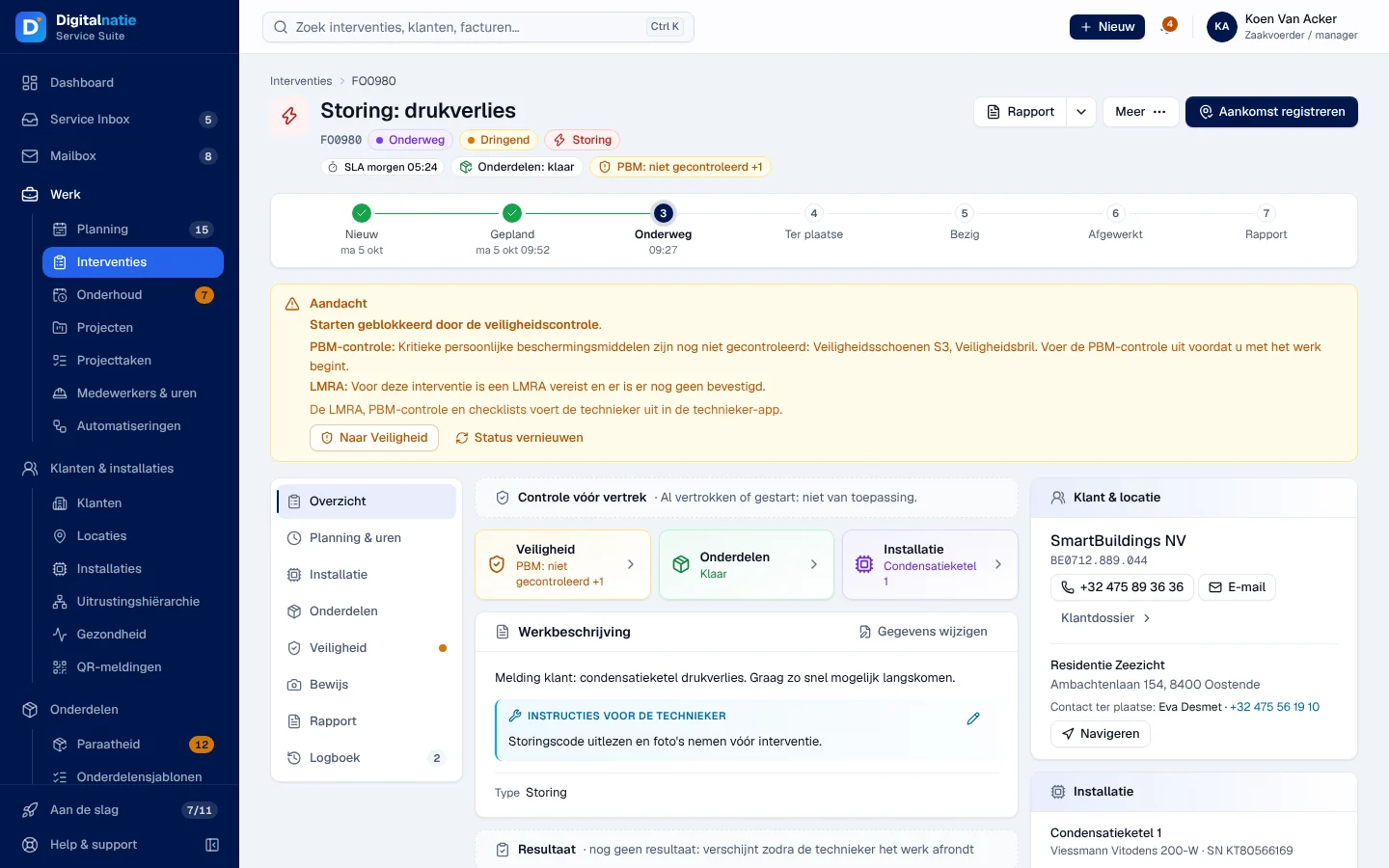
The same banner explains the statuses that require action from the office: Te herplannen (to reschedule), Wacht op onderdelen (waiting for parts), Opvolging vereist (follow-up required).
Finish the work
Section titled “Finish the work”Werk beëindigen asks for the outcome. Only Volledig voltooid (fully completed) closes the intervention; the Service Suite then checks the mandatory signatures and photos and refuses if any are missing.
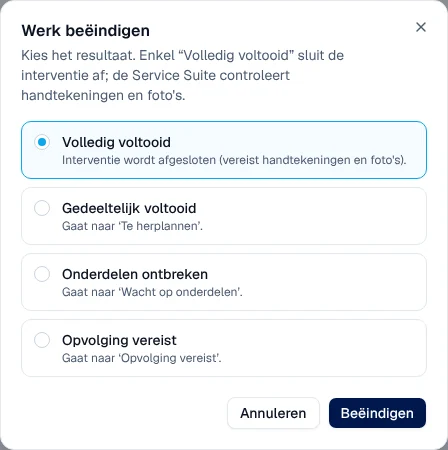
Gedeeltelijk voltooid (partly completed) leads to Te herplannen, Onderdelen ontbreken (parts missing) to Wacht op onderdelen, Opvolging vereist to the status of the same name.
Send the report to the customer
Section titled “Send the report to the customer”-
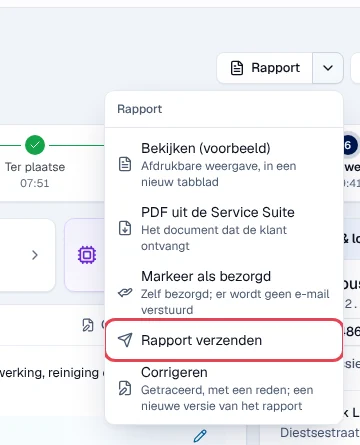
Open a completed intervention and click the arrow next to Rapport.
-
Choose:
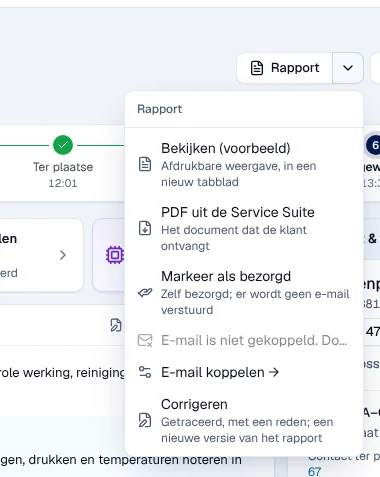
- Bekijken (voorbeeld): the printable preview, in a new tab. It shows neither prices nor internal notes.
- PDF uit de Service Suite: the PDF the customer receives.
- Markeer als bezorgd (mark as delivered): you deliver the report yourself; choose the channel (Eigen e-mail, Post, Overhandigd, Andere). No e-mail is sent.
- Rapport verzenden: the Service Suite sends the PDF to the customer by e-mail.
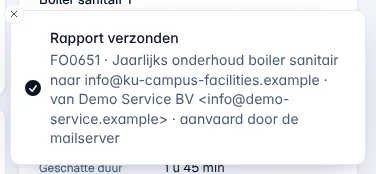
Result: the message “Rapport verzonden” shows the recipient, the sender and “aanvaard door de mailserver” (accepted by the mail server). If the Service Suite could not confirm the sending, the message says “Rapport aangeboden voor verzending”.
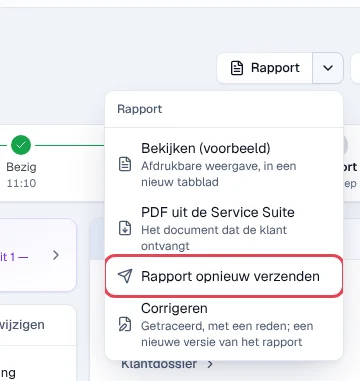
A report that has already been sent is sent again with Rapport opnieuw verzenden (send report again). The window asks for a reason, which goes into the log.
Correct a report or the data
Section titled “Correct a report or the data”A completed intervention can no longer be changed freely: every change is a tracked correction.
-
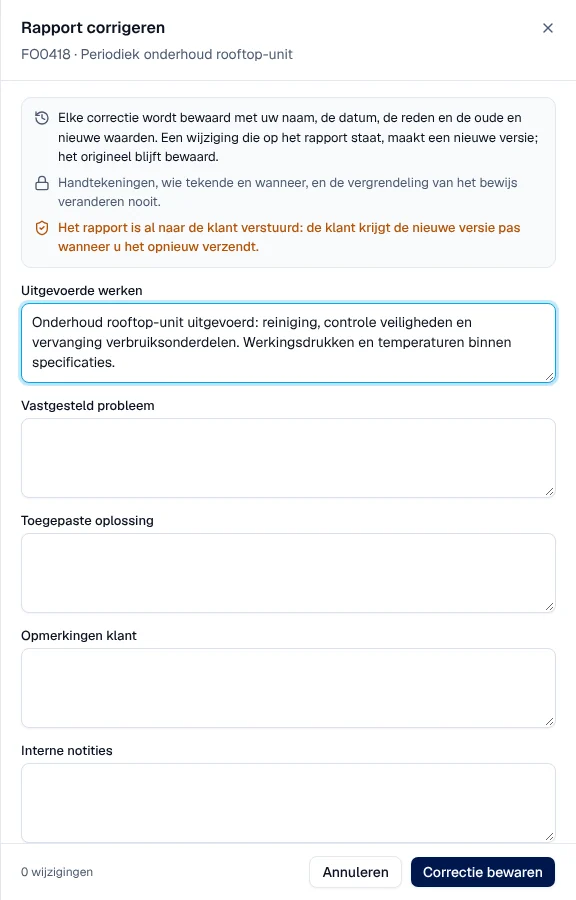
In the Rapport menu, choose Corrigeren (correct): “Getraceerd, met een reden; een nieuwe versie van het rapport”.
-
Change the report texts (Uitgevoerde werken, Vastgesteld probleem, Toegepaste oplossing, Opmerkingen klant, Interne notities) and, if needed, the Resultaat or the status of the Handtekening klant (customer signature).
-
Enter the Reden van de correctie (reason for the correction, required). It goes into the log, not onto the report. A Notitie voor de klant (optioneel) appears in the report’s “Correcties” appendix.
-
Click Correctie bewaren (save correction).
Result: “Correctie bewaard” with the report’s new version number. No e-mail is sent: if the customer had already received the report, the Aandacht banner reminds you that they have an old version, with Opnieuw verzenden (send again).
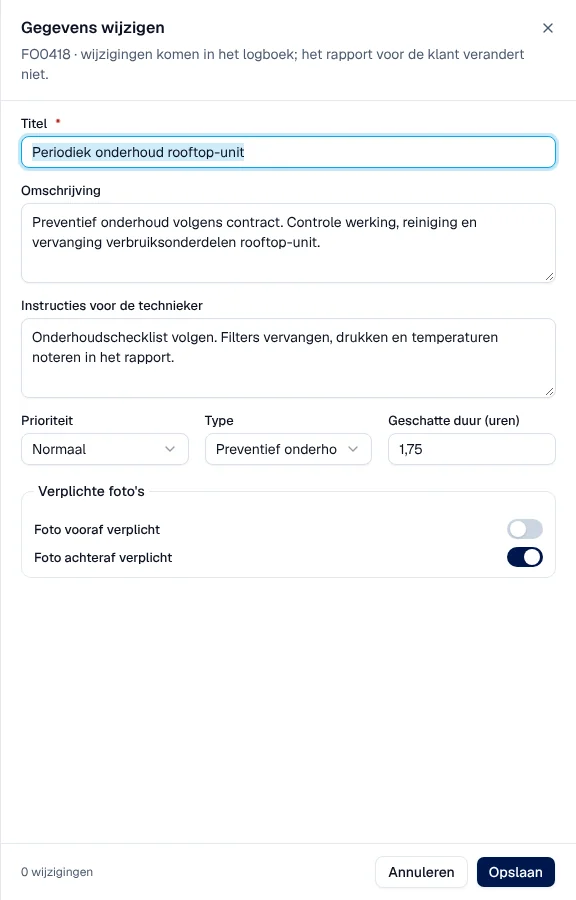
Meer › Gegevens wijzigen (edit data) changes the title, the description, the instructions for the technician, the priority, the type, the estimated duration and the mandatory photos, even on a completed intervention. The changes go into the log; the customer’s report does not change.
Create the invoice
Section titled “Create the invoice”For accounting and the administrator, on a Voltooid intervention not yet invoiced: Meer › Factuur maken (create invoice).
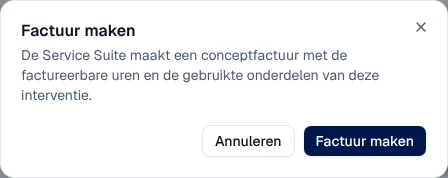
The Service Suite creates a draft invoice with the billable hours and the parts used. If the intervention is linked to a sales order, it takes over that order’s lines and prices, plus the parts that are not on it. The message “Factuur aangemaakt” appears and the Facturatie block changes to Concept. The invoice is neither posted nor sent: that is done in Invoices, payments and credit notes.
On a maintenance-contract visit, the Facturatie block counts the part included in the contract as 0 and says so, for example “Inbegrepen in het onderhoudscontract: bezoek (0,75 u), onderdelen”. If nothing is left to invoice, the block shows Gedekt door contract and Factuur maken is not offered (see Maintenance contracts).
Other actions (Meer menu)
Section titled “Other actions (Meer menu)”- Pauzeren (pause), during the work.
- Klant afwezig (customer absent): the intervention changes to Te herplannen. After that, the technician can no longer restart it, even when rescheduled: create a follow-up for the new visit.
- Opvolging aanmaken (create follow-up): a new intervention linked to this one, without evidence or invoice.
- Klant tekent niet… (customer does not sign): Klant niet beschikbaar or Klant weigert te tekenen, with a reason.
- Offerte maken (create quote) or open the linked quote: see Quotes.
- Parts readiness herberekenen (recalculate parts readiness): see Parts readiness.
- Interventie annuleren (cancel intervention): “De technieker wordt verwittigd. Heropenen kan enkel door een manager.” The reason is required and goes into the log.
Internal notes go into Logboek with Notitie toevoegen (add note): “Enkel zichtbaar voor medewerkers.” (visible only to staff). Documents are added in Logboek › Bijlagen (attachments, 10 MB maximum).
On a phone
Section titled “On a phone”The tabs become a drop-down list, whose first entry is Details. A fixed bar at the bottom carries the next step and the ⋯ menu.
Rights by role
Section titled “Rights by role”The table shows the supplied role templates (see Roles and permissions); your administrator can adapt them (see Users, roles and permissions).
| Action | Admin | Manager | Planner | Accounting | Sales | Read |
|---|---|---|---|---|---|---|
| Open the record, add an internal note | ✓ | ✓ | ✓ | ✓ | ✓ ¹ | ✓ |
| Assign, reschedule, cancel, create a follow-up | ✓ | ✓ | ✓ | — | — | — |
| Work steps, customer absent, send the report, mark as delivered | ✓ | ✓ | ✓ | — | — | — |
| Reopen a cancelled intervention | ✓ | ✓ | — | — | — | — |
| Send a report again | ✓ | ✓ | — | — | — | — |
| Correct the report, edit the data | ✓ | ✓ | ✓ | — | — | — |
| Create the invoice | ✓ | — | — | ✓ | — | — |
¹ Directie only.
The technician takes their steps in the Techniekers-app; a technician with no other role does not open the office application.
Current limits
Section titled “Current limits”- You do not delete an intervention: you cancel it. Archiving is done from the list, not from the record.
- The office cannot add parts used: the technician records them in their app (Parts and van).
- The AI assistant in the Rapport tab (rewrite, summarise, translate, prepare an e-mail to the customer) requires a configuration that is not possible in the application; as long as it is missing, it shows “AI is nog niet ingesteld”. Ask Digitalnatie. It never sends anything automatically and never writes in the report.