

Working offline and syncing
In a basement, a boiler room or a car park, there is often no network. The app keeps going: each change is first kept on the device, then sent in order as soon as the network returns. The Synchronisatie screen shows you what is waiting, what has been sent and what requires your decision.
| Menu | the sync button at the top right; Meer › Synchronisatie |
| Who | each technician, for the changes made on their device |
| Prerequisites | having opened the app and your screens at least once with a network |
What works without a network
Section titled “What works without a network”| Works offline (sent later) | Requires a network |
|---|---|
| the steps (Vertrekken, Aangekomen, Start werk, Pauze, Werk beëindigen, Klant afwezig, cancellation) | signing in |
| the report, the photos, the signatures | starting an LMRA or a PPE check (the questions come from the server) |
| parts added or returned | opening a document, a photo full size, a PDF |
| LMRA, PPE, document and checklist answers | opening a QR code |
| parts requests, tasks, Mijn dag | the invoice and payment on site |
| sending the report to the customer | saving your profile |
Recognise offline mode
Section titled “Recognise offline mode”Without a network, an orange banner appears: “Offline — u werkt verder op dit toestel; wijzigingen worden later verzonden.” (offline: you keep working on this device, the changes will be sent later). A screen shown from the device’s copy carries the line “Kopie op dit toestel van zonet — niet bijgewerkt.” (copy on this device, not updated).
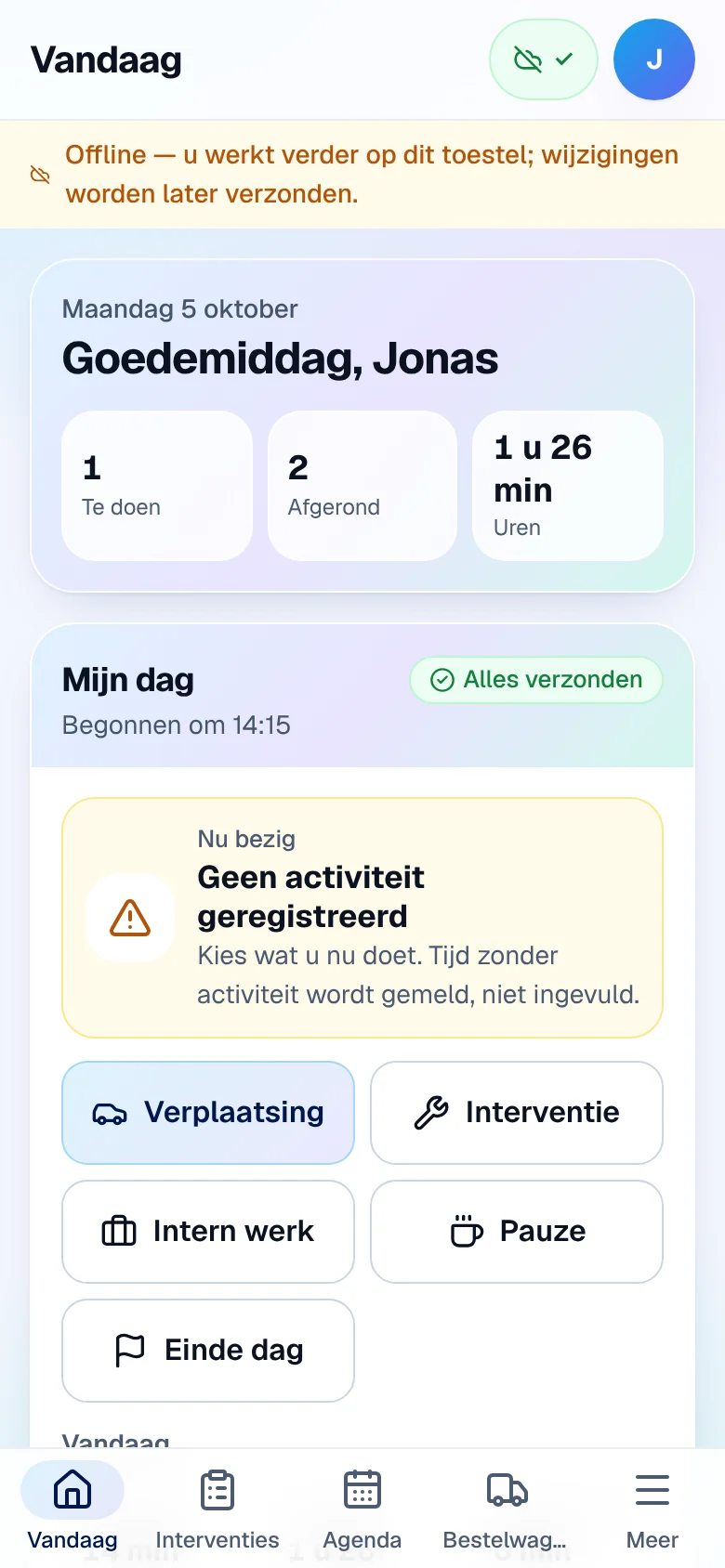
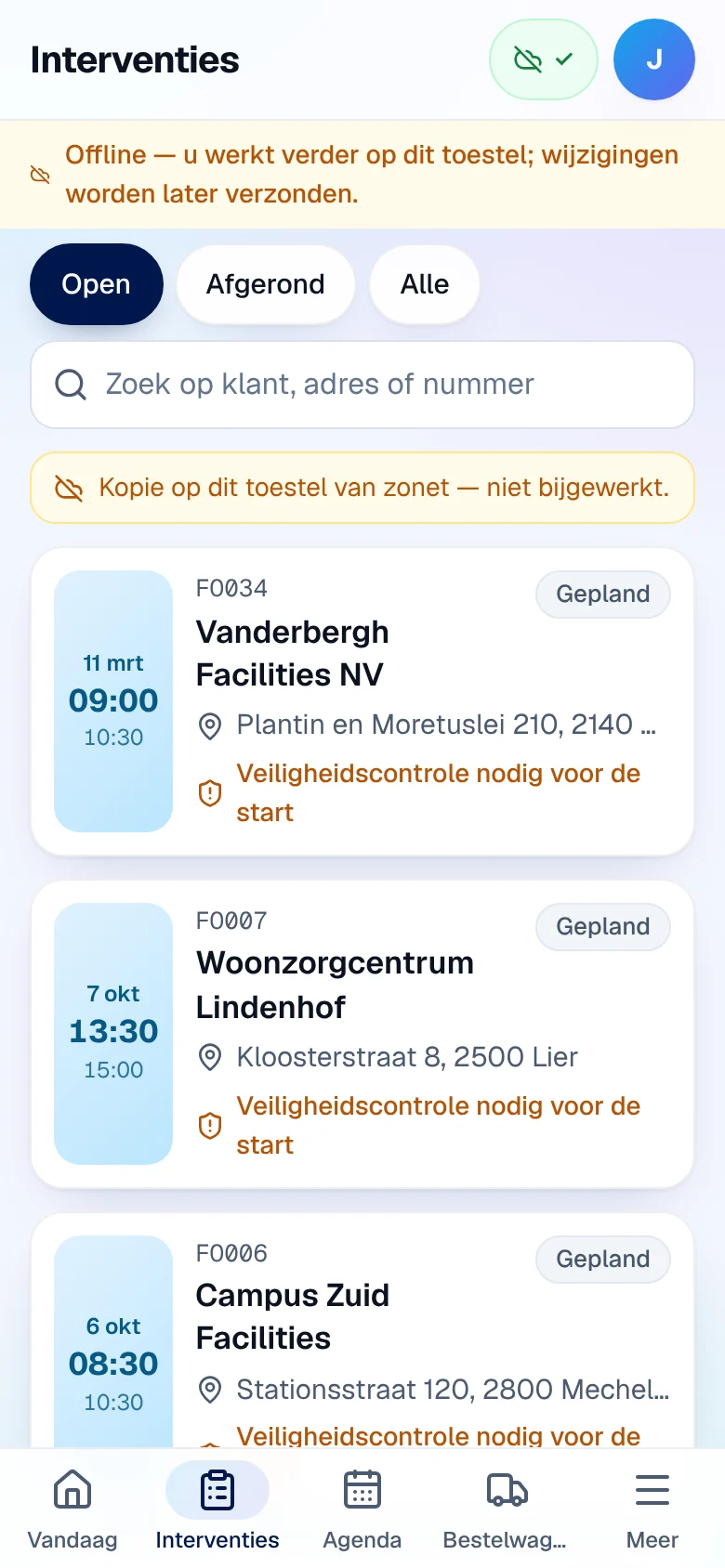
A screen never opened with a network has no copy: “Geen verbinding en nog geen kopie op dit toestel.” Open your interventions for the day in the morning, with a network: the app then keeps your interventions for the day, the overdue and upcoming ones, your van, your tasks and the week’s agenda.
Work offline
Section titled “Work offline”-
Take the step as usual, for example Vertrekken.
-
The status changes immediately on the device and the In wachtrij (queued) badge is added. The sync button at the top shows the number of pending changes.
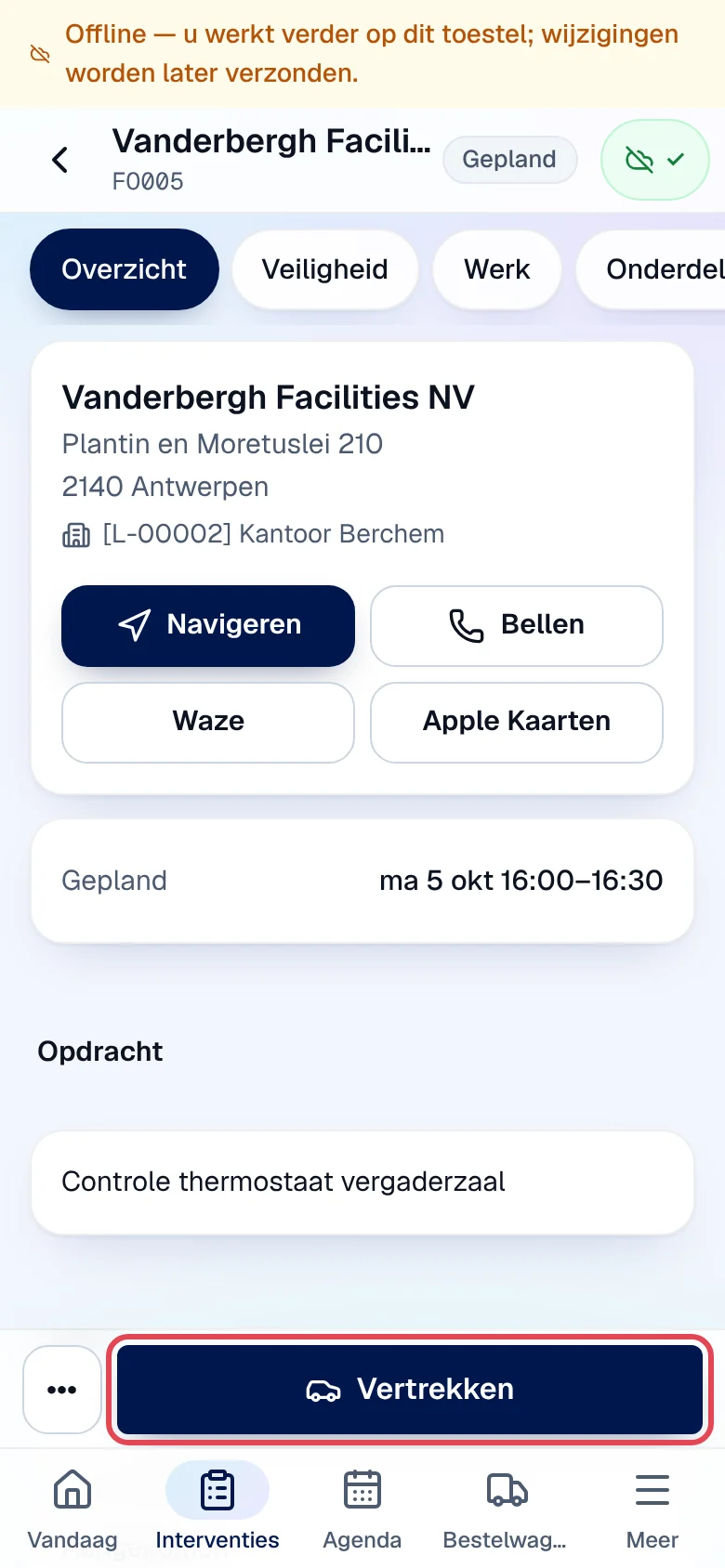
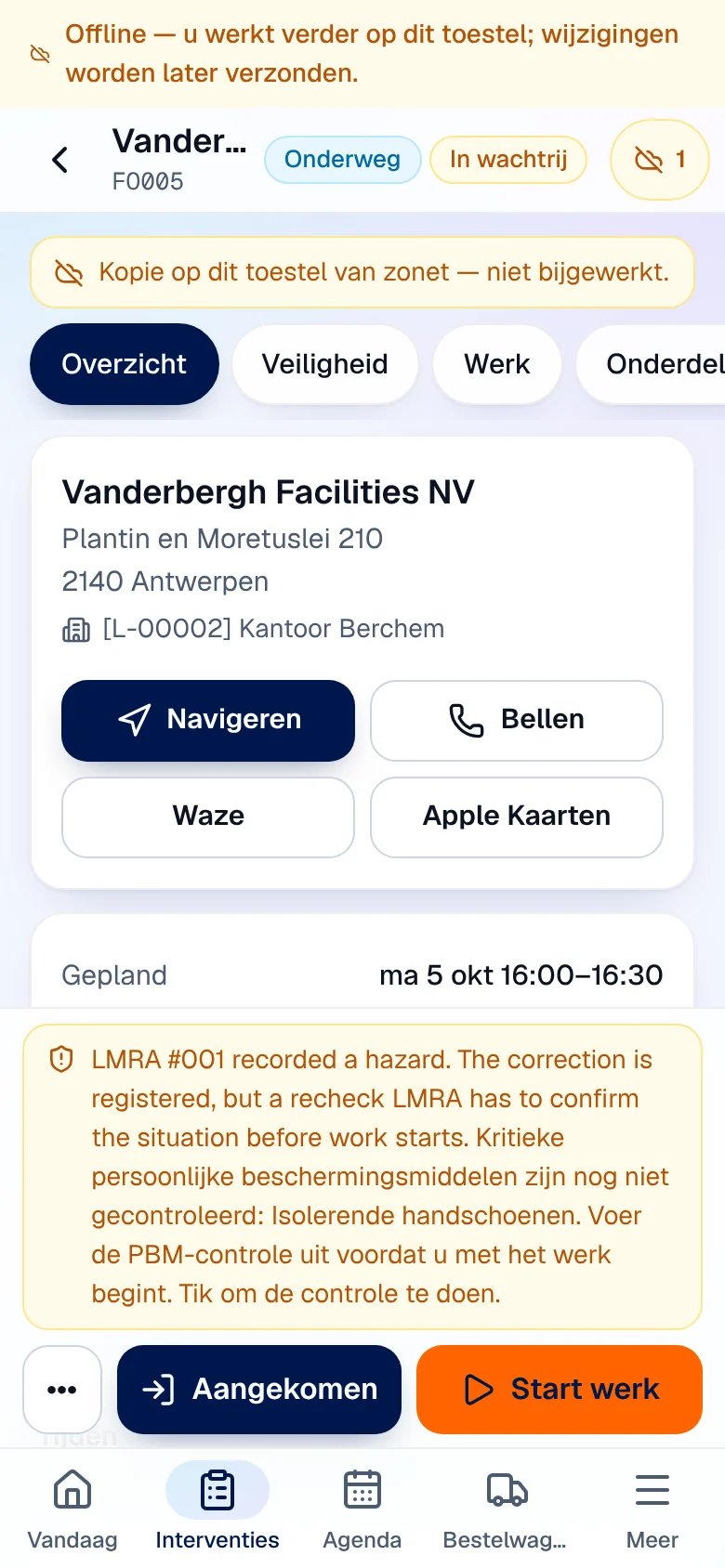
The status shown is the one your pending steps will lead the intervention to. The office, however, sees nothing until they have been sent. Offline, a step’s location is only kept if the step is sent within 30 seconds.
Follow the sync
Section titled “Follow the sync”Tap the sync button at the top right, or Meer › Synchronisatie.
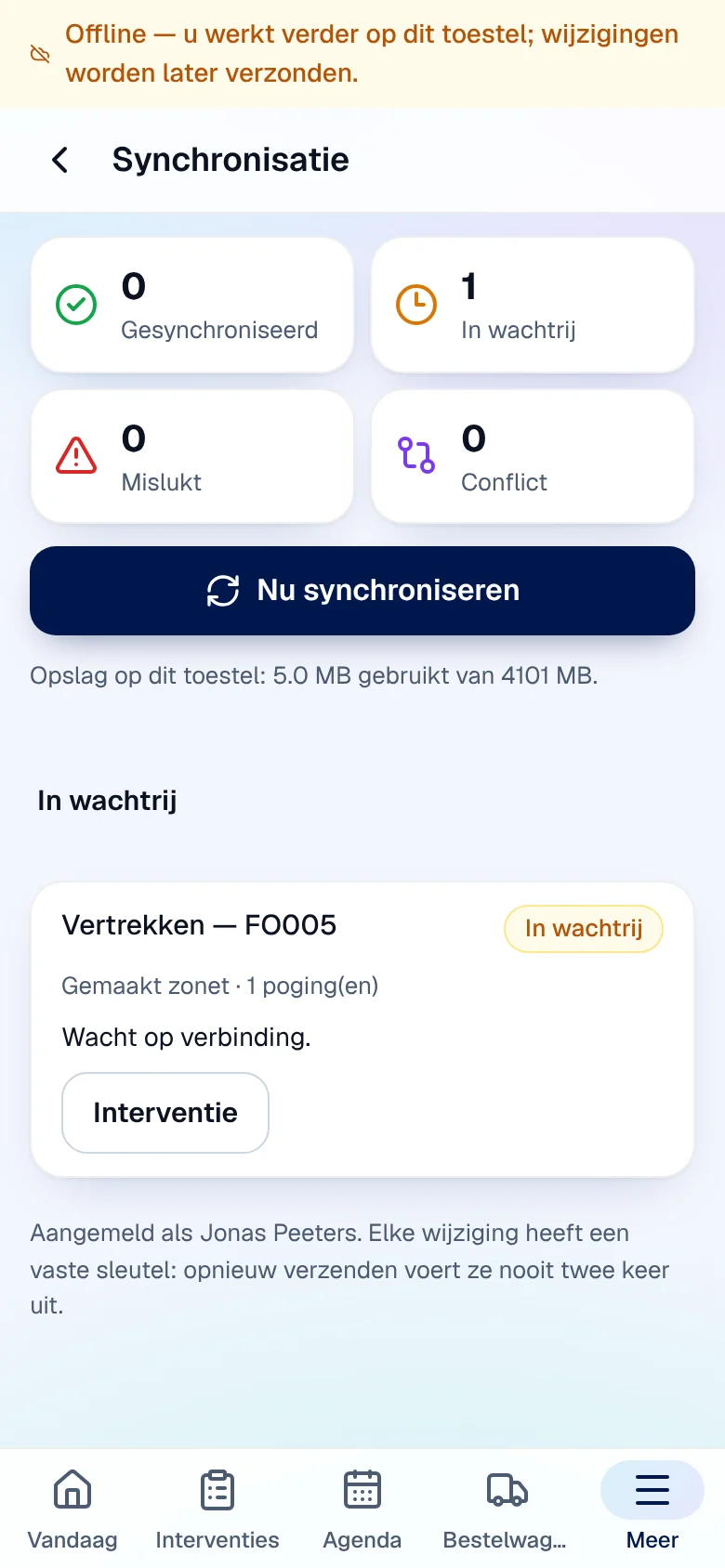
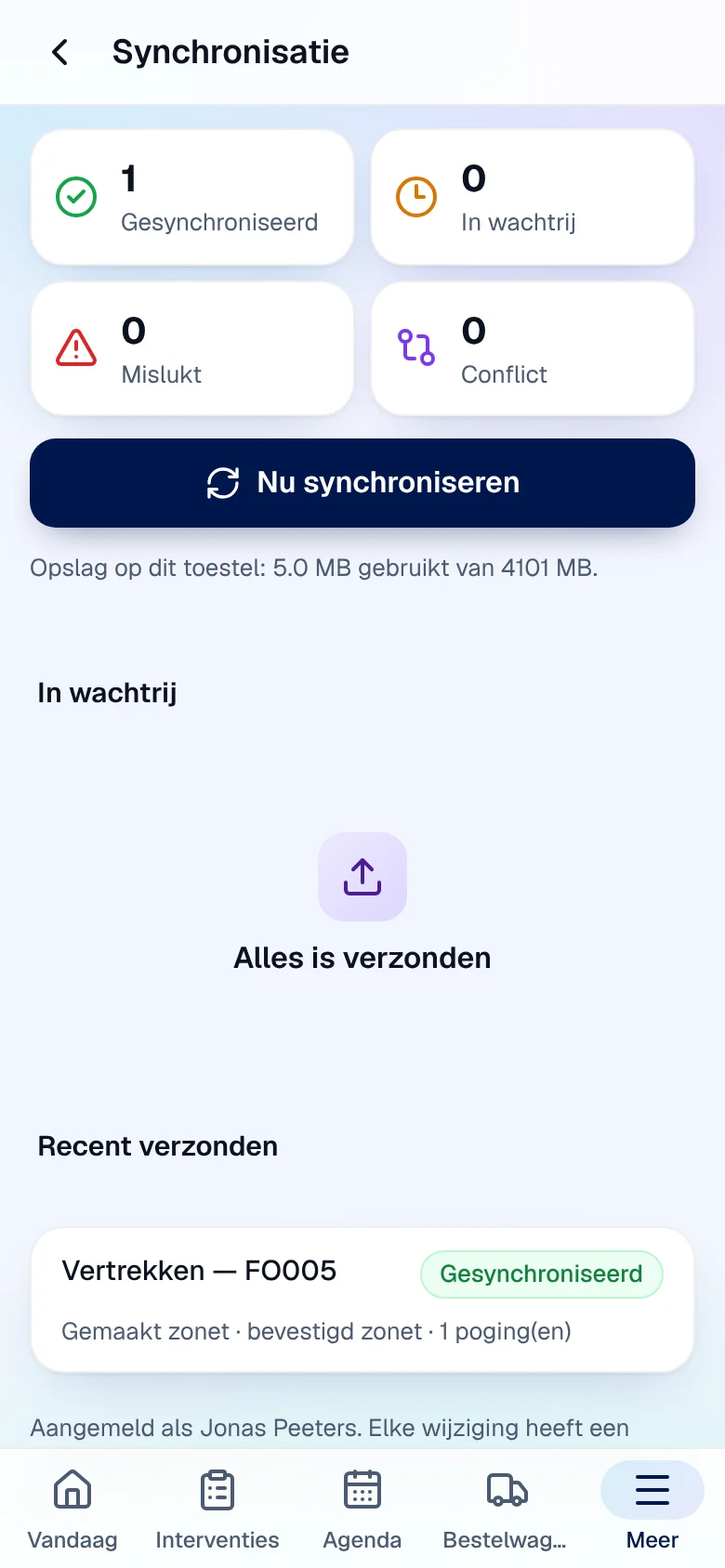
- The counters: Gesynchroniseerd (sent), In wachtrij (waiting), Mislukt (failed), Conflict.
- Nu synchroniseren (sync now) sends immediately. Otherwise, the app sends on its own: after each change, when the network returns, when you return to the app and every 30 seconds.
- In wachtrij lists what is waiting (“Wacht op verbinding.”, “Wacht op aanmelding.”), Recent verzonden (recently sent) what has gone, with the confirmation time.
Each change has a fixed key: sending it again never applies it twice.
Decide on a refusal or a conflict
Section titled “Decide on a refusal or a conflict”A change can come back refused (the office cancelled the intervention in the meantime, stock is missing…) or in conflict (the office changed the intervention after you opened it offline). It appears under Vraagt uw beslissing (requires your decision), with a red dot on Meer and a message in the intervention. The following changes to the same intervention wait: “Wacht: een eerdere wijziging aan deze interventie vraagt uw beslissing.”
-
Tap Beslissen (decide). The app shows the server’s reason, or for a conflict: “Kantoor heeft deze interventie gewijzigd nadat u ze offline opende. Uw versie werd NIET opgeslagen, de versie van kantoor bleef staan.”
-
Choose:
- Opnieuw proberen als nieuwe wijziging (try again as a new change) after a refusal;
- Mijn versie toch versturen (send my version anyway) after a conflict;
- Verwerpen (discard), then Ja, definitief verwerpen;
- Later beslissen (decide later).
Sign out with unsent changes
Section titled “Sign out with unsent changes”-
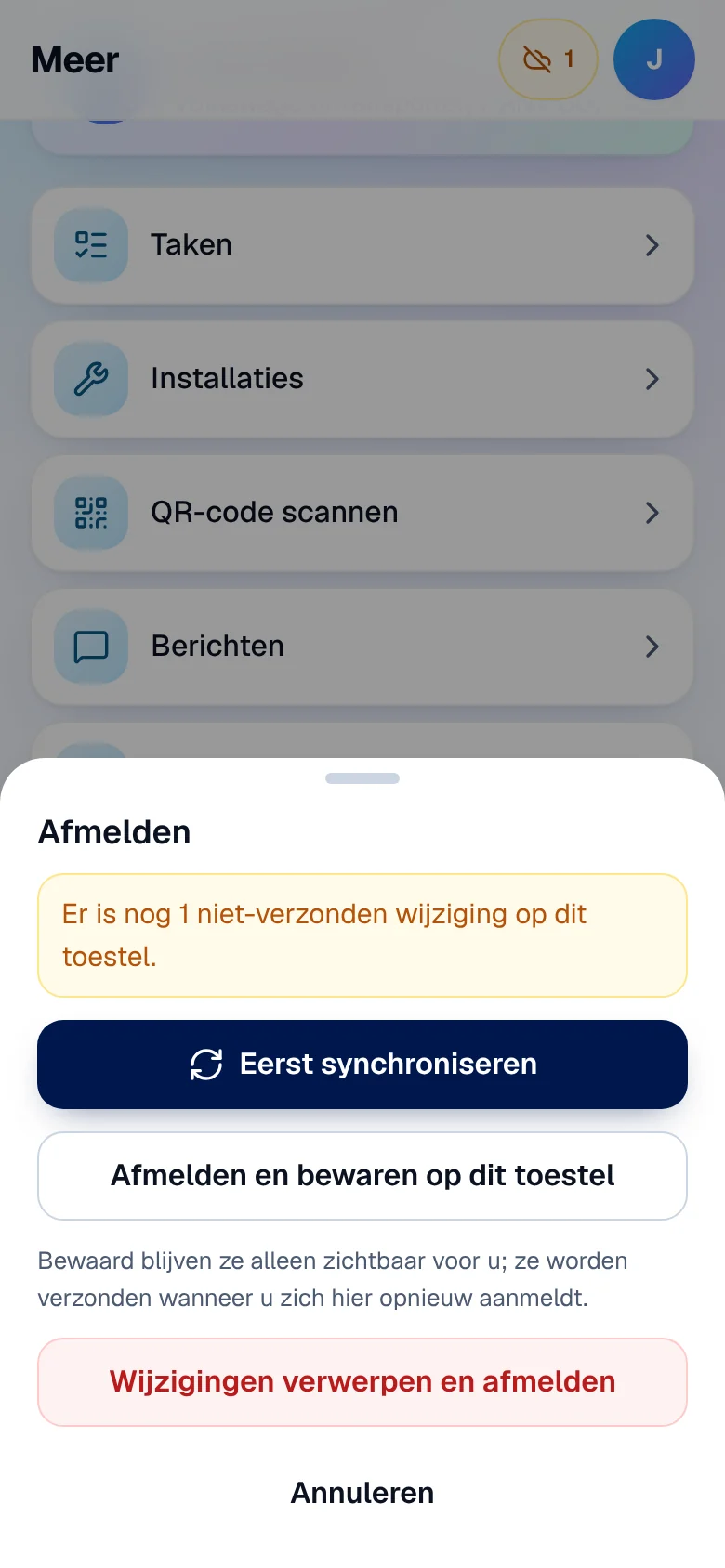
Open Meer › Afmelden. The app shows “Er is nog 1 niet-verzonden wijziging op dit toestel.”
-
Choose:
- Eerst synchroniseren (sync first): the best option, if you have a network;
- Afmelden en bewaren op dit toestel (sign out and keep on this device): the changes stay hidden and are sent when you sign in again on this device;
- Wijzigingen verwerpen en afmelden (discard and sign out), then the confirmation.
Shared device, expired session
Section titled “Shared device, expired session”- If another technician signs in on the same device, the previous technician’s data is erased before they see anything; the previous technician’s unsent changes stay hidden and are sent when they sign in again.
- If your session expires, the Sessie verlopen window keeps your changes on the device until you sign in again (Opnieuw aanmelden).
- Device full: “De opslag van dit toestel is vol. Synchroniseer of maak ruimte vrij.” The change is not saved: free up space, then try again.
- In private browsing, the app may not be able to keep your changes; a banner warns that they will be lost when you close it.
Current limits
Section titled “Current limits”- Signing in, starting an LMRA or a PPE check, opening a QR code and invoicing require a network.
- On iPhone, Safari may erase the data of an app that has not been used for weeks: sync before a long absence.