

Sign in and protect your account
Each office employee signs in with their own account. This page explains the Aanmelden (sign in) page, the first activation of your account, the password, two-step verification and signing out.
| Address | the address of your Service Suite, for example https://app.digitalnatie.app |
| Who | all office users. Technicians use the Techniekers-app (see below) |
| Prerequisites | an account created by your company administrator (see Users, roles and permissions) |
Activate your account (first sign-in)
Section titled “Activate your account (first sign-in)”When the administrator invites you, you receive an e-mail with a link. You use this link to choose your password.
-
Open the link in the e-mail. The Wachtwoord kiezen (choose a password) page shows Welkom, followed by your name, and the account concerned.
-
Enter your password in Nieuw wachtwoord (new password) and then in Herhaal het nieuwe wachtwoord (repeat the new password). Rules: at least 12 characters (or more if your organisation requires it), at most 128, and different from your name, your username and your e-mail address.
-
Click Account activeren (activate account).
Result: “Uw wachtwoord is ingesteld. U wordt doorgestuurd…” (your password has been saved, you are being redirected). You land on the dashboard, signed in. If two-step verification is turned on for your account, the application first asks for the code.
A link works only once and expires after a certain time, and also as soon as you sign in. An expired or incomplete link shows Link niet meer geldig (link no longer valid):
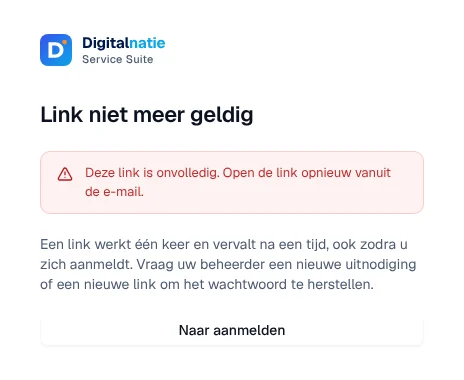
In that case, ask your administrator for a new invitation or a new link. The same screen is used for the reset links sent by the administrator (Nieuw wachtwoord kiezen, button Wachtwoord opslaan, save password).
Sign in
Section titled “Sign in”-
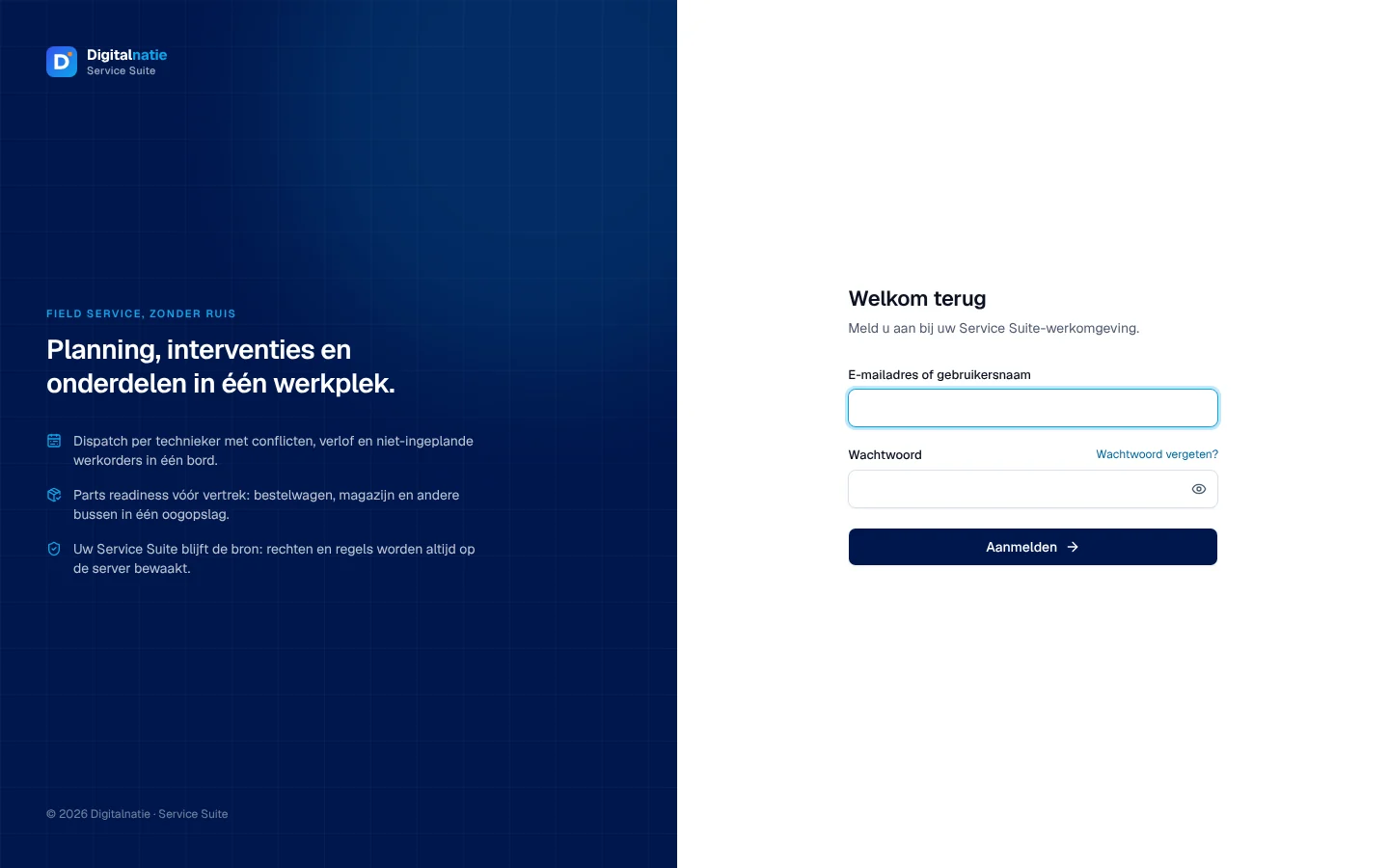
Open the address of your Service Suite. The Aanmelden page shows Welkom terug (welcome back).
-
Enter your e-mail address or username in E-mailadres of gebruikersnaam.
-
Enter your password in Wachtwoord. The eye icon shows or hides what you type.
-
Click Aanmelden (sign in).
Result: the Serviceoverzicht (dashboard) opens, or the page you wanted to open before signing in. See The dashboard.
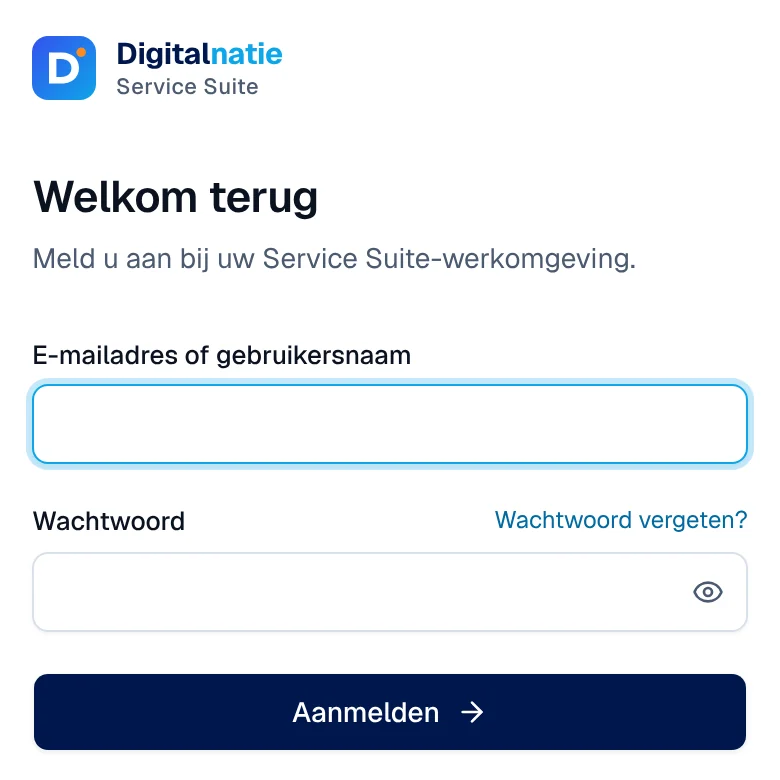
On a phone, the same page is shown without the left-hand panel:
If your organisation has set it up, Aanmelden met Microsoft or Aanmelden met Google buttons appear above the form. They only work after you have linked your account once: sign in with your password, then go to Instellingen › Profiel › Aanmeldmethoden (sign-in methods) and click Microsoft koppelen or Google koppelen. You can create this link within ten minutes of signing in.
Forgotten password
Section titled “Forgotten password”The Wachtwoord vergeten? (forgot your password?) link does not reset anything itself: it opens an e-mail or your organisation’s support page. The link only appears if your organisation has entered a support address or page. Your administrator sends you a link to choose a new password, or sets one for you.
Sign-in messages
Section titled “Sign-in messages”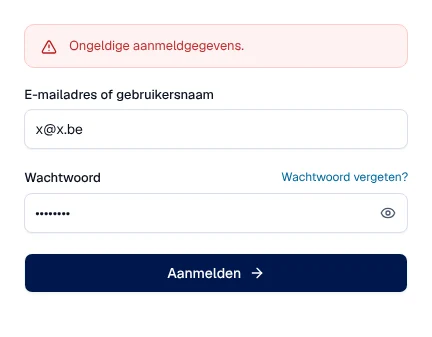
| Message | Meaning |
|---|---|
| “Ongeldige aanmeldgegevens.” | incorrect username or password |
| “Te veel mislukte pogingen. Probeer het binnen 15 minuten opnieuw.” | too many failed attempts: wait 15 minutes |
| “Uw sessie is verlopen. Meld u opnieuw aan.” | your session has expired, sign in again |
| “Geen verbinding met de server.” | no network connection to the server |
| “Deze account is een portaalaccount. …” | this account is a portal account, not an office account: ask your administrator for an internal account |
| “Uw wachtwoord is gewijzigd. Meld u aan met uw nieuwe wachtwoord.” | (in green) your password has been changed |
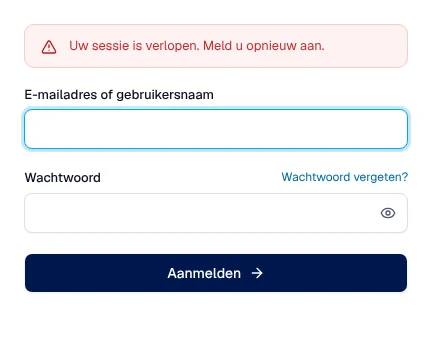
A session does not last forever: after 12 hours at the latest (standard setting), the application asks you to sign in again.
Technicians use their own application
Section titled “Technicians use their own application”A user who only has technician permissions (carrying out their interventions, without planning, finance, warehouse or configuration) does not use the office application. If they sign in to it, every office page sends them to the Techniekers-app (technician app). An administrator, manager or planner who is also a technician keeps access to the office application.
See Install the app and sign in.
Change your password
Section titled “Change your password”-
Open your account menu at the top right, then Profiel & beveiliging (profile and security).
-
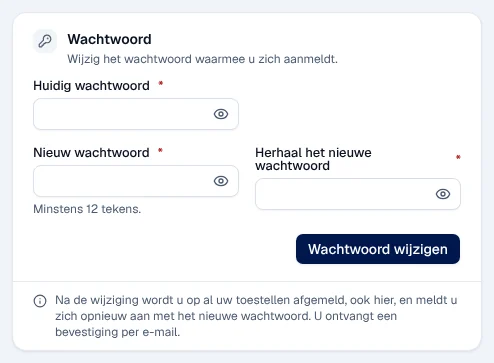
In the Wachtwoord block, enter Huidig wachtwoord (current password), then the new one twice.
-
Click Wachtwoord wijzigen (change password).
Result: you are signed out on all your devices, including this one, and you sign in again with the new password. You receive a confirmation by e-mail.
Turn on two-step verification
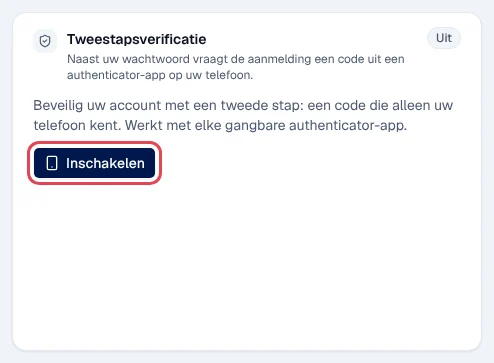
Section titled “Turn on two-step verification”With two-step verification, the application asks, in addition to your password, for a 6-digit code shown by an authenticator app on your phone (any common app will do).
-
In Profiel & beveiliging, Tweestapsverificatie (two-step verification) block, click Inschakelen (turn on).
-
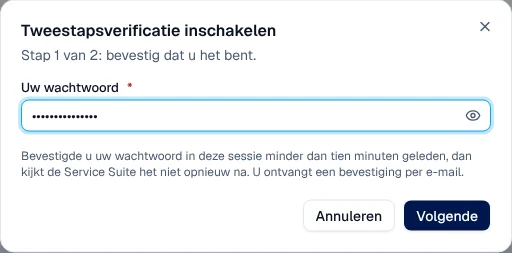
Step 1 of 2: enter Uw wachtwoord (your password) and click Volgende (next). If you confirmed it less than ten minutes ago, the application does not ask for it again.
-
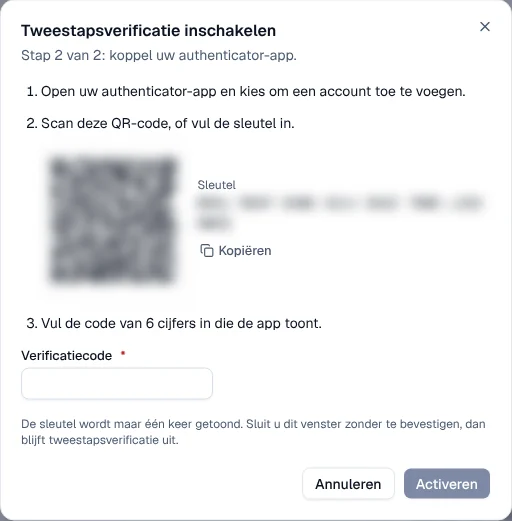
Step 2 of 2: in your authenticator app, add an account and scan the QR code, or copy the Sleutel (key).
-
Enter the 6-digit code in Verificatiecode and click Activeren (activate).
Result: “Tweestapsverificatie staat aan. …” (two-step verification is on). You receive a confirmation by e-mail. The next time you sign in, after your password, the Tweestapsverificatie screen asks for the code: enter it in Verificatiecode and click Bevestigen (confirm). Terug naar aanmelden takes you back to the form.
Sign out
Section titled “Sign out”Open your account menu at the top right and click Afmelden (sign out). You can also use Instellingen › Beveiliging & koppeling › Afmelden op dit toestel (sign out on this device).
Signing out closes your session; a copied link or tab no longer works. It does not sign you out of your Microsoft or Google account.
Your session also closes on all your devices when you change your password, or when the administrator deactivates your account or sets a new password for you.
Rights by role
Section titled “Rights by role”The table shows the supplied role templates (see Roles and permissions); your administrator can adjust them (see Users, roles and permissions).
| Action | Admin | Manager | Planner | Accounting | Warehouse | Sales | Read |
|---|---|---|---|---|---|---|---|
| Sign in, change your password, manage your two-step verification | ✓ | ✓ | ✓ | ✓ | ✓ | ✓ | ✓ |
| Invite a colleague, send a password link, set a password | ✓ | — | — | — | — | — | — |
Current limits
Section titled “Current limits”- There is no self-service password reset: go through your administrator.
- Microsoft or Google sign-in only exists if your organisation has set it up; it is configured together with Digitalnatie, not in the application.
See also
Section titled “See also”- Finding your way: menu, search, lists, notifications
- Users, roles and permissions — invite, reset, deactivate
- Settings (Instellingen) — the profile in detail
- Install the app and sign in — for technicians