

The schedule
The Planning (schedule) shows who does what and when. The planner places unscheduled interventions on a technician and a time, moves work when the day changes and optimises routes. Every change is saved immediately and goes straight to the technicians’ app.
| Menu | Werk › Planning (the number counts the unscheduled interventions); or Nieuw › Interventie inplannen in the top bar |
| Who | View: administrator, manager, planner; the technician sees their agenda in their app. Schedule and move: administrator, manager, planner. |
| Prerequisites | Active technicians, with their working hours. Approved absences are taken into account automatically. |
Read the day (Dag view)
Section titled “Read the day (Dag view)”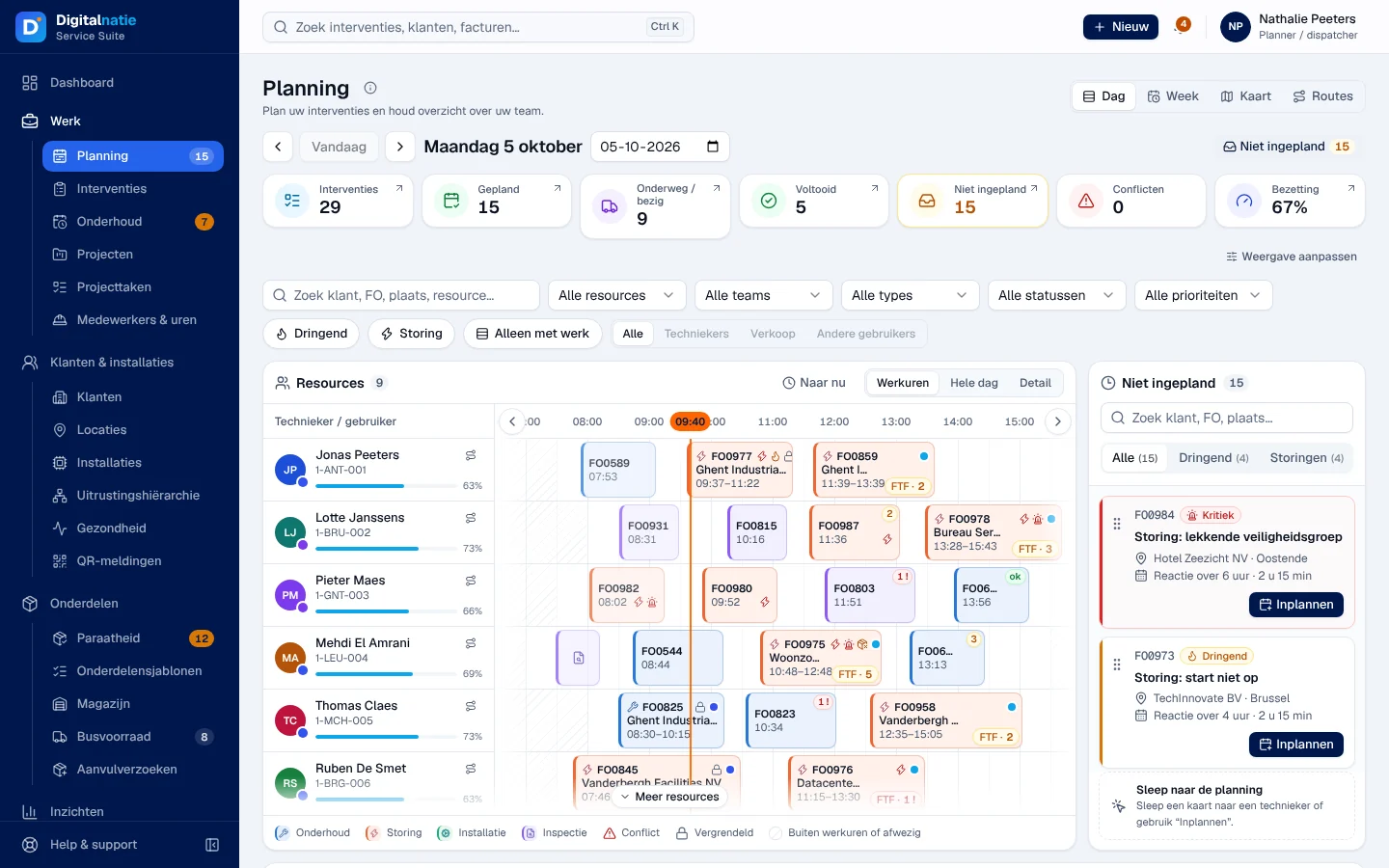
- Weergave (view): Dag (day), Week, Kaart (map), Routes. The arrows and Vandaag (today) change the day.
- The figures for the day: Interventies, Gepland (scheduled), Onderweg / bezig (on the way / in progress), Voltooid, Niet ingepland (unscheduled), Conflicten and Bezetting (occupancy rate: scheduled hours divided by capacity, without estimates). Click a figure to see the details. Weergave aanpassen (adjust view) chooses which figures are shown.
- The filters: search “Zoek klant, FO, plaats, resource…”, technician, team, type, status, priority, Dringend (urgent), Storing (breakdown), Alleen met werk (only with work).
- The board: one row per technician, with their workload. Werkuren (working hours), Hele dag (whole day) and Detail set the zoom; Naar nu (now) returns to the current time.
- On the right, the Niet ingepland queue: interventions without a technician or without a date, with the Alle, Dringend and Storingen filters. The open interventions of an archived technician are there too, with the Technieker gearchiveerd label and “nog op” followed by the technician’s name (still on them): assign them to an active technician (see Archiving a technician).
- Below the board, the Interventies van de dag (interventions of the day) list, which you can sort and export.
Schedule by drag and drop
Section titled “Schedule by drag and drop”
-
Open Werk › Planning on the right day. The Niet ingepland queue is on the right; on a smaller screen, open it with the Niet ingepland button.
-
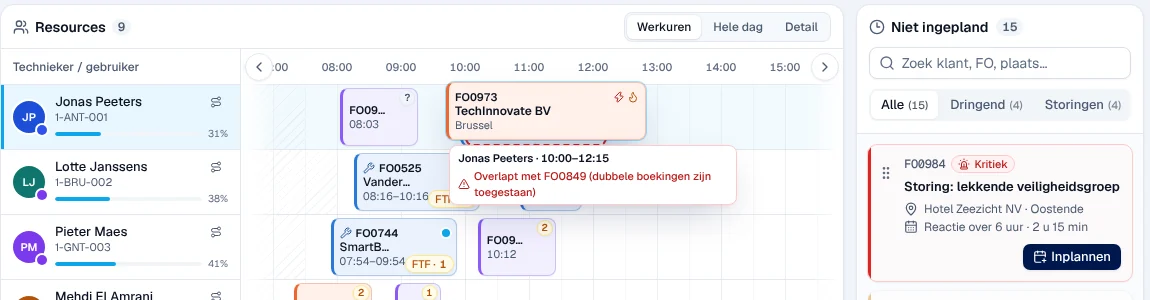
Pick a card from the queue and drag it onto a technician’s row, at the time you want (in quarter hours). While you drag, the board shows the technician, the start and end time, and what is in the way: another intervention, leave, a time outside working hours.
-
Drop the card.
Result: the message “FO0973 ingepland bij Jonas Peeters” (scheduled with Jonas Peeters). The intervention appears in the technician’s app.

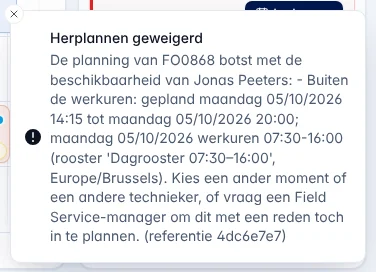
If the Service Suite refuses, the message “Herplannen geweigerd” (rescheduling refused) gives the reason, for example an end after working hours, and the card returns to its place.
Good to know:
- A card that is already scheduled moves the same way, to another time or another technician. Work that has started (on the way, on site, in progress) can no longer be moved.
- Dropping a card back on the queue asks “Terug naar niet ingepland?” (back to unscheduled): the intervention loses its technician and time. Confirm with Uitplannen (unschedule).
- With the keyboard: Space to pick up the card, arrows to change the time or technician, Space or Enter to drop, Esc to cancel. Shift+F10 opens Verplaatsen naar… (move to).
- If you fill in Meteen inplannen when creating the intervention, it is scheduled immediately and does not go into the queue.
Schedule with the window
Section titled “Schedule with the window”Inplannen (schedule) on a card in the queue, on a row of the list or Herplannen on the record open the same window.
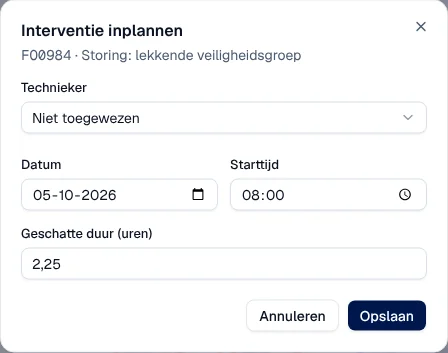
Choose Technieker, Datum, Starttijd (start time) and Geschatte duur (uren) (estimated duration), then Opslaan (save). For an intervention still on an archived technician, the window no longer offers that technician: “… is gearchiveerd: kies een actieve technieker of laat de interventie niet toegewezen.” (choose an active technician or leave the intervention unassigned). An archived technician gets no more work: the application refuses with “Deze technieker is gearchiveerd en krijgt geen interventies meer. Kies een actieve technieker.” Points of attention for the date (blocked day, peak day, outside a route’s time slots) are shown under Aandachtspunten voor deze datum; these are warnings. These rules are set in Operating rules.
Absences and conflicts
Section titled “Absences and conflicts”An approved absence appears on the technician’s row: a full day carries its reason (Verlof, leave; Feestdag, public holiday), part of a day a greyed-out band with the hours. A personal reason is always shown as Verlof.
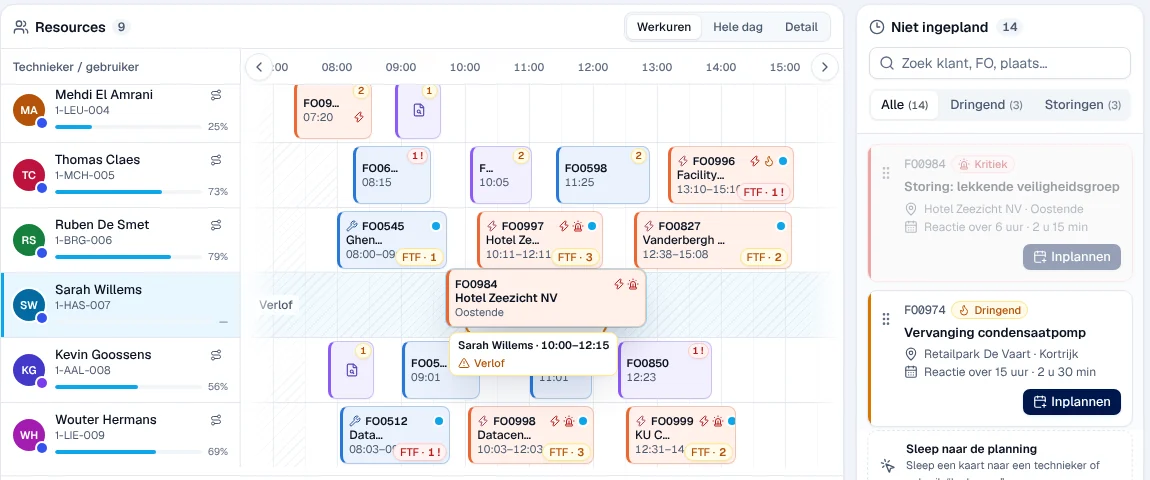
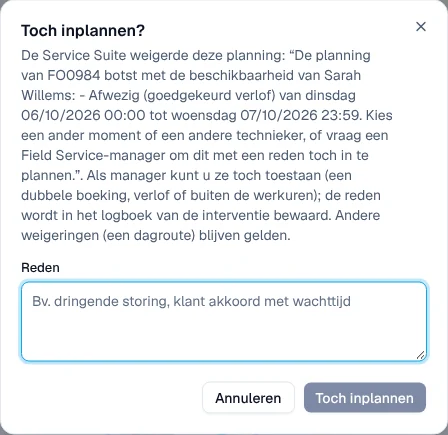
The Service Suite refuses scheduling on an approved absence or outside working hours. An administrator or a manager then gets Toch inplannen? (schedule anyway?): with a reason, they can override leave, hours outside the timetable or a double booking. The reason is kept in the intervention’s log. Other roles only see the refusal.
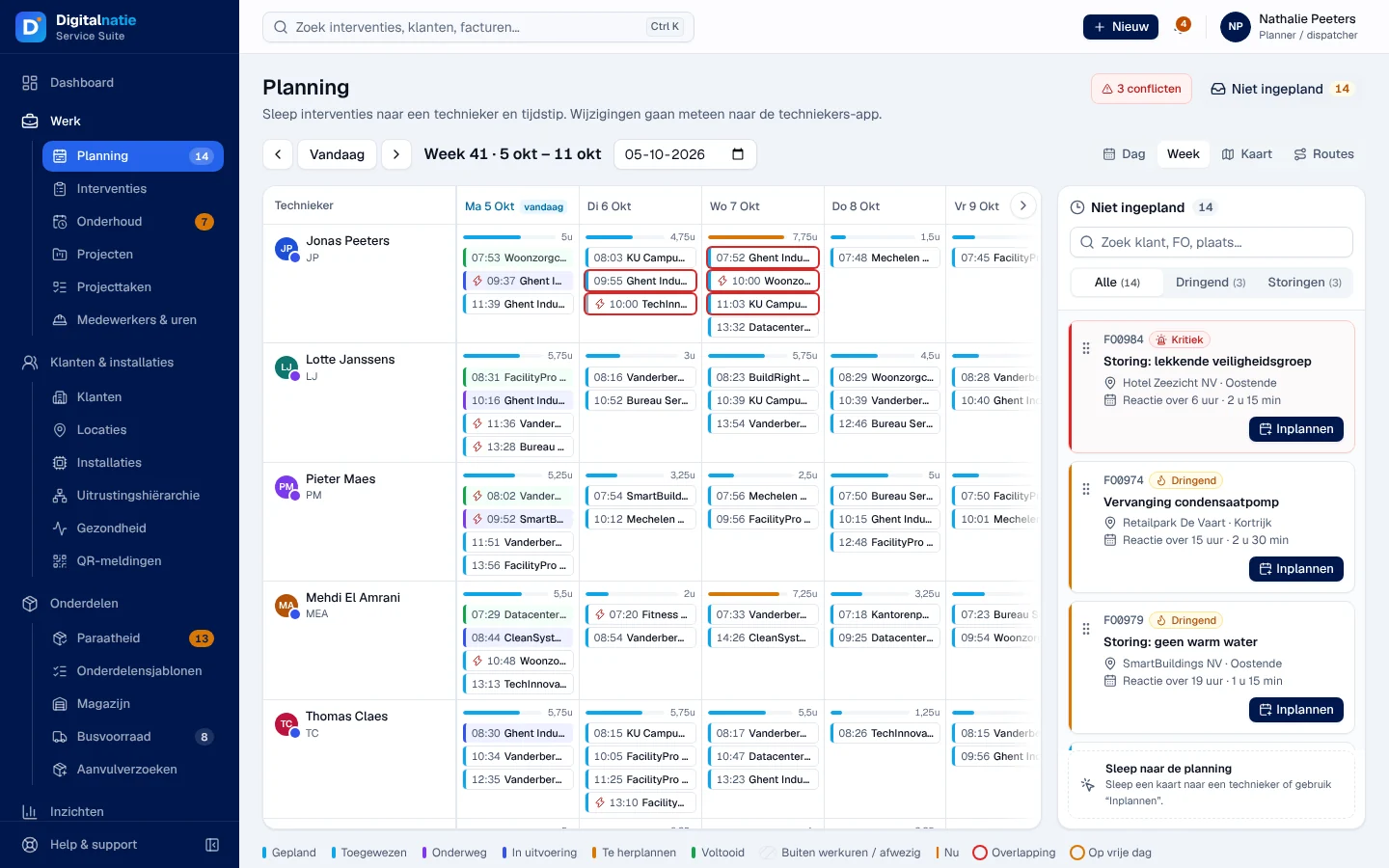
- An intervention in conflict has a red border (double booking) or an orange one (day of leave). The Conflicten figure lists them: Dubbele boeking, Buiten werkuren (outside working hours), Op vrije dag (day off).
- Depending on your company’s setting, a double booking is allowed (the board flags it) or refused.
- When an absence is approved afterwards, the Interventies op een afwezigheid notice lists the work already scheduled, with a button to reschedule each intervention. Nothing is moved automatically.
Absences are recorded in Team, absences and hours.
The week (Week view)
Section titled “The week (Week view)”One row per technician, one column per day, with the hours scheduled per day. Drag an intervention to another cell (the time is kept) or onto the Niet ingepland queue. Refusals and Toch inplannen? work as in the Dag view.
The map (Kaart view)
Section titled “The map (Kaart view)”The map shows the day’s interventions. Alle, Gepland and Niet ingepland choose what is shown; the panel lists the Techniekers, the unscheduled interventions and the interventions without a known site (Locatie aanvullen, complete the site). Click a marker to see the intervention, schedule it, assign it or open Route optimaliseren….
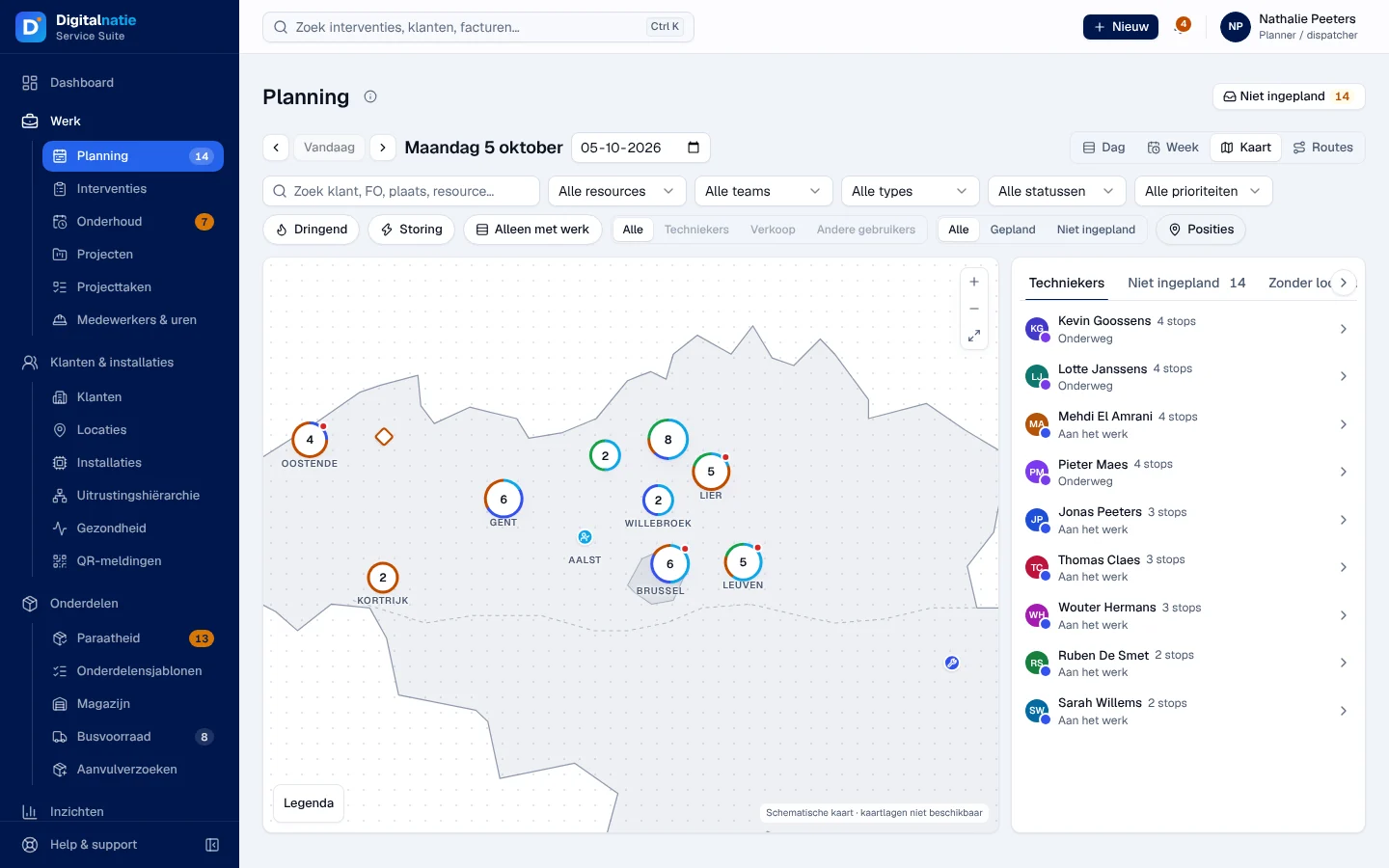
Here the schematic plan; with a map background, you see the streets.
Posities (positions), today only, shows the last known position of each technician, that of their last action in the app (departure, arrival…). This is not live tracking. You cannot drag an intervention from the map.
Routes (Routes view)
Section titled “Routes (Routes view)”Routes shows the day’s routes: the technician, the number of interventions out of the maximum, Volzet (full) and the order of the visits. The Service Suite creates a route for the day as soon as an intervention gets a technician and a date.
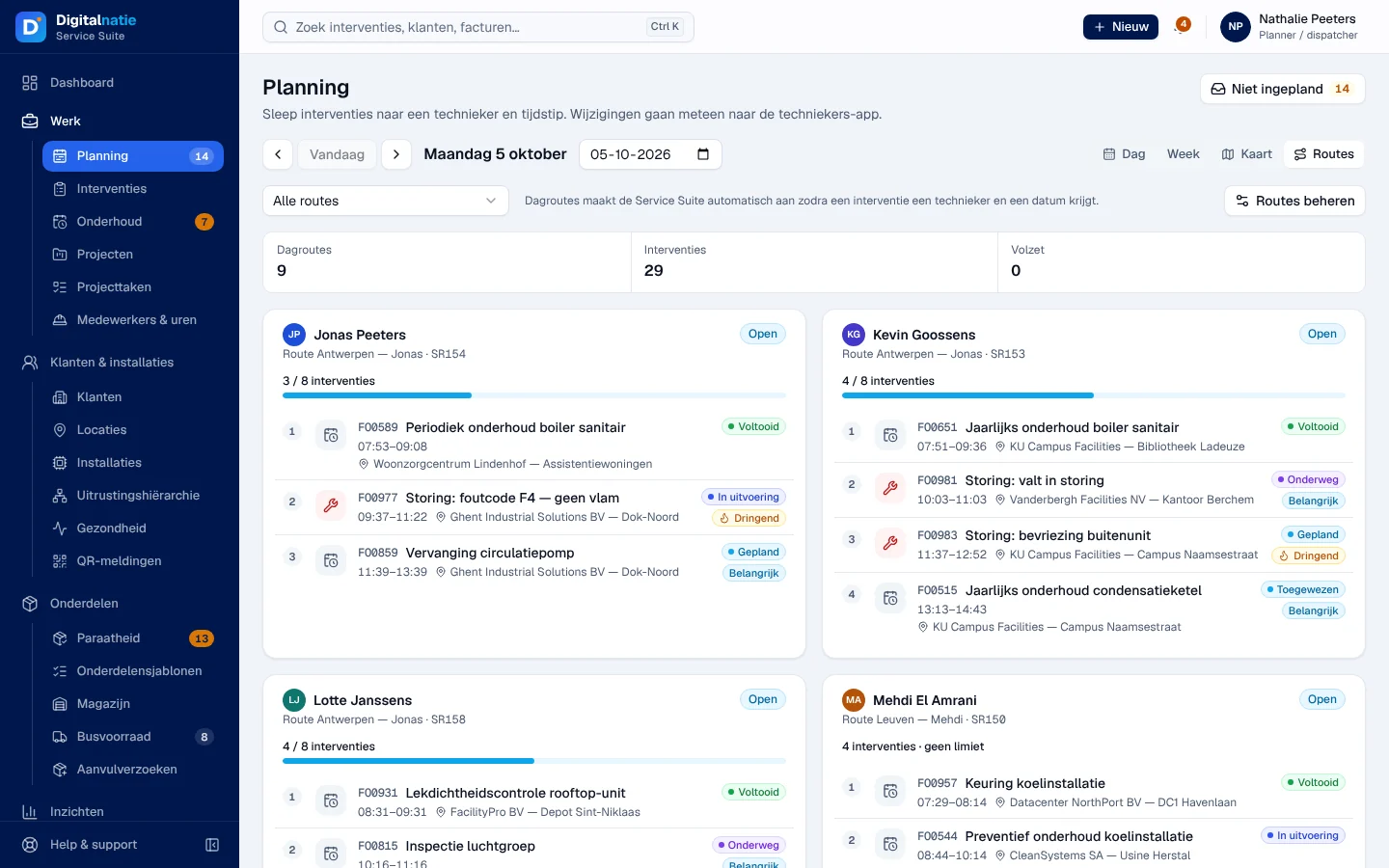
Routes beheren (manage routes) defines fixed routes: Naam (name), Technieker, Weekdagen (weekdays), Maximum per dag (0 = no limit) and Locaties (sites). Interventions on a route’s sites get its technician.
Optimise a route
Section titled “Optimise a route”-
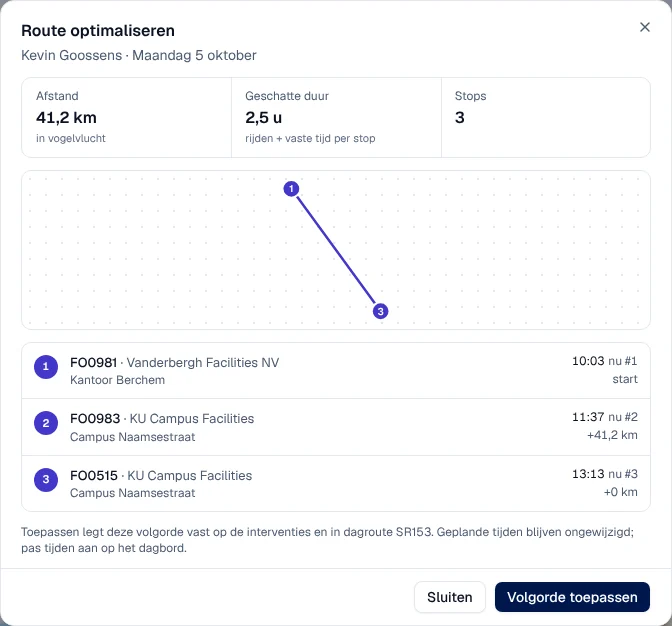
In the Dag view, click the Route optimaliseren icon next to a technician (or from the map).
-
Read the proposal: the order of the visits, Afstand (distance as the crow flies), Geschatte duur (travel plus a fixed time per stop) and Stops.
-
Click Volgorde toepassen (apply order), or Sluiten (close) to change nothing.
Result: “Volgorde toegepast” (order applied). The order is saved on the interventions and in the day’s route; the scheduled times do not change, adjust them on the board.
On a phone
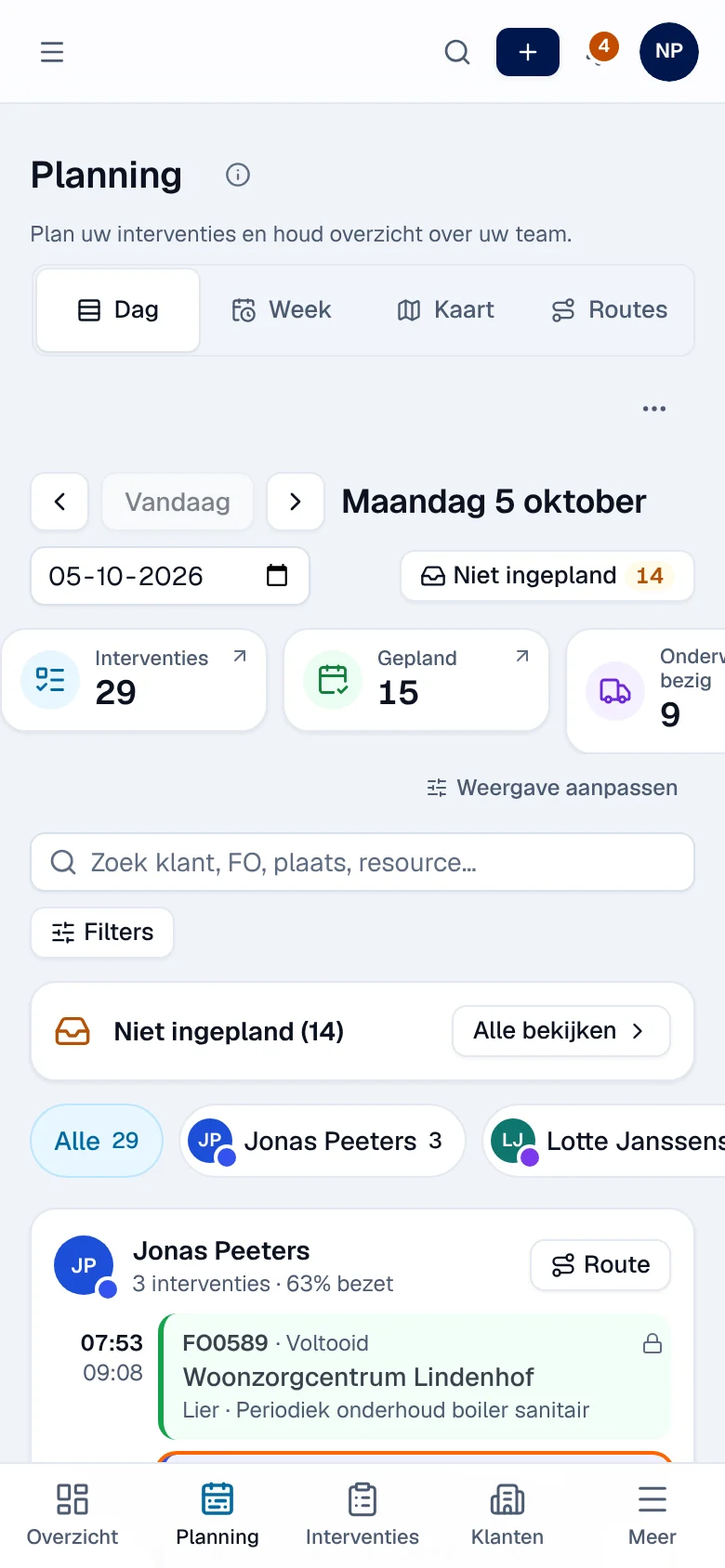
Section titled “On a phone”The phone shows an agenda: choose a technician, then see their interventions for the day. To schedule or move, a panel guides you in three steps: Technieker, Dag (day) and Tijdstip (time), with availability. Drag and drop does not exist on a phone.
Rights by role
Section titled “Rights by role”The table shows the supplied role templates (see Roles and permissions); your administrator can adapt them (see Users, roles and permissions).
| Action | Admin | Manager | Planner |
|---|---|---|---|
| View the schedule and routes | ✓ | ✓ | ✓ |
| Schedule, move, assign | ✓ | ✓ | ✓ |
| Optimise and apply a route, view positions | ✓ | ✓ | ✓ |
| Manage fixed routes | ✓ | ✓ | ✓ |
| Schedule anyway (Toch inplannen?) | ✓ | ✓ | — |
The technician sees their work in the Agenda of the Techniekers-app; a technician with no other role does not open the office application.
Current limits
Section titled “Current limits”- No drag and drop on a phone or from the map.
- The positions are those of the last actions in the app, not live GPS tracking.
- Optimisation does not change the times: it sets the order of the visits.
See also
Section titled “See also”- Interventions: list and creation
- Team, absences and hours
- Vandaag, Mijn dag and Mijn uren: what the technician sees of their day.