

Quotes (Offertes)
The Offertes (quotes) screen follows your price proposals, from draft to confirmed order (Bestelbon, sales order). Service Suite calculates the prices, the VAT and the totals. Once the quote has been accepted, you create the intervention, the project, the maintenance contract or the invoice from the sales order.
| Menu | Verkoop & facturatie › Offertes |
| Who | administrator, manager, accounting, sales and Dispatcher (planner); read only can view (table at the bottom of the page). |
| Prerequisites | A customer. For service lines that create interventions: a site (Servicelocatie). |
Follow quotes
Section titled “Follow quotes”-
Open Verkoop & facturatie › Offertes.
-
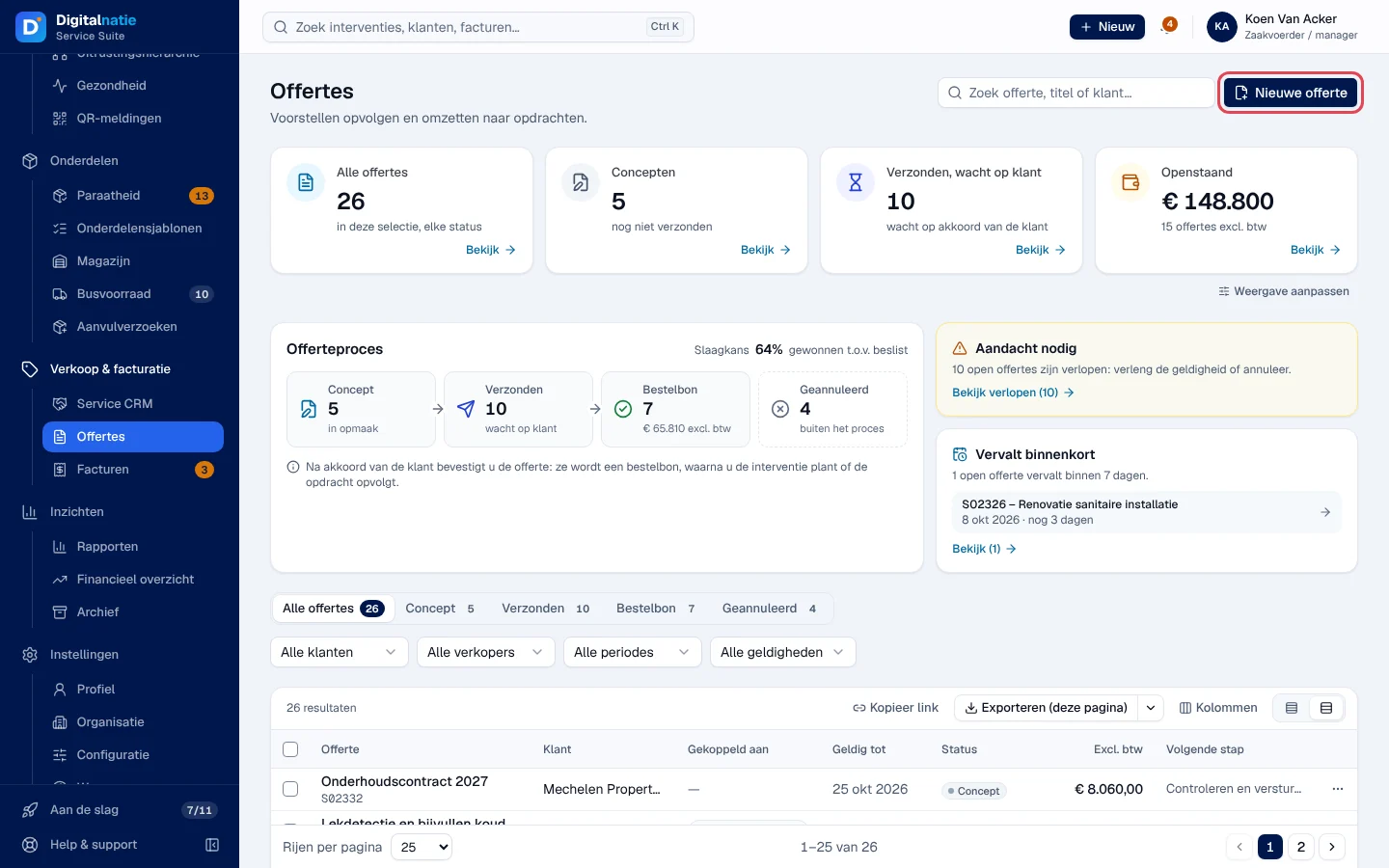
Read the Alle offertes (all), Concepten (drafts), Verzonden, wacht op klant (sent, waiting for the customer) and Openstaand (open amount excluding VAT) cards. The Offerteproces block shows Concept › Verzonden › Bestelbon, the Geannuleerd (cancelled) quotes and the Slaagkans (success rate). Aandacht nodig flags expired quotes, Vervalt binnenkort those expiring within 7 days.
-
Filter by status tab, Klant (customer), Verkoper (salesperson), Periode and Geldigheid (validity). The Volgende stap (next step) column says what to do, for example “Controleren en versturen” or “Verlopen: verlengen of annuleren”.
-
Click a row: the Offerte in beeld (quote preview) panel shows the amount, the links, the steps and the actions. Offerte openen opens the full page.
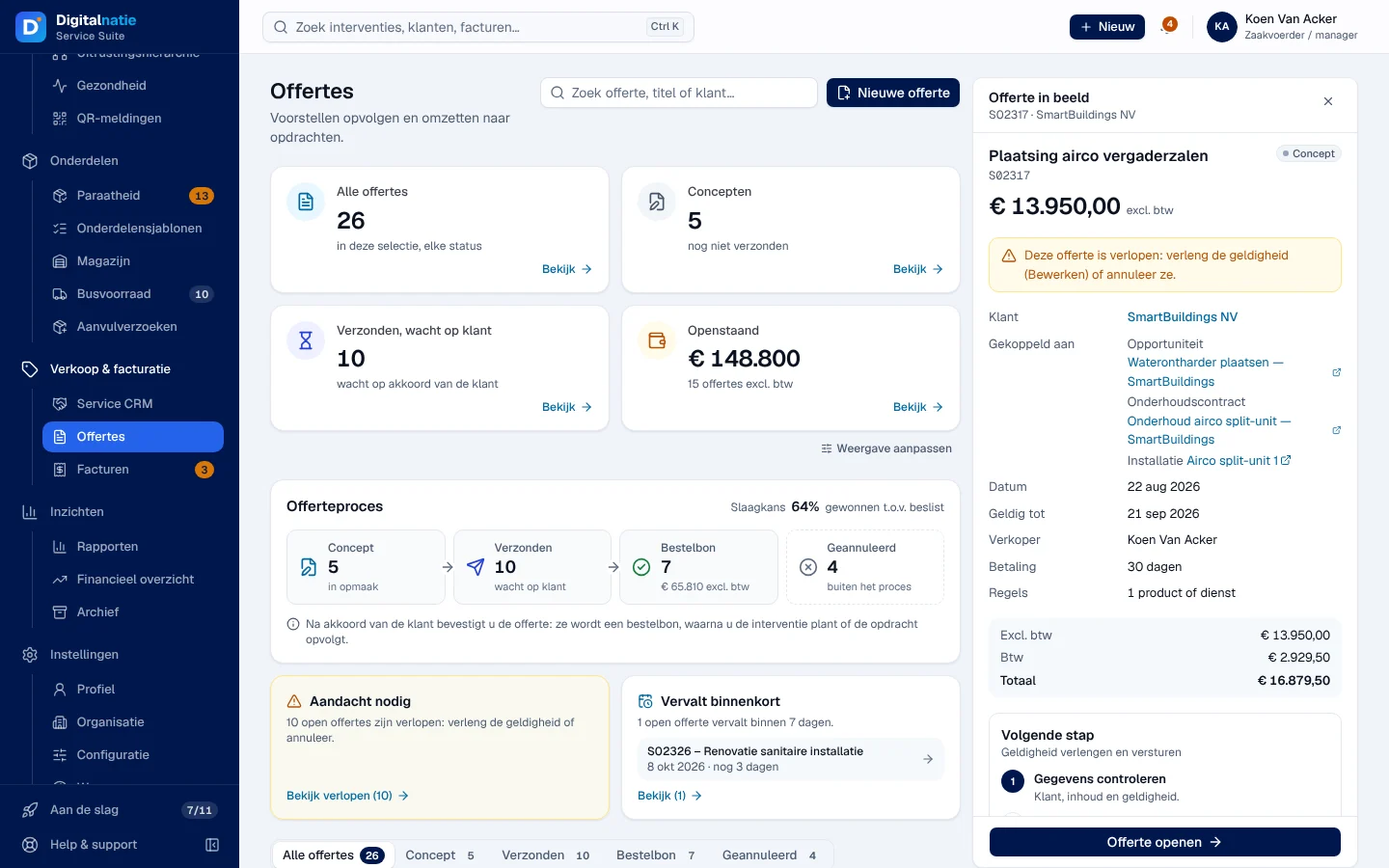
Amounts are only shown to roles that see financial figures; the others read “Bedragen zijn niet zichtbaar voor uw rol”.
Create a quote
Section titled “Create a quote”
-
Click Nieuwe offerte (new quote). You can also start from the customer file, an opportunity in the Service CRM, a project (Offerte maken) or an intervention (Offerte maken, only one quote per intervention).
-
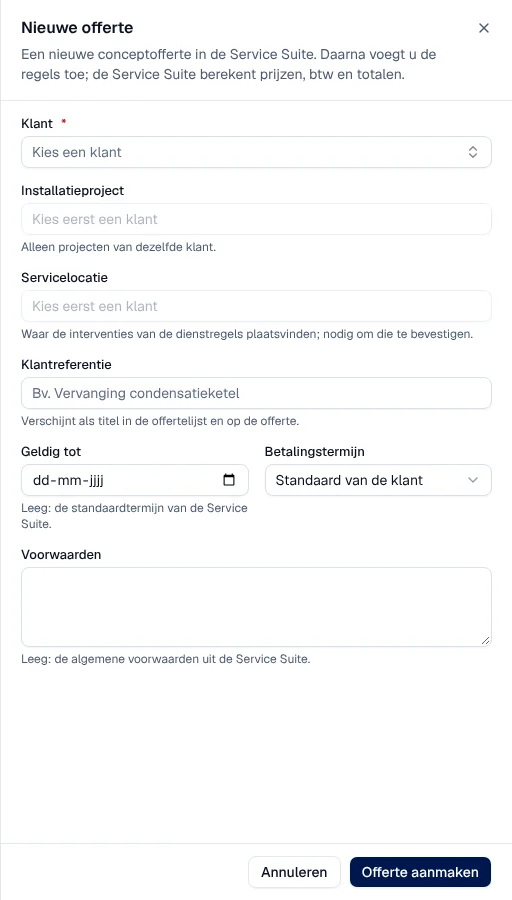
Fill in Klant (customer, required), then, if useful, Installatieproject (a project of the same customer), Servicelocatie (the site of the interventions), Klantreferentie (customer reference: it is used as the title in the list), Geldig tot (valid until; empty = default duration), Betalingstermijn (payment term) and Voorwaarden (terms; empty = general terms and conditions).
-
Click Offerte aanmaken (create quote).
Result: “Offerte aangemaakt”; the quote opens as Concept and you add the lines.
Add the lines and set the prices
Section titled “Add the lines and set the prices”-
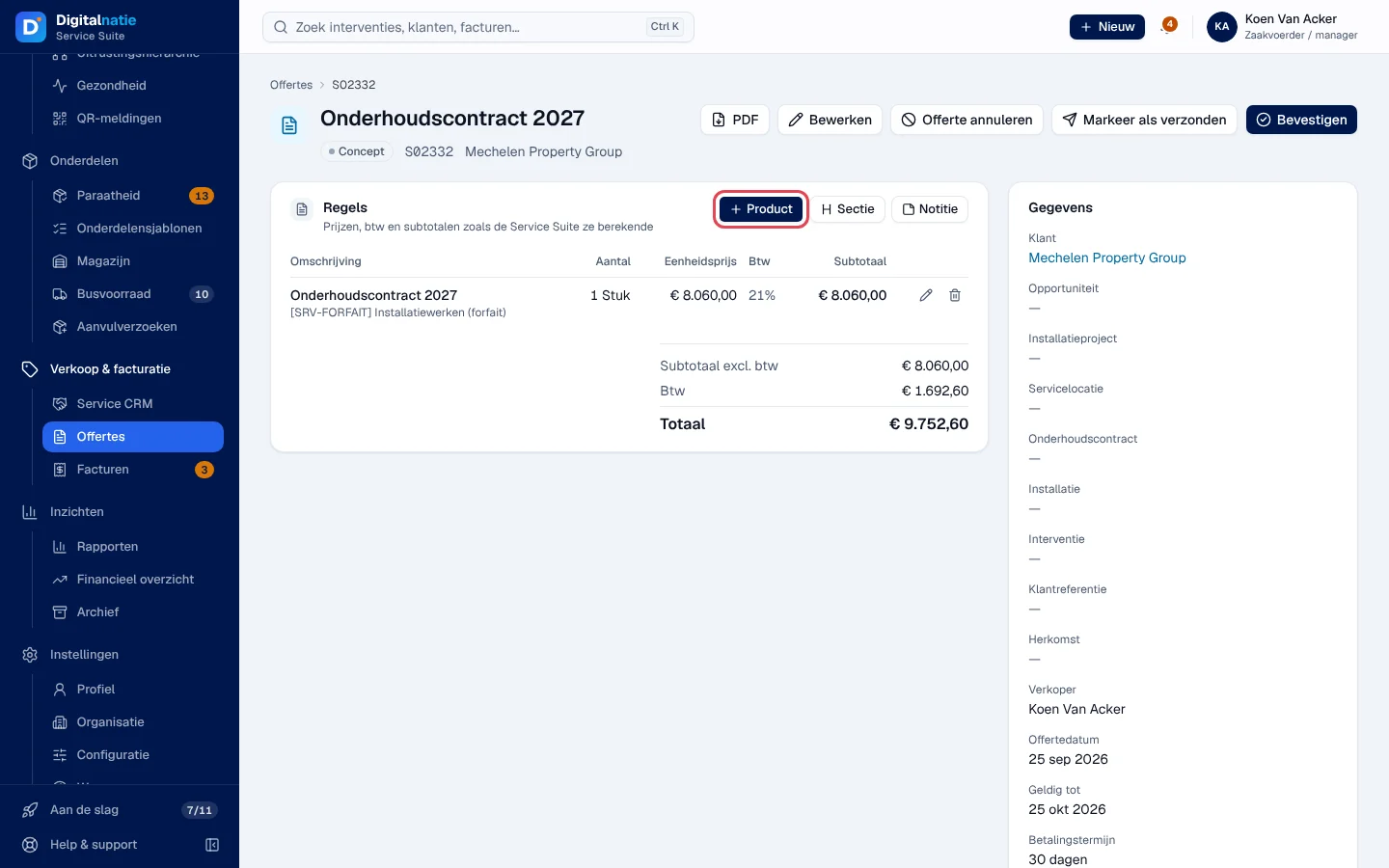
In the Regels (lines) block, click Product (product or service). Sectie adds a section title, Notitie a note.
-
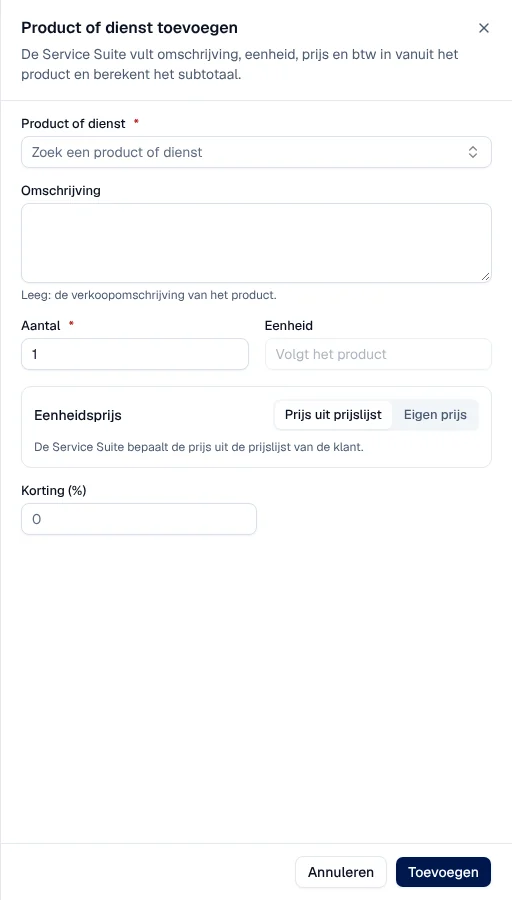
In Product of dienst toevoegen, search for the product (only products that can be sold appear), then set Aantal (quantity) and Eenheid (unit). An empty Omschrijving takes over the product’s sales description.
-
Under Eenheidsprijs (unit price), keep Prijs uit prijslijst (price from the customer’s price list) or choose Eigen prijs (your own price).
-
If your organisation uses line discounts, enter Korting (%) (discount, from 0 to 100).
-
Click Toevoegen (add).
Result: “Regel toegevoegd”. A line’s pencil edits it, the bin deletes it. The Subtotaal excl. btw, Btw and Totaal totals are recalculated by Service Suite. Bewerken (edit) changes the quote’s data as long as it is in Concept or Verzonden.
Send the quote to the customer
Section titled “Send the quote to the customer”-
Click PDF: the quote opens in a new tab. Save it and send it to the customer yourself.
-
Click Markeer als verzonden (mark as sent), then confirm. There must be at least one product or service line.
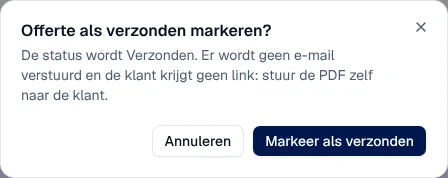
Result: “Offerte gemarkeerd als verzonden”; the status becomes Verzonden.
Confirm, cancel or return to draft
Section titled “Confirm, cancel or return to draft”-
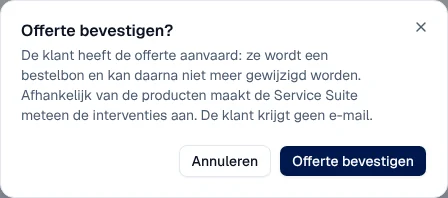
Bevestigen (confirm): when the customer has accepted. The quote becomes a Bestelbon and can no longer be changed in the application. Depending on the products, Service Suite immediately creates the interventions (service lines require a Servicelocatie). The customer does not receive an e-mail. Message: “Offerte bevestigd”.
-
Offerte annuleren (cancel quote): the quote is cancelled and can return to draft later. On a sales order, Bestelbon annuleren also cancels its draft invoices, not the posted invoices. No e-mail to the customer.
-
Terug naar concept (back to draft), on a sent or cancelled quote. If the customer had signed online, their signature is dropped.
Act from a confirmed sales order
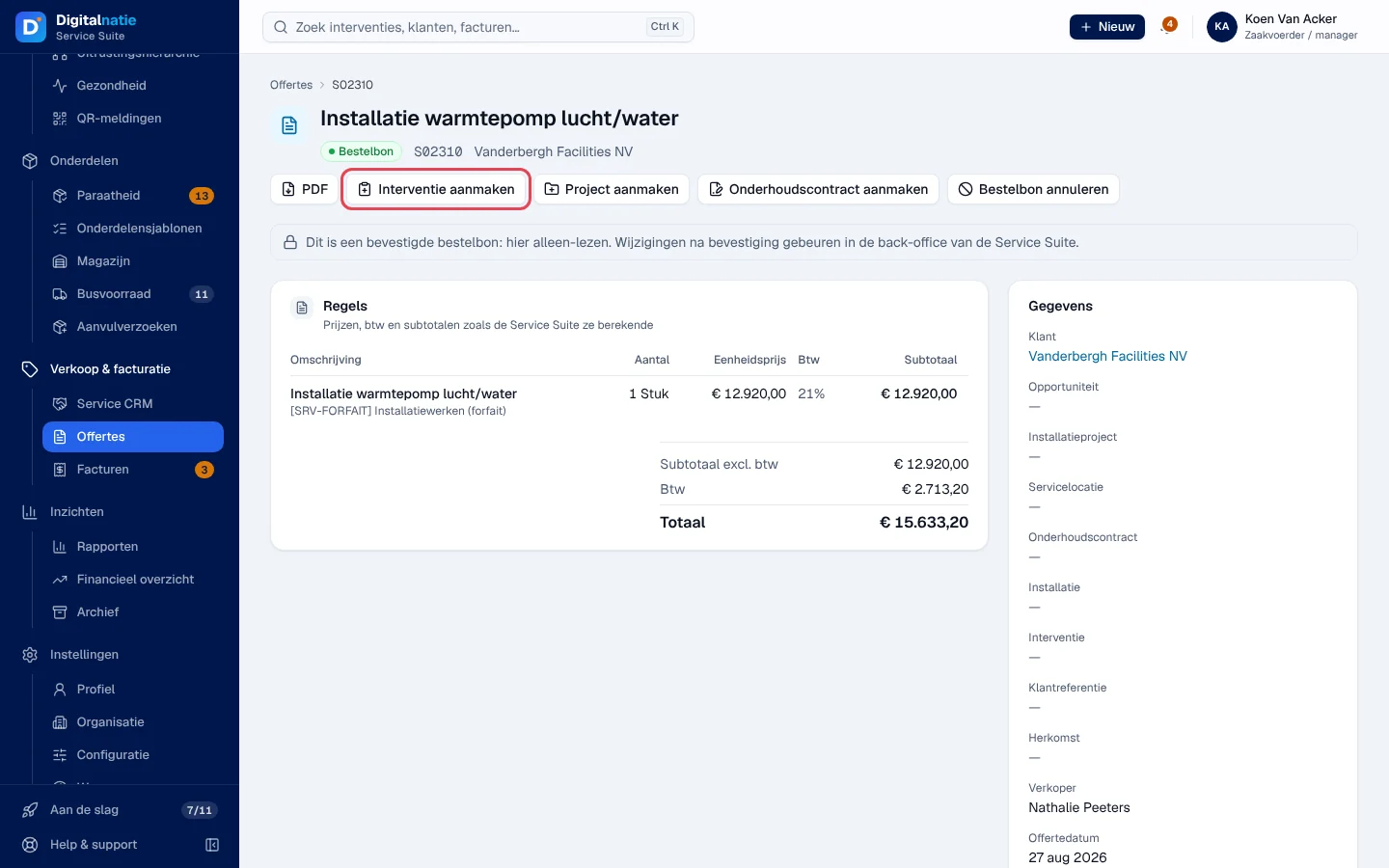
Section titled “Act from a confirmed sales order”A sales order is read-only; its buttons create the next stages of the work.
-
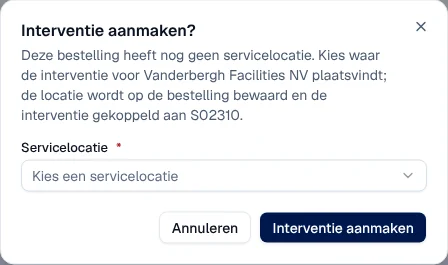
Interventie aanmaken (create intervention): Service Suite creates an intervention for the customer, at the order’s site, linked to the order. If the order does not have a site yet, first choose the Servicelocatie: it is saved on the order. If the order already has an open intervention, that one opens.
-
Project aanmaken (create project): a project “[number] customer” linked to the order (see Projects and tasks).
-
Onderhoudscontract aanmaken (create maintenance contract): a contract in Concept for this customer, linked to the order; it only creates visits once activated (see Maintenance contracts).
-
Factureren (invoice), when there is still something to invoice: Service Suite creates a draft invoice with the agreed lines, prices and discounts. Nothing is posted or sent (see Invoices).
The page’s Facturen block lists the order’s invoices.
Rights by role
Section titled “Rights by role”The table shows the supplied role templates (see Roles and permissions); your administrator can adapt them (see Users, roles and permissions). Depending on the role’s scope, you see your own quotes (and those without a salesperson) or all of the company’s quotes.
| Action | Admin | Manager | Planner | Accounting | Sales | Read |
|---|---|---|---|---|---|---|
| View quotes | ✓ | ✓ | ✓ ¹ | ✓ | ✓ | ✓ |
| Create, edit, send, confirm, cancel | ✓ | ✓ | ✓ ¹ | ✓ | ✓ | — |
| View prices, totals and PDF | ✓ | ✓ | — | ✓ | ✓ ² | ✓ |
| Line discount ³ | — | — | — | — | — | — |
| Interventie aanmaken | ✓ | ✓ | ✓ ¹ | — | — | — |
| Onderhoudscontract aanmaken | ✓ | ✓ | — | — | — | — |
| Project aanmaken | ✓ | ✓ | — | — | — | — |
| Factureren | ✓ | — | — | ✓ | — | — |
¹ Dispatcher only. ² Sales Manager, Sales and Directie only. ³ Also requires line discounts to be enabled for your organisation; no role template gives it by default.
Current limits
Section titled “Current limits”- No sending of the quote by e-mail and no signature request from the application: send the PDF yourself.
- No quote templates in the application.
- A confirmed sales order cannot be changed in the application; ask Digitalnatie if a correction is needed.
- Line discounts cannot be enabled in the application: ask Digitalnatie.
See also
Section titled “See also”- Service CRM — from opportunity to quote.
- Invoices, payments and credit notes
- Operating rules — default VAT, quote validity, general terms and conditions (Facturatieregels).