

Integrations, API and webhooks
Integraties (integrations) shows the services linked to Service Suite and lets other software (accounting, telematics, automation) exchange data with it. The screen has two tabs: Diensten (services) and API en webhooks.
| Menu | Configuratie › Integraties |
| Who | the administrator for services; API keys and webhooks require a technical permission that no role template gives (table at the bottom of the page) |
| Prerequisites | for a service: its credentials; for the API: a dedicated user with limited permissions |
The services (Diensten)
Section titled “The services (Diensten)”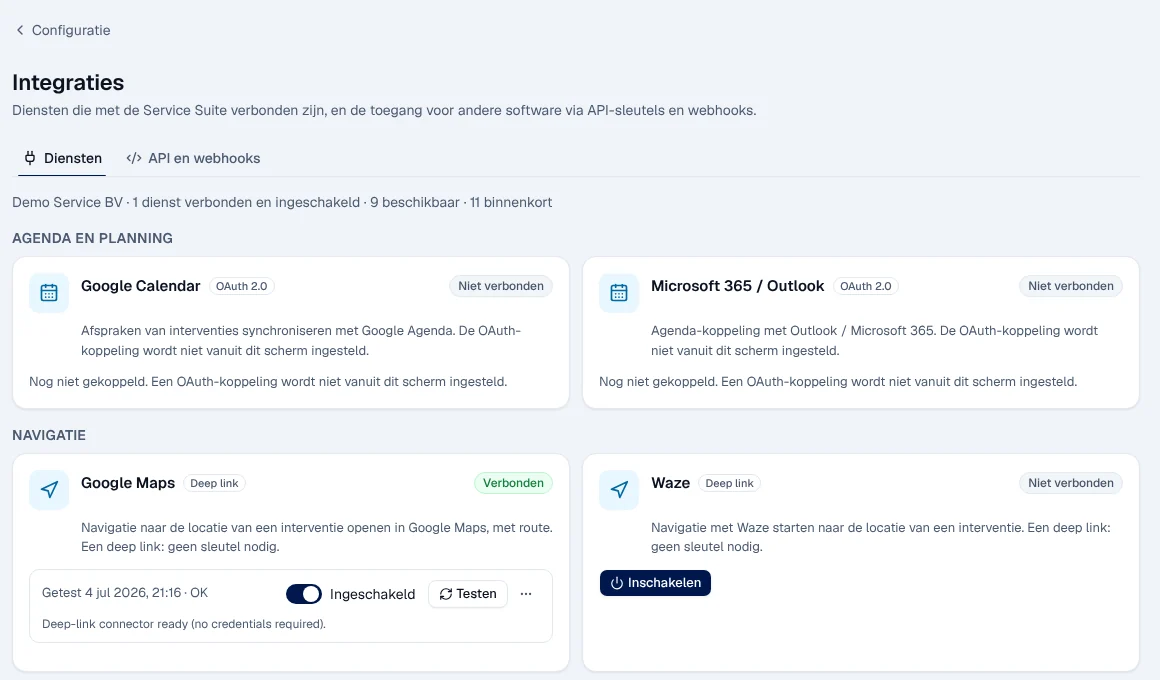
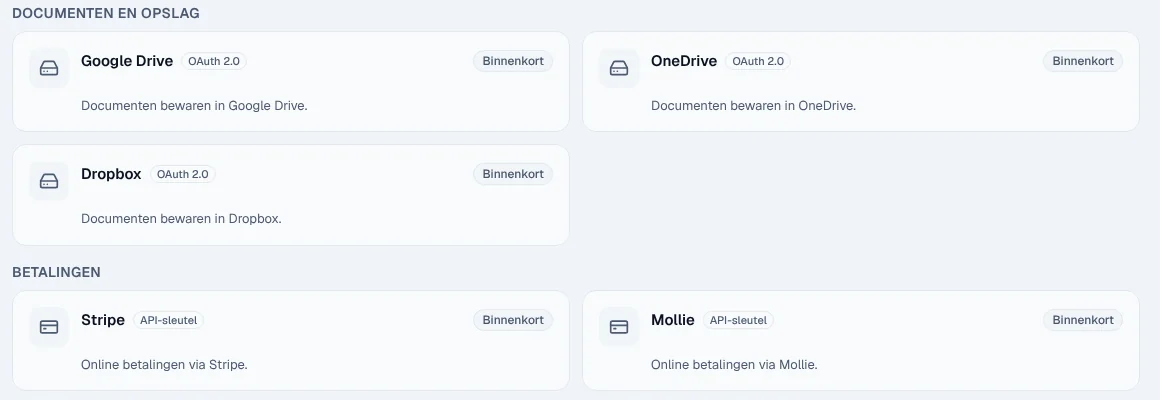
The top of the tab sums up how many services are connected, available or coming soon. Each card has a status: Verbonden (connected), Niet verbonden (not connected) or Binnenkort (coming soon).
| Service | What it does today |
|---|---|
| Google Maps, Waze | open navigation to the site of an intervention. No credentials: Inschakelen (turn on) is enough |
| WhatsApp Business | connection and test with your Meta account. Sending messages (confirmations, reminders) is not available yet |
| Claude, ChatGPT, Gemini, Custom MCP Server | connection to an MCP server and test. Service Suite does not yet send AI requests through this connection |
| Google Calendar, Microsoft 365 / Outlook | status only: the OAuth connection is not set up from this screen |
Setting up a service
Section titled “Setting up a service”-
On the service card, click Instellen (set up).
-
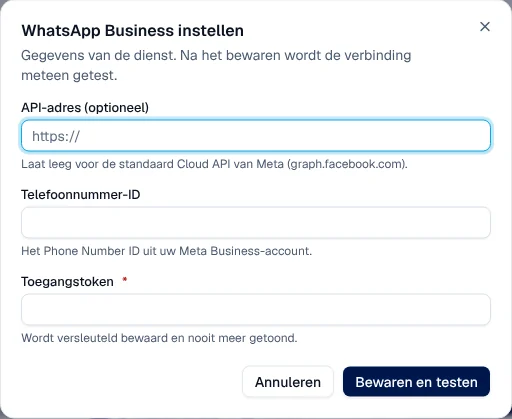
Fill in the requested fields, for example for WhatsApp Business Telefoonnummer-ID (phone number ID) and Toegangstoken (access token).
-
Click Bewaren en testen (save and test).
Result: the connection is tested immediately; the card shows the date of the test and its result. The token is encrypted and never shown again. Afterwards, the Ingeschakeld (on) switch pauses or resumes the service, and Testen (test) runs the test again.
Keys and tokens can only be entered by a system administrator. Otherwise the screen shows “De sleutel of het token stelt een systeembeheerder in.”: ask Digitalnatie.
The “Binnenkort” services
Section titled “The “Binnenkort” services”The Binnenkort cards (for example document storage, online payments, Teams or Slack) are not available yet: they cannot be set up. The Zapier card, for example, says “Kan nu al via API-sleutels en webhooks.” (already possible with API keys and webhooks): these already work (see below).
Connecting other software (API en webhooks)
Section titled “Connecting other software (API en webhooks)”Software connects in two ways, depending on what it supports (see its own documentation):
- it reads or changes data: you create an API key for it;
- it receives notifications: you create a webhook to its https address.
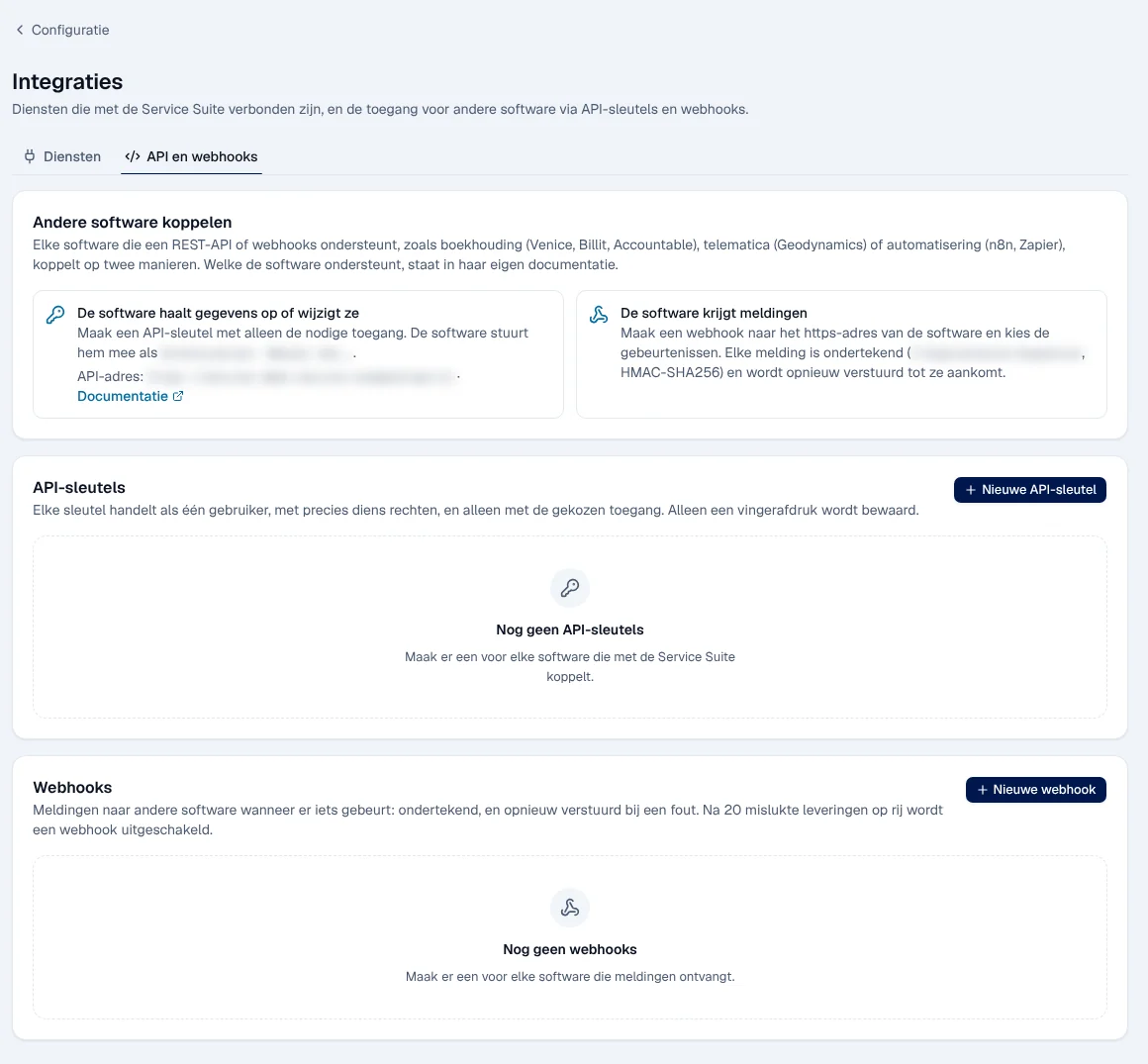
The API address and the Documentatie (documentation) link are shown at the top of the tab.
Creating an API key
Section titled “Creating an API key”-
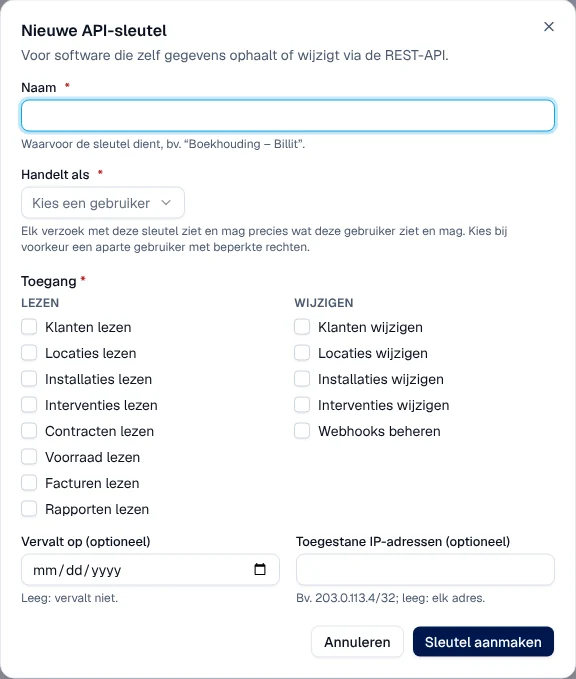
Click Nieuwe API-sleutel (new API key).
-
Enter a Naam (name, for example “Boekhouding – Billit”) and choose Handelt als (acts as): the user whose permissions the key takes over exactly. Preferably choose a separate user with limited permissions.
-
Tick the Toegang (access) needed, for reading (Lezen: customers, sites, installations, interventions, contracts, stock, invoices, reports) and for writing (Wijzigen), nothing more.
-
If you wish, set Vervalt op (expires on; empty = does not expire) and Toegestane IP-adressen (allowed IP addresses; empty = any address).
-
Click Sleutel aanmaken (create key), then copy the key into your software.
Creating a webhook
Section titled “Creating a webhook”-
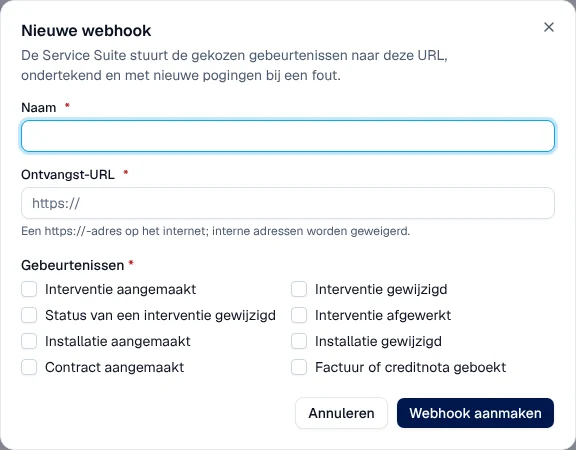
Click Nieuwe webhook (new webhook).
-
Enter a Naam and the Ontvangst-URL (receiving address): an https address on the internet; internal addresses are refused.
-
Tick the Gebeurtenissen (events) to send, for example Interventie aangemaakt (intervention created), Interventie afgewerkt (intervention completed) or Factuur of creditnota geboekt (invoice or credit note posted).
-
Click Webhook aanmaken (create webhook).
Result: each notification is signed (HMAC-SHA256), so the software can check that it comes from Service Suite. If delivery fails, it is sent again later, at increasing intervals. After 20 failures in a row, the webhook is deactivated; you can reactivate it once the problem is solved. Deleting a webhook also erases the history of its deliveries.
Rights by role
Section titled “Rights by role”The table shows the supplied role templates (see Roles and permissions); your administrator can adjust them (see Users, roles and permissions).
| Action | Admin |
|---|---|
| See and turn on services | ✓ |
| Enter a service key or token ¹ | — |
| Create, renew, revoke an API key ² | — |
| Create and manage webhooks ² | — |
¹ Reserved for the system administrator, which no role template gives: ask Digitalnatie. ² Requires the API en webhooks technical permission, which no role template gives: ask Digitalnatie.
Current limits
Section titled “Current limits”- The Binnenkort cards cannot be used yet.
- Google Calendar and Microsoft 365: the connection is not made from the application; ask Digitalnatie.
- WhatsApp Business and MCP servers: connection and test only, no sending yet.
See also
Section titled “See also”- Users, roles and permissions — create the user for an API key
- Automations
- Settings (Instellingen)