

Team, absences and hours (Medewerkers & uren)
Medewerkers & uren (employees and hours) brings together in one place the hours recorded by the team, how they are checked and approved, the payroll exports and each technician’s record with their absences. The hours come mainly from the technicians’ app (clocking in Mijn dag, correction requests in Mijn uren).
| Menu | Werk › Medewerkers & uren; sub-entry Dagregistraties (day records) |
| Who | Team: administrator, manager, planner, technician. Hours: administrator and manager for the whole team; Directie (sales) for their own hours (table at the bottom of the page). |
| Prerequisites | To approve: each technician has a personnel record (personeelsfiche). |

Read the team’s hours
Section titled “Read the team’s hours”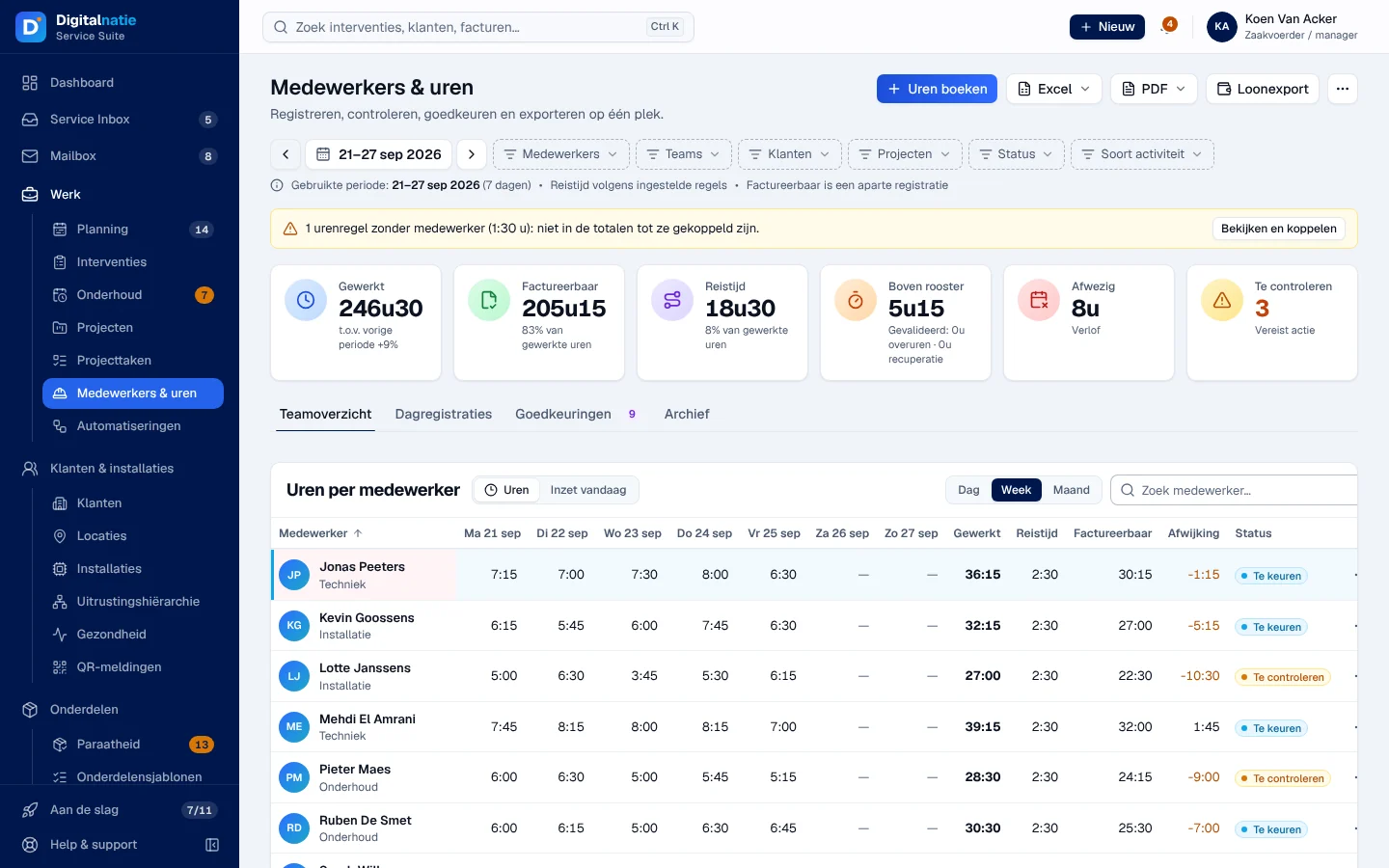
- The period: the Vorige periode / Volgende periode arrows or the date picker. The Medewerkers, Teams, Klanten, Projecten, Status and Soort activiteit (activity type: work on interventions, project hours, internal work, travel, breaks, absence) filters are remembered for you.
- The figures: Gewerkt (worked), Factureerbaar (billable), Reistijd (travel time), Boven rooster (above the timetable), Afwezig (absent) and Te controleren (to check).
- A yellow banner flags hour lines without an employee: they do not count in the totals until you link them with Bekijken en koppelen (view and link).
- Teamoverzicht (team overview): the Uren per medewerker (hours per employee) table by Dag, Week or Maand. Click a name for the day’s details; a row’s ⋯ menu offers Dagdetail bekijken (day details), Periode goedkeuren (approve the period), Correctie vragen (request a correction), an export for this employee and their profile.
- Inzet vandaag (today’s deployment) shows the team in the field: status, the day’s interventions, occupancy, van.
Check the records (Dagregistraties)
Section titled “Check the records (Dagregistraties)”The Dagregistraties tab lists each record: date, employee, start and end, activity, customer and intervention or project, source (Mobiele app, the app) and status.
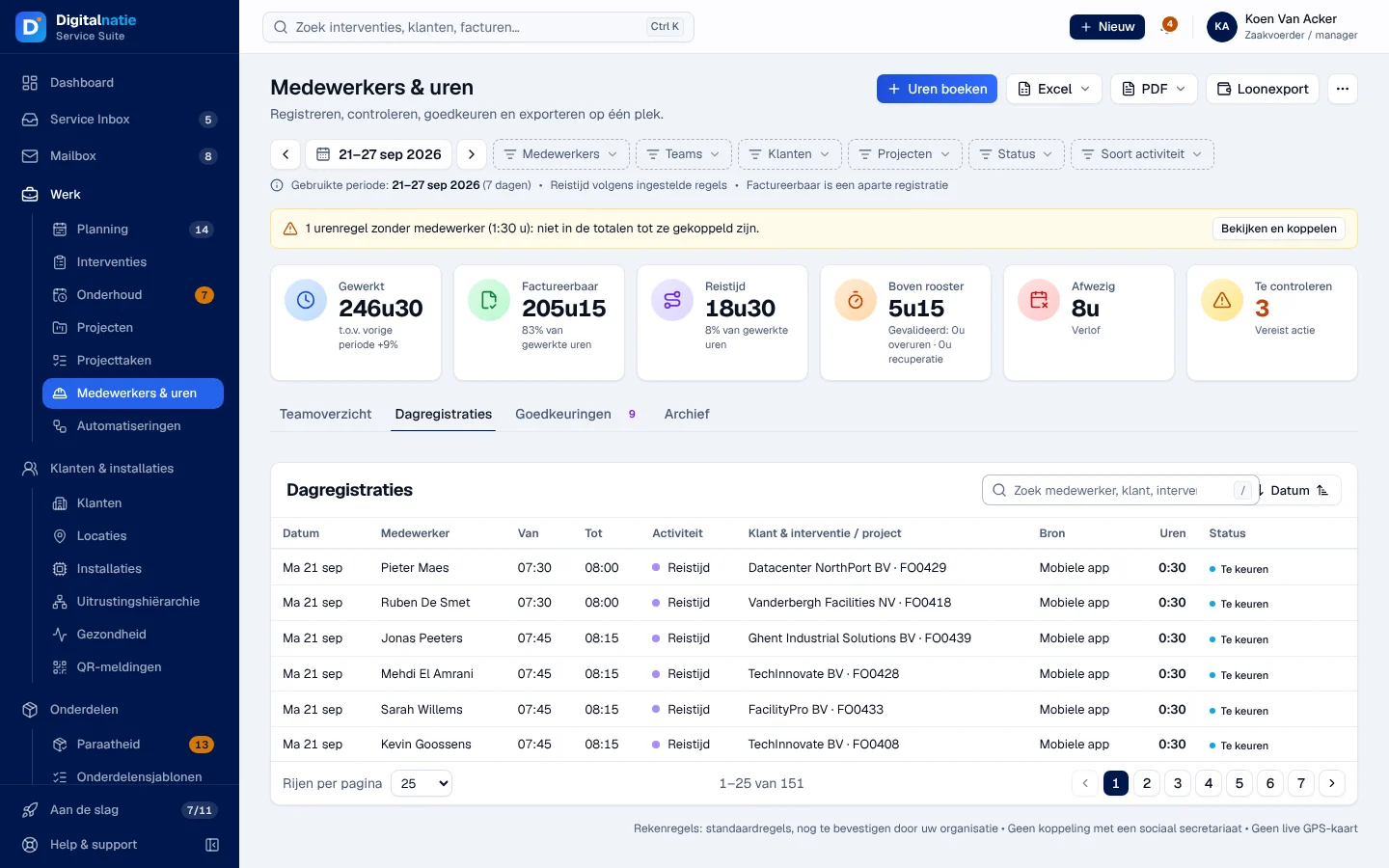
In an employee’s day details, you can correct a clock entry or add a missing one, with a reason. The original clock entry is kept and stays visible; your correction goes into the history with your name and the reason.
Approve hours
Section titled “Approve hours”-
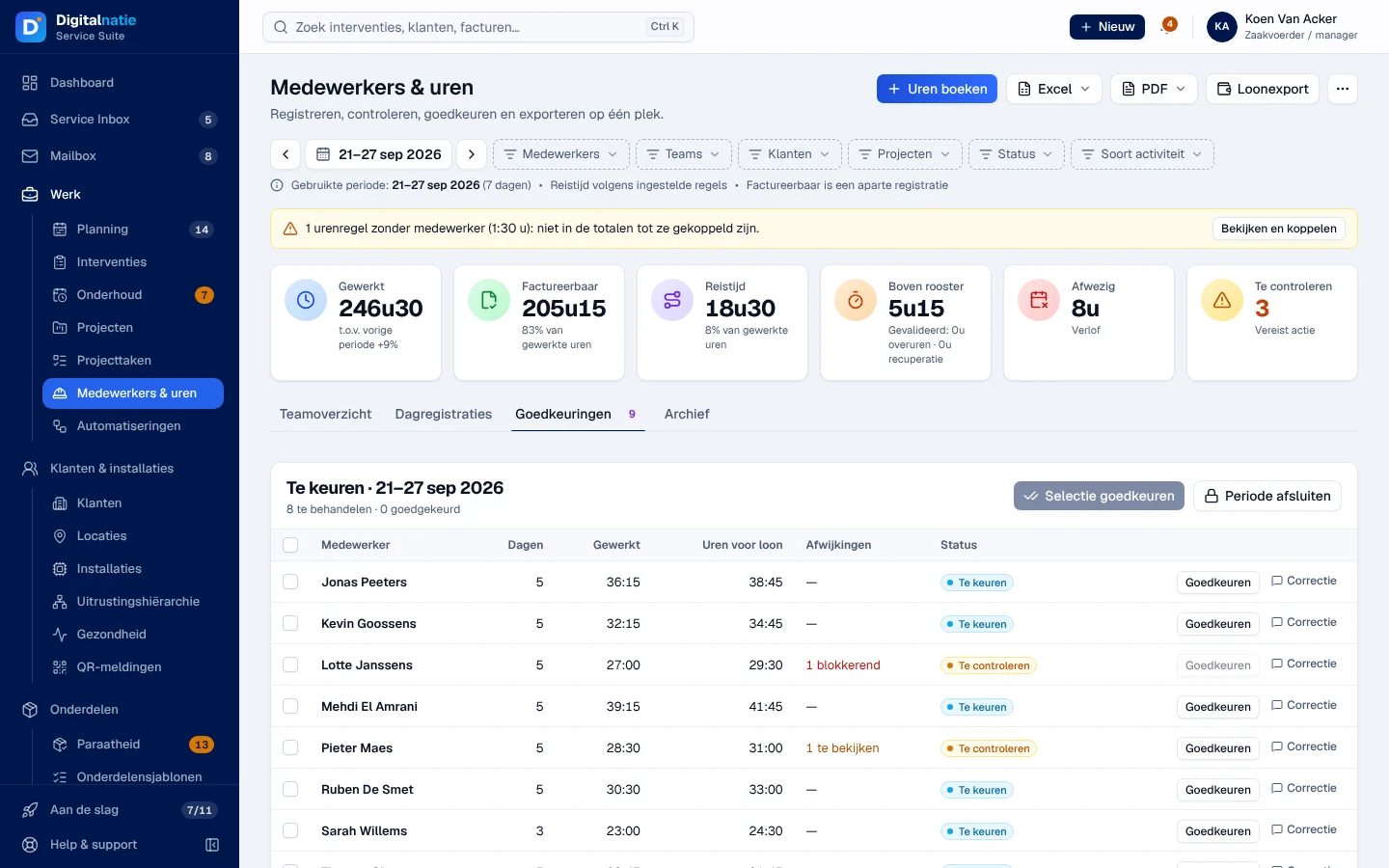
Open the Goedkeuringen (approvals) tab. The badge counts what is left to handle.
-
Check the Afwijkingen (deviations). A blokkerend (blocking) deviation prevents approval of that day.
-
Click Goedkeuren (approve) on a row, or tick several rows and click Selectie goedkeuren.
-
If there are hours above the timetable, choose what happens to them: Uitbetalen als overuren (pay as overtime), Recuperatie (time off in lieu) or Niet toekennen (do not grant). Add an Opmerking (optioneel) if needed, then Goedkeuren.
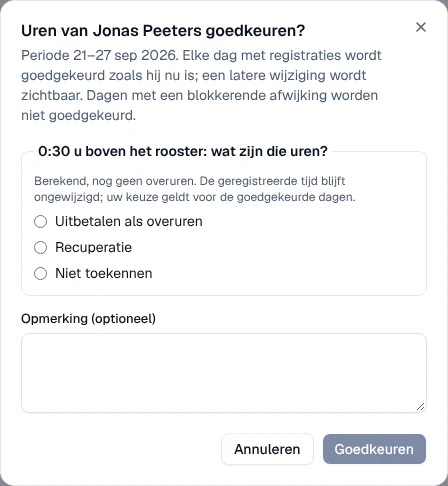
Result: each day with records is approved as it is; a later change will remain visible.
- Correctie (correction) sends the days back to the employee with the status “Correctie gevraagd” (correction requested) and a reason of at least 5 characters. They see the reason in Mijn uren.
- Vragen om correctie (correction requests) receives the requests made by technicians in the app: Aanvaarden (accept), Aanvaarden en toepassen (accept and apply: the proposed hours become an office correction, the original remains) or Vraag weigeren (refuse, with a reason).
Close a period and export
Section titled “Close a period and export”- Periode afsluiten (close the period): only for a past period in which all days are approved and all lines are linked to an employee. Otherwise, the application lists what is missing (lines without an employee, missing personnel record, unapproved days). Closing keeps the figures and exports and locks the period’s hour lines.
- Heropenen (reopen), in the Archief tab: with a reason of at least 10 characters. The closed figures and the exports are kept; the reason goes into the history.
- Excel ▾ and PDF ▾: hours per employee, per employee and per day, day records, period summary, validated hours and absences. Loonexport prepares an Excel file for your payroll provider.
- ⋯ › Meer: CSV-exports en rekenregels: CSV exports and the Rekenregels (calculation rules: breaks, travel, hours above the timetable, rounding).
The technician record
Section titled “The technician record”Click a technician’s name (schedule, team, intervention) to open their record.
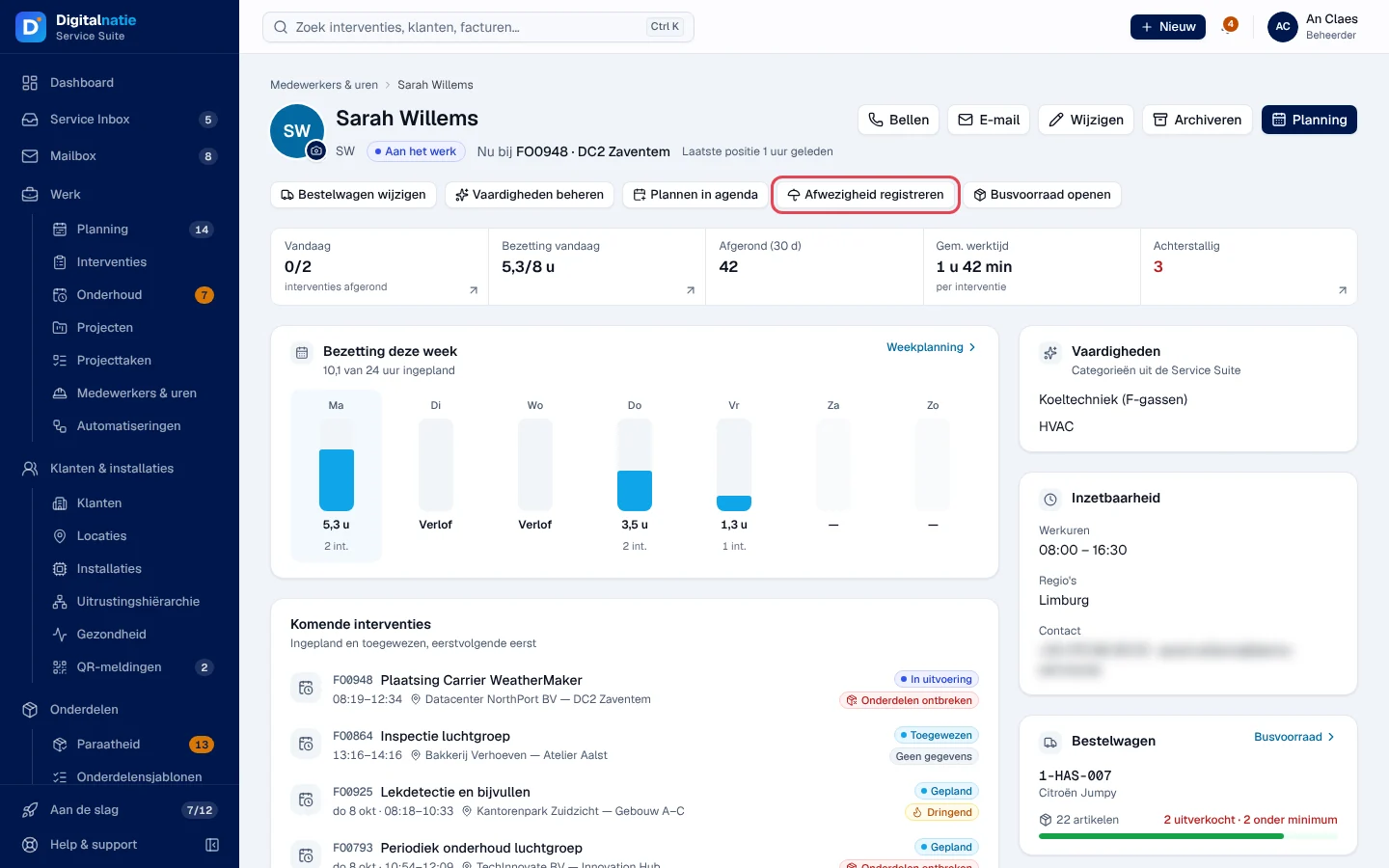
- At the top: Bellen (call), E-mail, Wijzigen (edit), Archiveren (archive) and Planning.
- Shortcuts: Bestelwagen wijzigen (change van), Vaardigheden beheren (skills), Plannen in agenda (open their schedule), Afwezigheid registreren (record an absence), Busvoorraad openen (van stock, see Van stock).
- Content: figures for the day and the last 30 days, Bezetting deze week (this week’s occupancy), Komende interventies (upcoming interventions), Vaardigheden, Inzetbaarheid (working hours, regions, contact), Bestelwagen, Taken (tasks), Afwezigheden (absences) and Laatste positie (last position).
Wijzigen edits the name, contact details, skills, regions, working timetable and van. In Inzet vandaag, Nieuwe technieker creates a technician and Koppelingen links a user account to its technician and personnel record.
Archiving a technician
Section titled “Archiving a technician”-
On the technician’s record, click Archiveren.
-
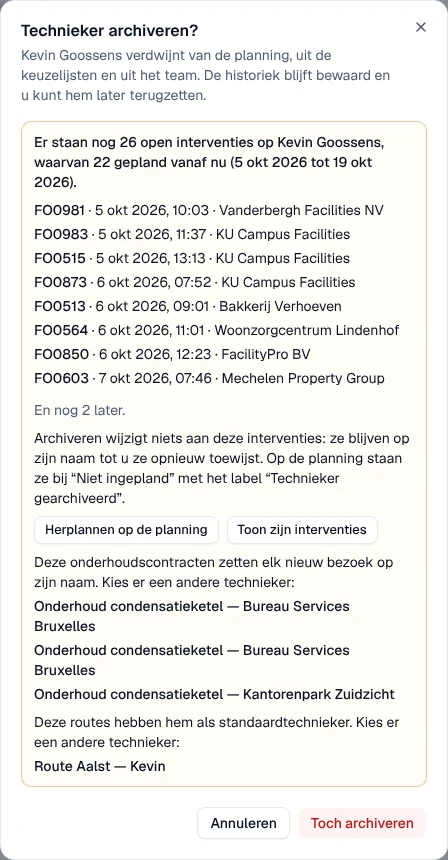
The Technieker archiveren? (archive technician?) window first checks their open work. If some is left, it lists their open interventions with date and customer, then the onderhoudscontracten (maintenance contracts) and routes that still give them new work.
-
If you wish, reassign their work first: Herplannen op de planning (reschedule on the planning) or Toon zijn interventies (their interventions in the list). Choose another technician on the listed contracts and routes: the application does not change them by itself.
-
Confirm with Archiveren, or with Toch archiveren (archive anyway) if open interventions remain.
Result: the technician disappears from the schedule, the selection lists and the team; their history remains and Terugzetten (restore) puts them back. Archiving does not change their open interventions: they stay in the technician’s name and appear in the Niet ingepland queue of the planning with the Technieker gearchiveerd label, until you assign them to an active technician. If work was scheduled for them in the meantime, archiving is refused and the window shows the new figures.
Record an absence
Section titled “Record an absence”-
On the technician record, click Afwezigheid registreren.
-
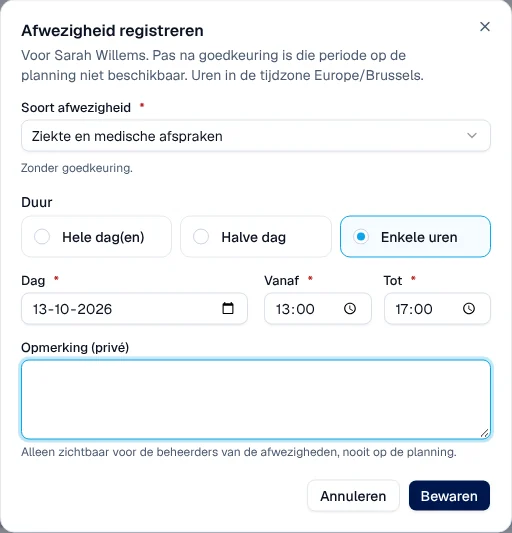
Choose the Soort afwezigheid (absence type). Below the field, the application says whether this type requires approval.
-
Choose the Duur (duration): Hele dag(en) (full days, with Van and Tot en met), Halve dag (half day) or Enkele uren (a few hours: Dag, Vanaf and Tot) for part of a day. The types only offer the durations they allow.
-
If needed, add an Opmerking (privé): “Alleen zichtbaar voor de beheerders van de afwezigheden, nooit op de planning.” (visible only to those who manage absences, never on the schedule). For a type that requires approval, Meteen goedkeuren (approve straight away) is offered.
-
Click Bewaren (save).
Result: the absence appears in Afwezigheden with its status (Te keuren, to approve; Goedgekeurd, approved; Geweigerd, refused; Geannuleerd, cancelled). The ⋯ menu lets you approve, edit, refuse or cancel.
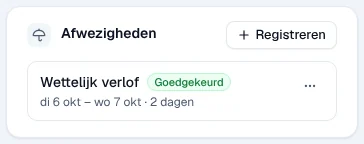
Once approved, the period is no longer available on the schedule: part of a day becomes a greyed-out band with the hours.
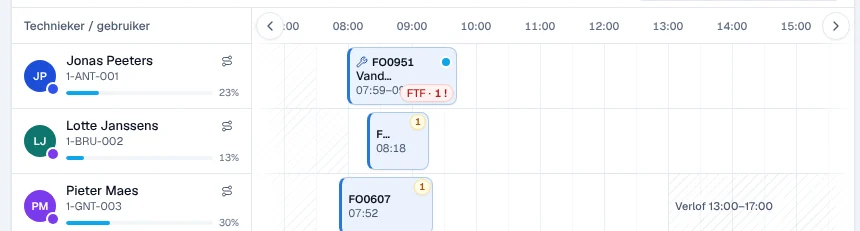
Other users see when a technician is absent, not why. If your screen shows Afwezigheid toevoegen (add an absence) instead of Afwezigheid registreren, your company does not use approval: the absence (Reden, Hele dagen, or Vanaf / Tot for part of a day) is recorded directly in the technician’s calendar.
Rights by role
Section titled “Rights by role”The table shows the supplied role templates (see Roles and permissions); your administrator can adapt them (see Users, roles and permissions).
| Action | Admin | Manager | Planner | Sales |
|---|---|---|---|---|
| View the team and technician records | ✓ | ✓ | ✓ | — |
| Create, edit, archive a technician; link an account | ✓ | ✓ | — | — |
| Record and approve absences | ✓ | — ¹ | — | — |
| View and enter hours | ✓ | ✓ | — | ✓ ² |
| View the whole team, approve, request a correction | ✓ | ✓ | — | — |
| Close and reopen a period, calculation rules, payroll export | ✓ | ✓ | — | — |
¹ When your company does not use approval (Afwezigheid toevoegen), the manager also adds absences. ² Directie only, for their own hours.
Without the team permission, everyone sees only their own hours. A technician with no other role does not open the office application: they record and view their hours in Mijn dag and Mijn uren (Vandaag, Mijn dag and Mijn uren).
Current limits
Section titled “Current limits”- No link with a payroll provider: Loonexport produces a file that you pass on yourself. Kilometres and driver / passenger status are not available.
- The calculation rules are standard rules, to be confirmed by your organisation.
- No live GPS map.
- Without approval (Afwezigheid toevoegen button), the absences of a technician who has their own user account cannot be managed in the application: only they can change them, outside the application. The record flags this; if the absences are hidden from you, the schedule shows the technician as available: ask them for their leave before scheduling.
See also
Section titled “See also”- The schedule: the effect of absences on scheduling.
- Vandaag, Mijn dag and Mijn uren: the technician’s clocking.
- Van stock