

QR codes and reports (QR-meldingen)
Each installation can have its own QR code. Stuck on the device, it lets your customer or an operator report a breakdown with their phone, without an account or password, and lets your technician find the installation in their app. At the office, the reports arrive in QR-meldingen and normally become an intervention by themselves.
| Menu | Klanten & installaties › QR-meldingen; the QR code is managed in the installation’s record |
| Who | the whole office sees the reports that concern them; QR managers (administrator and manager) create the codes and handle the reports (table at the bottom of the page) |
| Prerequisites | an installation registered at a site (Installations) |
The public form also asks the person to tick their consent to the use of their contact details; without this box, Service Suite does not send the report.
Creating and printing an installation’s QR code
Section titled “Creating and printing an installation’s QR code”
-
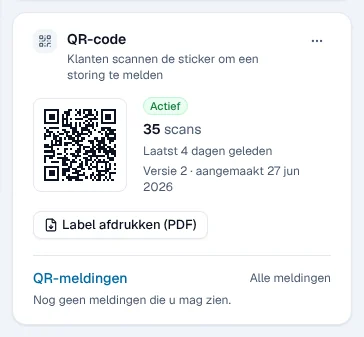
Open the installation’s record. The QR-code block (on the right) shows the status of the code: Actief, the number of scans, the last scan and the version.
-
If there is no code, click QR-code aanmaken (create QR code).
-
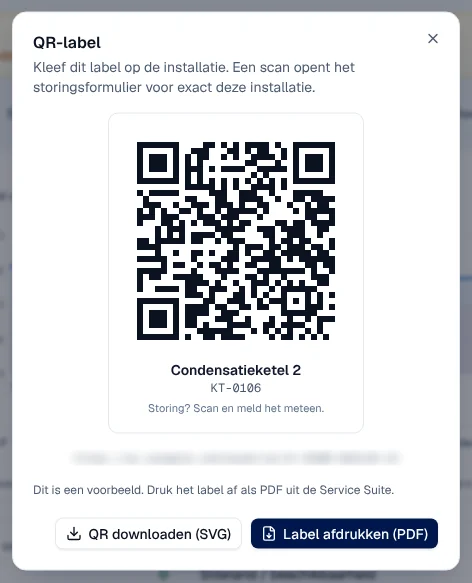
Click the code image or Label afdrukken (PDF) (print label). The QR-label window shows the label: name, reference and “Storing? Scan en meld het meteen.” (A breakdown? Scan and report it straight away).
-
Print the label and stick it on the installation.
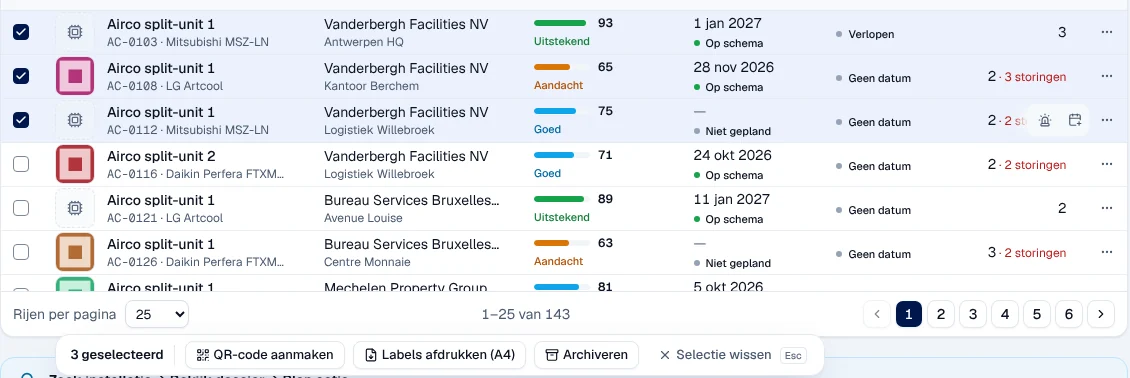
For several installations at once: in the register, tick the rows; the bottom bar offers QR-code aanmaken (installations that already have a code are skipped) and Labels afdrukken (A4), a sheet of labels (60 at most per sheet).
The ⋯ menu of the QR-code block also offers:
- Nieuwe QR-code (new code): all labels already printed for this installation become invalid;
- Deactiveren (deactivate): the public page and the technicians’ scanner refuse the code; Heractiveren reactivates it.
What the person scanning sees
Section titled “What the person scanning sees”The scan opens a simple page on the phone, without a menu and without signing in. It shows “Installatie geïdentificeerd” (installation identified), the installation’s name, its reference and its site, then a short form:
- Wat is er mis? (what is wrong?): Defect / werkt niet, Ongewoon geluid, Lek, Elektrisch probleem, Prestatieprobleem, Veiligheidsprobleem, Aanvraag preventief onderhoud or Andere;
- Hoe dringend is het?: Normaal, Belangrijk, Dringend or Kritiek;
- Beschrijf het probleem (“Wat ziet, hoort of ruikt u?”), required;
- optional Foto’s (JPEG or PNG, 8 MB in total);
- Uw naam, E-mail (to receive a confirmation) and Telefoon, optional;
- the consent box, required, then Melding versturen (send report).
Result: “Bedankt, uw melding is ontvangen” with the report’s Referentie. The page shows nothing else about the installation or the customer. A replaced, deactivated or unknown code shows “QR-code niet beschikbaar”; several reports within a few moments show “Melding al ontvangen”.
What happens next
Section titled “What happens next”- Service Suite records the report and immediately creates one intervention linked to the installation, assigned according to your QR settings. Status: Interventie gemaakt.
- If this fails (for example an installation without a site), the report waits in Te behandelen (to handle), status In beoordeling.
- If the person gave their e-mail, they receive a confirmation, unless these confirmations have been turned off in the settings.
Handling reports at the office
Section titled “Handling reports at the office”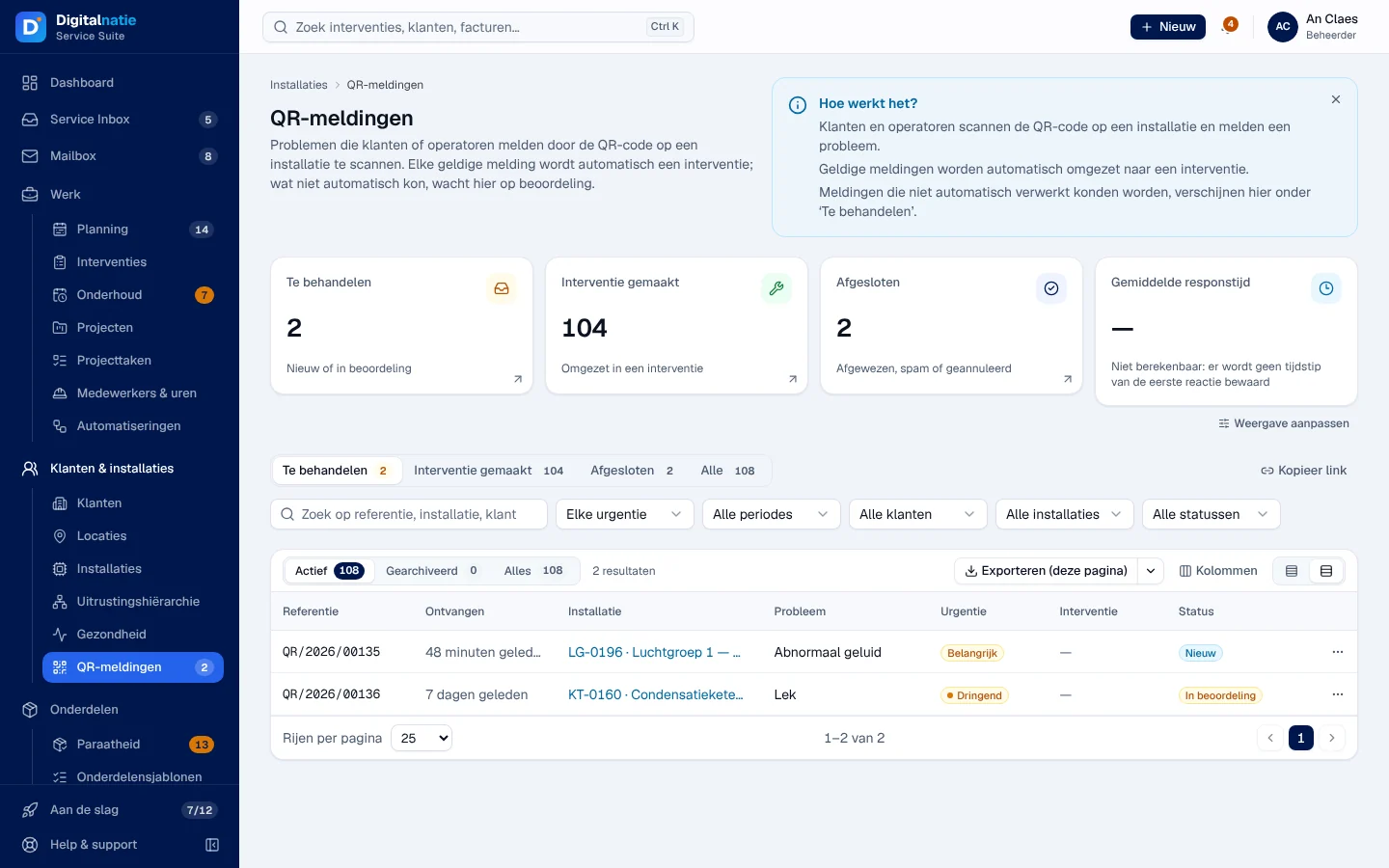
- The Te behandelen, Interventie gemaakt, Afgesloten (rejected, spam or cancelled) and Gemiddelde responstijd (average response time: “Niet berekenbaar”, cannot be calculated yet) tiles.
- The tabs of the same name and Alle; the urgency, period, customer, installation and status filters.
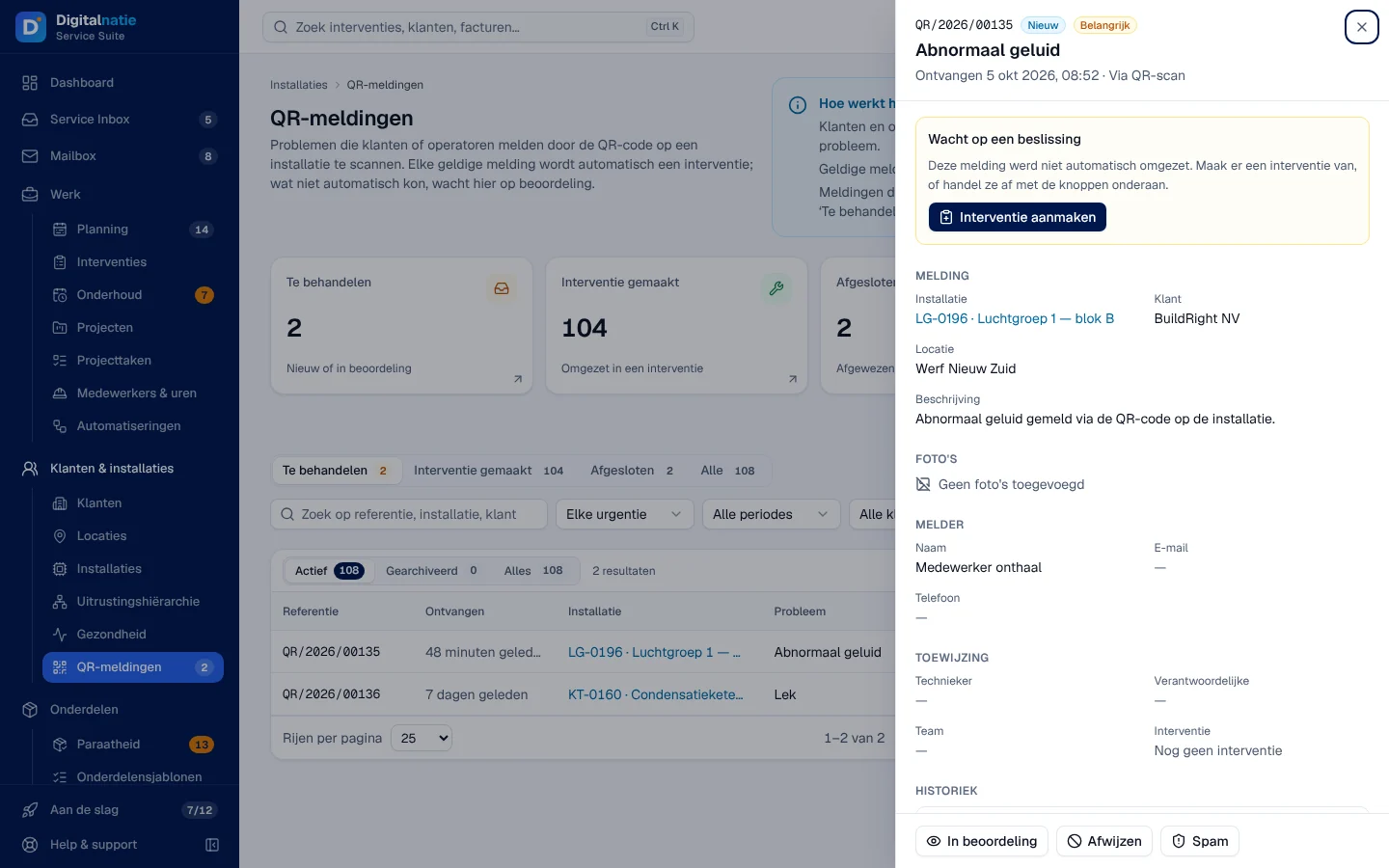
- Click a row to open the report on the right: Melding (installation, customer, site, description), Foto’s, Melder (the person), Toewijzing (assignment) and Historiek.
-
Open a report from the Te behandelen tab. The “Wacht op een beslissing” (awaiting a decision) banner reminds you.
-
Click Interventie aanmaken, then confirm.
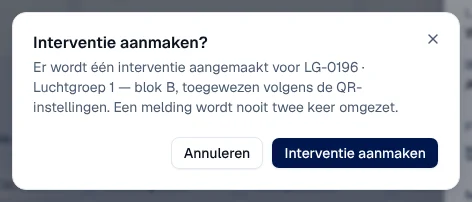
Result: an intervention is created for the installation, assigned according to the QR settings. A report is never converted twice. The Gekoppelde interventie block shows its status, the technician and the schedule, with Interventie openen.
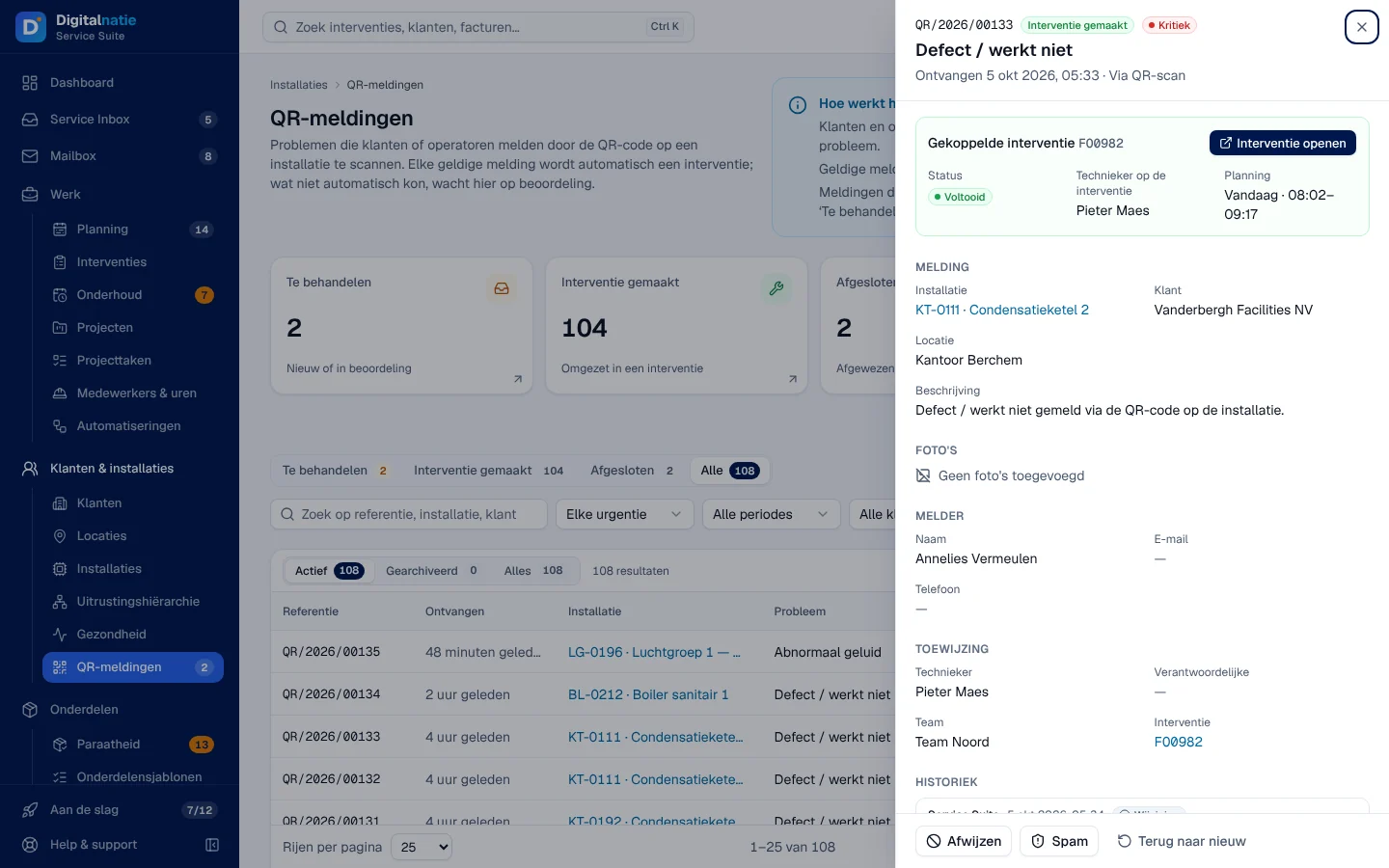
The other buttons at the bottom of the panel: In beoordeling (under review), Afwijzen (reject, closes without an intervention), Spam and Terug naar nieuw (back to new; an intervention already created remains). The installation’s record also lists its latest reports, with Alle meldingen.
Rights by role
Section titled “Rights by role”The table shows the supplied role templates (see Roles and permissions); your administrator can adjust them (see Users, roles and permissions).
| Action | Admin | Manager | Planner | Accounting | Warehouse | Sales | Read |
|---|---|---|---|---|---|---|---|
| See QR-meldingen | ✓ | ✓ | ✓ ¹ | ✓ ¹ | ✓ ¹ | ✓ ¹ | ✓ ¹ |
| Create, replace, deactivate a code; print labels | ✓ | ✓ | — | — | — | — | — |
| Convert, reject, mark as spam | ✓ | ✓ | — | — | — | — | — |
¹ The reports assigned to them or concerning their installations; the administrator and the manager see all reports.
A QR manager is a person whose role gives Uitrusting & installaties at the Beheren (manage) level: among the templates, the administrator and the manager. Others read “Alleen een QR-beheerder behandelt meldingen.” Your company administrator assigns the roles (Users, roles and permissions).
Current limits
Section titled “Current limits”- The QR report settings (person responsible and team for the intervention, number and size of photos, anti-abuse limits, confirmation e-mail, public address) are reserved for the system administrator: ask Digitalnatie.
- The average response time is not calculated yet.
- A report always concerns an installation; a QR code never gives access to the customer’s file.
See also
Section titled “See also”- Installations — the installation’s record and its QR block.
- Scan an installation — the same code in the technician’s app.
- The customer portal — report a problem with a customer account.