

Settings (Instellingen)
Instellingen (settings) brings together your personal settings (profile, password, theme) and some of the organisation’s settings. The other organisation settings are in the Configuratie (configuration) area, described at the end of the page.
| Menu | Instellingen in the left-hand menu, or Instellingen in your account menu |
| Who | everyone for their own profile; the organisation tabs depending on your role |
| Prerequisites | none |
The tabs
Section titled “The tabs”| Tab | Content | Who sees it |
|---|---|---|
| Profiel (profile) | your details, password, two-step verification, your permissions | everyone |
| Organisatie (organisation) | company information, modules, set-up checklist, invoicing rates | everyone (the rates: access to amounts) |
| Configuratie (configuration) | the lists: phases, types, teams, labels, skills, templates | administrator, manager |
| Rollen (roles) | employees, roles, log | administrator — see Users, roles and permissions |
| Service Suite | platform functions and behaviour | system administrator only |
| Weergave (display) | the theme | everyone |
| Beveiliging & koppeling (security and connection) | connection status, signing out | everyone |
A tab you are not allowed to open takes you back to Profiel. If you switch tabs with unsaved changes, the application asks for confirmation.
Editing your profile
Section titled “Editing your profile”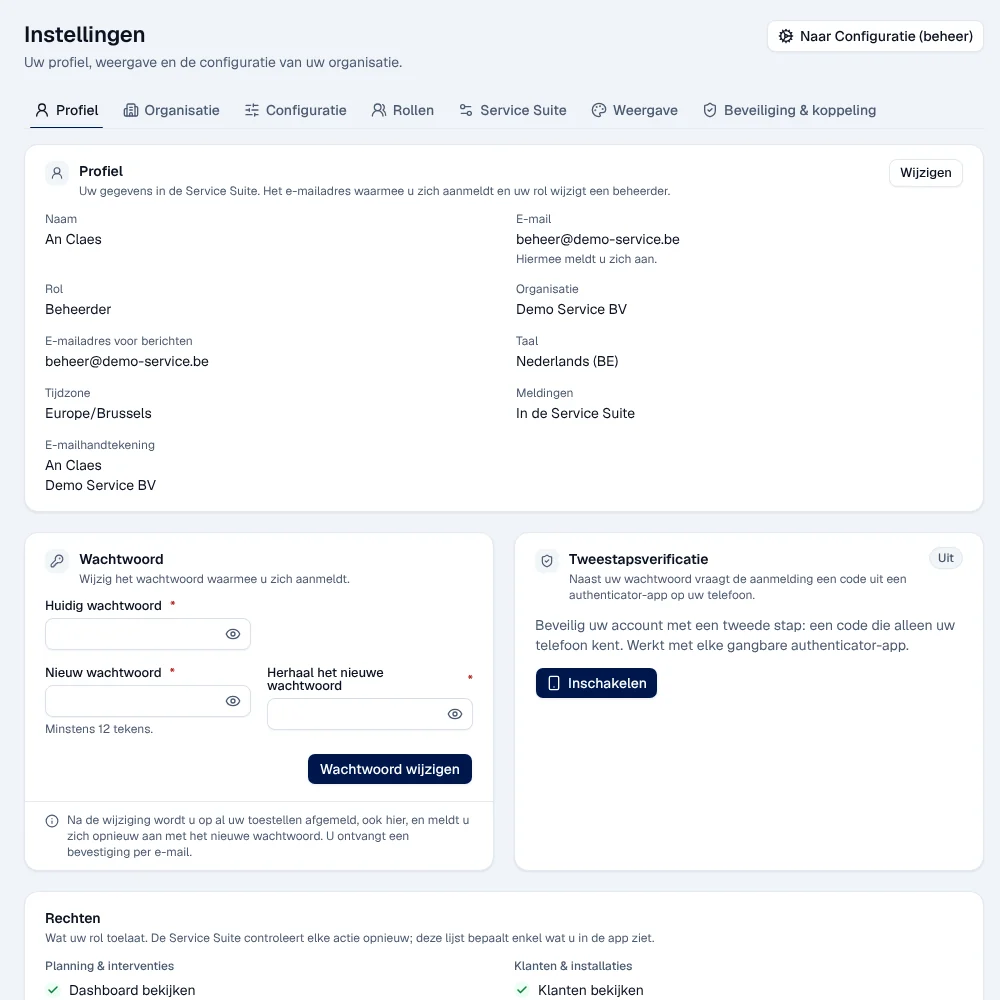
-
In Profiel, click Wijzigen (edit).
-
Change Naam (name), E-mailadres voor berichten (address for messages), Taal (language), Tijdzone (time zone), Meldingen (notifications: Per e-mail or In de Service Suite) and E-mailhandtekening (e-mail signature, in plain text).
-
Click Bewaren (save).
Result: “Uw gegevens zijn bewaard.” (your details have been saved). The address you sign in with and your role do not change here: the administrator changes them. If you change the address for messages, your old address receives a warning e-mail.
The password, two-step verification and sign-in methods are explained in Sign in and protect your account.
Your permissions
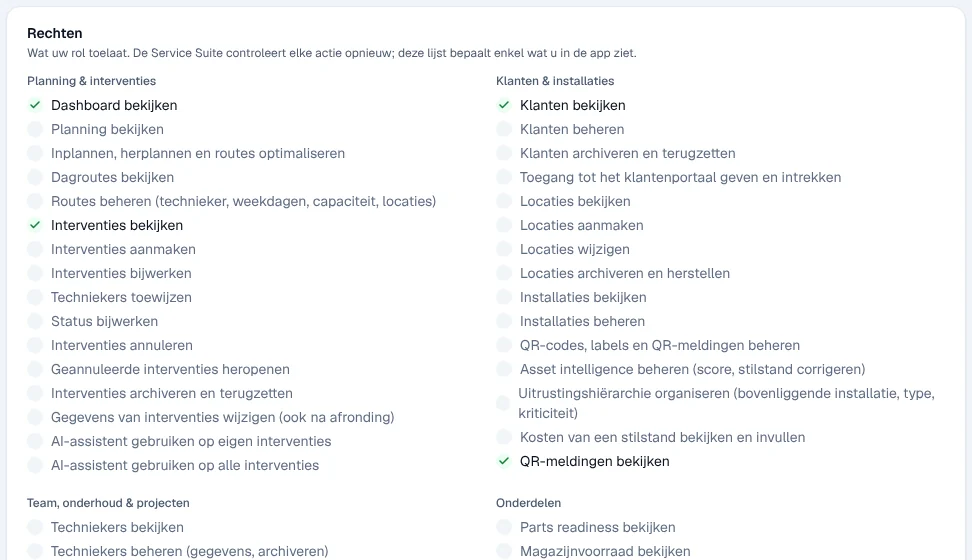
Section titled “Your permissions”The Rechten (permissions) block lists, by area, everything your role allows; a tick marks each permission granted. This list determines what you see in the application; the server checks each action again.
The Organisatie tab
Section titled “The Organisatie tab”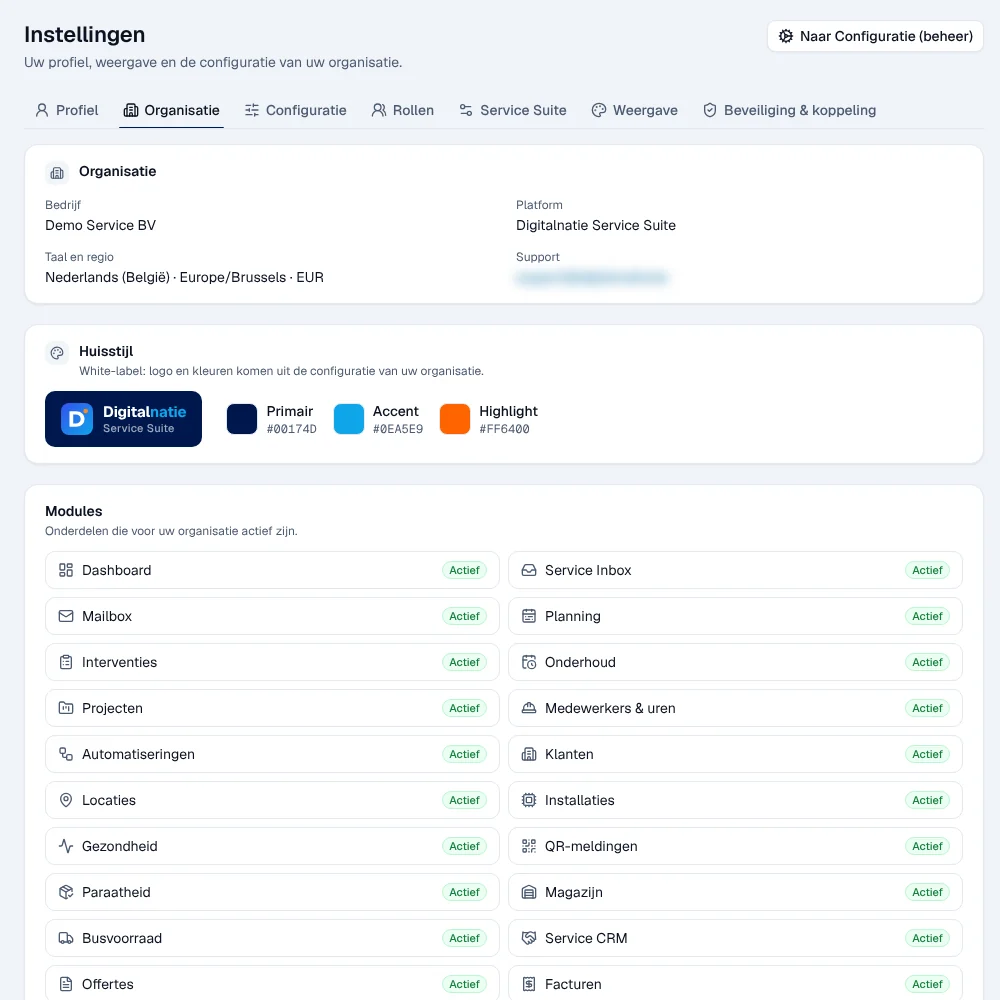
- Organisatie: the company name, the platform, the language and region, the support contact.
- Huisstijl (house style): the application colours, read-only. The logo and colours of your documents and e-mails are set in Organisation, documents and languages.
- Modules: the modules that are active (Actief) or not (Uit) in your plan, read-only. To change them, contact Digitalnatie.
- Opstartchecklist: the link to the set-up checklist.
Setting the invoicing rates
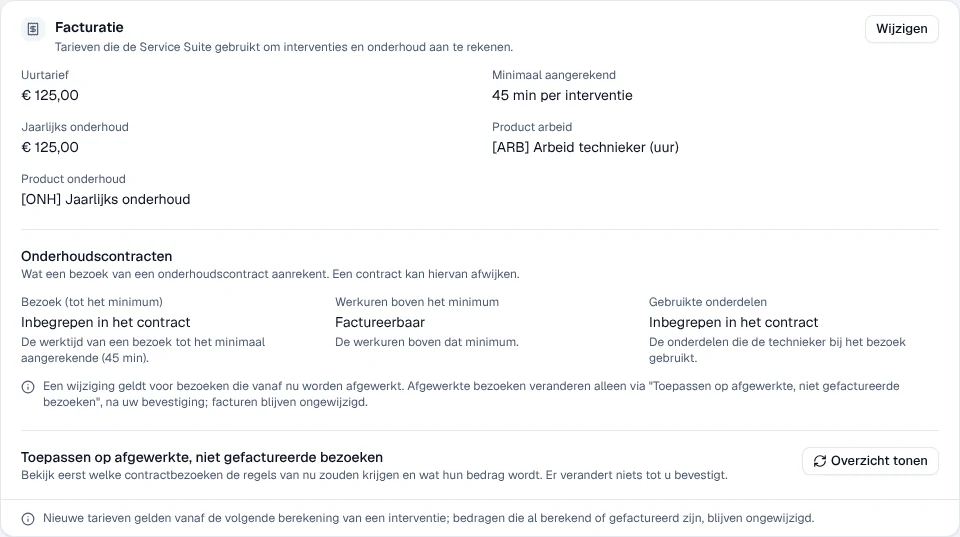
Section titled “Setting the invoicing rates”The Facturatie (invoicing) block sets the rates Service Suite uses to calculate interventions and maintenance, and what a maintenance-contract visit charges.
-
Click Wijzigen in the Facturatie block.
-
Fill in Uurtarief (€, excl. btw) (hourly rate excluding VAT), Minimaal aangerekend (minuten) (minimum charged per intervention), Jaarlijks onderhoud (€, excl. btw) (price of annual maintenance), Product voor arbeid (product for labour) and Product voor onderhoud (product for maintenance).
-
Click Bewaren.
Result: “Facturatie-instellingen bewaard”. The new rates apply from the next calculation of an intervention; amounts already calculated or invoiced do not change. With Jaarlijks onderhoud at 0, there is no annual price and creating an annual invoice is refused.
Invoicing contract visits
Section titled “Invoicing contract visits”In the same block, the Onderhoudscontracten (maintenance contracts) part sets what a visit of a maintenance contract charges, in three parts:
- Bezoek (tot het minimum) (the visit, up to the minimum): the working time up to the Minimaal aangerekend;
- Werkuren boven het minimum (working hours above the minimum);
- Gebruikte onderdelen (the parts the technician uses during the visit).
Each part is Factureerbaar (billable) or Inbegrepen in het contract (included in the contract). By default everything is billable: nothing changes until you choose. You choose with Wijzigen, then Bewaren. A contract can depart from this setting (see Maintenance contracts).
A change applies to visits completed from now on: a visit keeps the rule it was completed with, and invoices never change.
Applying the rules to completed visits
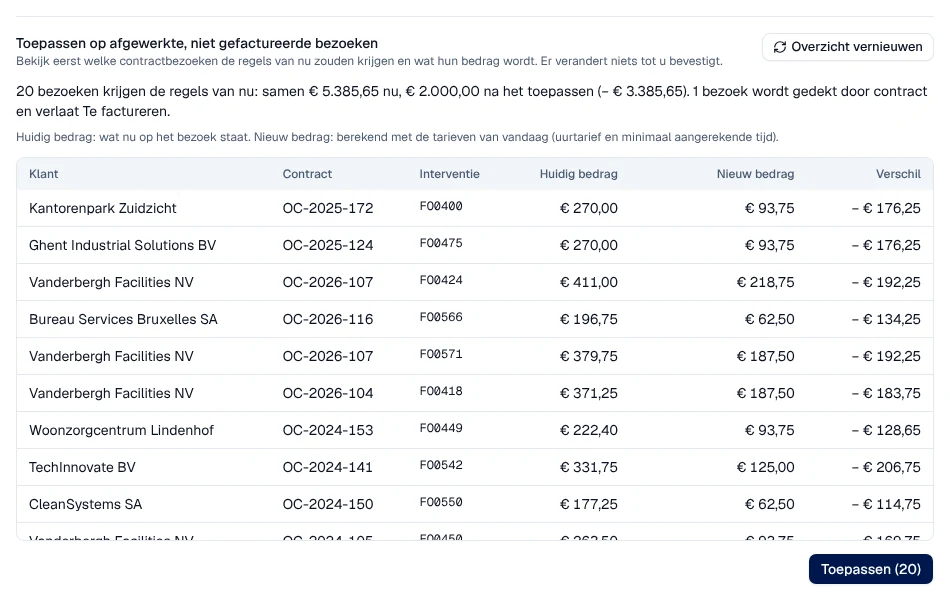
Section titled “Applying the rules to completed visits”Toepassen op afgewerkte, niet gefactureerde bezoeken (apply to completed, not invoiced visits), under the Onderhoudscontracten part, gives the current rules to completed contract visits that are not invoiced yet.
-
Click Overzicht tonen (show overview). Nothing changes yet.
-
Read the table: Klant, Contract, Interventie, Huidig bedrag (the visit’s current amount), Nieuw bedrag (the new amount, calculated with today’s rates) and Verschil (difference). A visit that will be fully covered shows Gedekt door contract.
-
Click Toepassen (…) (apply), then confirm with Toepassen.
Result: “Regels toegepast” (rules applied), with the number of visits adjusted and the totals before and after. Only the visits in the overview change; existing invoices and drafts stay as they are. If visits or amounts changed since the overview was opened, nothing is applied: “Het overzicht is intussen gewijzigd” (the overview has changed in the meantime); click Overzicht opnieuw laden (reload the overview). “Niets toe te passen” (nothing to apply) means every visit already follows the current rules.
Managing the configuration lists
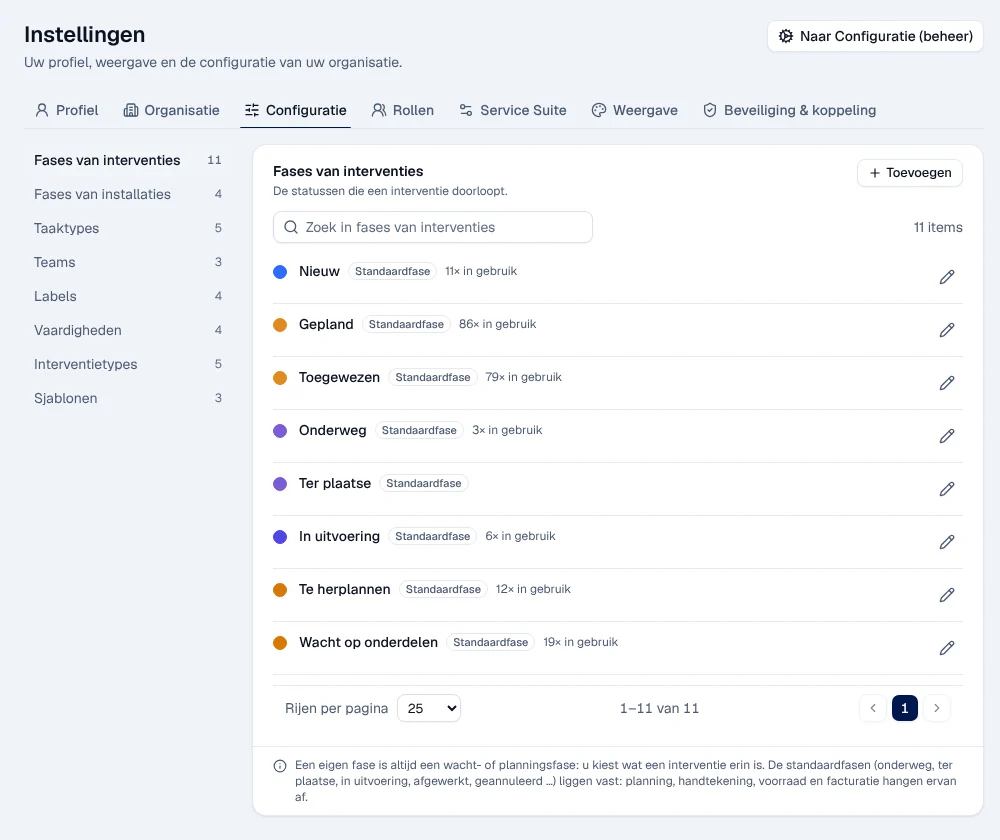
Section titled “Managing the configuration lists”The Configuratie tab contains the lists used throughout the application: Fases van interventies (intervention phases), Fases van installaties (installation phases), Taaktypes (task types), Teams (teams), Labels (labels), Vaardigheden (skills), Interventietypes (intervention types) and Sjablonen (templates). Teams and Vaardigheden only appear if these functions are active.
-
Choose a list on the left (on a phone: in the drop-down menu).
-
Click Toevoegen (add), or the pencil on a row to edit it.
-
Fill in Naam, Omschrijving (description) and Kleur (colour) depending on the list, then save.
Result: “Toegevoegd” (added) or “Wijziging bewaard” (change saved).
- Archiveren (archive): the item stays where it is already used, but can no longer be chosen. Terug in gebruik puts it back into use.
- Verwijderen (delete) is only possible if nothing uses it; it is irreversible. Otherwise the menu shows Verwijderen (in gebruik), disabled.
- Phases: the standard phases (Standaardfase: on the way, on site, in progress, completed, cancelled…) are fixed, because planning, signature, stock and invoicing depend on them. A phase of your own is always a waiting or planning phase: you choose what an intervention is in it (Nieuw, Gepland, Toegewezen, Te herplannen, Wacht op onderdelen…).
- Sjablonen: an intervention template includes Instructies, Standaardduur (uren) (standard duration), Interventietype, Team and the skills. Its values are copied when you choose it while creating an intervention.
The Service Suite tab
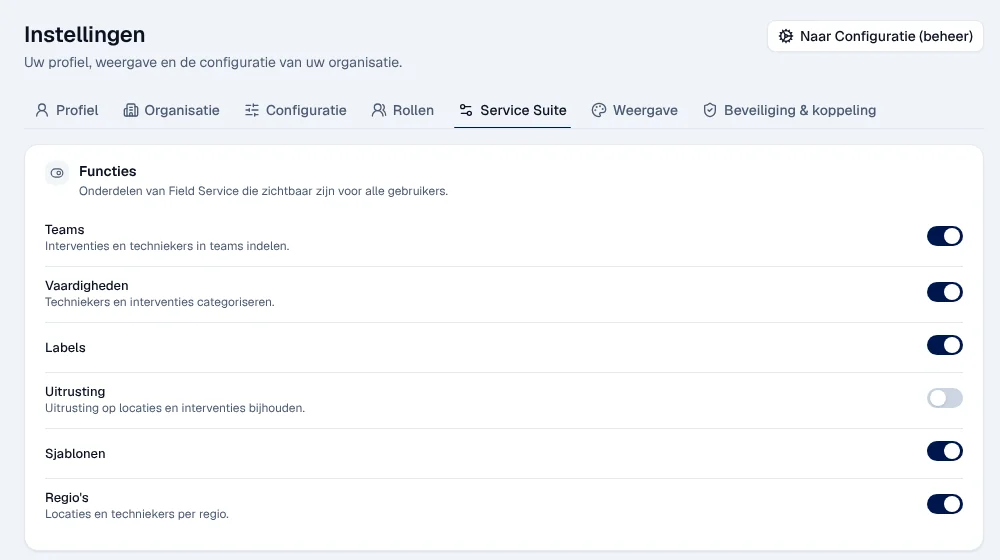
Section titled “The Service Suite tab”This tab sets platform functions (Functies: teams, skills, labels, equipment, templates, regions), intervention behaviour (margins by priority, automatic validation of deliveries), QR reports and the AI assistant provider. It only appears for the Service Suite system administrator; no role template gives it. To have one of these settings changed, ask Digitalnatie.
Display and security
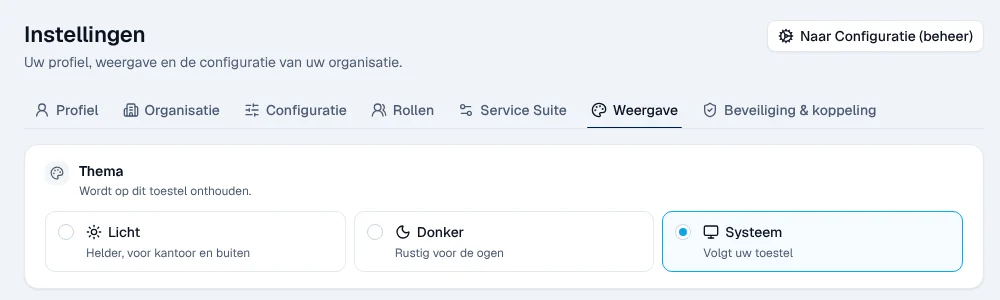
Section titled “Display and security”Weergave offers the Thema (theme): Licht (light), Donker (dark) or Systeem (same as your device). The choice is remembered on this device.
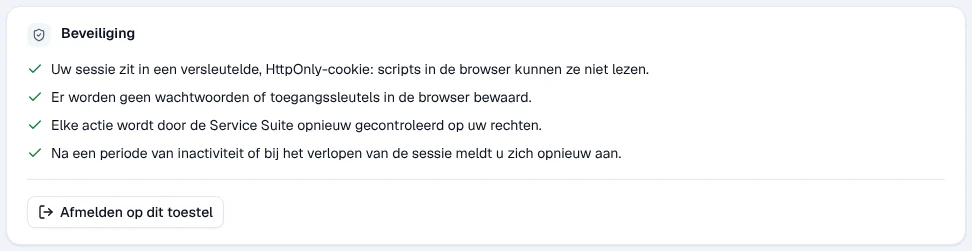
Beveiliging & koppeling shows the data source and the server time, explains how your session is protected and offers Afmelden op dit toestel (sign out on this device).
The Configuratie area
Section titled “The Configuratie area”The Configuratie area brings together all the organisation settings your role can manage. Open it with Naar Configuratie (beheer) at the top of Instellingen, with Configuratie in your account menu, or through quick search (type for example “werkuren”).
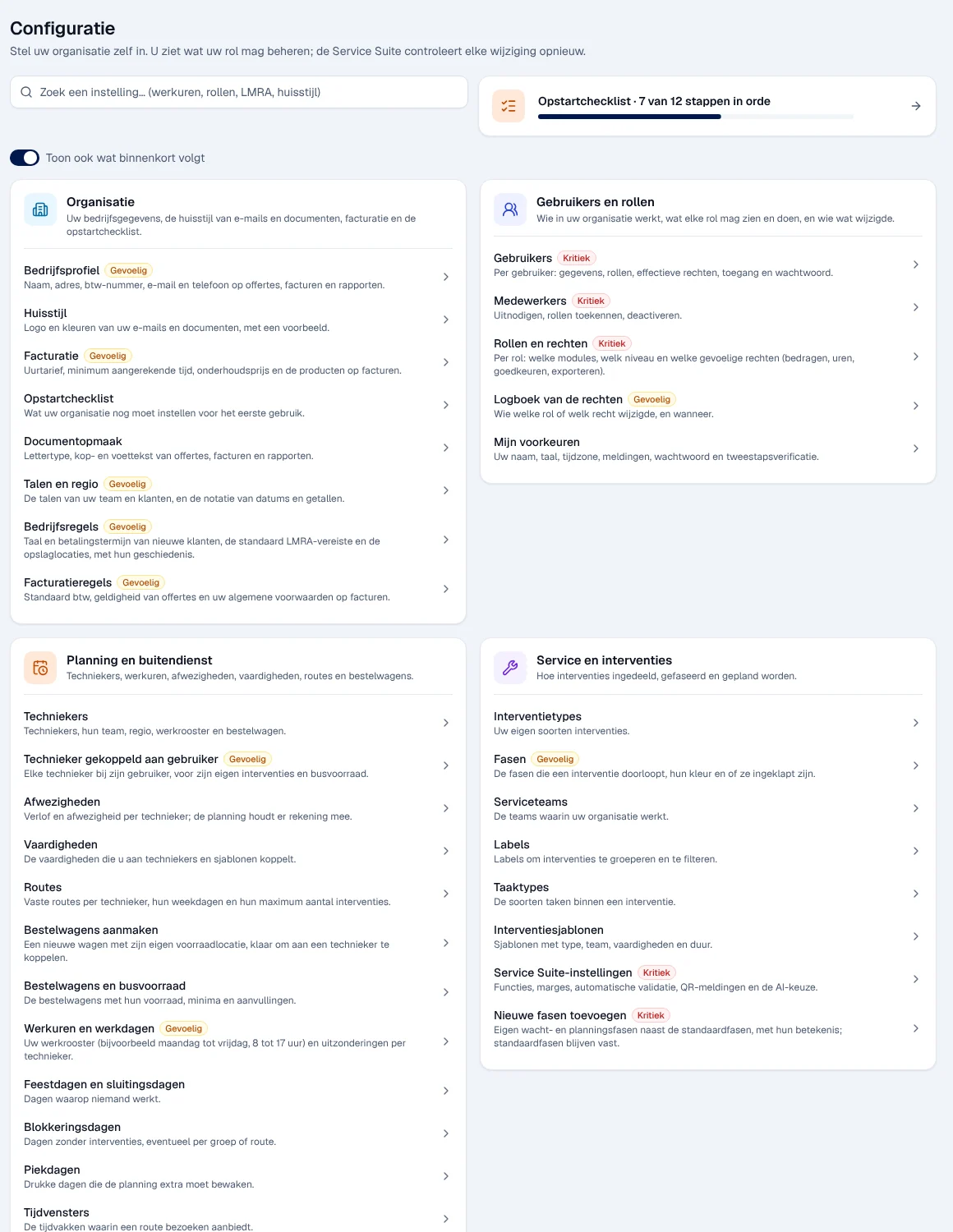
- The Zoek een instelling… search finds a setting by keyword (working hours, roles, LMRA, style…).
- Each category lists its settings. Some open an existing screen (for example the technicians or the vans). The Gevoelig (sensitive) badge flags a setting that applies to the whole organisation; Kritiek (critical), a setting with significant consequences (users, roles, phases…).
- You only see what your role manages. Without any permitted setting: “Uw rol beheert geen instellingen van de organisatie.”. The Toon ook wat binnenkort volgt switch does not currently add any setting.
| Category | Guide |
|---|---|
| Organisatie | Organisation, documents and languages, Operating rules |
| Gebruikers en rollen | Users, roles and permissions |
| Planning en buitendienst, Veiligheid, Voorraad en onderdelen, Klanten, locaties en installaties (sites and regions) | Operating rules |
| Service en interventies | this page (configuration lists) |
| E-mail en communicatie | Connect your e-mail |
| Integraties | Integrations, API and webhooks |
| Gegevens importeren | Import your data |
Rights by role
Section titled “Rights by role”The table shows the supplied role templates (see Roles and permissions); your administrator can adjust them (see Users, roles and permissions).
| Action | Admin | Manager | Planner | Accounting | Warehouse | Sales | Read |
|---|---|---|---|---|---|---|---|
| Edit your profile, your theme, sign out | ✓ | ✓ | ✓ | ✓ | ✓ | ✓ | ✓ |
| See the invoicing rates | ✓ | ✓ | — | ✓ | — | ✓ ¹ | ✓ |
| Change the invoicing rates and contract-visit invoicing; apply to completed visits | ✓ | ✓ | — | — | — | — | — |
| Manage the configuration lists | ✓ | ✓ | — | — | — | — | — |
| Manage roles and employees | ✓ | — | — | — | — | — | — |
| Service Suite tab ² | — | — | — | — | — | — | — |
¹ Sales Manager, Sales and Directie only. ² Reserved for the system administrator, which no role template gives: ask Digitalnatie for these changes.
Current limits
Section titled “Current limits”- The modules of your plan and the application colours cannot be changed here.
- The Service Suite tab is reserved for the system administrator: ask Digitalnatie for these changes.