

Service Inbox and Mailbox
Two screens receive customer e-mails. The Service Inbox shares the conversations sent to your company’s service address: the team distributes them, replies to them and turns them into interventions. The Mailbox shows the company’s shared mailboxes, for example invoicing, with actions towards the customer.
| Menu | Service Inbox and Mailbox, at the top of the menu |
| Who | Service Inbox: administrator and manager. Mailbox: the Mailbox family (Mailbox User template). |
| Prerequisites | Your company’s e-mail is connected (Connect your e-mail). |
Before the e-mail is connected: “Niet ingericht”
Section titled “Before the e-mail is connected: “Niet ingericht””As long as the company’s e-mail is not connected, administrators see Service Inbox and Mailbox with the “Niet ingericht” (not set up) badge. Other users do not see these entries.
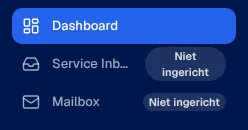
For an administrator, Service Inbox then leads to connecting the e-mail: see Connect your e-mail. Sending (replies, reports, invoices) is not possible while the connection is missing, and the application tells you so before you try.
Handle conversations (Service Inbox)
Section titled “Handle conversations (Service Inbox)”-
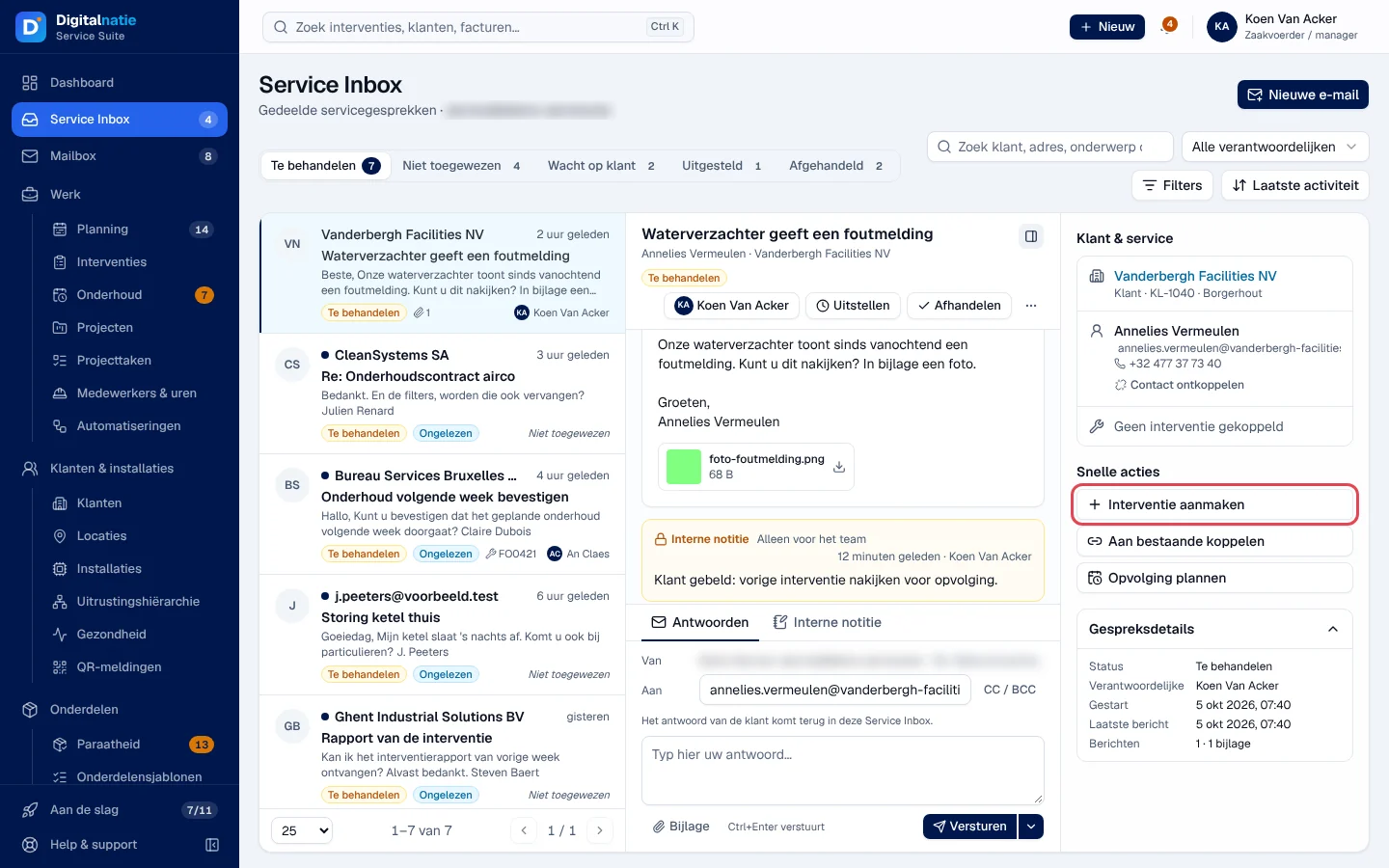
Open Service Inbox. The header shows the service address.
-
Choose a queue: Te behandelen (to handle), Niet toegewezen (unassigned), Wacht op klant (waiting for customer), Uitgesteld (postponed), Afgehandeld (handled). Filter with the search, Alle verantwoordelijken (assignee) and Filters (unread); sort by Laatste activiteit (last activity) or oldest first.
-
Click a conversation. It opens in the middle, with the Klant & service (customer and service) block on the right.
-
Take action:
- the assignee button assigns the conversation to a colleague;
- Uitstellen (postpone) removes it from the queue until the time you choose; a new message from the customer brings it back immediately;
- Afhandelen (handle) moves it to Afgehandeld; Heropenen (reopen) puts it back in progress.
-
To reply, stay on Antwoorden (reply), write and click Versturen (send). The arrow next to it chooses the status after sending (unchanged, Wacht op klant or Afgehandeld). Ctrl+Enter also sends.
Result: the reply is sent from the service address; the customer’s reply comes back into the same conversation. The sending status is shown on the message: Verstuurd (accepted by the sending server, which is not proof of receipt), In wachtrij (queued), Te controleren (to check) or Niet verstuurd (not sent). Nothing is resent automatically.
Nieuwe e-mail (new e-mail) writes to a customer from the service address: Aan (to), Onderwerp (subject), Bericht (message) and the status after sending.
Create an intervention from an e-mail
Section titled “Create an intervention from an e-mail”-
Open the conversation. If the sender is recognised, the customer is shown in Klant & service.
-
In Snelle acties (quick actions), click Interventie aanmaken (create intervention).
-
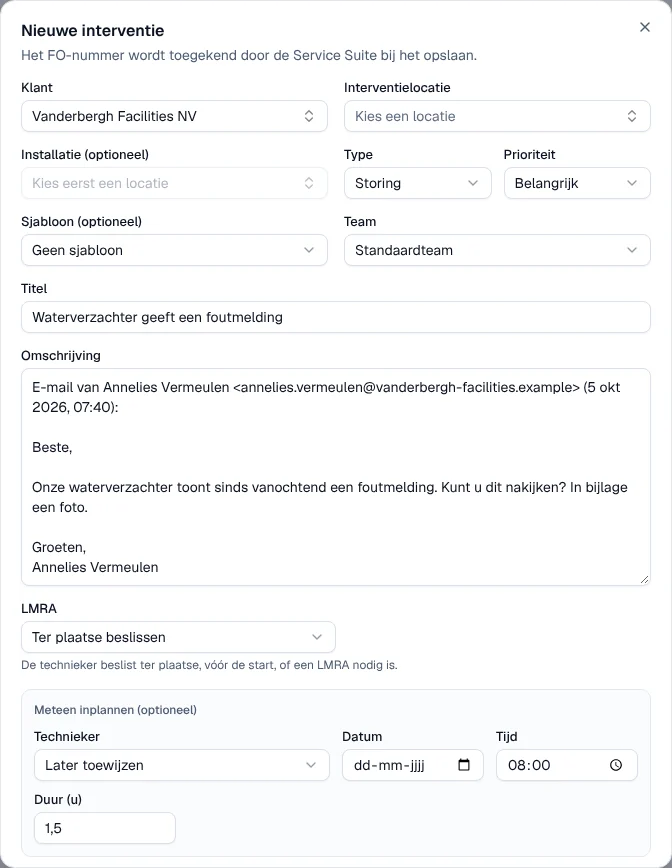
The Nieuwe interventie window opens already filled in: the customer, the title (the e-mail subject) and the description (“E-mail van” the sender, the date and the last message received).
-
Choose the Interventielocatie (intervention site), and if needed the installation, the type and the priority. Schedule straight away with Meteen inplannen or later.
-
Click Interventie aanmaken.
Result: “Interventie aangemaakt”; the conversation is linked to the new intervention. No e-mail is sent to the customer. All the fields are explained in Create an intervention.
To link the conversation to an intervention that already exists, use Aan bestaande koppelen (link to an existing record): linking creates nothing and schedules nothing. Opvolging plannen (plan a follow-up) schedules a follow-up activity, on the linked intervention or, failing that, on the customer.
The Mailbox
Section titled “The Mailbox”The Mailbox shows the company’s shared mailboxes. Choose the mailbox (Alle mailboxen) and the folder: Inbox, Ongelezen (unread), Concepten (drafts), Verzonden (sent), Gearchiveerd (archived), Alle (all).
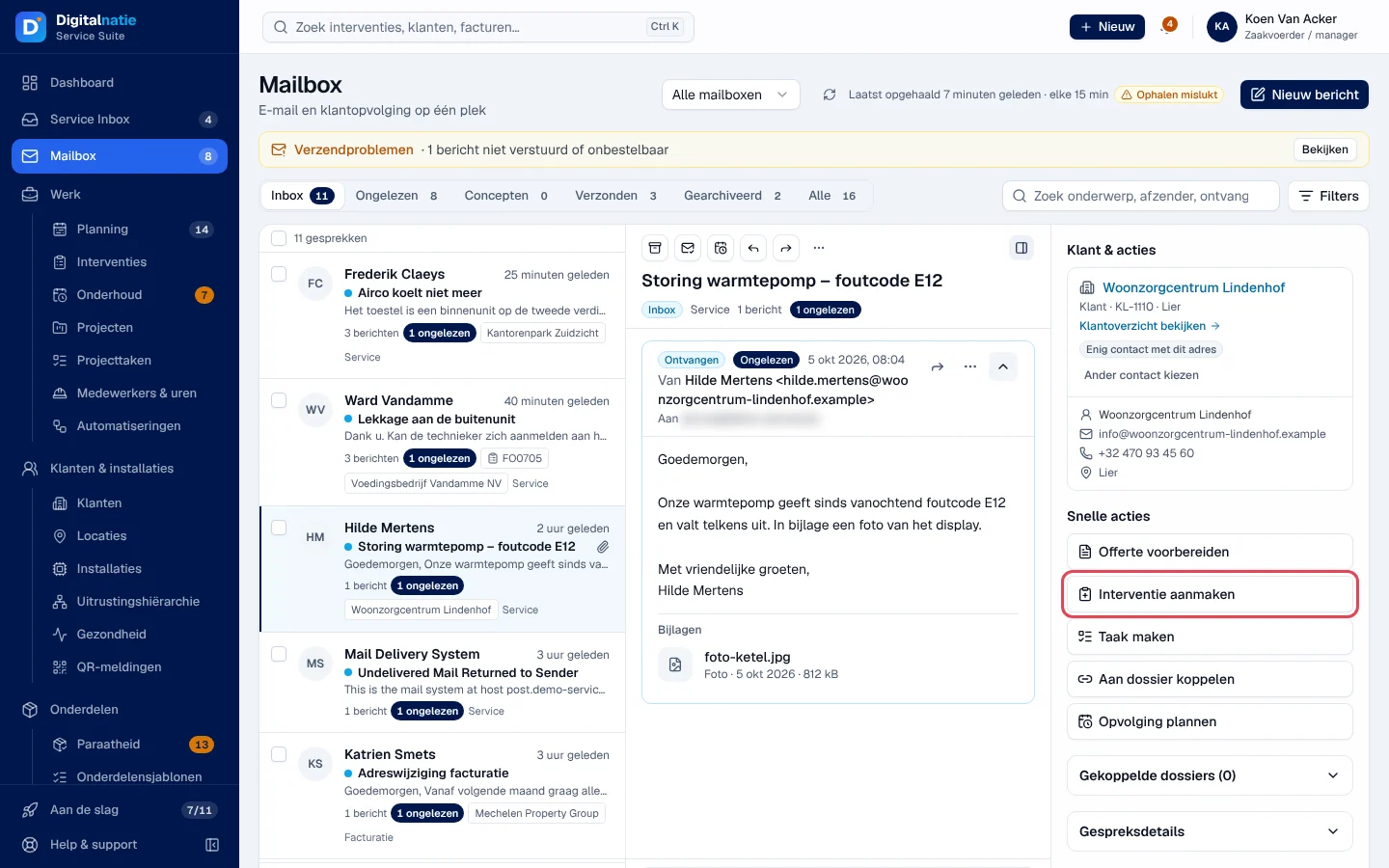
- The header shows the last fetch (every 15 minutes). “Ophalen mislukt” signals a failed fetch. The Verzendproblemen (sending problems) banner lists messages that were not sent or could not be delivered.
- In an e-mail: Antwoorden (reply), Doorsturen (forward), archive, mark as read or unread.
- The Klant & acties (customer and actions) panel shows the recognised customer (Enig contact met dit adres, the only contact with this address; or Ander contact kiezen, choose another contact) and the Snelle acties: Offerte voorbereiden (prepare a quote), Interventie aanmaken, Taak maken (create a task), Aan dossier koppelen (link to a record) and Opvolging plannen.
Interventie aanmaken opens the same window as in the Service Inbox. After saving, you stay in the Mailbox and the e-mail is linked to the intervention. An e-mail handled in the Service Inbox is shown here as read-only.
Rights by role
Section titled “Rights by role”The table shows the supplied role templates (see Roles and permissions); your administrator can adapt them (see Users, roles and permissions).
| Action | Admin | Manager |
|---|---|---|
| Read the Service Inbox, reply, new e-mail | ✓ | ✓ |
| Create an intervention from the Service Inbox | ✓ | ✓ |
| Use the Mailbox ¹ | — | — |
| Create an intervention from the Mailbox ¹ ² | — | — |
| See “Niet ingericht” before the e-mail is connected | ✓ | — |
¹ Reserved for the Mailbox family (Mailbox User template), which has no other permission in the office guides: give this role in addition to the person who needs it. ² Also requires the permission to create interventions (administrator, manager, planner); the Mailbox User template alone does not give it.
Current limits
Section titled “Current limits”- Vernieuwen (refresh) in the Mailbox only reloads what has already been fetched; new e-mails arrive at the next fetch.
- The service address and the link to the shared mailboxes cannot be set in the application: ask Digitalnatie.