

The warehouse: items, transfers and storage locations
The Magazijn (warehouse) is the central stock of parts, equipment and consumables. The warehouse team manages the items there, validates the transfers to the vans and finds each part in its storage locations or on the warehouse plan. The planner only sees the storage locations and the plan, read-only.
| Menu | Onderdelen › Magazijn (administrator, manager, warehouse, read only). For the planner: Onderdelen › Magazijnlocaties (warehouse storage locations). |
| Who | The whole warehouse: administrator and Warehouse Manager (warehouse). Transfers and reorganisation: also the manager and the Warehouse Employee. Storage locations and plan read-only: planner; items and transfers read-only: read only (table at the bottom of the page). |
| Prerequisites | The categories, storage locations and vans are created in Configuratie › Voorraad en onderdelen (see Operating rules). |
The screen has the tabs Artikelen (items), Overboekingen (transfers), Bewegingen (movements), Locaties (storage locations), Warehouse 2D/3D (the plan), Indeling (layout) and Herschikken (reorganise). Busvoorraad en onderdeel zoeken (van stock and part search) opens the vans page.

Finding an item
Section titled “Finding an item”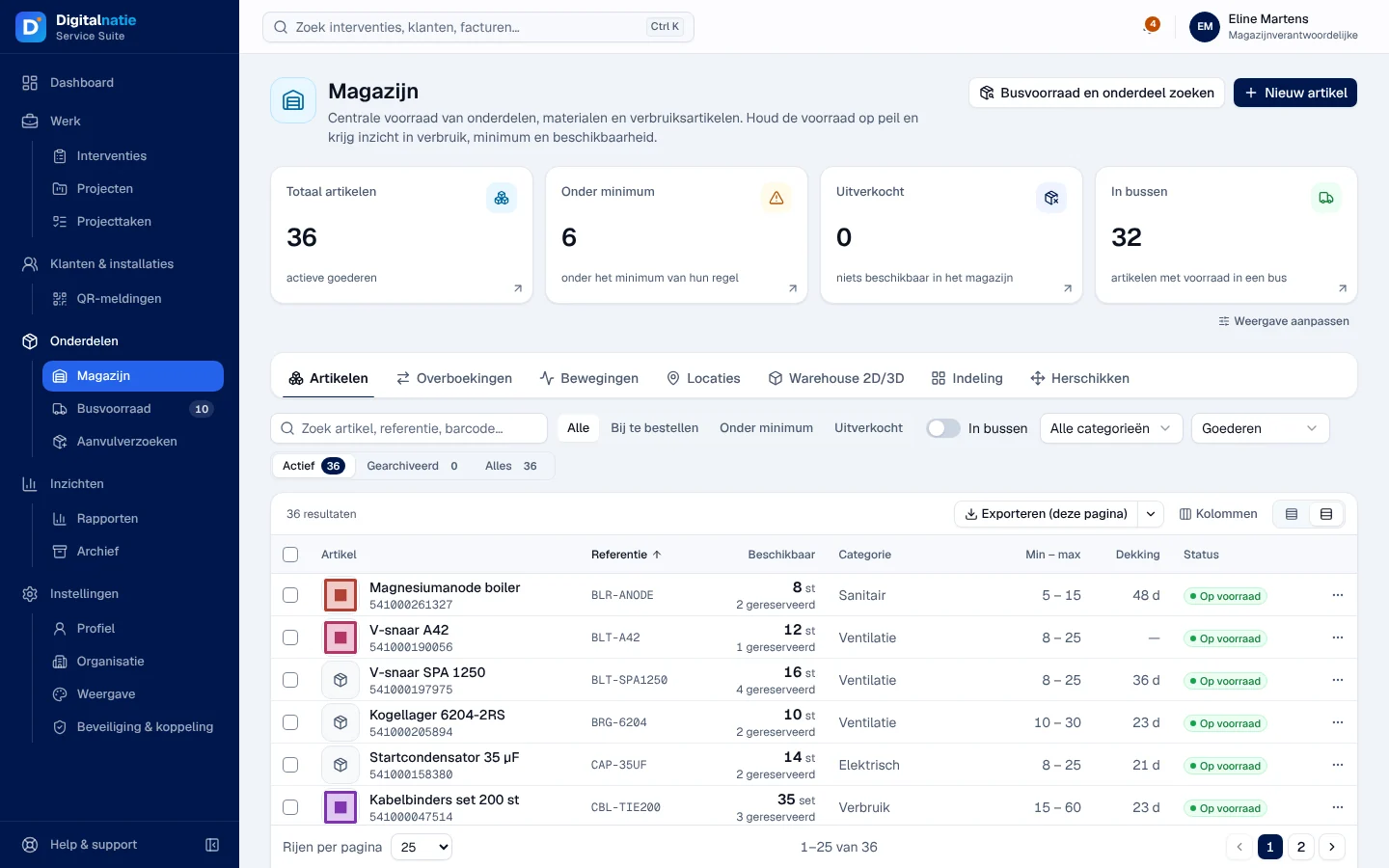
- The figures Totaal artikelen (total items), Onder minimum (below the minimum of their rule), Uitverkocht (nothing available in the warehouse) and In bussen (in stock in a van) filter the list with one click.
- Filters: search “Zoek artikel, referentie, barcode…”, Alle / Bij te bestellen (to order) / Onder minimum / Uitverkocht, In bussen, category, Goederen (goods) or Diensten (services), and Actief / Gearchiveerd / Alles.
- Columns: Beschikbaar (available, with the reserved quantity), Min – max (replenishment rule), Dekking (coverage in days, based on consumption over the last 30 days), Verbruik 30 d (consumption), In bussen and Status (Op voorraad, in stock; Onder minimum; Uitverkocht). Kolommen (columns) adds Locatie (storage location).
- A status filter applies page by page: page through or choose Alle to see everything.
The item record (Artikelfiche)
Section titled “The item record (Artikelfiche)”Click an item.
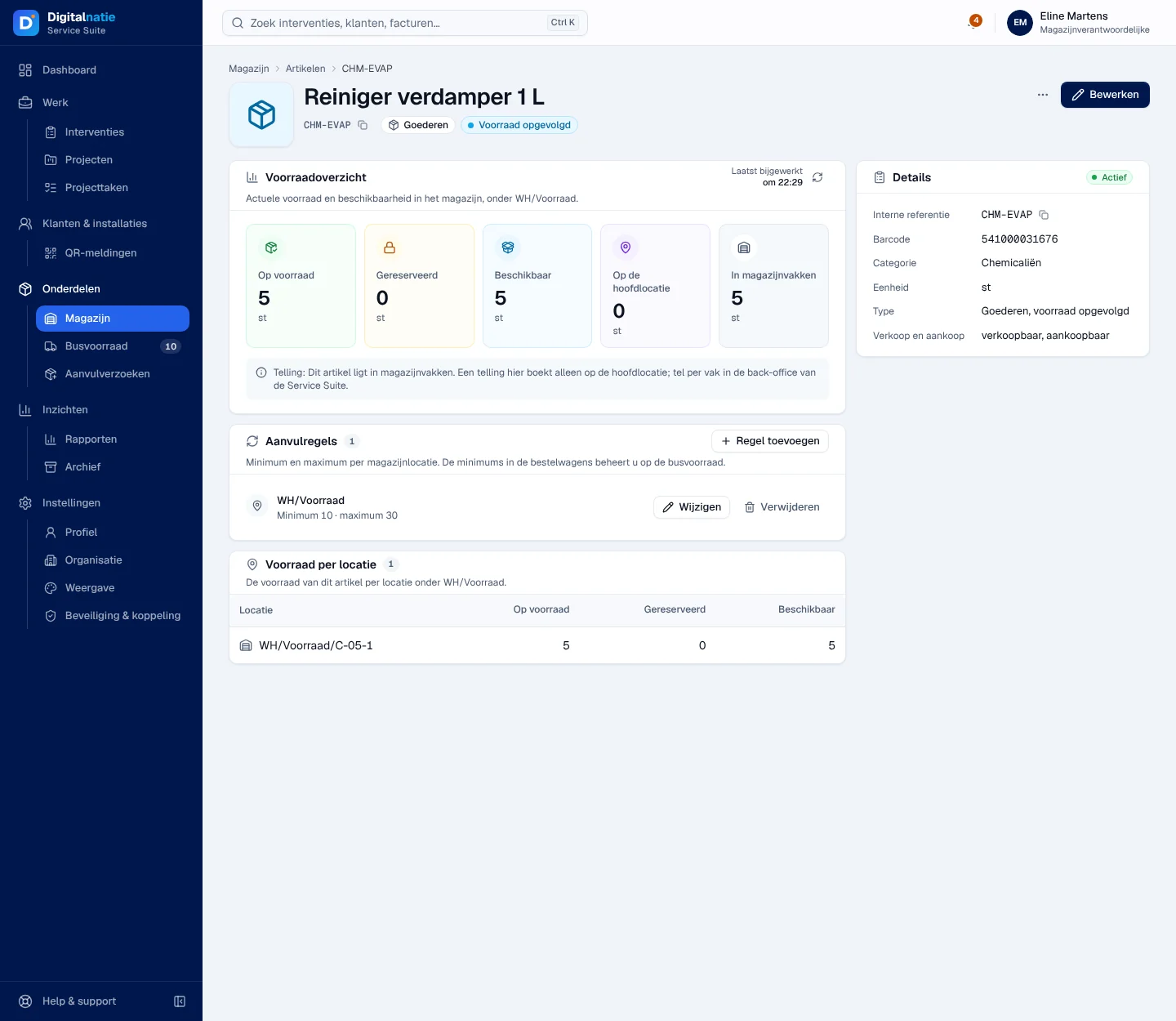
- Voorraadoverzicht (stock overview): Op voorraad (in stock), Gereserveerd (reserved), Beschikbaar (available), Op de hoofdlocatie (in the main storage location), In magazijnvakken (in the bins).
- Aanvulregels (replenishment rules): a minimum and a maximum per warehouse storage location. Below the minimum, Service Suite automatically creates a replenishment or a purchase request up to the maximum. Regel toevoegen (add rule), Wijzigen (edit), Verwijderen (delete). Van minimums are set in Busvoorraad.
- Voorraad per locatie (stock per storage location) and, on the right, Details: reference, barcode, category, unit, type.
- Telling boeken (record a count) only appears if the count can be done on the main storage location. The difference is recorded as a stock correction (“Telling geboekt”). For a part stored in bins, count bin by bin with Tellen… in Locaties or on the plan.
- Bewerken (edit) and, under ⋯, Archiveren (archive) / Terugzetten (restore). An archived item disappears from the lists; its stock, quotes and interventions do not change.
Creating an item
Section titled “Creating an item”-
Click Nieuw artikel (new item).
-
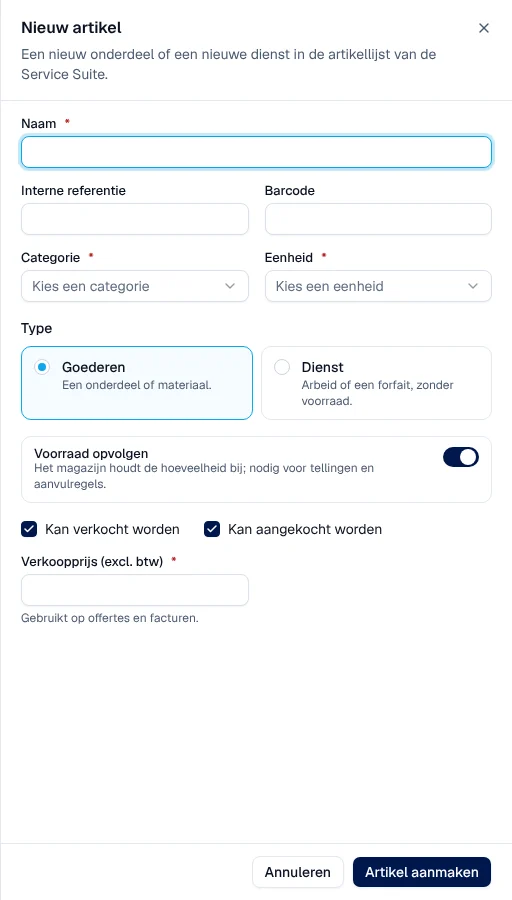
Fill in Naam (name), Categorie, Eenheid (unit), the type Goederen (a part or equipment) or Dienst (labour or a flat fee, without stock), Voorraad opvolgen (track stock: needed for counts and replenishment rules) and Verkoopprijs (excl. btw) (sales price excluding VAT, used on quotes and invoices). Internal reference and barcode are optional.
-
Click Artikel aanmaken (create item).
Result: “Artikel aangemaakt” (item created). An item already used in stock movements can no longer change type: archive it and create a new one. Items with variants cannot be edited in the application.
Processing a transfer (Overboekingen)
Section titled “Processing a transfer (Overboekingen)”The Overboekingen tab lists the transfers from the application’s flows: Aanvulling bestelwagen (van replenishment, created when a manager approves a request), Herschikking (reorganisation), Vanuit plattegrond (prepared from the plan) and Ontvangst (receipt).
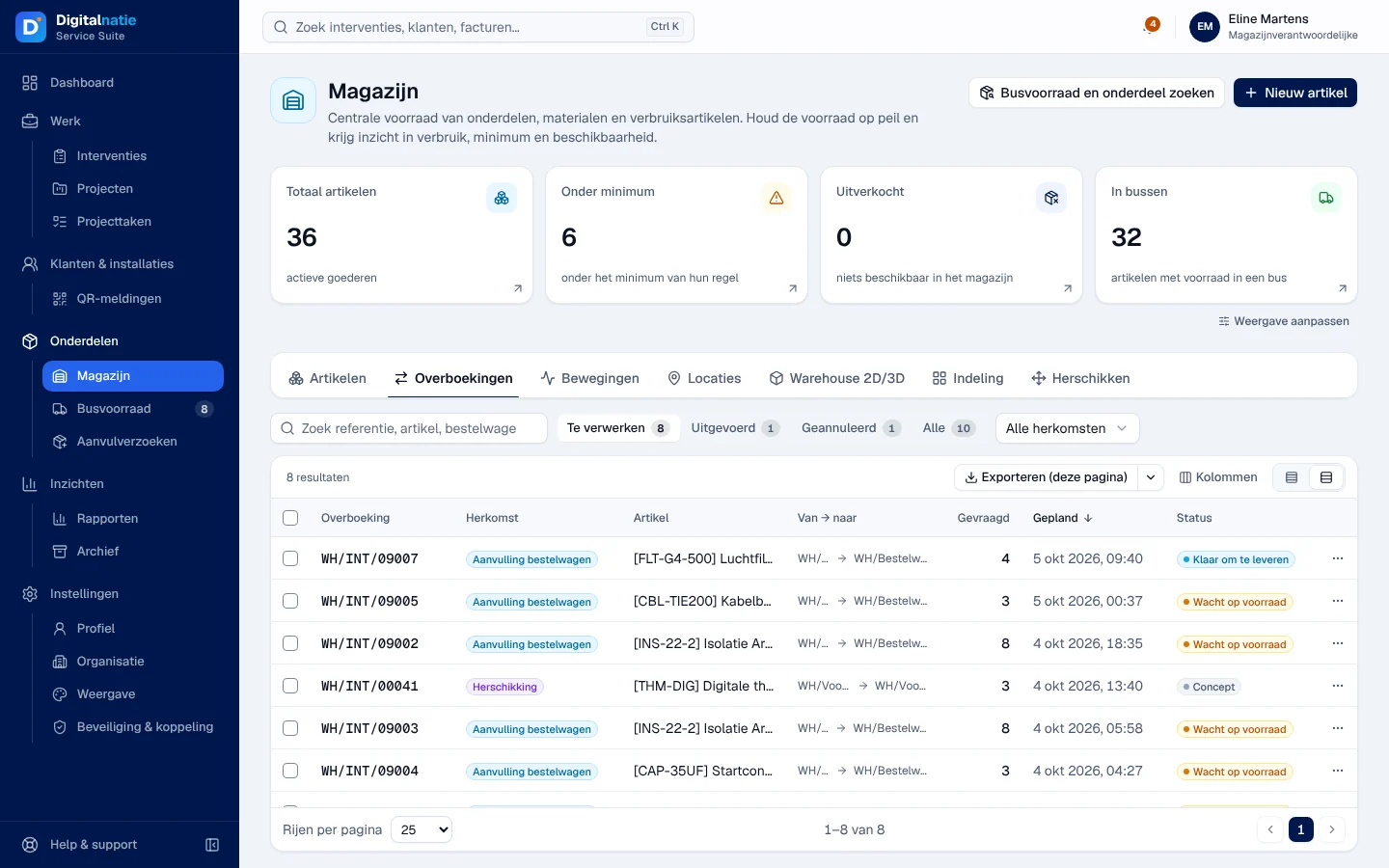
The statuses: Concept (draft), Wacht op andere bewerking (waiting for another operation), Wacht op voorraad (waiting for stock), Klaar om te leveren (ready to deliver), Uitgevoerd (done), Geannuleerd (cancelled). The Te verwerken (to process) filter is shown by default.
-
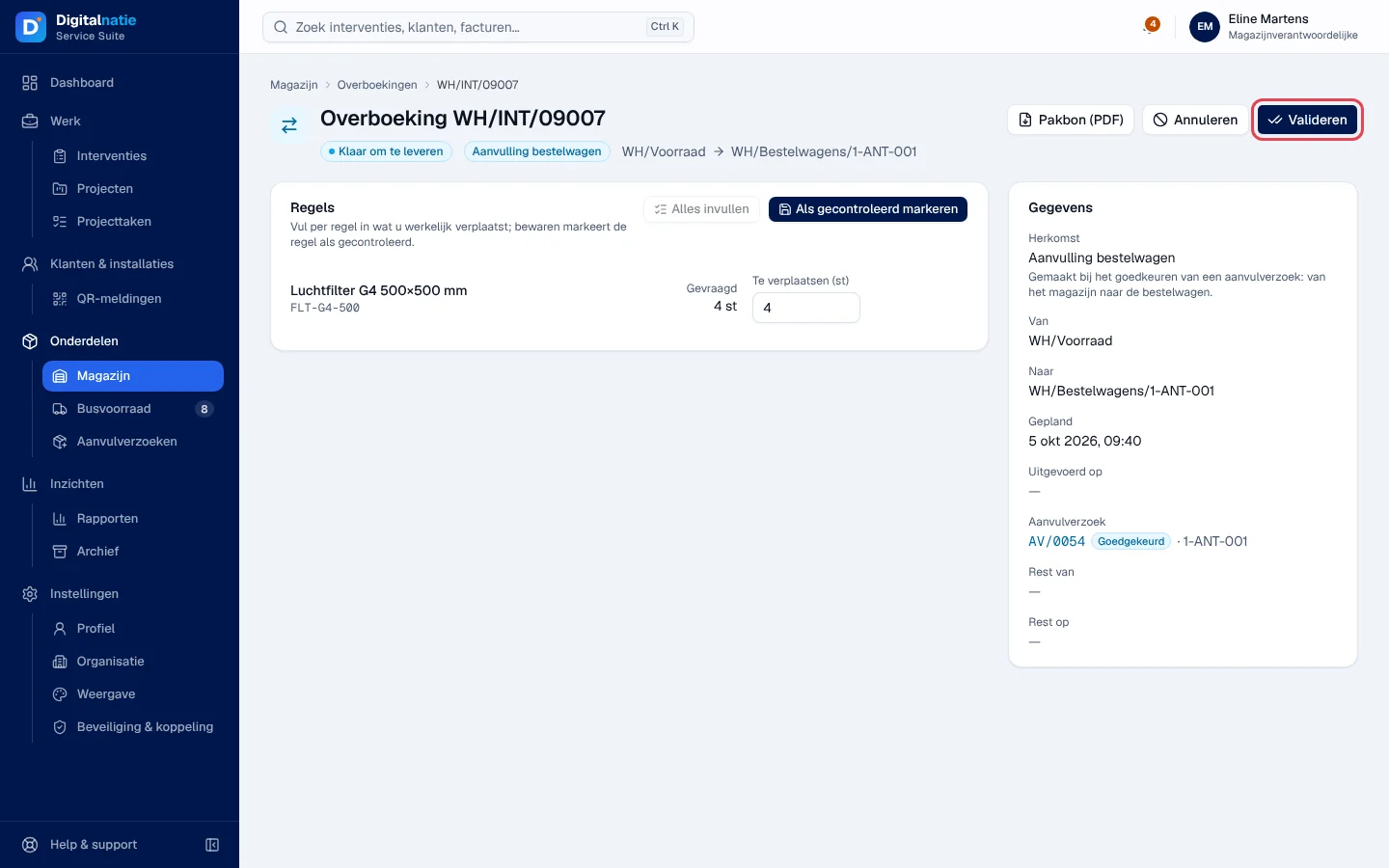
Open the transfer. A draft must first be confirmed with Bevestigen (confirm); if not everything is reserved, click Beschikbaarheid controleren (check availability).
-
Prepare the parts. Under Regels (lines), enter in Te verplaatsen (to move) what you actually move, or click Alles invullen (fill in all). Pakbon (PDF) prints the picking slip.
-
Click Valideren (validate) and confirm.
Result: “Overboeking gevalideerd” (transfer validated) and the status Uitgevoerd. Only at this moment does the stock leave the warehouse.
The Bewegingen (movements) tab lists, read-only, each incoming and outgoing movement: Ontvangst, Aanvulling bus, Verbruik (consumption), Retour, Transfer, Correctie.
Finding a storage location (Locaties)
Section titled “Finding a storage location (Locaties)”-
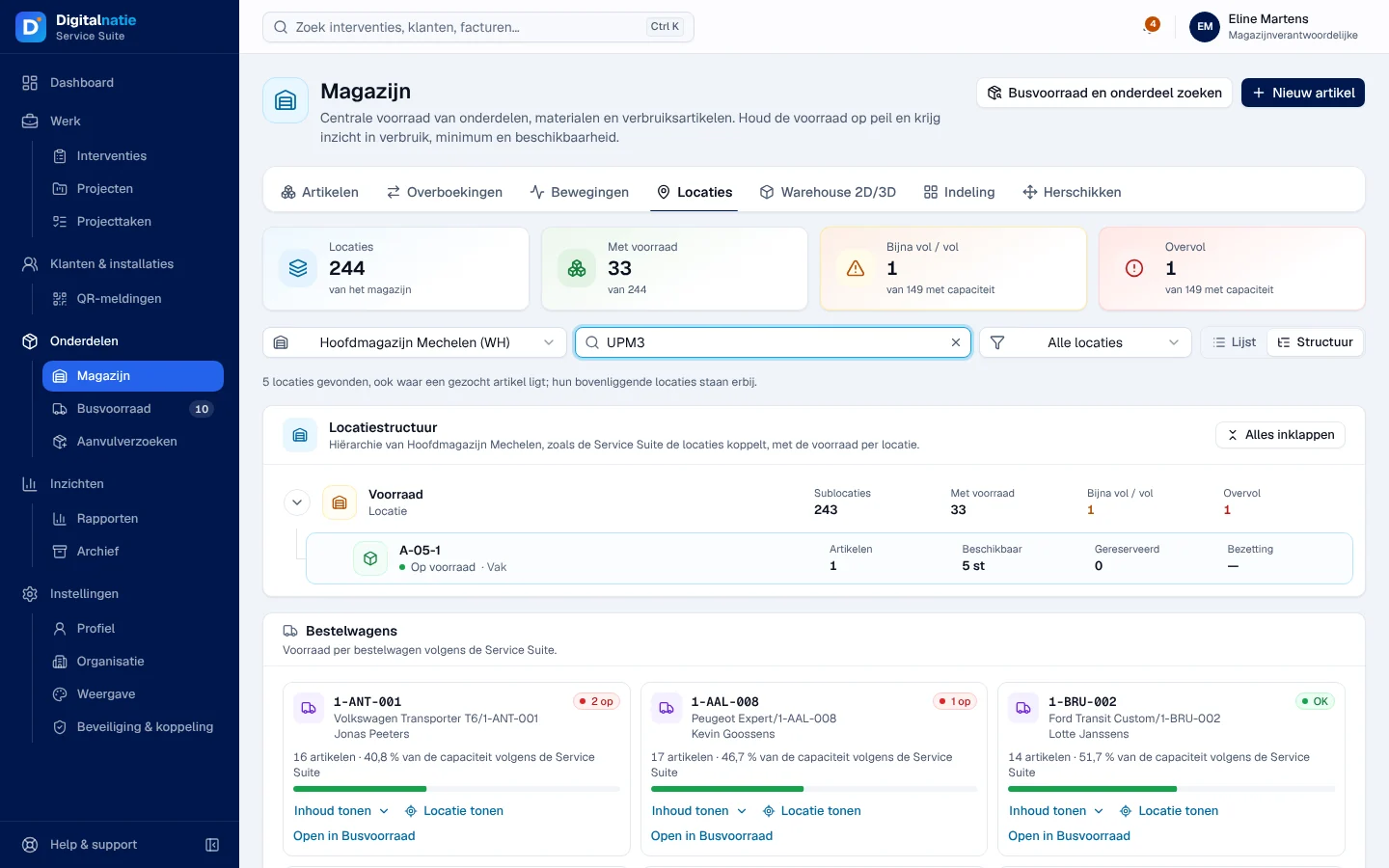
Open the Locaties tab. The figures give the number of storage locations, those Met voorraad (with stock), Bijna vol / vol (nearly full / full) and Overvol (overfull), for storage locations that have a capacity.
-
Type a part or a storage location in “Zoek locatie of artikel…”. In the Structuur (structure, default) view, only the path to the bin containing the part remains visible. Lijst (list) shows the same storage locations as a flat list.
-
Click the storage location. The panel shows the type, the barcode, the capacity, the occupancy and the items present (Fysiek, physical; Beschikbaar; Gereserveerd).
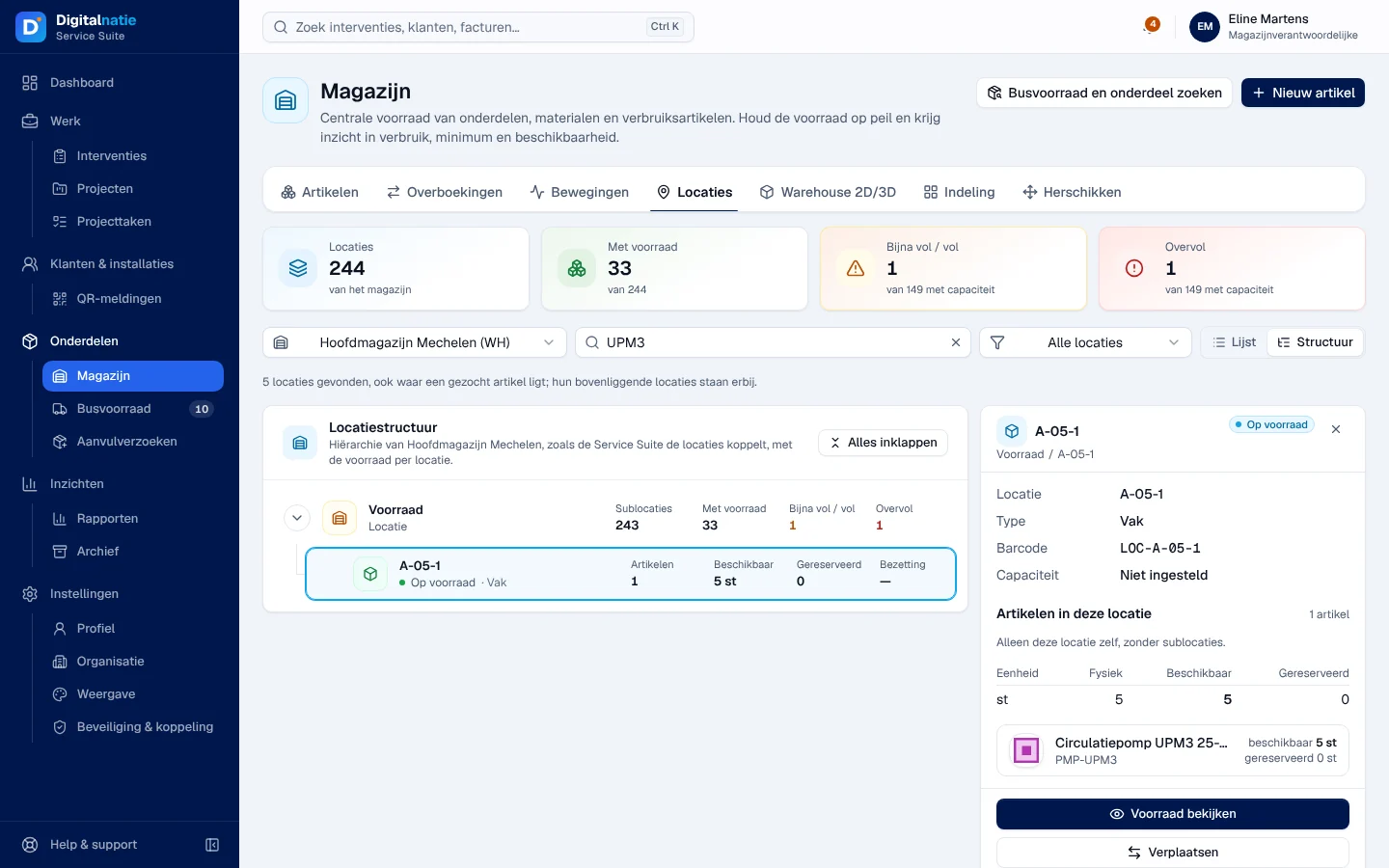
Voorraad bekijken (view stock) opens the exact stock of the storage location. The ⋯ menu of an item there offers Verplaatsen… (move immediately), Transfer voorbereiden… (prepare a reserved transfer, nothing moves before it is validated) and Tellen… (count this bin). At the bottom of the tab, Bestelwagens shows the stock of each van; Open in Busvoorraad opens the van.
The warehouse plan in 2D and 3D
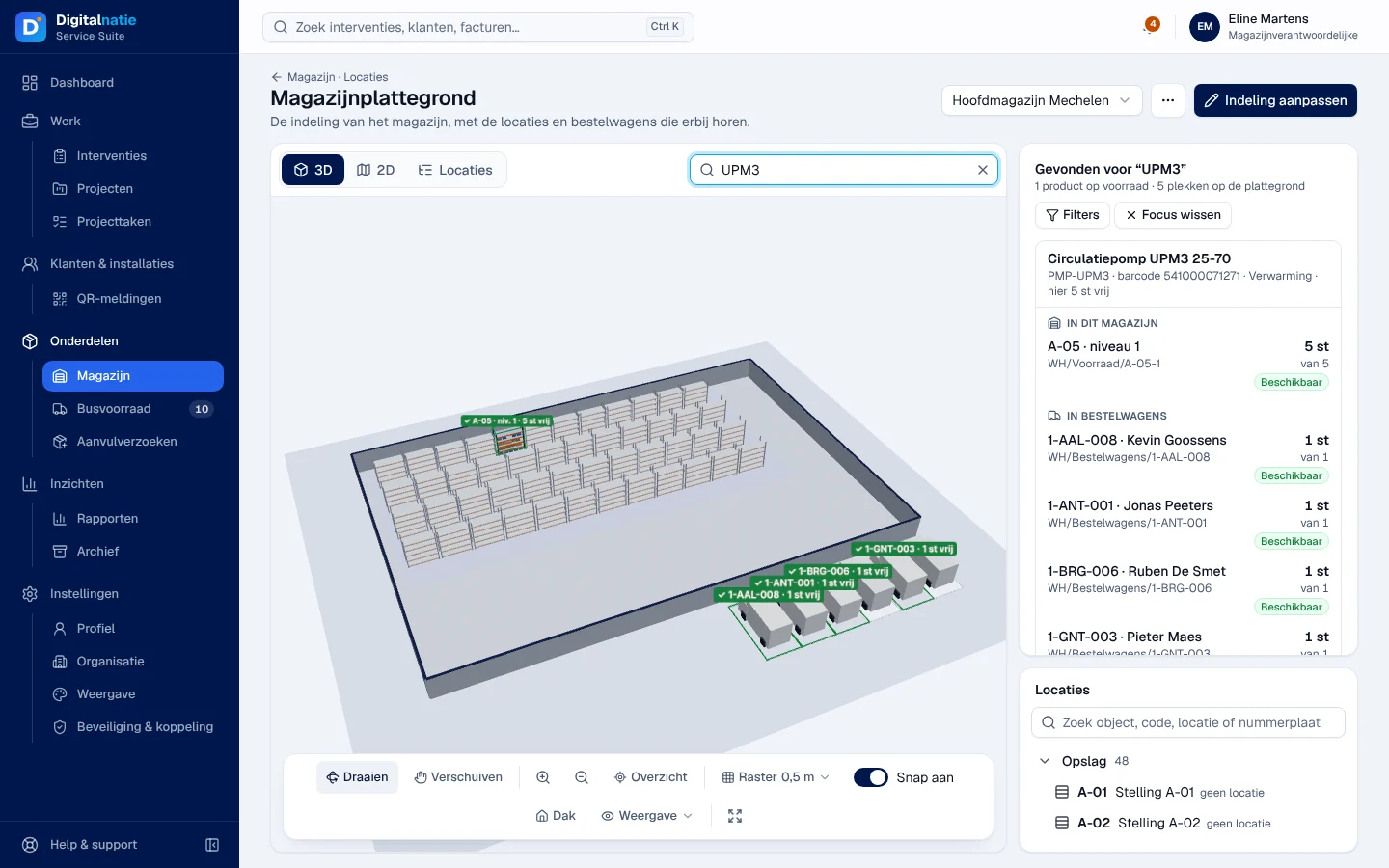
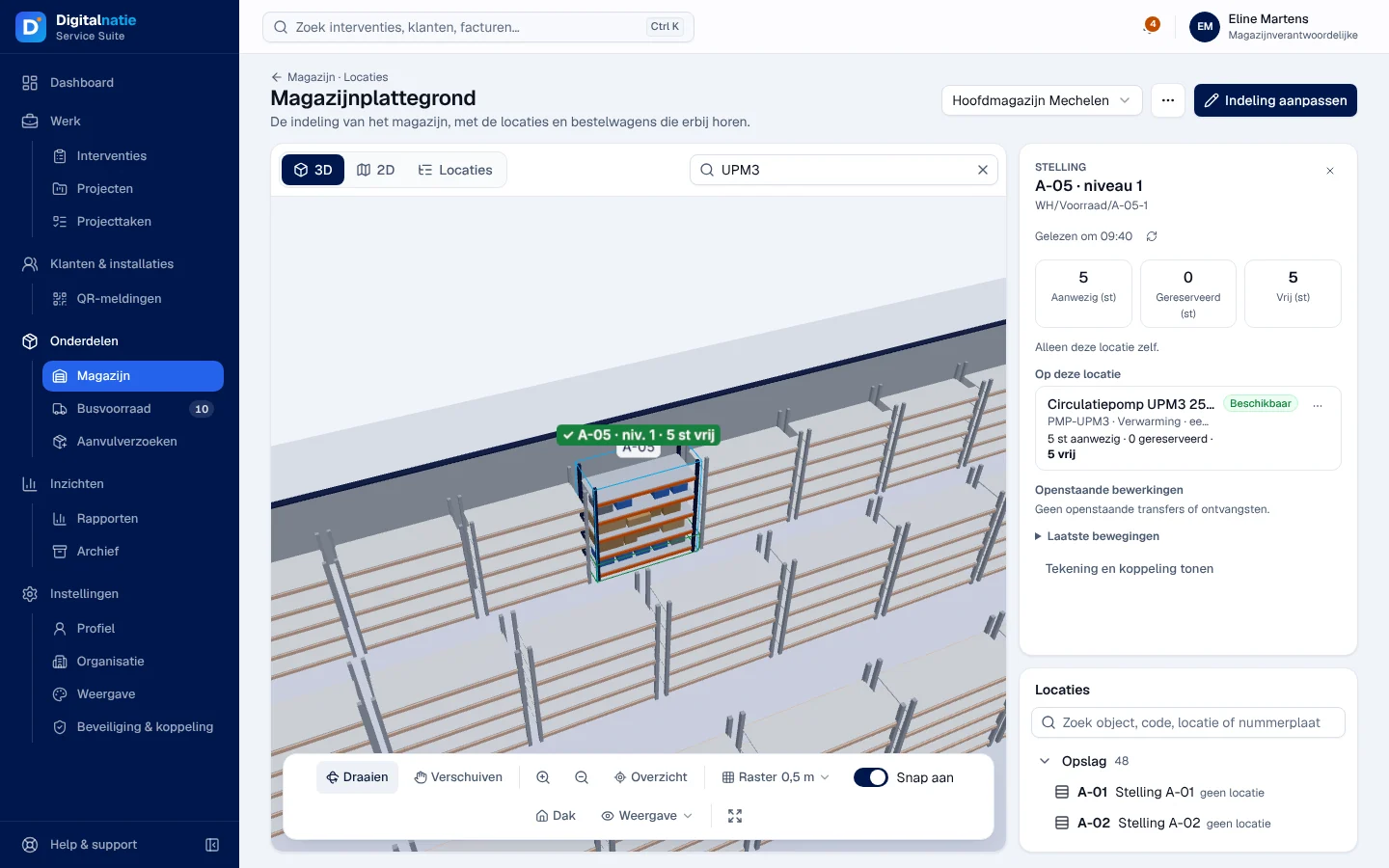
Section titled “The warehouse plan in 2D and 3D”Warehouse 2D/3D opens the Magazijnplattegrond (warehouse plan) with the 3D, 2D and Locaties views. As long as nobody has drawn the plan, the screen shows “Nog geen plattegrond voor dit magazijn” (no plan yet for this warehouse).
-
Search for a part in “Zoek onderdeel, referentie of locatie”. The places that have the part are highlighted, the rest is greyed out, and the Gevonden voor … (found for …) list gives the warehouse and the vans.
-
Click a row or the shelf. The panel gives Aanwezig (present), Gereserveerd and Vrij (free), in pieces.
-
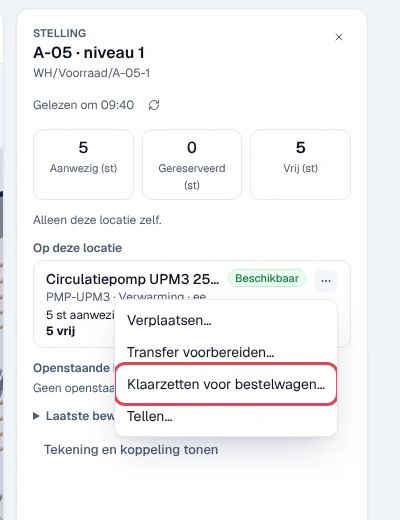
To prepare the part for a van, open ⋯ on the item and choose Klaarzetten voor bestelwagen… (prepare for van). This option only exists on the plan, not in the Locaties tab.
-
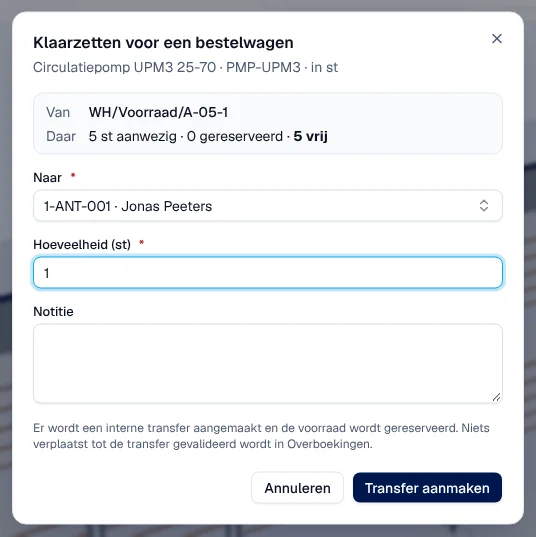
Choose the van in Naar (to), the Hoeveelheid (quantity), then Transfer aanmaken (create transfer).
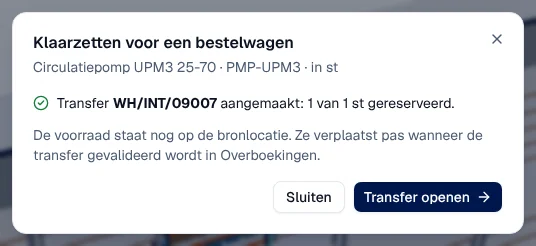
Result: “Transfer WH/INT/… aangemaakt: 1 van 1 st gereserveerd” (transfer created, 1 piece reserved). The part stays in the bin until the transfer is validated in Overboekingen; Transfer openen takes you there.
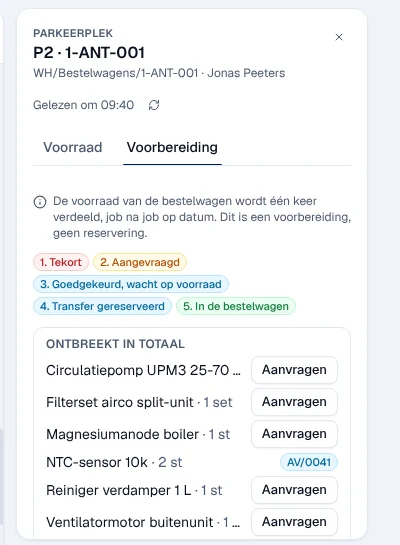
On the plan, a van (parking space) also has the Voorbereiding (preparation) tab for those who follow parts readiness: the interventions of the next 7 days compared with the van’s stock, with the stage of each part (Tekort, Aangevraagd, Goedgekeurd, wacht op voorraad, Transfer gereserveerd, In de bestelwagen) and an Aanvragen (request) button. This is preparation, not a reservation.
Indeling aanpassen (adjust layout) draws the plan: walls, doors, loading docks, shelves, zones and parking spaces, linked to the storage locations and the vans. Drawing never moves any stock. Indeling vergrendelen (lock layout) blocks changes to the plan; receipts, transfers and counts continue. Under ⋯: Versies… (versions), Indeling exporteren and Indeling importeren….
Layout and reorganisation
Section titled “Layout and reorganisation”- Indeling: the coloured zones of the plan (purely visual) and, for each storage location, its position, dimensions and capacity (pieces, m³ or kg).
- Herschikken: Voorstellen berekenen (calculate proposals) looks for overfull storage locations, frequently used parts far from the exit, heavy parts stored high up and parts that should be in the vans. Goedkeuren (approve) creates a draft transfer, to be confirmed and validated in Overboekingen; Afwijzen (reject) files the proposal under Afgewezen. A proposal never moves any stock.
On a phone, the tabs wrap onto several lines and each list is shown as cards.
Rights by role
Section titled “Rights by role”The table shows the supplied role templates (see Roles and permissions); your administrator can adjust them (see Users, roles and permissions).
| Action | Admin | Manager | Planner | Warehouse | Read |
|---|---|---|---|---|---|
| See Locaties and the 2D/3D plan | ✓ | ✓ | ✓ | ✓ | — |
| A van’s Voorbereiding tab on the plan | ✓ | ✓ | ✓ | — | — |
| See items, the item record, transfers and movements | ✓ | ✓ | — | ✓ | ✓ |
| Create, edit, archive an item; replenishment rules; counts | ✓ | — | — | ✓ ¹ | — |
| Confirm, validate, cancel a transfer; move; prepare for a van ² | ✓ | ✓ | — | ✓ | — |
| Draw and lock the plan; zones; reorganisation | ✓ | ✓ ³ | — | ✓ ⁴ | — |
¹ Warehouse Manager only. ² The Senior Technician template (technician family) also validates transfers. ³ Reorganisation (Herschikken) only. ⁴ Everything for the Warehouse Manager; reorganisation (Herschikken) only for the Warehouse Employee.
The technician does not open the office application: they request their parts in the Techniekers-app. Accounting and sales have no access to the warehouse. The Kostprijs (cost price) field requires both warehouse and accounting permissions: among the templates, only the administrator has both. Roles are assigned by the administrator: see Users, roles and permissions.
Current limits
Section titled “Current limits”- Lots and serial numbers cannot be entered in the application: such a transfer or count is completed outside the application; ask Digitalnatie.
- Telling boeken on the item record only counts the main storage location; bins are counted with Tellen….
- A validated transfer cannot be undone in the application.
- There is no transfer from one van to another.
- Creating a new warehouse or changing its code: ask Digitalnatie.
See also
Section titled “See also”- Vans and replenishment requests — the complete cycle up to the van
- Parts readiness (Paraatheid) — what is missing before departure
- Operating rules — categories, storage locations, warehouses and vans
- Import your data — items and opening stock