

Invoices, payments and credit notes
The Facturen (invoices) screen brings together the invoices, the credit notes (Creditnota’s) and their payments. Accounting uses it to create the invoices for completed interventions, check them, post them, send them and follow what is still to be received.
| Menu | Verkoop & facturatie › Facturen |
| Who | accounting and the administrator manage invoices; the manager, sales (except Sales Representative) and read only can view them (table at the bottom of the page). |
| Prerequisites | The invoicing rates set in Instellingen › Organisatie, Facturatie block (see Settings). To send by e-mail: your company’s e-mail connected (see Connect your e-mail). |

Read the overview
Section titled “Read the overview”-
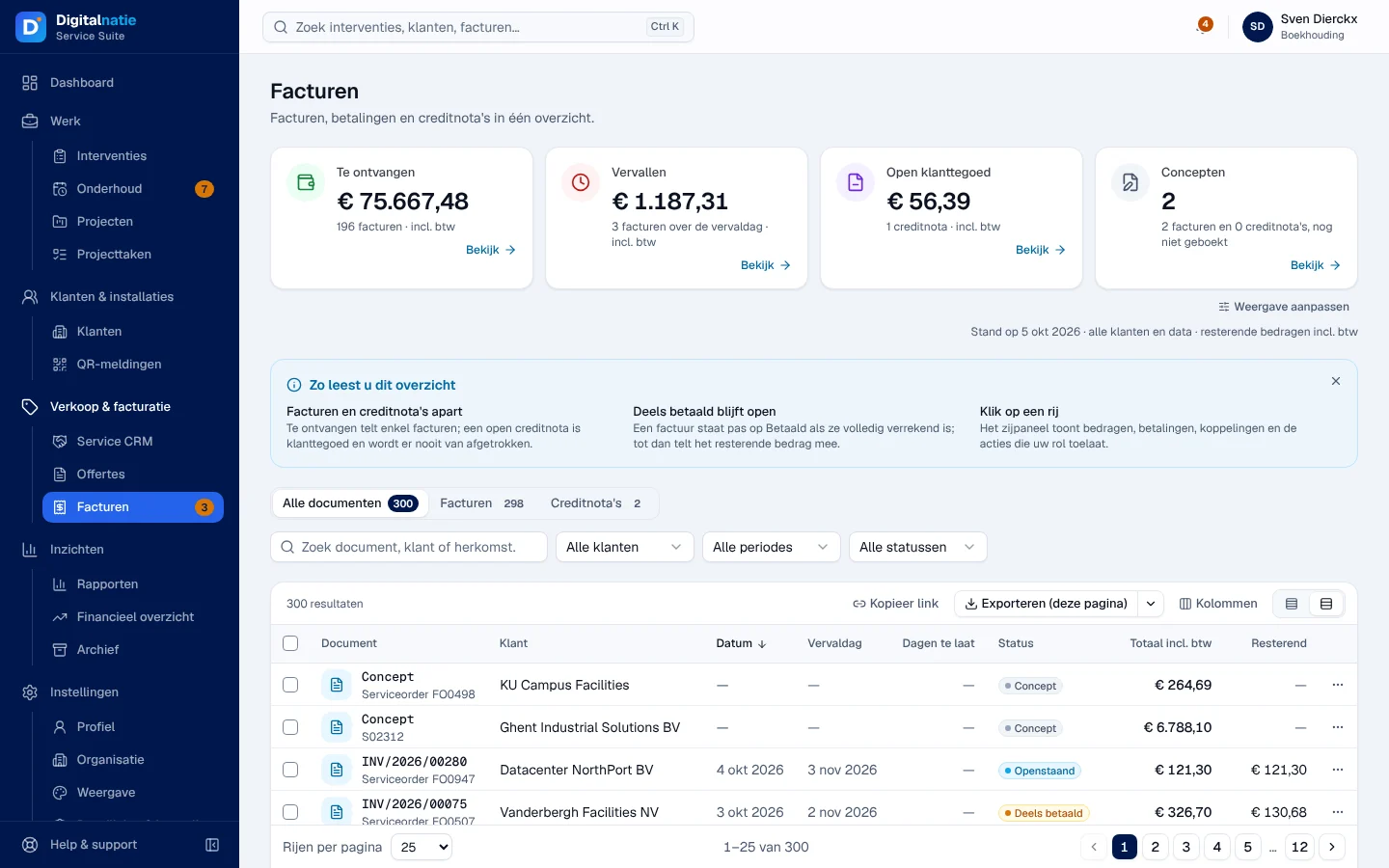
Open Verkoop & facturatie › Facturen. The orange number in the menu counts the overdue invoices.
-
Read the four cards: Te ontvangen (to be received), Vervallen (overdue), Open klanttegoed (open customer credit) and Concepten (drafts not yet posted). They cover all customers and all dates, remaining amounts including VAT: the list filters do not change them. A credit note never reduces Te ontvangen.
-
Choose the Alle documenten, Facturen or Creditnota’s tab, then filter by search (“Zoek document, klant of herkomst…”), Klant, Periode and Status: Te ontvangen, Vervallen, Open, niet vervallen, Deels betaald of verrekend (partly paid), In betaling (payment in progress), Betaald of verrekend (paid), Open klanttegoed, Concept, Geannuleerd (cancelled).
-
Click a row: the side panel shows the amounts, the state (for example “Vervallen sinds 15 dagen”), the Overzicht, Betalingen (payments) and Historiek (history) tabs, and the actions. Volledige fiche openen opens the full record.
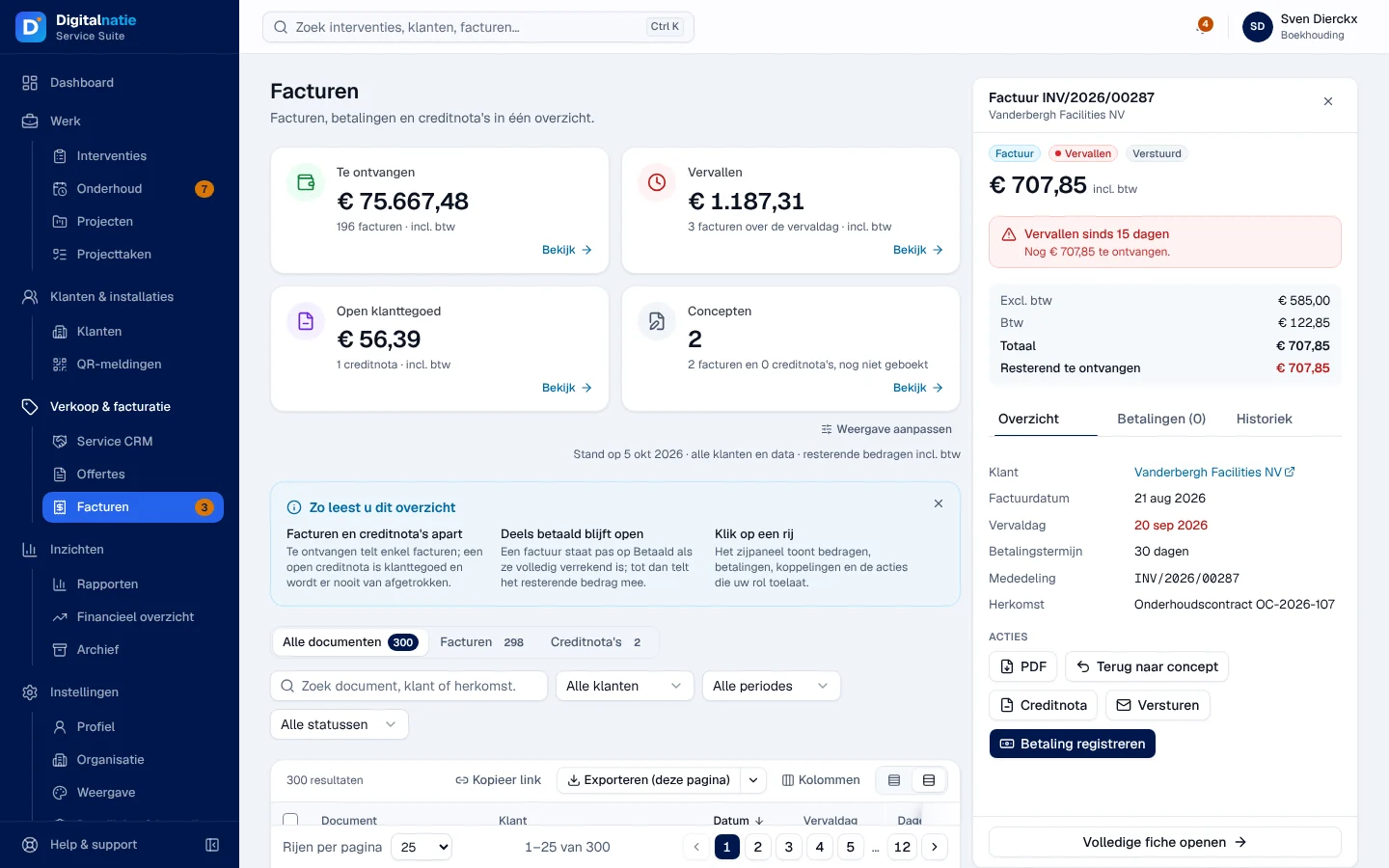
A row’s ⋯ menu also offers Klant openen, Interventie openen and PDF downloaden (download the PDF).
Create the invoice for an intervention
Section titled “Create the invoice for an intervention”
-
Open a Voltooid (completed) intervention that has not been invoiced yet. The Te factureren (to invoice) view of the interventions lists them.
-
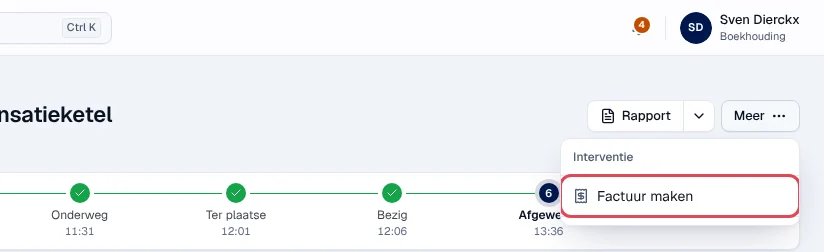
Click Meer › Factuur maken (create invoice) at the top of the intervention record.
-
Confirm with Factuur maken.
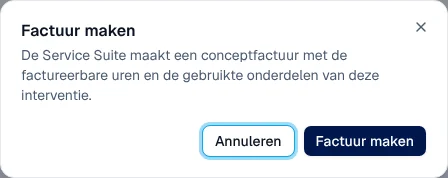
Result: “Factuur aangemaakt”; a draft invoice with the billable hours (hourly rate and minimum charge from your settings) and the parts used. If the intervention is linked to a confirmed sales order, the invoice takes over that order’s lines and prices, plus the parts used that are not on it, at their sales price. Doing Factuur maken again opens the same invoice.
A maintenance-contract visit is invoiced without the part the contract includes. If nothing is left to invoice, it shows Gedekt door contract (covered by contract), is not in Te factureren and Factuur maken is not offered (see Maintenance contracts).
A draft invoice can also come from a sales order (Factureren, see Quotes) or from a maintenance contract (Jaarfactuur maken, see Maintenance contracts).
Check and correct a draft
Section titled “Check and correct a draft”-
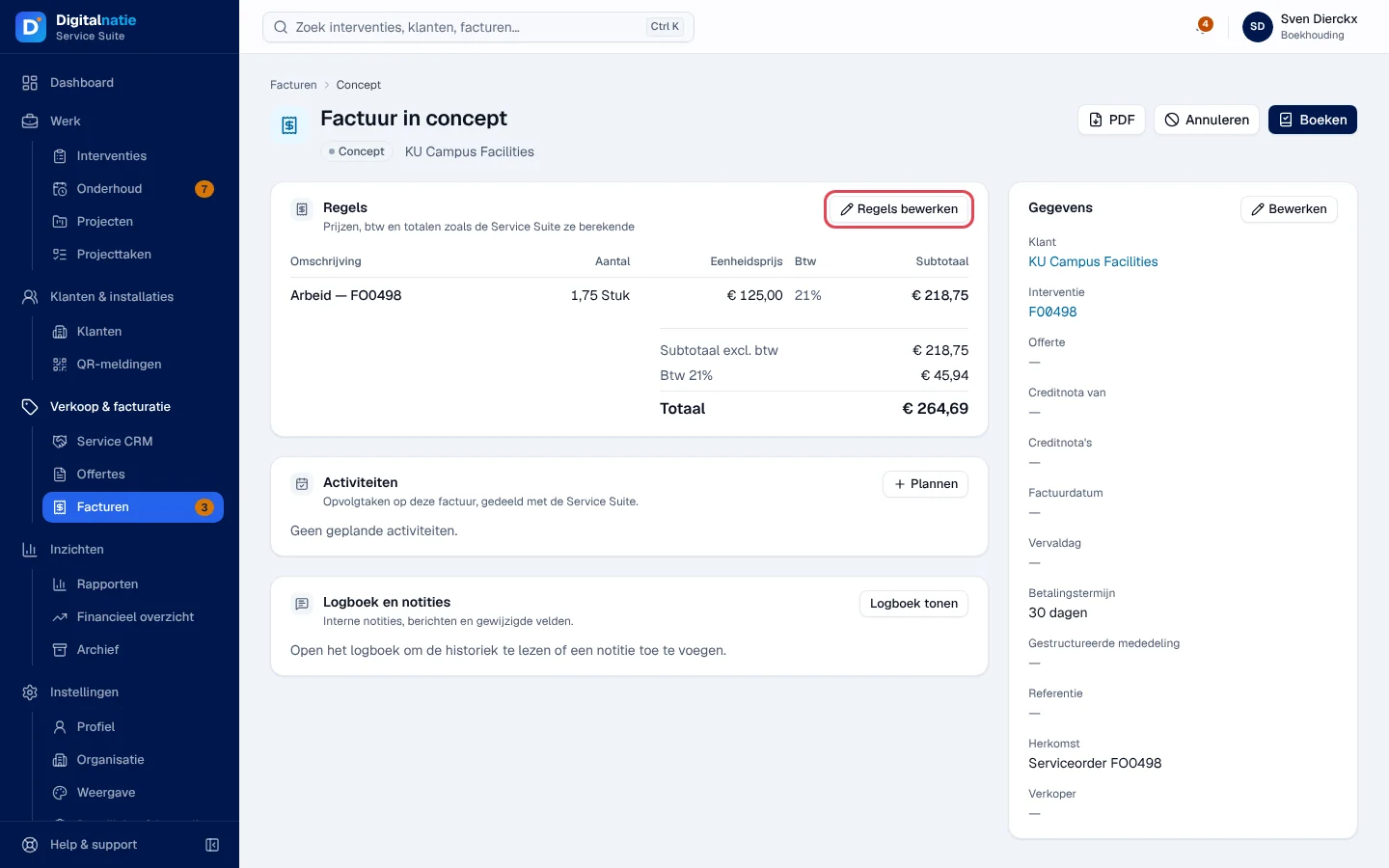
Open the Factuur in concept (draft invoice) and click Regels bewerken (edit lines).
-
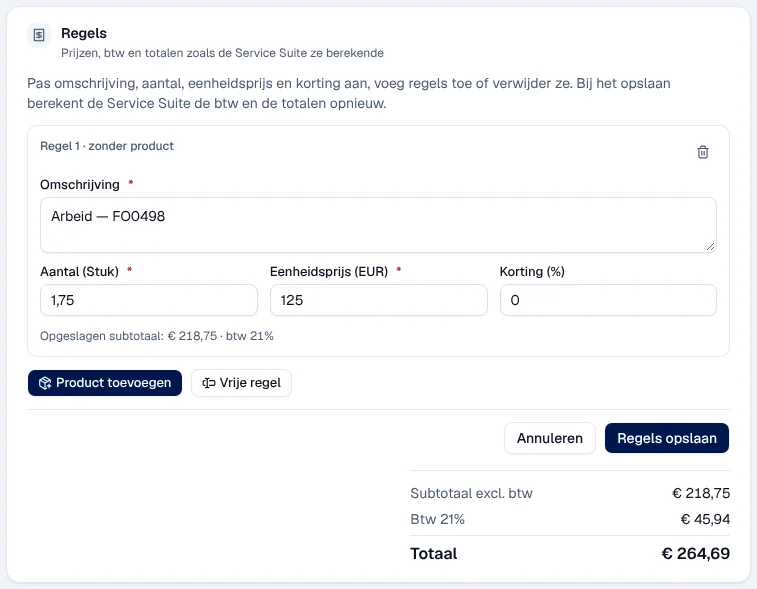
Change Omschrijving (description), Aantal (quantity), Eenheidsprijs (EUR) (unit price) and Korting (%) (discount). Product toevoegen adds a product, Vrije regel (free line) a line without a product, for example a call-out charge; the bin removes a line.
-
Click Regels opslaan (save lines).
Result: “Factuurregels opgeslagen”; Service Suite recalculates the VAT and the totals. In the Gegevens block, Bewerken changes the Factuurdatum (date; empty = posting date), the Betalingstermijn (payment term) and the Referentie. Annuleren (cancel) cancels a draft without posting it: it stays in the list as cancelled and the intervention goes back into Te factureren.
Post the invoice (Boeken)
Section titled “Post the invoice (Boeken)”Click Boeken (post) and confirm. The button is disabled while the lines are being edited.
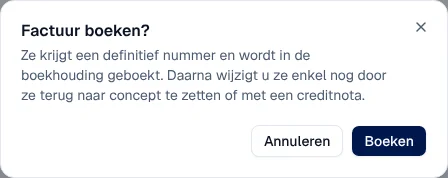
Result: “Factuur geboekt”. The invoice receives its final number and its structured communication (Gestructureerde mededeling) for the payment.
Send the invoice (Versturen)
Section titled “Send the invoice (Versturen)”-
On a posted invoice, click Versturen (send).
-
Check the window: Van (sender), Aan (recipients), Volgers die ook een bericht krijgen (followers who also receive the message) and Onderwerp (subject). A warning flags an invoice that has already been sent or printed.
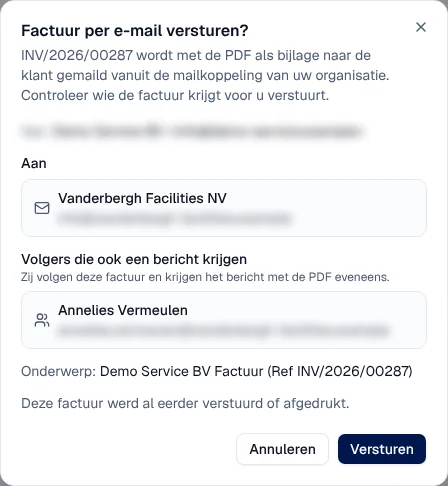 The addresses are blurred in this image.
-
Click Versturen.
Result: “Factuur verstuurd”. The e-mail is sent with the PDF attached, from your company’s connected e-mail, to the people shown: one e-mail per confirmation.
- Peppol: if your organisation is connected to Peppol, the window is called “Factuur versturen?” and offers under Verzenden via: Peppol (e-factuur), offered when the customer is on Peppol, and E-mail met PDF, optional as a copy. If the customer is not on Peppol, the Peppol choice is greyed out with the reason. Result: “Factuur via Peppol verstuurd”.
- Before connecting the e-mail: the Versturen button is replaced by “E-mail is niet gekoppeld. Download het document en bezorg het zelf.” (download the document and deliver it yourself); an administrator sees E-mail koppelen (connect e-mail).
- Invoice delivered another way: Markeer als verstuurd (mark as sent), with the channel (Eigen e-mail, Post, Overhandigd, Andere). No e-mail is sent.
Record a payment
Section titled “Record a payment”-
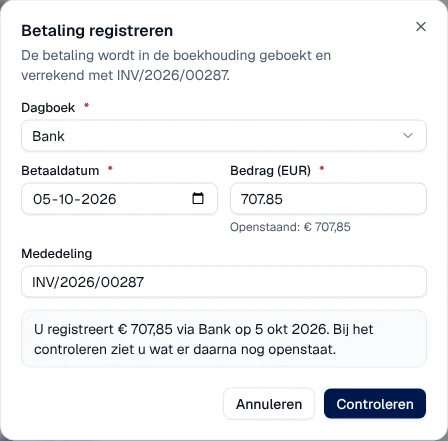
On a posted invoice with an open amount, click Betaling registreren (record a payment).
-
Fill in Dagboek (journal), Betaaldatum (payment date), Bedrag (EUR) (amount; the open amount is shown) and Mededeling (communication), then click Controleren (check).
-
Read the Betaling bevestigen summary: it says what will remain open, for example “Daarna staat er niets meer open op deze factuur.”. Click Betaling registreren, or Terug (back) to correct.
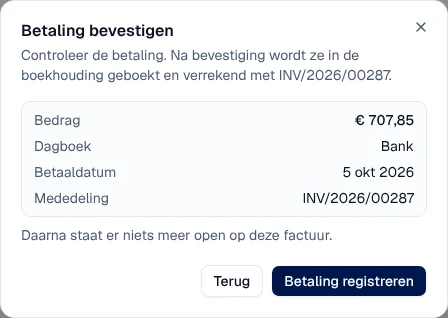
Result: “Betaling geregistreerd”. The payment is posted and reconciled with the invoice. Once fully paid, depending on your company’s accounting configuration, the invoice changes directly to Betaald (paid) or first to In betaling (payment in progress), until the payment is matched with your bank statement in your accounting. If the open amount has changed in the meantime, the recording is refused: start again.
Issue a credit note
Section titled “Issue a credit note”-
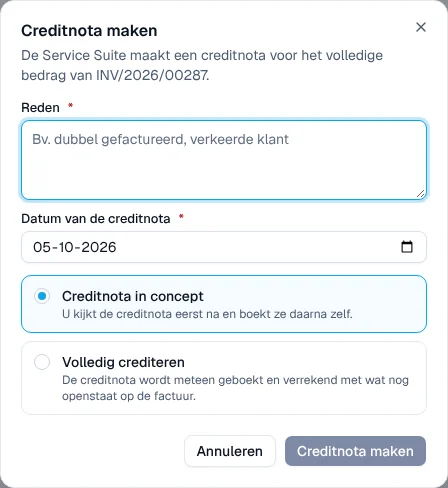
On a posted invoice, click Creditnota (credit note). The note covers the total amount of the invoice.
-
Enter the Reden (reason, for example “dubbel gefactureerd”) and the Datum van de creditnota (not in the future).
-
Choose Creditnota in concept (draft, which you check and post yourself) or Volledig crediteren (posted immediately and reconciled with what remains open on the invoice). On an invoice that has already been paid, the amount remains open as customer credit.
-
Click Creditnota maken or Crediteren en boeken (credit and post).
Result: “Creditnota aangemaakt”; the credit note opens. To refund an open credit, use Terugbetaling registreren (record a refund) on the credit note: the same two-step window. Nothing is transferred automatically; you make the bank transfer yourself.
PDF opens the document (invoice or credit note) in a new tab.
Rights by role
Section titled “Rights by role”The table shows the supplied role templates (see Roles and permissions); your administrator can adapt them (see Users, roles and permissions).
| Action | Admin | Manager | Accounting | Sales | Read |
|---|---|---|---|---|---|
| View invoices | ✓ | ✓ | ✓ | ✓ ¹ | ✓ |
| Payments and PDF | ✓ | ✓ ² | ✓ | ✓ ³ | ✓ |
| Edit, post, send, pay, credit | ✓ | — | ✓ | — | — |
| Factuur maken from an intervention | ✓ | — | ✓ | — | — |
¹ Sales Manager, Sales and Directie only. ² Operations Manager only. ³ Sales Manager only.
Current limits
Section titled “Current limits”- No reconciling of a credit note with another invoice and no bulk sending in this screen: this is not possible in the application.
- Payment reminders are not sent from this screen: they go out through the built-in invoice reminders, before and after the due date, in Automations.
- Only one invoice per sending confirmation.
See also
Section titled “See also”- The intervention record — Factuur maken.
- Financial overview — the service revenue.
- Connect your e-mail — required to send by e-mail with Versturen.