

Sites (Locaties)
A site (“locatie”) is an address where your technicians carry out work: a customer’s head office, a warehouse, a building on a campus. Each site belongs to a customer; an intervention always takes place at a site, and installations are linked to it.
| Menu | Klanten & installaties › Locaties |
| Who | administrator, manager and planner (table at the bottom of the page) |
| Prerequisites | the customer already exists (create a customer) |
Finding a site
Section titled “Finding a site”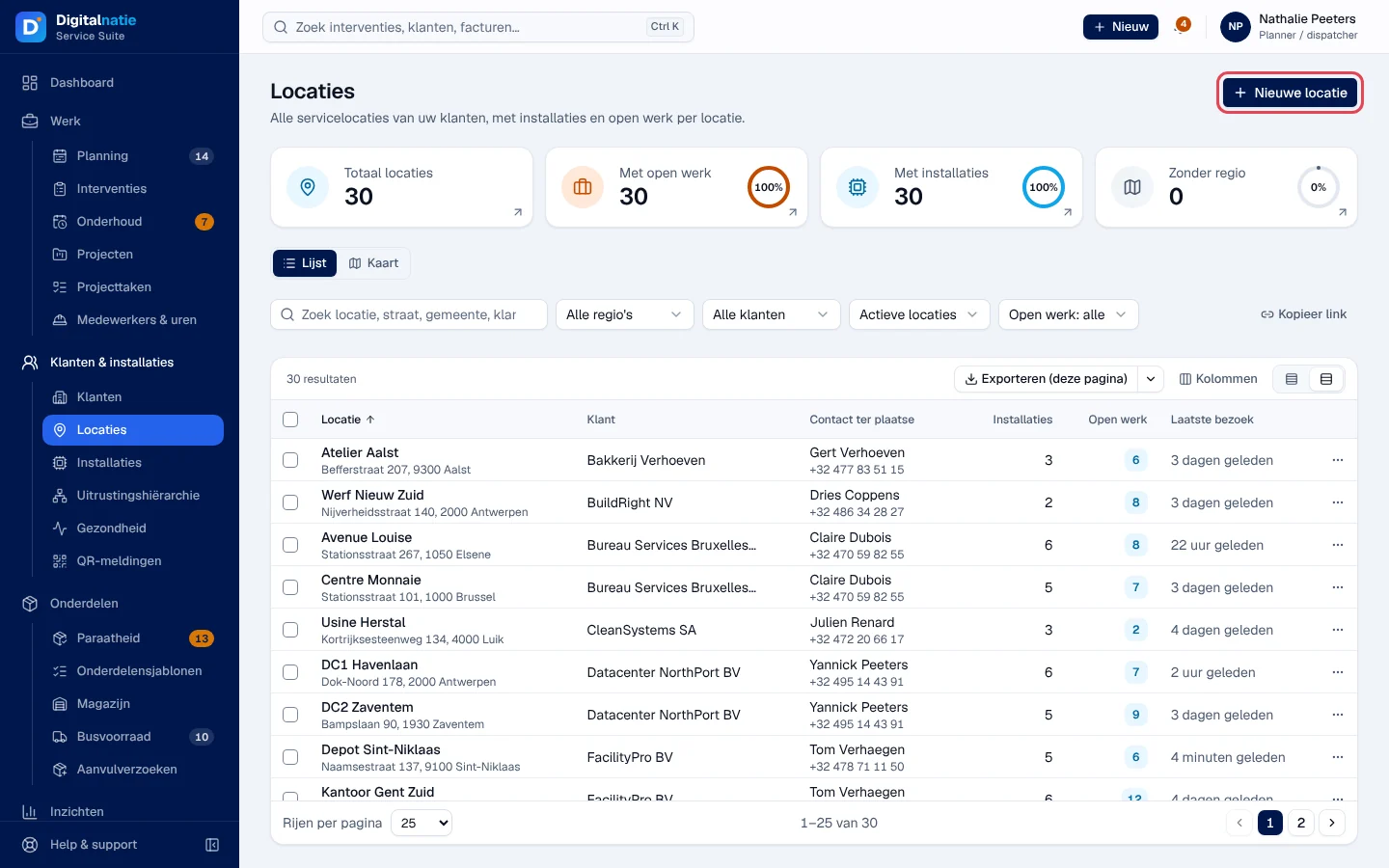
- The Totaal locaties, Met open werk (with open work), Met installaties and Zonder regio (without a region) tiles filter the list.
- Search for a street, a town, a customer in Zoek locatie, straat, gemeente, klant…; filter by Regio, Klant, Status (active, archived or all) and Open werk.
- The ⋯ menu of a row offers Navigeren (Google Maps directions), Locatiepagina (site page), Klant, Wijzigen, Installatie registreren and Archiveren, depending on your permissions.
Kaart (map) shows the sites on a map, with the list on the left.
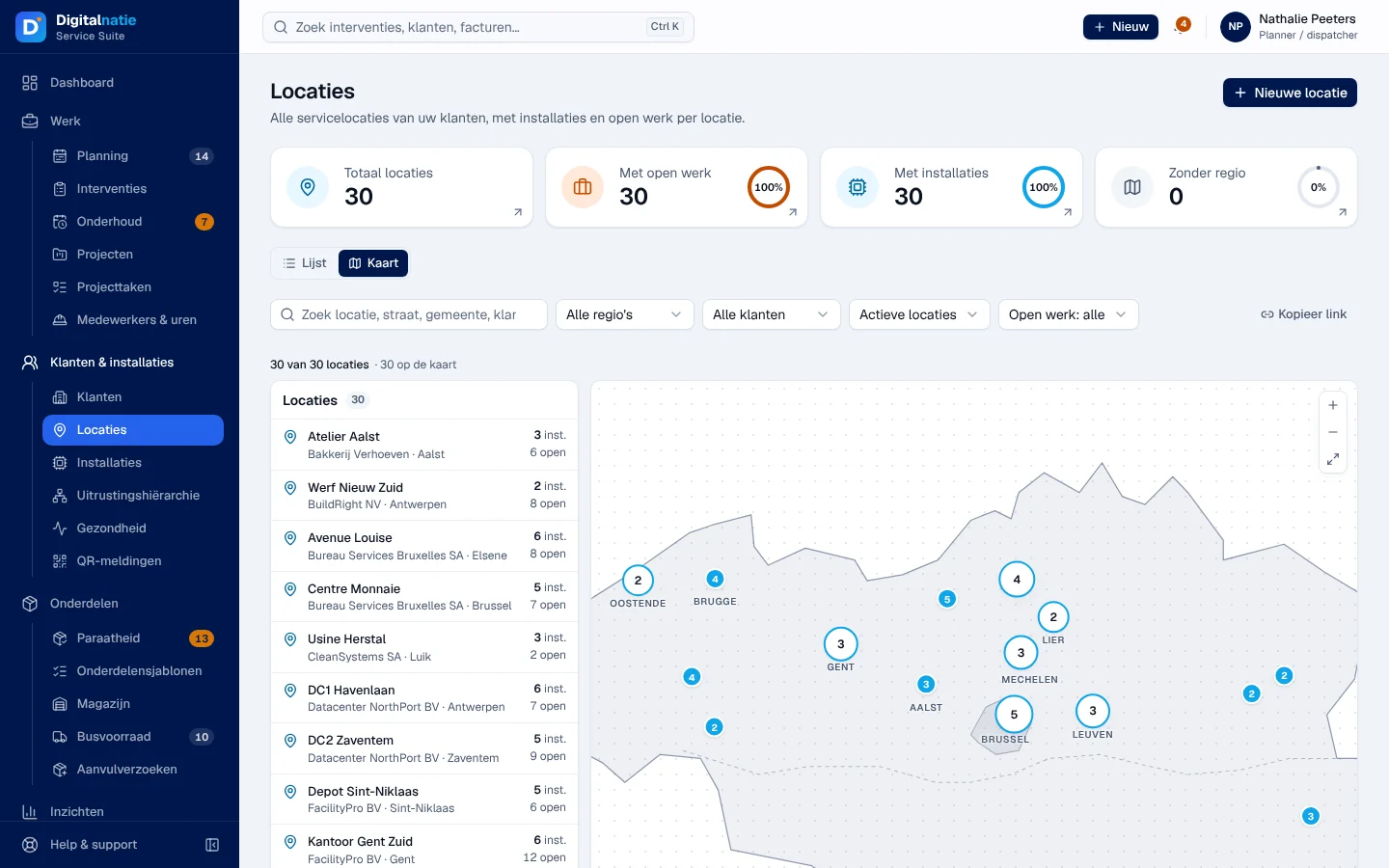
A site without coordinates does not appear on the map and Navigeren is not offered.
Creating a site
Section titled “Creating a site”-
Click Nieuwe locatie (new site). From a customer file, use Nieuw › Locatie: the customer is already filled in.
-
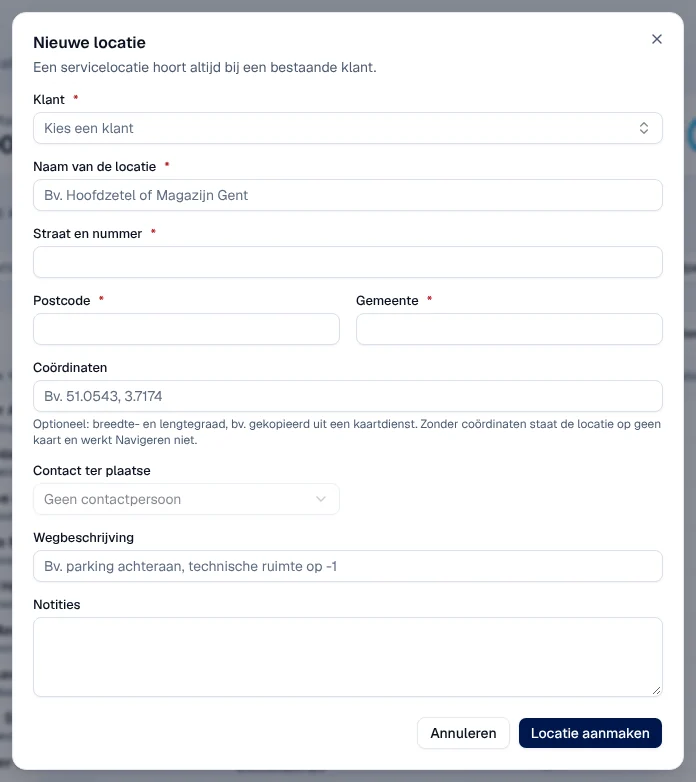
Choose the Klant, then fill in Naam van de locatie (site name), Straat en nummer, Postcode and Gemeente.
-
If possible, add:
- Coördinaten: latitude and longitude, for example copied from a map service (“51.0543, 3.7174”);
- Contact ter plaatse (on-site contact), chosen from the customer’s contacts;
- Route, which appears once the customer is chosen: “Interventies op deze locatie krijgen de technieker van de route.” (interventions at this site get the route’s technician);
- Wegbeschrijving (access: parking, plant room…) and Notities.
-
Click Locatie aanmaken.
Result: “Locatie aangemaakt”. Wijzigen then edits the site (“Locatie bewaard”). The route of an existing site is not changed here but in Planning › Routes (The schedule).
Reading a site’s page
Section titled “Reading a site’s page”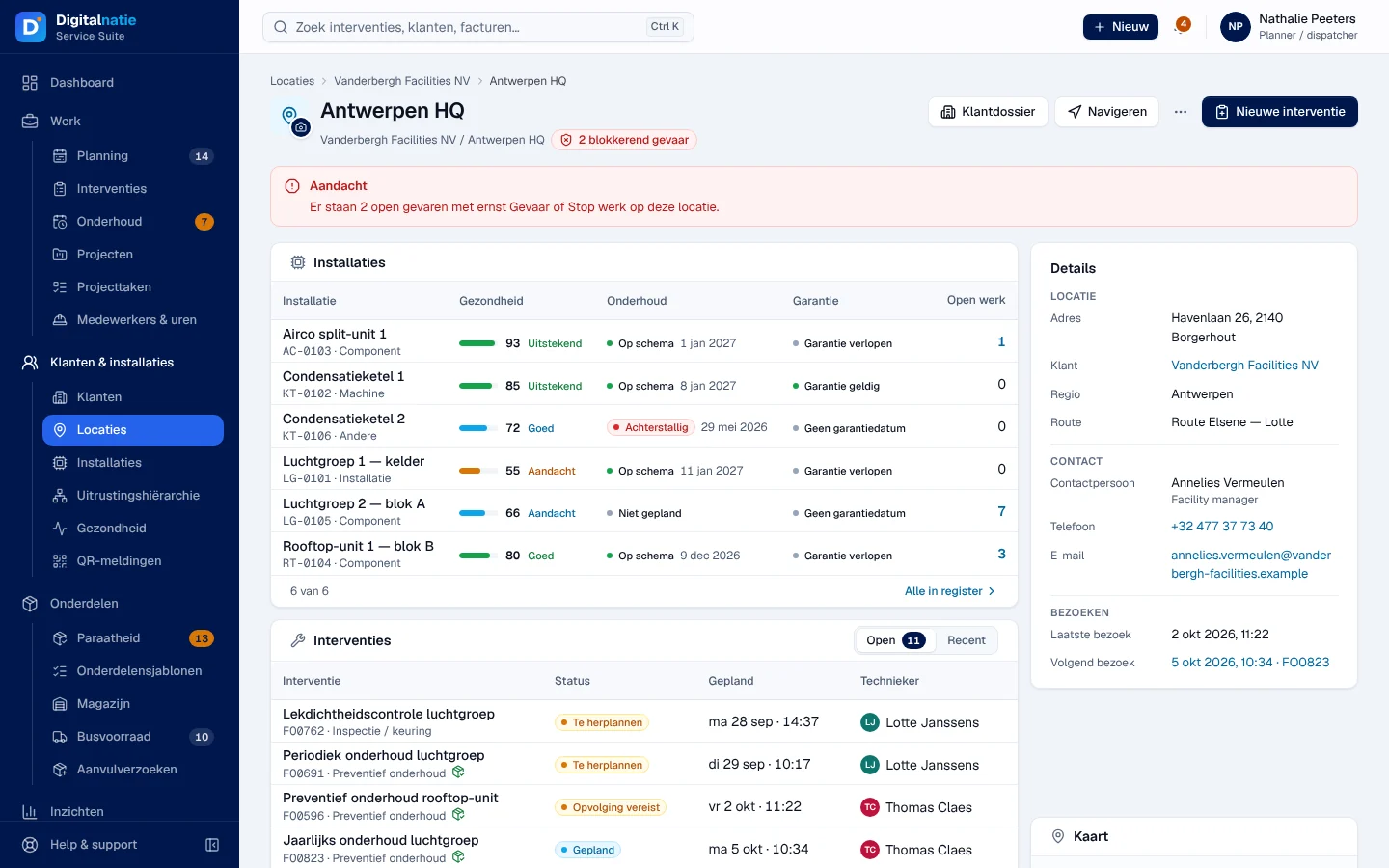
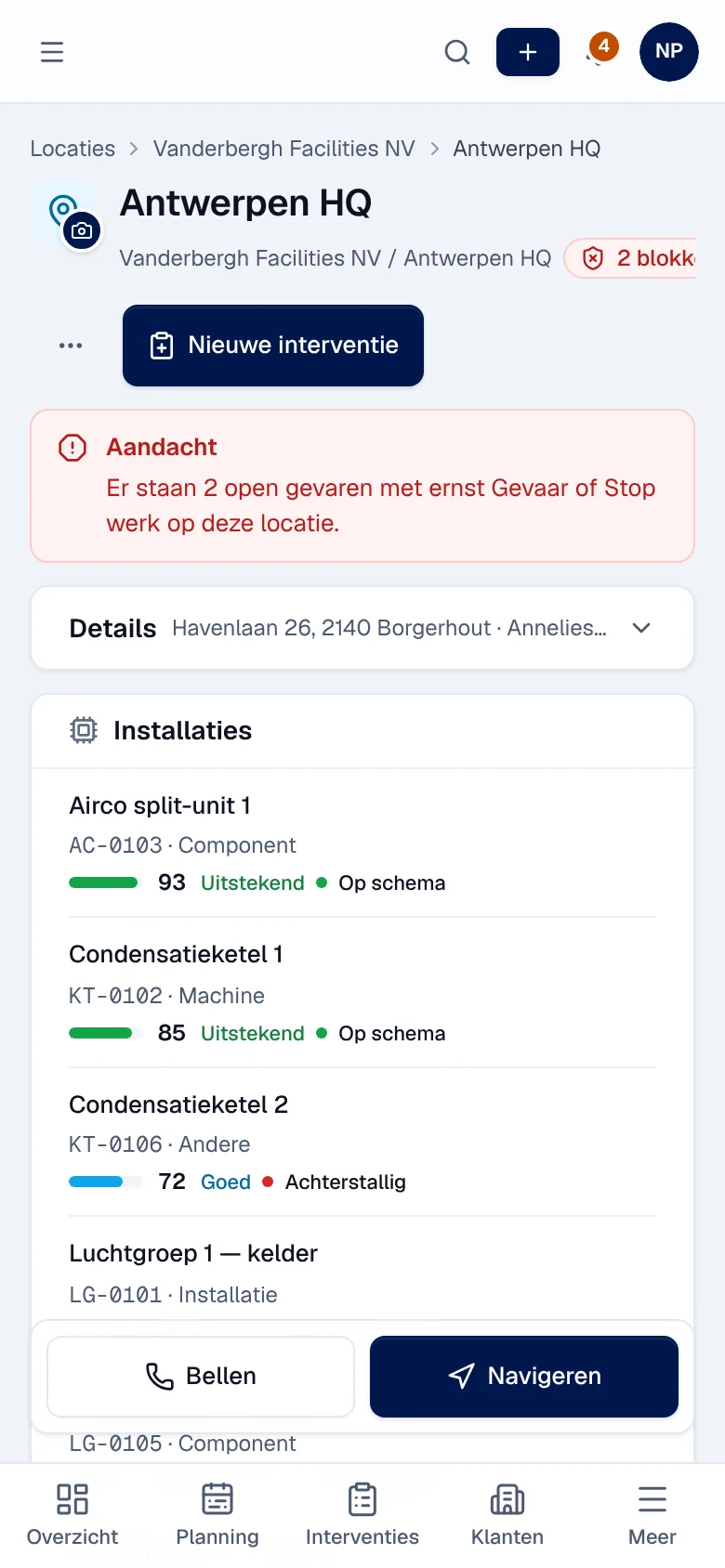
- Header: customer, safety alert (for example “2 blokkerend gevaar”, blocking hazards), Klantdossier, Navigeren, and Nieuwe interventie with the customer and site already filled in.
- Aandacht (attention): the open hazards recorded in the LMRAs of this site.
- Installaties: health, maintenance, warranty and open work of each installation; Alle in register opens the filtered register.
- Interventies: Open or Recent.
- Details: address, customer, region, route, on-site contact, last and next visit, access and notes; then the Kaart, the Veiligheid (last LMRA, open hazards, interventions on hold), the sub-sites and the Onderhoudscontracten.
- ⋯ › Meer acties voor deze locatie: Installatie registreren, Wijzigen, Archiveren or Herstellen.
Archiving a site
Section titled “Archiving a site”-
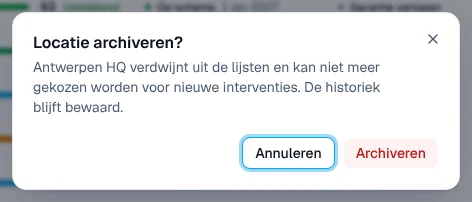
Open ⋯ › Archiveren on the site’s page (or in the list).
-
Confirm with Archiveren.
Result: “Locatie gearchiveerd”, with Ongedaan maken (undo) in the message. The site disappears from the lists and can no longer be chosen for a new intervention; its history remains. Herstellen restores it.
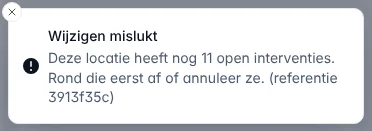
Service Suite refuses and changes nothing as long as the site has open interventions, active installations, active sub-sites or an active maintenance contract:
On a phone
Section titled “On a phone”The list becomes cards. On a site’s page, Bellen (call the on-site contact) and Navigeren stay at the bottom of the screen; Details expands with a tap.
Rights by role
Section titled “Rights by role”The table shows the supplied role templates (see Roles and permissions); your administrator can adjust them (see Users, roles and permissions).
| Action | Admin | Manager | Planner |
|---|---|---|---|
| See sites | ✓ | ✓ | ✓ |
| Create, edit | ✓ | ✓ | ✓ |
| Archive, restore | ✓ | ✓ | ✓ |
Creating and editing a site also require the permission to edit customers, because the site’s address is a contact record of the customer. Your company administrator assigns the roles (Users, roles and permissions).
Current limits
Section titled “Current limits”- A site’s route can only be chosen at creation; afterwards, in Planning › Routes.
- Regions, routes and territories are configured elsewhere (Operating rules).
- Without coordinates, no map and no directions.
See also
Section titled “See also”- Customers and the 360° customer file — a customer’s sites in Park › Locaties.
- Installations — register an installation at a site.
- The schedule — routes.