

Agenda, tasks and messages
Beyond the current day, the app shows you your schedule for the week, the list of your interventions, your tasks (other than interventions) and messages from the office. You only see what is assigned to you; the scheduling itself is done at the office.
| Menu | Agenda and Interventies tabs; Meer › Taken; Meer › Berichten |
| Who | each technician, for their own work |
| Prerequisites | Taken and Berichten only appear if your company uses them |
View your agenda
Section titled “View your agenda”-
Tap the Agenda tab. At the top: the week number (“Week 41”), the dates, and a strip of 7 days with the number of appointments per day; today is outlined.
-
Tap a day to see its interventions and tasks in time order. Dag (day) and Week change the display; Vorige week and Volgende week (the arrows) change the week; Vandaag takes you back to today.
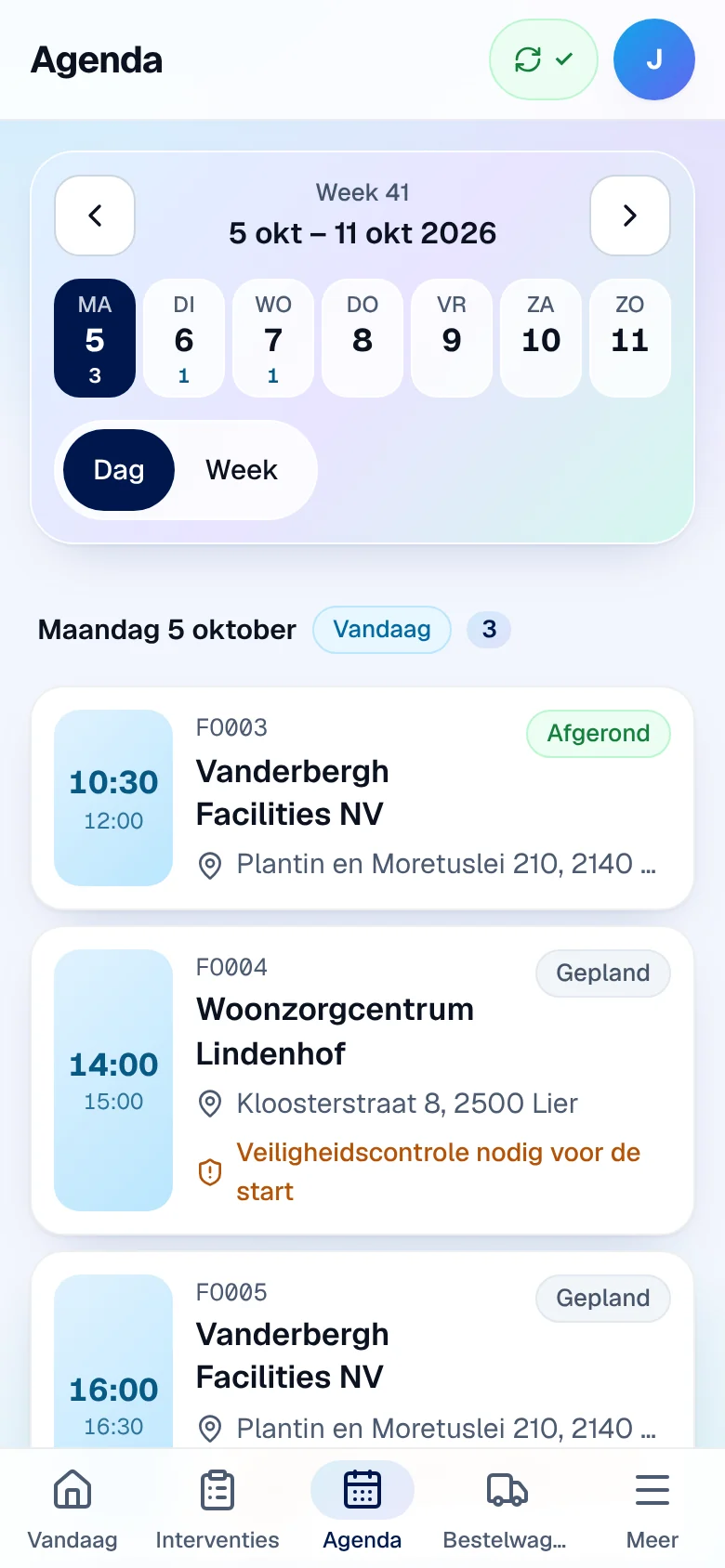
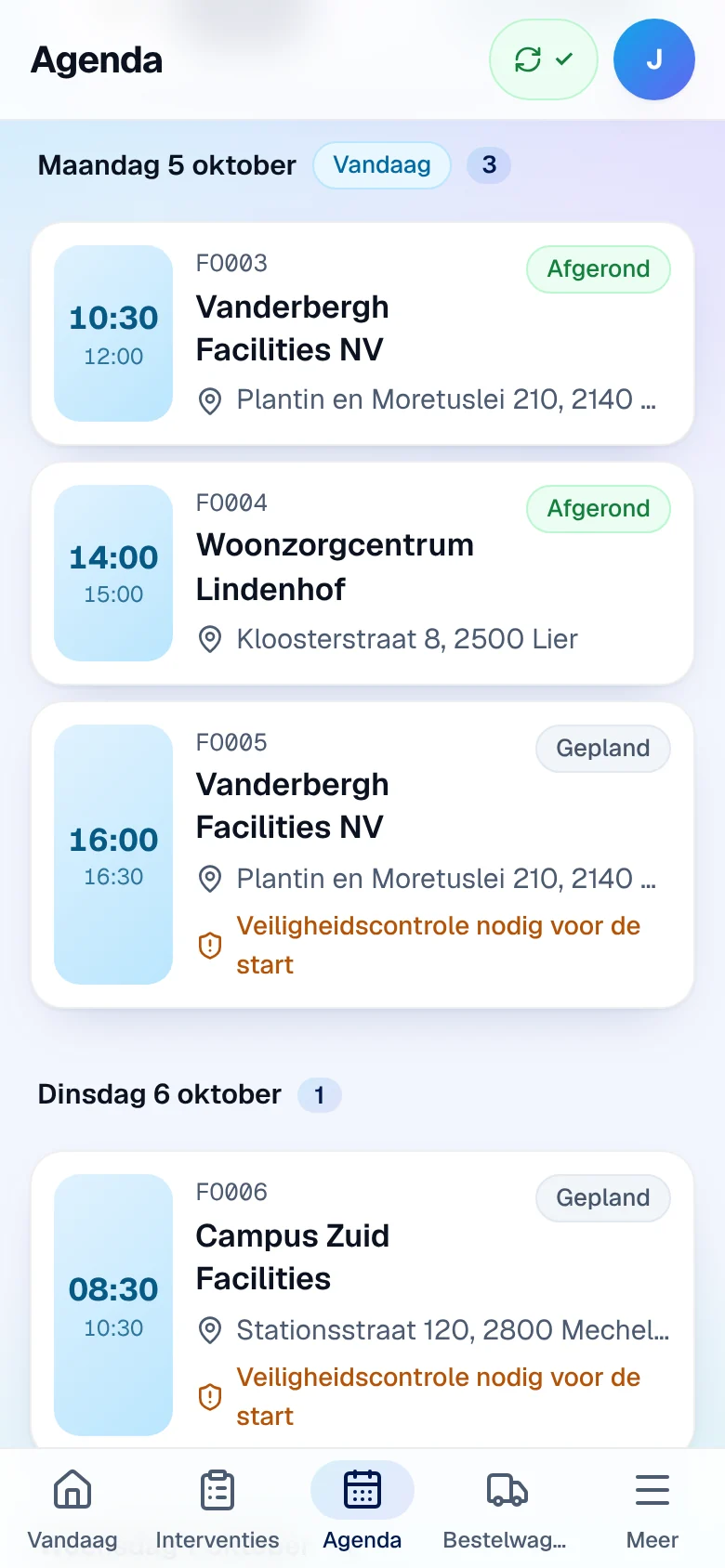
An empty day shows “Niets gepland” (nothing scheduled). Cancelled interventions are collapsed under Geannuleerd (cancelled) and can still be viewed. The current week’s agenda is kept on the device so you can view it offline.
Find an intervention
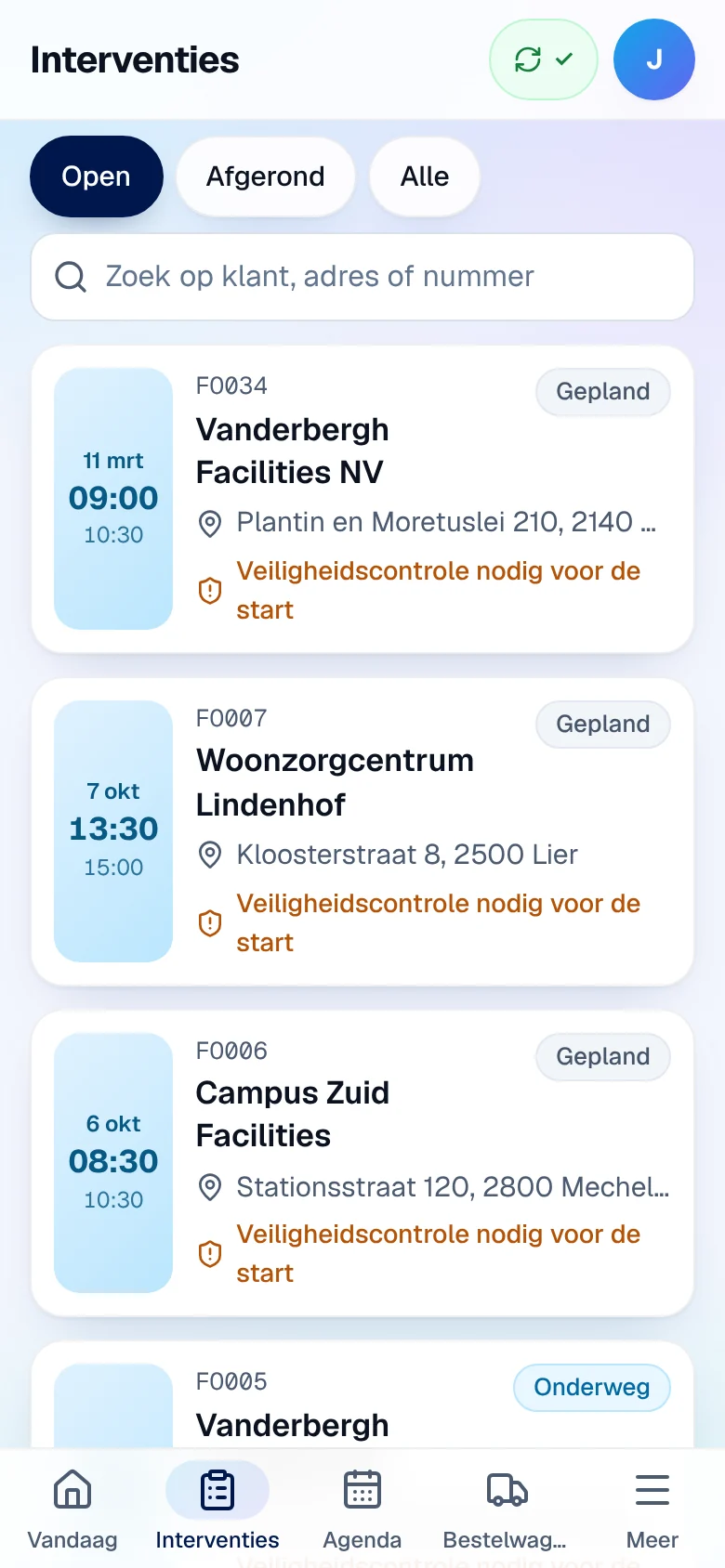
Section titled “Find an intervention”The Interventies tab lists your interventions. Filter with Open (to do), Afgerond (completed) or Alle (all, the 50 most recent) and search in Zoek op klant, adres of nummer (customer, address or number). Tap a card to open it.
Follow your tasks
Section titled “Follow your tasks”A task is work other than an intervention that the office gives you: a training course, having a device calibrated, a project task.
-
Open Meer › Taken (tasks), or Taken in Snel naar on Vandaag. Filter with Open or Klaar (done).
-
On a task, tap Starten (start), then Klaar (done) when it is finished.
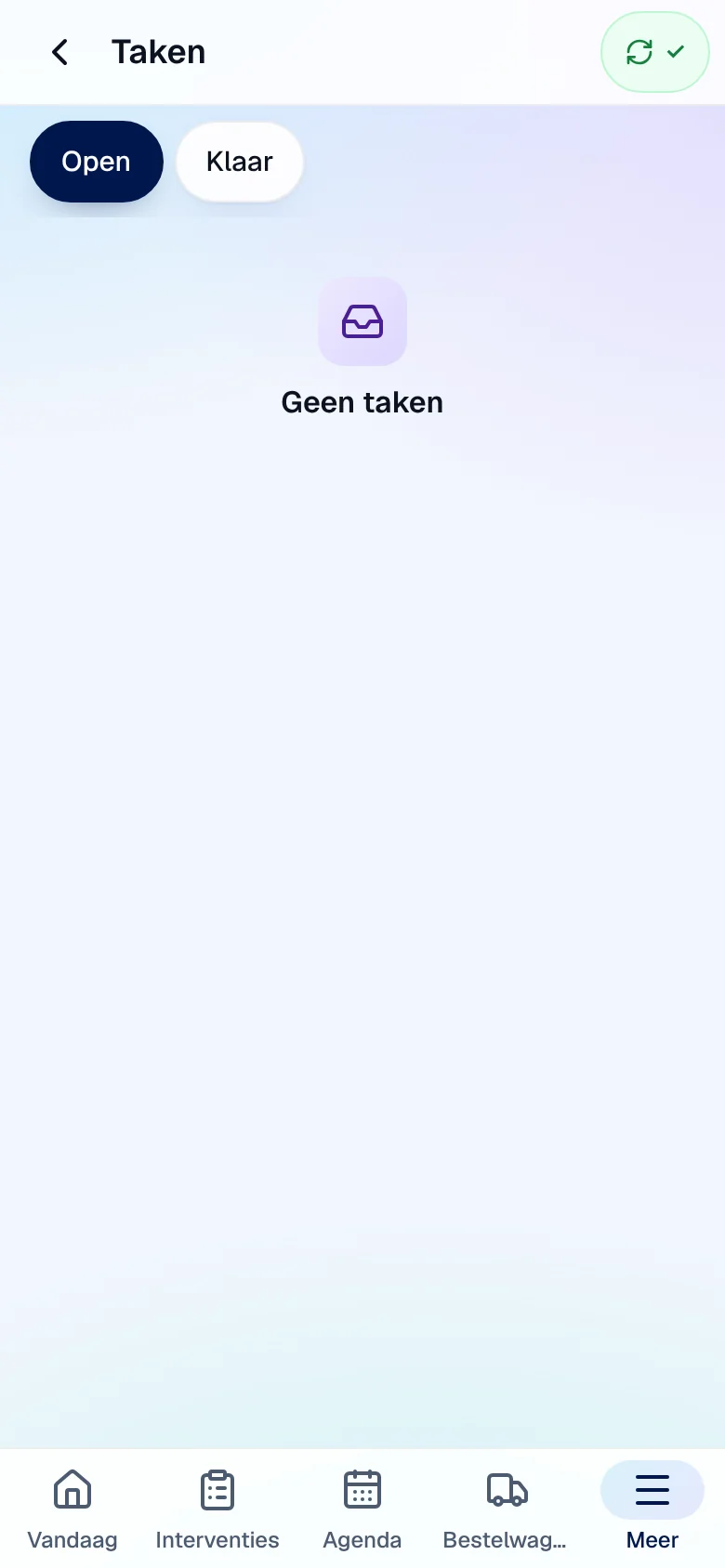
Each card shows the name, the project or task type and the deadline, with the status Nieuw (new), Bezig (in progress), Klaar or Geannuleerd. Changes work offline (In wachtrij badge). Tasks also appear in the Agenda. The office sees their status in the technician record or in Projecten › Projecttaken (see Projects and tasks).
Read messages from the office
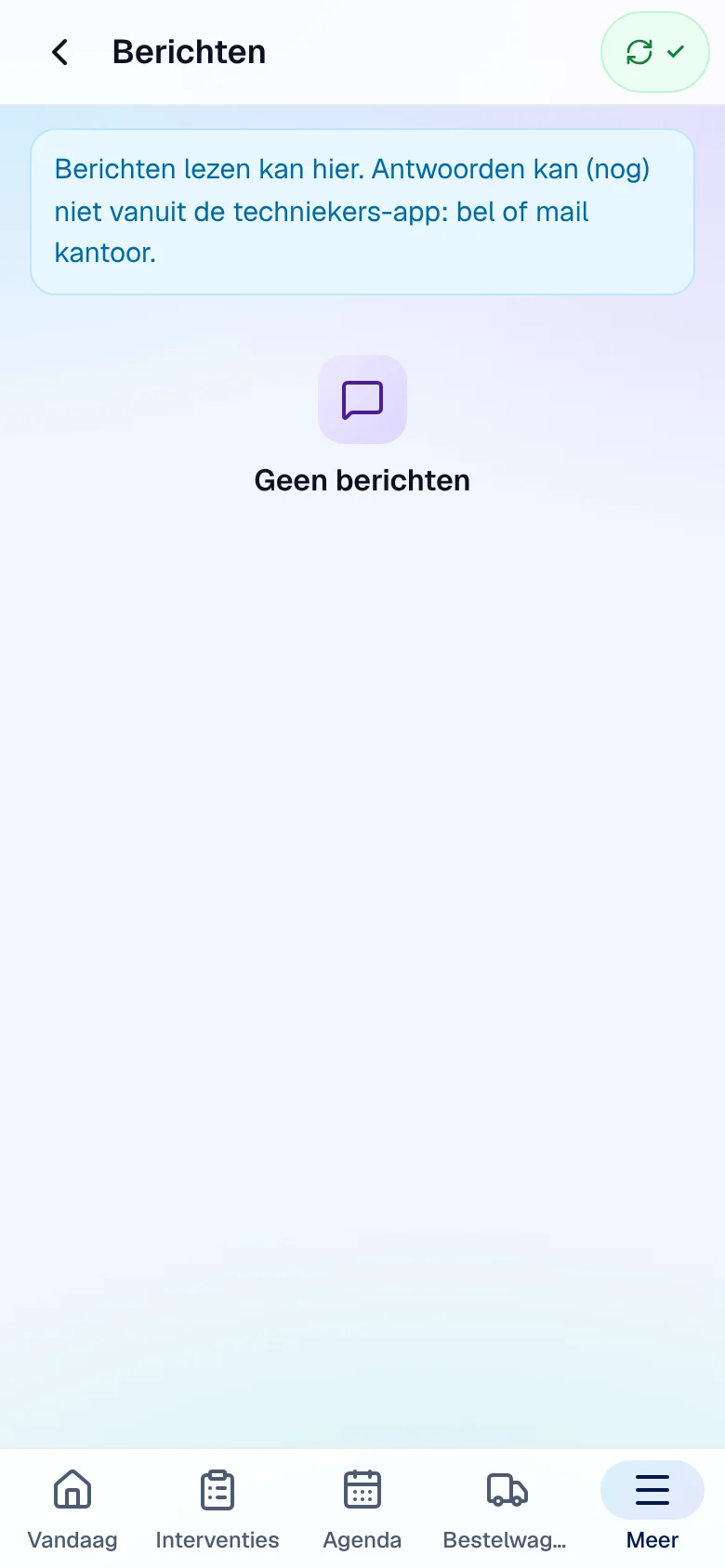
Section titled “Read messages from the office”Open Meer › Berichten (messages). The list shows the conversations, the last message and the number of unread messages; tap a conversation to read it.
The Meer menu
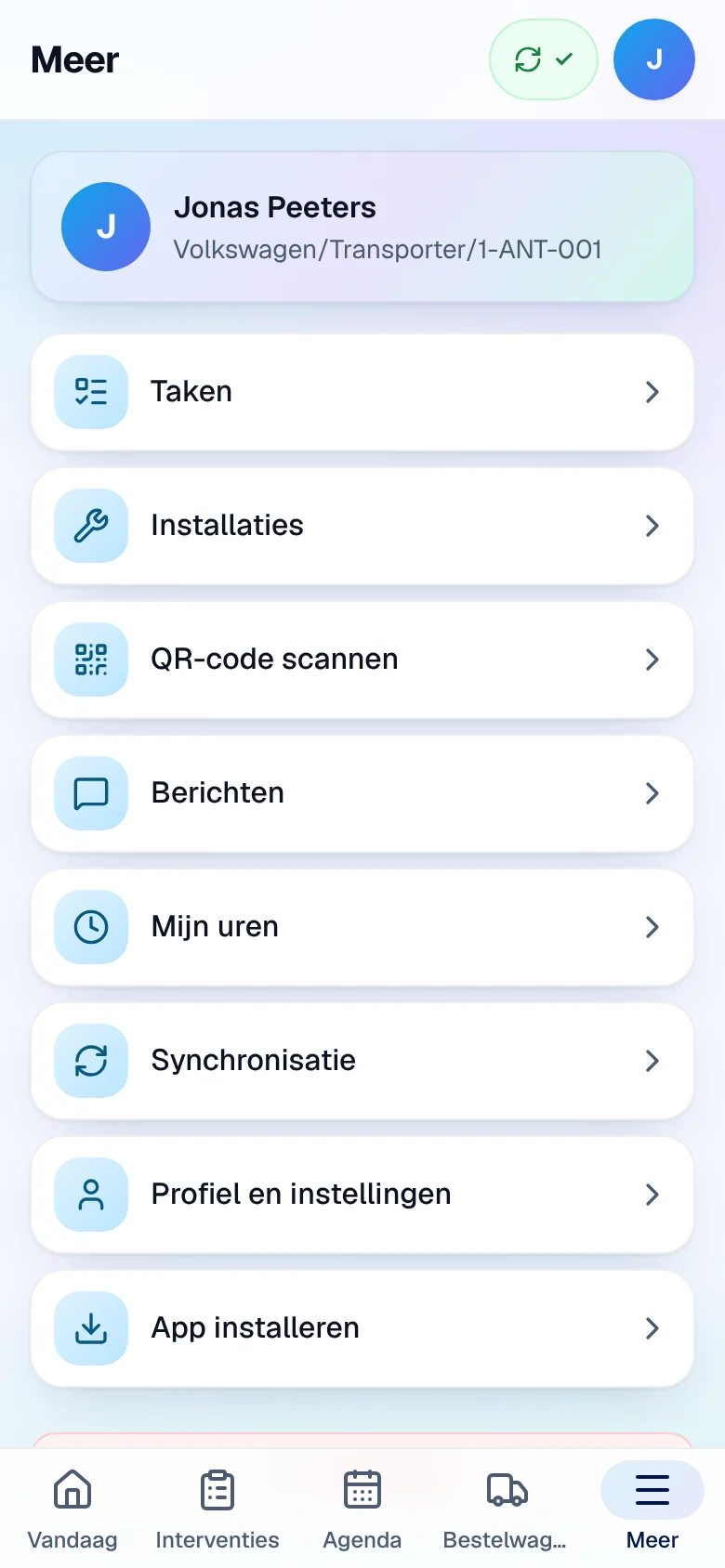
Section titled “The Meer menu”Meer (more) brings together the other screens: Taken, Installaties, QR-code scannen, Berichten, Mijn uren (or Uren), Synchronisatie, Profiel en instellingen, App installeren and Afmelden. A red dot on Meer signals a refused change that requires your decision (see Working offline).
Current limits
Section titled “Current limits”- No push notifications: a new appointment, task or message appears at the next screen refresh.
- No replying to messages from the app.
- The agenda only shows your work, not that of your colleagues.
See also
Section titled “See also”- Vandaag, Mijn dag and Mijn uren
- The schedule — how the office schedules your work.