

Service CRM: leads and opportunities
The Service CRM tracks your sales requests: who called, what to do next, which quote has been sent, and when the sale becomes an intervention. It is for sales staff, the sales manager and management.
| Menu | Verkoop & facturatie › Service CRM |
| Who | administrator, manager, accounting, sales and the Dispatcher (planner); read only can view (table at the bottom of the page) |
| Prerequisites | none for a lead; an existing customer for a quote or an intervention |
The screen has four tabs: Overzicht (overview), Pijplijn (pipeline), Leads and Activiteiten (activities). The filters you choose stay in the page address: you can copy it and share it with a colleague.
Reading the overview
Section titled “Reading the overview”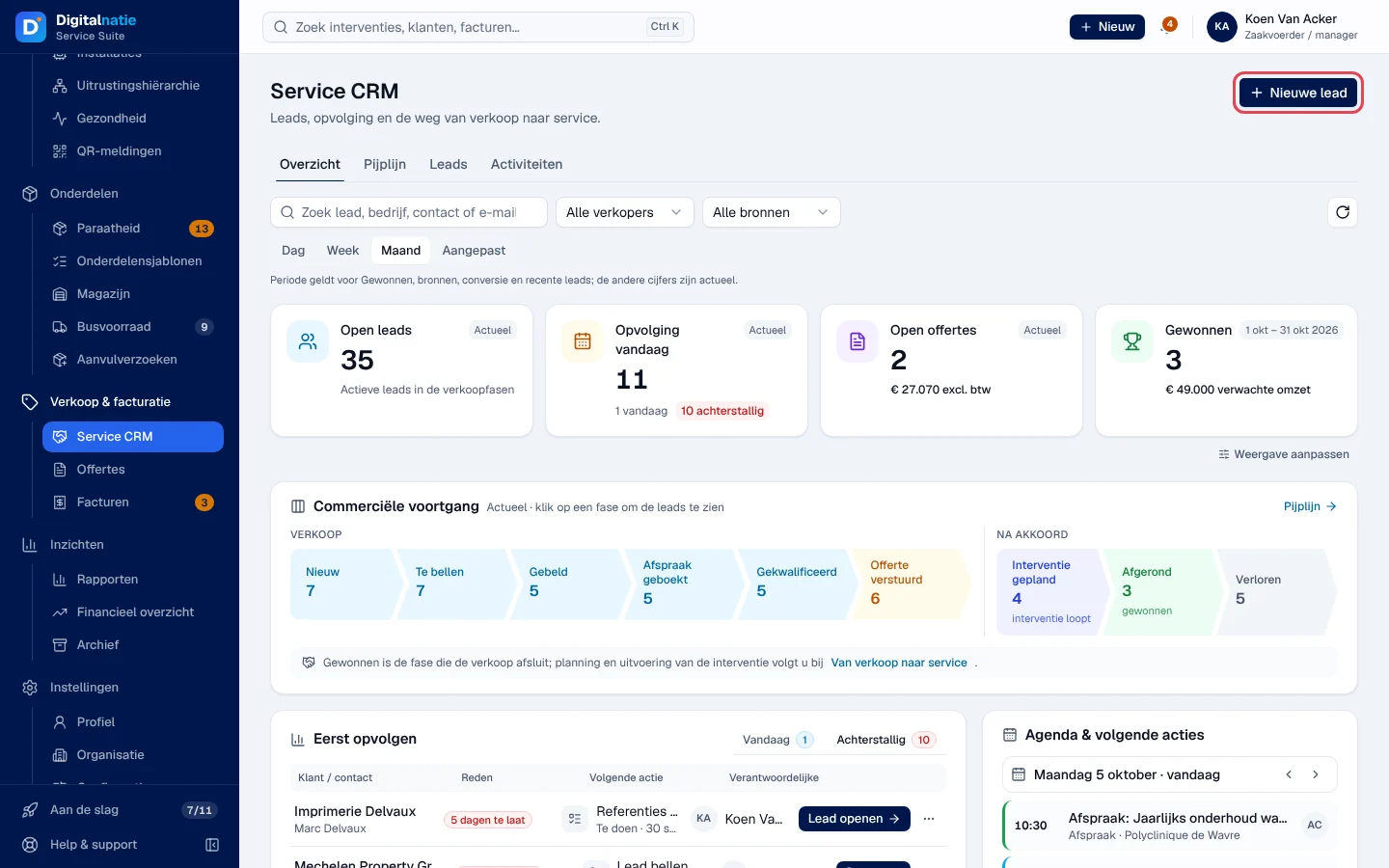
- Kerncijfers (key figures): Open leads, Opvolging vandaag (today’s follow-up, with delays in red), Open offertes and Gewonnen (won). Each figure opens the list of leads it counts.
- Dag, Week, Maand, Aangepast (day, week, month, custom period) only change Gewonnen, the sources, the conversion and the recent leads; the other figures always show the current situation.
- Commerciële voortgang (sales progress): one box per phase. Click a phase to see its leads.
- Eerst opvolgen (follow up first): today’s and overdue activities, with Lead openen or Bellen.
- Agenda & volgende acties, Teamopvolging (follow-up per person), Van verkoop naar service (from sales to service: agreements without a service order, scheduled and completed interventions), Leadbronnen, Conversie and Recente leads.
Amounts are only shown with financial permissions; otherwise you see “—”.
Working in the pipeline
Section titled “Working in the pipeline”-
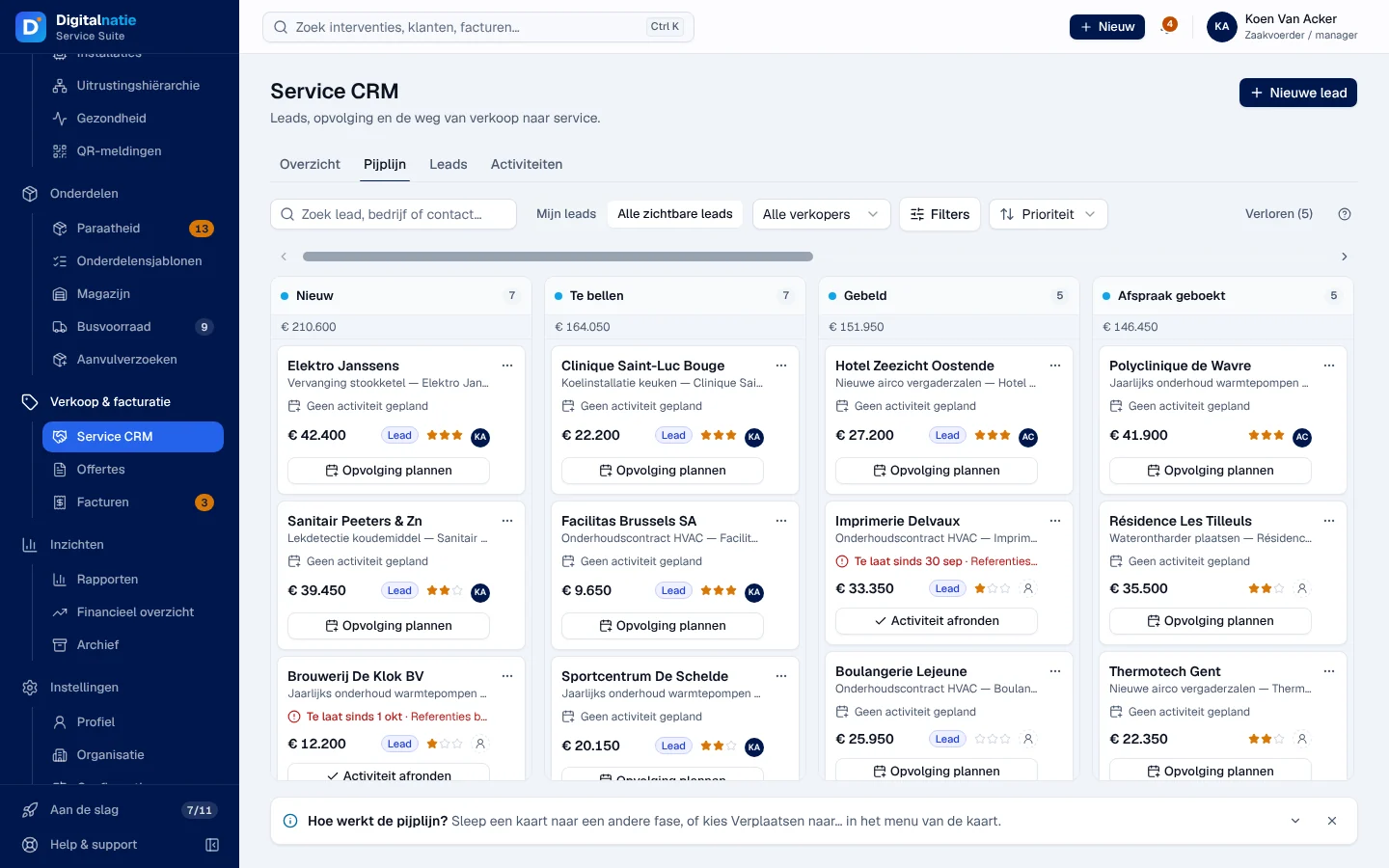
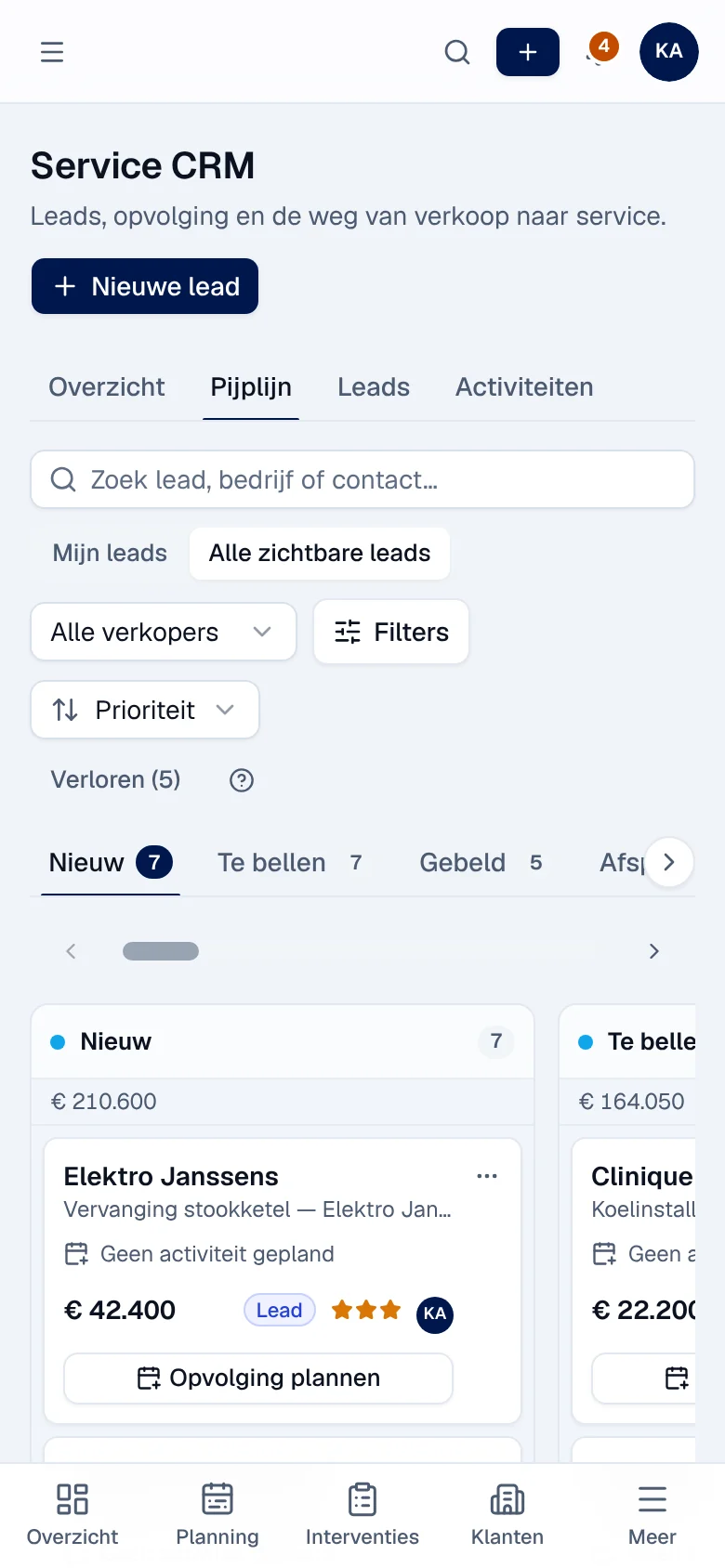
Open the Pijplijn tab. Each column is a phase: Nieuw, Te bellen (to call), Gebeld (called), Afspraak geboekt (appointment booked), Gekwalificeerd, Offerte verstuurd (quote sent), Interventie gepland, Afgerond (won). At the top of the column: the number of leads and the expected amount.
-
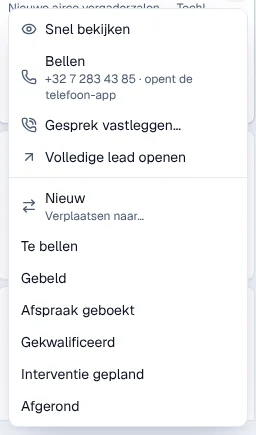
To change the phase, drag the card to another column, or open the card’s ⋯ menu and choose the phase under Verplaatsen naar… (move to).
-
When moving to Afgerond, Service Suite asks for confirmation: Naar Afgerond closes the lead as won (probability 100%, closing date recorded).
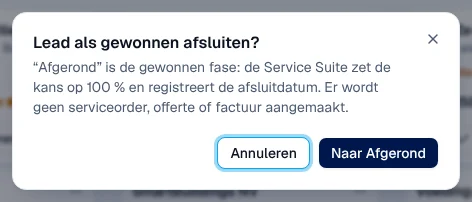
Result: the card changes column immediately. If the server refuses, it returns to its place with the message “Fase niet gewijzigd” (phase not changed) and the reason.
On each card, the follow-up line is red (Te laat sinds, overdue), orange (Vandaag) or grey (Gepland, planned). The card’s button offers Opvolging plannen (schedule a follow-up) or Activiteit afronden (complete the activity). Snel bekijken (quick view) opens a panel on the right with the contact, the next activity, Fase wijzigen (change phase), the activities and the quotes.
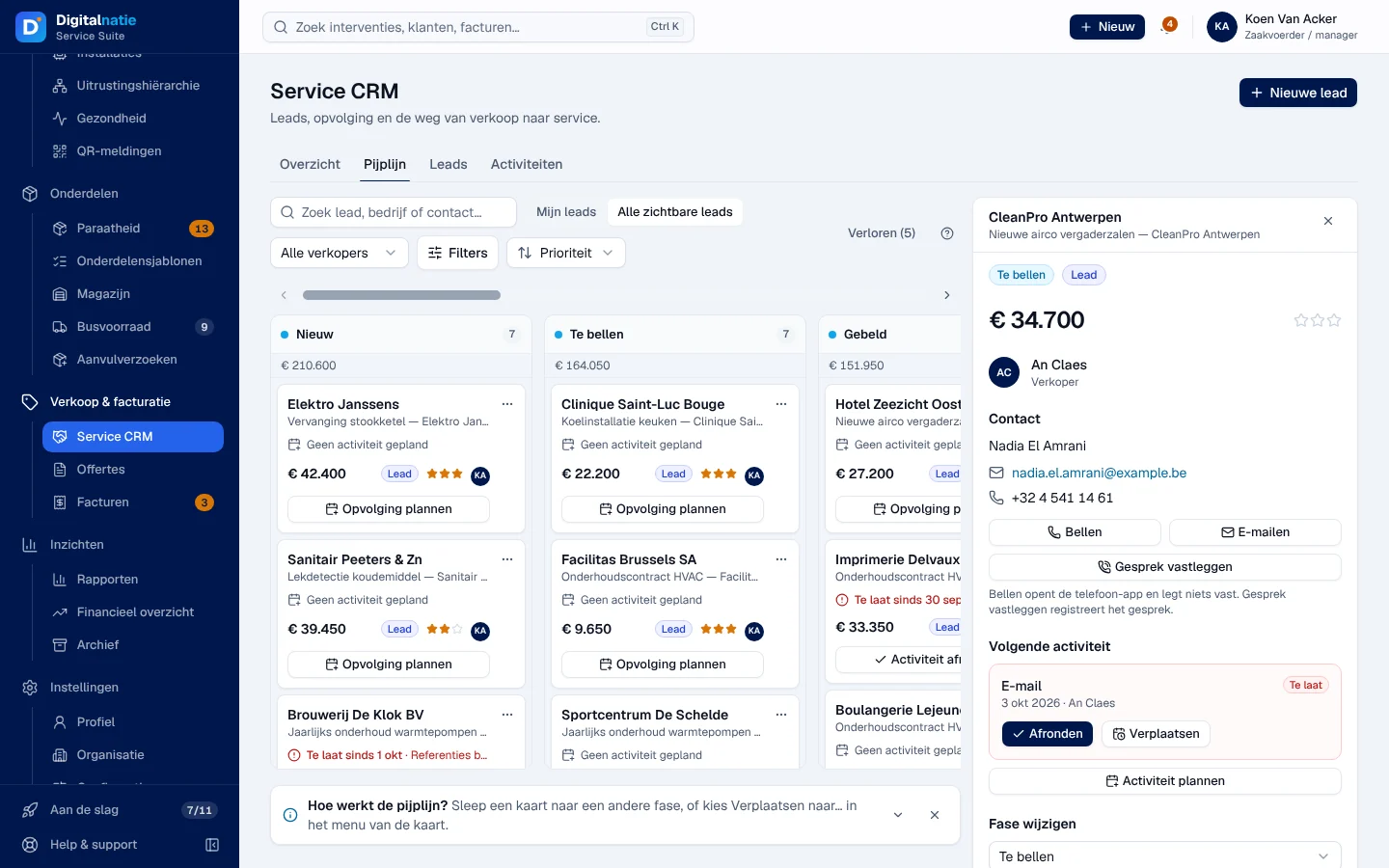
Bellen only opens the phone app and does not record anything. Gesprek vastleggen (log the call) records the call: the call status becomes Bereikt (reached) and the open call activities are completed; the phase does not change.
Creating a lead
Section titled “Creating a lead”-
Click Nieuwe lead (new lead), at the top right.
-
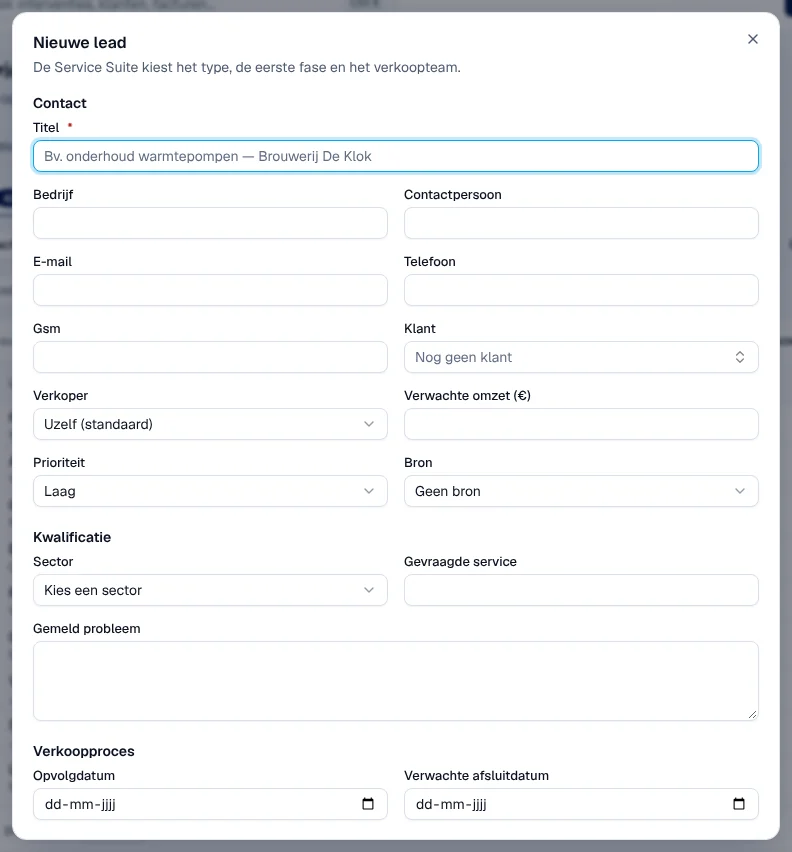
Fill in at least Titel (title). If possible, add Bedrijf (company), Contactpersoon, E-mail, Telefoon, the Klant (customer) if it already exists, Prioriteit and Bron (source), then the Kwalificatie (sector, service requested, problem reported) and the follow-up dates.
-
Click Lead aanmaken (create lead).
Result: “Lead aangemaakt” and the lead record opens. Service Suite chooses the type, the first phase and the sales team. Without the permission to see all leads, a new lead is assigned to you.
Moving a lead forward from its record
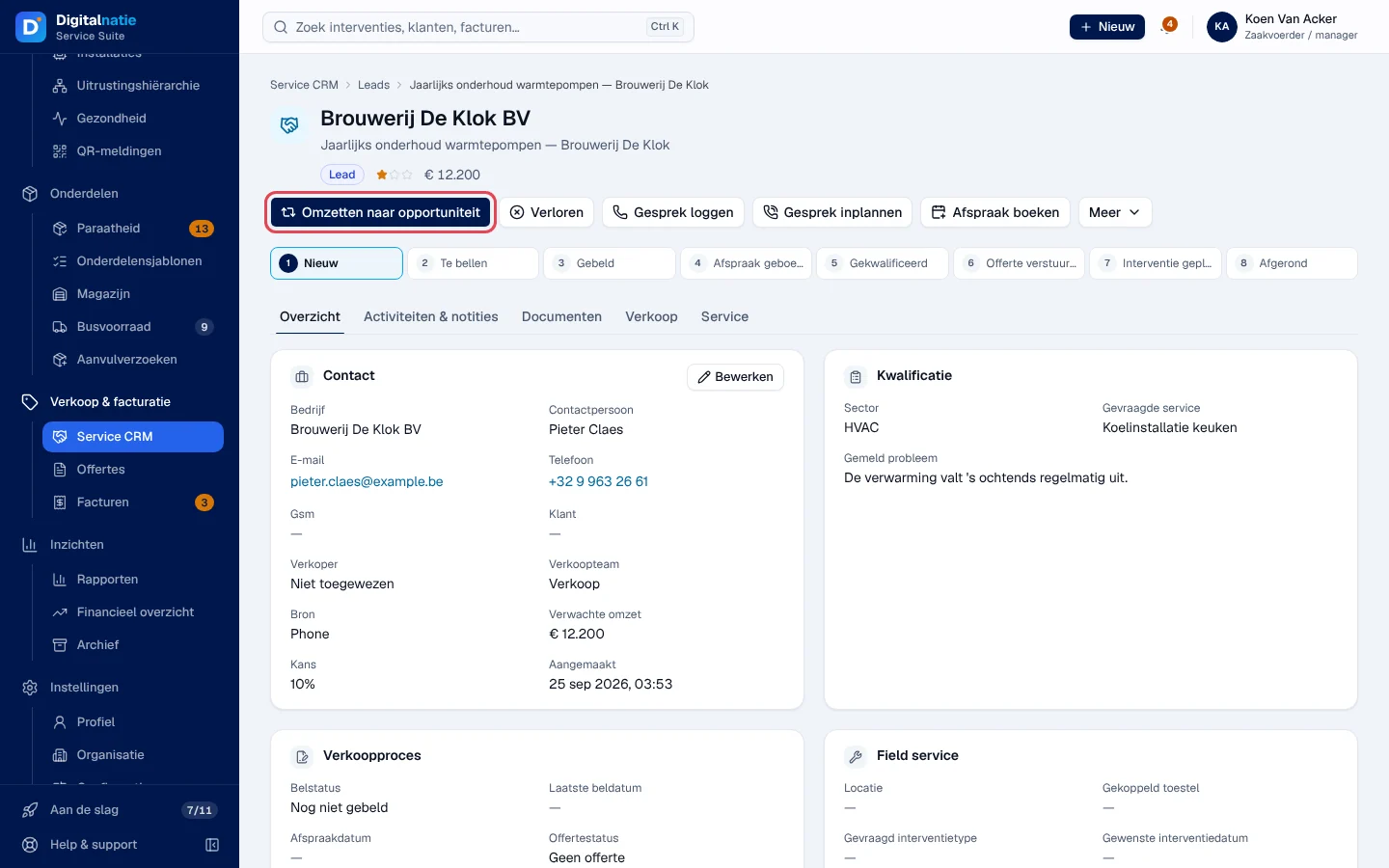
Section titled “Moving a lead forward from its record”Open a lead (click a card or a row). At the top: the possible actions, then the numbered phases (a click changes the phase, without confirmation here), then the Overzicht, Activiteiten & notities, Documenten, Verkoop (quotes and contracts) and Service (service orders and appointments) tabs.
| Button | Effect |
|---|---|
| Omzetten naar opportuniteit (convert to opportunity) | you choose to link an existing customer, create one from the lead, or none, and the salesperson |
| Gewonnen / Verloren (won / lost) | won: without confirmation; lost: reason and note, the lead is archived and can be restored with Herstellen |
| Gesprek loggen, Gesprek inplannen | log a call, or schedule a call |
| Afspraak boeken (book appointment) | creates an appointment in the calendar and the lead’s log |
| Offerte versturen | marks the quote as sent; no e-mail is sent |
| Meer › Klant aanmaken, Locatie aanmaken, Serviceorder aanmaken | creates the customer, the site or the service order from the lead; a service order that is already open is not duplicated |
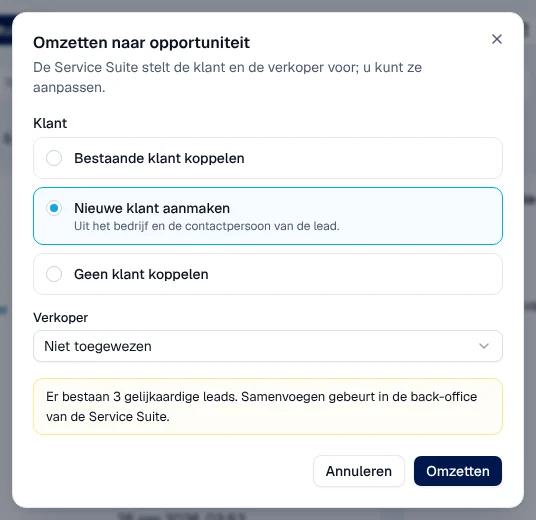
If similar leads exist, the window says so. Merging leads is not possible in the application.
In the Verkoop tab, Offerte maken creates a draft quote linked to the lead; this requires an active opportunity with a customer. The rest happens in Quotes (Offertes).
Following up activities
Section titled “Following up activities”The Activiteiten tab groups the open activities: Te laat (overdue, first), Vandaag and Gepland. Mijn activiteiten / Alle activiteiten chooses yours or all. Bekijken opens the detail, where you note the outcome and click Activiteit afronden; tick Volgende activiteit plannen to plan the next one straight away.
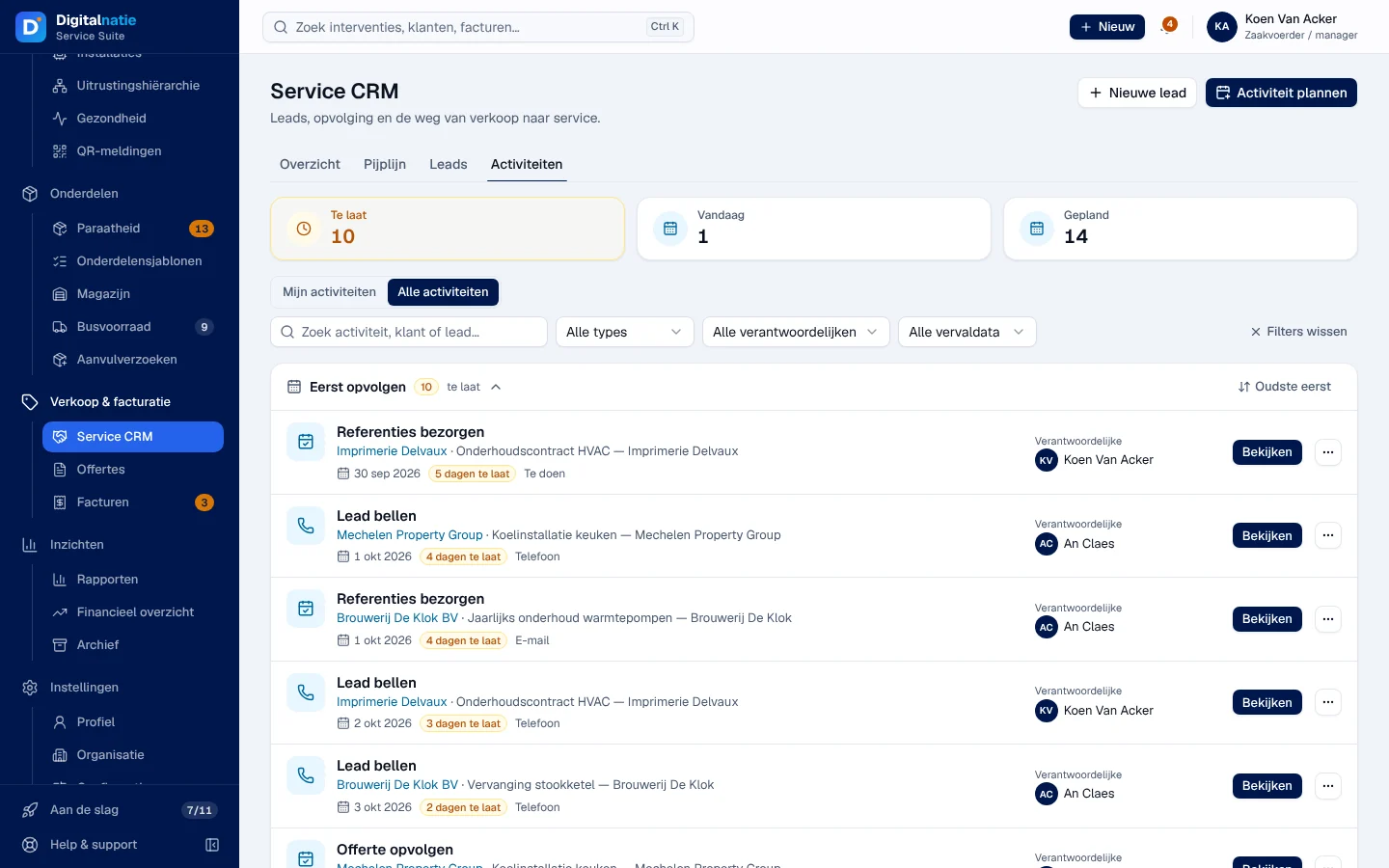
An activity assigned to someone else can only be completed by that person or an administrator.
On a phone
Section titled “On a phone”The pipeline shows the phases as tabs above the columns; change a card’s phase with ⋯ › Verplaatsen naar…. The Leads tab shows cards instead of a table.
Rights by role
Section titled “Rights by role”The table shows the supplied role templates (see Roles and permissions); your administrator can adjust them (see Users, roles and permissions).
| Action | Admin | Manager | Planner | Accounting | Sales | Read |
|---|---|---|---|---|---|---|
| See the CRM | ✓ | ✓ | ✓ ¹ | ✓ | ✓ | ✓ |
| Create, edit, move, win, lose a lead; schedule activities | ✓ | ✓ | ✓ ¹ | ✓ | ✓ | — |
| See the leads of all salespeople ² | ✓ | ✓ | — | ✓ | ✓ ³ | ✓ |
| See and enter amounts | ✓ | ✓ | — | ✓ | ✓ ⁴ | ✓ ⁵ |
| Create a quote | ✓ | ✓ | ✓ ¹ | ✓ | ✓ | — |
| Locatie aanmaken / Serviceorder aanmaken | ✓ | ✓ | ✓ ¹ | — | — | — |
¹ Dispatcher only. ² Without this permission, you see your own leads and those without a salesperson. ³ Sales Manager and Directie only. ⁴ Sales Manager, Sales and Directie only. ⁵ View only.
Current limits
Section titled “Current limits”- No lead import; no sending of quotes by e-mail from the CRM (only “mark as sent”).
- Bellen does not record anything; use Gesprek vastleggen.
- A pipeline column shows its first 20 cards (Meer laden opens the list); the Activiteiten tab shows 200 at most.
- A customer’s contracts are shown read-only in the lead.
See also
Section titled “See also”- Customers and the 360° customer file — the customer created from a lead.
- Quotes (Offertes) — complete and confirm the quote.
- Interventions: the list and creation — after the service order.