

From QR report to intervention
A QR sticker on the installation lets your customer, or anyone on site, report a breakdown without calling. The report arrives at the office, linked to the right installation.
-
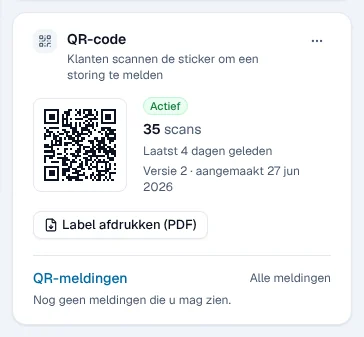
The installation has its QR code. In the installation’s record, create the code and print the label, then stick it on the device. Guide: QR codes and reports.
-
Someone scans the code. With their phone’s camera, they open the installation’s report page, choose the problem and the urgency, describe the breakdown, add a photo and send. They receive a reference; if they gave their e-mail address, a confirmation is sent to them (setting on by default).
-
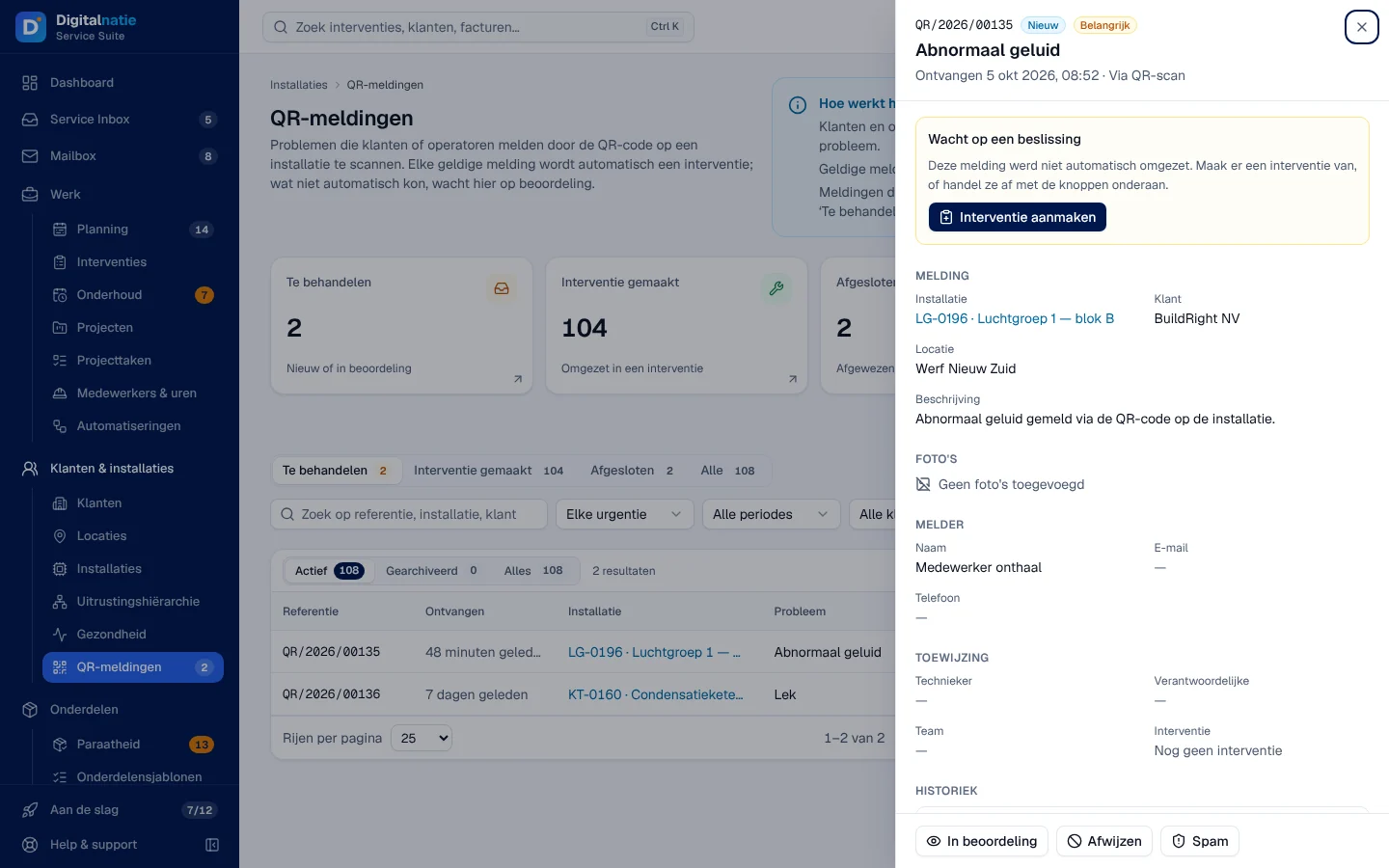
The office handles the report. It appears in Klanten & installaties › QR-meldingen. Normally, Service Suite immediately turns it into an intervention linked to the installation (status Interventie gemaakt). If this is not possible, for example for an installation without a site, it waits under Te behandelen (to handle): open it and click Interventie aanmaken, or Afwijzen (reject).
-
The intervention is scheduled and carried out like any other: The schedule, then Carry out an intervention.
-
The follow-up. The installation’s record keeps the history: reports, interventions and reports. Your customer also follows the report in their portal, under Meldingen, with the intervention created and its status.
See also: Installations, The customer portal (your customer can also report a problem from their portal).