

Automations
An automation does a repetitive follow-up for you: preparing a draft invoice after an intervention, reminding the customer of an appointment, creating an activity for a quote that has had no answer… It is built with blocks: Wanneer (when: what starts it), Als (if: checks with a Ja path and a Nee path), Wachten (wait) and Dan (then: what it does). The Service Suite runs it itself, even when no one is signed in.
| Menu | Werk › Automatiseringen |
| Who | The company’s administrator manages automations. The other role templates do not give the Automatiseringen permission, neither to view nor to manage: for other people, ask Digitalnatie. |
| Prerequisites | For e-mails to customers: your company’s e-mail connected (Connect your e-mail). |

Differences from the application: the video says that if there is a problem the automation “puts a note on the intervention”. In the Interventie afgerond: conceptfactuur template, this path is an Interne melding (internal notification): an internal note on the intervention and a notification to the planners. After the draft invoice, the template also notifies the users who have invoicing permissions, which the video does not say. “Switching execution on” is done in Instellingen, a setting for the whole organisation (see below).
The list of automations
Section titled “The list of automations”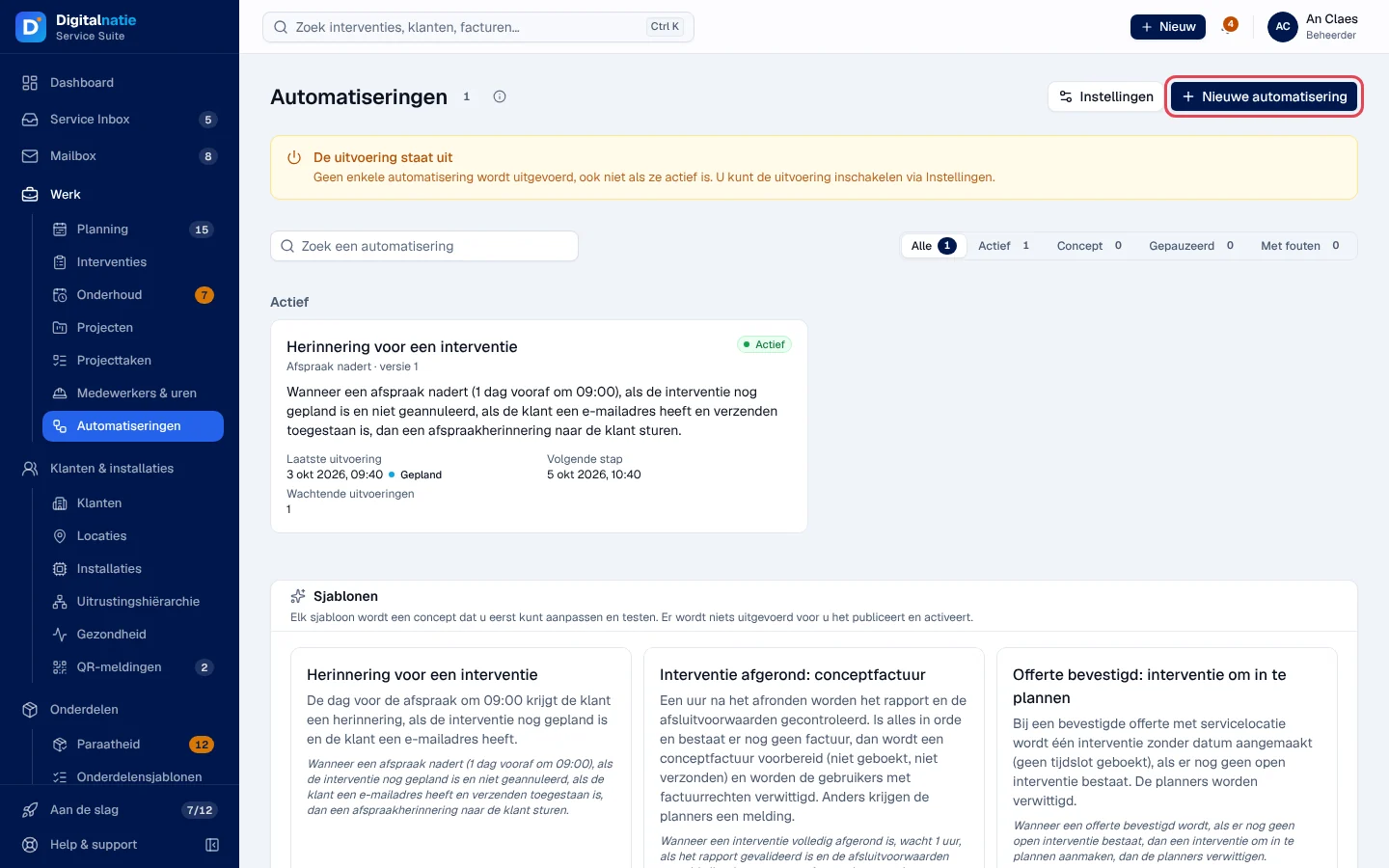
- The Toon (show) filter: Alle, Actief (active), Concept (draft), Gepauzeerd (paused), Met fouten (with errors). The cards are grouped: Vraagt aandacht (needs your attention), Actief, Gepauzeerd, Concept.
- Each card summarises the rule in one sentence and shows Laatste uitvoering (last run), Volgende stap (next step), Wachtende uitvoeringen (pending runs) and the activity over the last 30 days.
- The “De uitvoering staat uit” (execution is switched off) banner means that no automation runs, even an active one. The “E-mails aan klanten staan uit” (e-mails to customers are switched off) banner means that reminders to customers are skipped, with the reason in the history; internal notifications, activities and documents work.
Start from a template
Section titled “Start from a template”
-
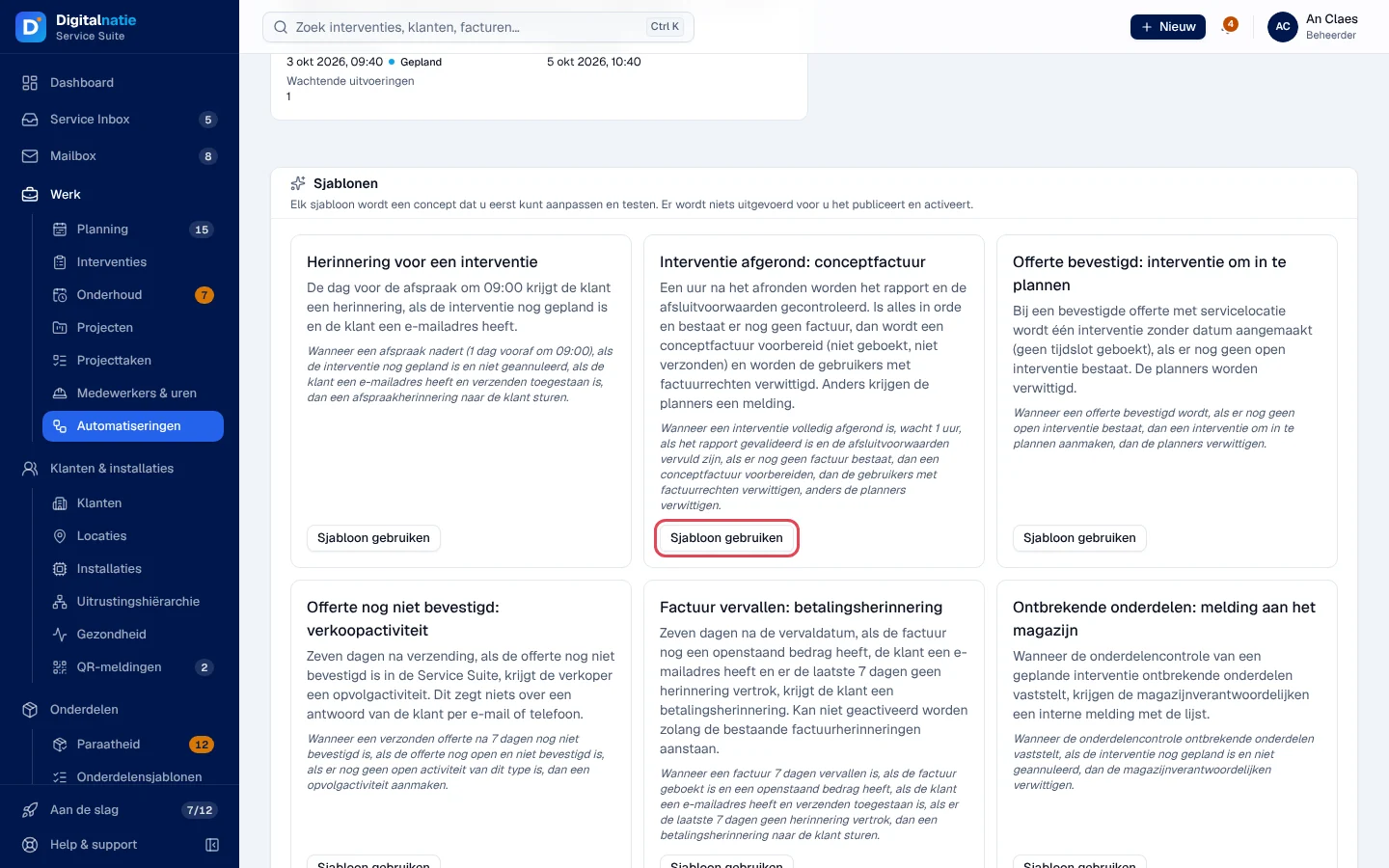
Scroll down to Sjablonen (templates) and click Sjabloon gebruiken (use template).
-
The editor opens on a draft. Message: “Sjabloon klaargezet als concept” (template prepared as a draft) — “Het staat uit tot u het publiceert en activeert.” (it stays off until you publish and activate it).
The templates: Herinnering voor een interventie (appointment reminder to the customer), Interventie afgerond: conceptfactuur (draft invoice after a completed intervention), Offerte bevestigd: interventie om in te plannen (intervention to schedule after a confirmed quote), Offerte nog niet bevestigd: verkoopactiviteit (sales activity for an unconfirmed quote), Factuur vervallen: betalingsherinnering (payment reminder) and Ontbrekende onderdelen: melding aan het magazijn (notification to the warehouse about missing parts).
To start from scratch, click Nieuwe automatisering (new automation).
Build the rule in the editor
Section titled “Build the rule in the editor”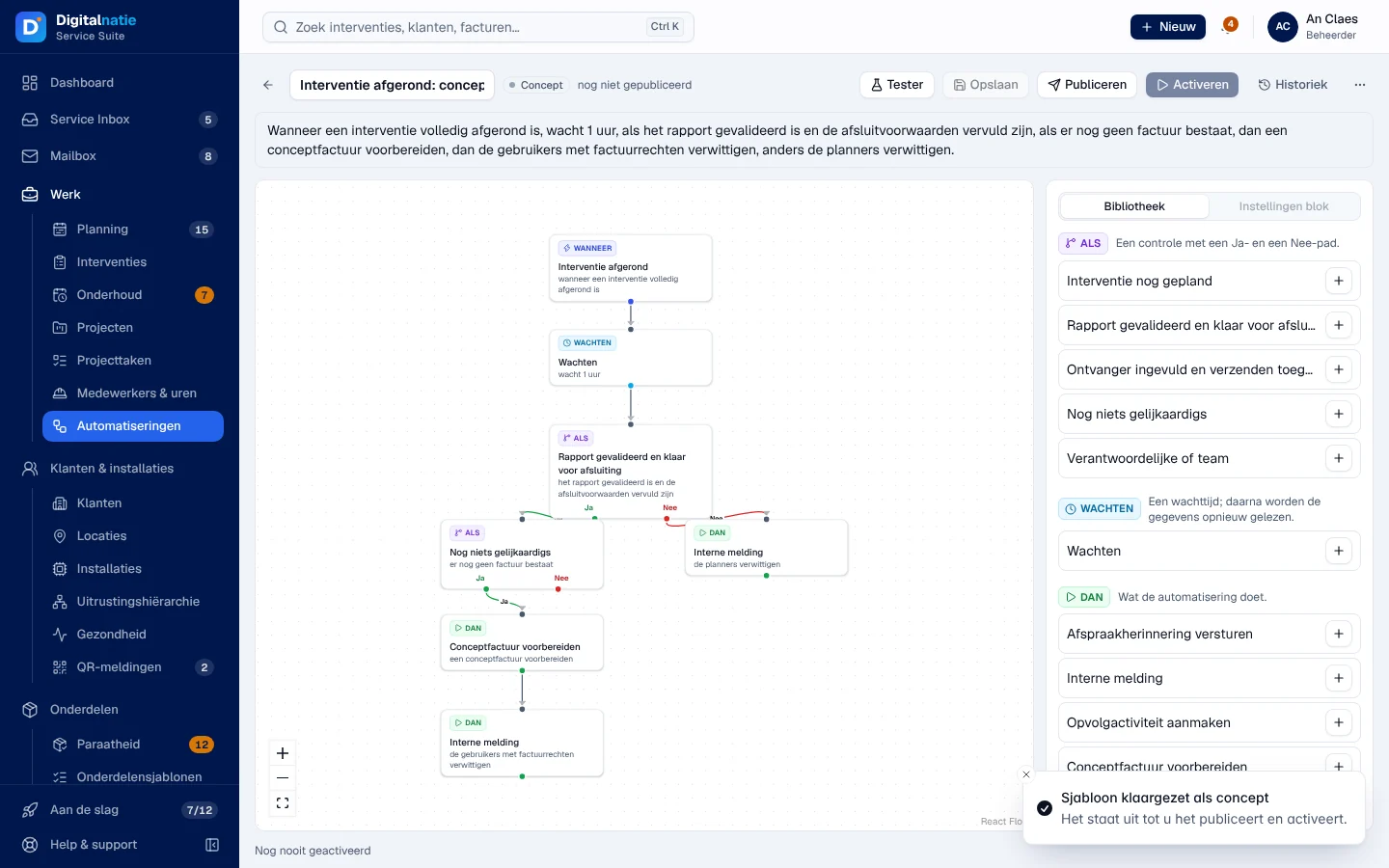
-
At the top: the name, the status (Concept, Actief, Gepauzeerd), the version (“versie 1”, “nog niet gepubliceerd”: not published yet; “· niet bewaard”: not saved; “· concept wijkt af”: the draft differs from the published version), then Tester, Opslaan (save), Publiceren (publish), Activeren or Pauzeren, Historiek and ⋯.
-
Bibliotheek (library) only offers the blocks that suit the trigger. + adds the block under the selected block; you can also connect blocks by dragging them. 12 blocks maximum.
-
Click a block to open Instellingen blok (block settings): its type, its options and its Bij Ja, ga naar / Bij Nee, ga naar (if yes / if no, go to) connections.
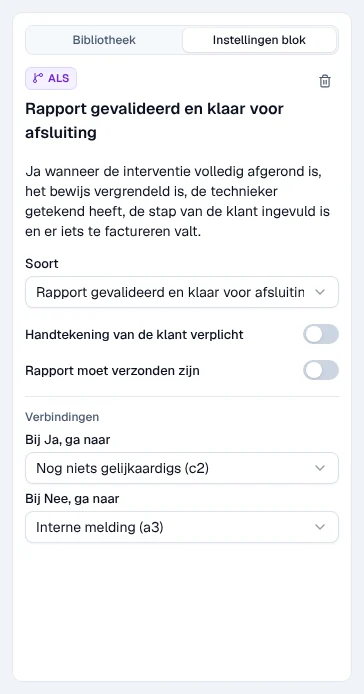
The available blocks:
| Family | Blocks |
|---|---|
| Wanneer | Interventie afgerond (intervention completed), Afspraak nadert (appointment approaching: a few hours before, or a few days before at a fixed time), Offerte bevestigd (quote confirmed), Offerte verzonden, nog niet bevestigd (quote sent, not confirmed after N days), Factuur vervallen (invoice overdue for N days), Ontbrekende onderdelen vastgesteld (missing parts found) |
| Als | Interventie nog gepland (still scheduled), Rapport gevalideerd en klaar voor afsluiting (report validated: options Handtekening van de klant verplicht and Rapport moet verzonden zijn), Offerte nog open, Factuur geboekt met openstaand bedrag (invoice posted with an open balance), Ontvanger ingevuld en verzenden toegestaan (recipient present and sending allowed), Nog niets gelijkaardigs (nothing similar: no invoice, open intervention, open activity or recent reminder yet), Verantwoordelijke of team (person responsible or team) |
| Wachten | a duration in minutes, hours or days; after the wait, the data is read again |
| Dan | Afspraakherinnering versturen and Betalingsherinnering versturen (e-mail to the customer), Interne melding (internal note on the record and notification to the chosen users), Opvolgactiviteit aanmaken (follow-up activity), Interventie om in te plannen aanmaken (intervention without a date or technician), Conceptfactuur voorbereiden (draft invoice, never posted or sent) |
Click Opslaan to save the draft. An incomplete block is flagged and prevents publishing.
Test without sending anything (Tester)
Section titled “Test without sending anything (Tester)”-
Click Tester. The draft is saved first.
-
Search for and choose a real record, for example a completed intervention.
-
Read the result block by block: Ja / Nee for the checks, “Wacht” for the wait, “Zou uitgevoerd worden” (would be carried out) for the actions, with the recipient and the text.
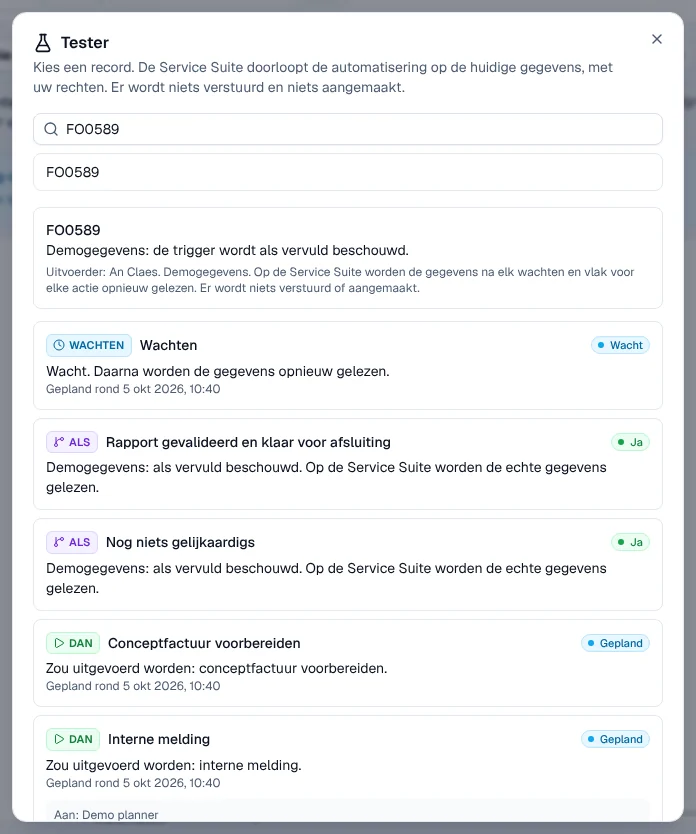
Demonstration copy: the checks are treated as met there (“Demogegevens”). In your environment, the test reads the real data.
The test runs with your permissions: “Er wordt niets verstuurd en niets aangemaakt.” (nothing is sent and nothing is created).
Publish and activate
Section titled “Publish and activate”-
Click Publiceren. Message: “Versie 1 gepubliceerd” (version 1 published).
-
Click Activeren and confirm in the Automatisering activeren? window.
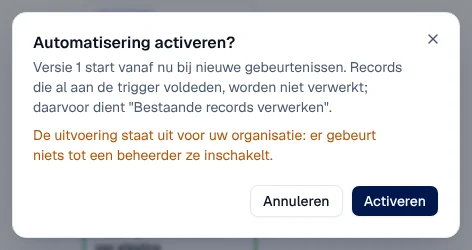
Result: “Automatisering geactiveerd”. The published version starts from now on, for new events. Records that already met the condition are not processed: for them, use ⋯ › Bestaande records verwerken (process existing records), tick them (50 maximum) and confirm.
Follow the runs (Historiek)
Section titled “Follow the runs (Historiek)”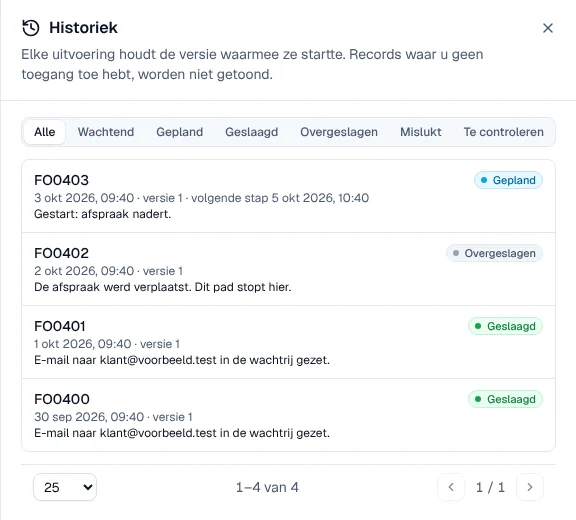
Historiek lists each run with its status: Wachtend (waiting), Gepland (scheduled), Geslaagd (succeeded), Overgeslagen (skipped, with the reason), Mislukt (failed), Te controleren (to check). Each run keeps the version it started with; Toon op de tekening (show on the diagram) colours the path followed. You only see the records you have access to.
Change an active automation (new version)
Section titled “Change an active automation (new version)”Change the blocks, then Opslaan: the status shows “· concept wijkt af”. Click Publiceren: “Nieuwe uitvoeringen gebruiken deze versie; lopende houden hun versie.” The new version only applies to new runs; those already in progress keep their version. ⋯ › Wijzigingen ongedaan maken (undo changes) goes back to the published version.
Pause and resume
Section titled “Pause and resume”-
Click Pauzeren and confirm. During the pause, nothing starts: an event is only noted in the history and will never be carried out later. Runs already waiting remain visible (Wachtende tonen); Wachtende annuleren stops them immediately.
-
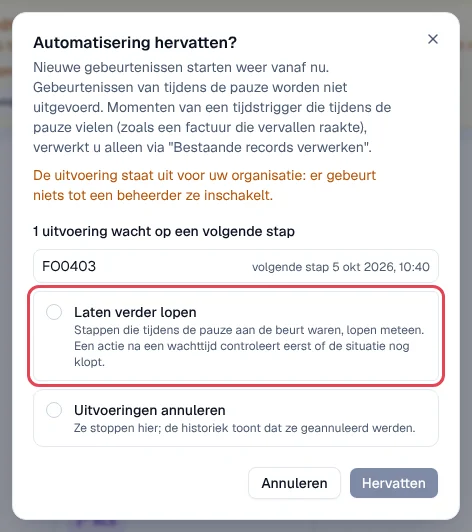
To resume, click Hervatten. If there are runs waiting, choose explicitly:
- Laten verder lopen (let them continue): steps that fell due during the pause go out immediately; an action after a wait first checks that the situation is still valid;
- Uitvoeringen annuleren (cancel the runs): they stop, and the history shows it.
-
Click Hervatten. Without a choice, the button stays inactive.
Result: “Automatisering hervat; de wachtende uitvoeringen lopen verder” or “… zijn geannuleerd”. Time-based trigger moments that fell during the pause (an invoice that became overdue, for example) are only processed with Bestaande records verwerken.
Archive
Section titled “Archive”An active automation cannot be archived: in ⋯, Archiveren is greyed out with “Pauzeer eerst” (pause first).
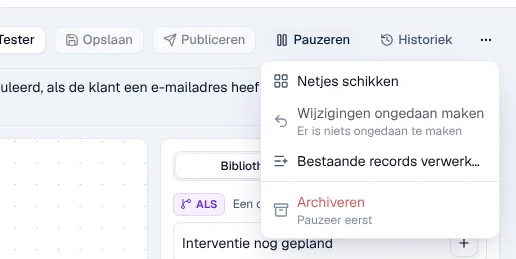
Pause it, then ⋯ › Archiveren and confirm: “Wachtende stappen vervallen. De historiek blijft bewaard.” (pending steps are cancelled, the history is kept). An archived automation opens read-only.
Built-in automations (Ingebouwde automatiseringen)
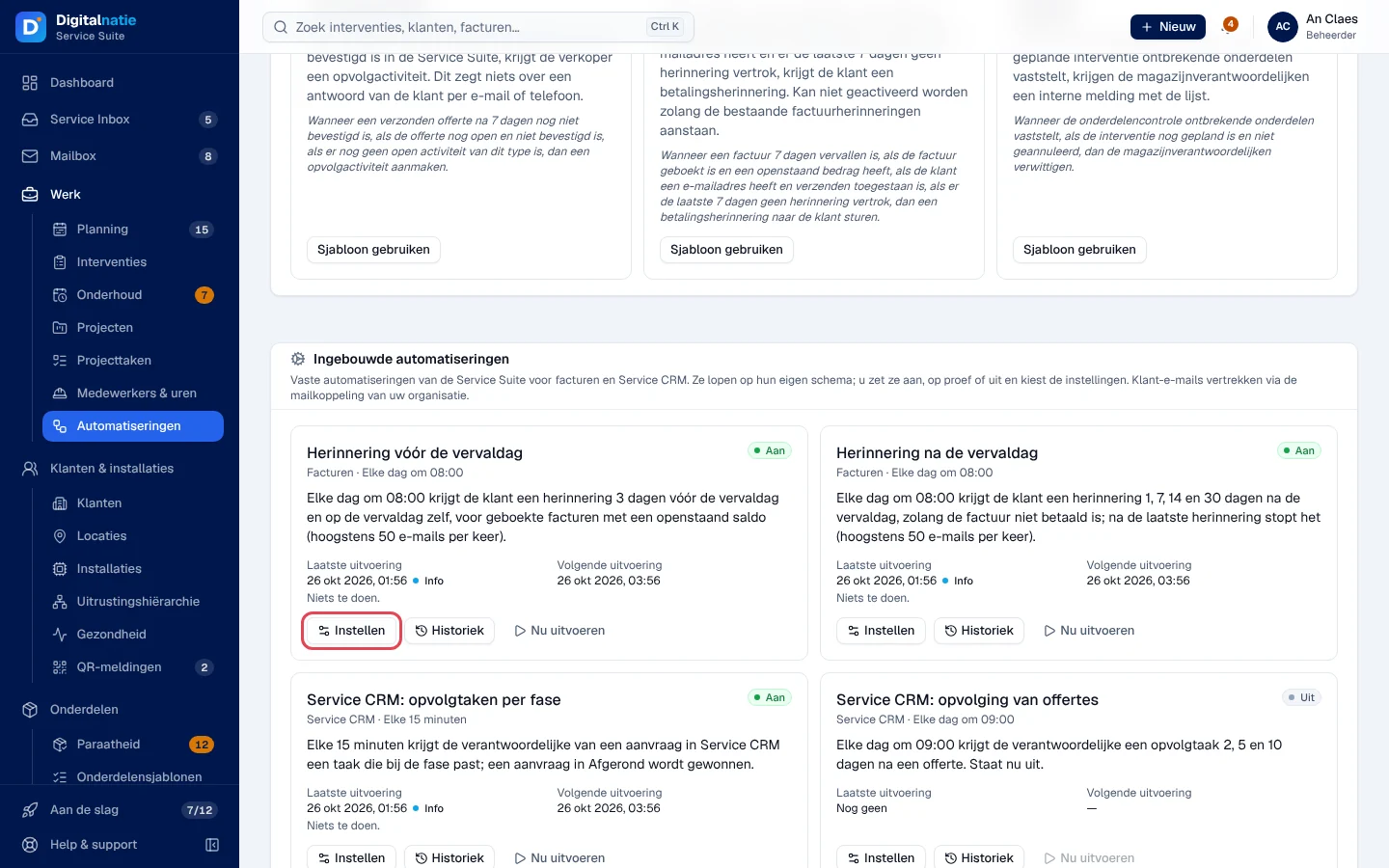
Section titled “Built-in automations (Ingebouwde automatiseringen)”At the bottom of the list, four fixed Service Suite automations: Herinnering vóór de vervaldag and Herinnering na de vervaldag (invoice reminders before and after the due date, every day at 08:00), Service CRM: opvolgtaken per fase (follow-up tasks per stage) and Service CRM: opvolging van offertes (follow-up of quotes).
-
Click Instellen (set up) on a card.
-
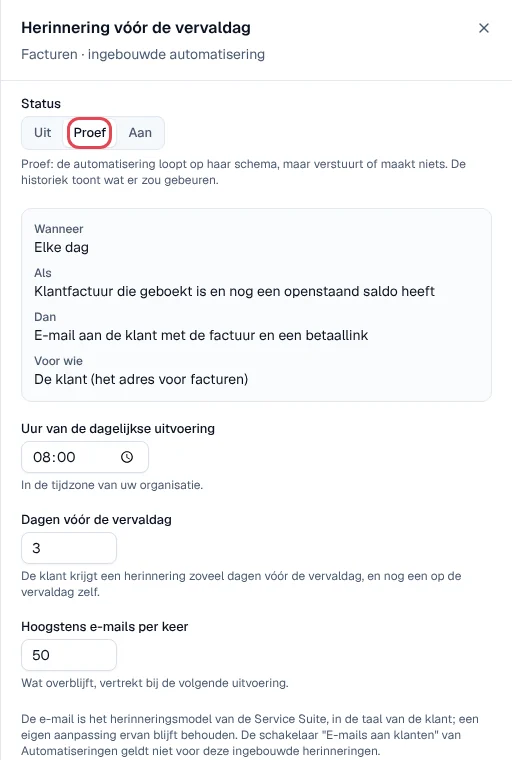
Choose the Status: Uit (off), Proef (trial: it follows its schedule but sends and creates nothing; the history shows what would have happened) or Aan (on). Set the time, the days before or after the due date and the maximum number of e-mails per run.
-
To switch to Aan, tick “Ik begrijp dat klanten vanaf nu echte e-mails krijgen.” (I understand that customers will now receive real e-mails), then Bewaren (save).
Nu uitvoeren (run now) starts a run immediately; it is inactive on Uit (“Zet de automatisering eerst op Proef of Aan.”). On Aan, you are asked to confirm “Nu echte herinneringen versturen?”. Historiek shows each run, each document and each change with its author.
Organisation settings (Instellingen)
Section titled “Organisation settings (Instellingen)”Instellingen (settings) applies to the whole organisation: Uitvoering ingeschakeld (execution enabled), E-mails aan klanten toegestaan (e-mails to customers allowed, only possible with the company’s e-mail connected) and Tijdzone (time zone, used for “1 dag vooraf om 09:00” and waits in days). This button only appears for a technical administrator; if you do not see it, ask Digitalnatie.
On a phone
Section titled “On a phone”The list and the settings work on a phone and a tablet; on a phone, the editor shows the blocks as a list instead of the diagram.
Rights
Section titled “Rights”The table shows the supplied role templates (see Roles and permissions); your administrator can adapt them (see Users, roles and permissions).
| Action | Admin |
|---|---|
| View the list, the editor and the history | ✓ |
| Create, test, save, publish, activate, pause, archive | ✓ |
| Set up and run the built-in automations | ✓ |
| Instellingen (execution, e-mails to customers, time zone) ¹ | — |
¹ Reserved for the technical administrator (Digitalnatie): no role template gives it.
Roles are set in Users, roles and permissions. Each action of a run checks the permissions of the person who published again.
Current limits
Section titled “Current limits”- An archived automation no longer appears in the list.
- The Geen betwisting (no dispute) check is shown but not available.
- Interventie om in te plannen aanmaken sets neither a date nor a technician: the intervention still needs to be scheduled.
See also
Section titled “See also”- Connect your e-mail — required for any e-mail to customers
- Invoices, payments and credit notes
- Quotes (Offertes)
- The schedule
- Users, roles and permissions