

The dashboard
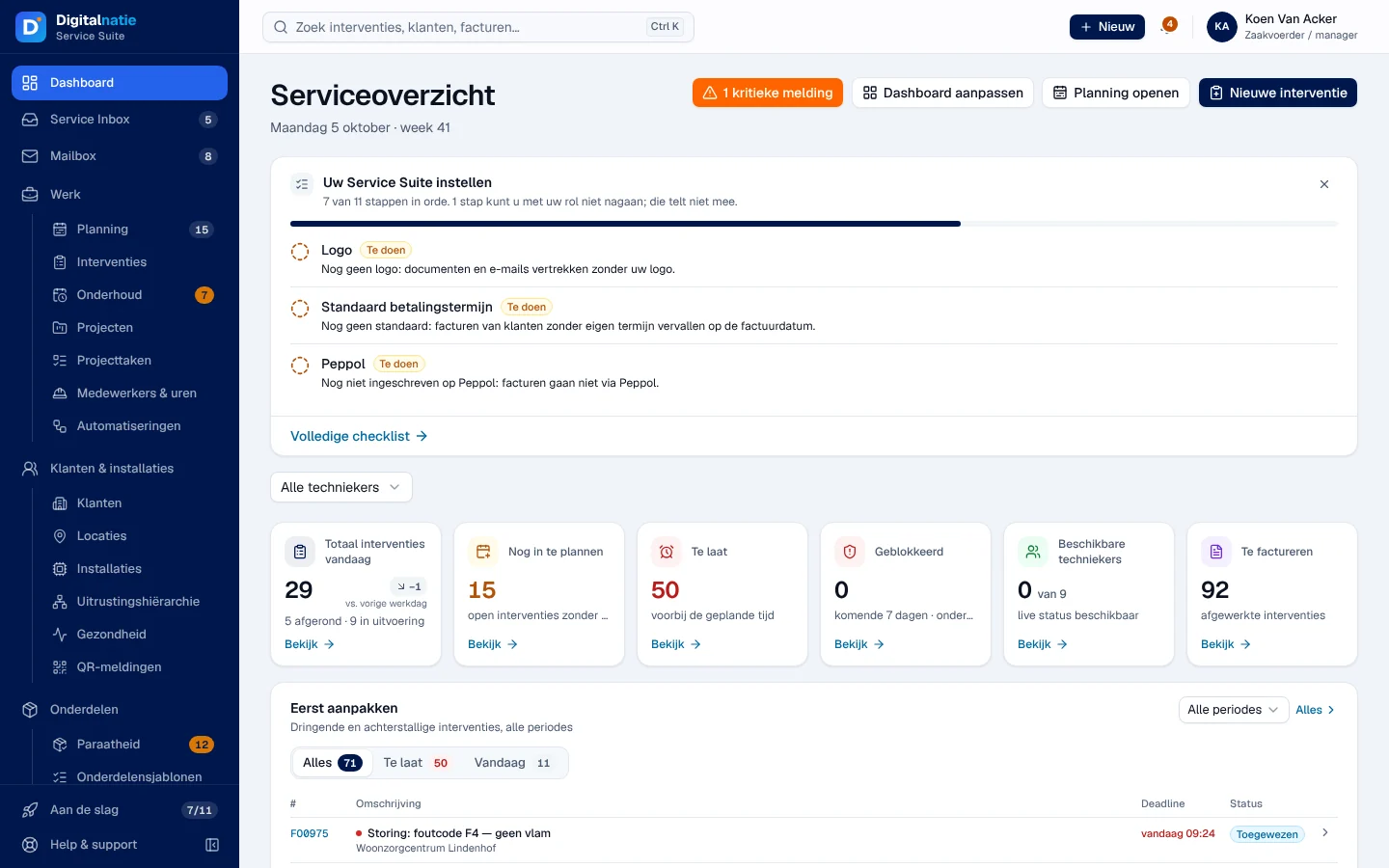
The Serviceoverzicht (service overview) is the home screen after you sign in. It sums up the day: today’s interventions, delays, work to schedule, technicians, parts, invoicing and points of attention. Each role gets a suitable layout, which everyone can then adjust for themselves.
| Menu | Dashboard (at the top of the menu; Overzicht on a phone) |
| Who | all office roles; each person only sees the widgets their permissions allow |
| Prerequisites | none |
Reading the dashboard
Section titled “Reading the dashboard”- Header: today’s date and the week. The orange button (for example 1 kritieke melding, 1 critical alert) or 1 aandachtspunt (1 point of attention) flags what needs action. Planning openen (open the schedule) and Nieuwe interventie (new intervention) appear if your role allows it.
- Uw Service Suite instellen: the set-up reminder, as long as steps are open (see Getting started).
- Today’s figures: Totaal interventies vandaag (today’s interventions), Nog in te plannen (still to schedule), Te laat (late), Geblokkeerd (blocked, parts missing within 7 days), Beschikbare techniekers (available technicians), Te factureren (to invoice). Bekijk (view) opens the matching list.
- Eerst aanpakken (deal with first): urgent and late interventions, with the Alles, Te laat and Vandaag tabs and the choice of period.
Further down, depending on your permissions: today’s schedule (Vandaag / Morgen), today’s technicians, parts preparation (Klaar voor morgen?, ready for tomorrow?), Afronden & factureren (close and invoice), maintenance for the coming weeks, open projects, alerts and recent activity.
For those who can see amounts, the financial block shows Netto gefactureerd deze maand (excl. btw, na creditnota’s): the amount invoiced this month, excluding VAT, after deducting credit notes, counted on the invoice date, alongside the previous month. A click opens the list of the matching invoices.
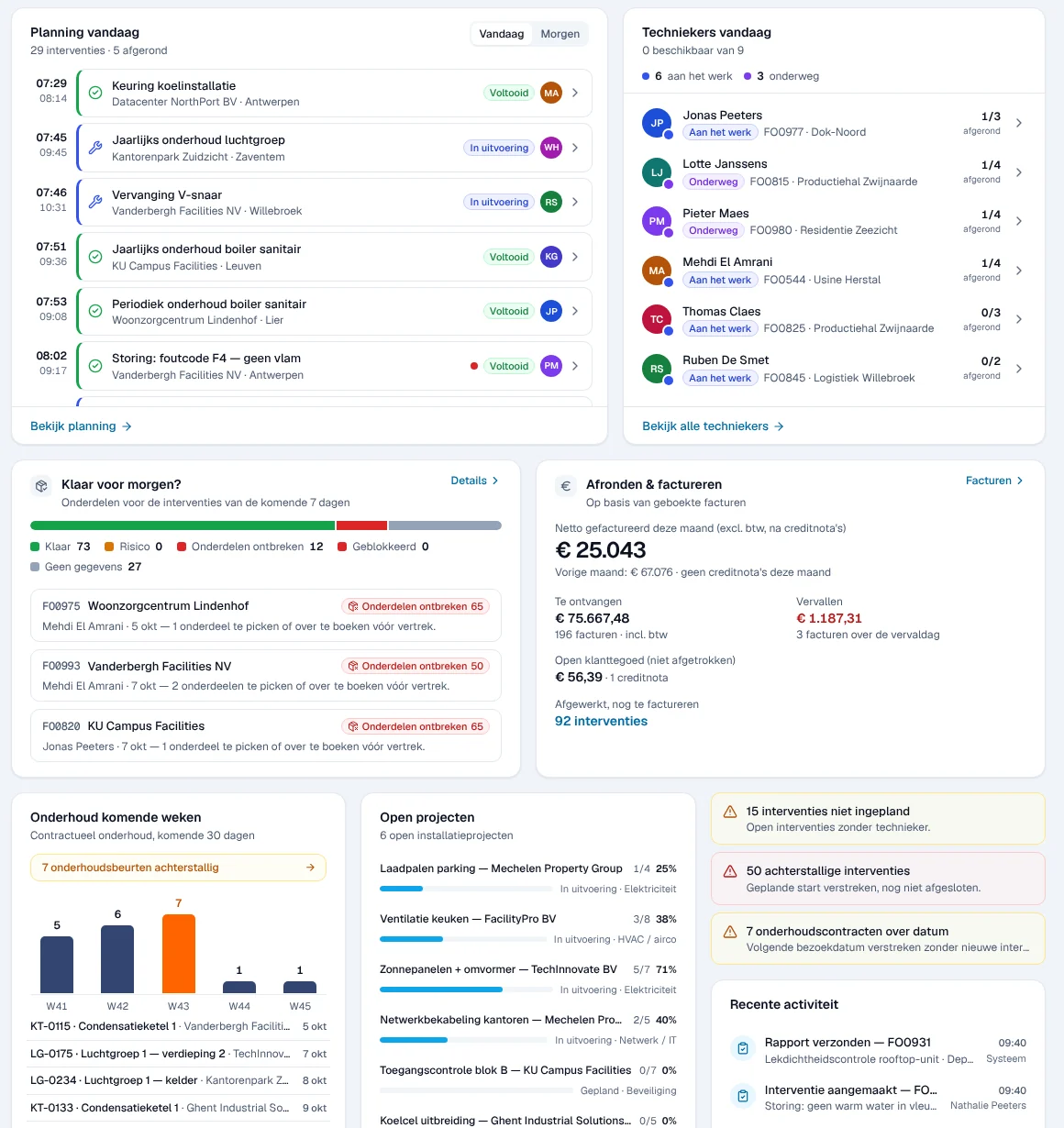
A figure your role does not allow you to see shows “niet beschikbaar voor uw rol” (not available for your role). If the figures cannot be calculated: “Niet beschikbaar”.
Filtering on a technician
Section titled “Filtering on a technician”The Alle techniekers (all technicians) selector, below the set-up reminder, limits the counters, the schedule, the urgent items and the parts preparation to one technician. A note “Gefilterd op …” reminds you of the filter; Wissen (clear) removes it. The periods and filters you choose are included in the page address: you can share it.
Customising your dashboard
Section titled “Customising your dashboard”-
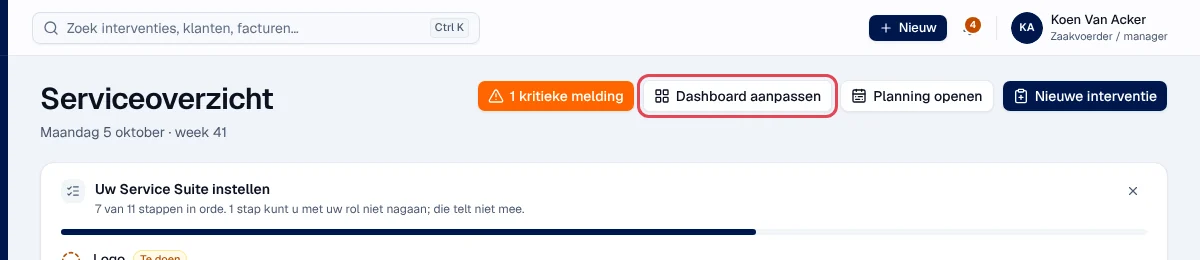
Click Dashboard aanpassen (customise dashboard).
-
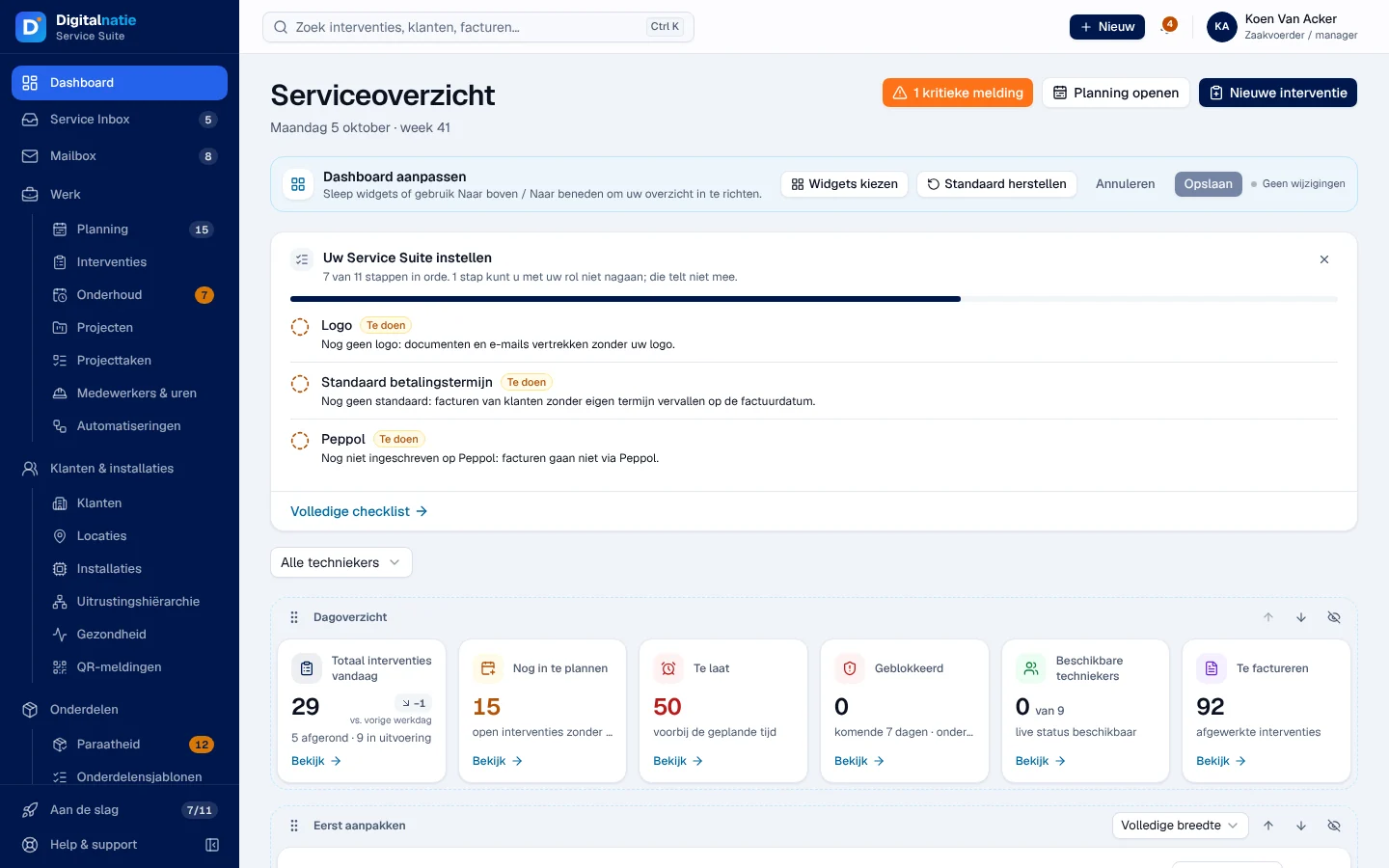
An editing bar appears. Move a widget by dragging it, or with the arrows Naar boven / Naar beneden (up / down). The crossed-out eye icon hides it. The width menu chooses, for example, Volledige breedte (full width).
-
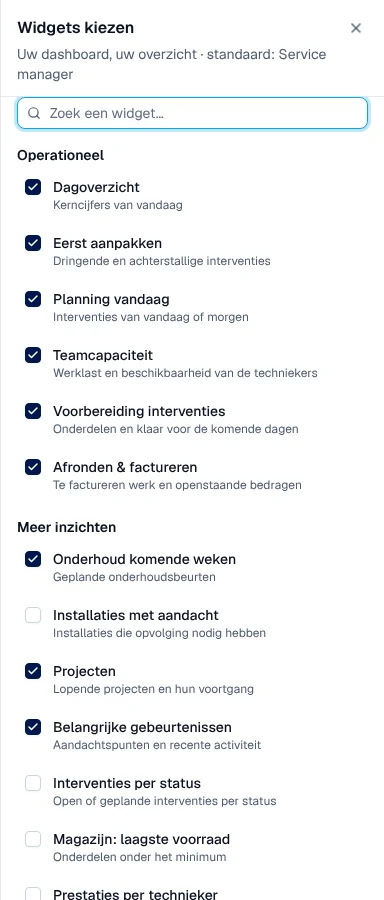
Click Widgets kiezen (choose widgets) to tick or untick widgets, grouped under Operationeel (operational) and Meer inzichten (more insights). There you also choose the figures shown and their size.
-
Click Opslaan (save).
Result: “Dashboard opgeslagen” (dashboard saved). Your layout is kept with your account: you will find it on another computer. Annuleren (cancel) discards the changes; if you leave the page without saving, the application asks for confirmation. Standaard herstellen (restore default) returns to your role’s layout.
One layout per job
Section titled “One layout per job”| Role | What the default layout highlights |
|---|---|
| Administrator, manager, read only, Mailbox | “Service manager”: today’s figures, urgent items, schedule, team, parts, maintenance, projects, alerts |
| Planner | today’s figures, urgent items, schedule, team, parts preparation, alerts |
| Accounting | Te factureren, Afronden & factureren, alerts, projects, insights |
| Warehouse | Geblokkeerd, stock below minimum, parts preparation, lowest stock |
| Directie (sales family) | today’s figures, Afronden & factureren, insights, maintenance, projects |
| Sales (Sales Manager, Sales, Sales Representative) | Te factureren, Afronden & factureren, alerts, projects, insights |
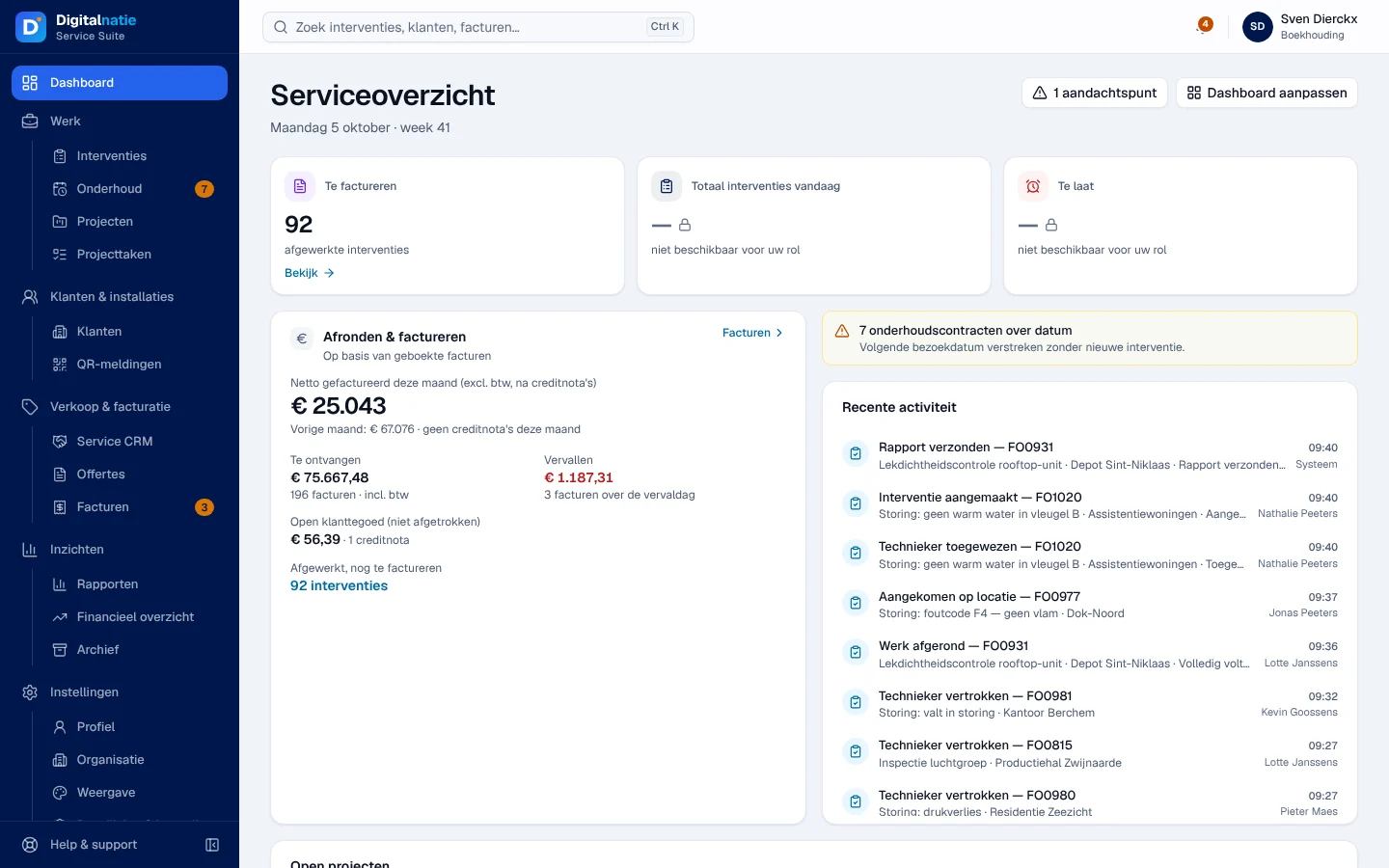
For accounting, the intervention figures it cannot read stay “niet beschikbaar voor uw rol”.
Rights by role
Section titled “Rights by role”The table shows the supplied role templates (see Roles and permissions); your administrator can adjust them (see Users, roles and permissions).
| Action | Admin | Manager | Planner | Accounting | Warehouse | Sales | Read |
|---|---|---|---|---|---|---|---|
| Dashboard, today’s figures | ✓ | ✓ | ✓ | ✓ | ✓ ¹ | ✓ ² | ✓ |
| Afronden & factureren, Te factureren | ✓ | ✓ | — | ✓ | — | ✓ ³ | ✓ |
| Planning openen, Nog in te plannen | ✓ | ✓ | ✓ | — | — | — | — |
| Nieuwe interventie | ✓ | ✓ | ✓ | — | — | — | — |
| Dashboard aanpassen | ✓ | ✓ | ✓ | ✓ | ✓ | ✓ | ✓ |
¹ The dashboard, without the intervention figures. ² The dashboard; the intervention figures for Directie only. ³ Sales Manager, Sales and Directie only.
Technicians have no office dashboard: they work in the Techniekers-app.
On a phone
Section titled “On a phone”On a phone, the widgets take up the full width and the width choice is hidden. The dashboard is the Overzicht tab of the bottom bar (see Finding your way).