

Carrying out an intervention
You carry out an intervention with a few buttons, always in the same place: the action bar at the bottom of the screen. Each button moves the intervention to the next step and sends it to the office. The intervention’s tabs bring together the rest: safety, report, parts, photos, signatures and closing.
| Menu | Vandaag or Interventies › tap the intervention’s card |
| Who | the technician to whom the intervention is assigned (you only see your own) |
| Prerequisites | an intervention scheduled by the office; for some steps, a network (see offline) |

The process at a glance
Section titled “The process at a glance”| Button | Status afterwards | What the office sees |
|---|---|---|
| Vertrekken (leave) | Onderweg (on the way) | “Onderweg”, the departure time, the departure location |
| Aangekomen (arrived) | Ter plaatse (on site) | “Ter plaatse”, the arrival time |
| Start werk (start work) | Bezig (in progress) | “Aan het werk”, the start time |
| Pauze / Hervatten (resume) | Gepauzeerd / Bezig | “Gepauzeerd”, “Hervat” and the length of the breaks |
| Werk beëindigen (finish work) | Afgerond (completed) | “Afgewerkt”, the outcome, the report, the hours |
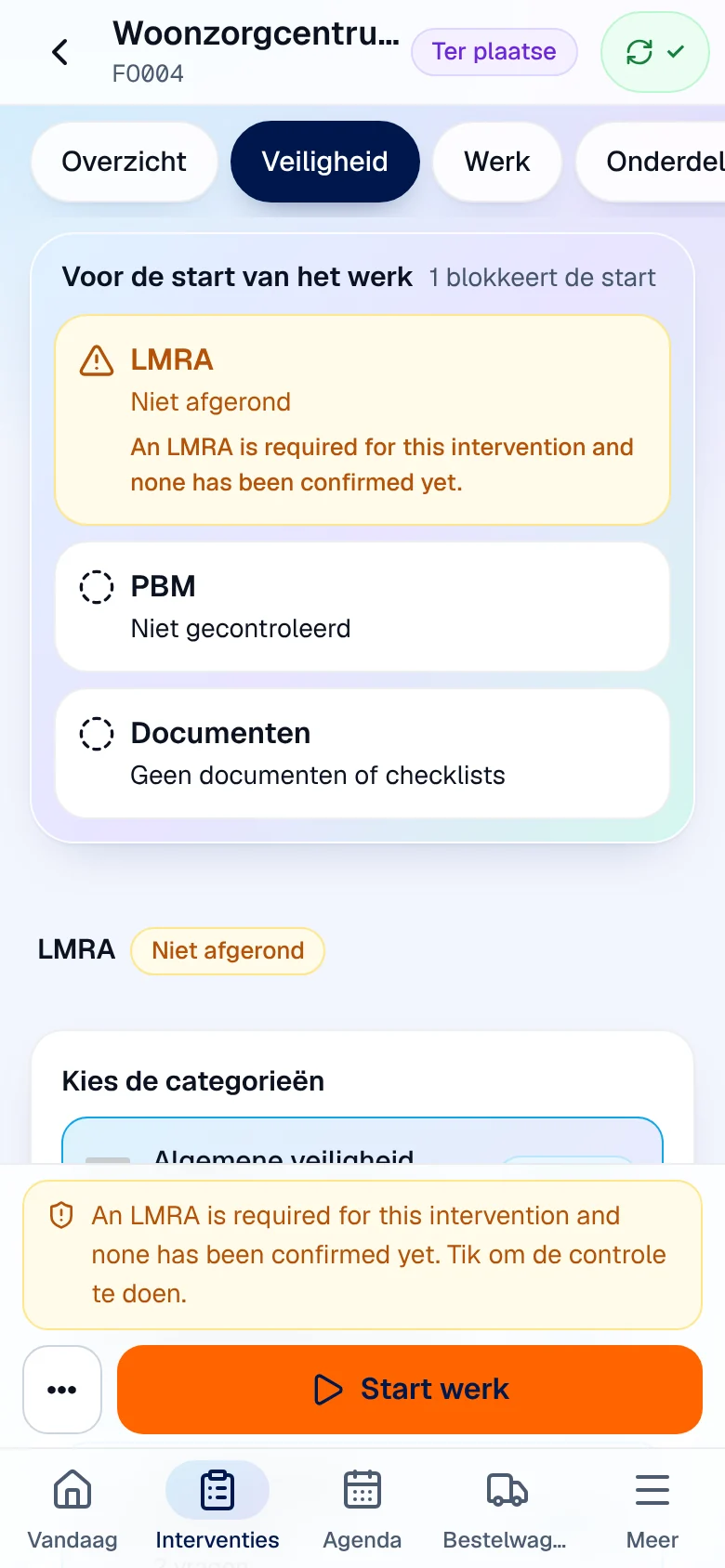
Before Start werk, your company can require an LMRA, a PPE check or the reading of documents: see Safety: LMRA, PPE and documents.
Open the intervention
Section titled “Open the intervention”-
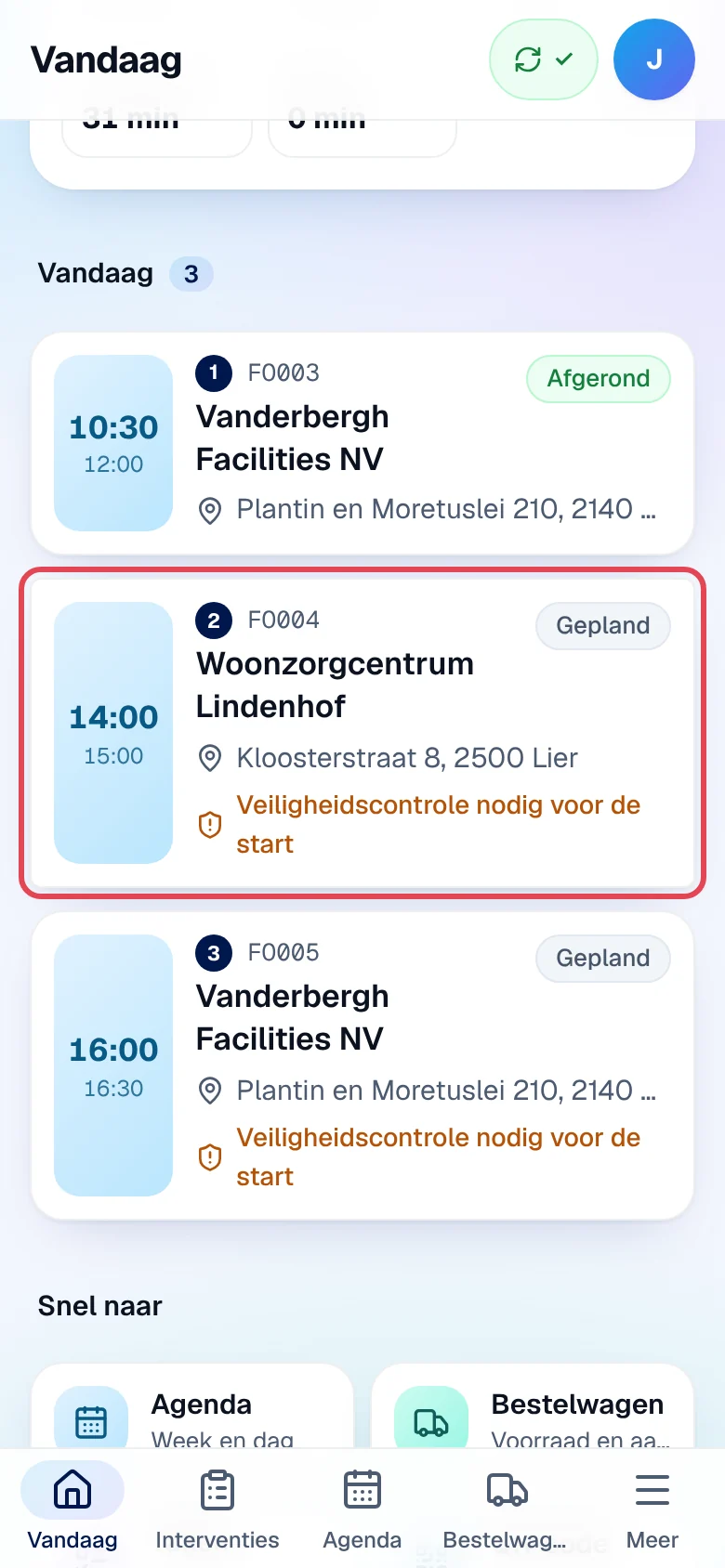
On Vandaag, tap the intervention’s card (here FO004, 14:00, Woonzorgcentrum Lindenhof). The Interventies tab gives the full list, with the Open, Afgerond and Alle filters.
-
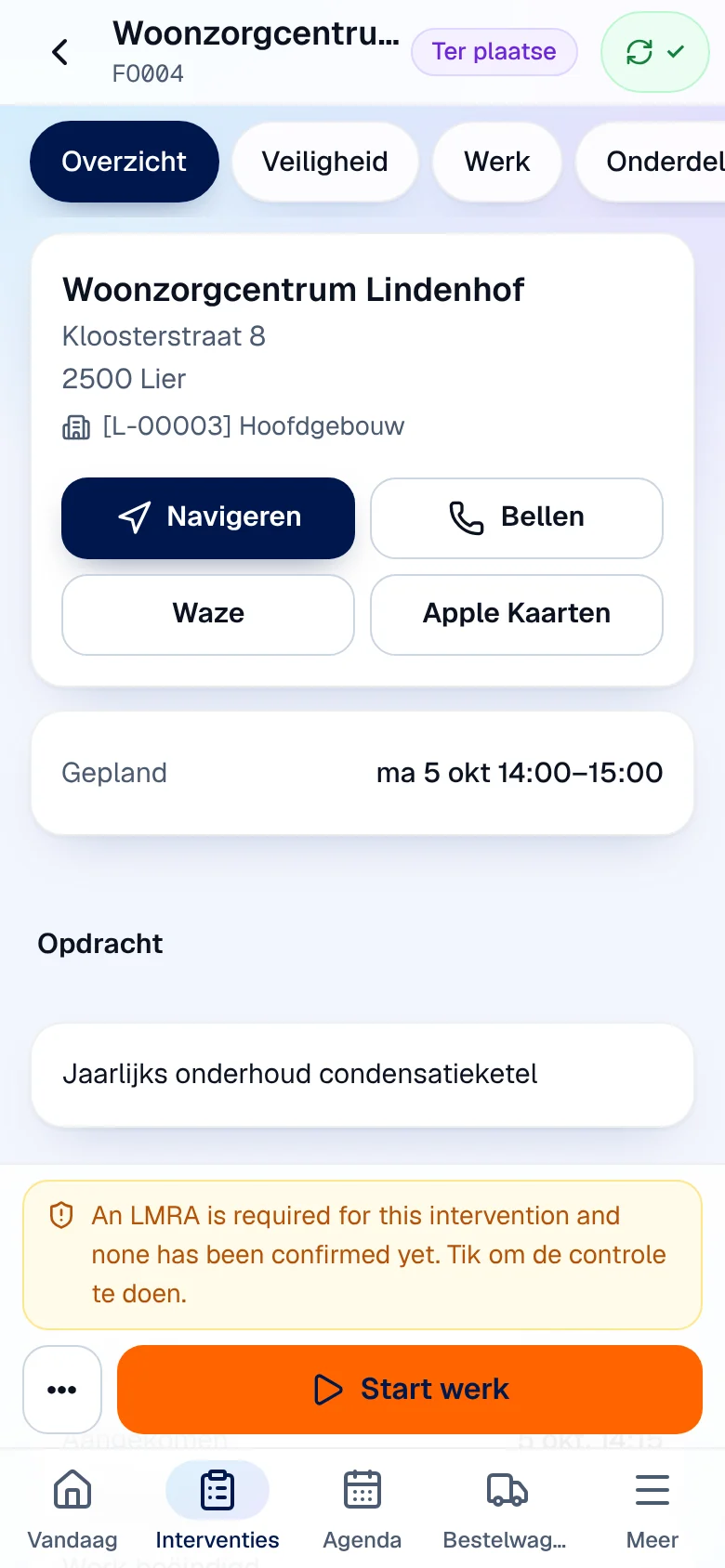
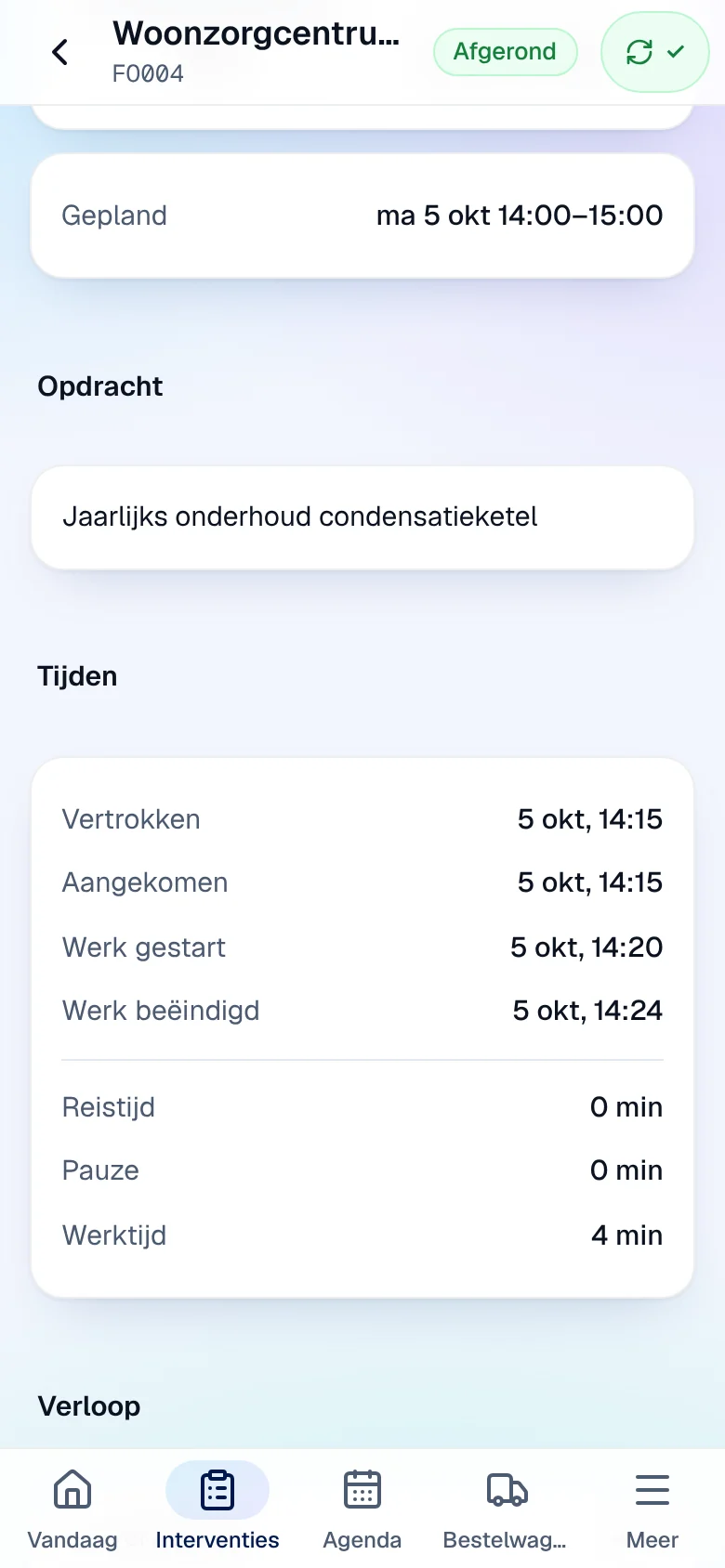
The Overzicht (overview) tab opens: address and site, Navigeren (Google Maps directions), Bellen (call the customer), Waze, Apple Kaarten, the scheduled time, Opdracht (the job) with the office’s Instructies, the installation, the Tijden (times) and the Verloop (progress).
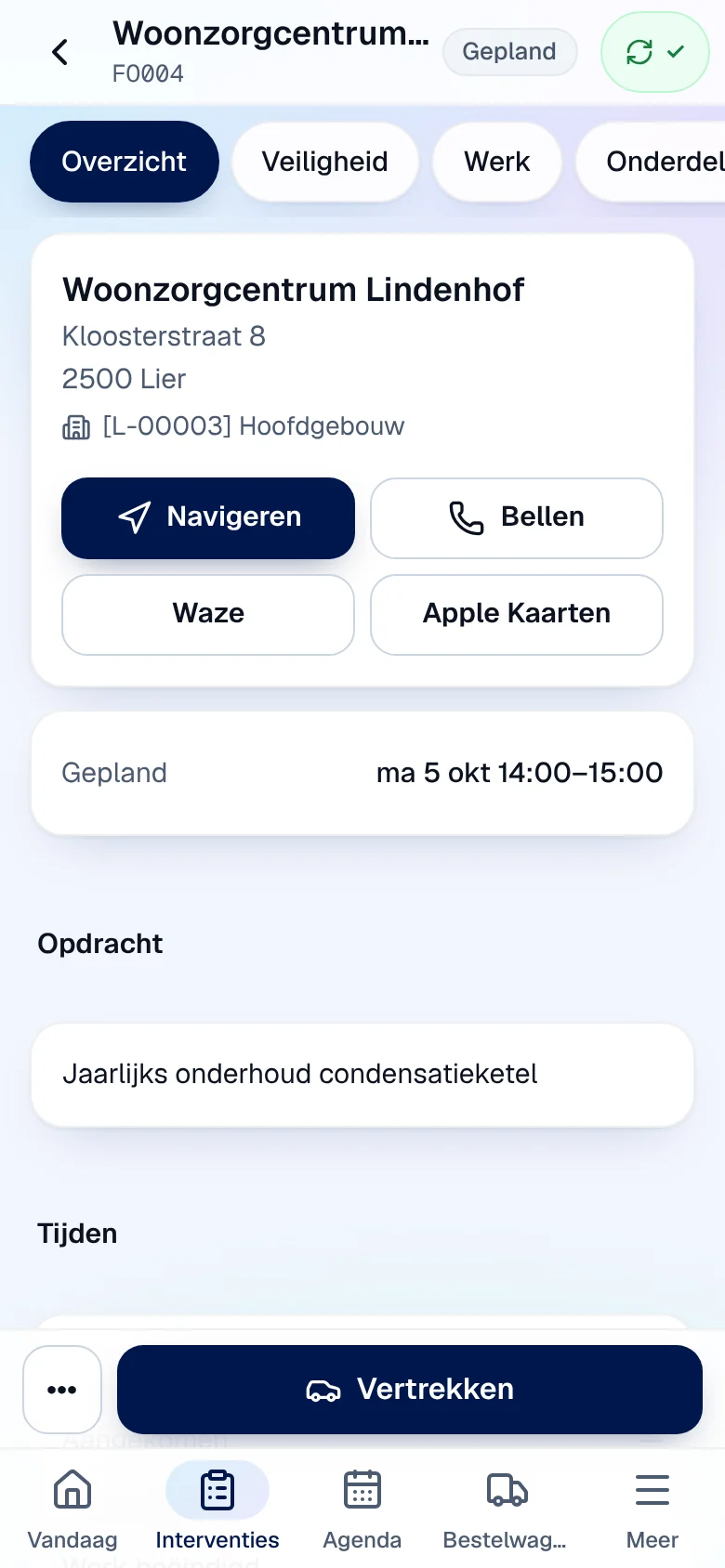
The tabs at the top: Overzicht, Veiligheid (safety, if your company uses it), Werk (work, the report), Onderdelen (parts), Foto’s en handtekening (photos and signature) and Afronden (close). Swipe the row to see the last ones.
Leave and arrive
Section titled “Leave and arrive”-
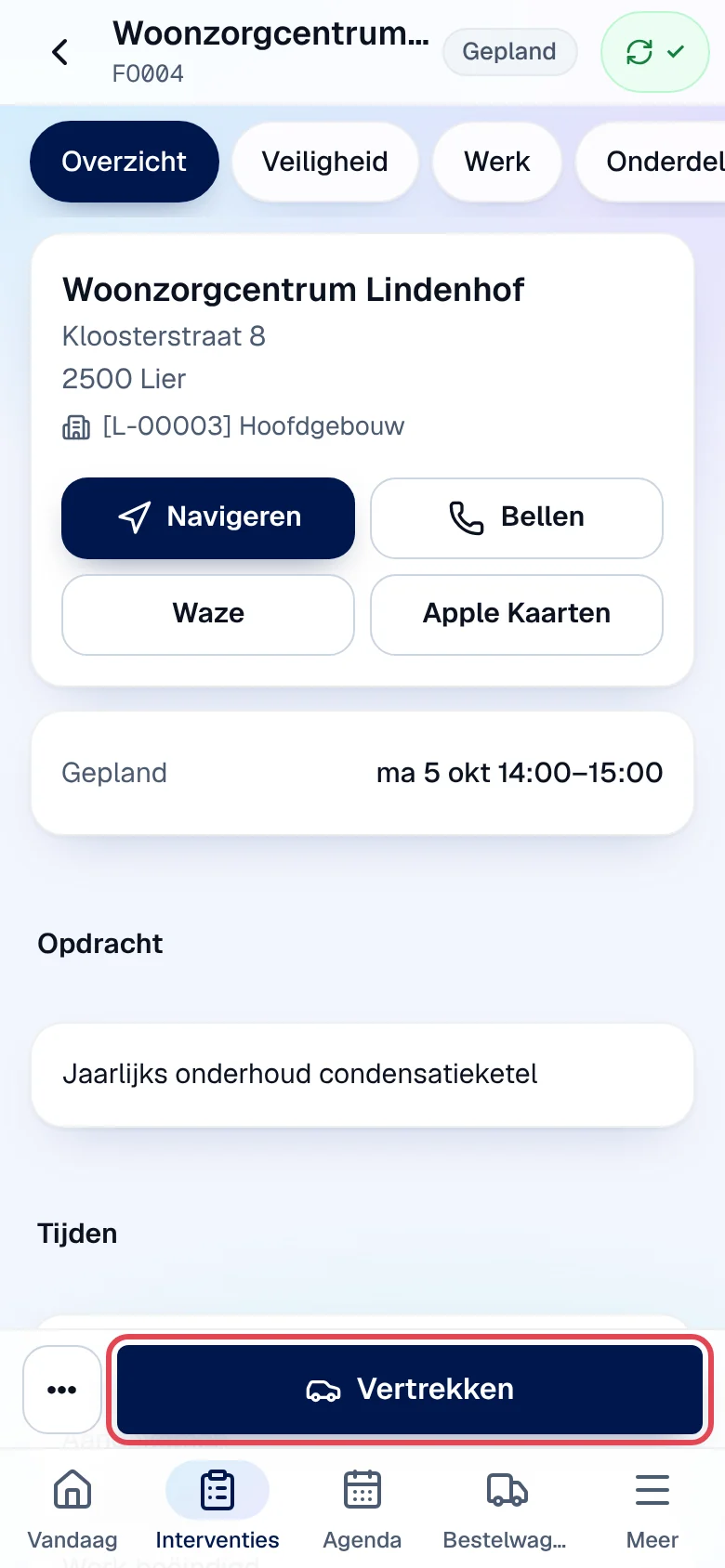
When you leave, tap Vertrekken.
-
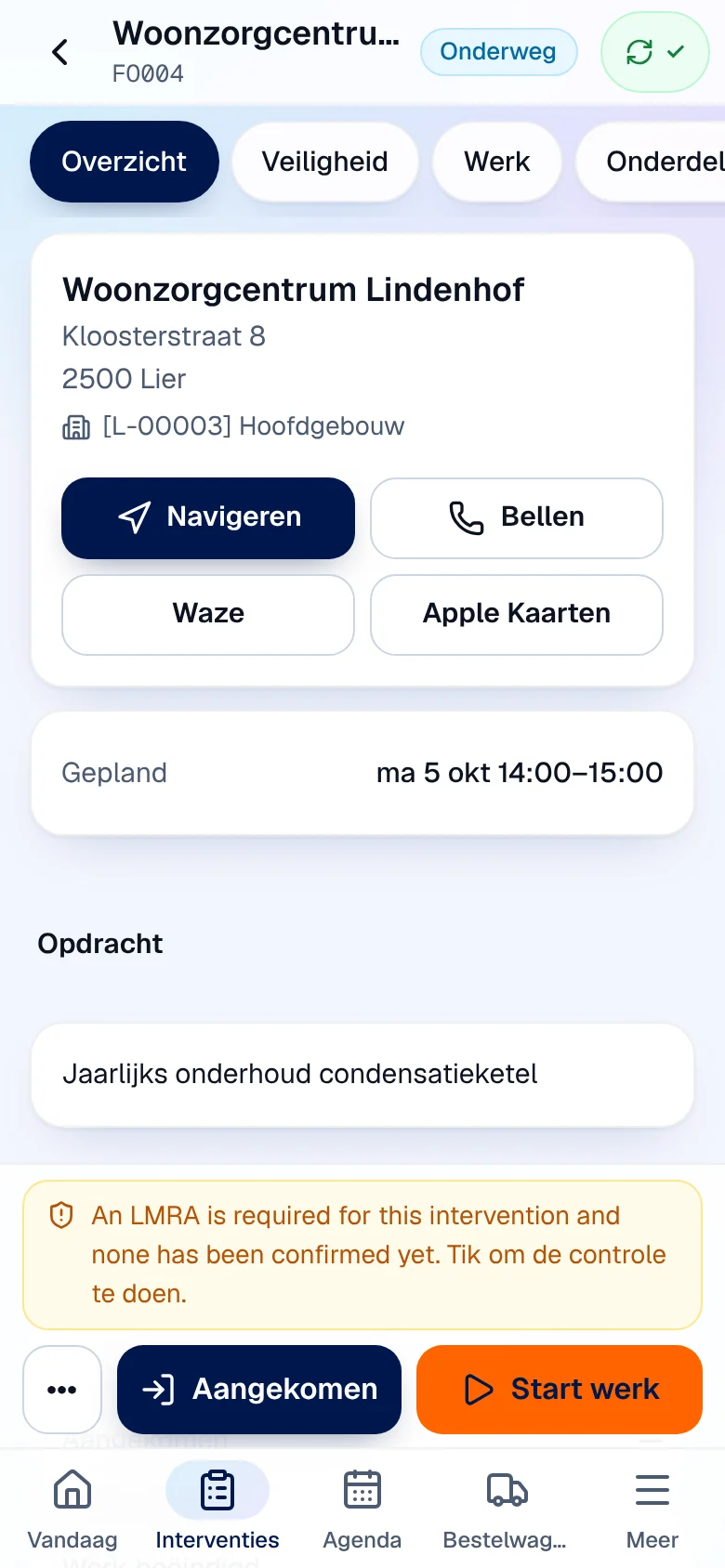
The status changes to Onderweg; Tijden shows Vertrokken (left) with the time. The bar now offers Aangekomen and Start werk.
-
On site, tap Aangekomen. The status changes to Ter plaatse.
At each step button, the app records a single location (if you allow it). There is no continuous tracking; if you refuse location access, the step is recorded without it. The planners see the last location on the schedule’s map.
Start the work
Section titled “Start the work”-
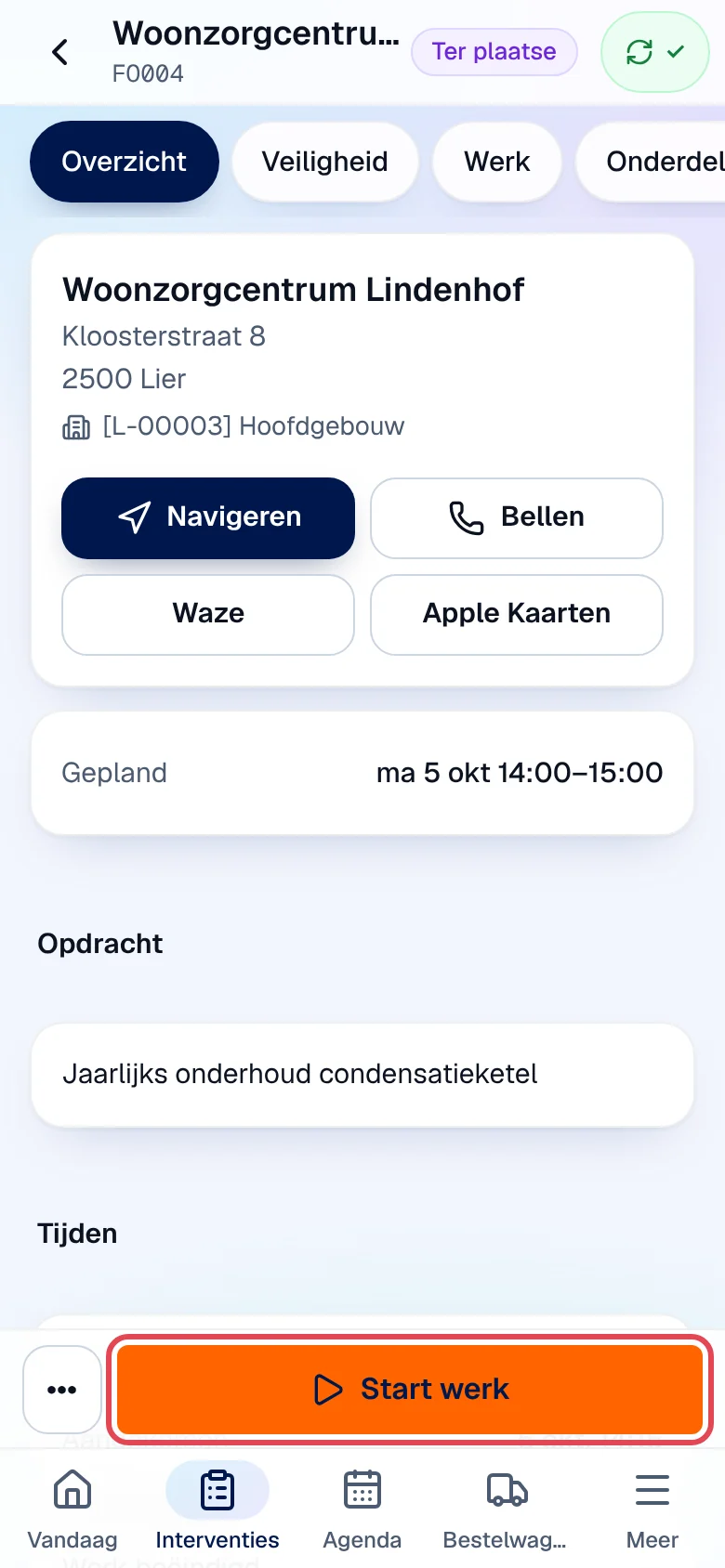
Tap Start werk. If a safety check is missing, the orange banner above the buttons gives the reason and the app opens the Veiligheid tab: do the LMRA or the requested check (see Safety).
-
When nothing is blocking any more, the banner disappears. Tap Start werk.
-
The status changes to Bezig. The bar offers Pauze and Werk beëindigen.
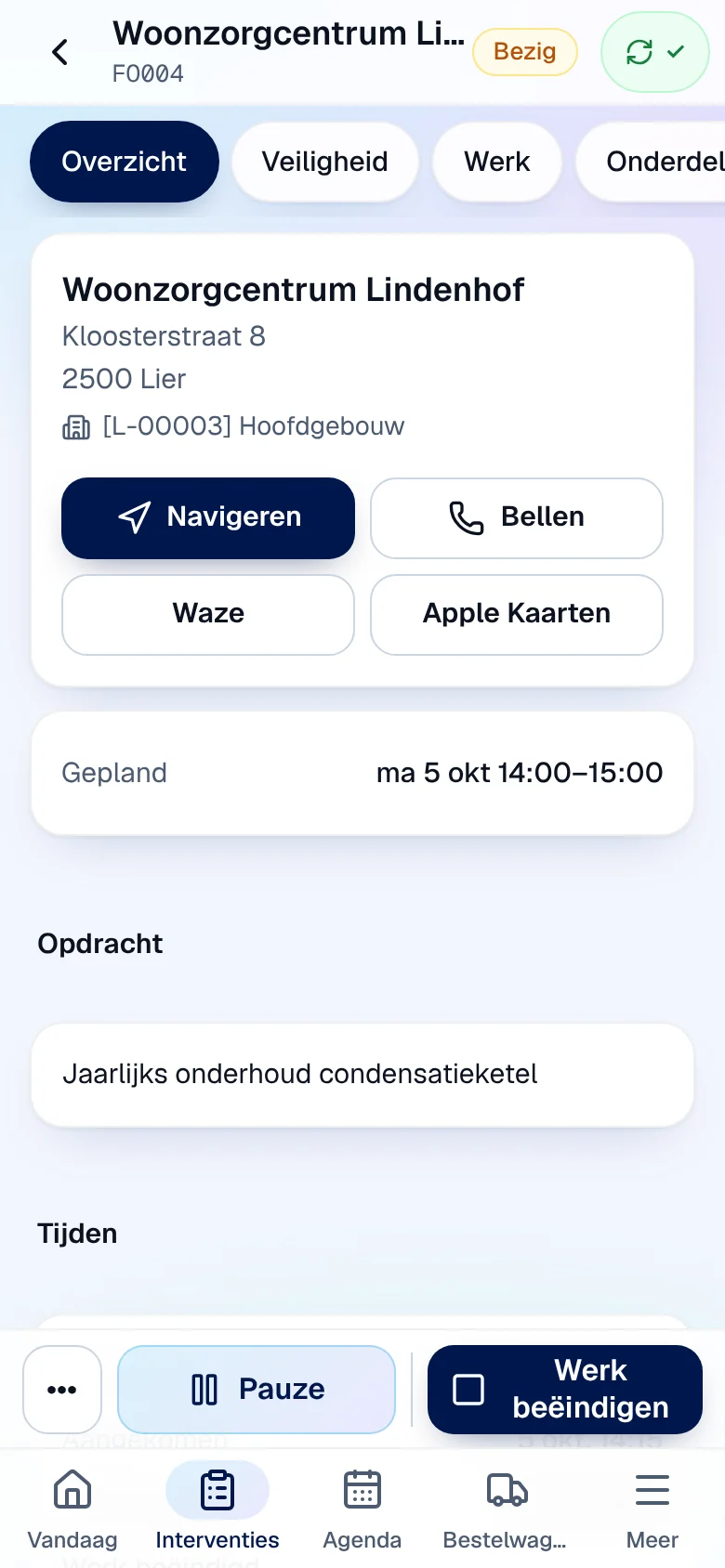
For a break, tap Pauze (status Gepauzeerd), then Hervatten to resume. Break time is counted separately (Pauze in Tijden).
Finish the work
Section titled “Finish the work”Tap Werk beëindigen: the app opens the Afronden tab, where you choose the outcome and where the app checks the report, the signatures and the mandatory photos. See Report, photos, signatures and closing.
After closing, Tijden shows the departure, arrival, start and end times, with the Reistijd (travel time), the Pauze and the Werktijd (working time).
The customer is absent
Section titled “The customer is absent”-
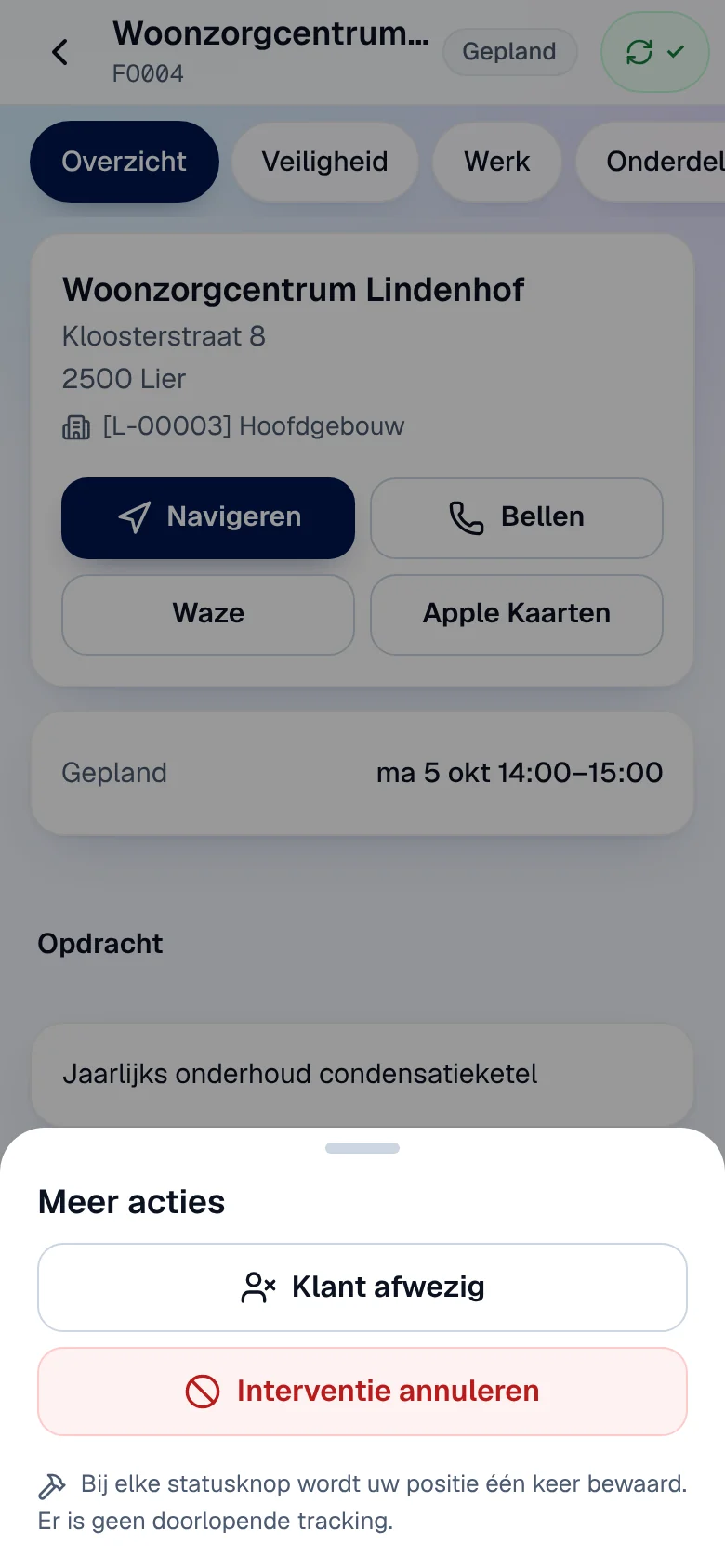
Tap ••• (Meer acties, more actions) on the left of the bar, then Klant afwezig (customer absent).
-
Describe what happened in Wat is er gebeurd? (verplicht) (required), for example “niemand thuis, gebeld zonder antwoord”.
-
Choose the Vervolg (next step) you propose to the office: Opnieuw inplannen (reschedule) or Interventie annuleren, then tap Klant afwezig melden (report the customer absent).
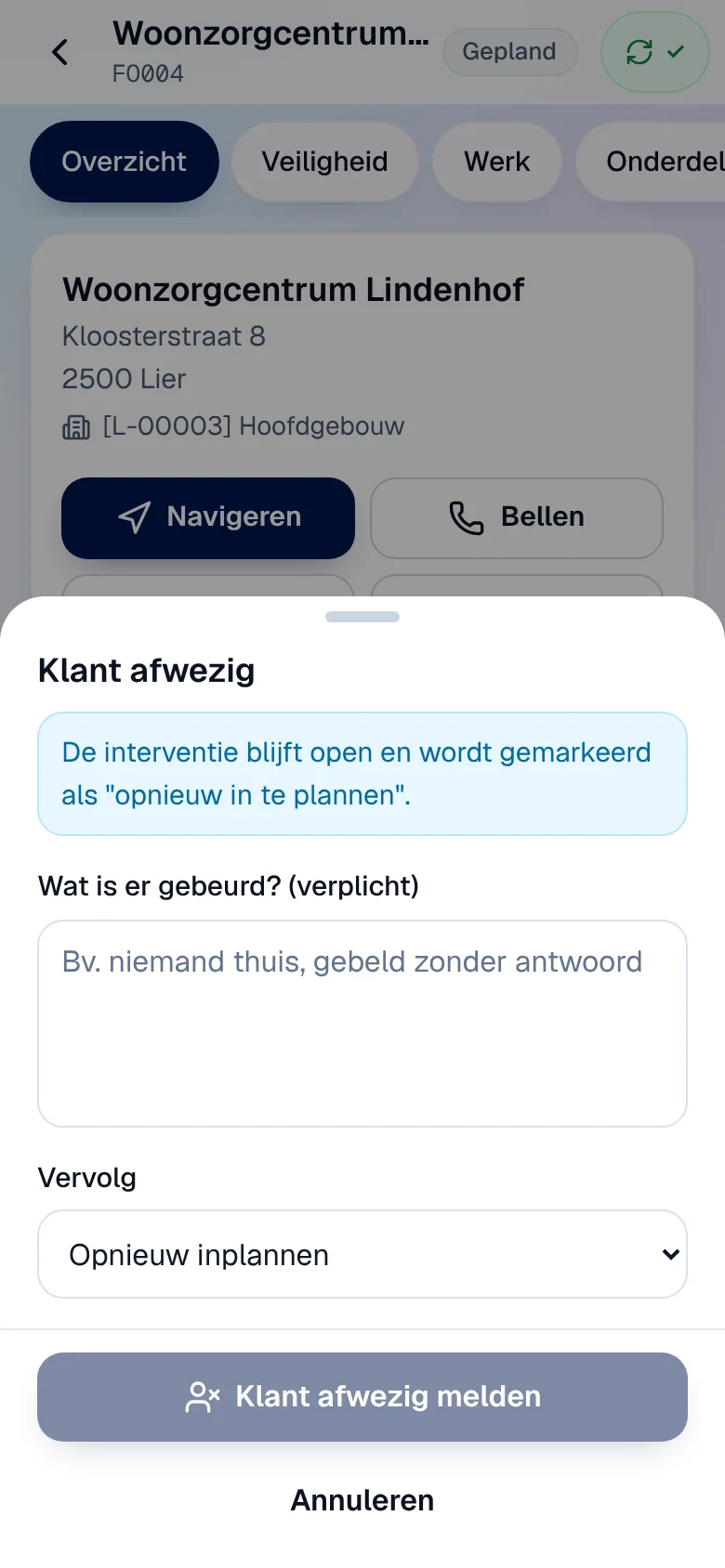
Result: the intervention stays open, with the status Klant afwezig, marked “to reschedule” until a planner reschedules it. Your choice of next step is a suggestion for the office: the intervention is not cancelled by this button. If the customer does turn up after all, tap Vertrekken or Start werk: the app asks Interventie opnieuw starten? (restart the intervention?) and the visit starts again.
Once the work has started, Klant afwezig is no longer offered. If the customer leaves during the work, close with the outcome Gedeeltelijk afgewerkt (partly completed) via Naar Afronden: the hours worked are kept and the intervention is rescheduled.
Cancel an intervention
Section titled “Cancel an intervention”-
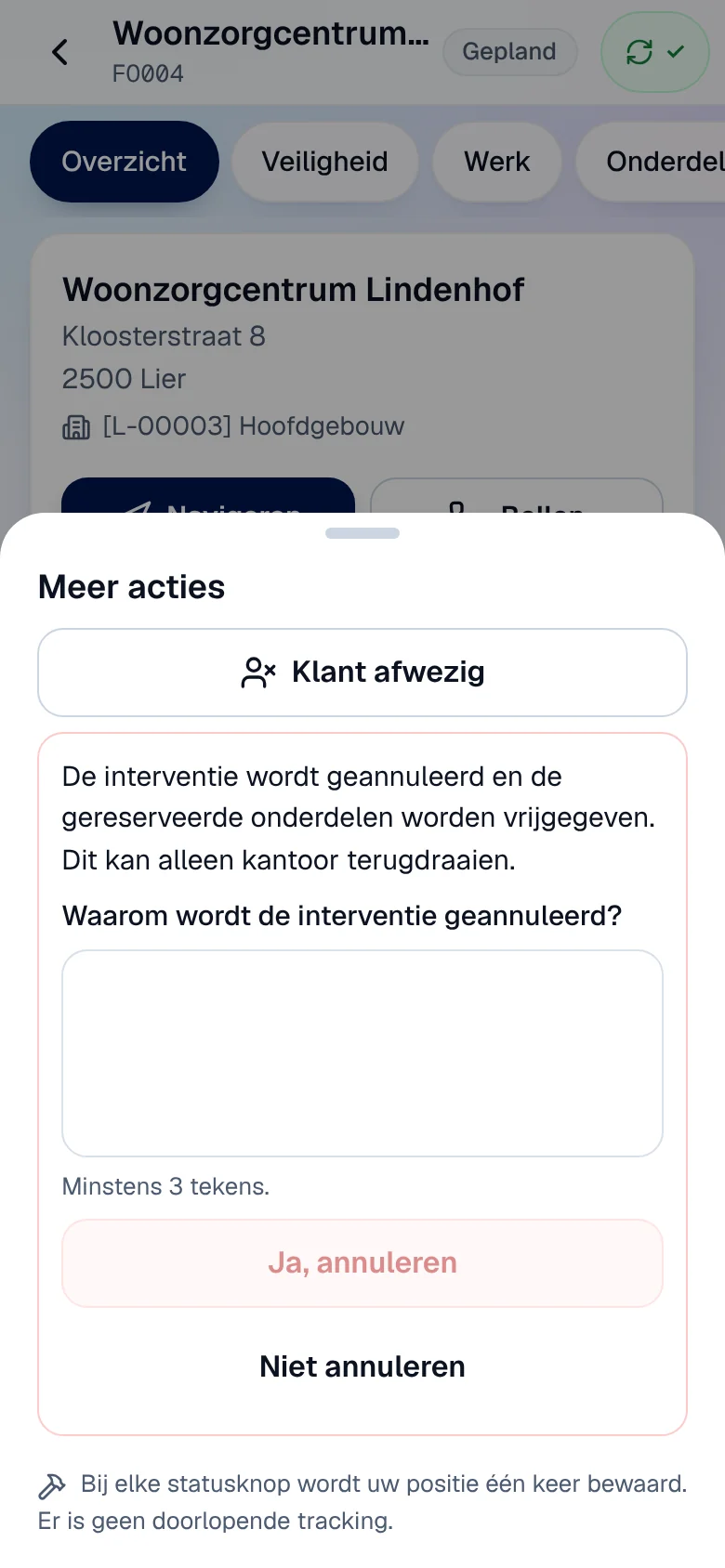
Tap ••• then Interventie annuleren.
-
Enter the reason in Waarom wordt de interventie geannuleerd? (at least 3 characters).
-
Tap Ja, annuleren (yes, cancel), or Niet annuleren to give up.
What the office sees
Section titled “What the office sees”Each step reaches the intervention record at the office as soon as it is sent: the status, the “Werkelijke tijden” panel (actual times recorded by the technician), the timeline (“Vertrokken”, “Aangekomen op locatie”, “Werk gestart”, “Gepauzeerd”, “Hervat”, “Werk afgerond”, “Klant afwezig”). The labels differ slightly: Gepland reads “Nog niet gestart”, Bezig “Aan het werk”, Afgerond “Afgewerkt”. See The intervention record and The schedule.
Rights
Section titled “Rights”| Action | Assigned technician | Office |
|---|---|---|
| Leave, arrive, start, pause, finish | ✓ (their interventions) | ✓ from the intervention record |
| Report the customer absent | ✓ | ✓ |
| Cancel the intervention | ✓ (with a reason) | ✓, and only the office can undo a cancellation |
| View a colleague’s intervention | — (“Niet gevonden.”) | ✓ |
Current limits
Section titled “Current limits”- No push notifications: a new intervention appears at the next refresh.
- Offline, a step’s location is only kept if the step is sent within 30 seconds.