

Parts and van
The parts you use come out of the stock of your van. You record them in the intervention, Onderdelen (parts) tab; the van’s stock goes down when the server posts them. The Bestelwagen (van) tab shows what you have left and lets you request parts from the warehouse.
| Menu | in the intervention, Onderdelen tab; Bestelwagen tab at the bottom |
| Who | the technician, for their own van |
| Prerequisites | the office has linked a van to your record; for parts tracked by lot or serial number, that lot must be in your van |
Record a part used
Section titled “Record a part used”-
In the intervention, open Onderdelen and tap Toevoegen (add).
-
Search for the part in Naam, referentie of barcode (name, reference or barcode). Only the parts in your van appear, with their stock; otherwise “Geen voorraad” (no stock) or “Niets gevonden in uw bus.” (nothing found in your van).
-
Tap the part. The app shows Beschikbaar in de bus (available in the van). Set the Aantal (quantity) with − and +, choose the Lot or the Serienummer if the part requires one, add a Notitie (optioneel) if needed, then tap Toevoegen.
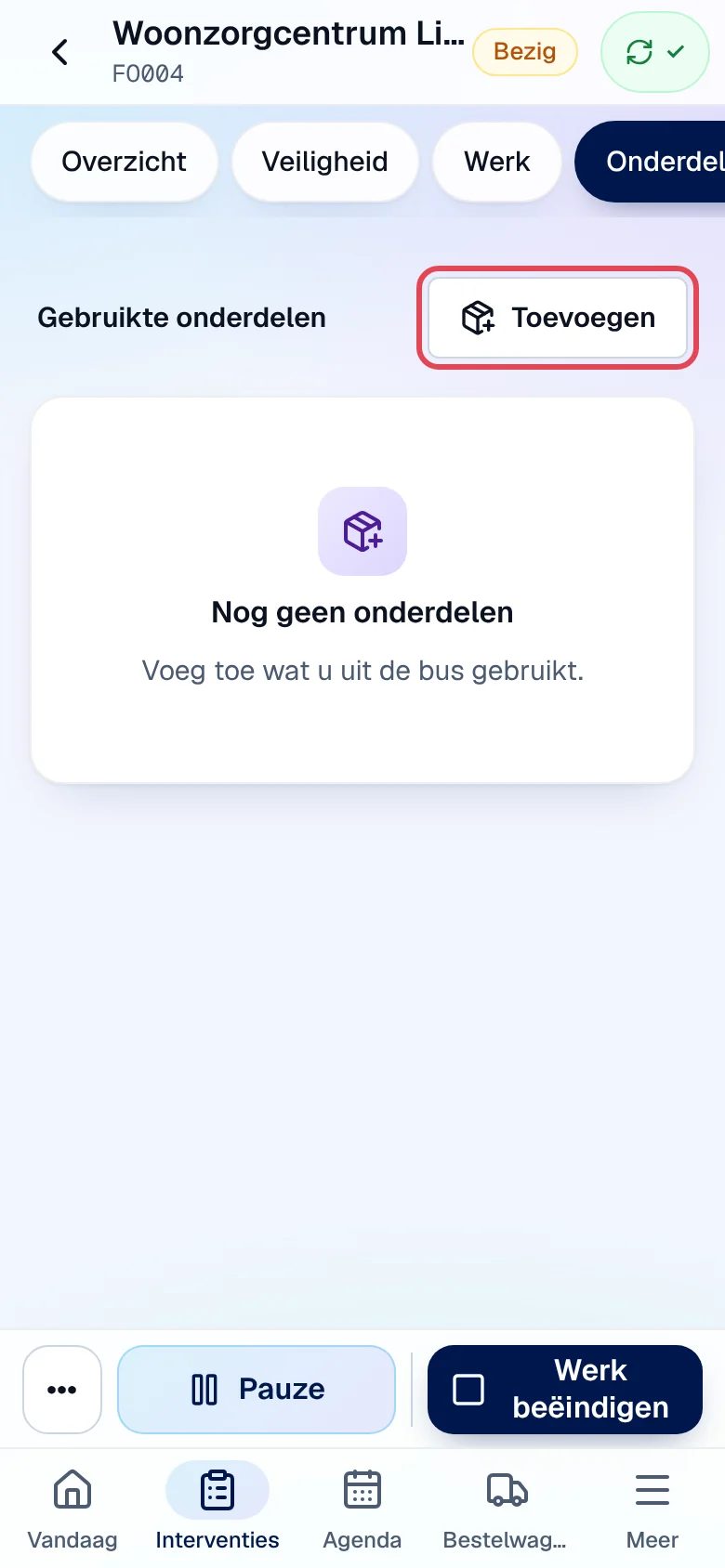
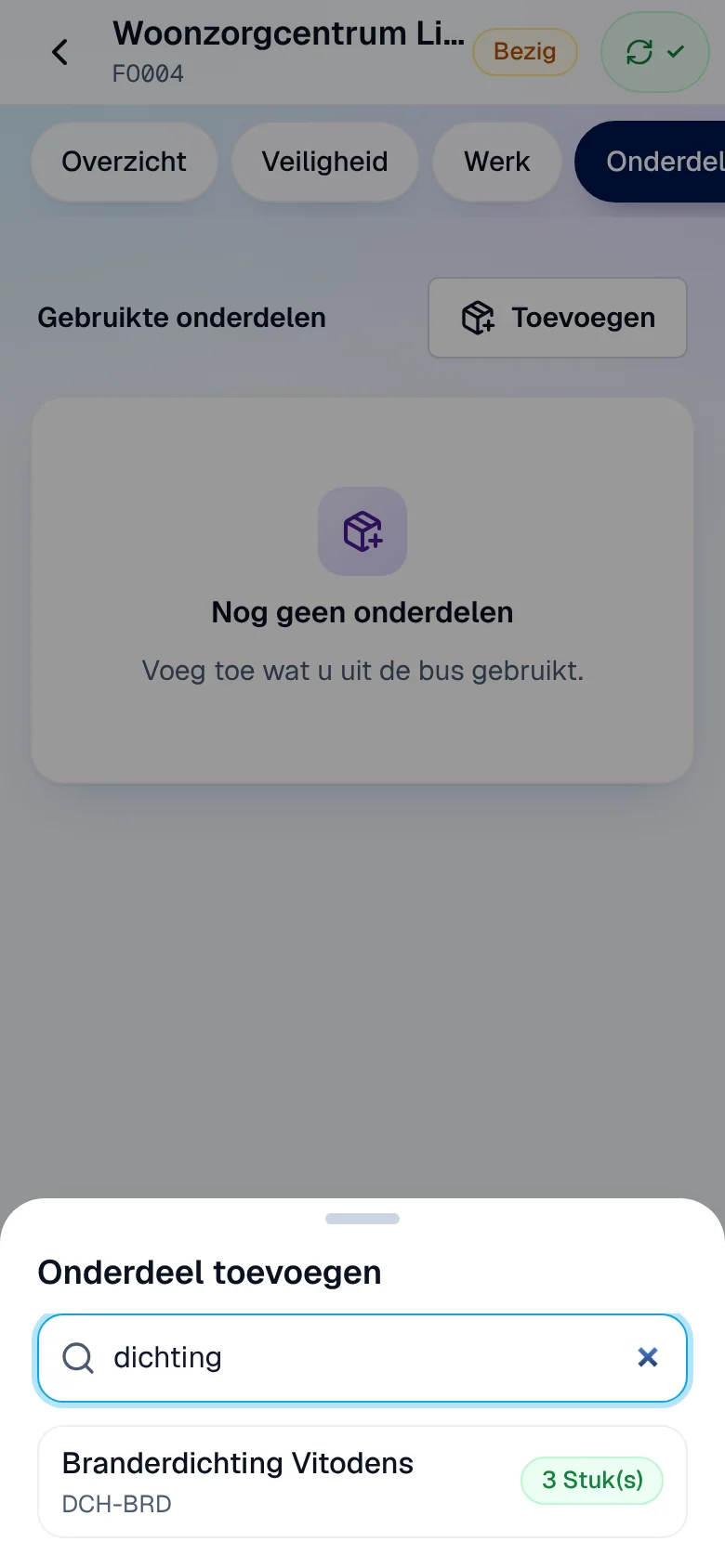
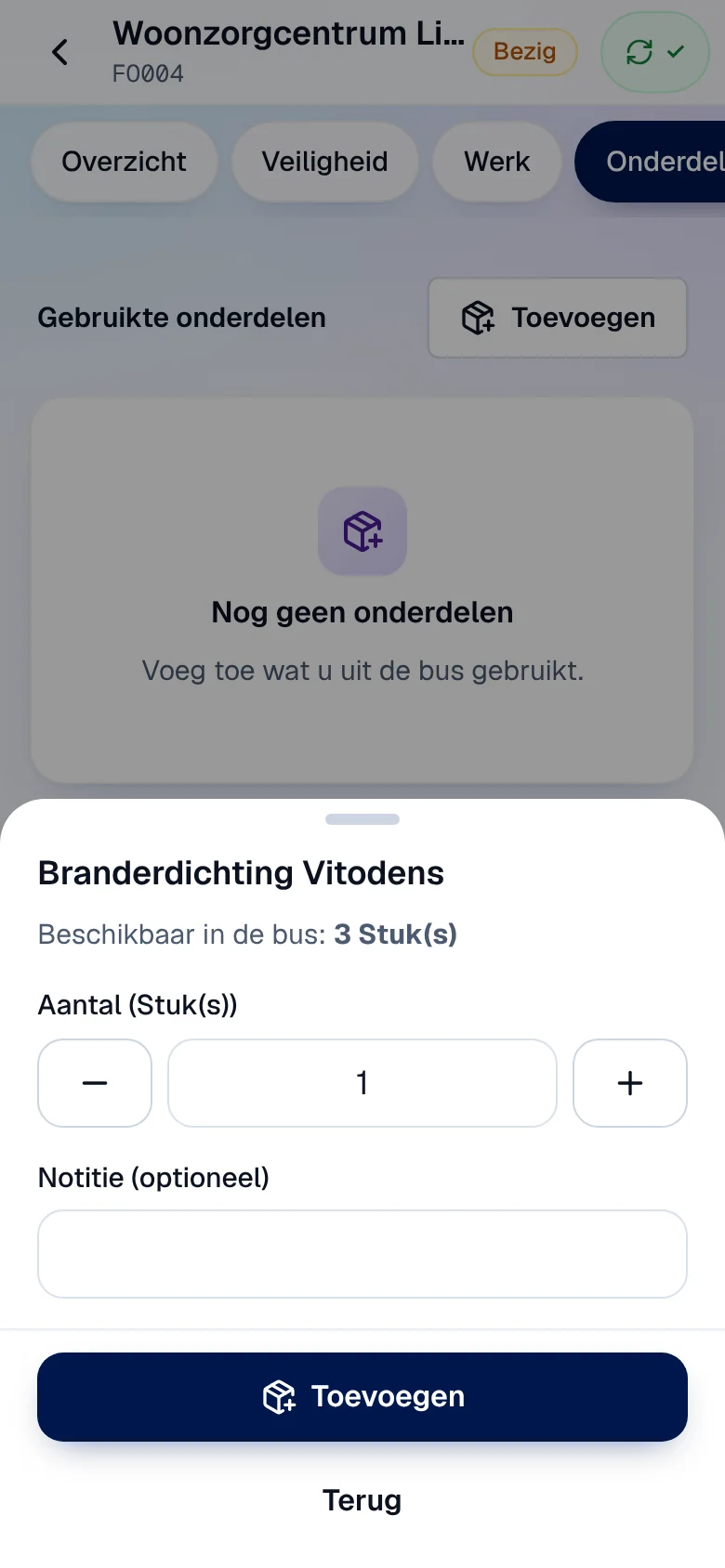
Result: the line first appears as “In wachtrij — voorraad nog niet geboekt” (queued, stock not posted yet), then with the Geboekt (posted) badge when the server has accepted it. A part is never shown as used before this confirmation.
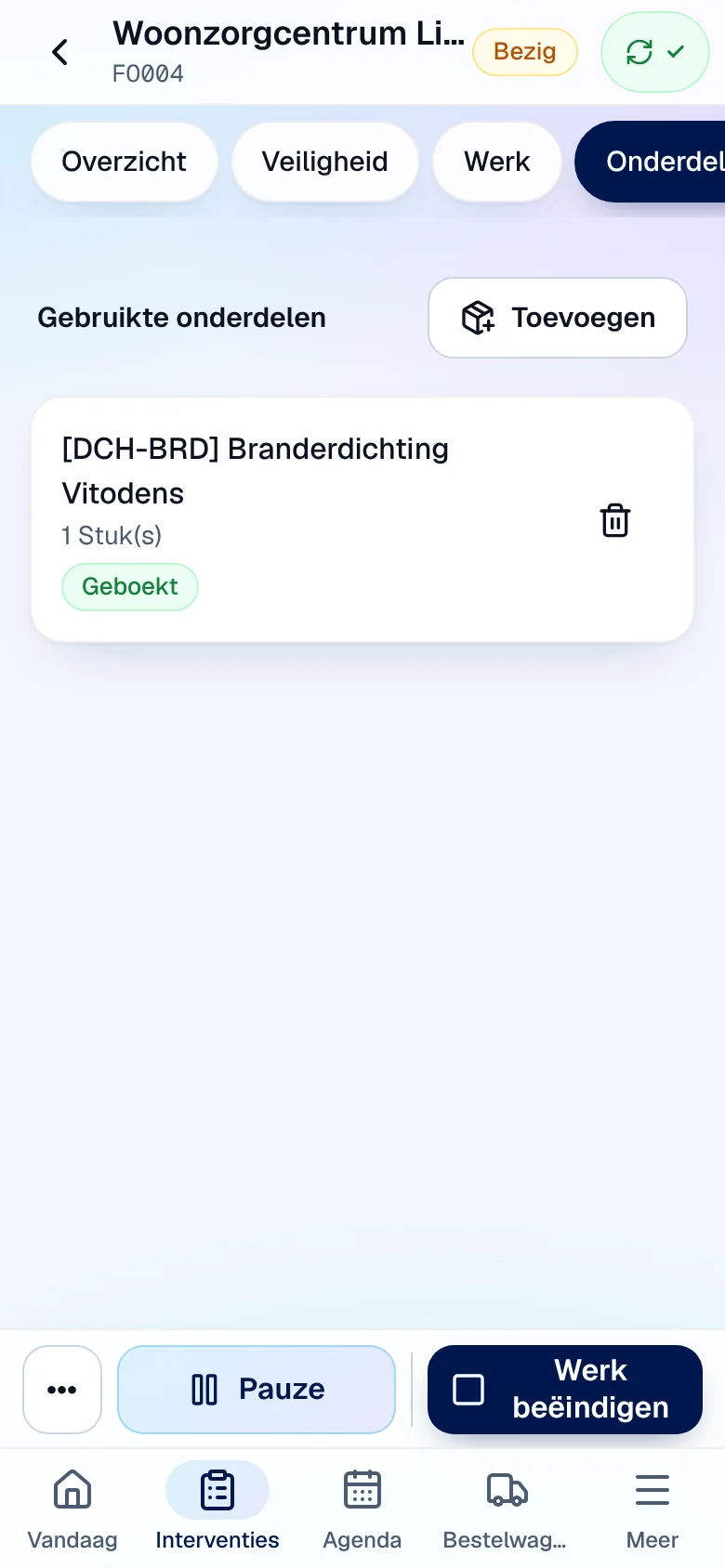
- A mistake? Tap the line’s bin icon: it changes to “Terugname in wachtrij” (return queued) and the part goes back into your stock.
- Parts prepared by the warehouse: the Klaargezet voor deze opdracht (prepared for this job) section shows what is planned, already used and still in the van; tap Gebruiken (use).
- Quantity above the stock: the app warns “Meer dan beschikbaar in de bus. De server zal dit weigeren als de voorraad niet volstaat.” The server then refuses the line (“Niet geboekt: …”).
- Lot or serial number not in the van: “Er is geen lot/serienummer van dit onderdeel in de bus. Vraag het magazijn om het over te boeken.”
- Closed intervention: “Deze interventie is afgesloten. Onderdelen wijzigen gebeurt via kantoor.”
View your van
Section titled “View your van”Open the Bestelwagen tab. At the top: the van’s name, the number of items, tekorten (shortages) and open requests. The Voorraad (stock) list shows each item with its minimum (Min.) and the quantity; the quantity is in red below the minimum. Search with Zoek in de bus and filter with Alle or Tekorten.
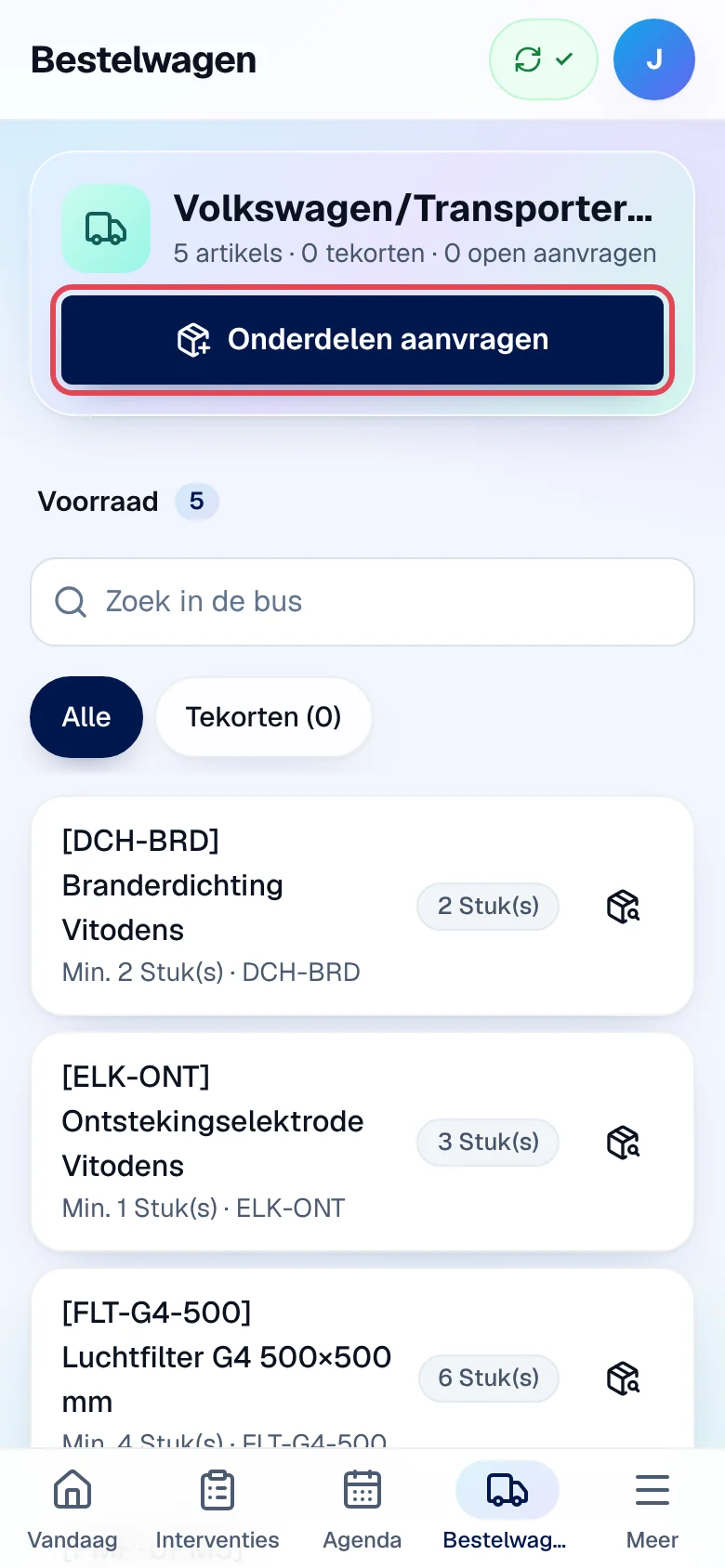
Without a linked van: “Geen busvoorraad. Er is nog geen voorraad aan u gekoppeld. Vraag kantoor om uw bus in te stellen.” Without a minimum set by the office, the app flags no shortage.
Request parts
Section titled “Request parts”-
Tap Onderdelen aanvragen (request parts), or the request icon on a line.
-
Search for the Artikel (item) in Naam of referentie. The app suggests as Aantal what is missing to reach the minimum; correct it if needed. The Bestelwagen is filled in automatically. Add an Opmerking (optioneel) (remark).
-
Tap Aanvragen (request).
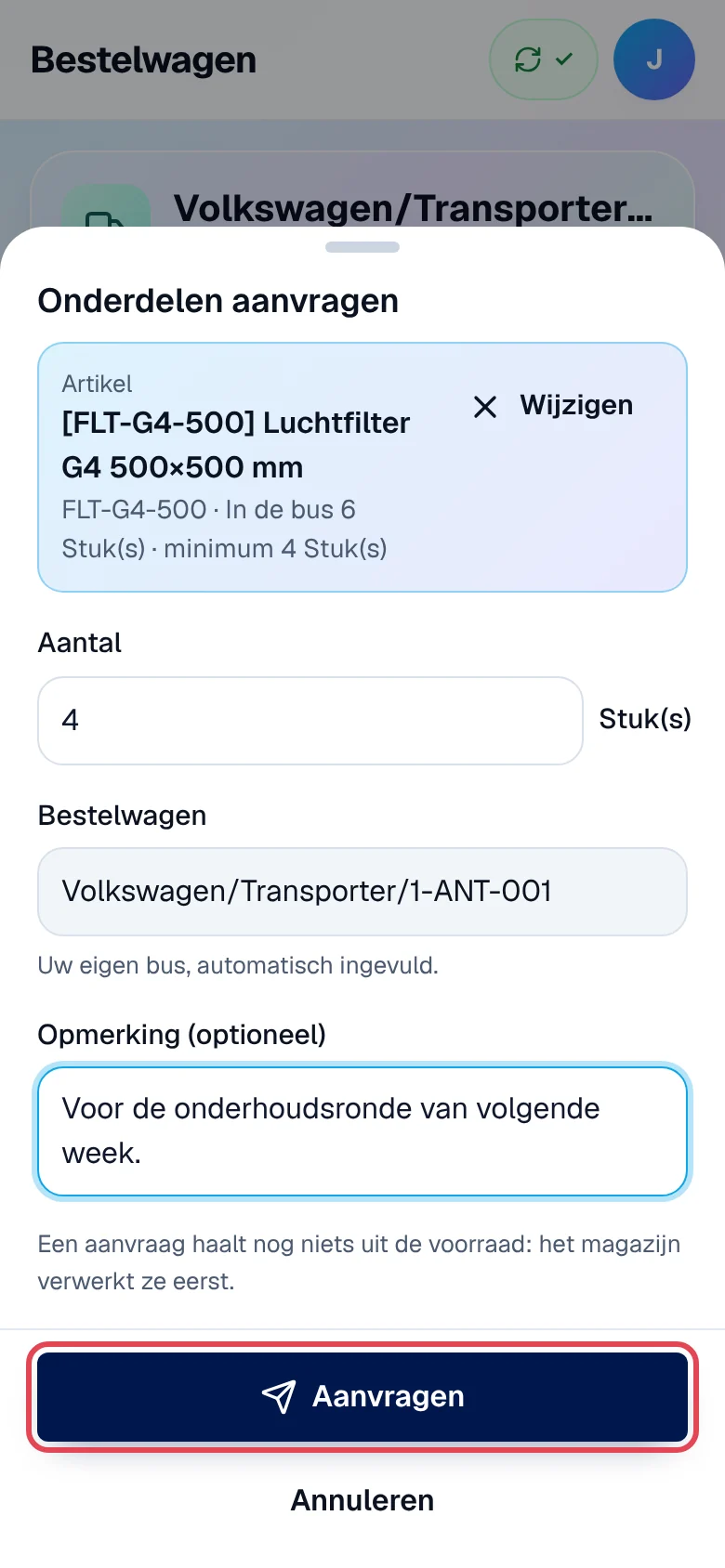
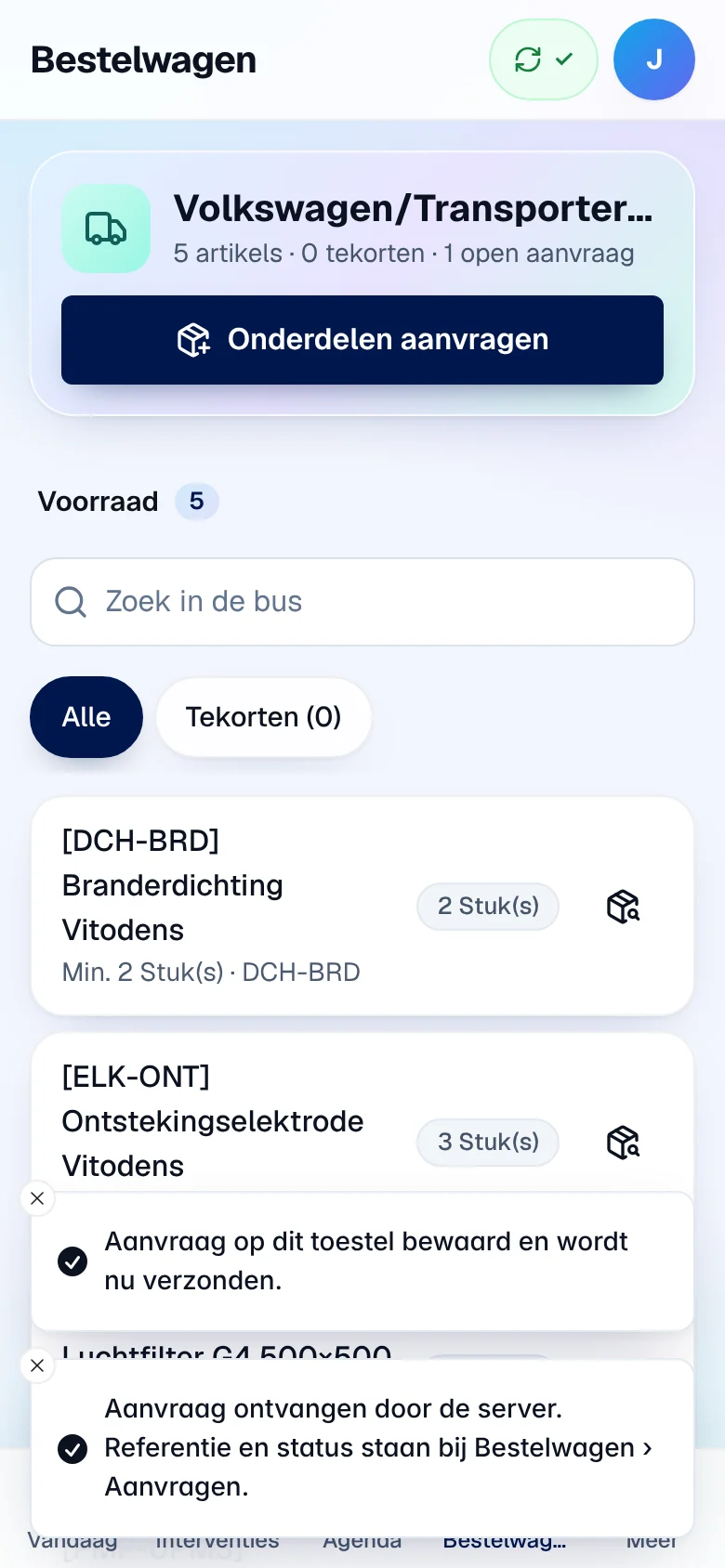
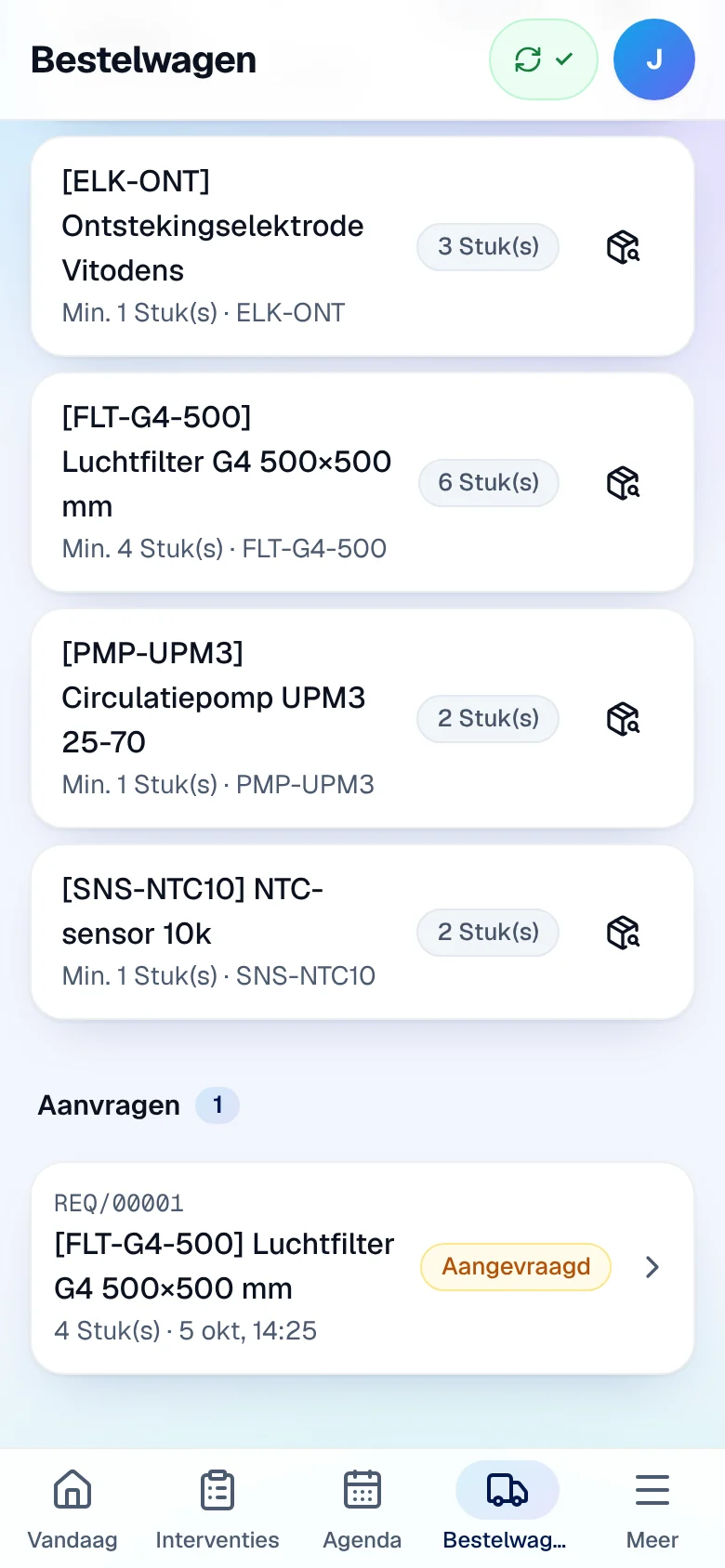
Result: “Aanvraag ontvangen door de server. Referentie en status staan bij Bestelwagen › Aanvragen.” The request receives a reference (here REQ/00001).
Follow your requests
Section titled “Follow your requests”Under Aanvragen (requests), each request shows its reference, the item, the quantity, the date and its status: Aangevraagd (requested), Goedgekeurd (approved), Geleverd (delivered), Geweigerd (refused) or “Levering geannuleerd” (delivery cancelled). Tap a request for the details.
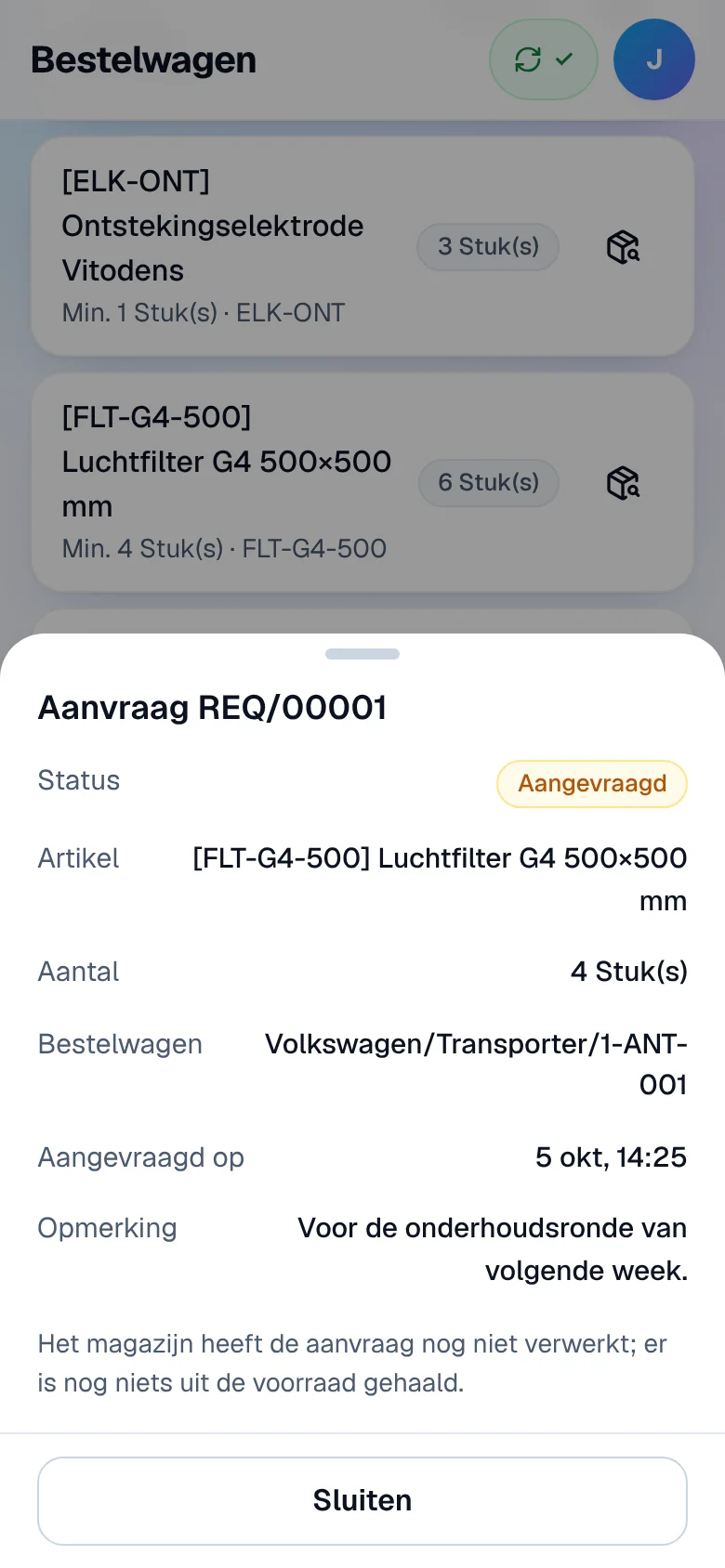
Offline, the request stays “Op dit toestel — nog niet aangevraagd” (on the device, not requested yet) until the network returns. If the server refuses it, nothing is requested: correct the quantity and request again, or tap Verwijderen (delete).
Current limits
Section titled “Current limits”- Offline, the search uses the last copy of your van; the stock is checked when sending, and a lot or serial number cannot be chosen.
- You only see your own van; a part from another van goes through the warehouse.