

Installations: register, record, health and downtime
An installation is a device you maintain at a customer’s premises: a boiler, a heat pump, a ventilation unit. Each installation belongs to a customer and a site. Its record brings together the model, the serial number, the warranty, maintenance, interventions, downtime, documents and a health score.
| Menu | Klanten & installaties › Installaties, with Uitrustingshiërarchie (hierarchy) and Gezondheid (health) |
| Who | administrator, manager and planner can view; administrator and manager register and edit (table at the bottom of the page) |
| Prerequisites | the customer and their site exist (Sites) |

The video creates the QR code with one click: this button only appears for people who manage QR codes (QR codes and reports).
Finding an installation
Section titled “Finding an installation”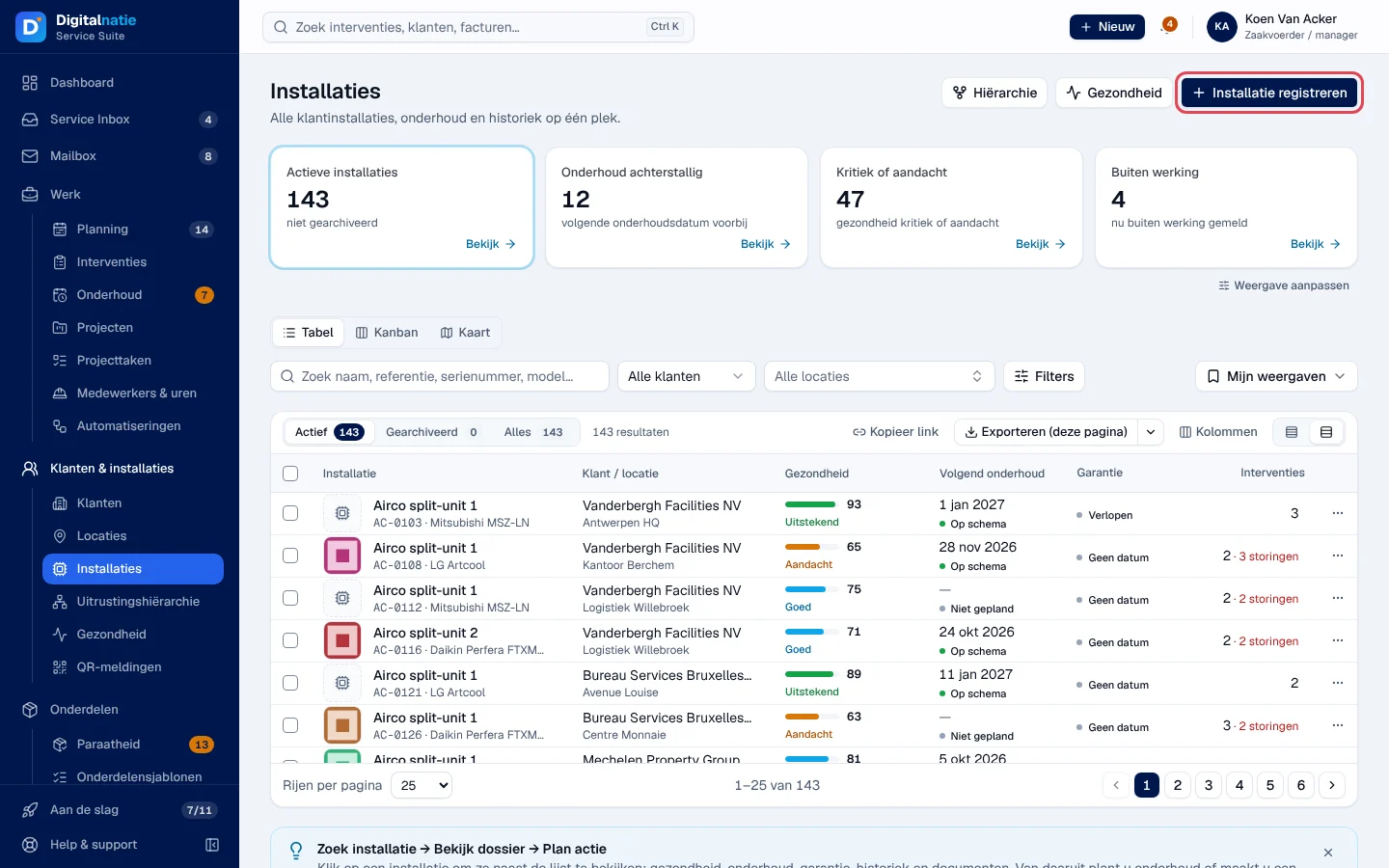
- The Actieve installaties, Onderhoud achterstallig (maintenance overdue), Kritiek of aandacht (critical or attention) and Buiten werking (out of service) tiles filter the register with Bekijk.
- Tabel, Kanban and Kaart (table, columns, map) change the display.
- Search for a name, a reference, a serial number or a model; filter by customer, site and, under Filters, health, maintenance, warranty, type, phase or QR code status.
- Mijn weergaven (my views) saves your filters, sorting and columns, for you only.
- The columns show health (score and class), Volgend onderhoud (next maintenance: Op schema, Binnenkort, Achterstallig, Niet gepland), Garantie and interventions. The ⋯ menu offers Storing melden (report a breakdown), Onderhoud plannen, Openen and QR-label.
Registering an installation
Section titled “Registering an installation”
-
Click Installatie registreren. From a site’s page or a customer file, the customer and site are already filled in.
-
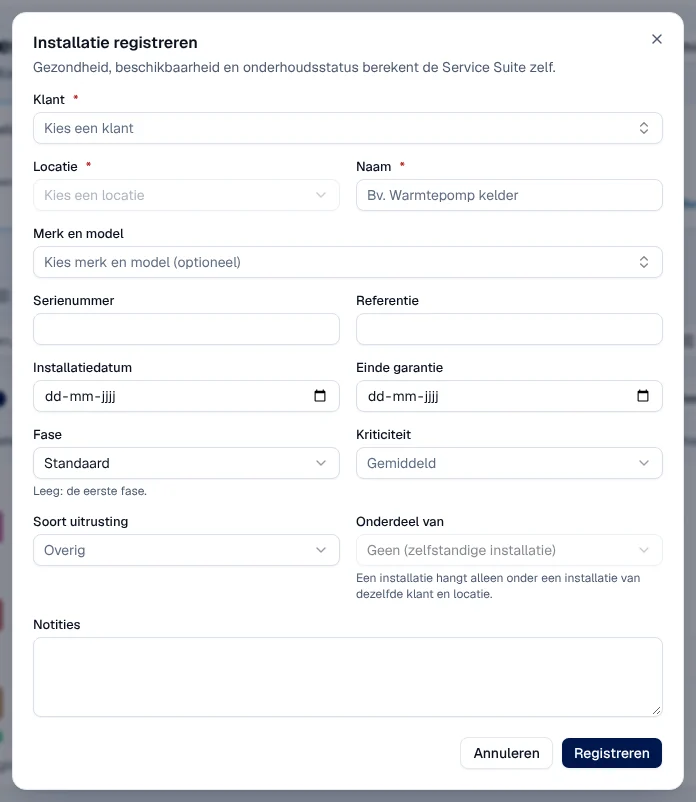
Choose the Klant and the Locatie, then enter a Naam (name).
-
If possible, add Merk en model (make and model, chosen from your catalogue), Serienummer, Referentie, Installatiedatum and Einde garantie (end of warranty), then Fase (empty: the first phase), Kriticiteit (criticality), Soort uitrusting (equipment type) and Onderdeel van (part of another installation of the same customer and site).
-
Click Registreren.
Result: the installation appears in the register and at its site. Health, availability and maintenance status are calculated by Service Suite; you do not enter them. If the customer does not have a site yet: “Deze klant heeft nog geen locatie. Maak die eerst aan.”
Reading an installation’s record
Section titled “Reading an installation’s record”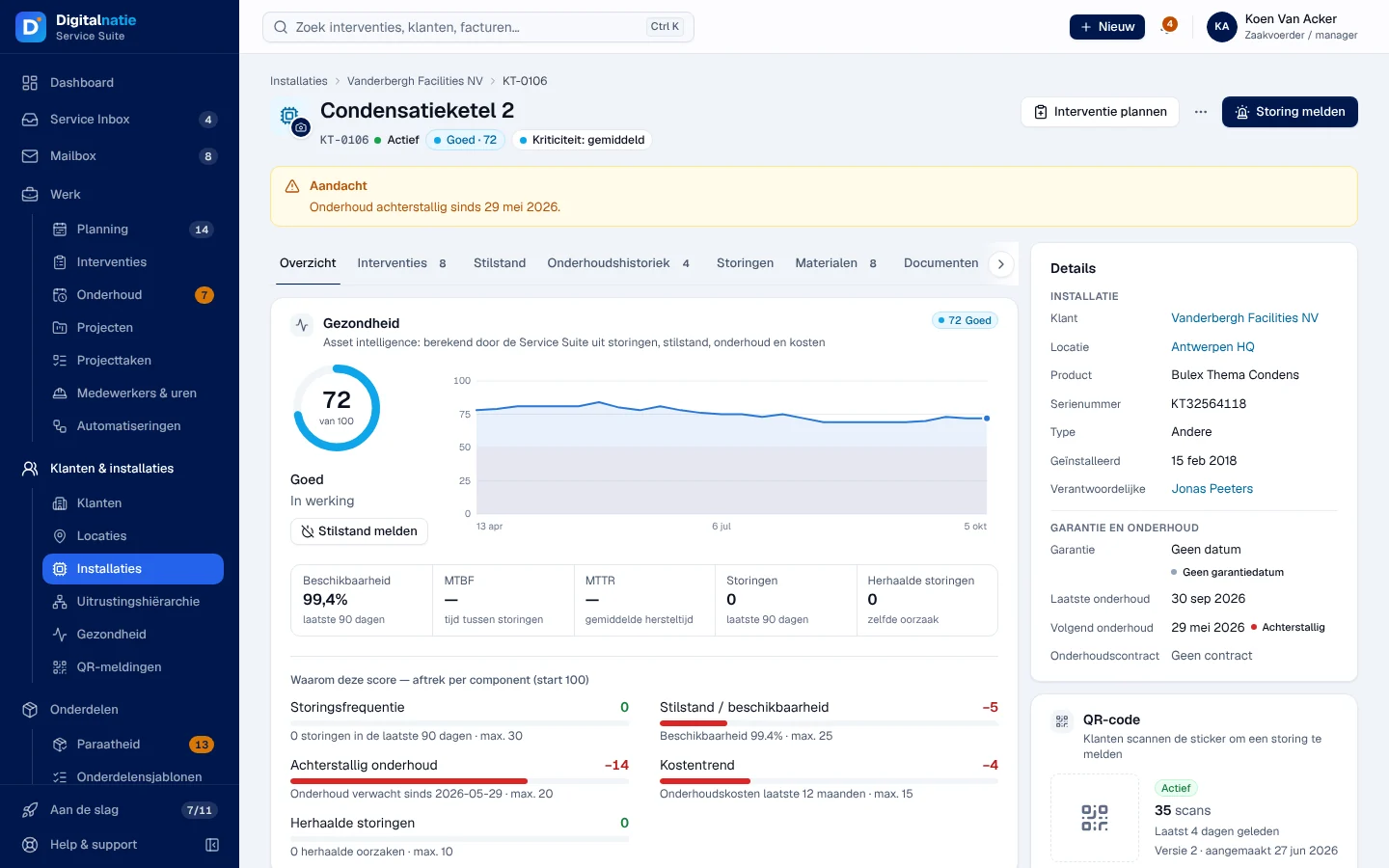
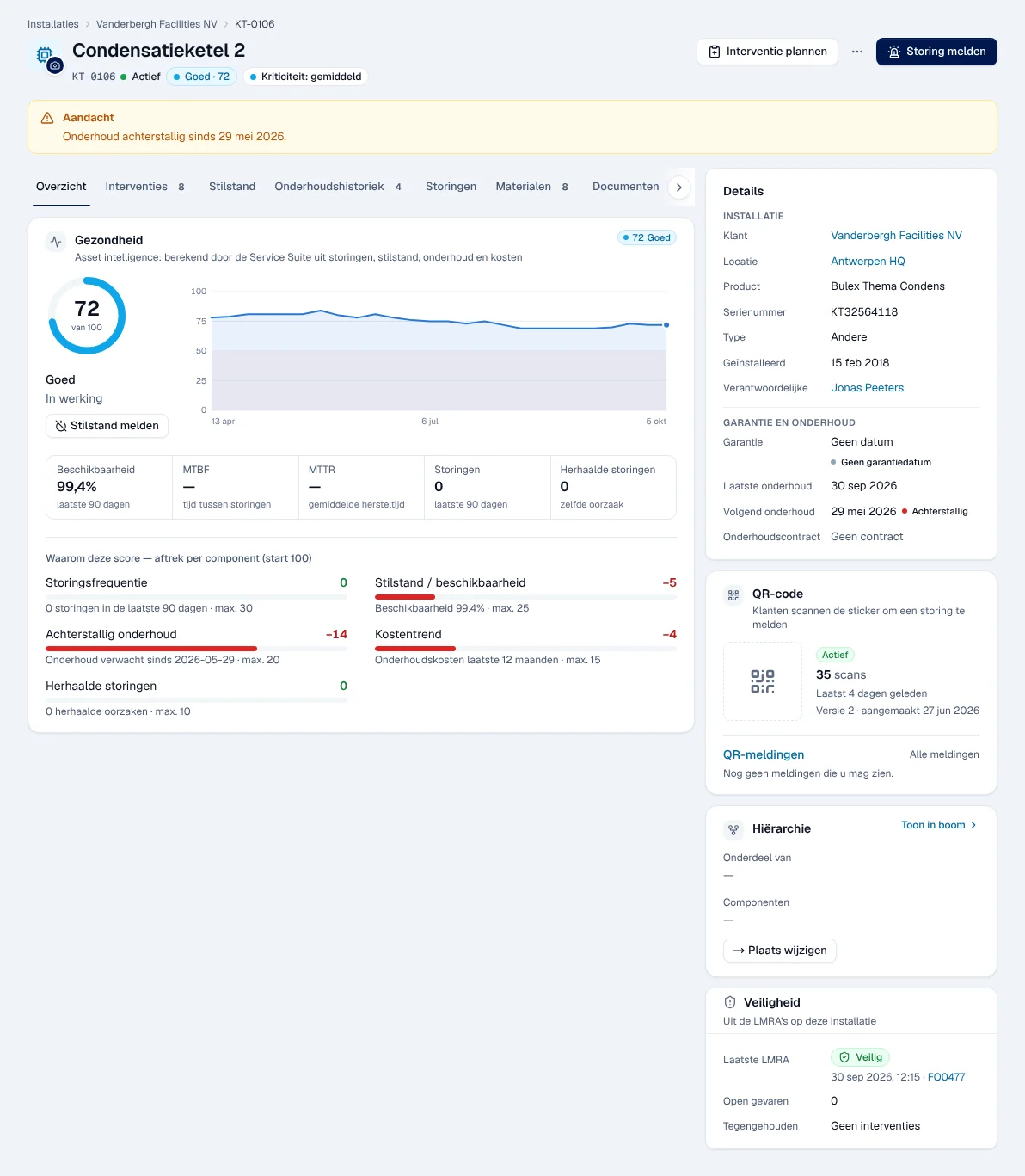
- Header: reference, phase, health, criticality; Interventie plannen and Storing melden open the creation of an intervention with the customer, site and installation already filled in (Storing melden uses the breakdown type). The Aandacht banner says what is urgent: out of service, overdue maintenance, expiring warranty, QR reports to handle.
- Tabs: Overzicht, Interventies, Stilstand (downtime), Onderhoudshistoriek (maintenance history), Storingen (breakdowns), Materialen, Documenten and Logboek (log: notes and activities).
- Details (on the right): customer, site, product, serial number, type, installation date, person responsible, warranty, last and next maintenance, maintenance contract; then the QR-code, Hiërarchie and Veiligheid (last LMRA, open hazards) blocks.
In Documenten, store manuals, certificates and photos. The Zichtbaar voor de klant switch decides whether the customer sees the document in their portal; only visible documents appear there.
Understanding the health score
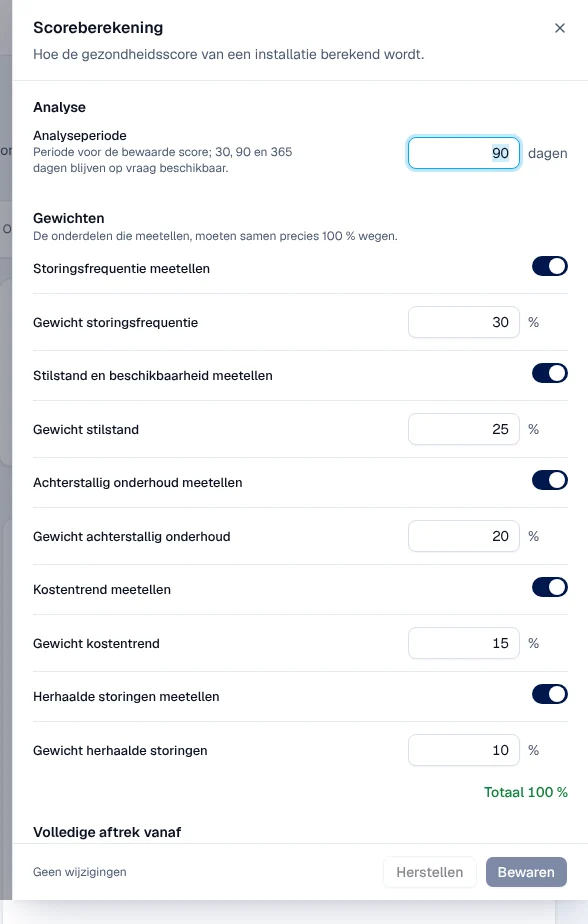
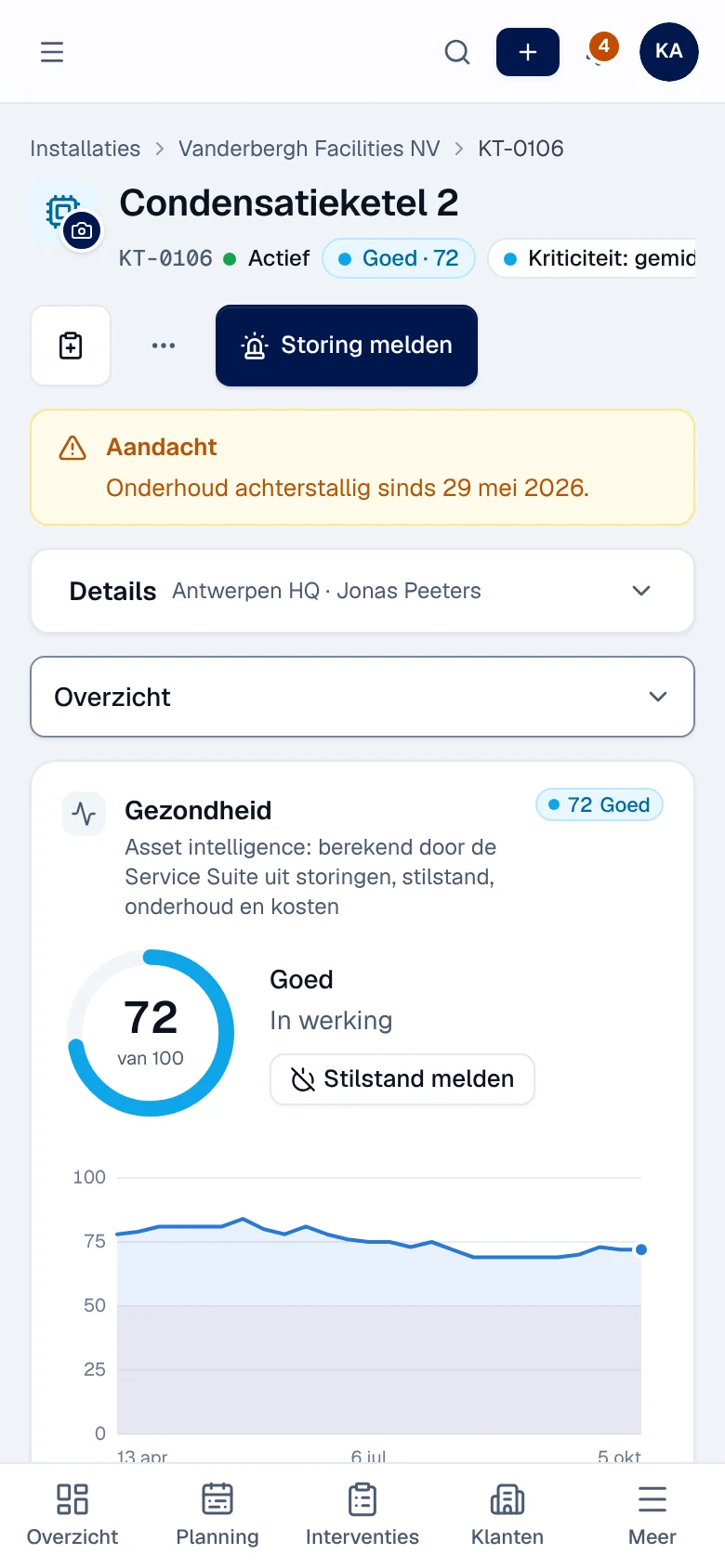
Section titled “Understanding the health score”The Gezondheid block gives a score out of 100. It starts at 100 and deducts points according to fixed rules, based on what has been recorded: Storingsfrequentie (breakdowns in the last 90 days, 30 points at most), Stilstand / beschikbaarheid (downtime and availability, 25), Achterstallig onderhoud (overdue maintenance, 20), Kostentrend (maintenance costs over the last 12 months, 15) and Herhaalde storingen (repeated breakdowns with the same cause, 10). Under “Waarom deze score” you see exactly what was deducted.
| Class | Score |
|---|---|
| Uitstekend (excellent) | 85 and above |
| Goed (good) | 70 to 84 |
| Aandacht (attention) | 50 to 69 |
| Kritiek (critical) | below 50 |
| Onvoldoende data (insufficient data) | no score: no breakdown or maintenance recorded |
Default thresholds and weights; they are set in Scoreberekening (below).
An installation that is Buiten werking (out of service) is so whatever its score. The score is not a forecast: it only tells you what has happened.
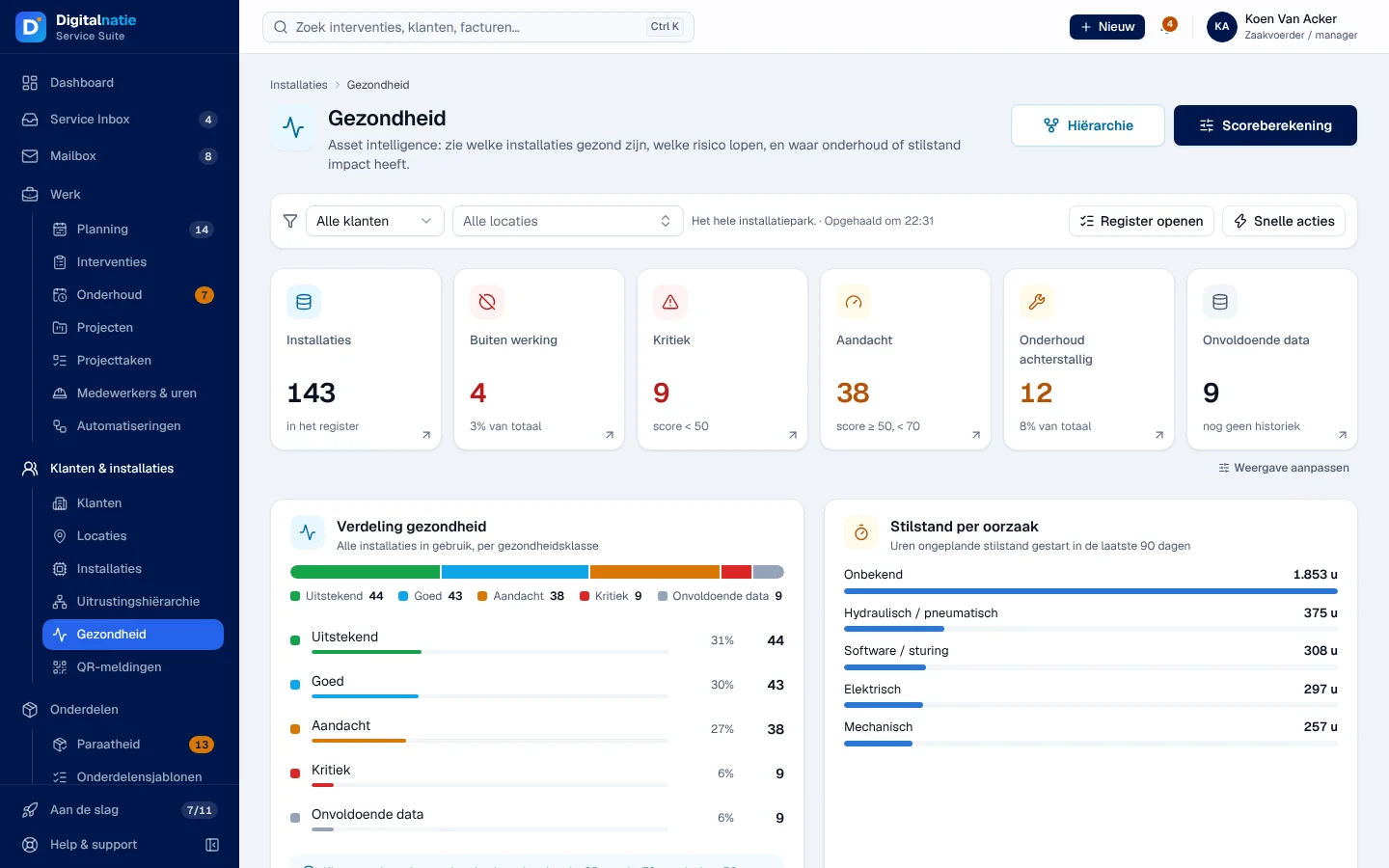
The Gezondheid screen gives an overview of the installed base: distribution by class, downtime by cause, installations out of service, lowest scores, most frequent and repeated breakdowns, downtime by month. Filter by customer or by site.
Scoreberekening (score calculation) shows and, for those who are allowed, sets the analysis period, the weight of each criterion (100% in total), the class thresholds and the values for full deduction. Others read “Alleen beheerders van asset intelligence kunnen dit wijzigen.”
Reporting downtime and putting it back into service
Section titled “Reporting downtime and putting it back into service”-
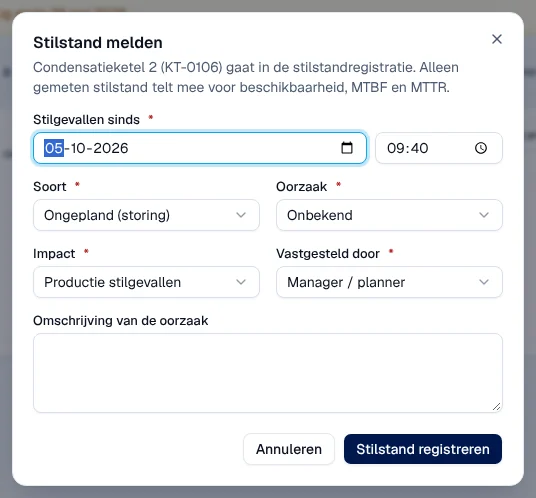
In the record, click Stilstand melden (report downtime), in the health block or the Stilstand tab.
-
Fill in Stilgevallen sinds (stopped since, not in the future), Soort (Ongepland (storing) or Gepland (onderhoud, stillegging)), Oorzaak (cause), Impact, Vastgesteld door (observed by) and, if useful, the description and the intervention that deals with the downtime.
-
Click Stilstand registreren.
Result: the installation changes to Buiten werking and the downtime appears in the Stilstand tab as Stilgevallen. When it is running again, click Weer in werking (back in service), enter the date and time and the solution: the downtime becomes Opgelost (resolved).
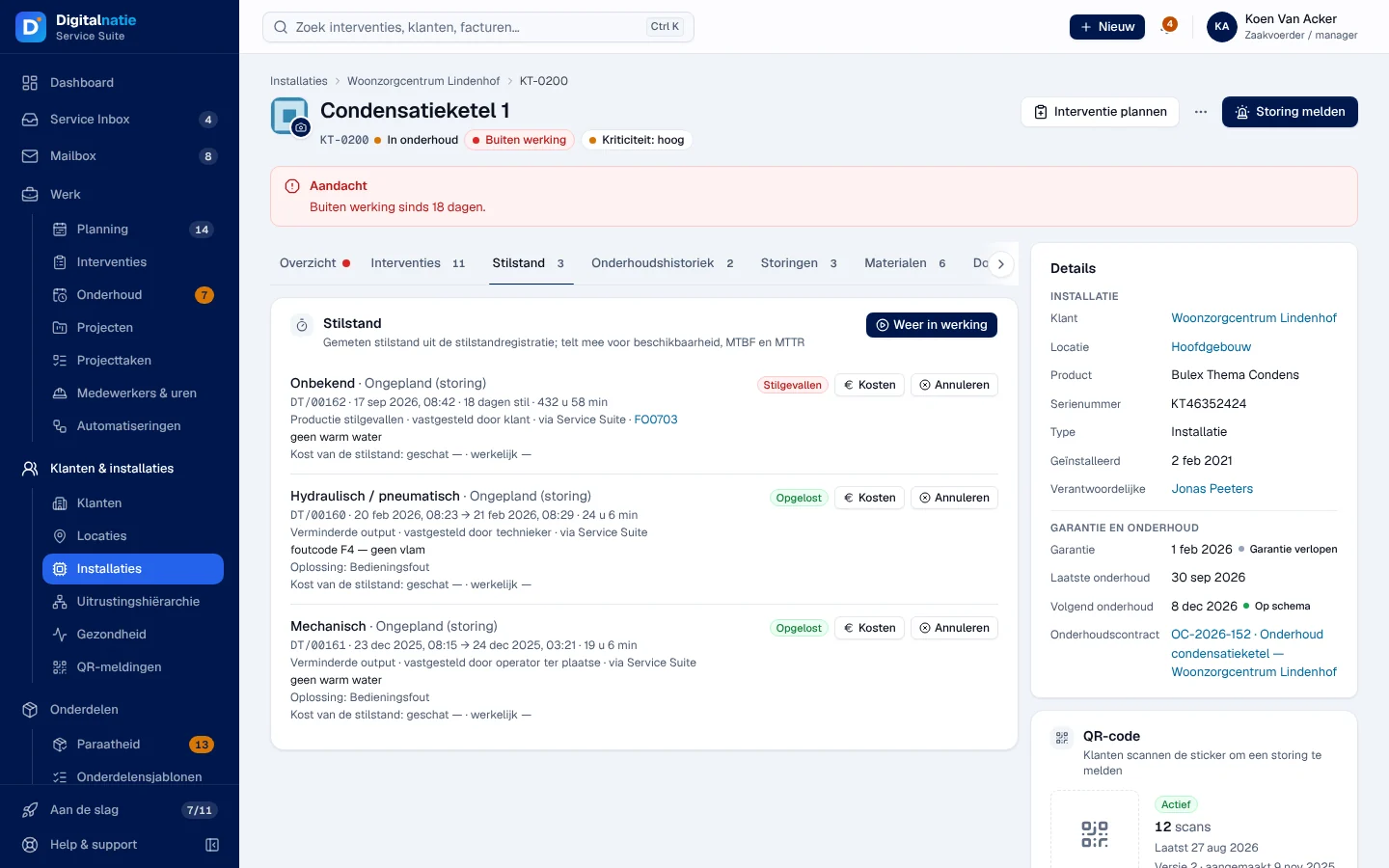
Only recorded downtime counts for availability, MTBF (mean time between failures) and MTTR (mean time to repair); cancelled downtime does not count. Kosten (estimated and actual costs of the downtime) and Annuleren / Heropenen (cancel, reopen downtime) only appear for those who are allowed.
Organising the equipment hierarchy
Section titled “Organising the equipment hierarchy”The Uitrustingshiërarchie screen shows lines, machines and components as a tree: Hoogste niveau (top level) lists the installations without a parent; a branch loads when you open it. Filter by site, customer, Type, Kriticiteit, Gezondheid or Alleen buiten werking.
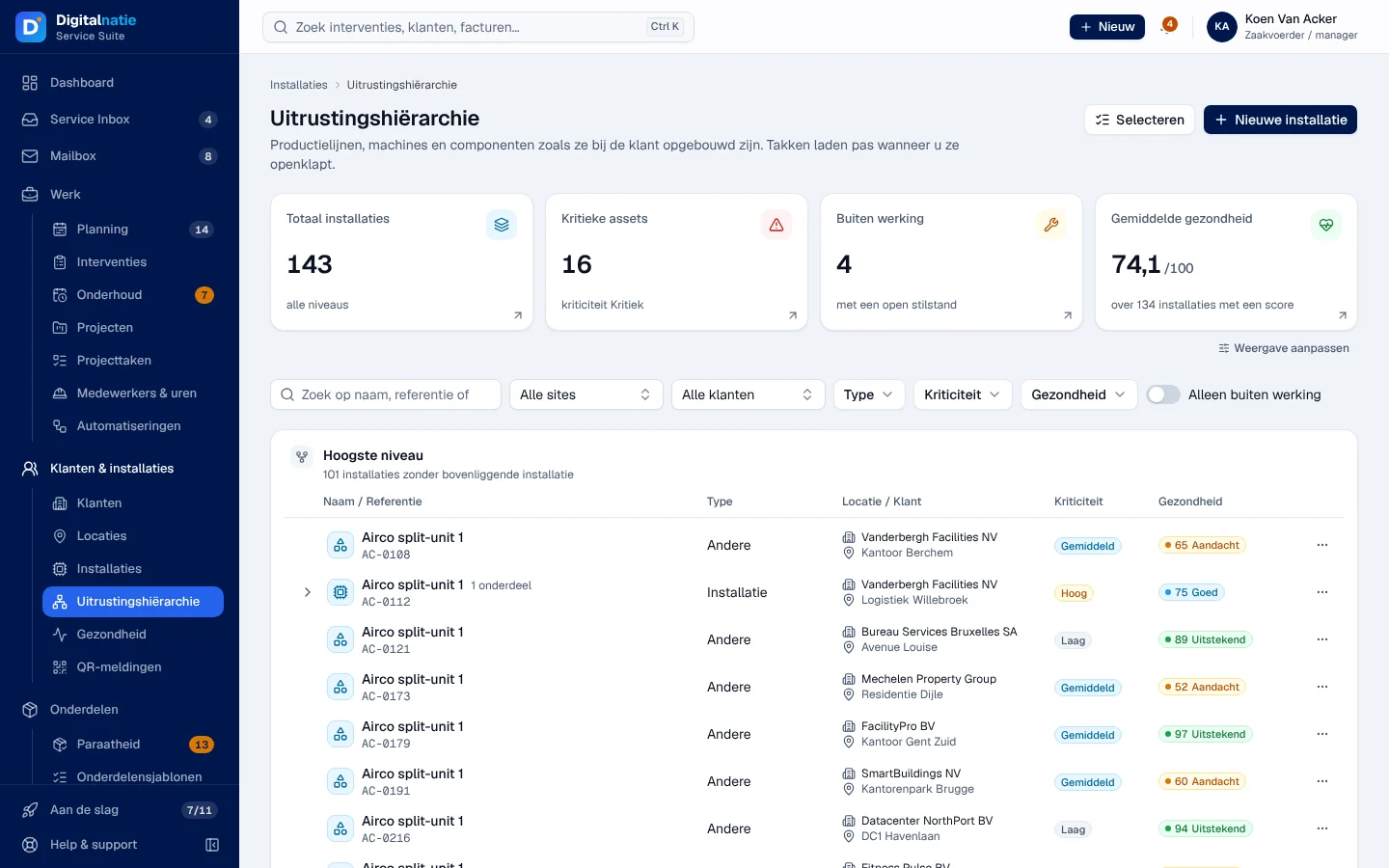
To reorganise: Selecteren, tick the installations, then Organiseren. The Organiseren in de hiërarchie window offers Plaats niet wijzigen (do not move), a Nieuwe bovenliggende installatie (new parent, of the same customer) or Losmaken (detach: it becomes top level), and possibly a new type and a new criticality. From a record, the Hiërarchie block offers Plaats wijzigen and Toon in boom.
Archiving an installation
Section titled “Archiving an installation”⋯ › Archiveren in the record. An archived installation leaves the lists and can no longer be chosen for an intervention; its record stays readable with a banner and Herstellen restores it. Service Suite refuses as long as there are open interventions or an active maintenance contract on the installation.
On a phone
Section titled “On a phone”The record keeps the same information; the tabs become a list to choose from and Details expands.
Rights by role
Section titled “Rights by role”The table shows the supplied role templates (see Roles and permissions); your administrator can adjust them (see Users, roles and permissions).
| Action | Admin | Manager | Planner |
|---|---|---|---|
| See register, record, health, hierarchy | ✓ | ✓ | ✓ |
| Register, edit, archive; documents and notes | ✓ | ✓ | — |
| Schedule an intervention, Storing melden | ✓ | ✓ | ✓ |
| Report downtime, put back into service | ✓ | ✓ | ✓ |
| Cancel or reopen downtime; set the score calculation | ✓ | ✓ | ✓ |
| Enter the costs of downtime | ✓ | ✓ | — |
| Organise the hierarchy | ✓ | ✓ | — |
The technician sees their installations in their app (Scan an installation). Your company administrator assigns the roles (Users, roles and permissions).
Current limits
Section titled “Current limits”- The score describes the past; no breakdown forecast is calculated.
- Downtime is reported on the installation, not from the intervention record.
- The next maintenance date does not automatically follow a completed intervention.
See also
Section titled “See also”- QR codes and reports — the QR label and the installation’s reports.
- Maintenance contracts — periodic maintenance.
- The intervention record — after Interventie plannen.