

Vandaag, Mijn dag and Mijn uren
Vandaag (today) is the app’s opening screen: your interventions for the day in order, what is overdue and what is coming up. The Mijn dag (my day) card records your attendance time; Mijn uren (my hours) shows you your days as the office sees them and lets you submit them.
| Menu | Vandaag tab; Meer › Mijn uren |
| Who | each technician, for their own interventions and their own hours |
| Prerequisites | Mijn dag and Mijn uren only appear if your company uses time recording |

Read the Vandaag screen
Section titled “Read the Vandaag screen”- At the top: the date, the greeting and three counters: Te doen (to do today), Afgerond (completed today), Uren (hours for the day).
- Vandaag: your interventions for the day, numbered 1, 2, 3 in time order. Tap a card to open it.
- Achterstallig (overdue): scheduled before today and not completed yet.
- Geannuleerd vandaag (cancelled today): collapsed, but still available.
- Snel naar (quick access): Agenda, Bestelwagen (van), Taken (tasks), QR-code scannen, Installaties.
- Binnenkort (coming up): the next 5 interventions.
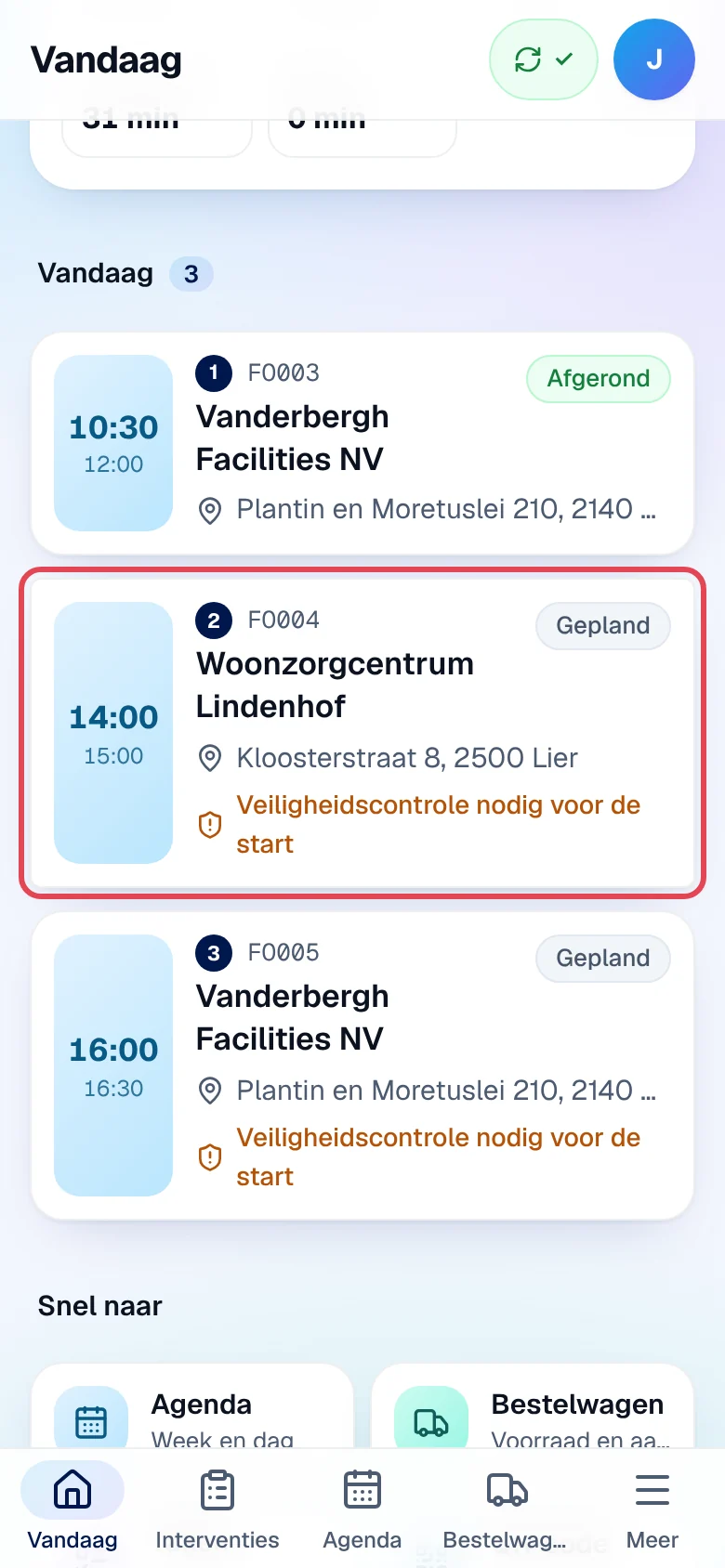
Each card shows the time, the number, the customer, the address and the status. The orange line “Veiligheidscontrole nodig voor de start” (safety check needed before the start) signals that you will have to go through the Veiligheid tab before starting the work. The In wachtrij (queued) badge indicates a step still on the device, not sent yet.
| Status in the app | Meaning | The office reads |
|---|---|---|
| Gepland | scheduled, not started | “Nog niet gestart” |
| Onderweg | you are on the way | “Onderweg” |
| Ter plaatse | you have arrived | “Ter plaatse” |
| Bezig | work in progress | “Aan het werk” |
| Gepauzeerd | paused | “Gepauzeerd” |
| Afgerond | completed | “Afgewerkt” |
| Klant afwezig | customer absent, to be rescheduled | “Klant afwezig” |
| Geannuleerd | cancelled | “Geannuleerd” |
When you open Vandaag with a network, the app keeps a copy on the device of the day’s interventions, the overdue ones and the next 5, your van, your tasks and the week’s agenda: you can open them offline.
Start your day
Section titled “Start your day”-
On Vandaag, in the Mijn dag card, tap Begin mijn dag (start my day) when you leave for or arrive at work. If time has already been recorded today, the button is called Opnieuw beginnen (start again).
-
The card shows “Begonnen om 14:15” (started at) and Nu bezig (in progress): “Geen activiteit geregistreerd” (no activity recorded). Choose what you are doing: Verplaatsing (travel), Interventie, Intern werk (internal work) or Pauze.
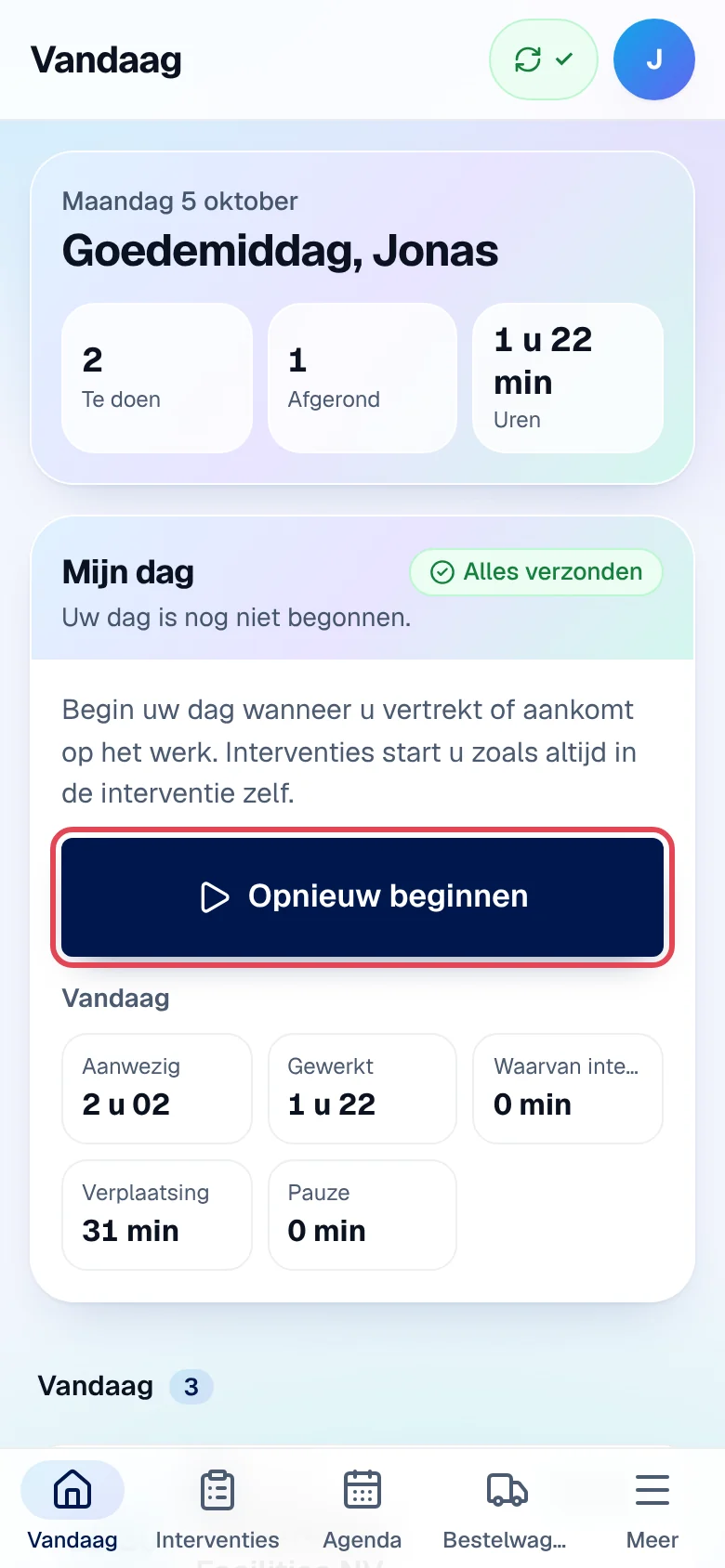
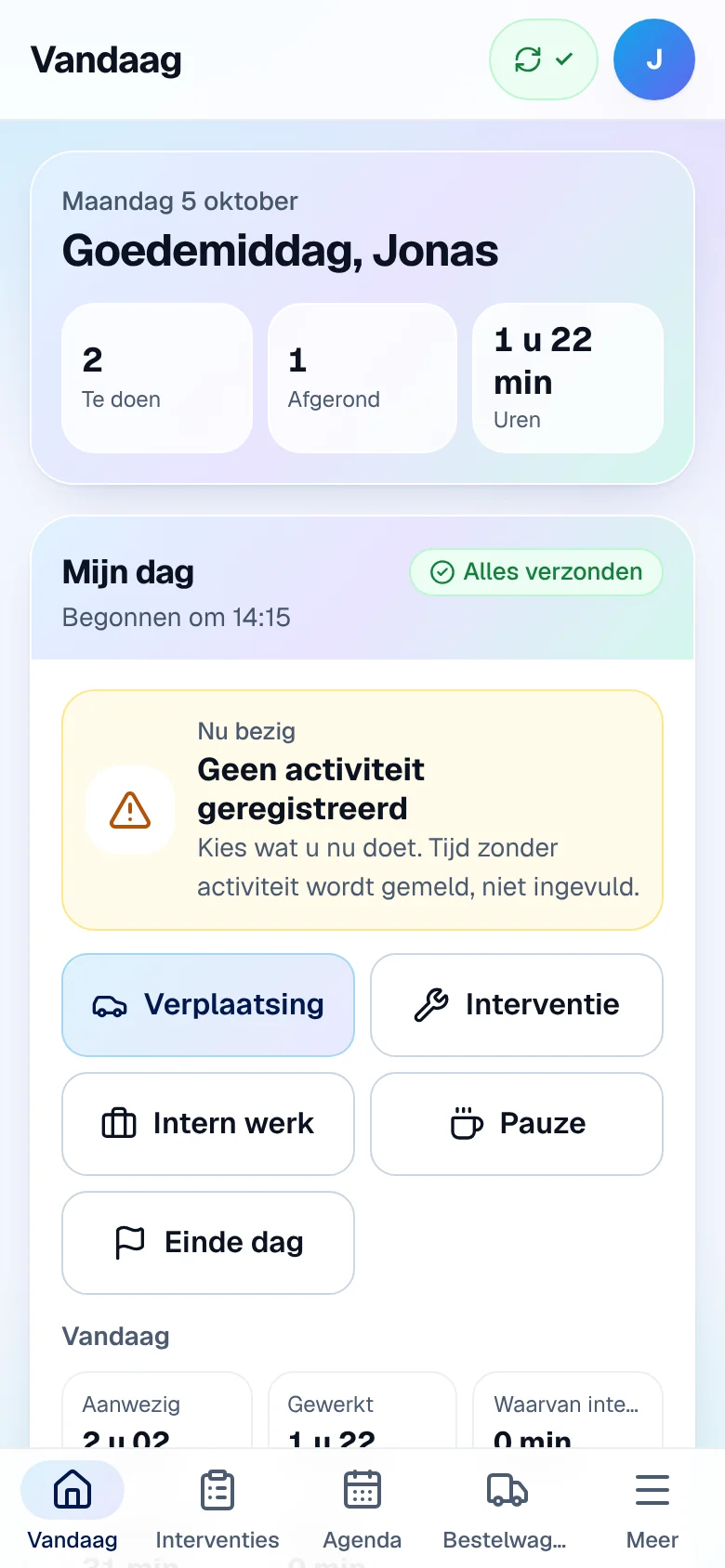
Time without an activity is never filled in for you: it is flagged (“… zonder registratie”), and you can request a correction in Mijn uren.
What Mijn dag records during your interventions
Section titled “What Mijn dag records during your interventions”You do not have to do anything extra: the intervention buttons update Mijn dag.
- After Vertrekken (leave): “Onderweg naar de interventie FO004” (on the way to the intervention).
- After Start werk (start work): “Interventie FO004”, with the reminder “FO004 loopt. Afronden (verslag, handtekening) doet u in de interventie.” (closing is done in the intervention).
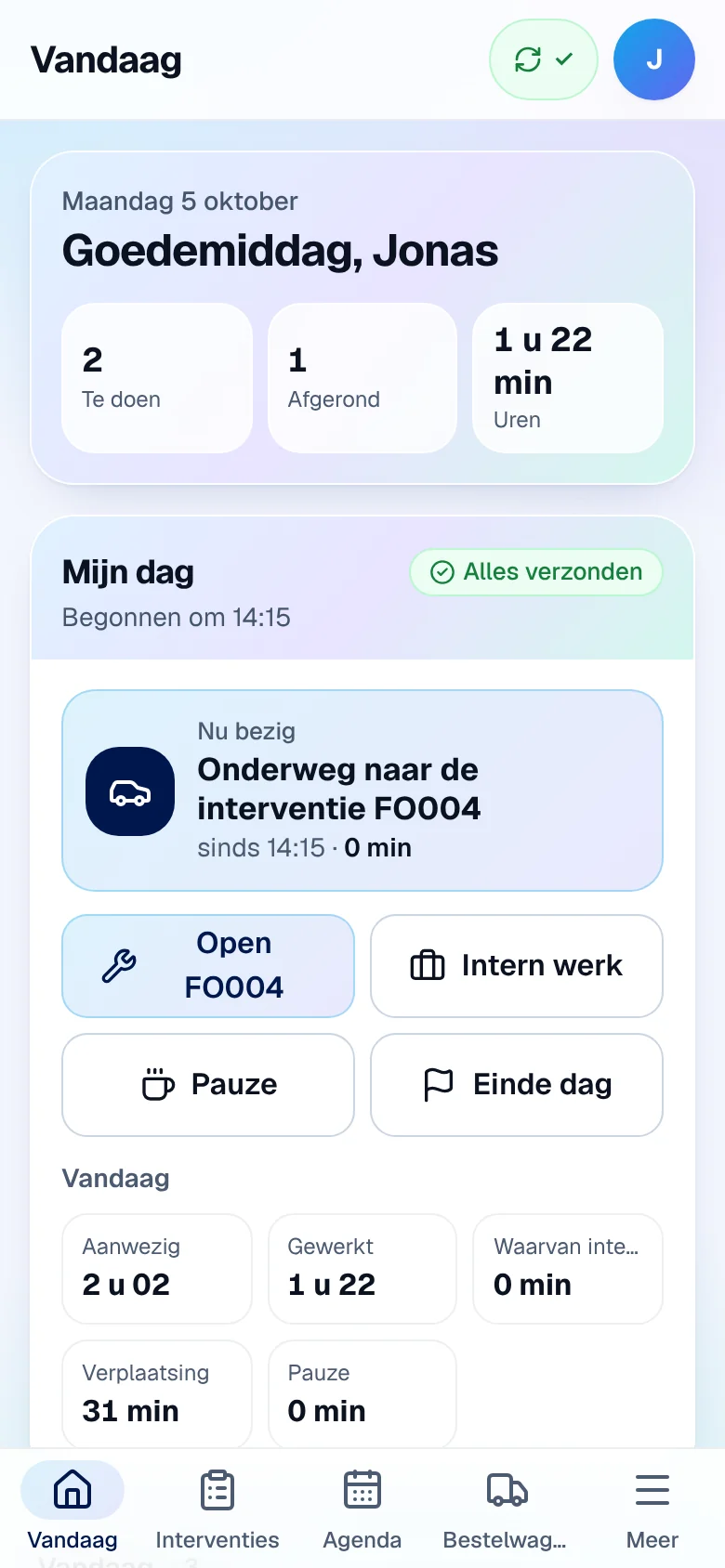
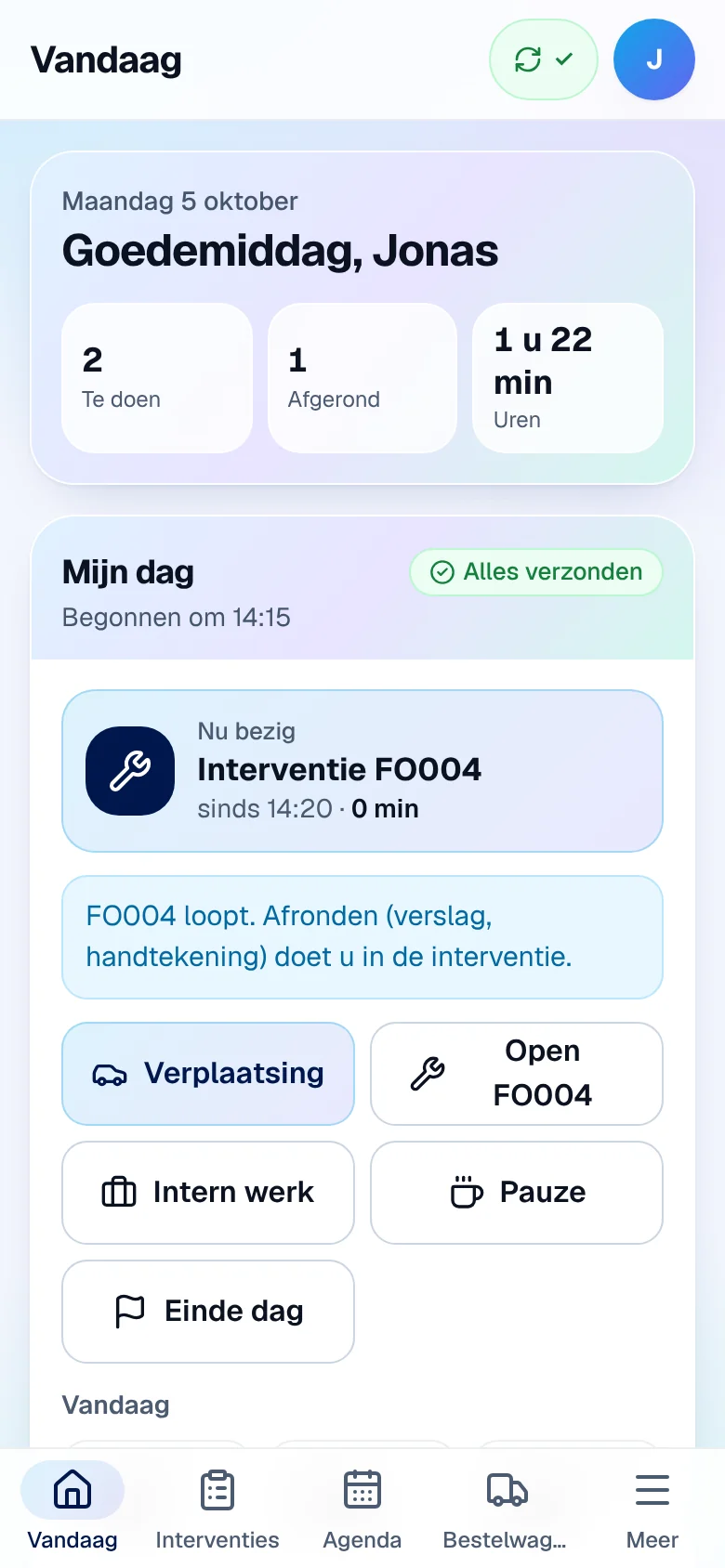
Mijn dag never starts or finishes an intervention: Open FO004 (open) takes you into the intervention. Choosing another activity (Pauze, Intern werk) during the work pauses the intervention, without closing it.
At the bottom of the card, the Vandaag summary adds up Aanwezig (attendance), Gewerkt (worked), Waarvan intern (of which internal), Verplaatsing and Pauze. The badge at the top right shows Alles verzonden (everything sent) or the number of records not sent yet.
End your day
Section titled “End your day”-
Tap Einde dag (end of day).
-
Read the Dag beëindigen? (end the day?) window: “Uw dag eindigt om 14:26. Een lopende interventie wordt gepauzeerd, niet afgerond.” Tap Ja, einde dag.
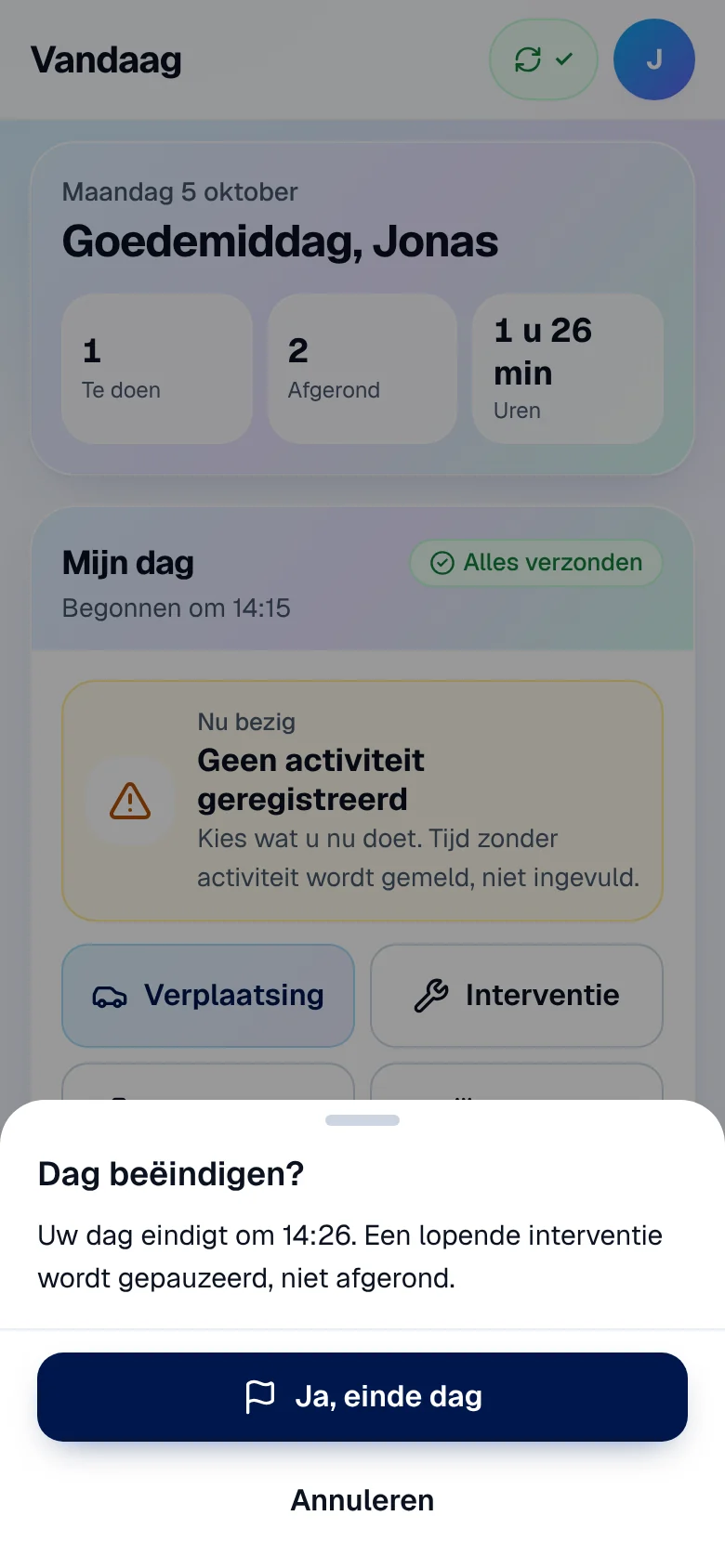
Result: the card shows “Dag afgesloten om …” (day closed at). An intervention still in progress is paused, not completed: close it in the intervention.
If you forgot to close the previous day (open for more than 16 hours), the card shows Vorige dag niet afgesloten (previous day not closed). Enter Einde van die dag (end of that day) and a Reden (reason), then tap Einde opgeven (enter the end). Nothing is closed automatically.
Check and submit your hours (Mijn uren)
Section titled “Check and submit your hours (Mijn uren)”-
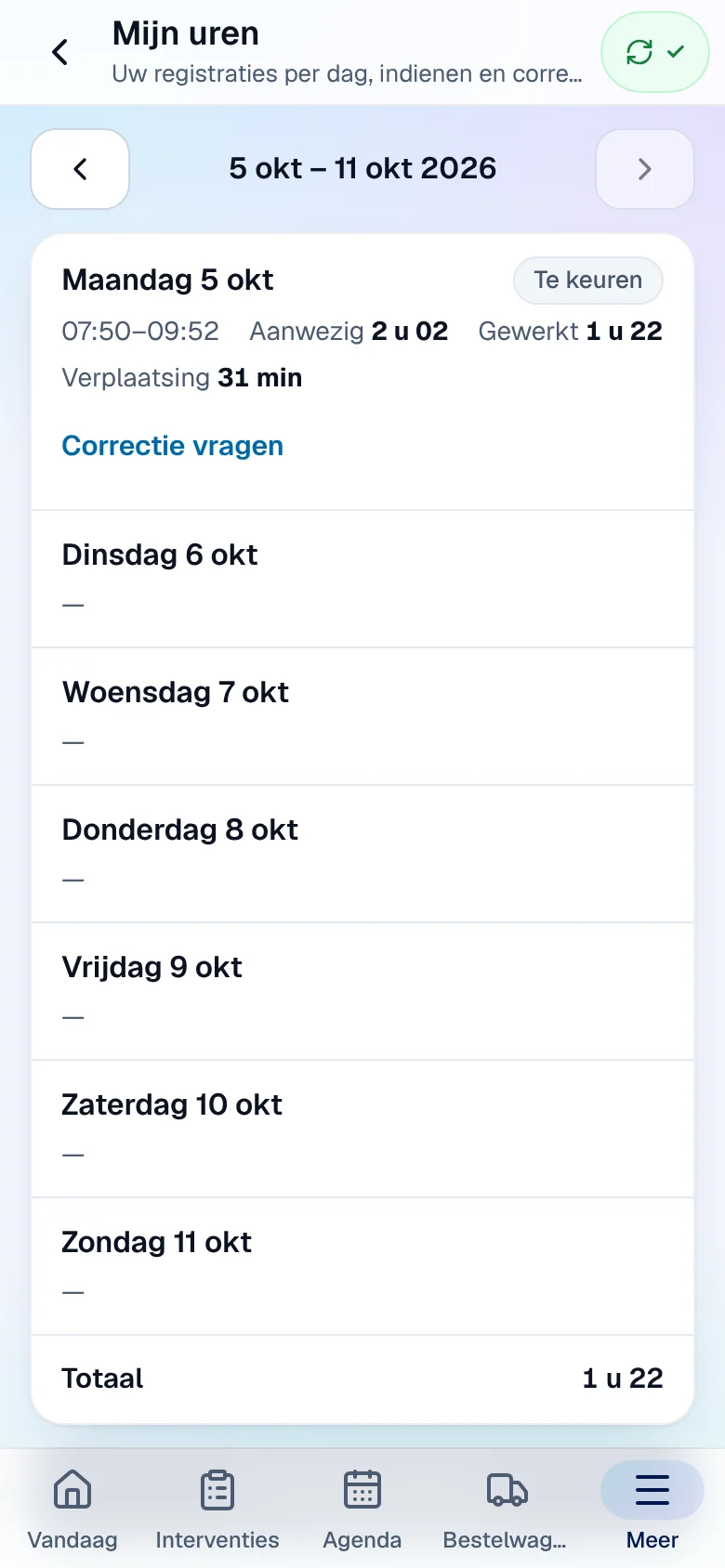
Open Meer › Mijn uren. Each day of the week shows its status, the first and last time, Aanwezig, Gewerkt and Verplaatsing. The arrows change the week (no future week).
-
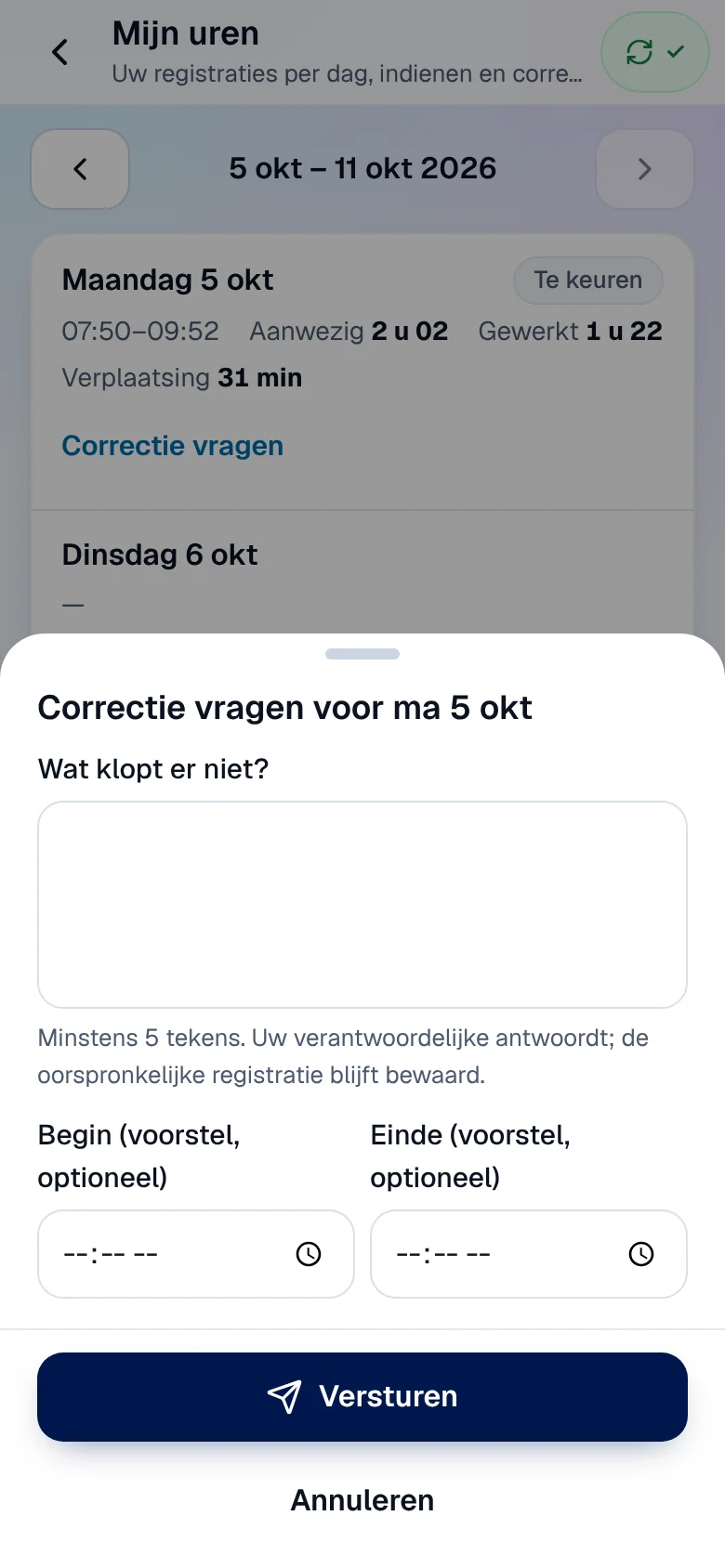
If a day is wrong, tap Correctie vragen (request a correction). Describe the problem in Wat klopt er niet? (at least 5 characters) and, if needed, propose a Begin and an Einde. Tap Versturen (send).
-
At the end of the week, tap Week indienen (submit the week).
Result: “Ingediend: uw verantwoordelijke keurt goed of vraagt een correctie.” (submitted: your manager approves or requests a correction). Days with a blocking anomaly (no end, day too long) are not submitted. Your original record is always kept.
Statuses of a day: Te keuren (to approve), Ingediend (submitted), Goedgekeurd (approved), Te controleren (to check), Correctie gevraagd (correction requested), Gecorrigeerd, Gewijzigd, Afgesloten (closed), Deels goedgekeurd (partly approved). Your requests and the office’s answer appear under Mijn vragen (my requests): Open, Aanvaard (accepted) or Geweigerd (refused).
Without time recording
Section titled “Without time recording”If your company does not use time recording, the Mijn dag card does not exist and Meer offers Uren (hours): the list of hours counted when your interventions are closed (“Uren worden automatisch geboekt wanneer een interventie volledig afgewerkt is.”).
Current limits
Section titled “Current limits”- No notification when the office answers a correction request: check Mijn uren.
- The Mijn dag buttons work offline; they are sent when the network returns.
See also
Section titled “See also”- Carrying out an intervention — leave, arrive, work.
- Agenda, tasks and messages — the week and the full list.
- Team, absences and hours — the office side.