

Parts readiness (Paraatheid) and templates
The Onderdelenparaatheid (parts readiness) screen compares, for each scheduled intervention, the parts needed with the stock in the technician’s van. The planner sees what is missing before departure and requests replenishment. The Onderdelensjablonen (parts templates) say which parts an intervention type usually needs.
| Menu | Onderdelen › Paraatheid (the number counts the interventions with missing parts) and Onderdelen › Onderdelensjablonen |
| Who | View: administrator, manager, planner, technician. Request, recalculate, manage templates: administrator, manager, planner. |
| Prerequisites | Interventions scheduled for a technician who has a van; known parts for these interventions (template, parts added by hand or history). |

Differences with the video: one person does all the steps there. In your company, the permissions are shared: the planner or the manager follows the Paraatheid and clicks Opnieuw beoordelen; the warehouse prepares the part with Klaarzetten voor bestelwagen and validates the transfer, but does not open the Paraatheid and does not see the van’s Voorbereiding tab. The 3D plan only appears once the warehouse plan has been drawn. The intervention numbers in the video are not those in the screenshots.
Reading the board
Section titled “Reading the board”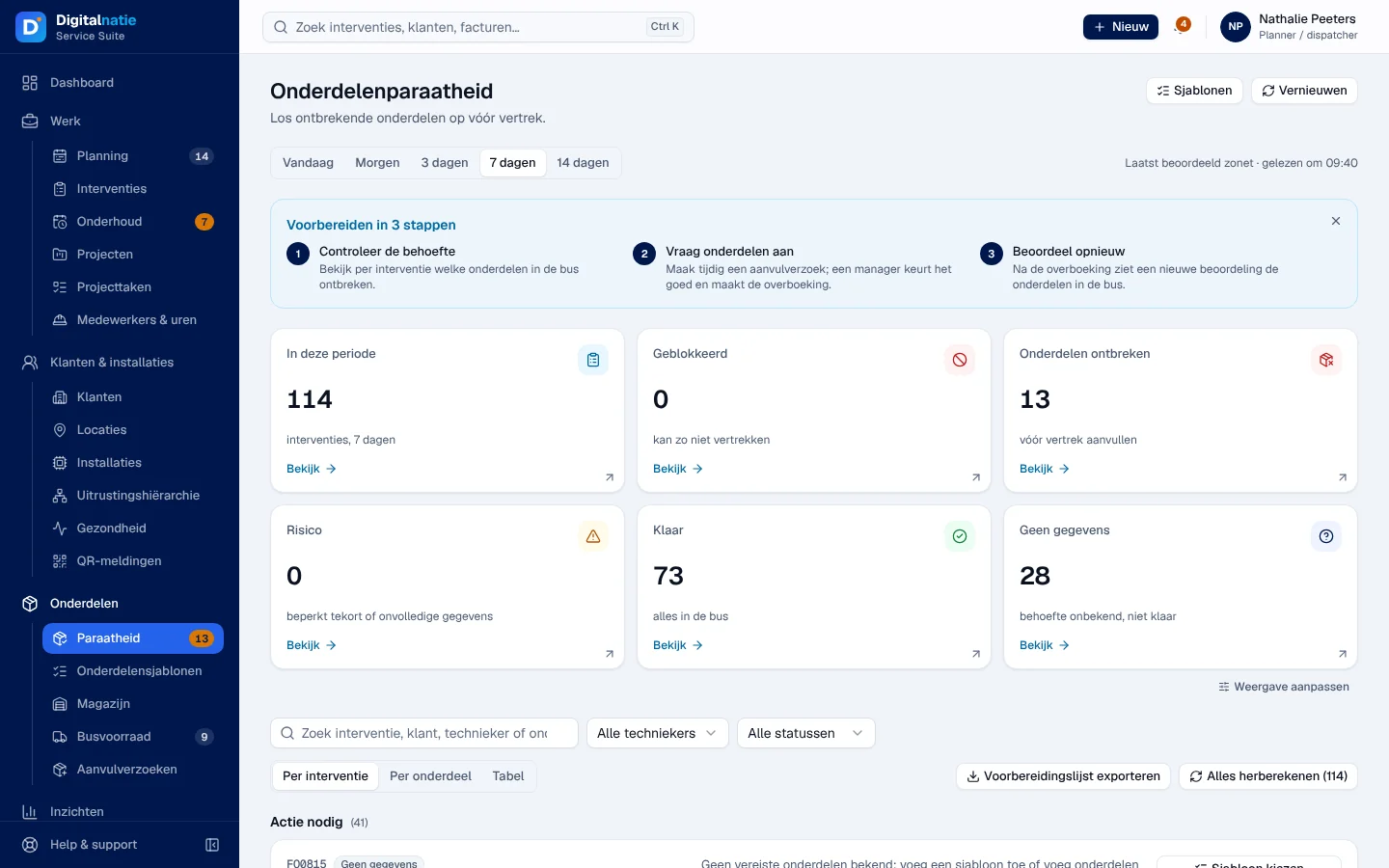
- Periode (period): Vandaag (today), Morgen (tomorrow), 3 dagen, 7 dagen (default) or 14 dagen. Only open interventions, with a technician, that have not started yet are counted.
- The figures: In deze periode (in this period), Geblokkeerd (blocked), Onderdelen ontbreken (parts missing), Risico (risk), Klaar (ready) and Geen gegevens (no data). Click Bekijk (view) to display exactly these interventions.
- Laatst beoordeeld (last assessed) shows the age of the calculation. Vernieuwen (refresh) reloads the data; it does not recalculate anything.
- The Voorbereiden in 3 stappen (prepare in 3 steps) block closes with the cross; Hoe werkt het? (how does it work?) reopens it.
| Status | Meaning |
|---|---|
| Klaar | All required parts are in the van. |
| Risico | Small risk: incomplete parts data or a small shortage. |
| Onderdelen ontbreken | Required parts are missing from the van: to be prepared, transferred or purchased before departure. |
| Geblokkeerd | No van or too many shortages: the technician cannot leave like this. |
| Geen gegevens | No template or history for this intervention, or not assessed yet. It is never “ready”. |
Only Vereist (required) parts count for the status; a Aanbevolen (recommended) or Optioneel (optional) part only gives a warning. The Gedeelde voorraad (shared stock) label indicates that the same part in the van is also used for other interventions: nothing is reserved.
Filtering and changing the view
Section titled “Filtering and changing the view”-
Search “Zoek interventie, klant, technieker of onderdeel…” (intervention, customer, technician or part), Alle techniekers (all technicians) and Alle statussen (all statuses; Actie nodig = everything except Klaar). Filters wissen clears the filters.
-
Per interventie (per intervention, default): one card per intervention, Actie nodig (action needed) first; ready interventions are collapsed under Klaar voor vertrek (ready to leave).
-
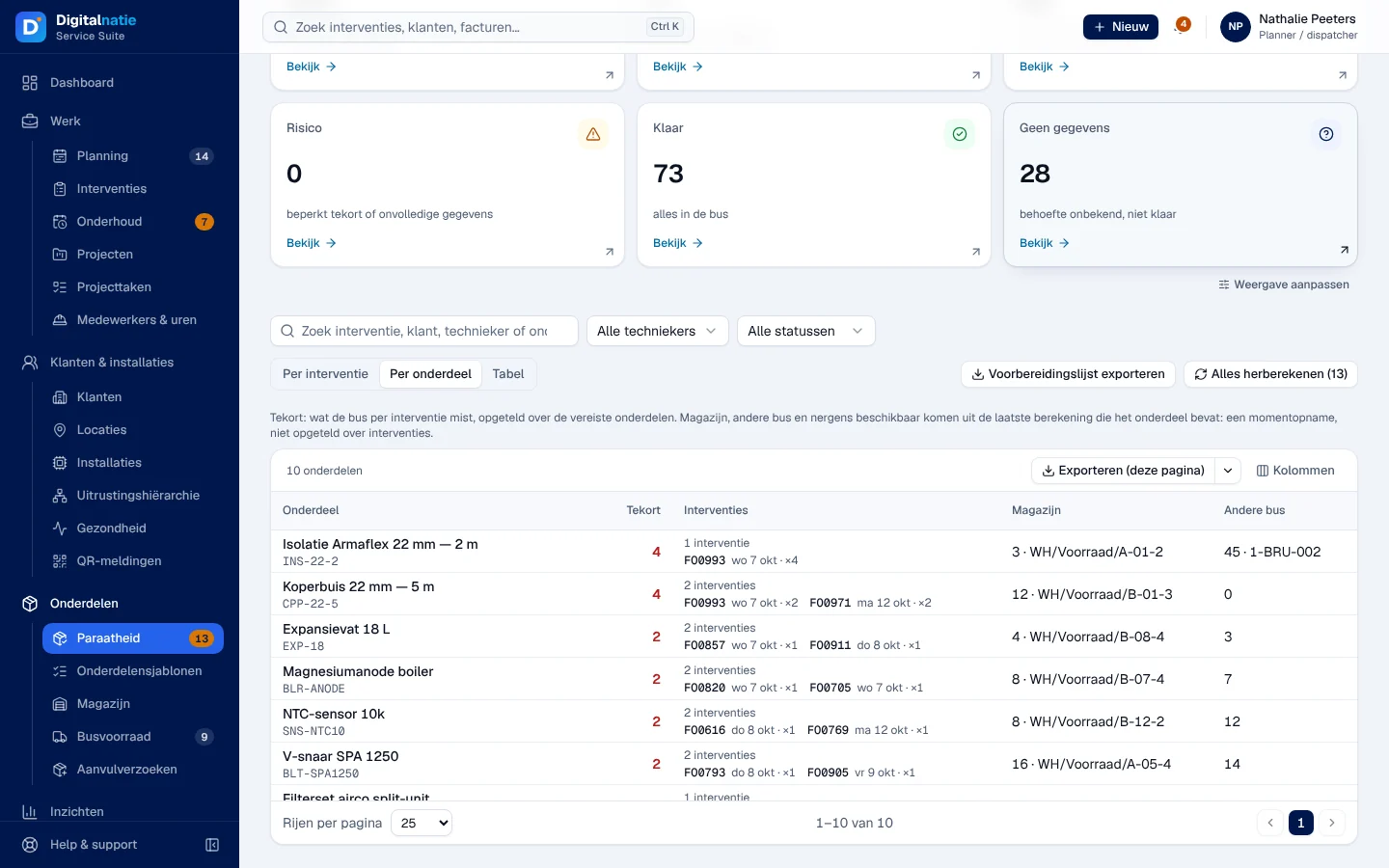
Per onderdeel (per part): one row per missing part, the largest shortage first, with what is in the warehouse and in another van.
-
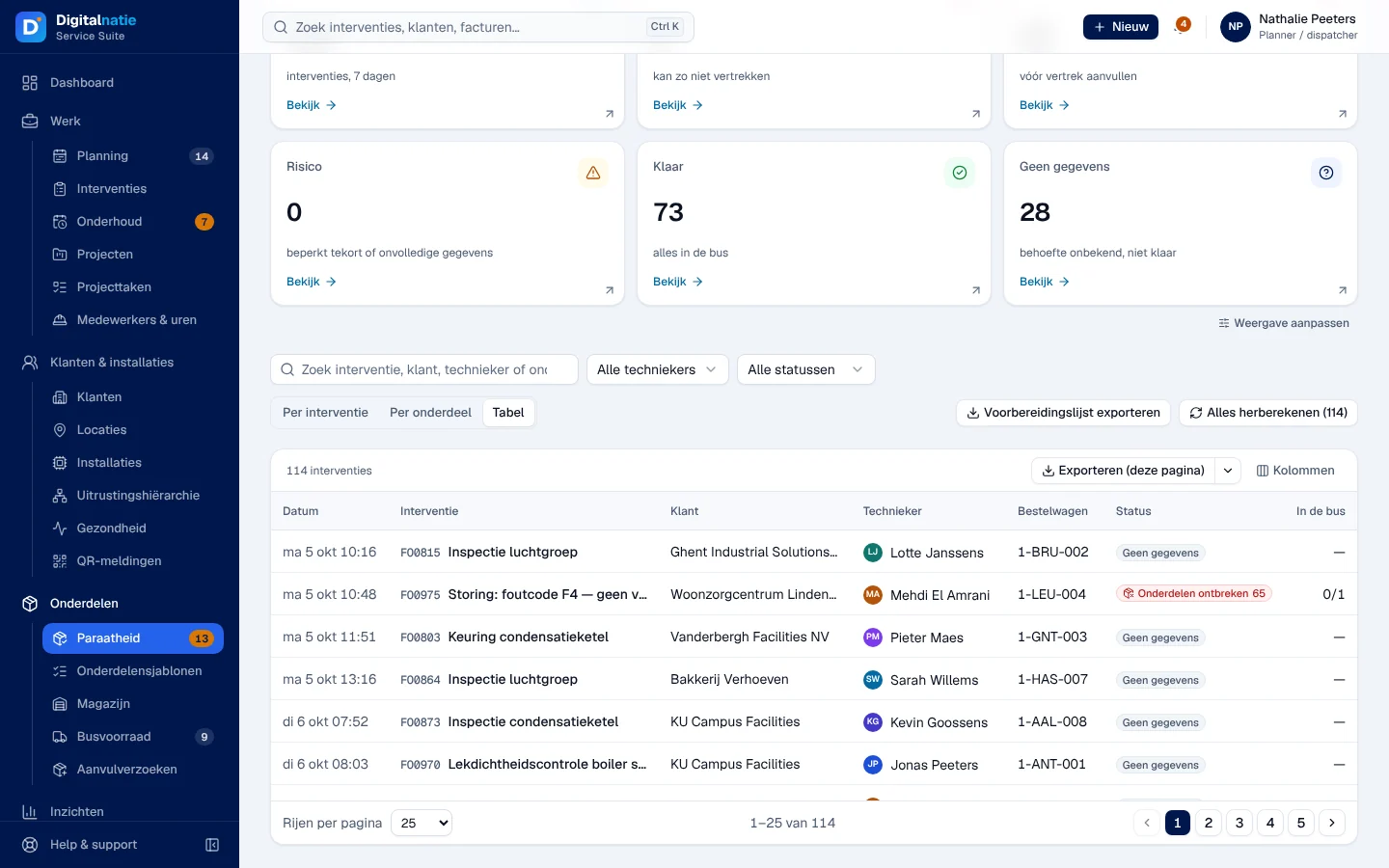
Tabel (table): one row per intervention, with the status, the score and In de bus (parts in the van / required parts).
-
Voorbereidingslijst exporteren (export the preparation list) downloads a CSV file: one row per intervention and per part, in order of departure, according to the active filters.
Seeing the detail of an intervention
Section titled “Seeing the detail of an intervention”-
On the card, click Details. The card already says what is missing, for example “Koperbuis 22 mm — 5 m: 0 van 2 st in de bus” (0 of 2 pieces in the van).

-
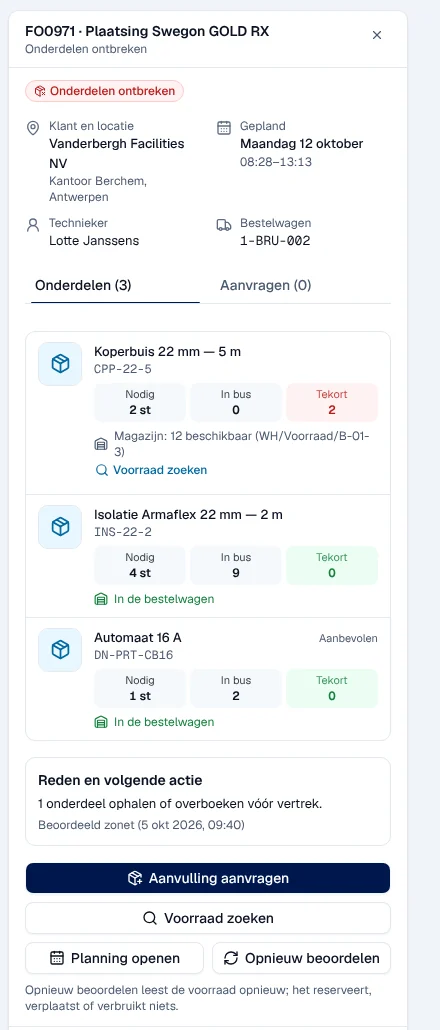
The panel shows the customer, the time, the technician and the van. The Onderdelen (parts) tab gives for each part Nodig (needed), In bus (in the van) and Tekort (shortage), and where to find it, for example “Magazijn: 12 beschikbaar” (warehouse: 12 available). The Aanvragen (requests) tab lists the requests already open for this technician.
-
Voorraad zoeken (search stock) shows where the part is now, in the warehouse and in the vans. This is information only: nothing is reserved.
Interventie openen opens the intervention record on the parts tab; Planning openen opens the day’s schedule.
Requesting the missing parts
Section titled “Requesting the missing parts”-
On the card or in the panel, click Aanvulling aanvragen (request replenishment).
-
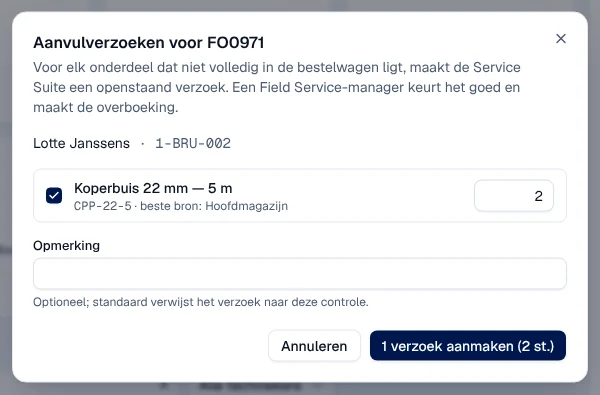
The Aanvulverzoeken voor … (replenishment requests for …) window offers each missing part, with the quantity and the best source. Untick what you do not want, correct the quantity (1 to 500) and add an Opmerking (comment) if needed.
-
Click 1 verzoek aanmaken (create 1 request; the text follows the number of parts).
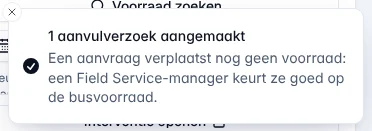
Result: the message “1 aanvulverzoek aangemaakt” (1 replenishment request created). The request appears in Busvoorraad › Aanvulverzoeken.
Recalculating after a transfer
Section titled “Recalculating after a transfer”Readiness does not update by itself when the parts arrive in the van.
- Opnieuw beoordelen (reassess), on the card or in the panel, rereads the stock for one intervention. Message: “Parts readiness herberekend”.
- Alles herberekenen (recalculate all) does this for all the interventions shown, one by one. You can stop part-way with Stoppen.
- A recalculation does not reserve, move or consume anything.
Parts templates (Onderdelensjablonen)
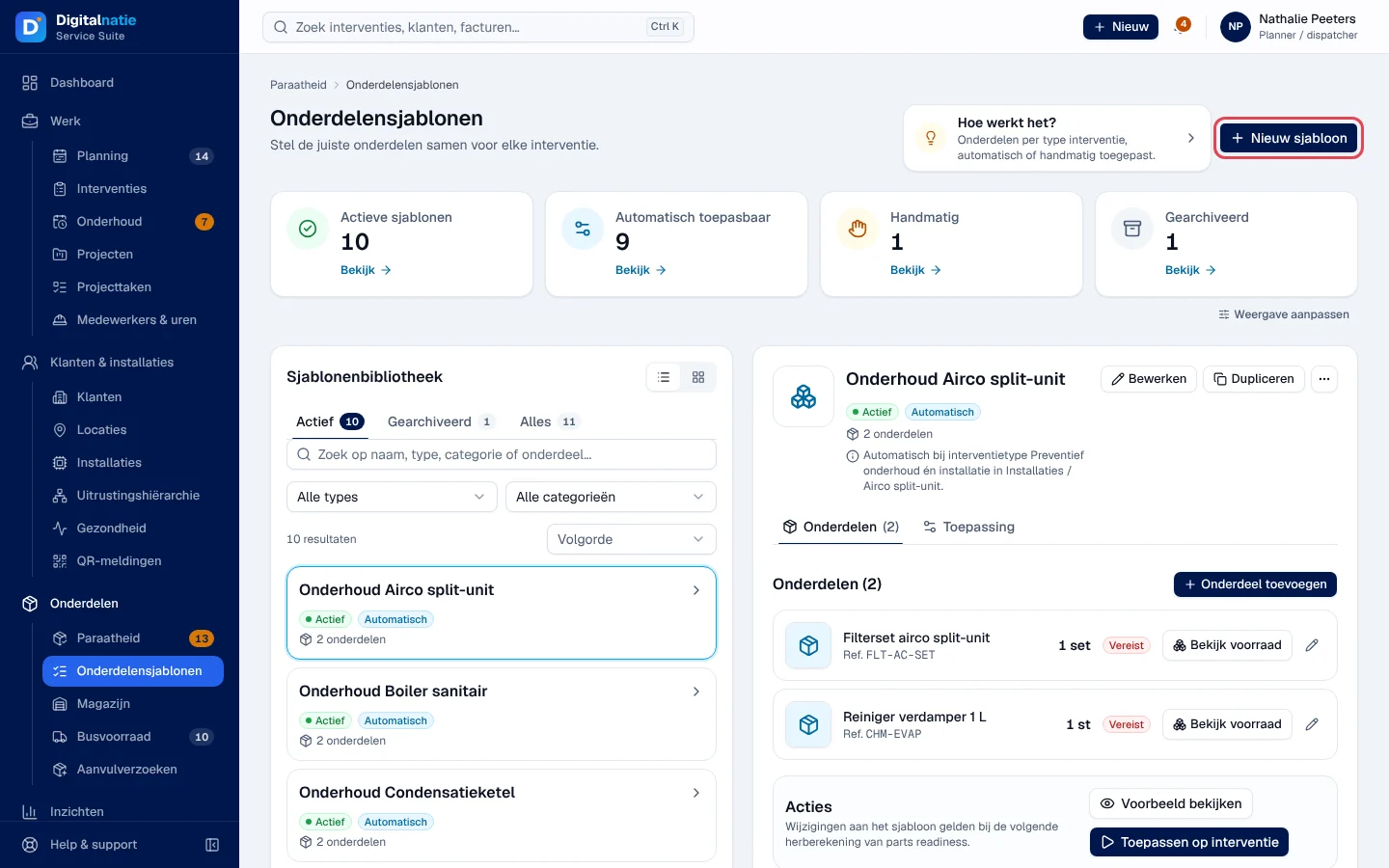
Section titled “Parts templates (Onderdelensjablonen)”A template lists the parts an intervention type needs. It applies automatically, at the next calculation, to interventions that match all its criteria: Interventietype (intervention type) and Productcategorie van de installatie (installation category, including subcategories). Without a criterion, it never applies automatically (Handmatig, manual).
Creating a template
Section titled “Creating a template”-
Open Onderdelen › Onderdelensjablonen and click Nieuw sjabloon (new template).
-
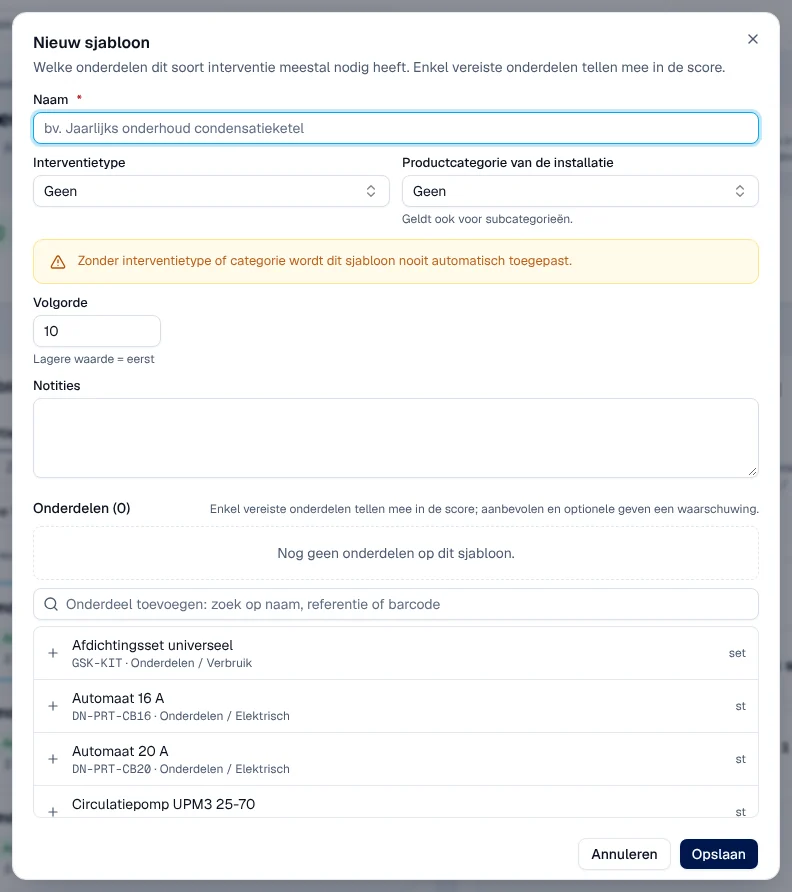
Fill in Naam (name), then the intervention type and/or the category. Volgorde (order): the lowest value goes first.
-
Add the parts with “Onderdeel toevoegen: zoek op naam, referentie of barcode” (add a part: name, reference or barcode). For each part: Hoeveelheid (quantity) and Niveau: Vereist, Aanbevolen or Optioneel. 100 parts at most.
-
Click Opslaan (save).
Result: “Sjabloon opgeslagen” (template saved). The template counts from the next recalculation.
Applying a template to a single intervention
Section titled “Applying a template to a single intervention”In the template detail, Voorbeeld bekijken (view preview) shows, without writing anything, what would be added. Toepassen op interventie (apply to intervention): choose the intervention, check the parts (Wordt toegevoegd, will be added; Al aanwezig, already present) and click … onderdelen toevoegen. The parts become manual parts of the intervention, kept at each recalculation, and readiness is recalculated. No stock is reserved.
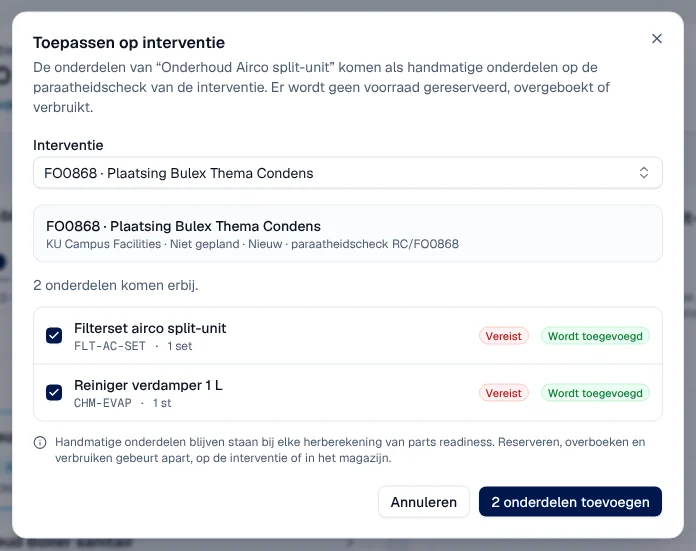
The Sjabloon kiezen (choose template) button on a card opens the library filtered on the intervention’s type; it does not apply anything to this intervention.
Duplicating, archiving, deleting
Section titled “Duplicating, archiving, deleting”Dupliceren (duplicate) copies the name and the parts. Archiveren (archive) removes the template from subsequent calculations; Herstellen (restore) puts it back. Verwijderen (delete) is permanent; existing assessments stay as they are until the next recalculation.
On a phone
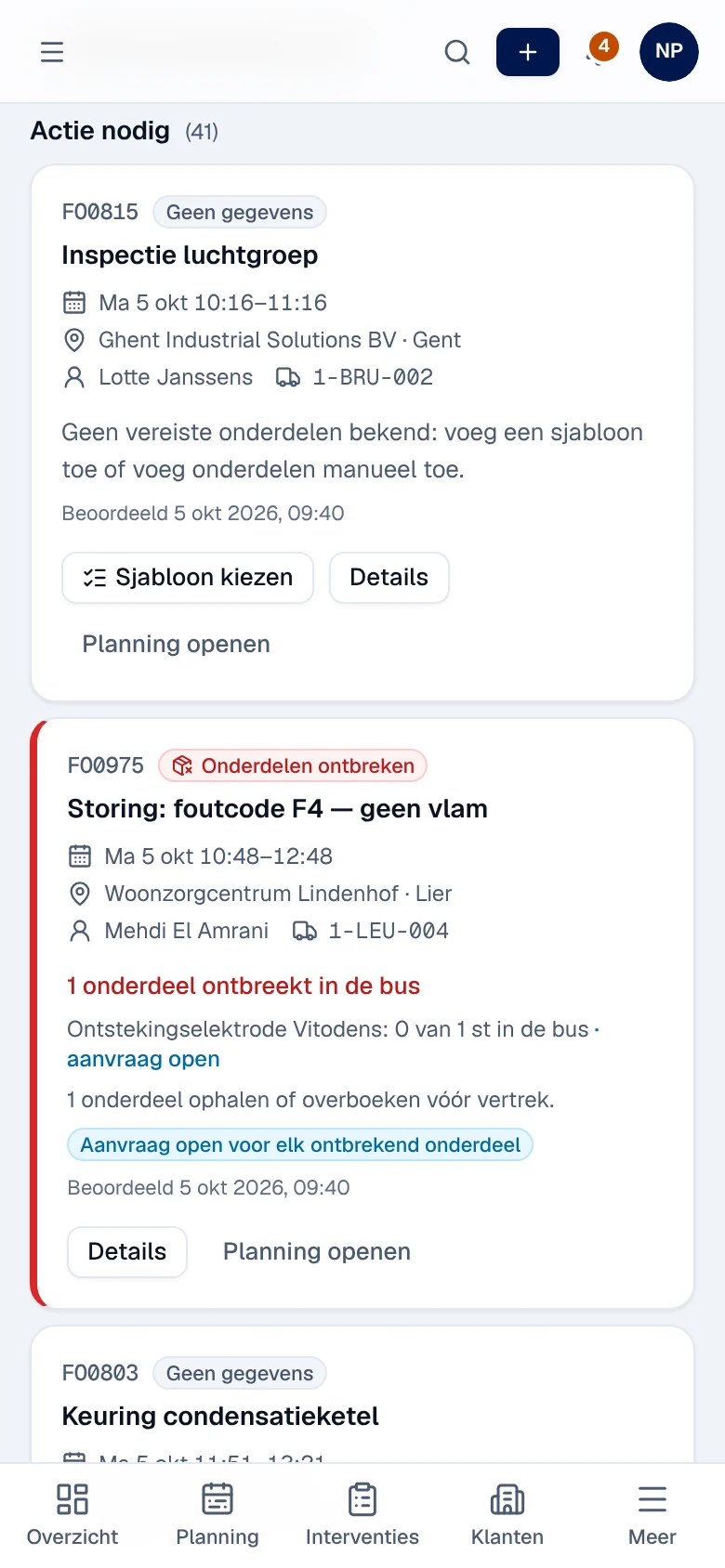
Section titled “On a phone”The cards are stacked and the filters open in a panel.
Rights by role
Section titled “Rights by role”The table shows the supplied role templates (see Roles and permissions); your administrator can adjust them (see Users, roles and permissions).
| Action | Admin | Manager | Planner |
|---|---|---|---|
| See the Paraatheid and the templates | ✓ | ✓ | ✓ |
| Request replenishment, reassess, recalculate all | ✓ | ✓ | ✓ |
| Create, edit, archive a template; apply it to an intervention | ✓ | ✓ | ✓ |
| Delete a template or remove an existing part from a template | ✓ | ✓ | — |
A technician without any other role does not open the office application: they see their parts in the Techniekers-app. Accounting, warehouse, sales and read only have no access to the Paraatheid. Roles are assigned by your company administrator: see Users, roles and permissions.
Current limits
Section titled “Current limits”- No automatic recalculation after a validated transfer: click Opnieuw beoordelen.
- A van’s stock counts in full for each intervention: two interventions can count the same part (Gedeelde voorraad warning).
- A replenishment request is linked to the technician and their van, not to the intervention.
- There is no transfer from one van to another: the application only shows where the part is.
- Above 300 interventions in the period, only the first 300 are read: choose a shorter period or a technician.
See also
Section titled “See also”- Vans and replenishment requests — approve the request and follow the transfer
- The warehouse: items, transfers and storage locations — find the part and validate the transfer
- Parts and van (Bestelwagen) — the technician’s side
- The intervention record — the parts tab of an intervention