

Safety: LMRA, PPE and documents
Before the work, your company can require an LMRA (Last Minute Risk Analysis), a check of your PBM (persoonlijke beschermingsmiddelen, personal protective equipment or PPE), the reading of documents or a checklist. The questions and rules come from the office; the server checks each confirmation and refuses Start werk as long as a blocking condition is not met.
| Menu | in the intervention, Veiligheid (safety) tab |
| Who | the assigned technician |
| Prerequisites | your company uses these checks; a network to start an LMRA or a PPE check |
See what blocks the start
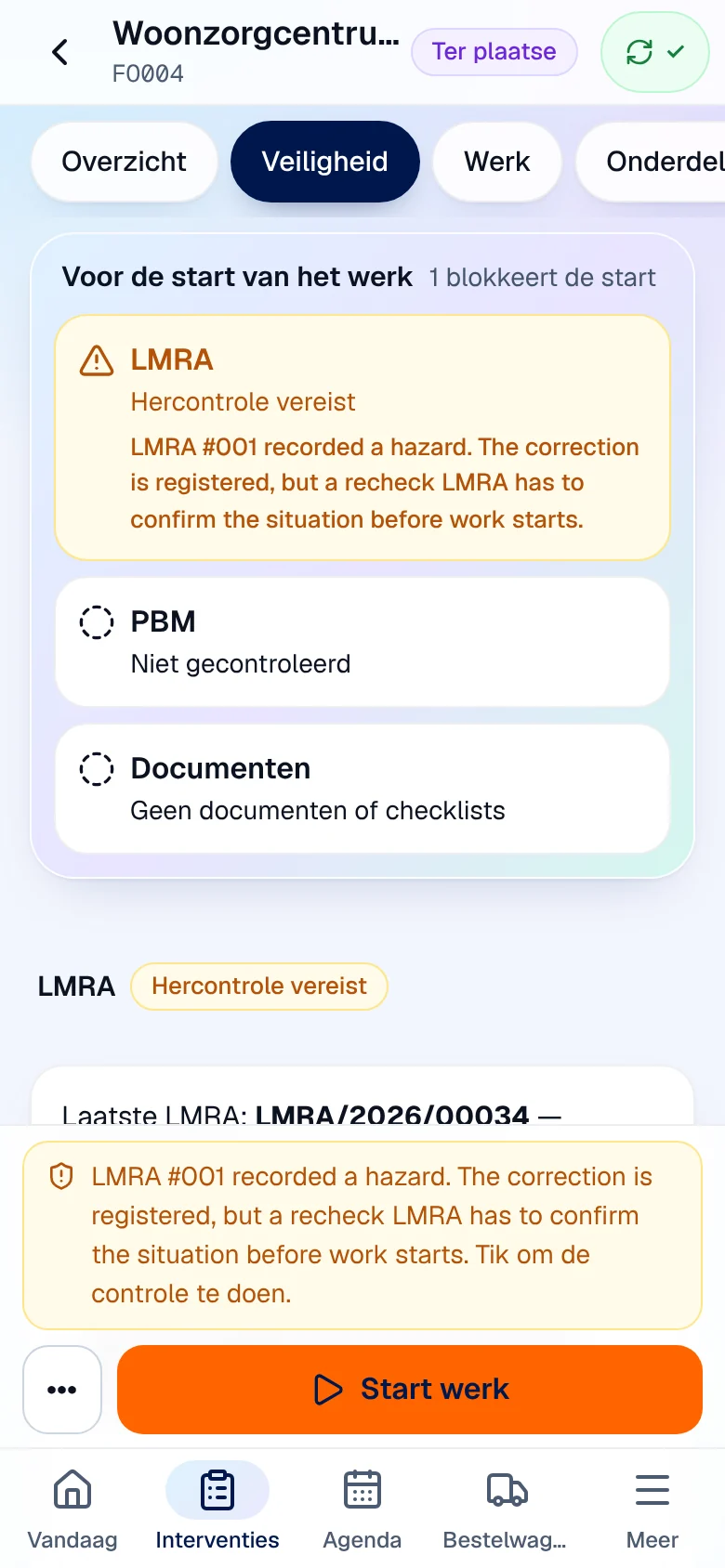
Section titled “See what blocks the start”At the top of the tab, the Voor de start van het werk (before the start of the work) block shows how many checks are blocking (“1 blokkeert de start”) or “geen blokkering” (no blocking). One card per check: LMRA, PBM, Documenten (documents). A card is only green for a check that has been done and passed.
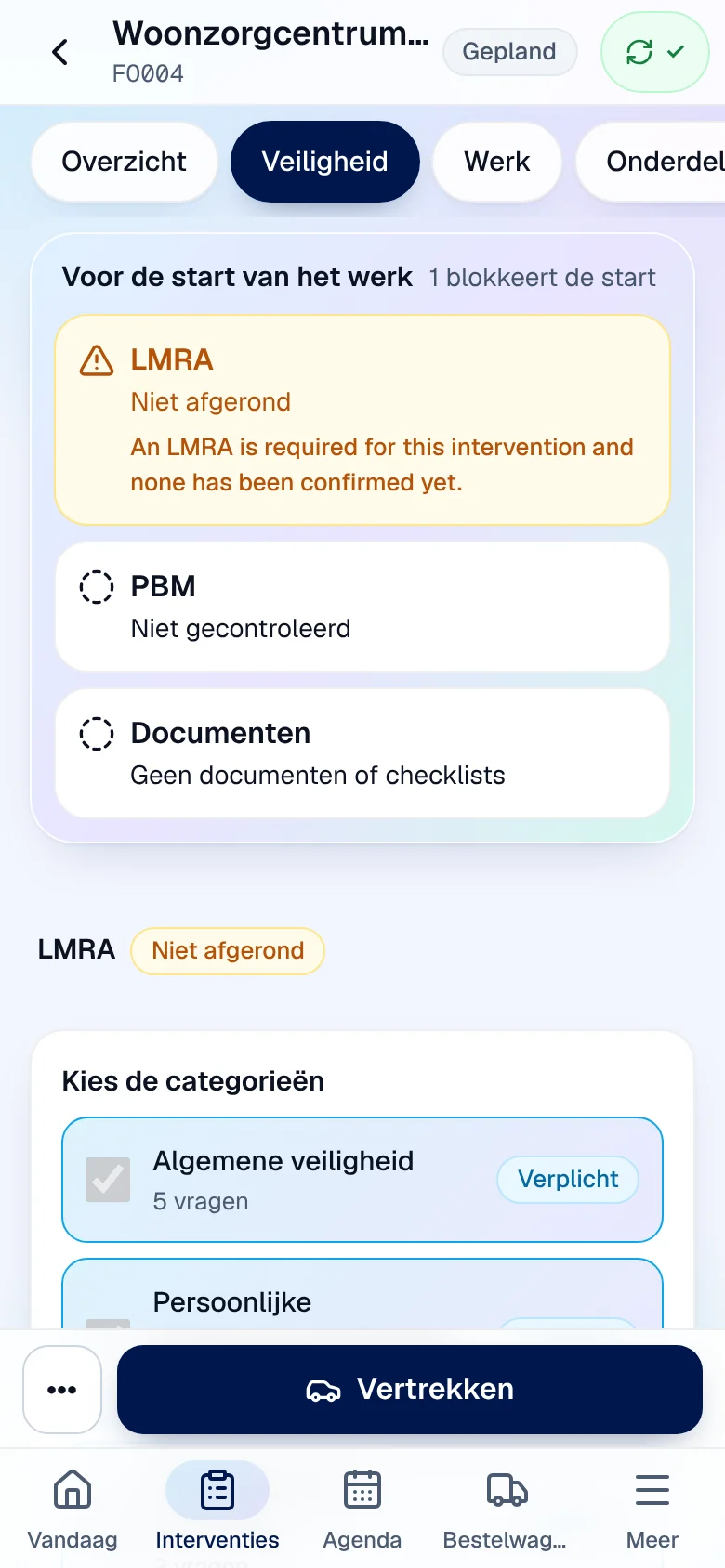
The blocking text comes from the server, in the language of your account, and may be shown in English. PPE only blocks if the office has marked an item of equipment as critical, for example “Kritieke persoonlijke beschermingsmiddelen zijn nog niet gecontroleerd: Isolerende handschoenen.”
Do the LMRA
Section titled “Do the LMRA”-
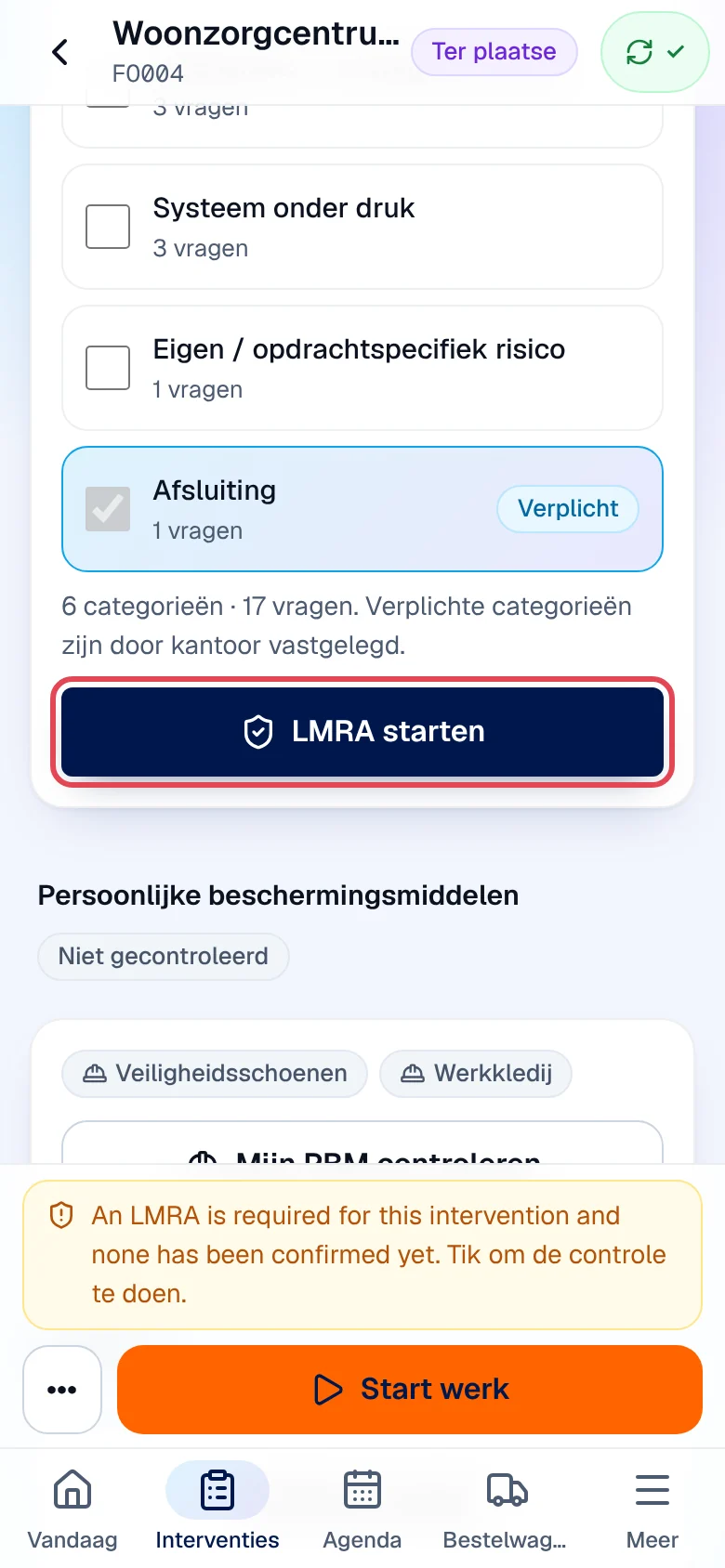
In Kies de categorieën (choose the categories), the Verplicht (mandatory) categories are ticked by the office and locked. If needed, add a category related to your work (working at height, electrical work…). Tap LMRA starten (start the LMRA).
-
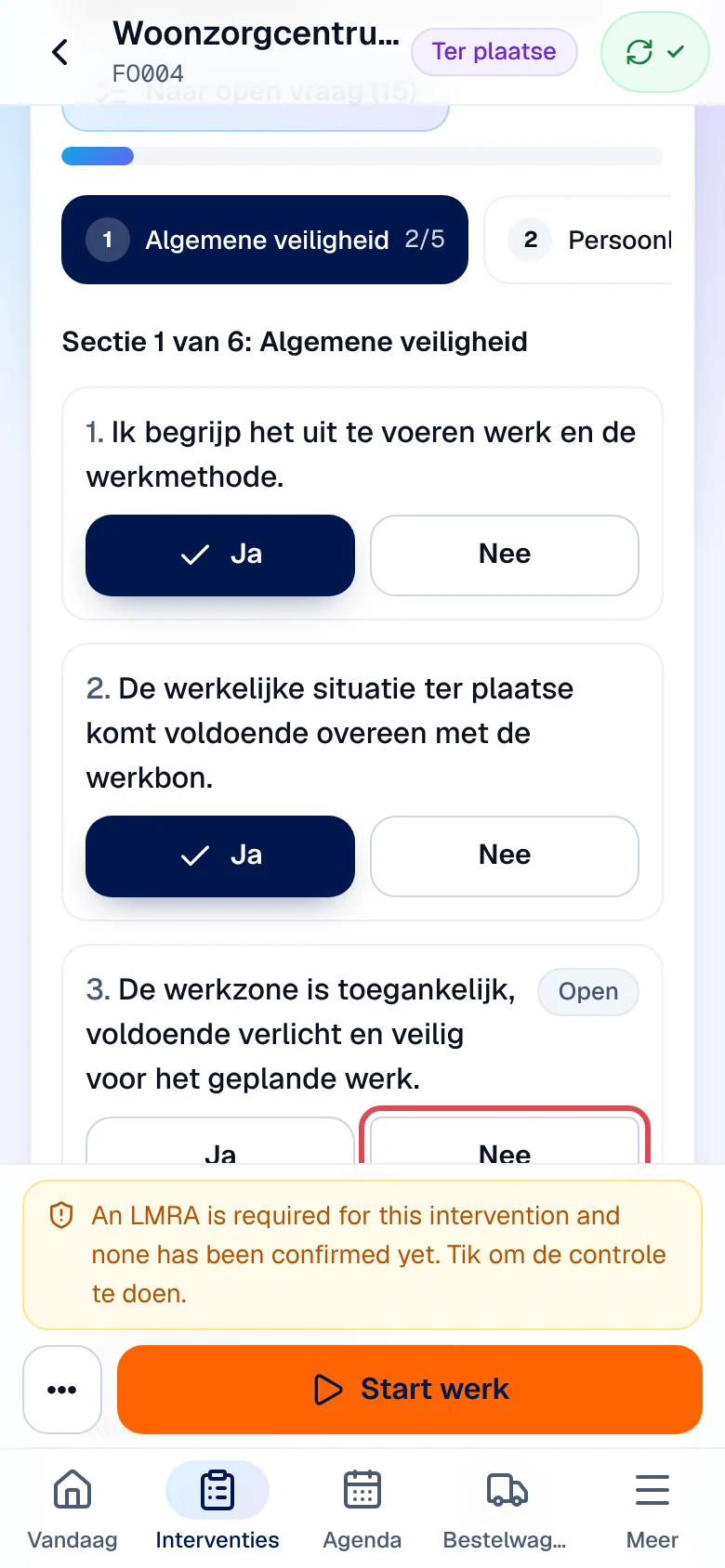
Answer each question with Ja (yes), Nee (no) or N.v.t. (not applicable, only when allowed). Nothing is pre-filled. Move from one section to another with Volgende (next) and Vorige (previous); Naar open vraag (to open question) takes you to the first unanswered question.
-
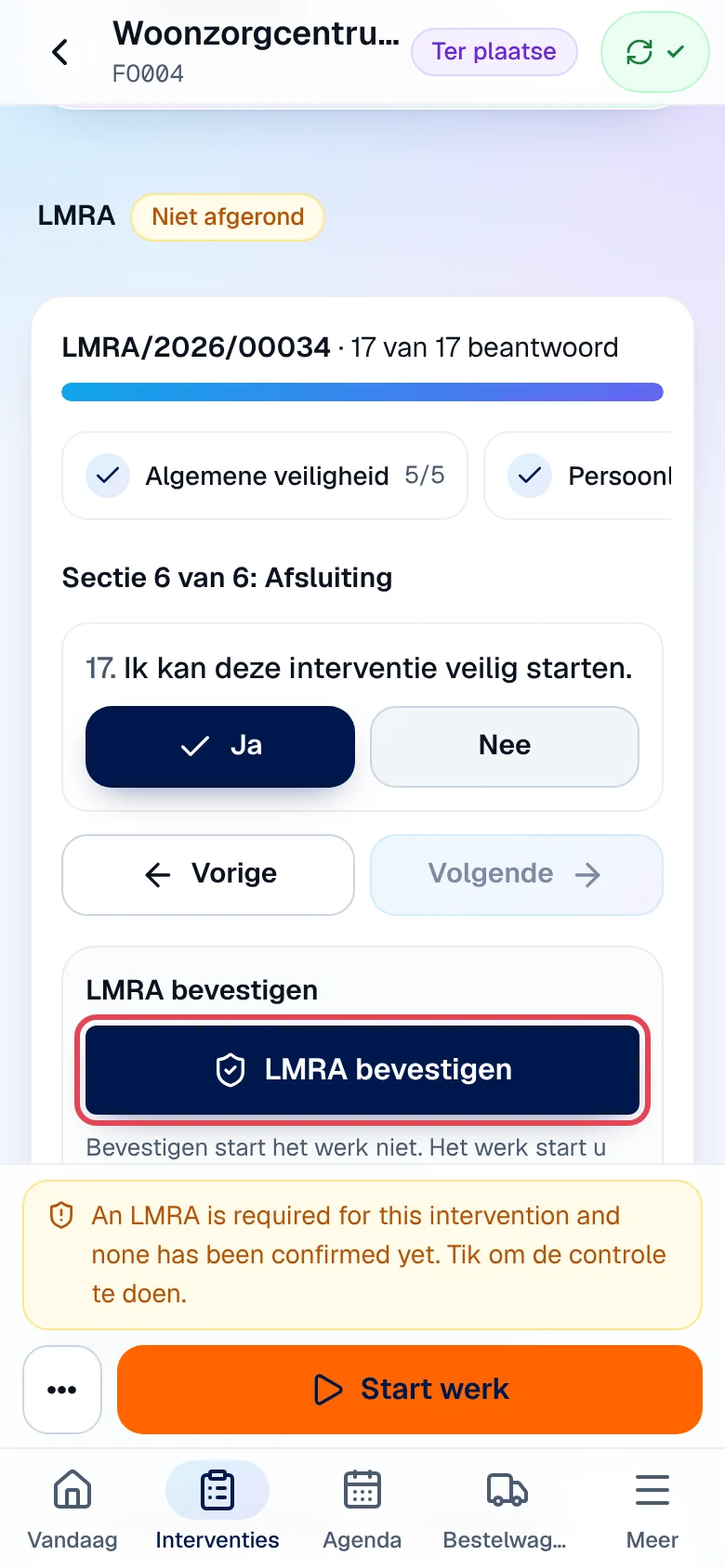
When the 17 questions (in this example) have an answer, tap LMRA bevestigen (confirm the LMRA). Read the server’s declaration and tap Ik bevestig (I confirm).
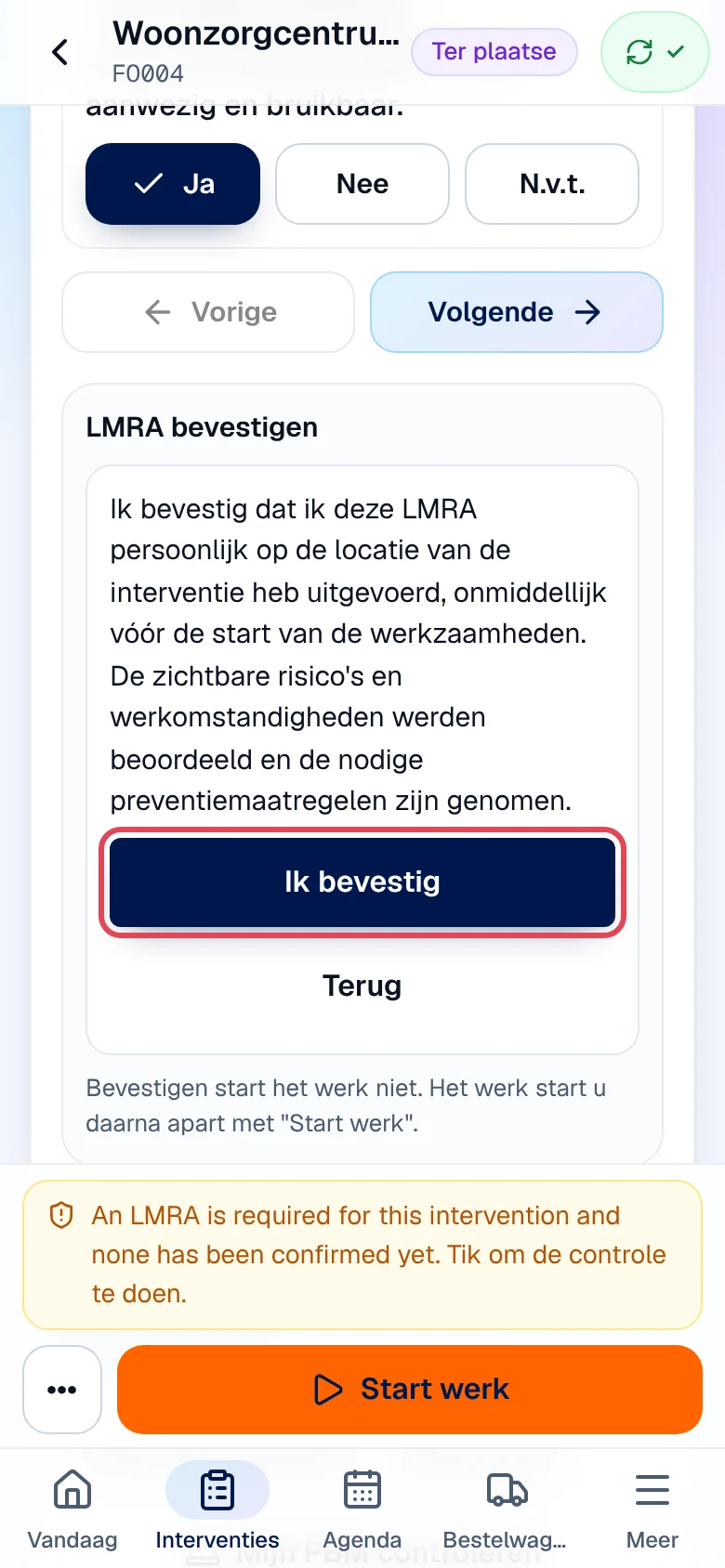
Result: the LMRA changes to “Veilig om te starten” (safe to start) and the app shows “De LMRA is bevestigd. Start het werk apart met “Start werk” onderaan.” Confirming the LMRA does not start the work: then tap Start werk in the bottom bar.
Answering Nee: report a hazard
Section titled “Answering Nee: report a hazard”A Nee creates a hazard, with the severity the office has set for this question. As long as this severity blocks the start, the app shows “STOP — er is een blokkerend gevaar vastgesteld. Het werk mag niet starten tot het gevaar is weggenomen en een nieuwe LMRA veilig is.” (a blocking hazard has been found).
-
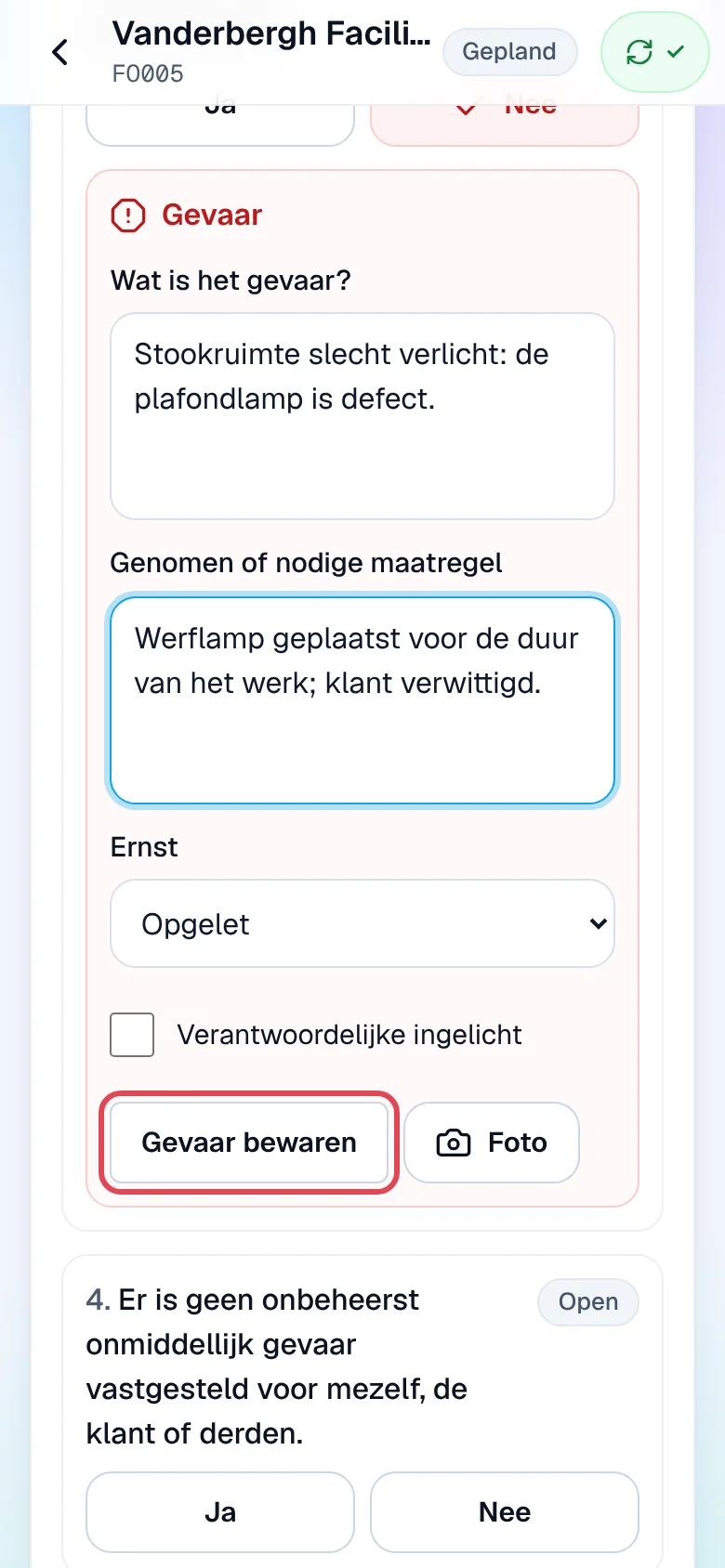
Below the question, fill in Wat is het gevaar? (what is the hazard?) and Genomen of nodige maatregel (measure taken or needed).
-
Choose the Ernst (severity): Info, Opgelet (caution), Gevaar (blokkeert de start) (hazard, blocks the start) or Stop het werk (blokkeert de start) (stop the work). Tick Verantwoordelijke ingelicht (manager informed) if this is the case; Foto adds a photo.
-
Tap Gevaar bewaren (save hazard), then finish and confirm the LMRA.
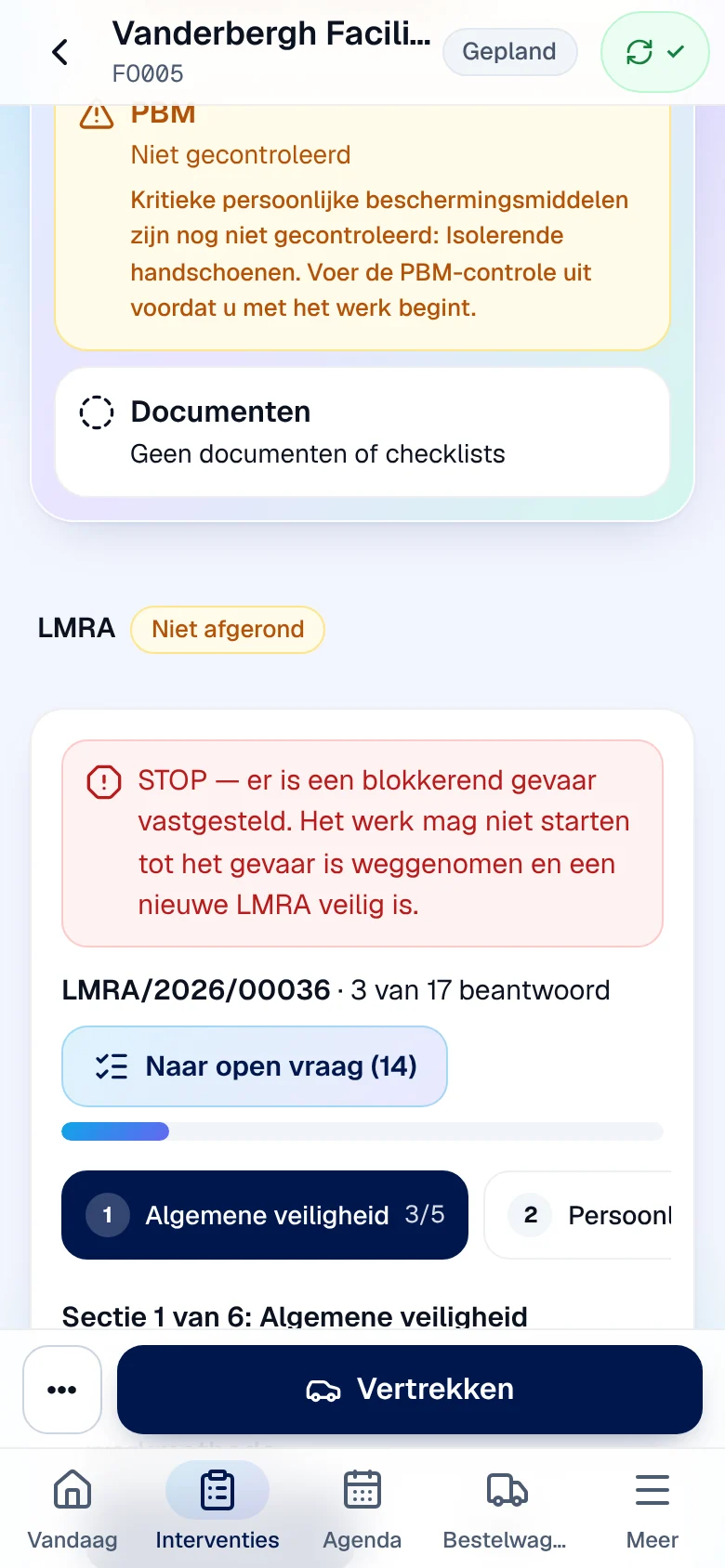
An LMRA confirmed with a hazard, even of severity Info or Opgelet, changes to Hercontrole vereist (new check required): the work cannot start.
-
Under “Open gevaar” (open hazard), describe what was done in Wat werd gedaan om het risico weg te nemen? and tap Gevaar gecorrigeerd melden (report hazard corrected).
-
Tap Nieuwe LMRA (hercontrole) (new check LMRA), answer the questions and confirm as above.
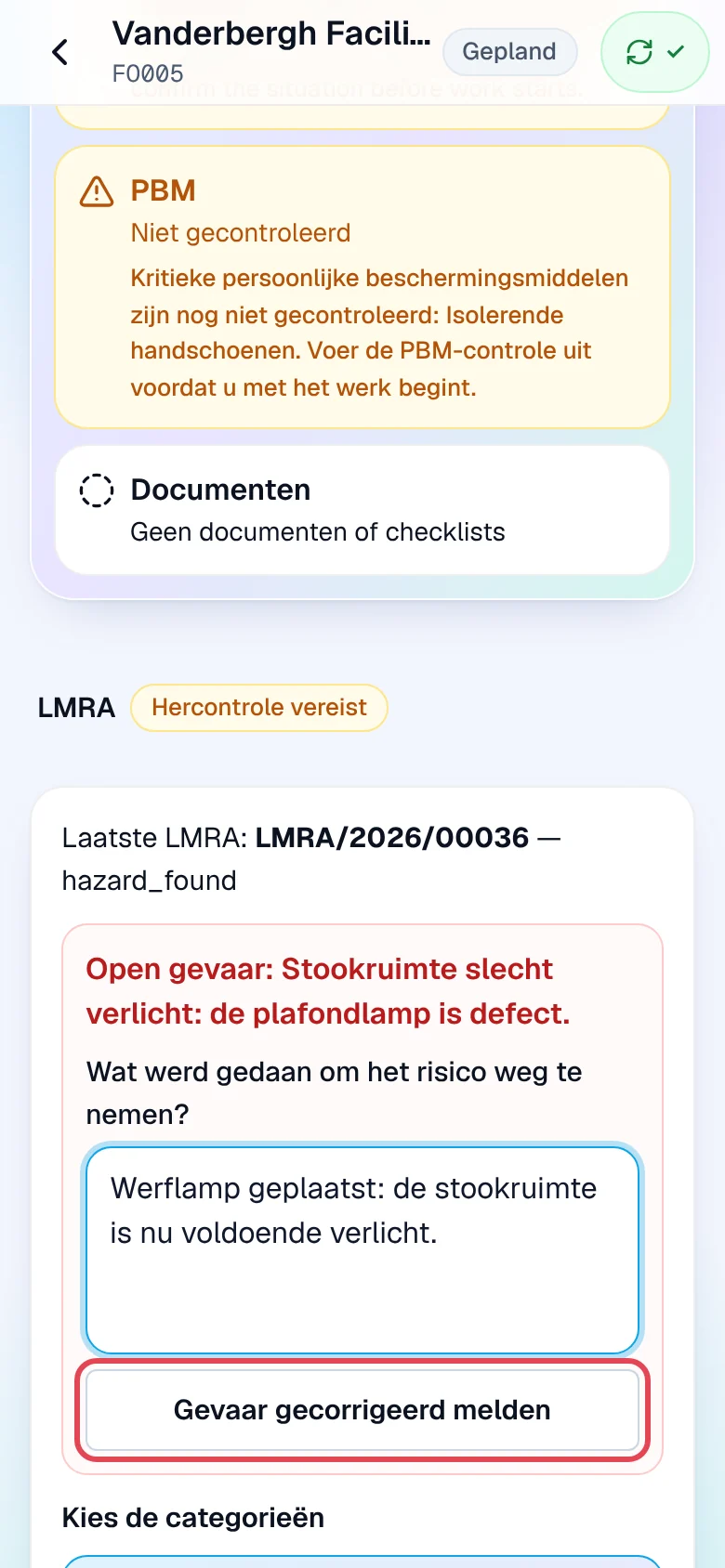
Result: the new LMRA is “veilig” and the blocking disappears.
Check your PPE
Section titled “Check your PPE”-
In Persoonlijke beschermingsmiddelen, the list shows the required equipment. Tap Mijn PBM controleren (check my PPE).
-
For each item, tap In orde (in order), Beschadigd (damaged) or Ontbreekt (missing).
-
Tap PBM-controle bevestigen (confirm the PPE check).
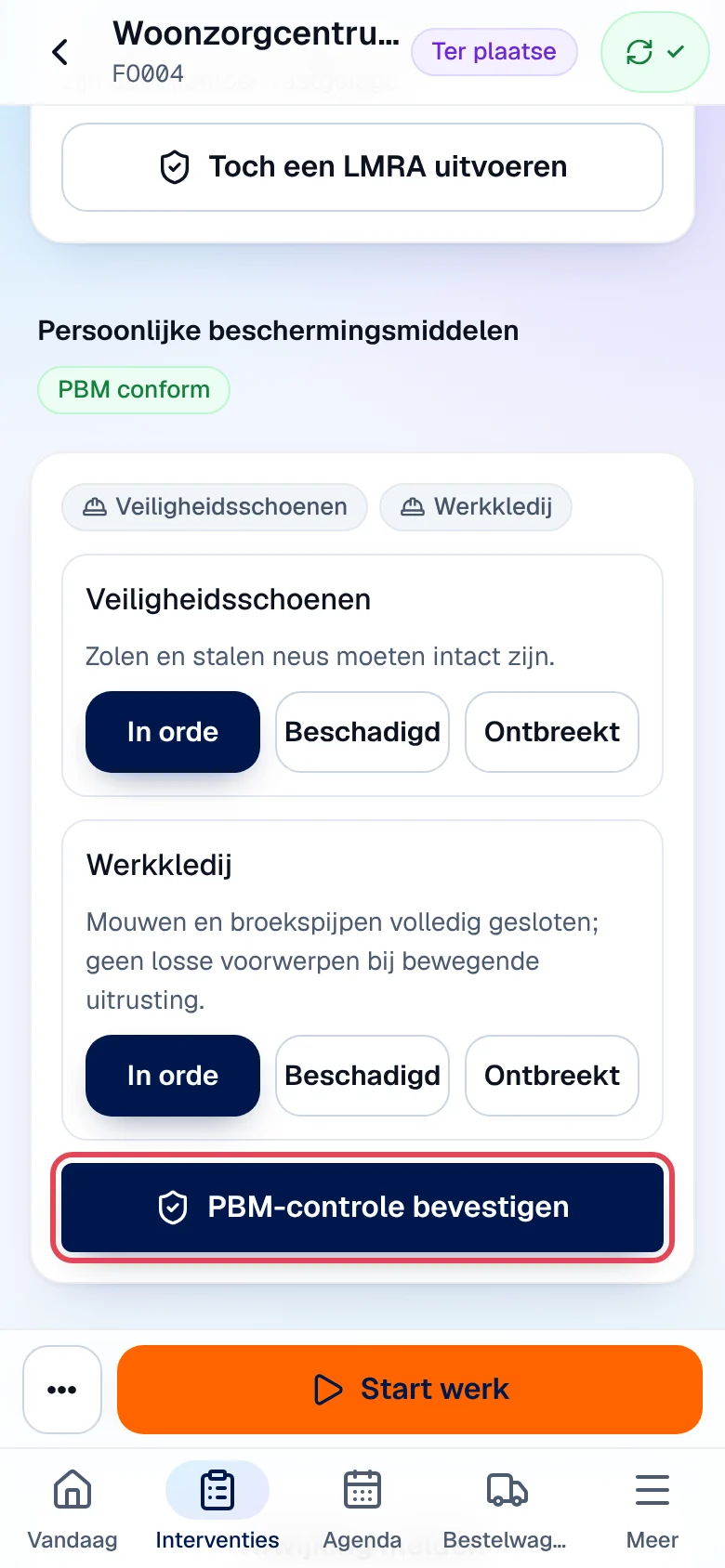
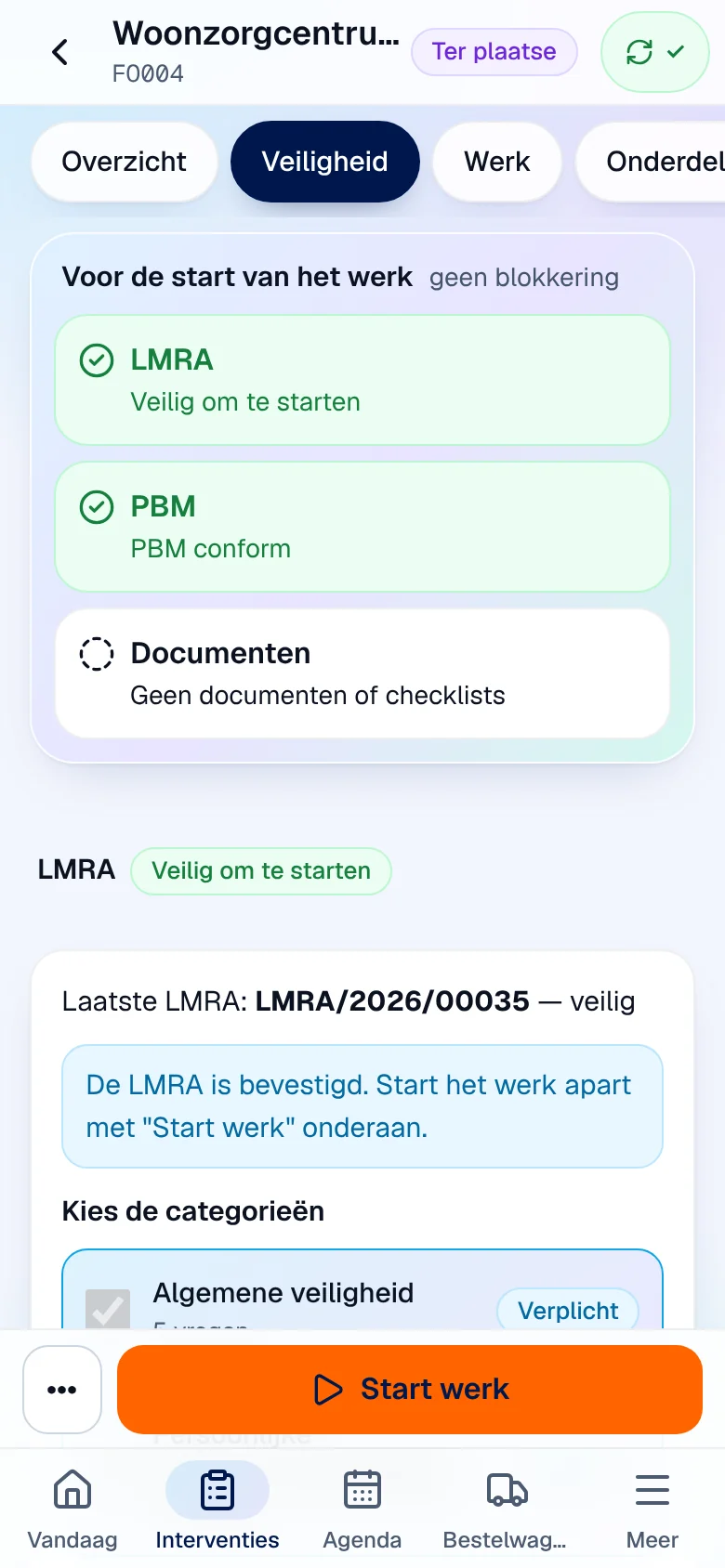
Result: “PBM conform”. A damaged or missing critical item blocks the start; when the problem is solved, tap Opgelost melden (report solved) and describe what was done.
Read the documents and fill in the checklists
Section titled “Read the documents and fill in the checklists”If the office requires documents, the Documenten section lists them with Gelezen (read), Blokkeert de start or Te lezen (to read). Tap Openen (open, requires a network), then Gelezen en begrepen (read and understood). A checklist is filled in line by line (Ja/Nee/N.v.t., OK/Niet OK, a value or a text, Foto nemen if a photo is required), then Checklist bevestigen. Without a required document, the card shows “Geen documenten of checklists”.
Report a non-conformity
Section titled “Report a non-conformity”Tap Afwijking melden (report a deviation), choose the Soort (type: Veiligheid, Kwaliteit, Procedure niet gevolgd, Staat van de installatie…) and the Ernst (Klein, Groot, Kritiek), describe Wat werd vastgesteld? (what was found) and tap Melden. The non-conformity is sent to the office as soon as there is a network.
Offline
Section titled “Offline”Your answers are kept on the device and sent later. But an LMRA or a PPE check can only be created with a network, because the questions come from the server: do them where you have a network, before going into a basement or a boiler room without signal. Without a confirmed LMRA, the work cannot start, even offline.
What the office sees
Section titled “What the office sees”The intervention record shows the status of the LMRA, the PPE and the documents, the reason for the blocking, the decision taken on site and the hazards still open. See The intervention record.
Current limits
Section titled “Current limits”- The server’s texts (reason for blocking, declaration) may be in English; the “Laatste LMRA” line may show an English code, for example “hazard_found” (hazard found).
- The mandatory categories and the required equipment are set at the office, not in the app.
See also
Section titled “See also”- Carrying out an intervention
- Operating rules — the office’s safety settings.