

Report, photos, signatures and closing
During and after the work, three tabs are enough: Werk (work) for the report, Foto’s en handtekening (photos and signature) for the evidence, Afronden (close) to finish and send the report. Everything you type is kept on the device, even without a network.
| Menu | in the intervention, Werk, Foto’s en handtekening, Afronden tabs |
| Who | the assigned technician; the invoice on site only if the office has allowed it for you |
| Prerequisites | the work has started (Start werk) so that you can finish it |
Fill in the report
Section titled “Fill in the report”-
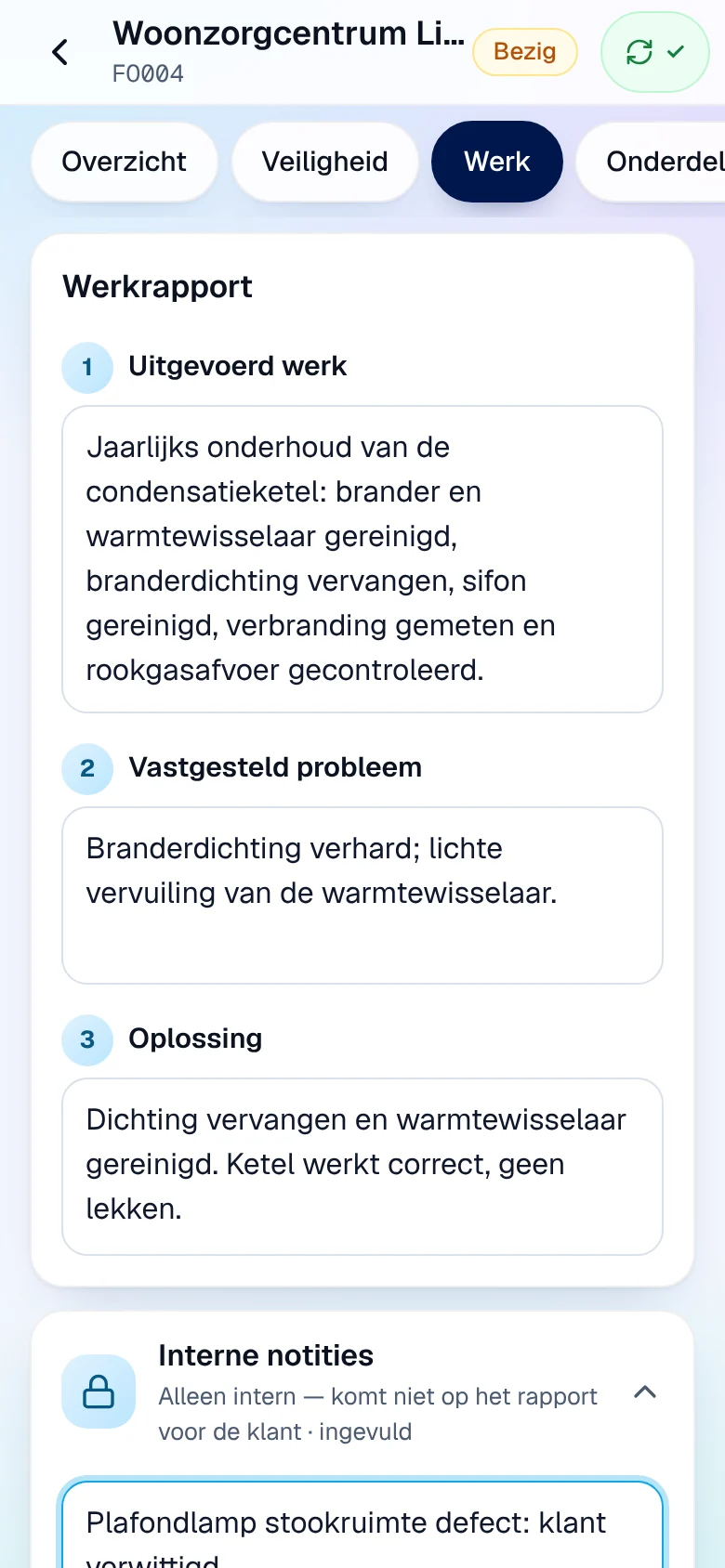
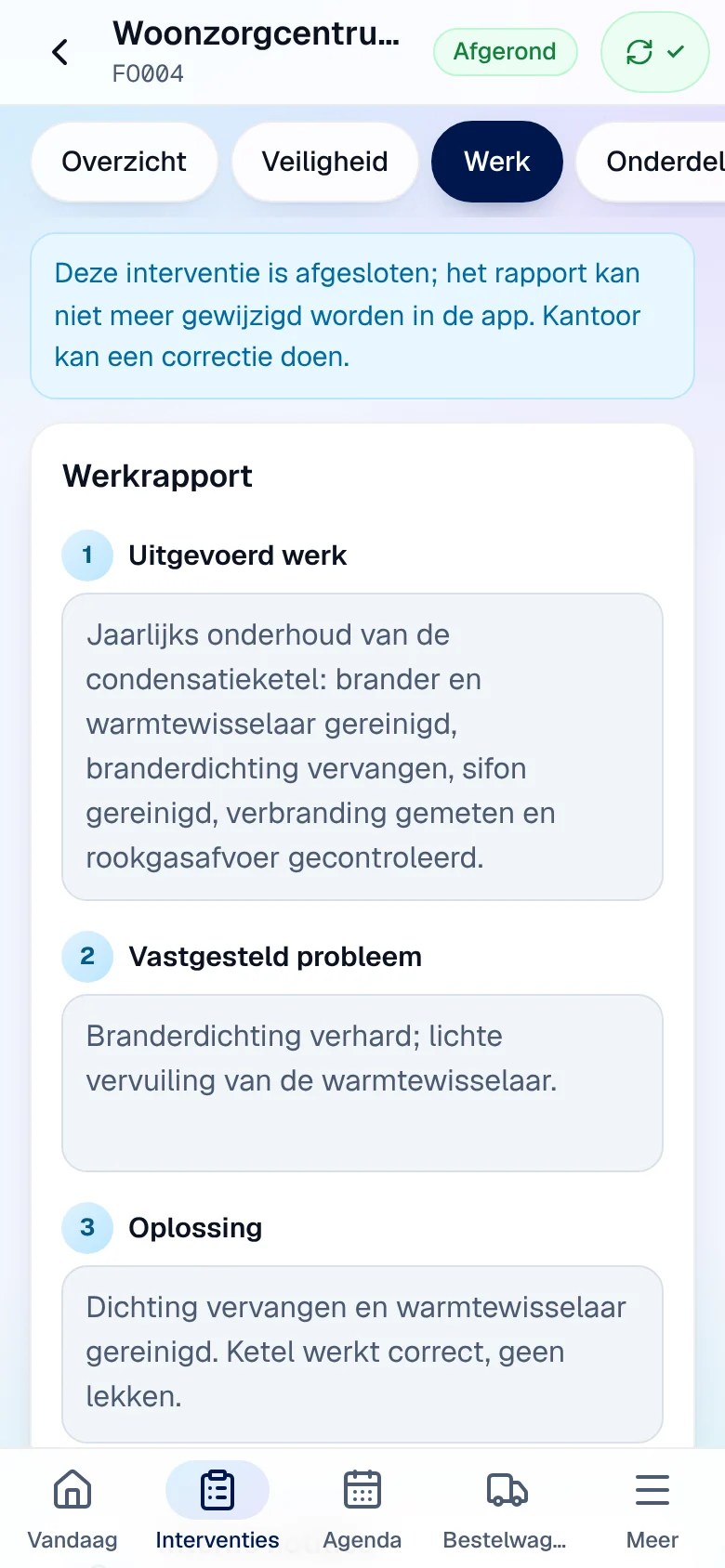
Open the Werk tab. Fill in the Werkrapport (work report): Uitgevoerd werk (work carried out), Vastgesteld probleem (problem found) and Oplossing (solution).
-
If needed, expand Interne notities (internal notes, never on the customer’s report) and Opmerkingen voor de klant (remarks for the customer, printed on their report).
-
Tap Rapport bewaren (save report).
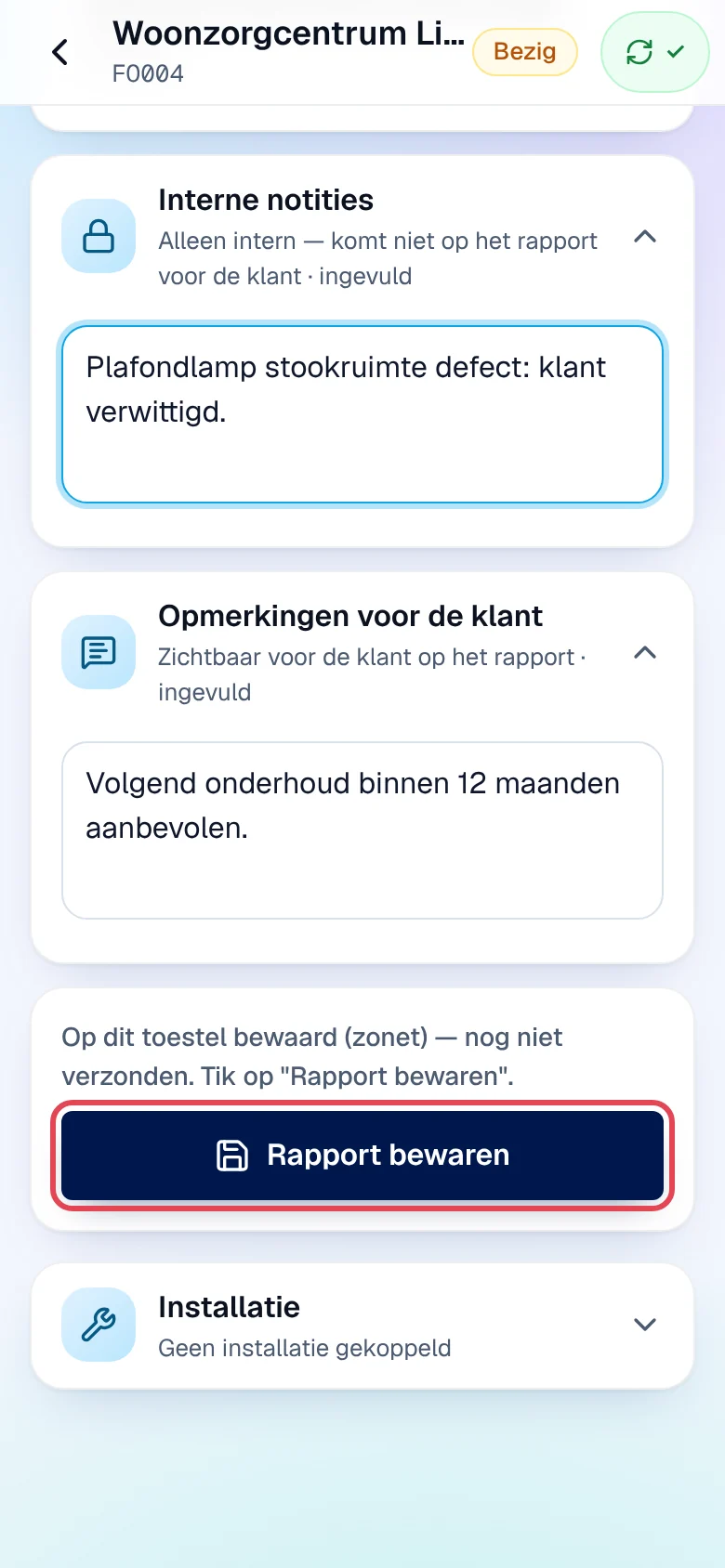
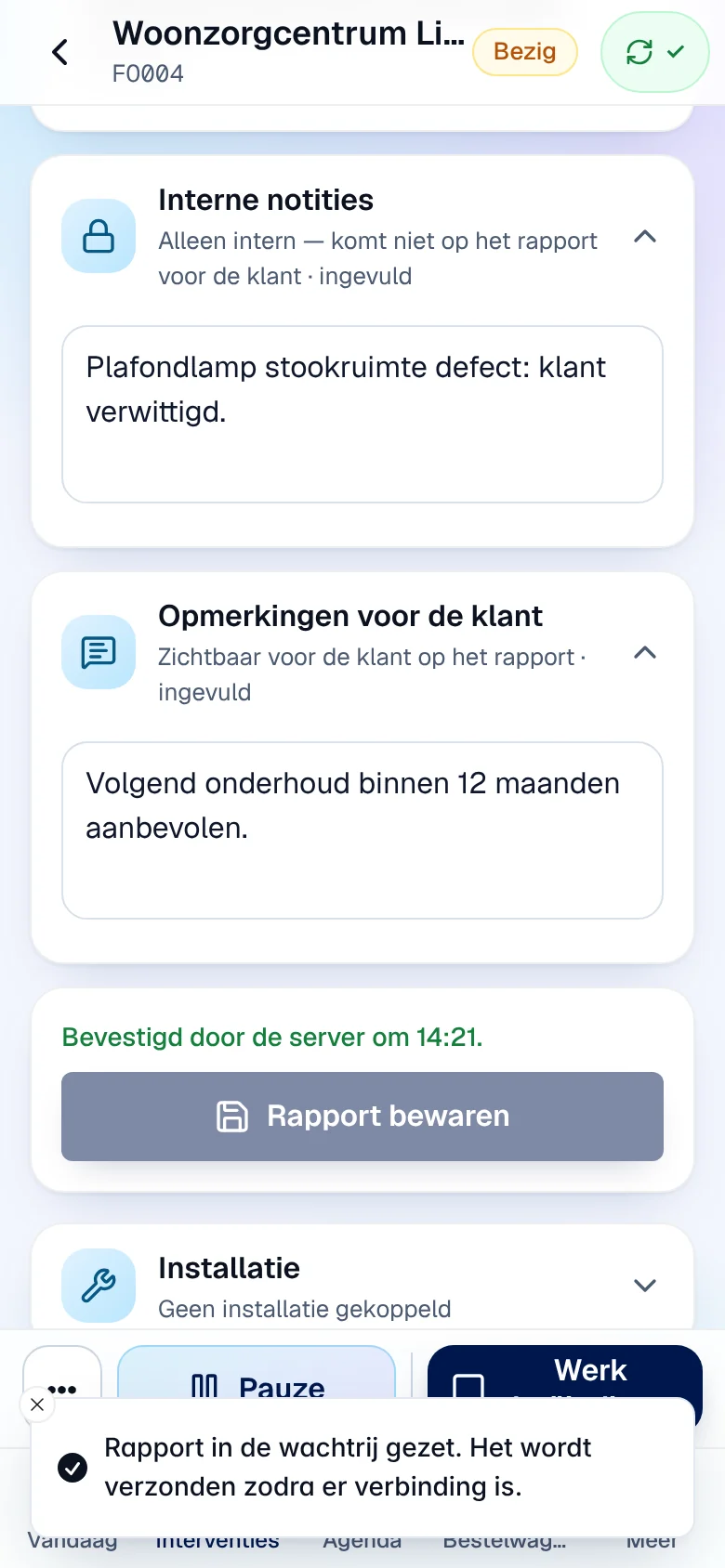
Result: the message “Rapport in de wachtrij gezet. Het wordt verzonden zodra er verbinding is.” (report queued) then the line “Bevestigd door de server om 14:21.” (confirmed by the server). The line above the button always tells you the state of your text:
| Line | Meaning |
|---|---|
| “Op dit toestel bewaard (…) — nog niet verzonden.” | kept on the device; tap Rapport bewaren |
| “In wachtrij — wordt verzonden zodra er verbinding is.” | waiting for a network |
| “Bevestigd door de server om …” | received by the office |
| “Niet verwerkt door de server: …” | refused: see Synchronisatie |
If the office has changed the intervention in the meantime, your save comes back as Conflict: nothing is overwritten, you decide in Synchronisatie.
Add photos
Section titled “Add photos”-
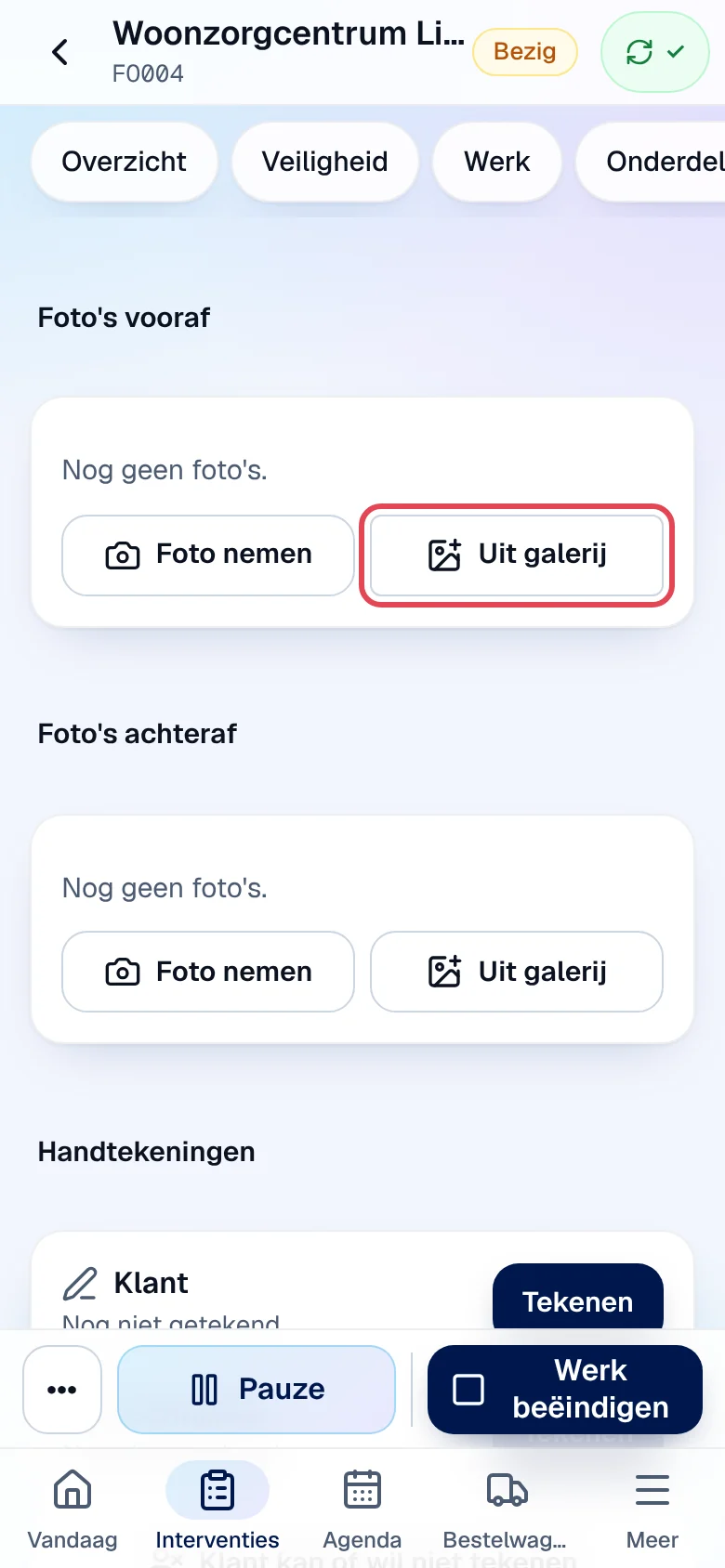
Open Foto’s en handtekening. Under Foto’s vooraf (photos before) or Foto’s achteraf (photos after), tap Foto nemen (take a photo) or Uit galerij (from the gallery, up to 10 at a time).
-
The thumbnail appears. The Verplicht (required) badge changes to In orde when the office requires photos and they are there.
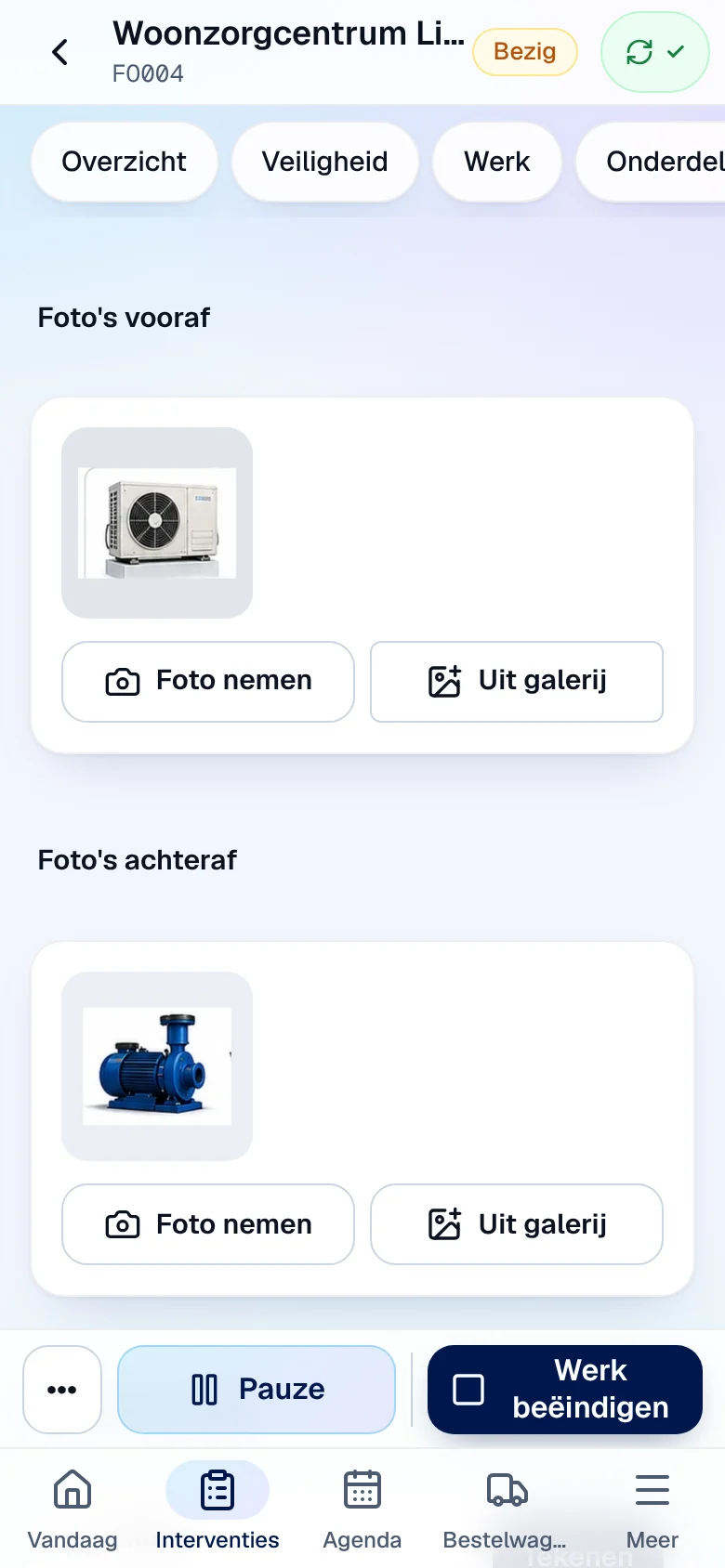
Photos are reduced on the device, then the server removes the GPS location they contain. They are also sent later if you are offline. Possible messages: “Dit bestand is geen foto.”, “Deze foto kan niet gelezen worden. Neem de foto opnieuw of kies een JPEG of PNG.”, “Deze foto is te groot.”.
Get signatures
Section titled “Get signatures”-
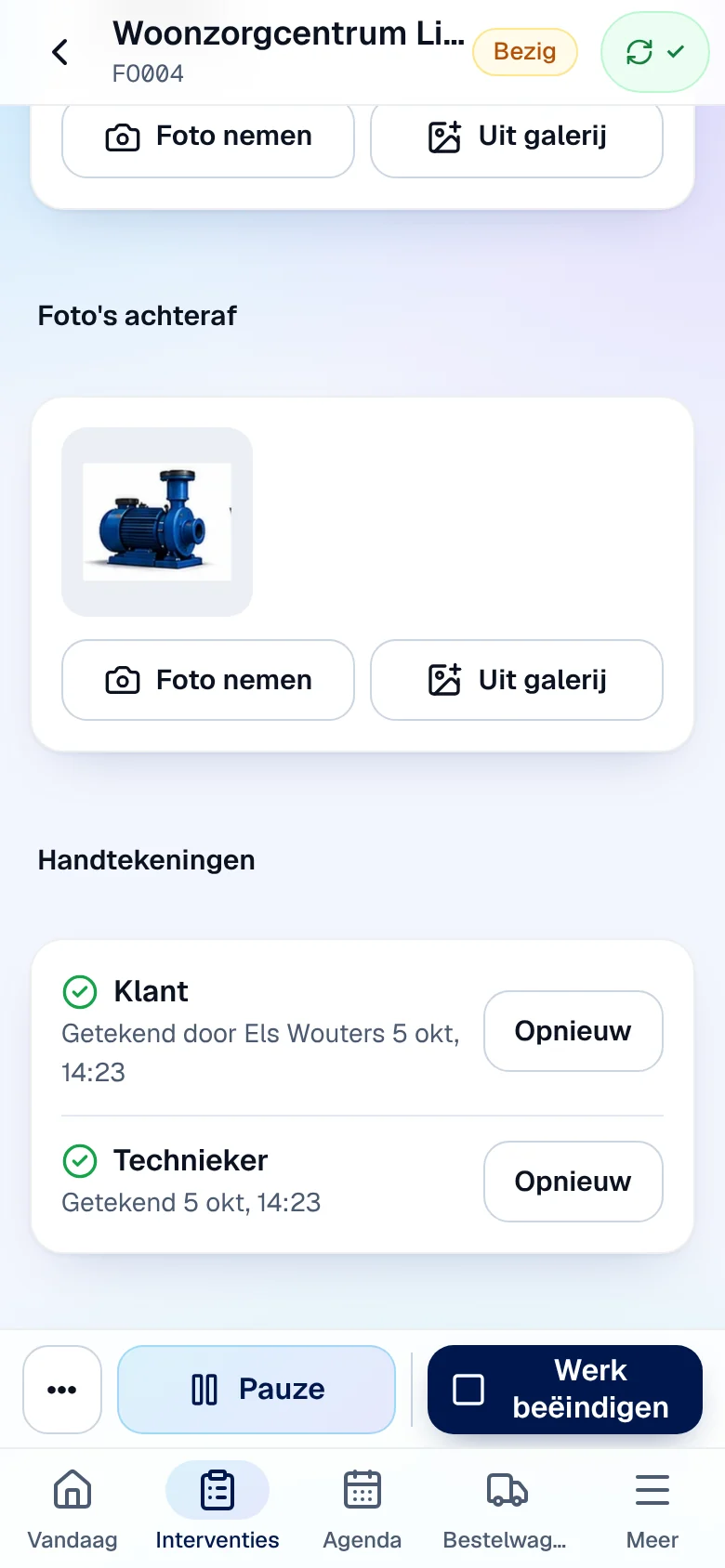
Under Handtekeningen (signatures), on the Klant (customer) line, tap Tekenen (sign).
-
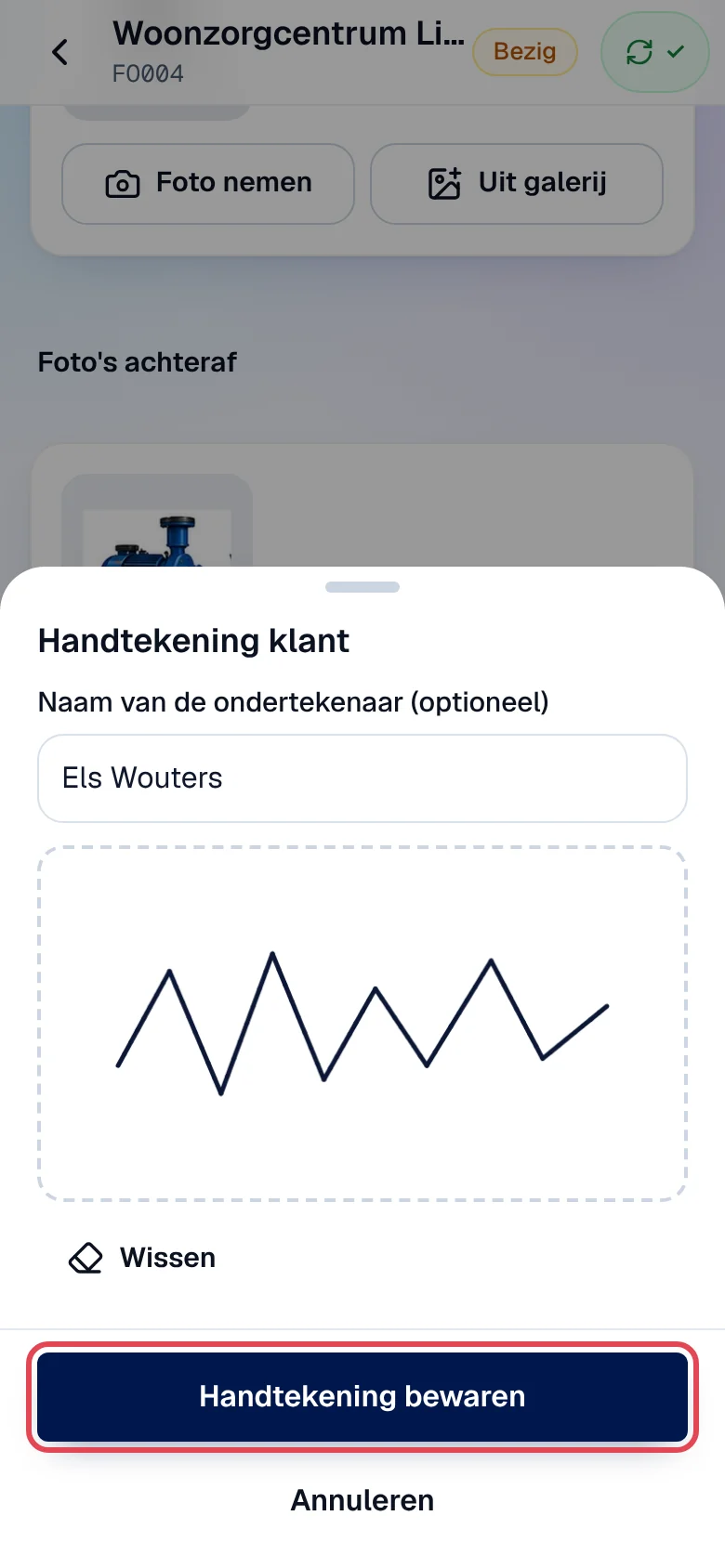
In Handtekening klant, enter the Naam van de ondertekenaar (optioneel) (signer’s name) if you wish, have the customer sign in the box (Wissen clears it), then tap Handtekening bewaren (save signature).
-
On the Technieker line, tap Tekenen and sign yourself (Uw handtekening).
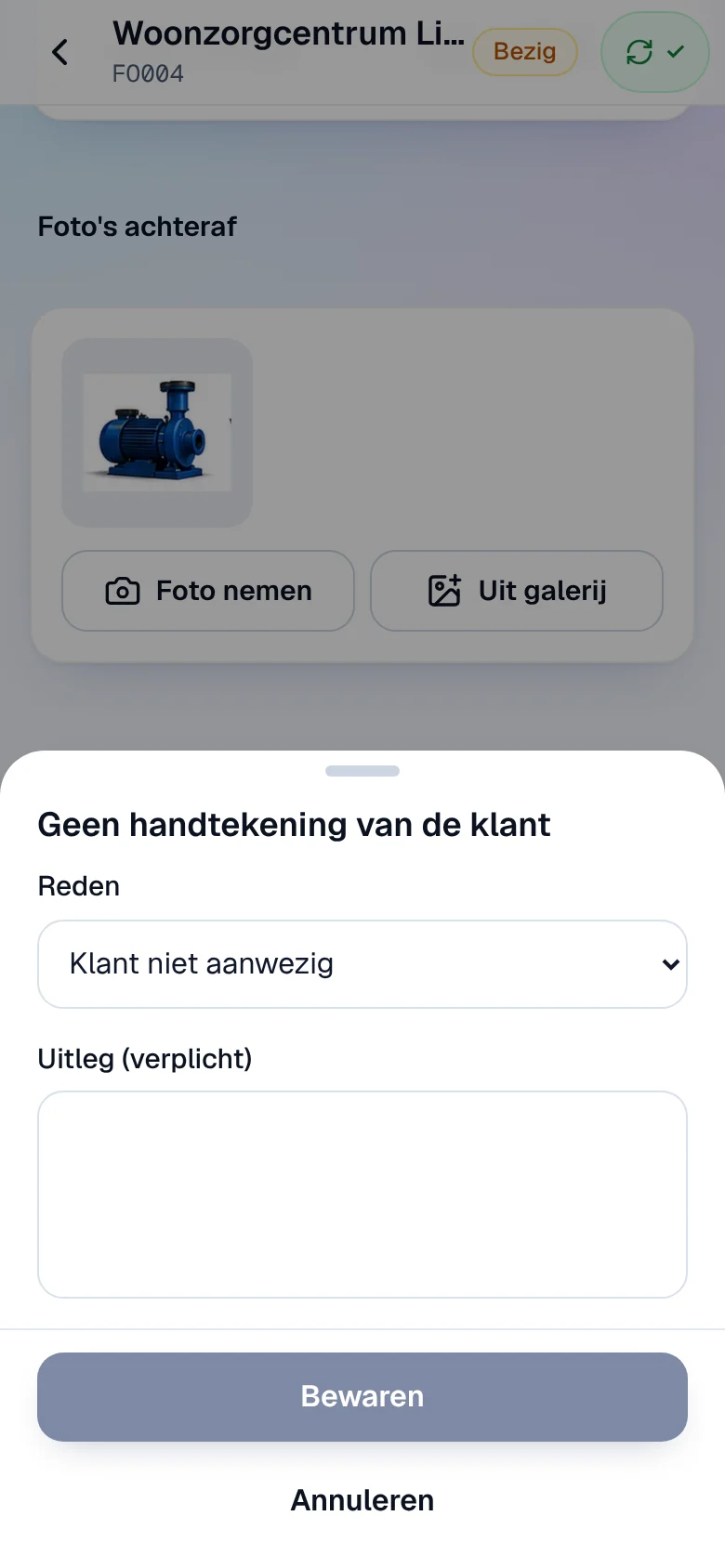
If the customer cannot or will not sign, tap Klant kan of wil niet tekenen. Choose the Reden (reason) Klant niet aanwezig (customer absent) or Klant weigert te tekenen (the customer refuses to sign), write the Uitleg (verplicht) (required explanation) and tap Bewaren.
Close the intervention
Section titled “Close the intervention”-
Tap Werk beëindigen in the bottom bar, or open the Afronden tab.
-
Choose the Resultaat (outcome):
- Volledig afgewerkt (fully completed): requires your signature, the customer’s (or a reason) and the mandatory photos;
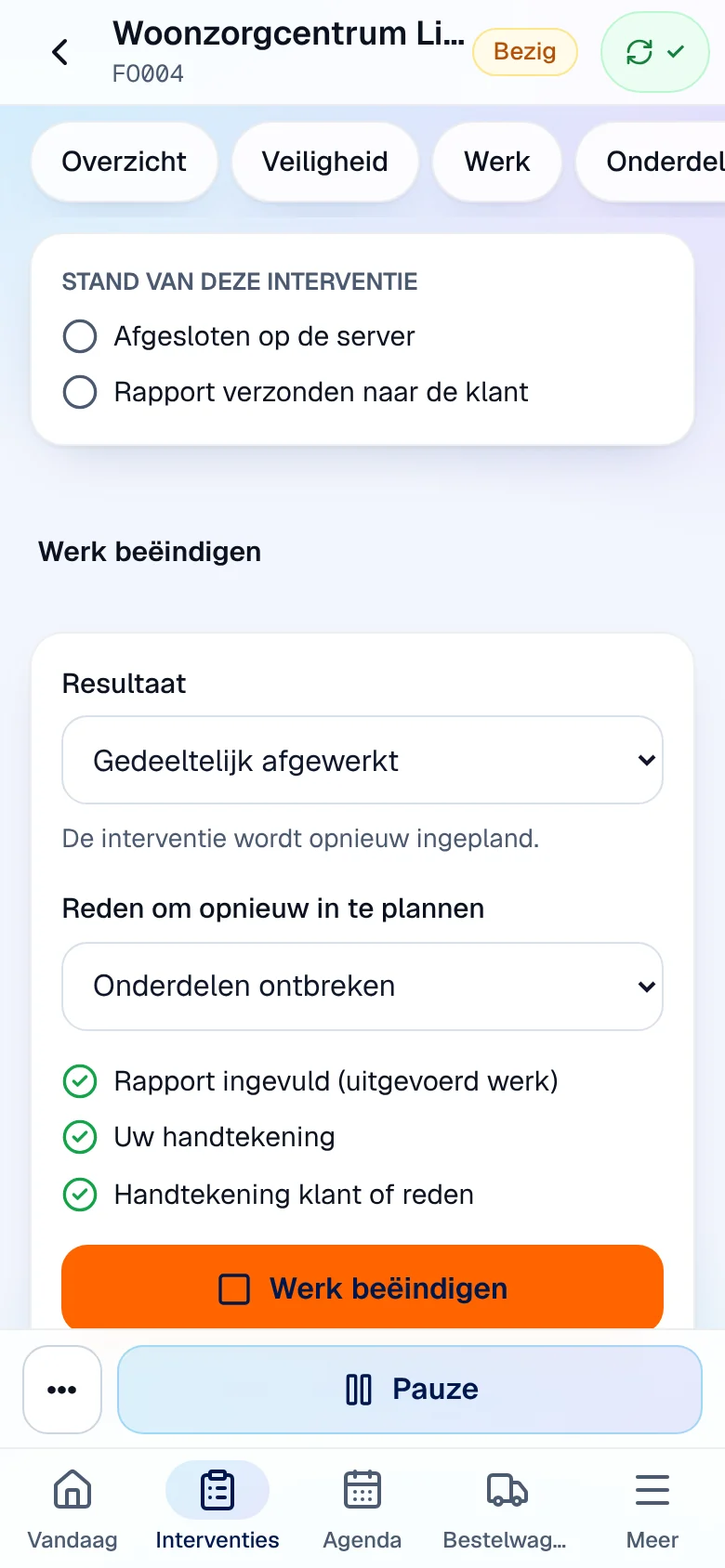
- Gedeeltelijk afgewerkt (partly completed), Wacht op onderdelen (waiting for parts) or Opvolging nodig (follow-up needed): also choose the Reden om opnieuw in te plannen (reason for rescheduling).
-
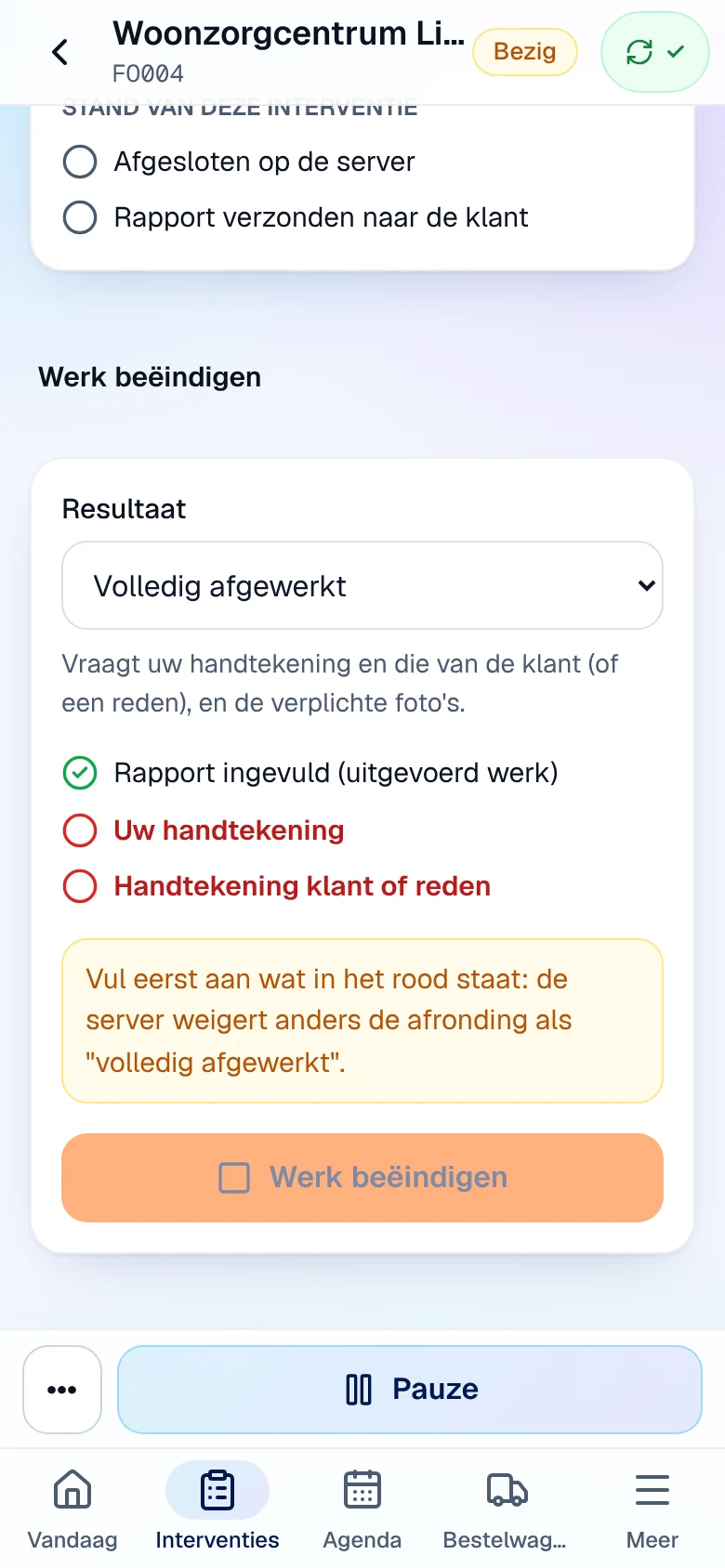
Check the list. In red, what is missing: for Volledig afgewerkt, the app shows “Vul eerst aan wat in het rood staat” and the button stays blocked. Rapport ingevuld is only recommended.
-
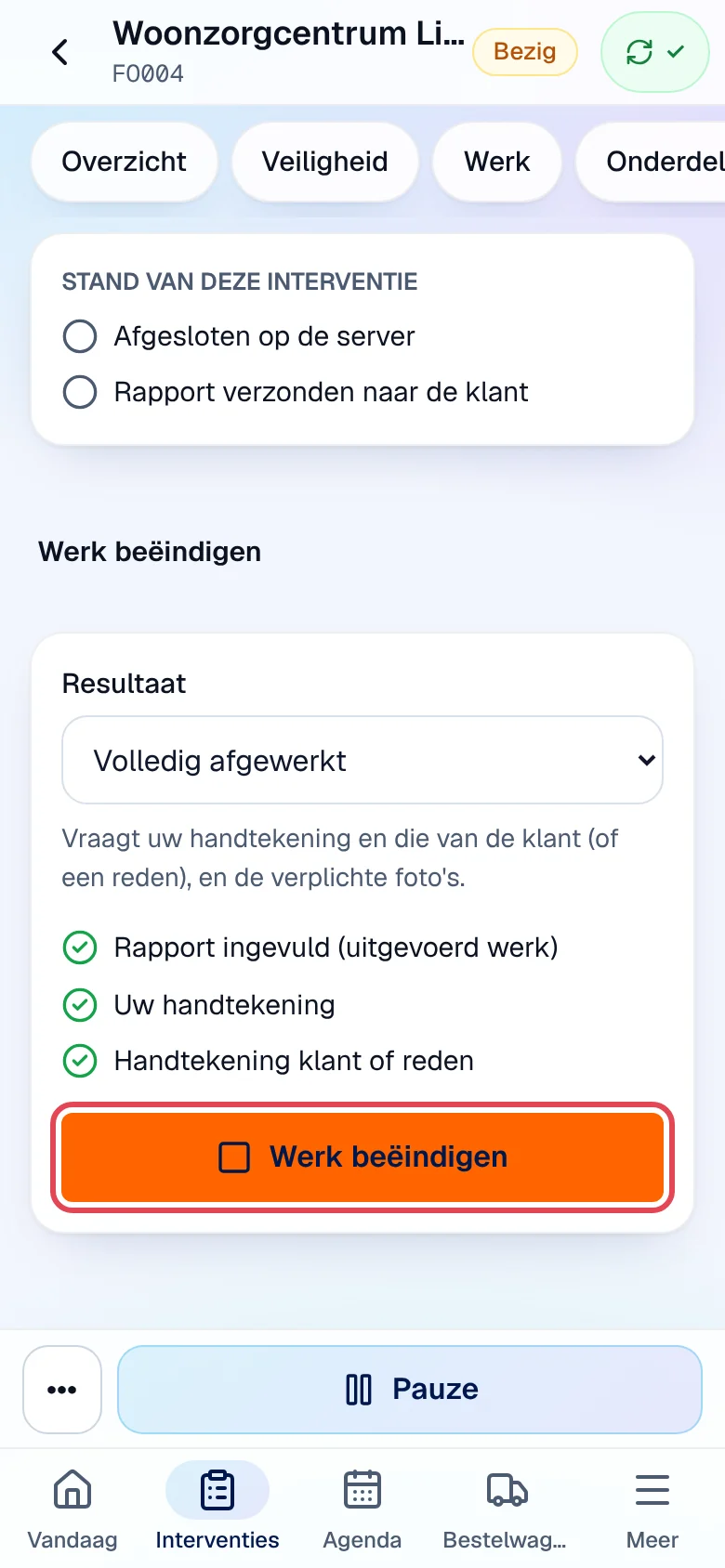
When everything is green, tap Werk beëindigen (finish work).
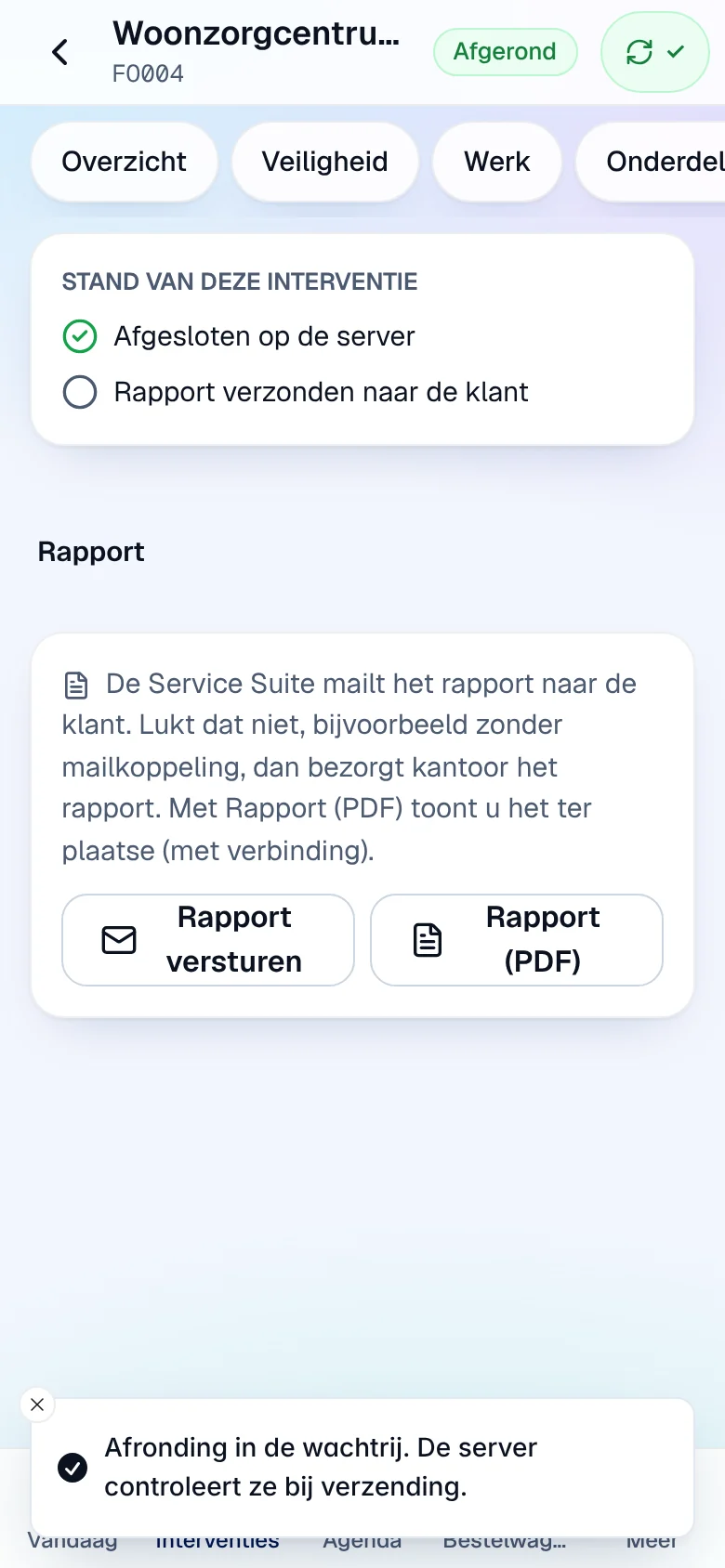
Result: “Afronding in de wachtrij. De server controleert ze bij verzending.” then the status Afgerond and “Afgesloten op de server” (closed on the server). An unsaved report is sent with the closing. The server finishes the work, locks the evidence and counts your hours; an outcome other than Volledig afgewerkt sends the intervention back for rescheduling.
Send the report to the customer
Section titled “Send the report to the customer”-
In Afronden, Rapport section, tap Rapport versturen (send report).
-
The line “Rapport verzonden naar de klant” (report sent to the customer) is ticked; the button becomes Opnieuw versturen (send again).
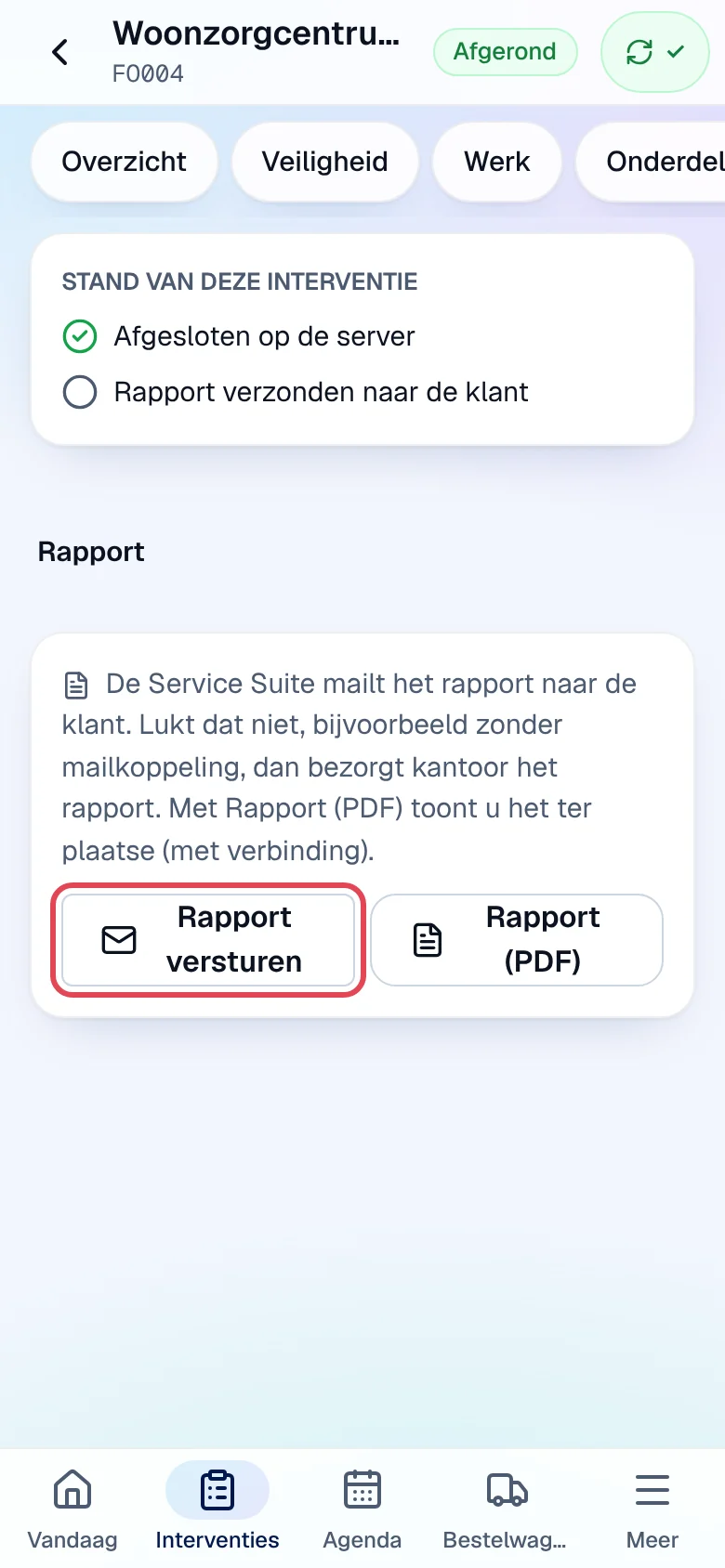
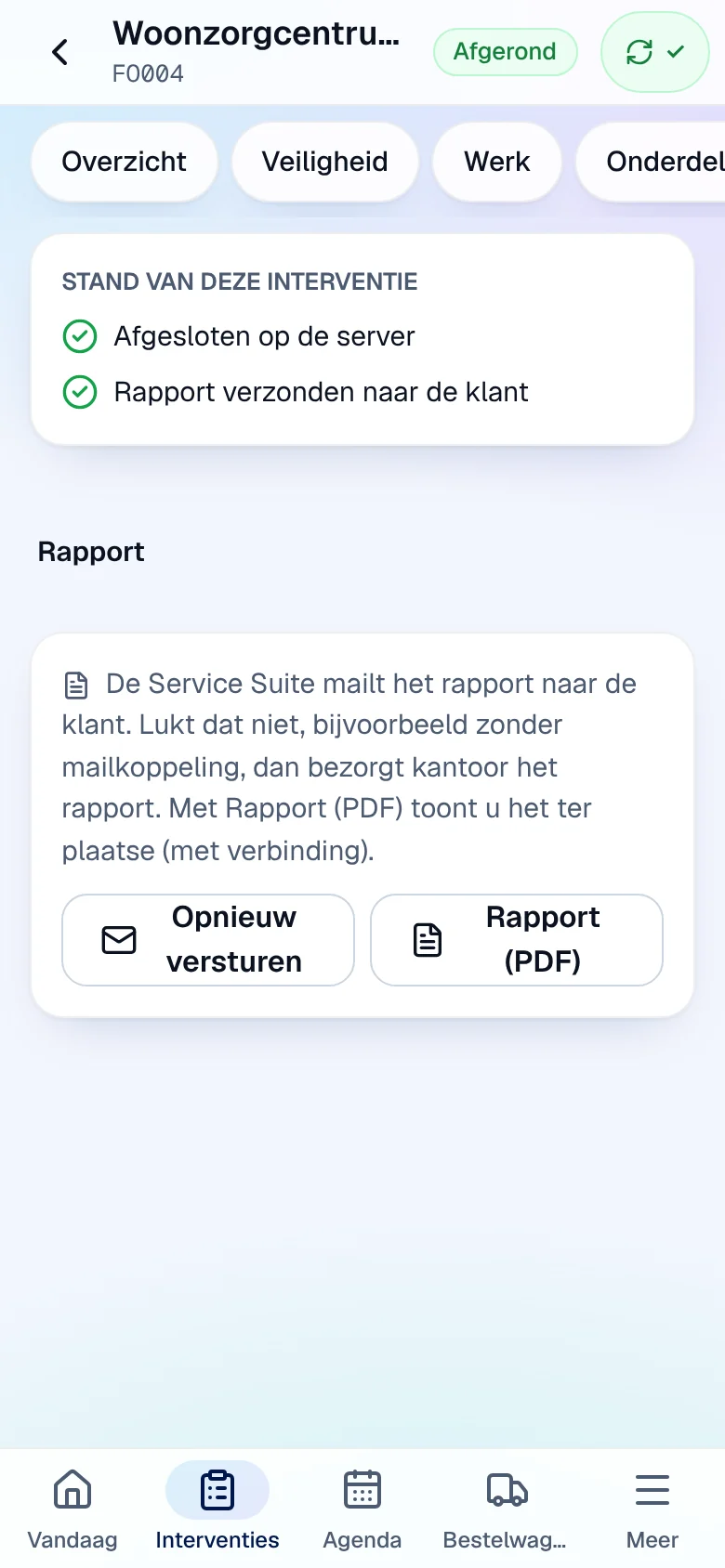
Service Suite sends the report to the customer by e-mail. If this is not possible, for example when your company’s e-mail is not connected, the office delivers the report itself (see Connect your e-mail). Rapport (PDF) opens the report so you can show it on site; this requires a network.
Invoice and payment on site (if the office has allowed it)
Section titled “Invoice and payment on site (if the office has allowed it)”The Factuur en betaling (invoice and payment) section only appears on a completed intervention, and only if the office has given you this permission. The technician role alone does not give it. Everything is done with a network: an invoice or a payment is never queued and is only shown once confirmed by the server.
-
Tap Factuur maken en boeken (create and post the invoice), check the customer, then Ja, factuur boeken. Result: “Factuur aangemaakt en geboekt door de server.”
-
With the invoice: PDF to show it, Versturen to send it to the customer by e-mail.
-
For a payment, tap Betaling: choose the Betaalwijze (Contant, Bancontact, Payconiq, Kaart, Overschrijving), the Bedrag (amount, the balance is suggested) and, if needed, a Referentie, then Registreren. Result: “Betaling van … geregistreerd door de server.” Betaalbewijs sends the payment confirmation to the customer.
On a visit the maintenance contract fully covers, Factuur maken en boeken does not appear: the section shows Gedekt door contract and “Het onderhoudscontract dekt dit bezoek: er is niets te factureren.” (the maintenance contract covers this visit: there is nothing to invoice).
Without this permission, the server answers “U hebt geen rechten om ter plaatse te factureren of betalingen te registreren. Vraag het kantoor.” and the section disappears.
What the office sees
Section titled “What the office sees”| In the app | On the intervention record at the office |
|---|---|
| Report, remarks for the customer | report tab (without the internal notes) |
| Volledig afgewerkt, Gedeeltelijk afgewerkt, Wacht op onderdelen, Opvolging nodig | “Volledig voltooid”, “Gedeeltelijk voltooid”, “Onderdelen ontbreken”, “Opvolging vereist” |
| Photos, signatures, reason for no signature | photos tab, signatures on the record and on the printable report |
| Rapport versturen | “Rapport verzonden” |
| Invoice and payment | the posted invoice in Facturen, the recorded payment |
See The intervention record and Invoices, payments and credit notes.
Current limits
Section titled “Current limits”- Opening a photo full size, or the PDF of the report or invoice, requires a network.
- After closing, only a correction by the office can change the report or the evidence.