

Reports
The Rapporten (reports) page has three uses: following the service figures (interventions, hours, technicians, parts), finding completed intervention reports and sending them to customers, and reading the service revenue. It is meant for the office: management, planning, accounting.
| Menu | Inzichten › Rapporten |
| Who | The service tabs: administrator, manager, planner, accounting, read only and Directie. The Omzet tab: the roles that see amounts (administrator, manager, accounting, sales except Sales Representative, read only). Details at the bottom of the page. |
| Prerequisites | Completed interventions; for Omzet, posted customer invoices. |

Analyse a period (Overzicht)
Section titled “Analyse a period (Overzicht)”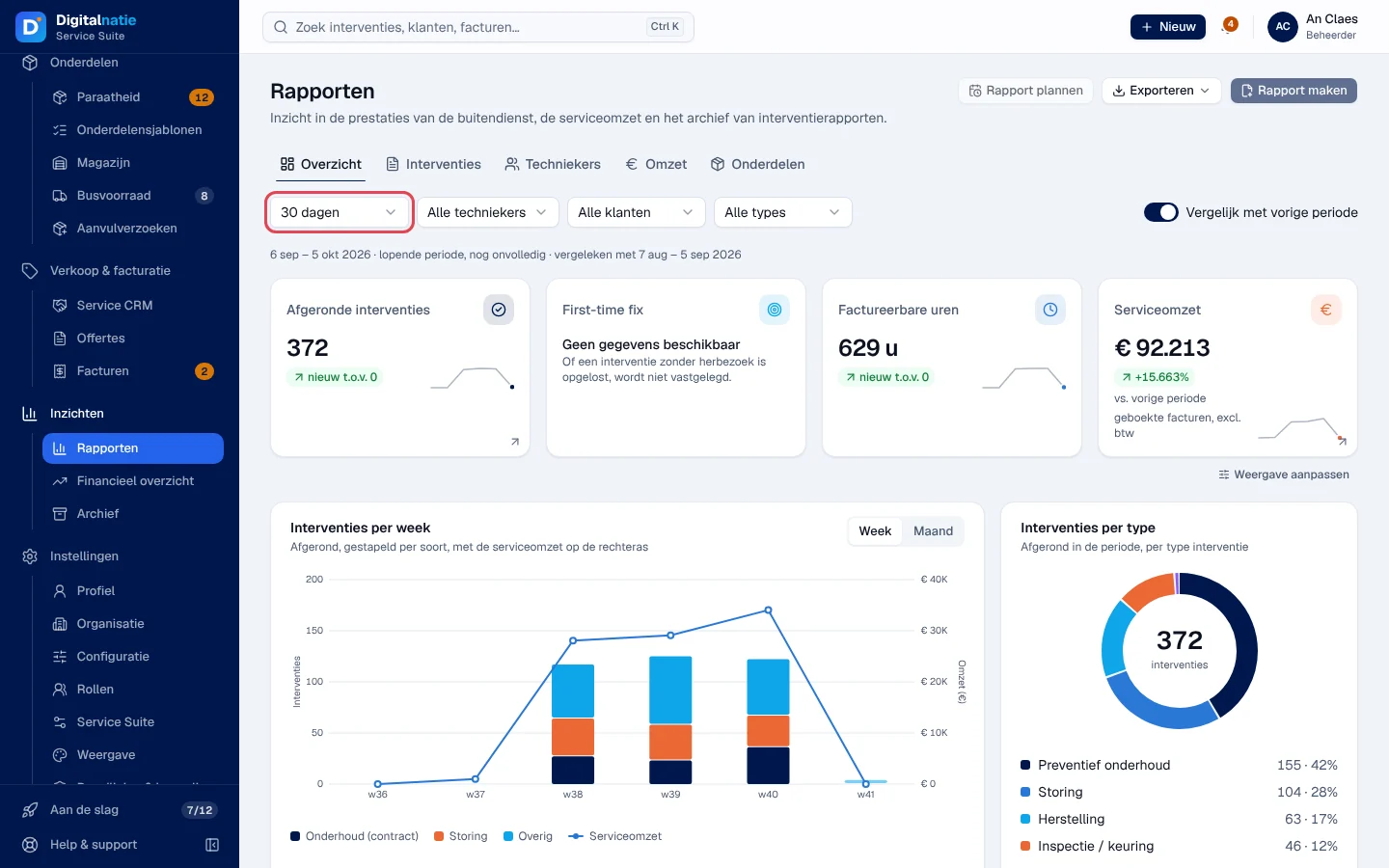
-
Open Inzichten › Rapporten. The Overzicht (overview) tab opens.
-
Choose the period: 7 dagen, 30 dagen, 90 dagen, 12 maanden (7, 30, 90 days, 12 months) or Aangepast (custom).
-
If needed, filter by Technieker (technician), Klant (customer) or intervention Type. Switch on Vergelijk met vorige periode (compare with previous period) to see the difference. If archived technicians have interventions, Inclusief gearchiveerde techniekers (including archived technicians) adds them to the Technieker filter, marked “(gearchiveerd)”.
Result: the line under the filters shows the period read and the comparison period; a current period is flagged “lopende periode, nog onvolledig” (current period, still incomplete).
What you read:
- Afgeronde interventies (completed interventions), Factureerbare uren (billable hours) and, if you see amounts, Serviceomzet (service revenue: posted invoices, excluding VAT).
- First-time fix (fixed on the first visit) shows “Geen gegevens beschikbaar” (no data available): it is not recorded.
- The charts: Interventies per week (per week or per month, by type: Onderhoud (contract), Storing, Overig), Interventies per type, Uren per technieker (hours per technician), Werktijd per interventie (average working time), Meest gebruikte onderdelen (most used parts) and the customers with the most interventions.
- The Techniekers tab gives a table per technician (interventions, hours worked and billable, delay); the Onderdelen (parts) tab, the parts used. Each table has its own CSV button.
Weergave aanpassen (adjust view), under the key figures, chooses the figures shown and their order, for you alone.
Exporteren (export), at the top right, downloads the overview tables as CSV with the current period and filters.
Find an intervention report (Interventies tab)
Section titled “Find an intervention report (Interventies tab)”The Interventies tab is the register of completed intervention reports (Interventierapporten table).
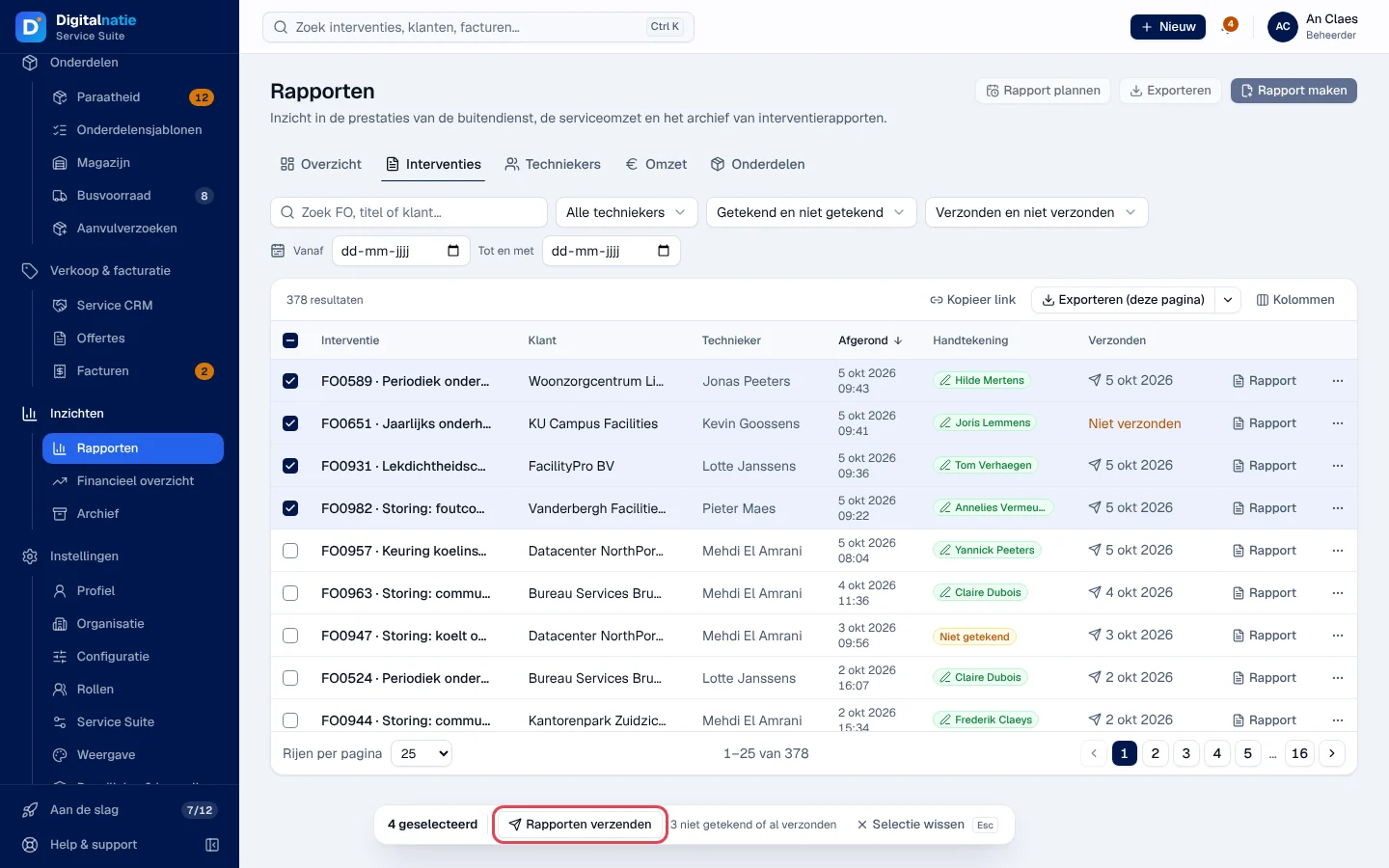
- Search with “Zoek FO, titel of klant…” (FO number, title or customer).
- Filter by technician (with Inclusief gearchiveerde techniekers for archived technicians), by Handtekening (signature: Getekend signed / Niet getekend not signed), by Verzonden (sent or not) and by end date (Vanaf / Tot en met).
- Columns: Interventie, Klant, Technieker, Afgerond (completed on), Handtekening (the signer’s name), Verzonden (sending date or “Niet verzonden”).
- Rapport opens the report; a row’s ⋯ menu offers Openen (open the intervention), PDF and Rapport.
Send reports to customers (Rapporten verzenden)
Section titled “Send reports to customers (Rapporten verzenden)”-
In the Interventies tab, tick the reports to send.
-
Click Rapporten verzenden (send reports) in the selection bar. Only reports that are signed and not sent yet go out; the bar shows how many are left out (“3 niet getekend of al verzonden”: not signed or already sent). 25 reports maximum per sending.
-
Check the list and click Verzenden (send).
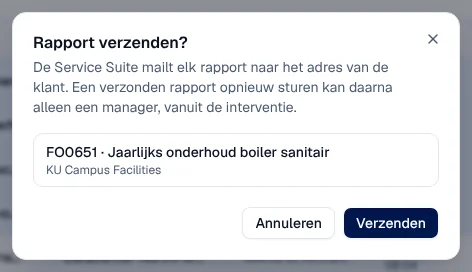
Result: the reports are sent two at a time, with a progress indicator. The message says “Rapport verzonden” or “N rapporten verzonden” (sent), “Geen rapport verzonden” (none sent) or, in a mixed case, how many were sent, not sent or have an unknown status. The Verzonden column then shows the date.
Read the service revenue (Omzet tab)
Section titled “Read the service revenue (Omzet tab)”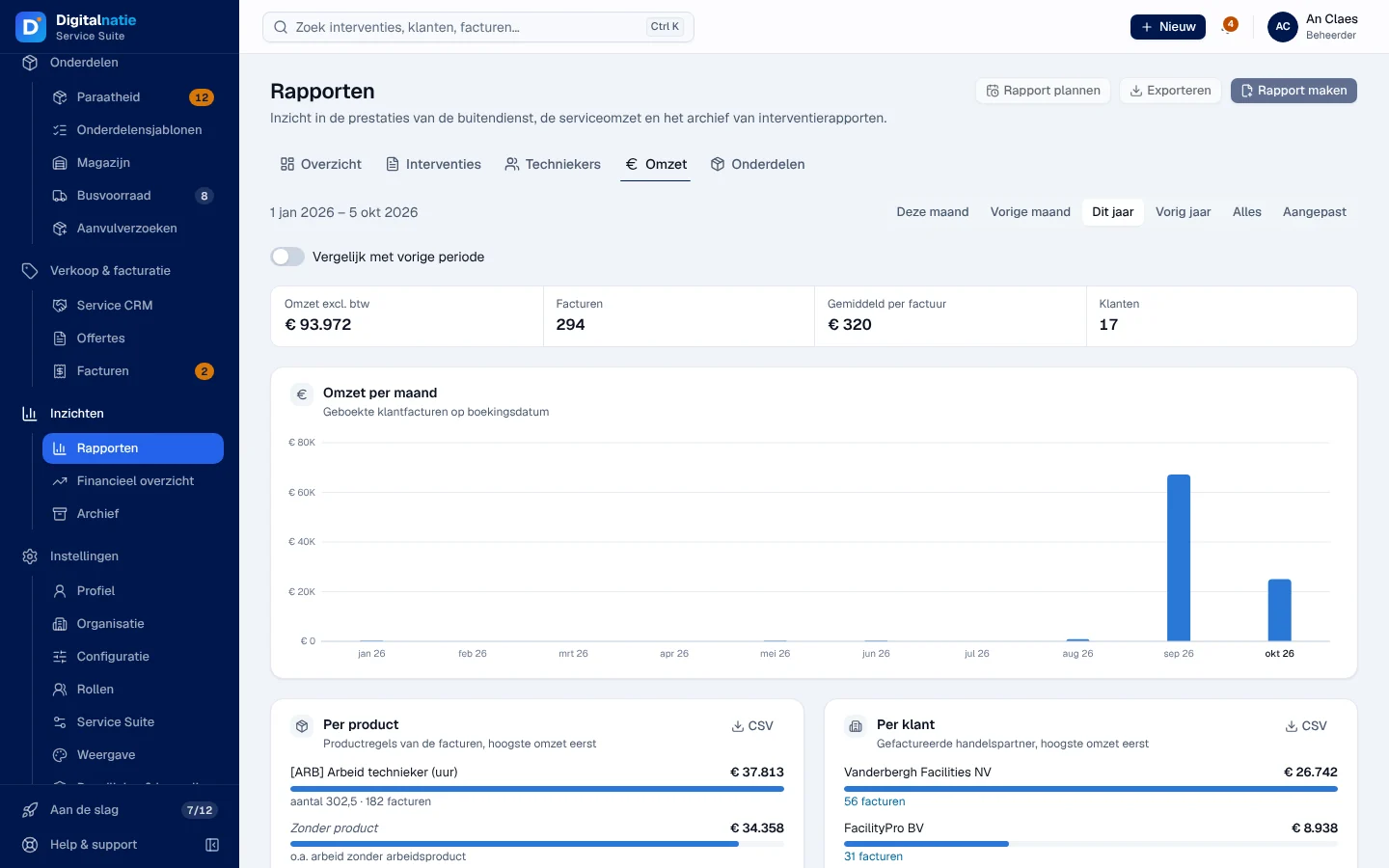
- Period: Deze maand (this month), Vorige maand (previous month), Dit jaar (this year), Vorig jaar (previous year), Alles (all) or Aangepast; Vergelijk met vorige periode is available.
- Figures: Omzet excl. btw (revenue excluding VAT), Facturen (number of invoices), Gemiddeld per factuur (average per invoice), Klanten (customers).
- Omzet per maand (per month, based on the posting date), Per product and Per klant, each with its CSV.
The team’s hours are not in Rapporten: open Werk › Medewerkers & uren, Dagregistraties (day records) tab. See Team, absences and hours.
Who sees which tab
Section titled “Who sees which tab”The table shows the supplied role templates (see Roles and permissions); your administrator can adapt them (see Users, roles and permissions).
| Tab or action | Admin | Manager | Planner | Accounting | Sales | Read |
|---|---|---|---|---|---|---|
| Overzicht, Interventies, Techniekers, Onderdelen | ✓ | ✓ | ✓ | ✓ | ✓ ¹ | ✓ |
| Serviceomzet in Overzicht, Omzet tab | ✓ | ✓ | — | ✓ | ✓ ² | ✓ |
| Exporteren, CSV, PDF | ✓ | ✓ | ✓ | ✓ | ✓ ² | ✓ |
| Rapporten verzenden | ✓ | ✓ | ✓ | — | — | — |
¹ Directie only. ² Sales Manager, Sales and Directie only.
Without any of these permissions, the Rapporten entry does not appear. Technicians work in the technician app. Roles are set in Users, roles and permissions.
Current limits
Section titled “Current limits”- Rapport plannen (schedule a report) is visible but not available: “Rapporten automatisch plannen en versturen is nog niet beschikbaar.” This is not possible in the application.
- Rapport maken (create a report) is visible but not available: “Een eigen rapport samenstellen is nog niet beschikbaar. Gebruik de filters en Exporteren.” Use the filters and Exporteren.
- First-time fix, technician capacity and occupancy are not recorded: “Geen gegevens beschikbaar”.
See also
Section titled “See also”- Financial overview (Financieel overzicht) — result, cash position, net invoiced this month
- The intervention record, the report and corrections
- Team, absences and hours
- Connect your e-mail
- Archive (Archief)