

Install the app and sign in
The Techniekers-app (technician app) is your tool in the field: your interventions for the day, safety (LMRA, PPE), the parts in your van, photos, signatures and the report. It opens in the browser of your phone or tablet, without an app store, and keeps working without a network.
| Address | https://app.digitalnatie.app/tech |
| Who | technicians whose account is linked to a technician record |
| Prerequisites | an activated account; an internet connection to sign in |
Before you sign in for the first time
Section titled “Before you sign in for the first time”- The office creates your account and links it to your technician record. Only your company’s administrator and manager can make this link (see Users, roles and permissions).
- You receive an invitation e-mail. The link lets you choose your password, then takes you straight to the Techniekers-app. See Sign in and protect your account.
- An account that is not linked to a record is refused with the message “Dit account is niet aan een technieker gekoppeld. Vraag het kantoor om uw account te koppelen.” (this account is not linked to a technician; ask the office to link it).
Sign in
Section titled “Sign in”-
Open
https://app.digitalnatie.app/techin your phone’s browser (Chrome on Android, Safari on iPhone). The Techniekers-app screen appears.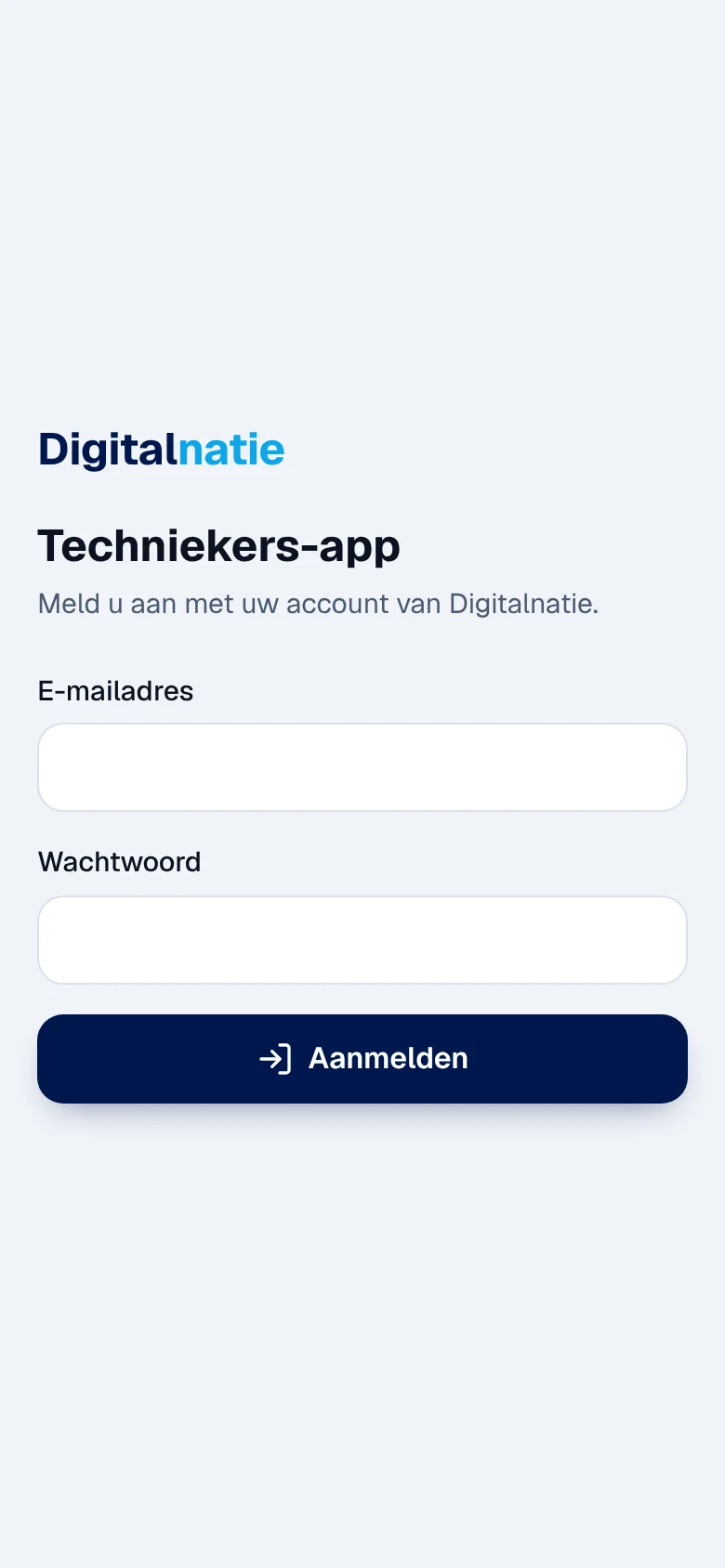
-
Enter your E-mailadres (e-mail address) and your Wachtwoord (password), then tap Aanmelden (sign in).
-
If your account is protected by an authenticator app, a second step asks for the Code uit uw authenticator-app (code from your authenticator app, 6 digits). Tap Bevestigen (confirm).
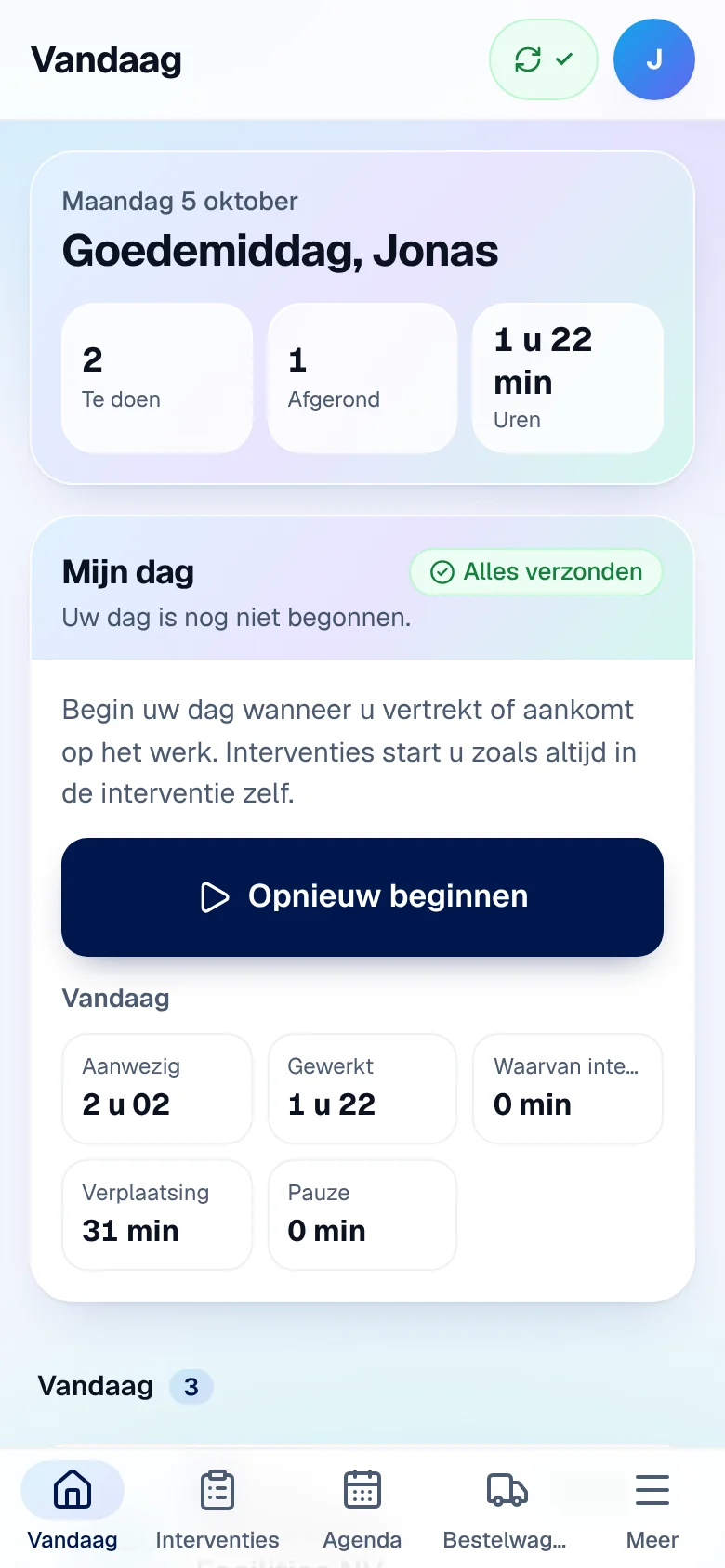
Result: the app opens on Vandaag (today), with your interventions for the day. A new sign-in always starts on this screen.
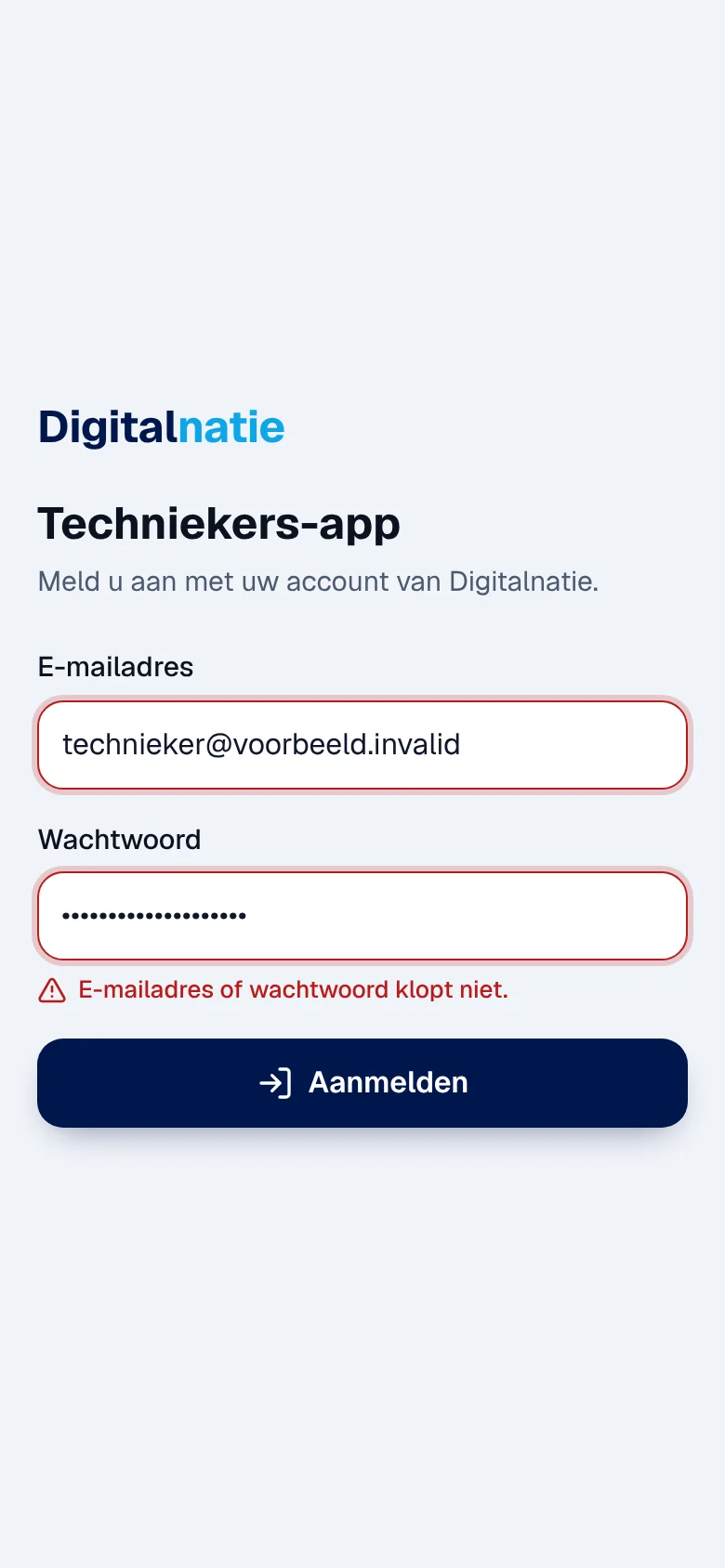
Messages you may see:
| Message | What to do |
|---|---|
| “E-mailadres of wachtwoord klopt niet.” (e-mail address or password incorrect) | Check both fields. After several failed attempts, sign-in is blocked for a while (up to a quarter of an hour). |
| “Deze code klopt niet. Controleer de 6 cijfers.” (code incorrect) | Use the code shown right now in your authenticator app. |
| “Geen verbinding. Aanmelden kan alleen met verbinding; uw opgeslagen werk blijft bewaard.” | Signing in requires a network. Your work saved on the device is not lost. |
| “Dit account is niet aan een technieker gekoppeld. …” | Ask the office to link your account to your technician record. |
If your account is only used for field work and you sign in at the office
address (https://app.digitalnatie.app), you are sent to the Techniekers-app: sign in
again on its screen. SSO sign-in does not exist in the technician app.
Install the app on the home screen
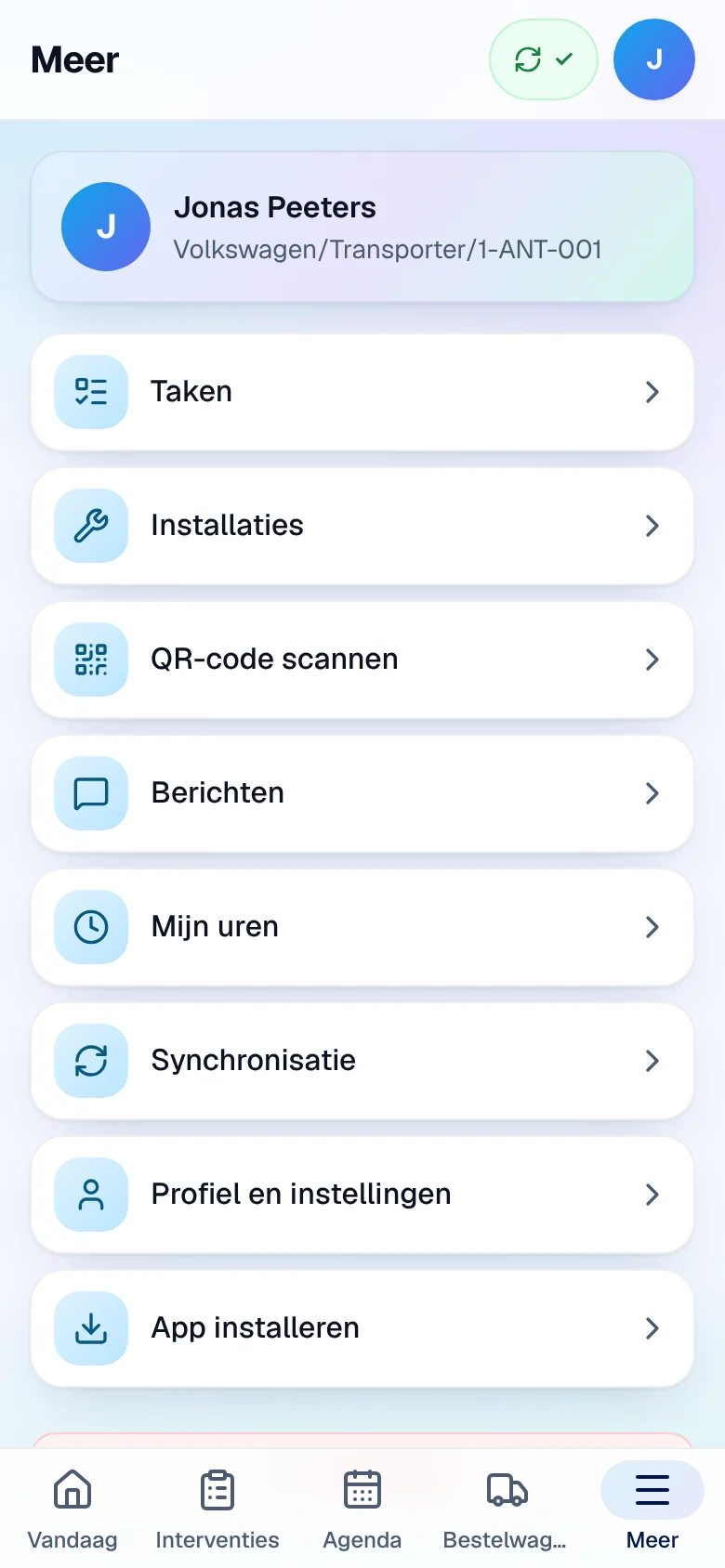
Section titled “Install the app on the home screen”Once installed, the app opens like a normal application, with the Techniekers icon, and can start without a network. The Meer › App installeren (more › install app) menu shows the steps to follow.
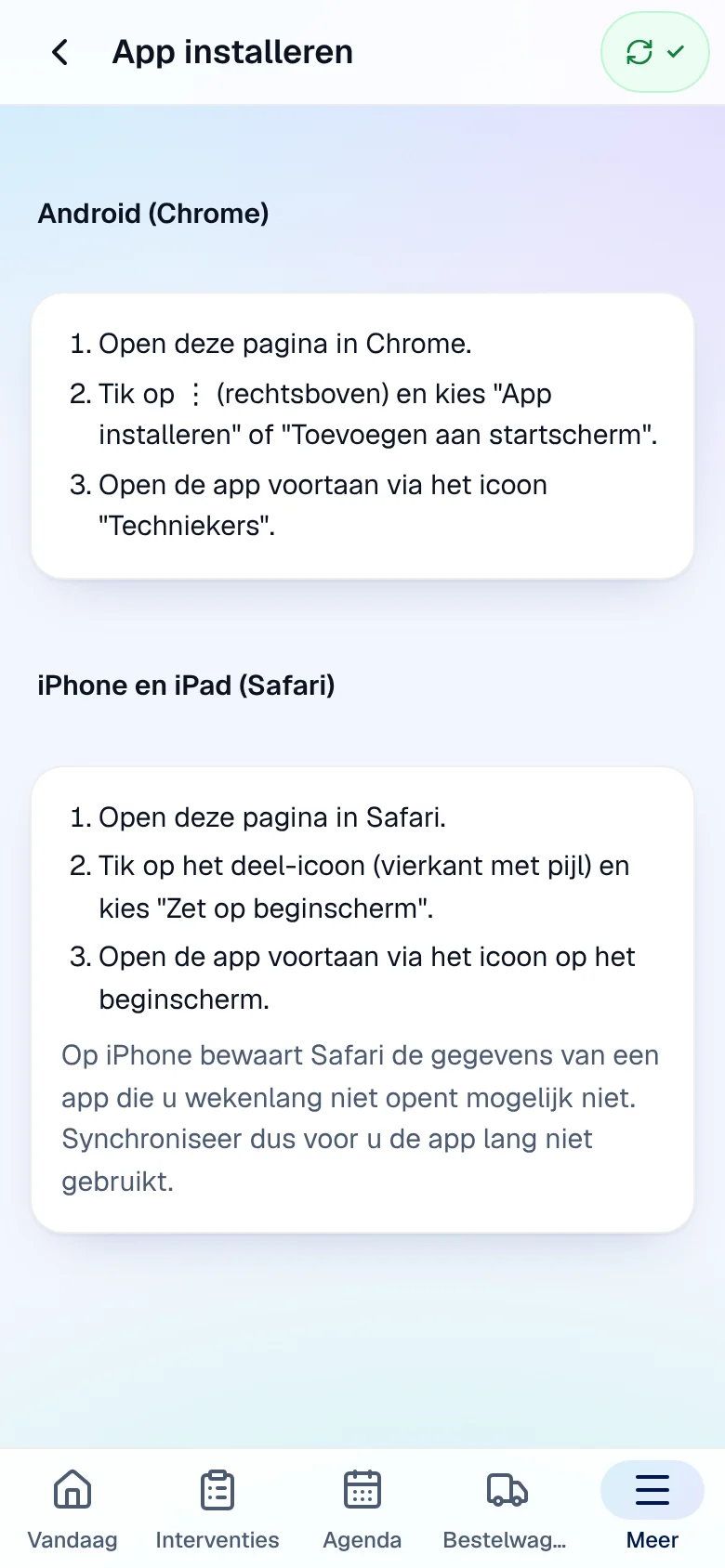
- Android (Chrome): open the address in Chrome, tap ⋮ at the top right and choose “App installeren” or “Toevoegen aan startscherm”. If Chrome offers it, the Installeren op dit toestel (install on this device) button appears on the screen.
- iPhone and iPad (Safari): open the address in Safari, tap the share icon (square with an arrow) and choose “Zet op beginscherm” (add to home screen).
Open the app at least once with a network after installing it: this is what makes it usable offline. When a new version is ready, a banner “Nieuwe versie van de app beschikbaar. Uw wijzigingen blijven bewaard.” appears: tap Bijwerken (update).
Set up your profile
Section titled “Set up your profile”Tap the circle with your initial (at the top right) or Meer › Profiel en instellingen (profile and settings).
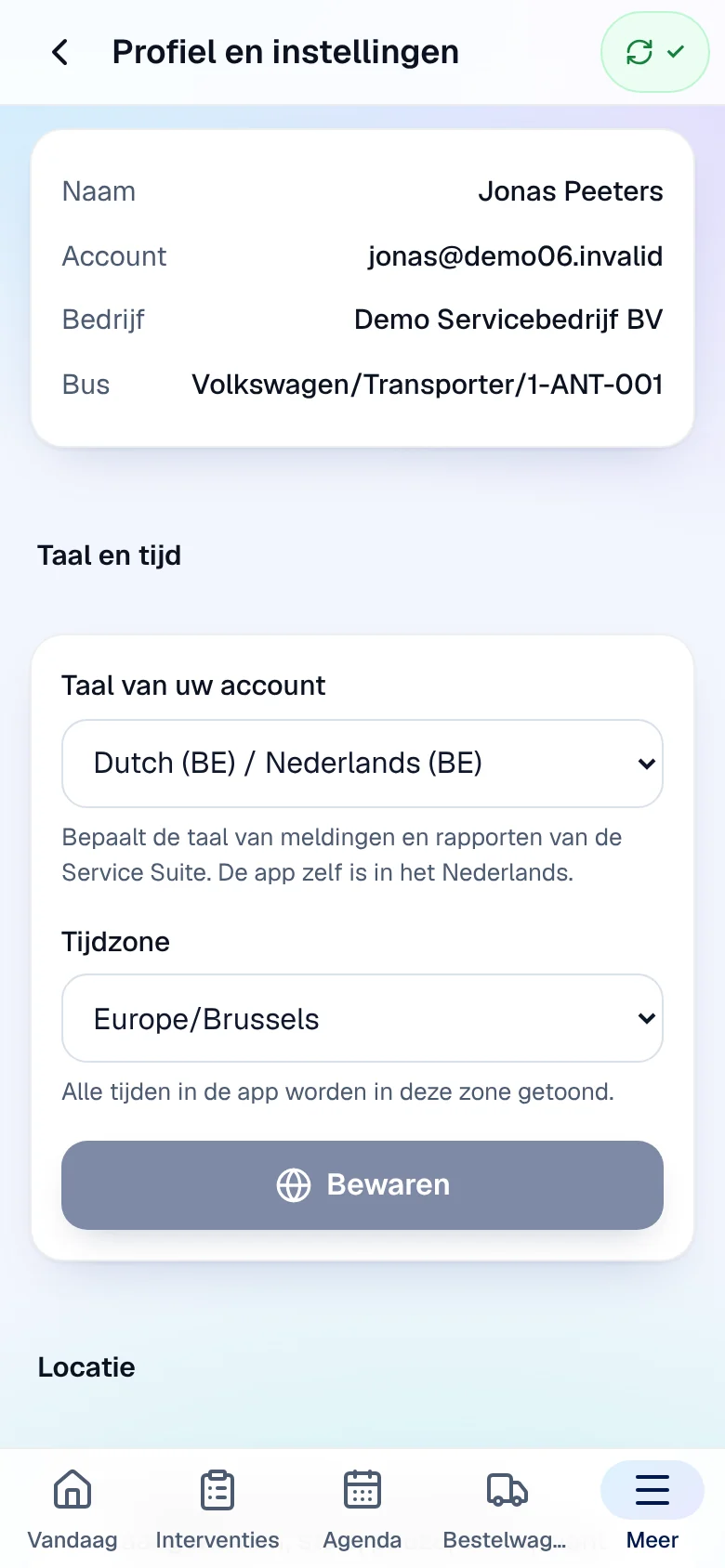
- Taal van uw account (language of your account): the language of the notifications and reports sent by Service Suite, and of Mijn dag / Mijn uren. The rest of the app stays in Dutch.
- Tijdzone (time zone): all times in the app are shown in this time zone.
- Tap Bewaren (save); the message “Bewaard.” confirms. This requires a network.
- Locatie (location): at each step button (departure, arrival, start, pause, finish, customer absent), the app asks for your location once. There is no continuous tracking. If you refuse location access, the app works without it.
- Weergave (display): Licht (light) or Donker (dark), saved on this device.
Sign out
Section titled “Sign out”-
Open Meer and tap Afmelden (sign out).
-
If everything has been sent, the app shows “Alles is verzonden. De gegevens van uw interventies worden van dit toestel verwijderd.” Tap Afmelden.
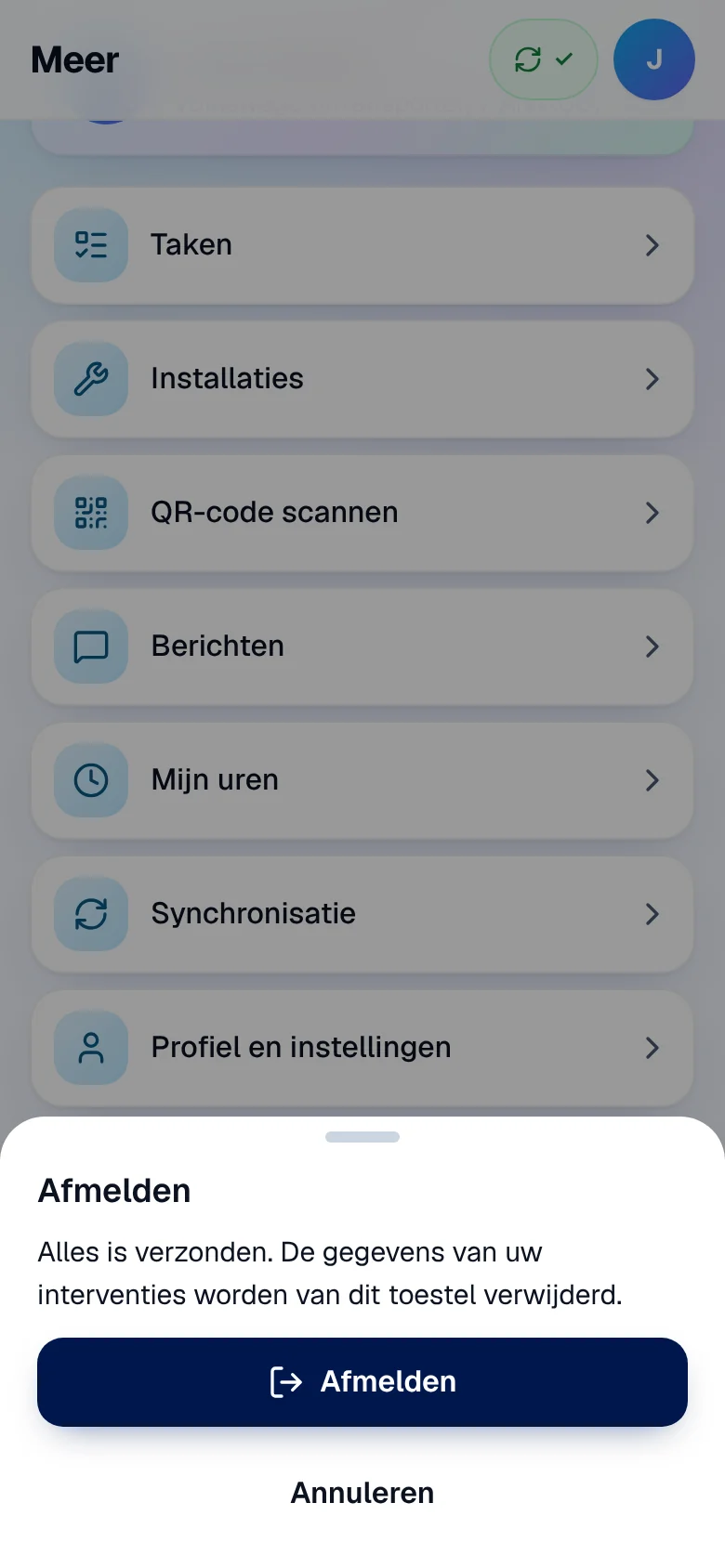
Result: your interventions’ data is erased from the device. If there are still unsent changes, the app first offers to send them or keep them on the device: see Sign out with unsent changes.
If your session expires, a Sessie verlopen (session expired) window opens: your unsent changes stay on the device. Sign in again with Opnieuw aanmelden, or choose Later aanmelden en verder werken op dit toestel (sign in later and keep working on this device).
Rights
Section titled “Rights”The app does not follow the office roles: it shows each technician their own interventions, van and tasks. A colleague’s intervention answers “Niet gevonden.” (not found). Some features depend on what your company uses (safety, QR, messages, hours) or on a permission given by the office (invoice on site).
| Action | Technician (linked account) | Administrator, manager |
|---|---|---|
| Sign in to the Techniekers-app | ✓ | ✓ if they are also linked to a technician record |
| Link an account to a technician record | — | ✓ (at the office) |
| Reset a password | — | ✓ administrator (at the office) |
Current limits
Section titled “Current limits”- No push notifications: the app refreshes its data when it opens and when you return to the app; the Vandaag screen also refreshes every minute. A new appointment therefore does not appear instantly.
- No SSO sign-in or “forgotten password” link in the app.
See also
Section titled “See also”- Vandaag, Mijn dag and Mijn uren — your start screen.
- Carrying out an intervention — the complete process.
- Working offline and syncing — what stays on the device.