

Sign in with Microsoft or Google
With single sign-on, your staff sign in to Service Suite with the account they already have — Microsoft or Google — instead of a separate password.
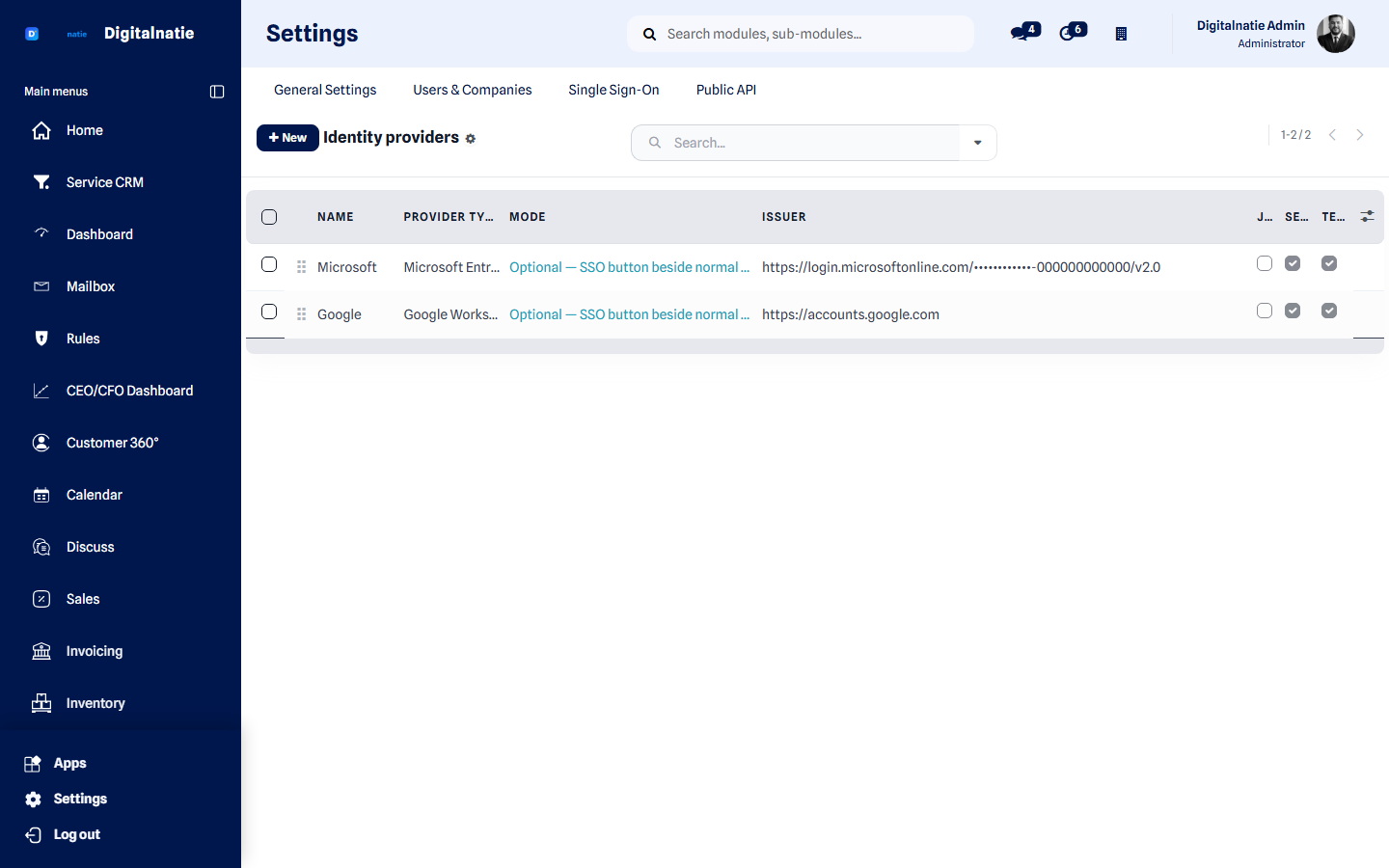 Microsoft Entra ID and Google, both as an optional sign-in button.
What you use this for
Section titled “What you use this for”- One password less per employee, and one place to manage it.
- Someone who leaves loses access to Service Suite as soon as you disable their company account.
- Your own sign-in rules — two-step verification, conditional access, device requirements — apply to Service Suite as well.
Who can use this
Section titled “Who can use this”| Role | What they do |
|---|---|
| Administrator | Sets up the connection and chooses whether signing in is optional or required |
| All staff | See an extra button on the sign-in screen |
| Customers in the portal | Not affected — they sign in as before |
Prerequisites: you need administrator access to Service Suite and to your identity provider (Microsoft Entra ID or Google Workspace), because you have to register an application there.
What is supported
Section titled “What is supported”| Provider | Note |
|---|---|
| Microsoft Entra ID | Microsoft 365 / Azure AD |
| Google Workspace | |
| Any other OpenID Connect provider | Any provider that follows the standard correctly |
Signing in uses the standard OpenID Connect Authorization Code flow with PKCE. Service Suite checks the issuer, the audience, the signature against your provider’s keys, the expiry, and the one-time values that tie the request to the response.
Setting it up
Section titled “Setting it up”-
Register an application with your provider.
Include the redirect URI Service Suite expects:
https://<your-service-address>/dn/sso/callbackNote the application ID (client ID) and create a client secret.
-
Create a sign-in provider in Service Suite and pick the type: Microsoft, Google or generic OpenID Connect.
-
Enter the discovery URL — your provider’s
.well-known/openid-configurationaddress — and click Fetch endpoints. The addresses and key location are filled in automatically. The issuer is compared character for character; if it differs from what the discovery document reports, that is refused rather than quietly accepted. -
Enter the application ID and save the client secret. The secret is stored encrypted and never shown again after saving — not even to you. If you lose it, set a new one with your provider.
-
Restrict the allowed email domains. For example
yourcompany.com. An identity outside those domains is refused. Leaving this empty allows any domain — not recommended. -
Click Test connection. This is not a formality: until the test succeeds, you cannot make signing in required.
-
Set the mode to Optional and have one employee sign in.
Optional or required
Section titled “Optional or required”| Mode | What staff see |
|---|---|
| Disabled | Nothing. The environment behaves exactly as before. |
| Optional | A Sign in with Microsoft or with Google button, next to the normal sign-in screen. Both work. |
| Required | Ordinary staff sign in only through the provider. |
Required never applies to:
- customers in the portal — they are never pushed through your staff sign-in rules;
- emergency administrators — see below.
Emergency access
Section titled “Emergency access”Before you can make signing in required, there must be at least one active emergency administrator: an administrator who can always keep signing in with an ordinary password.
Without one, Service Suite refuses Required mode — explicitly, not silently. The same applies as long as the connection test has not succeeded. Both checks exist to prevent exactly one scenario: a typo or an outage at your provider that locks everybody out at once.
Existing staff and new accounts
Section titled “Existing staff and new accounts”Existing staff are recognised by their email address and linked to their existing account. Their permissions, planning and history stay unchanged — no second record appears.
New accounts are not created automatically by default. With that option off, somebody without an account in Service Suite cannot sign in, even if they exist at your provider. If you turn it on, you decide which permissions a new account gets — administrator rights can never be among them.
An employee you deactivated in Service Suite stays deactivated. A valid sign-in at your provider does not reactivate them.
Two-step verification
Section titled “Two-step verification”Single sign-on does not replace Service Suite’s two-step verification. If an employee has it enabled, they complete it after signing in at their provider, exactly as before.
If you use Microsoft’s or Google’s own two-step verification, that of course already happens at your provider.
What you keep managing where
Section titled “What you keep managing where”| At your provider | In Service Suite |
|---|---|
| Who has a company account | Who has a Service Suite account |
| Password policy | Roles and permissions |
| Two-step verification, conditional access | Visibility scope per employee |
| Disabling a leaver | Their planning and history |
Troubleshooting
Section titled “Troubleshooting”The button does not appear on the sign-in screen. The mode is Disabled, or the setup is incomplete — a provider without a successful connection test shows no button.
“The issuer does not match.” The issuer field differs from what your provider’s discovery document reports. Fetch the endpoints again and copy the issuer exactly.
“This email domain is not allowed.” The address falls outside the allowed domains list. Add the domain, or have the employee use their company address.
An employee signs in but gets no access. No account exists for them in Service Suite and automatic account creation is off. Create the account, or turn that option on and set the permissions new accounts receive.
Our provider is unreachable and signing in is set to Required. Sign in as an emergency administrator with a password and set the mode back to Optional.
Next step
Section titled “Next step”- Logging in — the normal sign-in screen
- Permissions & security — what an account may do
- Roles & permissions
- Integrations — connecting external services