

Email & communication
This block decides who your mail comes from, where it travels through, and where replies land. You find it under Configuration → Email & Communication and Configuration → Email Templates.
Email identity
Section titled “Email identity”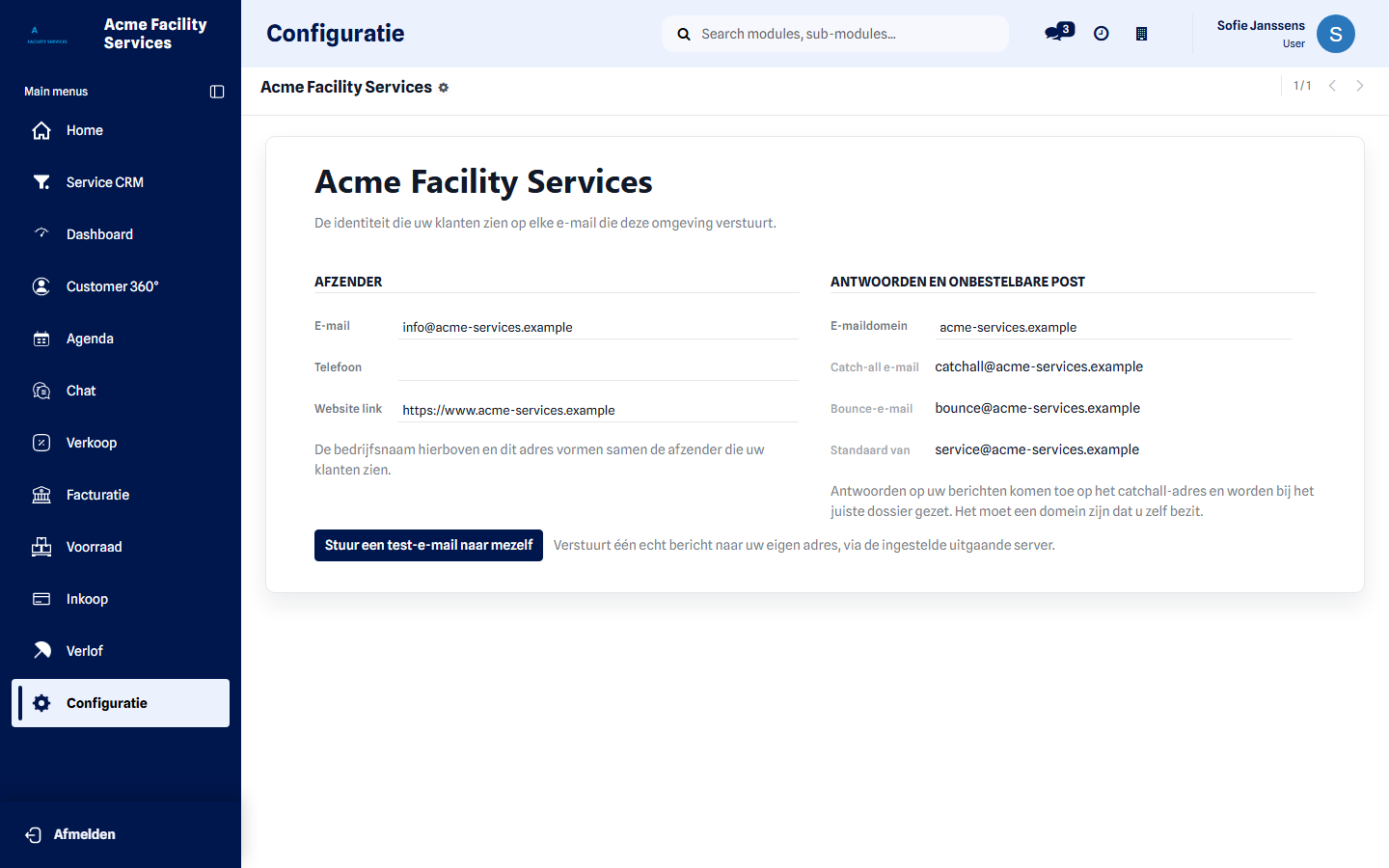
- Email — the address your mail leaves from. Together with your company name it forms the sender your customers see.
- Email domain — the domain replies and bounces arrive on. The catchall address, the bounce address and the default sender all follow from it.
- Send a test email to myself — sends one real message to your own address, through the configured outgoing server, and reports straight away whether it worked.
Mail servers
Section titled “Mail servers”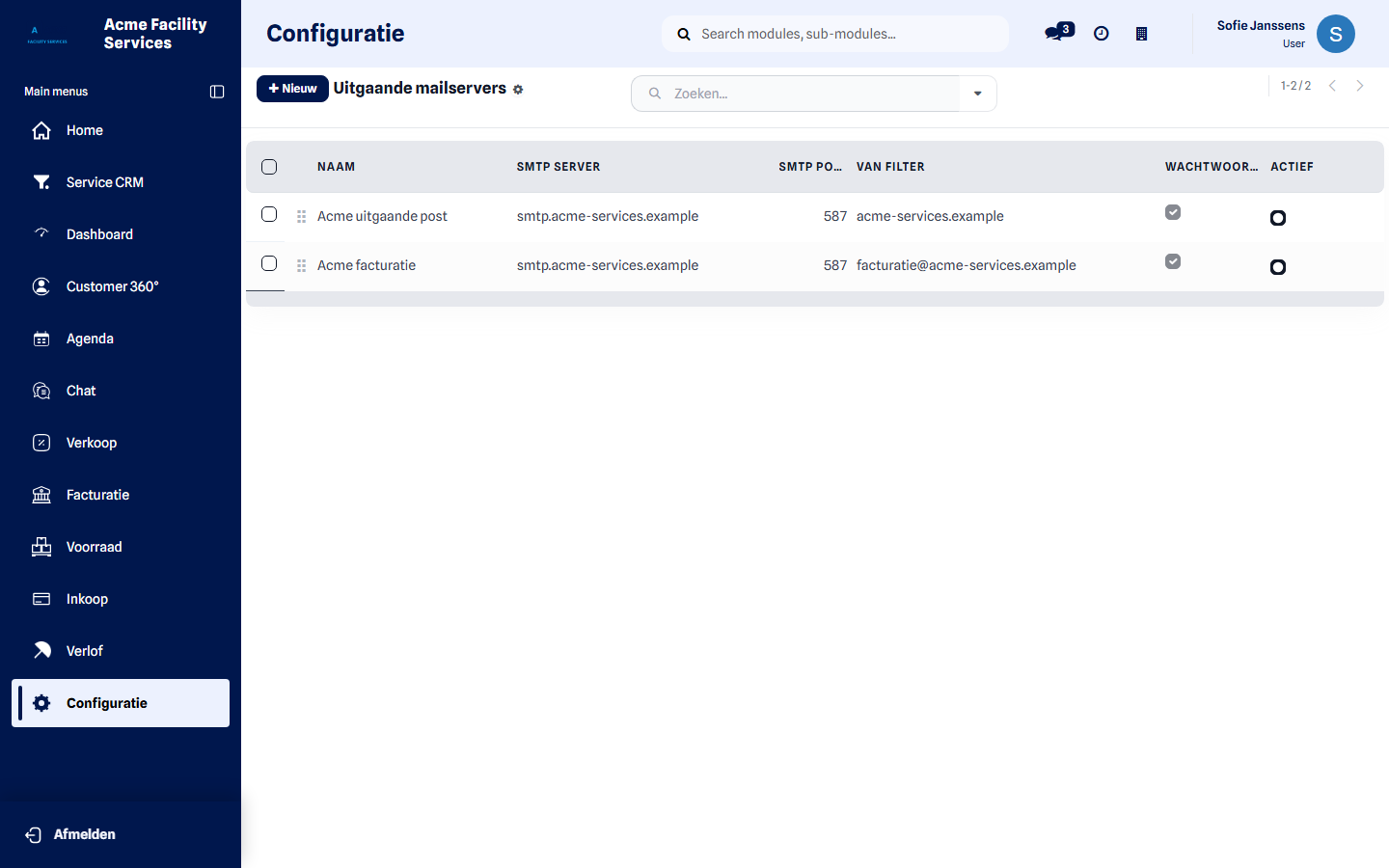
- Outgoing mail servers — the server that sends your mail: host, port, security and login. The from filter sets which addresses may send through that server.
- Incoming mail servers — a mailbox collected automatically, so customer replies land on the right record. Test & confirm checks the login.
Email domains and aliases
Section titled “Email domains and aliases”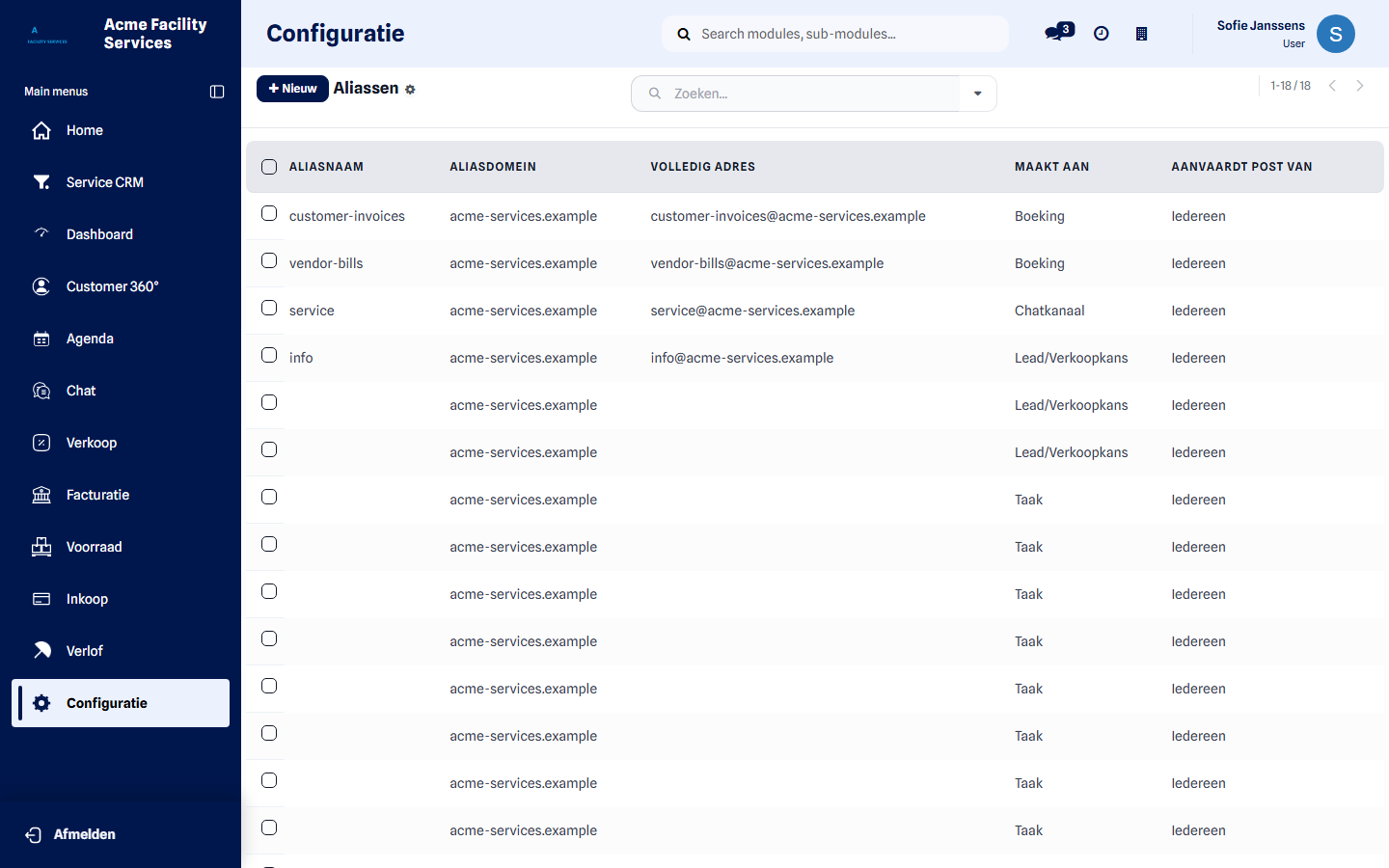
An alias turns an email address into an action: mail sent to support@
creates a record automatically instead of sitting in an inbox. You set the alias
name, the domain, what it creates, and who is allowed to write to it.
What happens to that new record afterwards — who it is created as, with which preset values — is reserved for your platform administrator.
Email templates
Section titled “Email templates”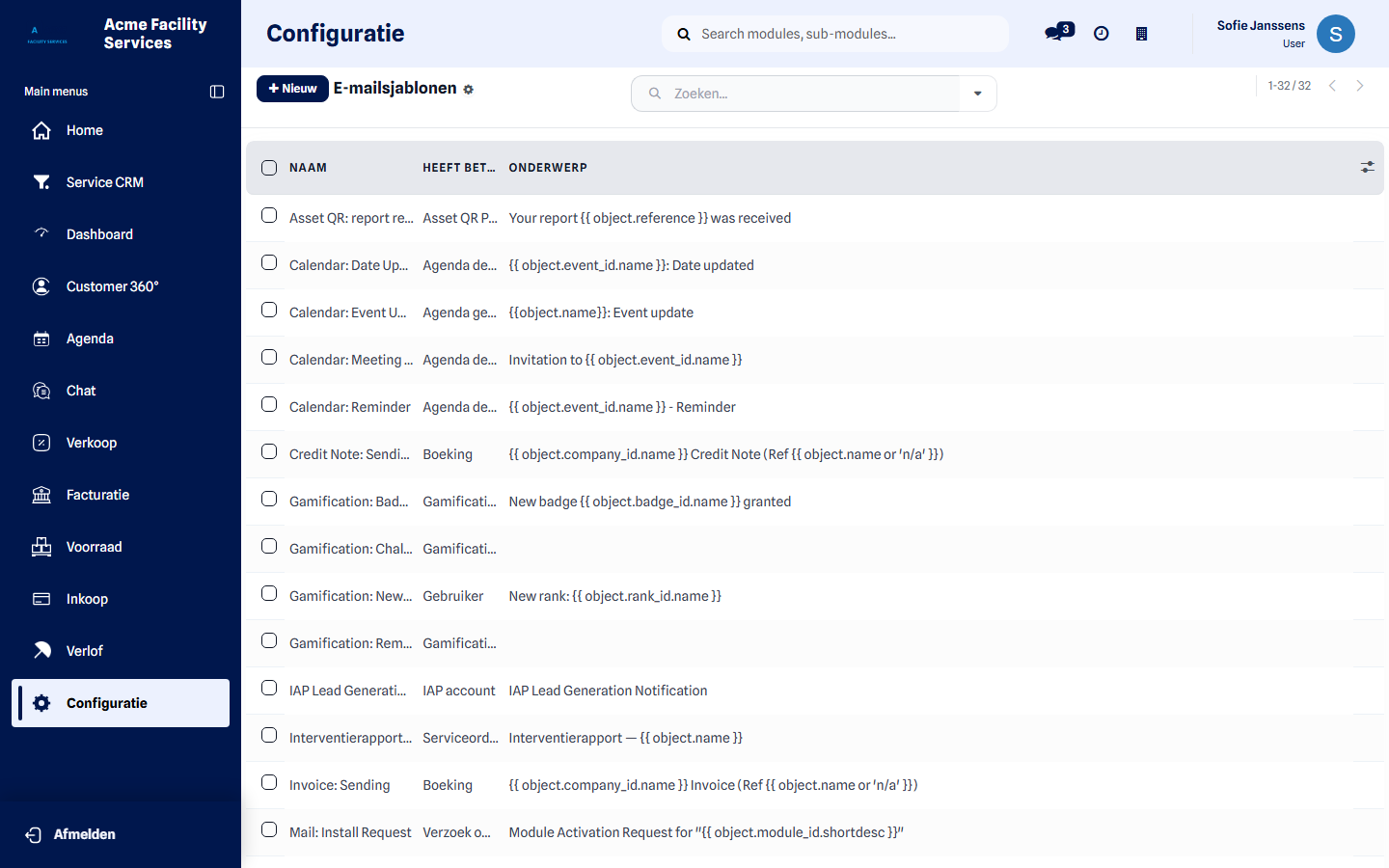
Templates hold the wording of what your environment sends on your behalf. Among others, depending on what is installed for you: the intervention report, send quotation, order confirmation, send invoice, payment receipt, the acknowledgement of a QR-code report, and the invitation for a new user.
You adjust the subject and the text, and you can use simple placeholders such as the customer’s name or the service order number. More complex expressions are reserved for your platform administrator; the screen says so if you enter one. Creating new templates belongs there too — adjusting the wording of the existing ones is yours.
Who can change this
Section titled “Who can change this”The customer administrator role. Other roles do not see this block.
What happens after saving
Section titled “What happens after saving”The new sender applies from the next message onwards. A changed template applies from the next send as well; messages already gone do not change. After every change to a server, test with the Send a test email to myself button.
If something goes wrong
Section titled “If something goes wrong”| Symptom | Where to look |
|---|---|
| The test mail does not arrive | Check the spam folder, then the outgoing server’s host, port and login |
| Customers see the wrong address | Email identity — is a supplier address still configured? |
| Replies arrive nowhere | Email domain; it must be a domain you own |
| A template will not save | You entered a more complex expression; ask your platform administrator |
Next step
Section titled “Next step”Continue with Users and roles to give your colleagues access.