

Data Import
Data Import brings your existing data into Service Suite yourself. You download a template in your own language, fill it with what you exported from your previous system, upload it, and see exactly what will happen before anything is saved.
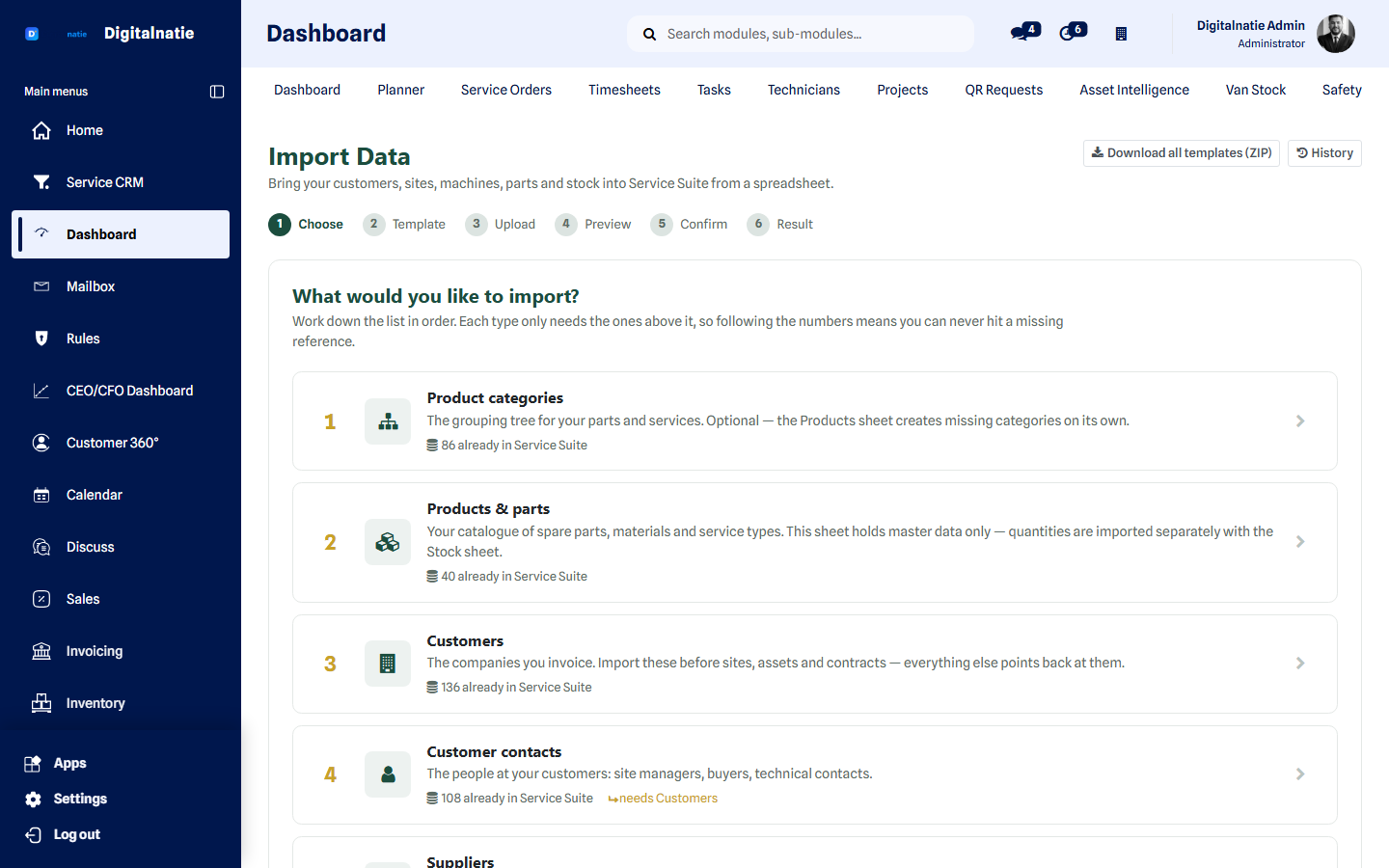 The import wizard: pick a template, upload, check, confirm.
What you use this for
Section titled “What you use this for”- Your first day: customers, sites, assets and catalogue loaded in one go.
- Adding an acquisition or a new branch to an environment that is already running.
- Entering an annual stock count.
- Updating existing records in bulk — corrected addresses, for example.
Who can use this
Section titled “Who can use this”Permissions are a ladder. Whoever gets a rung automatically gets everything below it.
| Permission | What it allows |
|---|---|
| View | Open the screen and see their own import history |
| Download templates | Fetch the Excel/CSV templates and the full package |
| Upload & validate | Upload a file and see the full preview — writes nothing |
| Run imports | Confirm a checked preview and write the records |
| Administrator | See and manage every user’s history |
Prerequisites: on installation only the Service Suite administrator gets the full ladder. Nobody else — and technicians in particular — gets any of it automatically.
What you can import
Section titled “What you can import”Ten entities, numbered in the order they depend on each other. Those numbers are not decoration: they are the order, and the files in the download package carry the same numbers.
| # | Entity | Detects duplicates on |
|---|---|---|
| 01 | Product categories | Full path |
| 02 | Products & parts | SKU, then barcode |
| 03 | Customers | Reference, then VAT number, then email + name |
| 04 | Customer contacts | Reference, then parent + email, then parent + name |
| 05 | Suppliers | Reference, then VAT number, then email + name |
| 06 | Supplier contacts | Reference, then parent + email or name |
| 07 | Sites & locations | Reference, then customer + name |
| 08 | Assets & equipment | Reference, then serial number, then customer + site + name |
| 09 | Maintenance contracts | Reference, then customer + name |
| 10 | Opening stock | Product + location + lot |
The recommended order
Section titled “The recommended order”02 Products ──┐01 Categories ┘ (created automatically by 02 if you skip 01) ▼03 Customers ──▶ 04 Customer contacts ▼07 Sites ──▶ 08 Assets ──▶ 09 Contracts ▼ 10 Opening stock ◀── always last
05 Suppliers ──▶ 06 Supplier contacts (independent, any time)How it works
Section titled “How it works”-
Open Service Suite → Data Import → Import Data.
-
Choose what to import. Each card shows what the entity needs first (“needs Customers”) and how many already exist (“273 already in Service Suite”) — the cheapest possible way to stop you loading your customers twice.
-
Download the template in Excel or CSV, in your own language. Or take Download all templates (ZIP) in the header for the complete package.
-
Fill in the file. See The template below.
-
Upload the file. One switch: “Also update records that already exist”, off by default. Nothing is saved at this point.
-
Validate. The file is read, normalised and fully checked — without a single write. A thousand rows takes about a second.
-
Read the preview. Counters first — rows read, to create, to update, unchanged, warnings, duplicates, rejected — then only the rows that need your attention. Filter by All / Rejected / Warnings, and download the report if you want it.
-
Confirm and import. You read in plain sentences what is about to happen, and only then is anything written. The result shows how many rows were processed, created, updated and rejected, with a report in Excel or CSV.
The template
Section titled “The template”The Excel version has four sheets:
| Sheet | What it does |
|---|---|
| Data | The table you fill in. Headings in your language, frozen and colour-coded (dark = required), with the full explanation in the cell comment. Dropdowns where the values are fixed. Postcodes, SKUs, barcodes and serial numbers are pre-formatted as text, so leading zeros survive. |
| Instructions | What to import first, how to write dates, decimals and yes/no values, and per column: name, required or not, type, maximum length, accepted values and explanation. |
| Example | Three realistic, entirely fictional rows. |
| Reference values | The lists you may use — countries, units, statuses, stock locations, vans. They are built with your own access rights, so a template never reveals records you cannot see. |
Required fields and references
Section titled “Required fields and references”Required columns are shaded dark. References to something else always go through your own references — a customer number, a site code, an SKU. You never type a technical number.
A reference that cannot be found stops its row with a readable message:
Row 24 — Customer reference
CUST-1002could not be found. Import Customers first, or correct the reference.
The rules you need to know
Section titled “The rules you need to know”Nothing is written before you confirm
Section titled “Nothing is written before you confirm”Uploading, reading, normalising, validating and previewing do not touch your data. The preview and the real import then follow the same path, so a green preview cannot become a red import. If anything changes in the database between the two, the import stops and shows a fresh preview first.
By default it only creates
Section titled “By default it only creates”Updating happens only if you explicitly turn the switch on. In that case you see
old → new for every changed field, so “update” is never a leap of faith.
An empty cell never erases anything
Section titled “An empty cell never erases anything”Leave a column blank and the existing value stays. To genuinely clear a field,
use the <CLEAR> marker.
Two customers’ data never touch
Section titled “Two customers’ data never touch”A site, an asset or a contract can never hang off two different customers, whatever the file says:
Row 42 — Site
SITE-BRU-01belongs to customerCUST-1002, not toCUST-1077. Records from two different customers cannot be linked.
An ambiguous duplicate stops its row
Section titled “An ambiguous duplicate stops its row”If the import recognises several existing records that match your row, it does not guess. It rejects the row and says how many it found.
Permissions still apply
Section titled “Permissions still apply”The import permission sits on top of your normal rights, not in place of them. Somebody who cannot create a customer cannot import one either.
Size and speed
Section titled “Size and speed”| Entity | Maximum per file |
|---|---|
| Products & parts | 5,000 rows |
| Every other entity | 20,000 rows |
The lower limit on products is measured, not guessed: creating a product record is roughly five times slower than any other entity, and a full file would exceed the server’s time limit. If you have a larger catalogue, split it — the import tells you so before you start waiting.
An import runs through in one go, with a visible result at the end. There is no queue to poll.
Opening stock
Section titled “Opening stock”Opening stock is a real stock count, not a number typed into a field. It is processed like every other count in Service Suite.
What you do not import this way
Section titled “What you do not import this way”Deliberately not possible
Section titled “Deliberately not possible”Invoices, journal entries, payments, users, permissions, API keys, sign-in settings, system settings, companies, warehouses and stock locations. These are not missing features: they are records where a bad import has quiet accounting or security consequences.
Possible, but by an administrator
Section titled “Possible, but by an administrator”| Entity | Why |
|---|---|
| Technicians | A technician is tied to an employee record and a sign-in. Creating accounts is deliberately not an import task. |
| Teams and vans | A handful of rows each — faster to enter on screen. They must exist before you import stock or assets. |
| Past interventions | Closed history drags along hours, parts and invoicing status. A different and far riskier problem than master data. |
| Projects and tasks | Not needed to get started. |
| Price lists, tax rates, units | Recognised by name, never created. An import that invents a tax rate is an accounting bug. |
Review and trail
Section titled “Review and trail”Data Import → Import History keeps every file: who uploaded it, when, which entity, how many rows were created, updated and rejected, and a fingerprint of the file.
The uploaded file itself is deleted automatically — after 24 hours by default. A file you never confirmed is a copy of your data with no reason to stay. The trail remains; the copy does not.
Help getting started
Section titled “Help getting started”Not every migration looks the same. Three ways of working:
| Option | Who does what |
|---|---|
| Standard | You supply clean, structured files and run the wizard yourself. The templates and the preview are built for exactly this. |
| Assisted | You supply your exports; Digitalnatie helps clean and structure them until they pass validation. You confirm the import yourself. |
| Full migration | Digitalnatie takes on the whole move: extracting from the old system, mapping, transforming, de-duplicating, importing and verifying. For legacy systems with no usable export, or large catalogues that have to be split and reconciled. |
Contact your administrator to work out which option fits your situation.
Good practice
Section titled “Good practice”- Start with a trial file of twenty rows. You see the full preview and learn the messages without any risk.
- Respect the numbering. Customers before sites, sites before assets, stock last.
- Re-export rather than copy and paste. Shifted columns are the most common cause of a rejected file.
- Leave Also update records that already exist off until you genuinely need that switch.
- Keep your own references. A customer number from your previous system in the Reference column makes every later import and every check easier.
Troubleshooting
Section titled “Troubleshooting”My file is rejected on upload.
Check the extension (.xlsx or .csv), the size, and whether the column
headings still match the template. If you work with CSV, save as CSV UTF-8.
Every row is rejected with “reference not found”. You are importing in the wrong order. Import the referenced entity first — customers before sites, sites before assets.
An existing record is not updated. The Also update records that already exist switch is off. Without it, existing records are skipped, not changed.
A VAT number is rejected. The number fails the check. The message says which part is wrong. Foreign numbers with no known pattern are accepted without validation — not rejected.
I imported stock by mistake. Count back to the right quantity with a normal stock correction. The counts do stay in the history — see the warning above.
Next step
Section titled “Next step”- Customers & assets — what you see after the import
- Sites & locations
- Products & parts
- Inventory — correcting stock afterwards
- Permissions & security — granting import permissions